
How to Protect Your Microsoft Intune Environment
 Keytos Team |
Microsoft Intune is Becoming a Popular Target for Attackers
As we saw in this month’s cybersecurity attack on Stryker, threat actors are more and more targeting IT systems such as Microsoft Entra ID and Microsoft Intune to gain access to critical systems and data. Plus, as we saw in this attack it wasn’t just access and data the threat actors were after. A large number of Intune-joined devices, including personal phones, were remotely wiped, grinding work to a halt for many Stryker employees.
With Microsoft Intune being a leading MDM solution for organizations in the Microsoft ecosystem, it’s important to know: What does Intune do? How can an attacker get into an Intune environment? How could an attacker pivot into other systems such as Entra ID or even your production environment? And most importantly, how can you protect your Microsoft Intune environment from these types of attacks?
This article will aim to answer all of these questions and help you take easy, actionable steps to protect your Microsoft Intune environment and keep your devices and data safe.
What Does Microsoft Intune Do?
Before we get into how to protect your Microsoft Intune environment, let’s quickly go over what Microsoft Intune does and why it’s so important to protect.
Imagine you’re a new employee starting your first day at a company. You arrive at the office and at your desk is a brand new laptop waiting for you. Your manager gives you your new email address and temporary password, and your first morning is spent logging in and setting up your new laptop, email, and other applications.
You unbox a brand-new-from-the-factory laptop (could be a Macbook, Surface, ThinkPad, etc.) and when you turn it on, it asks you to sign in with your work address and password. You enter in the credentials your manager gave you, change your password and setup multi-factor authentication (MFA), and then your laptop drops you into your desktop with all your applications, files, and settings already configured and ready to go.
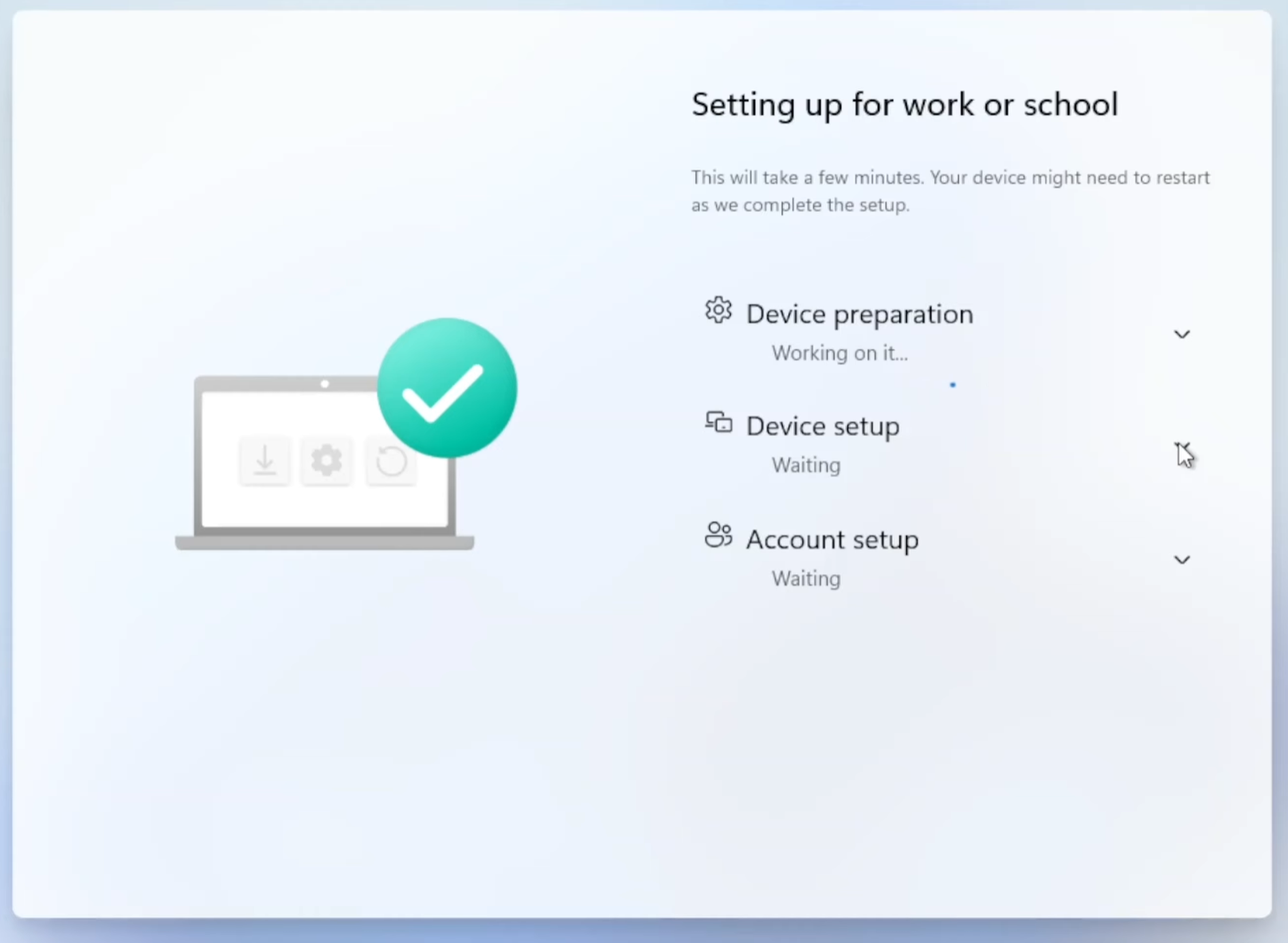
Opening Microsoft Outlook drops you right into your email, Microsoft Teams is ready to go with all your chats and meetings, and you’re already connected to the corporate Wi-Fi and printers. In just a few minutes you’ve gone from unboxing a laptop to everything being ready to go, and you didn’t have to call IT or wait for them to do anything. This is the value of a mobile device management (MDM) platform like Microsoft Intune. It configures, secures, and manages your devices, applications, and access to corporate resources.
In short, Microsoft Intune allows IT teams to automatically configure and manage:
- Applications like Microsoft Office, Zoom, Slack, or even internal applications for your company.
- Networks such as Wi-Fi and VPN connections.
- Printers and other peripherals.
- Security policies such as requiring a PIN to unlock the device, encrypting data on the device, and who can sign in to the device.
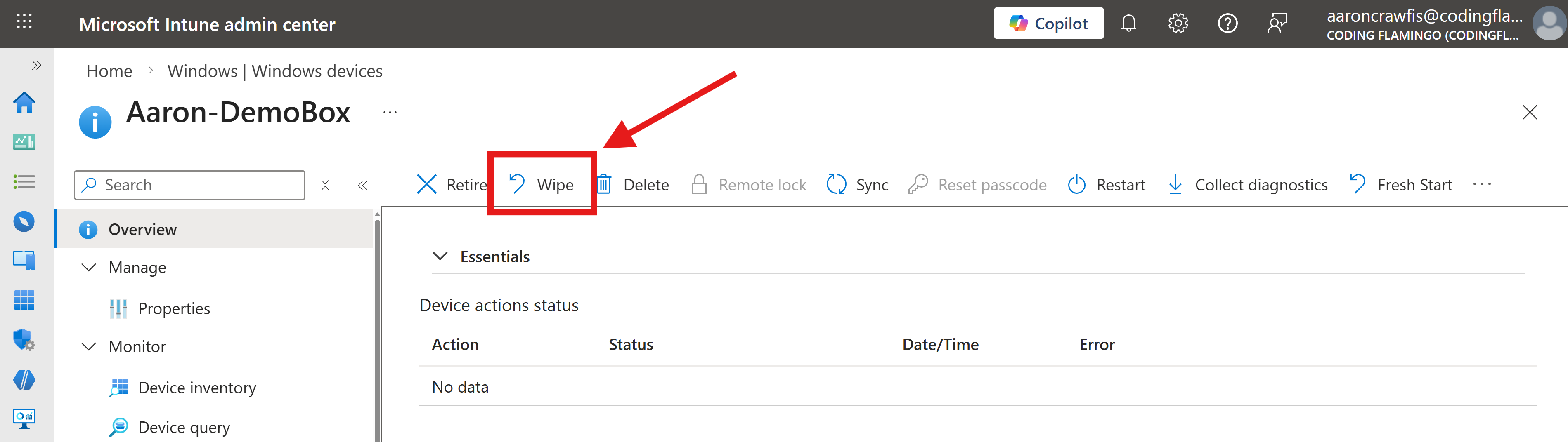
- Remote wipe capabilities to wipe the device if it’s lost, stolen, or if an employee leaves the company.
That last permission is an important one to call out, as it was how Stryker’s attackers were able to cause so much damage. By gaining access to Intune, the attackers were able to remotely wipe a large number of devices.
Why Can Intune Wipe Devices?
Your laptop contains a lot of sensitive data, such as your emails, documents, and applications. If your laptop were to fall into the wrong hands, that data could be at risk. To mitigate this risk, Intune provides the ability for IT administrators to remotely wipe a device if it’s lost or stolen. This means that if an employee loses their laptop or it gets stolen, the IT team can remotely wipe the device to protect the company’s data. Even with disk encryption and strong passwords, a determined attacker could still potentially access the data on the device if they had physical access to it. The remote wipe capability provides an additional layer of security to protect company data in these scenarios.
How Can Intune Wipe Personal Devices?
Nowadays a lot of employees want to have their email, calendar, and messaging apps on their phones, so they can stay connected and productive on the go. While a lot of companies provide fully-managed work phones to their employees, many more opt instead for bring your own device (BYOD) policies, which allow employees to use their personal phones to access work email and applications. You might be reading this article from your personal phone right now, which likely has access to your work email.
With BYOD policies, employees are often required to install the Intune Company Portal application from the app store, which provides access to work applications and resources, but also gives the company some control over the device. For example, in Intune you can require BYOD devices to:
- Have a minimum PIN length to unlock the device (6 digits is common)
- Stay up to date with the latest security patches
- Encrypt data on the device
- Wipe the device if it’s lost or stolen
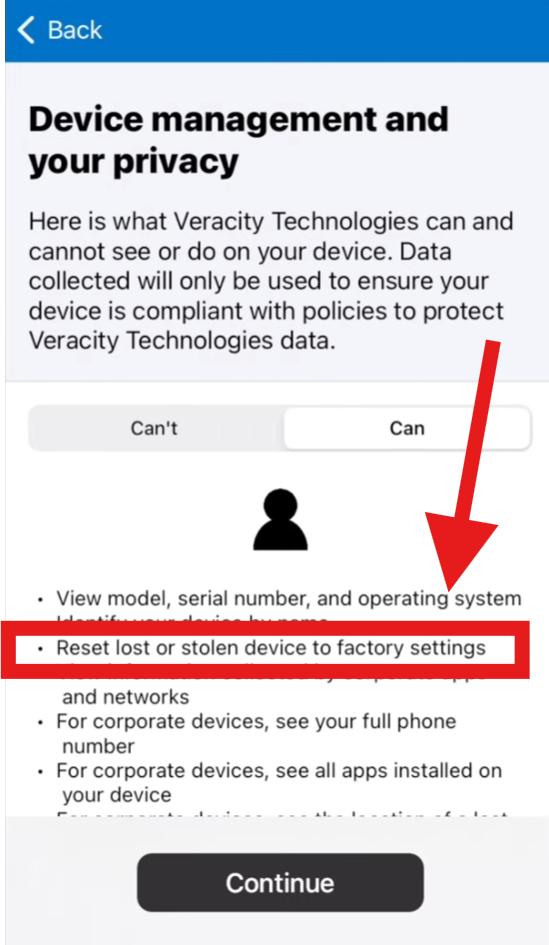
There’s that critical remote wipe capability again. Once a personal phone is enrolled in Intune, the company has the ability to remotely wipe the device if they deem it necessary. This is a powerful security feature that can help protect company data if a device is lost or stolen, but it also means that if an attacker gains access to Intune, they could wipe personal, BYOD devices. This is exactly what happened in the Stryker attack, where the attackers were able to wipe a large number of devices, including personal phones, causing significant disruption for employees.
For you Android users out there, you’re in luck because Work Profiles provide a way to separate work data and applications from personal data and applications on the same device. With a Work Profile, the company can manage and wipe only the work profile without affecting the personal profile, which can help mitigate the risk of wiping personal data in the event of a compromise. For you iPhone users out there, there’s unfortunately no way to separate work and personal data on the same device, so if an iPhone is enrolled in Intune and the company decides to wipe it, all data on the device will be wiped.
How Can an Attacker Get Into Your Intune Environment?
Like most attacks on IT infrastructure, the weakest link and most common attack vector for Intune is through compromised credentials. If an attacker can get their hands on the credentials of an account that has access to Intune, they can log in and do whatever they want, including wiping devices. Most organizations might not know, however, that there are actually multiple ways to interact with Microsoft Intune and gain permissions, including:
- Entra ID Roles with Intune Access
- Intune-Specific Roles
- Entra ID Application API Permissions
How to Access Intune with Entra ID Roles
While there are over 100 different built-in Entra roles, only 11 of them provide access to Microsoft Intune, with 8 being considered “privileged roles” that should be protected with the highest level of security. These roles include:
- Global Administrator: Has access to all administrative features in Microsoft 365, including Microsoft Intune. (read/write)
- Intune Administrator: Can manage all aspects of Microsoft Intune, including device and application management. (read/write)
- Security Administrator: Can manage security settings and policies, including those related to Microsoft Intune. (read/write)
- Helpdesk Administrator: Can reset passwords (for non-admins) and manage support tickets. (read/write)
- Conditional Access Manager: Can manage conditional access policies, which control access to Microsoft Intune and other resources based on conditions such as user location, device state, and risk level. (read/write on CA policies)
- Security Operator: Can read all resources in Microsoft Intune (read)
- Security Reader: Can read all resources in Microsoft Intune (read)
- Reports Reader: Can read all reports in Microsoft Intune (read)
While the read/write roles are obviously the most dangerous, even the read-only roles can still access sensitive information about your Intune environment, such as device inventory, application inventory, and security policies. This information can be valuable for an attacker to plan further attacks or to identify high-value targets.
How to Access Intune with Intune-Specific Roles
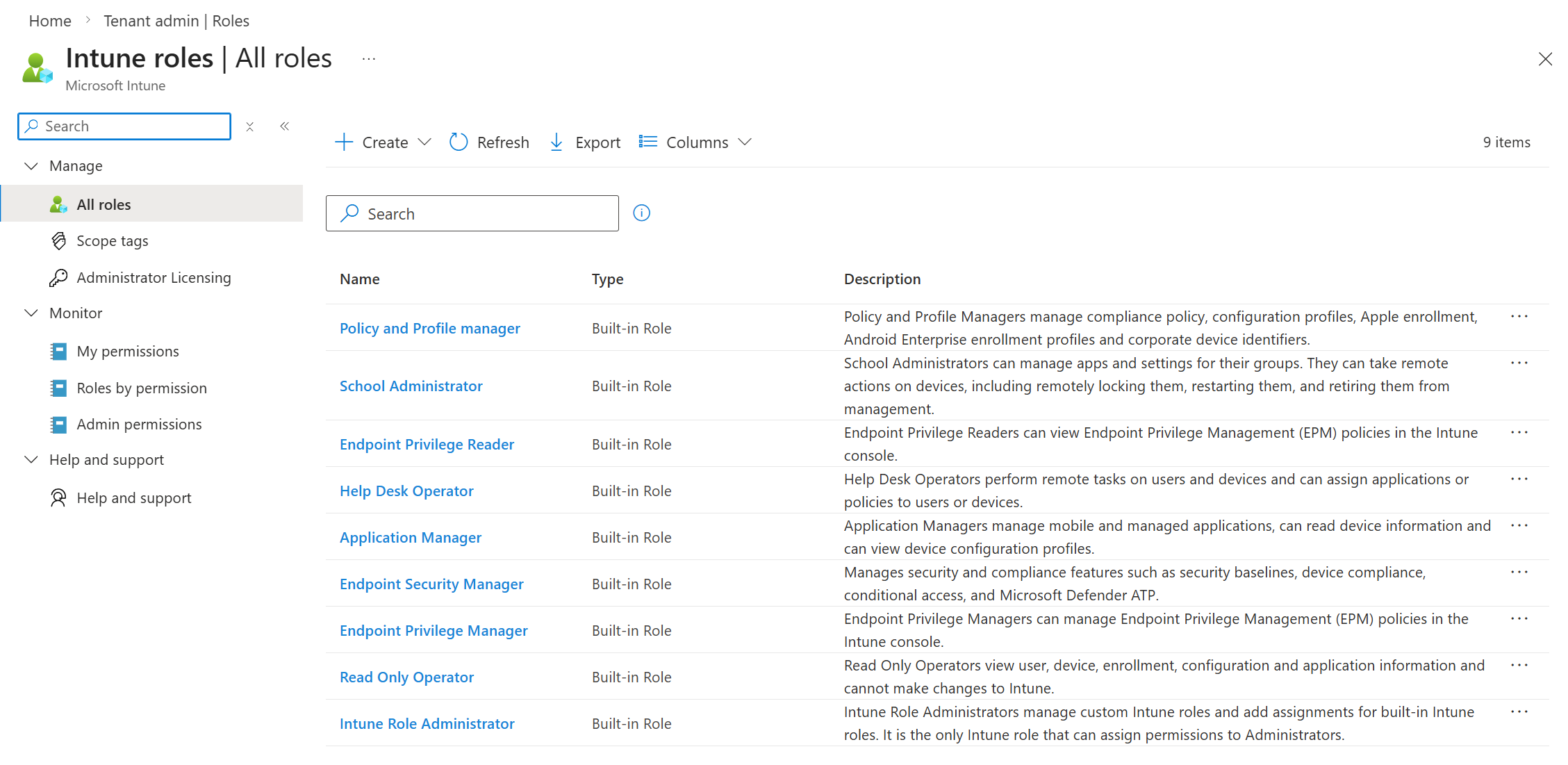
If you’re monitoring your Entra ID roles and think you know who can access your Intune environment, think again. In addition to the built-in Entra ID roles that provide access to Intune, there are also Intune-specific roles that can be assigned to users, which also provide access to Intune. These roles are managed within the Intune portal and are separate from Entra ID roles, meaning that even if you have a tight grip on your Entra ID roles, you could still have accounts with Intune-specific roles that have access to your Intune environment.
- Application Manager: Manages mobile and managed applications, can read device information and can view device configuration profiles.
- Endpoint Privilege Manager: Manages Endpoint Privilege Management policies in the Intune console.
- Endpoint Privilege Reader: Endpoint Privilege Readers can view Endpoint Privilege Management policies in the Intune console.
- Endpoint Security Manager: Manages security and compliance features, such as security baselines, device compliance, Conditional Access, and Microsoft Defender for Endpoint.
- Help Desk Operator: Performs remote tasks on users and devices, and can assign applications or policies to users or devices.
- Intune Role Administrator: Manages custom Intune roles and adds assignments for built-in Intune roles. It’s the only Intune role that can assign permissions to Administrators.
- Policy and Profile Manager: Manages compliance policy, configuration profiles, Apple enrollment, corporate device identifiers, and security baselines.
- School Administrator: School Administrators manage apps, settings, and devices for their groups in Intune for Education. They can take remote actions on devices, including remotely locking them, restarting them, and retiring them from management.
- Read Only Operator: Views user, device, enrollment, configuration, and application information. Can’t make changes to Intune.
How to Access Intune with Entra Application API Permissions
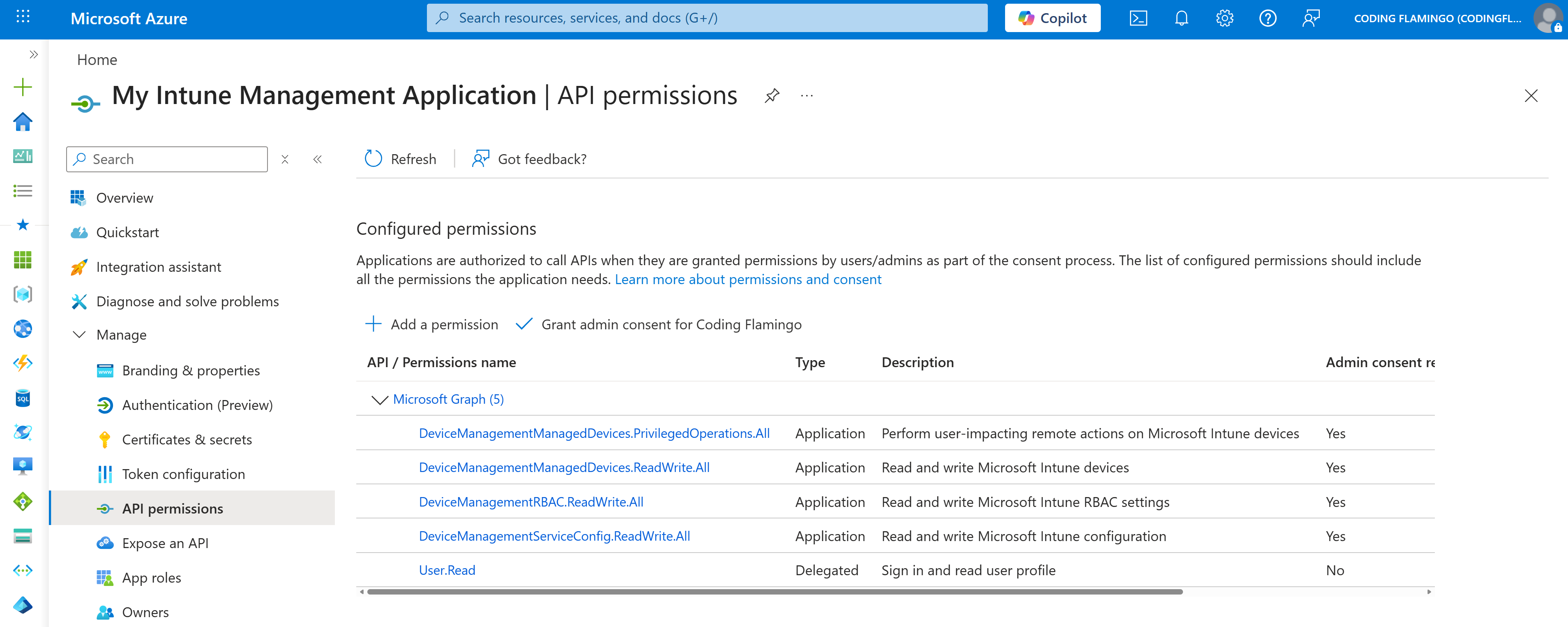
There’s one more way to access Intune that a lot of organizations aren’t aware of: Entra ID Application API Permissions. While the above Entra ID and Intune roles provide a set of pre-defined permissions for accessing Intune, it’s also possible to create a custom Entra ID application and assign it API permissions that allow it to access Intune resources, even with the highly-privileged permissions we showed above such as wiping devices.
Learn About Entra ID Application API PermissionsIn the example application screenshot below, you can see a custom application, My Intune Management Application, which has ReadWrite API permission to devices, configuration, and privileged operations (device wipe) for your entire tenant. It also is configured with the Application Consent Type, which means it can act on behalf of the entire organization without requiring an Intune Administrator to be logged into the application. If you were to create a Client Secret for this application and it were to leak, every MFA, conditional access policy, and security measure you have in place for your user accounts would be completely bypassed, and the attacker could use this application to do whatever they want in your Intune environment, including wiping devices.
How Can I Know Who Has Access to My Intune Environment?
Answering the question “Who has access to my Intune environment?” is unfortunately not as straightforward as you might think. You have to check both your Entra ID roles and your Intune-specific roles to get the full picture of who has access to Intune, plus any Entra ID applications with API permissions that might exist. Plus, you’ll need to check role-by-role or user-by-user to see which accounts are assigned to which role. It’s a tedious process that requires a lot of clicking around in the Entra ID and Intune portals.
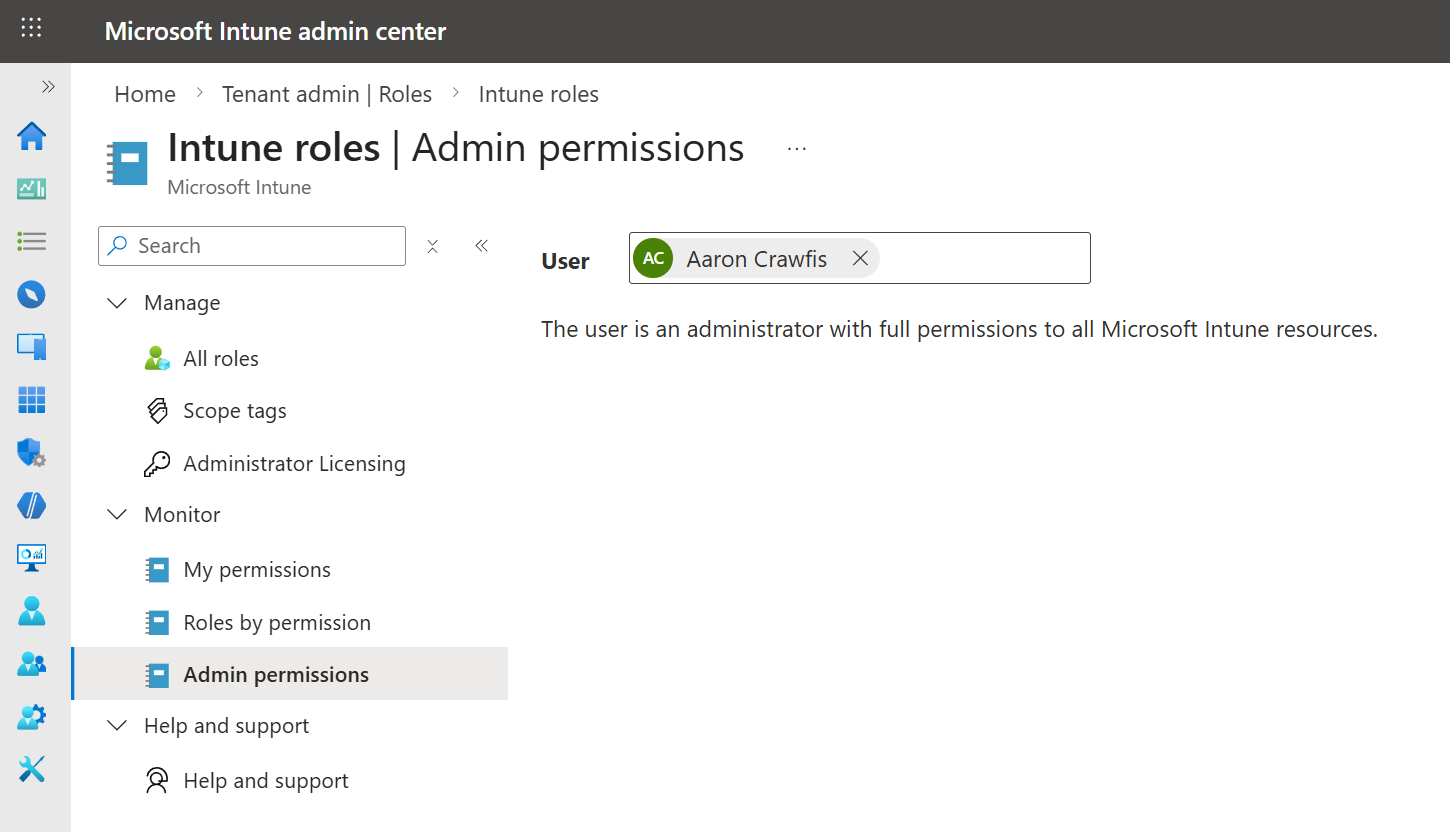
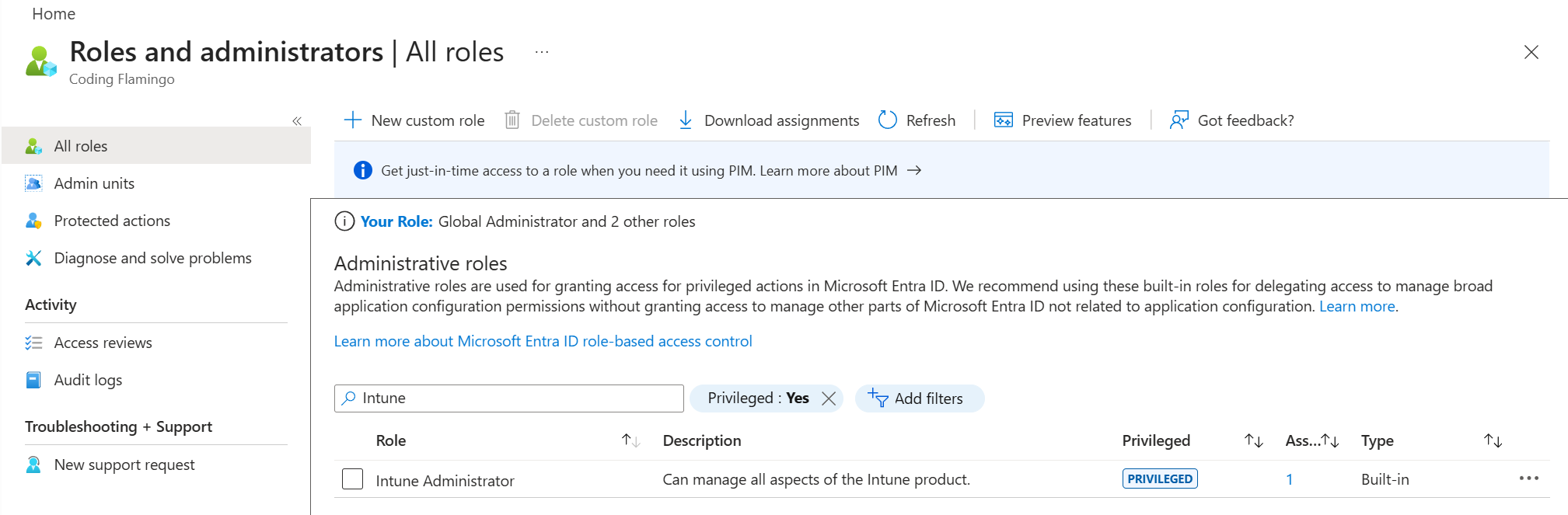
Thankfully, there are some handy open-source tools like ugurkocde/IntuneAssignmentChecker which can help you automate this process and get a full report of who has access to your Intune environment in just a few minutes. Since it’s open-source, you can also deploy it yourself and have full control over the data if preferred.
Intune Assignment CheckerHow To Protect Your Intune Administrator Accounts
Now that we’ve explored the various ways that an attacker could potentially access your Intune environment, let’s go over some best practices for protecting those accounts and keeping your Intune environment secure. From MFA to conditional access policies to using phishing-resistant credentials like Yubikeys, there are several steps you can take to significantly reduce the risk of an attacker gaining access to your Intune environment.
Implement Multi-Factor Authentication (MFA) Immediately
The single most important step you can take to protect your Intune environment is to implement multi-factor authentication (MFA) for all accounts that have access to Intune. (you really need to do it for all accounts too). This includes not only the built-in Entra ID roles with Intune access, but also the Intune-specific roles which your users may have. The Microsoft Authenticator app is a great option if you’re standing up MFA for the first time. Avoid email and SMS-based MFA methods at all costs, as they are vulnerable to various attacks such as SIM swapping and email account compromise. If you want to take this a step further, you can also move to hardware-based MFA methods such as Yubikeys, which provide an even higher level of security and are resistant to phishing attacks. We’ll explore those a bit more in a bit.
Learn How to Deploy the Microsoft Authenticator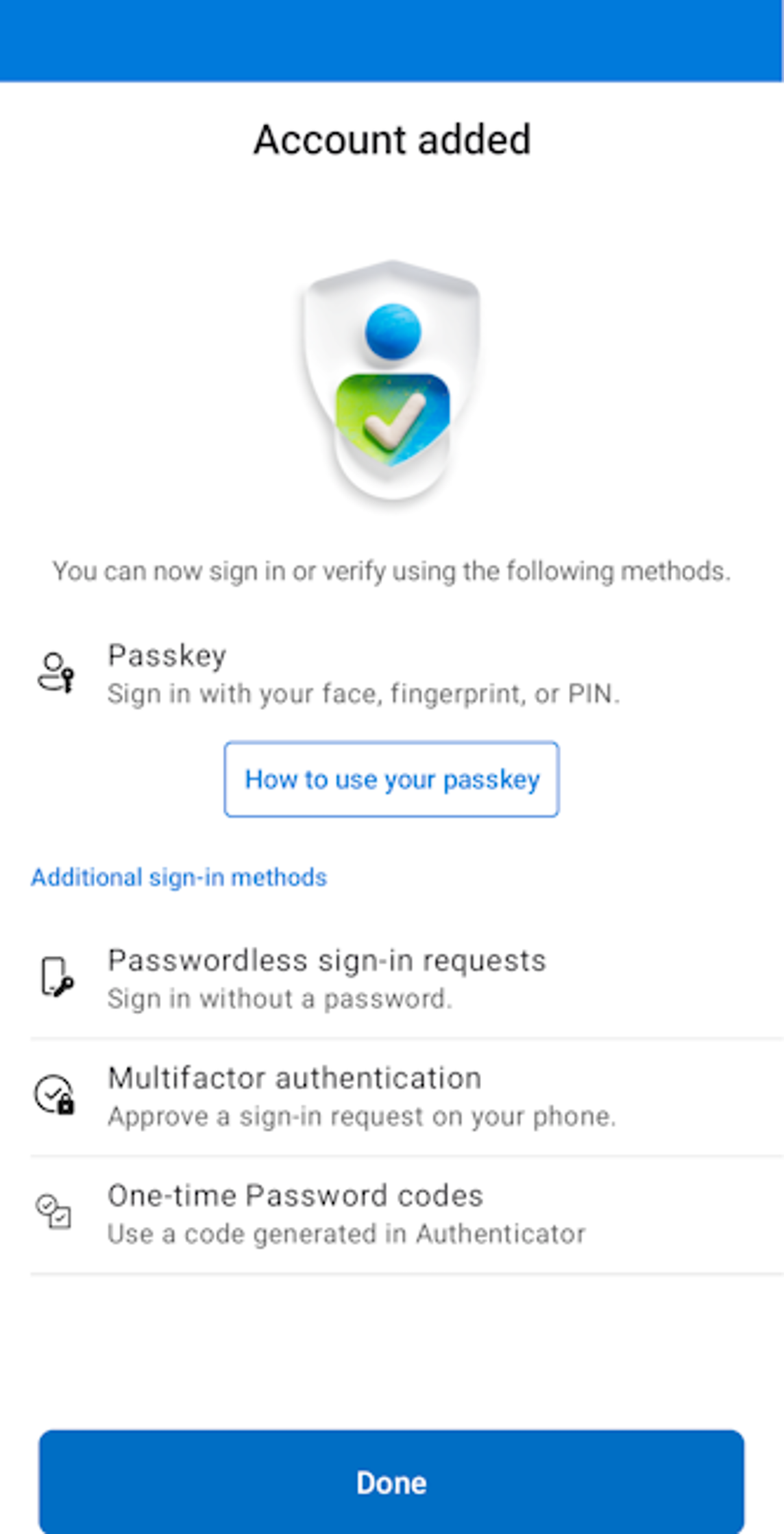
Use Dedicated, Non-Email Enabled Administrator Accounts for Intune
Email is the most common attack vector for compromising accounts, so it’s important to minimize the attack surface of your Intune administrator accounts by not using them for everyday tasks such as email and web browsing. Instead, create dedicated administrator accounts that are only used for managing Intune and nothing else. This way, even if an attacker compromises a user’s regular account through a phishing email or other means, they won’t be able to use that account to access Intune and cause damage.
Add Conditional Access Policies to Limit Access to Intune
In addition to implementing MFA, you should also implement conditional access policies to limit access to Intune based on certain conditions such as user location, device state, and risk level. For example, you could create a conditional access policy that only allows access to Intune from trusted locations such as your corporate network or from compliant devices that meet certain security requirements. This can help prevent unauthorized access to Intune even if an attacker manages to compromise an account with access.
Learn How to Create Conditional Access Policies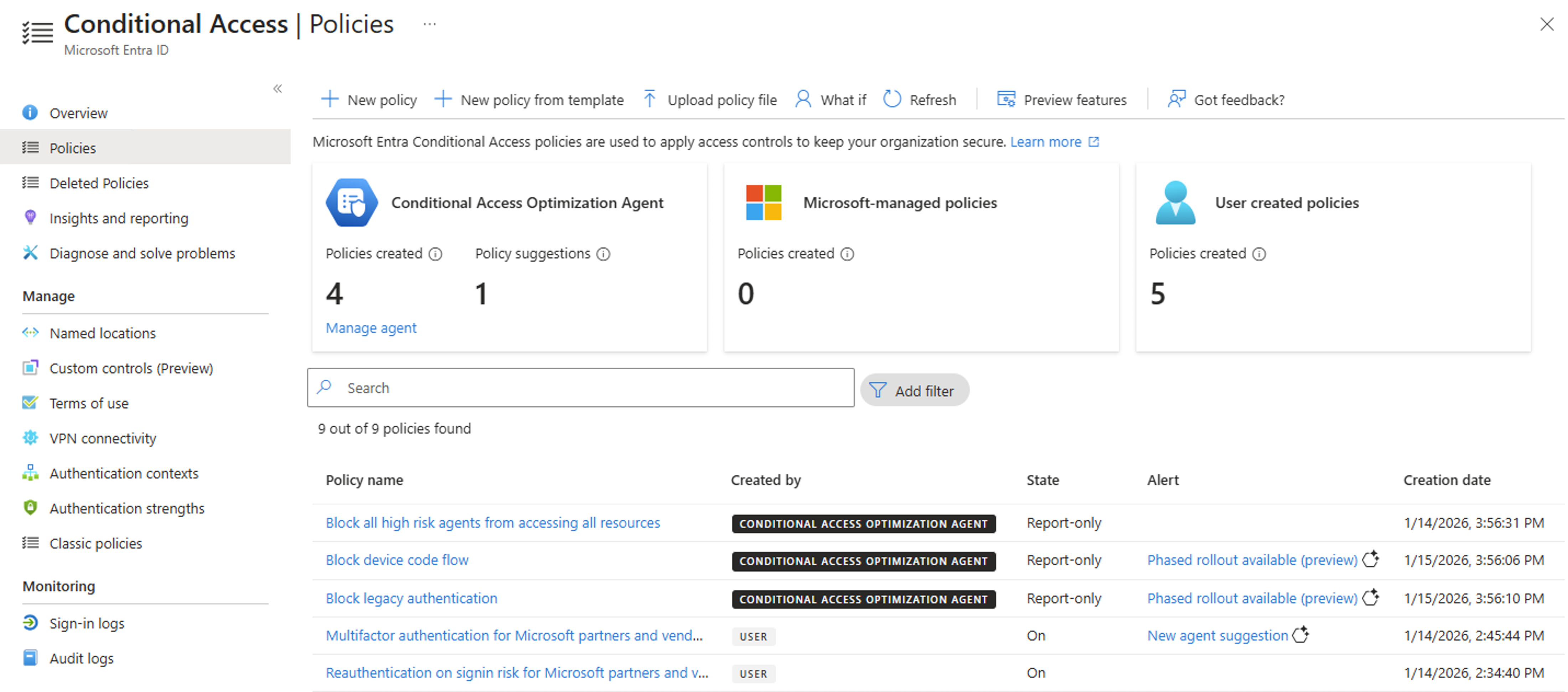
Add Multi-Admin Approval to Protect Against Compromised or Rogue Admins
As part of a defense in depth strategy it’s important to not just prevent an administrator from being compromised. You also have to plan for when they do get compromised, or if an administrator goes rogue as part of an insider threat. Intune Multi-Admin Approval allows you to configure access policies protecting your apps and configuration, only allowing them to be updated when a second admin approves the change. This ensures no one single account can cause widespread risk or damage, as we saw in the Stryker case.
Additionally, multi-admin approval provides even more value by protecting against admin mistakes, where the administrator might be trying to make a valid change, but mistypes a command or makes an incorrect choice in the UI. Either way, between protection against malicious or accidental misconfiguration, multi-admin approval is a great feature to enable in your Intune tenant.
Use Phishing-Resistant MFA Methods Like Yubikeys for Your Intune Administrators
For an even higher level of security, consider using phishing-resistant MFA methods such as Yubikeys for your Intune and Global administrators. Yubikeys are hardware-based security keys that provide strong authentication and are resistant to phishing attacks. Even if an attacker gets an administrator to click a malicious link and enter their credentials, they would still need the physical Yubikey to authenticate, which significantly reduces the risk of compromise.
Learn How to Deploy Yubikeys for MFARegularly Review and Audit Intune Access and Permissions
It’s easy to lose track of which user accounts, groups, and applications have access to Intune, especially as your organization grows and changes over time. It’s vital to periodically review and audit who has access to Intune and what permissions they have. Using the information above about which Entra ID roles and Intune-specific roles provide access to Intune, you can check each role and see which accounts are assigned to those roles. You should also check for any custom Entra applications that have API permissions to Intune resources. If you find any accounts that have access to Intune that shouldn’t, or if you find any accounts with excessive permissions, you should take immediate action to remove or restrict that access.
Want to Move to Strong, Phishing-Resistant Authentication for Your Intune Administrators?
If you’ve made it to this part of the article, you hopefully have a good understanding of the risks and attack vectors for Microsoft Intune, as well as some actionable steps you can take to protect your Intune environment.
If you want to take your security to the next level and move to strong, phishing-resistant authentication methods like Yubikeys for your Intune administrators, we can help. At Keytos, we specialize in helping organizations implement strong authentication solutions that protect against modern threats. From deploying Yubikeys for MFA to implementing conditional access policies, we can guide you through the process and help you secure your Intune environment.
Talk to an Identity Expert