

My First Months at Keytos: A Passwordless Journey
 Aaron Crawfis |
Why I Joined Keytos
I first met Igal Flegmann, Keytos’ co-founder and CEO, nearly 10 years ago when we both started our careers at Microsoft within Azure Security. While I spent my first few years on the job learning about Azure Resource Manager and writing detections to catch the Azure Red Team and real-world threat actors, Igal was busy building the identity and device isolation strategies for all of Microsoft. When Igal left to found Keytos a few years ago, we stayed in touch and I followed the Keytos story closely.
When it came time for me to make my next career move, I didn’t even have to think twice about joining Keytos. I couldn’t pass up the opportunity to work with Igal again, and I was also really excited about the mission of Keytos to help organizations secure their infrastructure with passwordless technologies. Plus, I got to keep all my RADIUS swag from my old team which was nice 😉.
My First Day at Keytos - Look Ma, No Password!
I’m not exaggerating when I say that I have not had to use a password a single time for my Keytos accounts. This holds true for all my devices and applications, including my laptop, email, Wi-Fi, and all the internal tools we use at Keytos. But how did I get onboarded without a password? The answer is EZCMS, our passwordless onboarding experience that allows new employees to get set up with their devices and accounts without ever having to create or use a password.
Onboarding for the First Time With My Drivers License and a Selfie
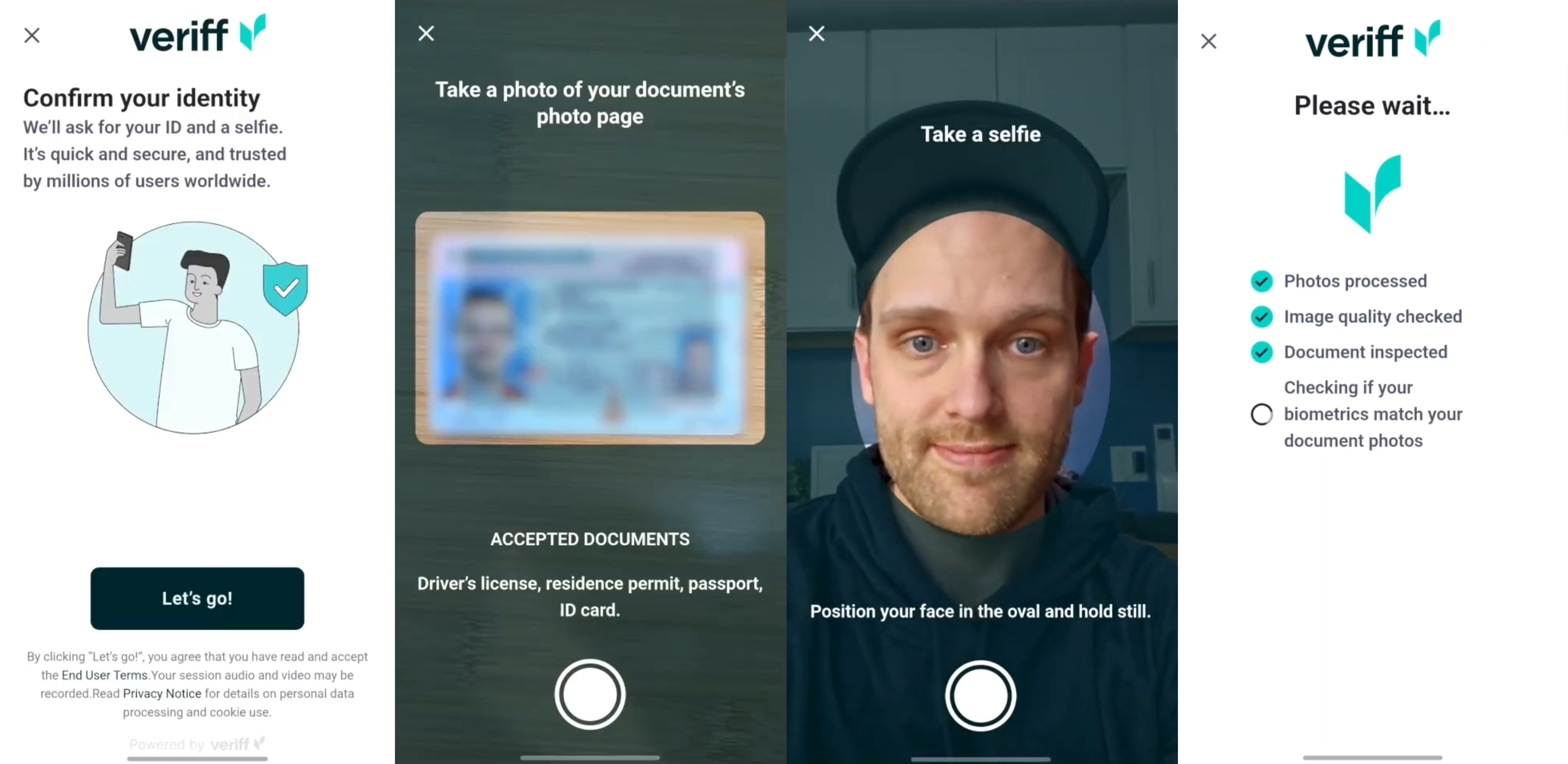
On the morning of my first day at Keytos, I unboxed my new Surface Laptop along with three YubiKeys, one for each of our isolated identities (Corp, Demo, Prod). While 10 years ago my manager called with me my temporary password to use to log in on my first day at Microsoft, this time I got to try out Keytos’ passwordless onboarding experience, EZCMS. Using my phone I was able to scan my drivers license, take a selfie, and register my first YubiKey without ever having to set up a password.
From there I simply powered on my laptop, plugged in my YubiKey, entered my PIN, and I was in! My device downloaded all the necessary software, Wi-Fi profiles, and configuration while I made myself a cup of coffee. Still no password for me to deal with, and I was able to open Teams and Outlook in less than 5 minutes.
Passwordless Wi-Fi Access with EZRADIUS and EZCA
After I was logged into my laptop, I was automatically logged into the Keytos Wi-Fi network. I didn’t need to go ask someone for the Wi-Fi password or check our wiki, it just worked from the moment I powered on my device.
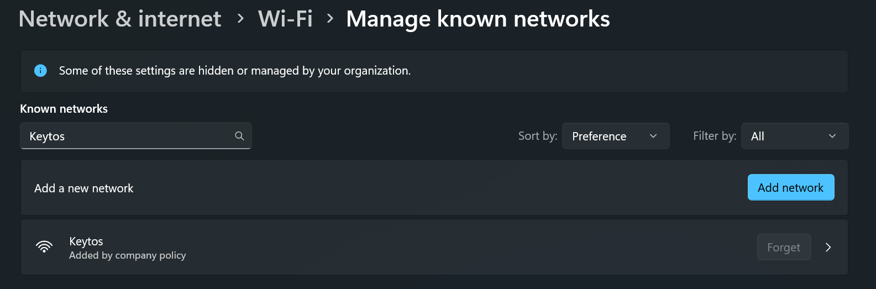
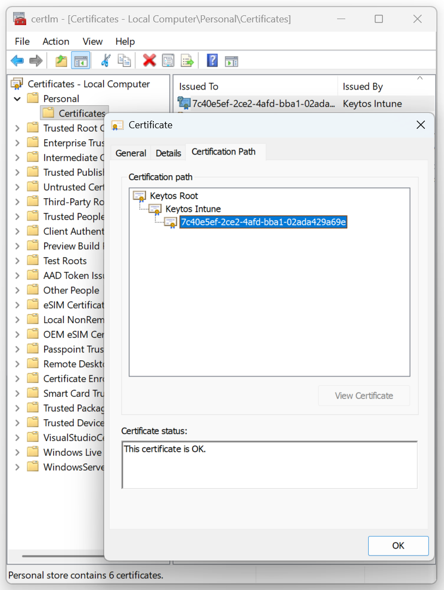
Behind the scenes, EZCA, our cloud certificate authority, issued a SCEP certificate to my device using Microsoft Intune. That certificate was then used to authenticate me to the Wi-Fi network using EZRADIUS, our cloud RADIUS solution. This way I was able to get on the Wi-Fi without ever having to deal with a password, and I also got the added security of using a certificate for authentication instead of a password that could be phished or stolen.
Setting Up My First Demo
A big part of my role at Keytos is to create demos to show our customers how we can help them go passwordless themselves. To set up my first demo, I needed to access our demo tenant, where we can safely test out new features and create demos without touching our corporate or production environments.
When I was at Microsoft we used a tactic called identity isolation to separate our Entra ID & Azure tenants for corporate and production environments. This way, even if an attacker was able to compromise my corporate account, they would not be able to access any of our production resources. At Keytos, we take identity isolation to the extreme using modern, cloud-first technologies. Due to the security-critical nature of our work, we have completely isolated Entra ID and Azure tenants for productivity (Teams, Outlook, etc.), demos, and production. This means that even if an attacker was able to compromise my corporate account, they would not be able to access any of our demo subscriptions to mine crypto, or our production resources where our services and customer data live. Each tenant requires a separate identity and a separate YubiKey to access, and we have strict conditional access policies in place to protect each tenant.
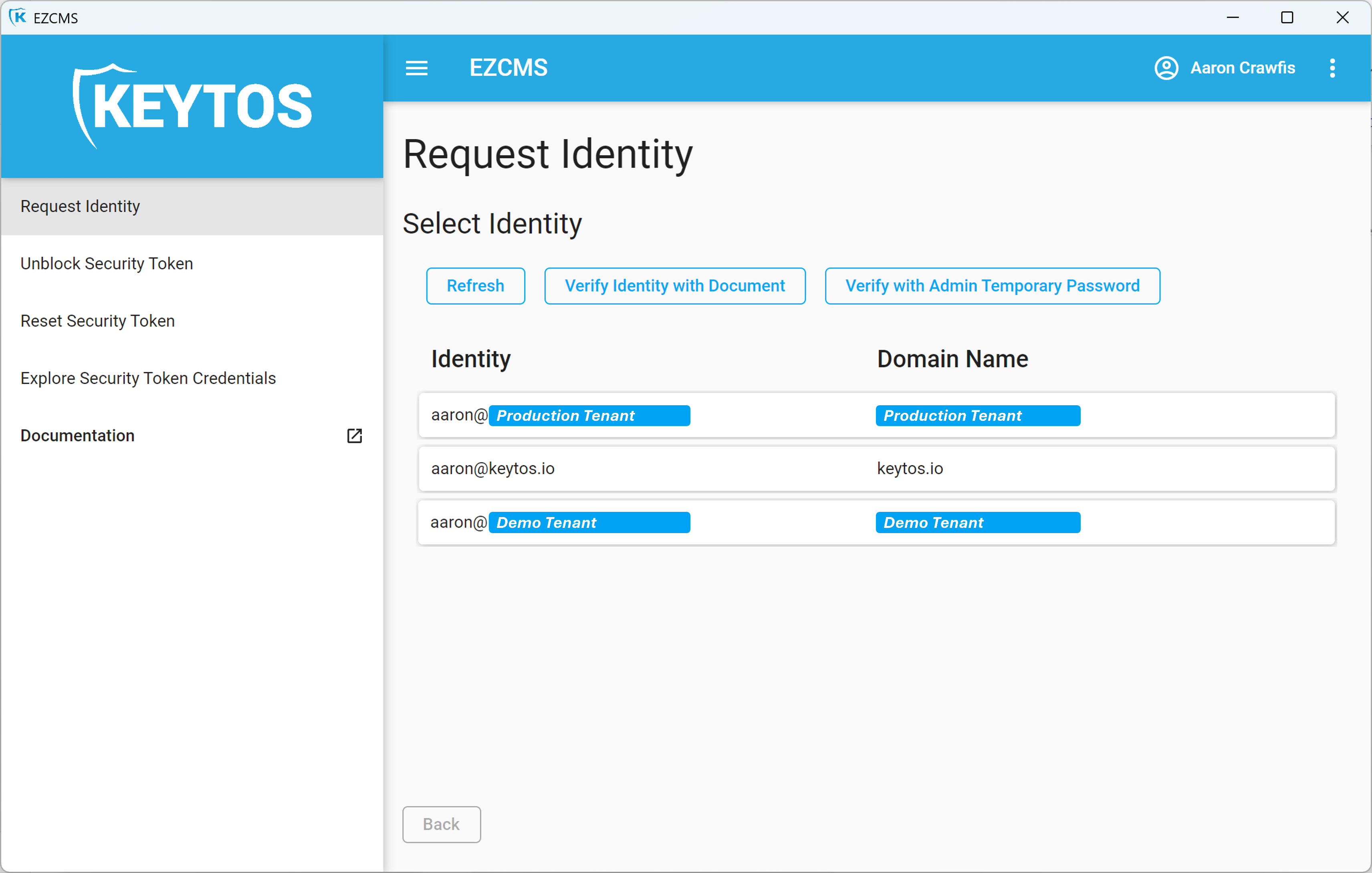
Now that I was logged into my corporate laptop with my corporate Yubikey, I needed to set up my demo Yubikey. To do this, I simply plugged in my second Yubikey, opened EZCMS, and set up my demo account with a few clicks. Using this new identity I created a second Edge browser profile, logged in with my demo Yubikey, and I was ready to start setting up my demo environment in our demo tenant. Later that week I gave my first EZRADIUS demo to a customer using this setup, and it went off without a hitch!
Getting Ready to Go On-Call as a Keytos Engineer
On-call support and troubleshooting is a critical part of being an engineer at Keytos, and a big part of that is being able to help answer customer questions. Since our productivity and production environments are completely isolated, I needed to set up my third Yubikey to access our production tenant so I could help customers with billing, technical, and account questions. Just like with my demo tenant, I was able to easily set up my production Yubikey using EZCMS and had it ready to go in no time. However, I wasn’t able to use that YubiKey on my corporate laptop. Instead, I had to bring out my PAW.
Two Devices - Better Than One? How We Isolate Both Our Identities and Our Devices
While identity isolation hardens your identity security, malware on your device can still steal your session cookies, refresh tokens, and other credentials to access your resources. This is why we also implement device isolation at Keytos, where we use a separate device for accessing production resources. Microsoft pioneered this concept with their Privileged Access Workstation (PAW) model, and we have taken it to the next level by using Microsoft Intune to manage our devices and conditional access policies to attest the device before each login.
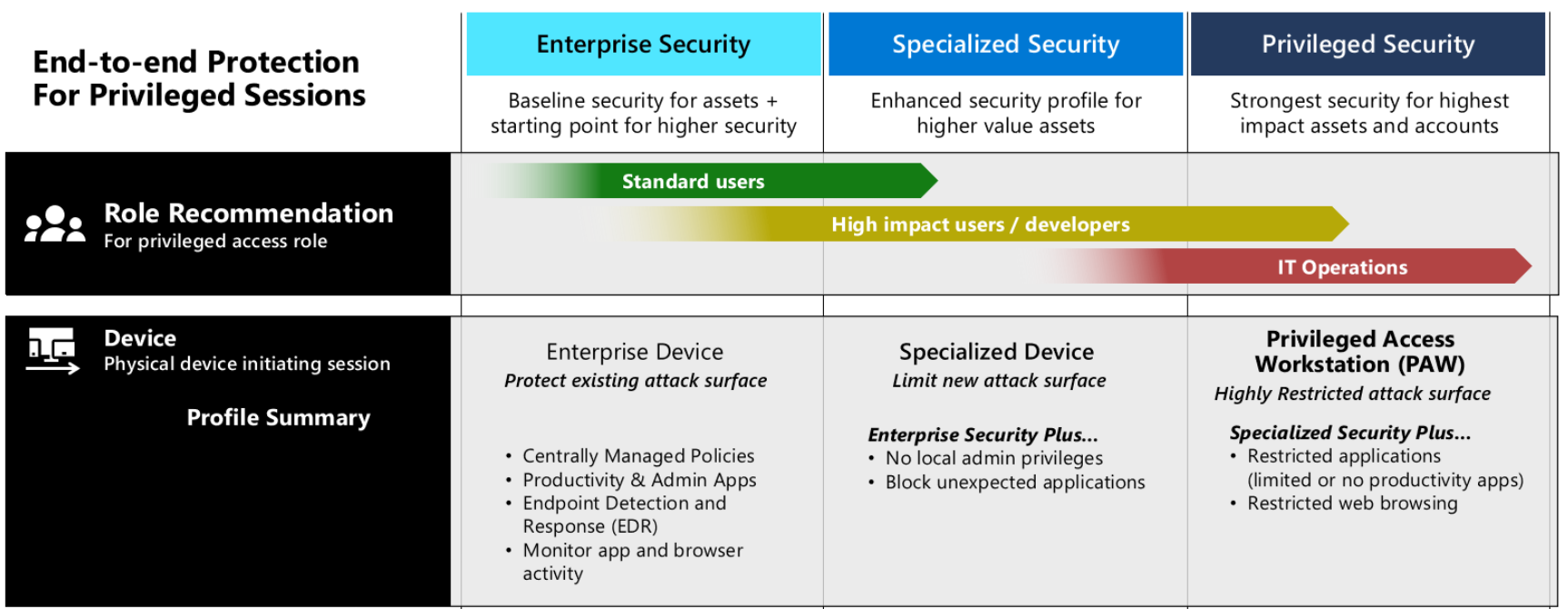
Since I have to access production resources to do my job, I have a second device that I use solely for accessing production resources. It is joined to the production tenant and has no access to my corporate tenant. This way, even if my corporate device was compromised with malware, the attacker would not be able to access any of our production resources since they would not have access to the second device or the production tenant.
While I prefer a laptop-based PAW experience, others on our team prefer a single workstation with multiple VMs. In this model the workstation’s hypervisor (in this case Hyper-V) provides the isolation between the corporate and production environments. Both models have their pros and cons, but the key is to make sure you design your device isolation strategy in a way that you can’t pivot from your corporate environment to your production environment, like if you were to set up your production VM inside your corporate workstation. Always ensure your production environment is either the base OS, a sibling VM to your productivity VM, or a separate physical device to ensure proper isolation.
Want to learn more about PAWs and how to implement them in your organization? Check out Microsoft’s documentation on PAWs and consider implementing a similar strategy to protect your production resources from compromised devices.
Learn More About PAWsBut Wait, Where Are Our Resources? - Least Privilege in Action
With my PAW in hand and my production YubiKey ready to go, I logged into the Azure Portal for the first time and….. I had access to absolutely nothing at all. I couldn’t look at our storage accounts, I couldn’t examine our pods in AKS, and I couldn’t even see our billing information.
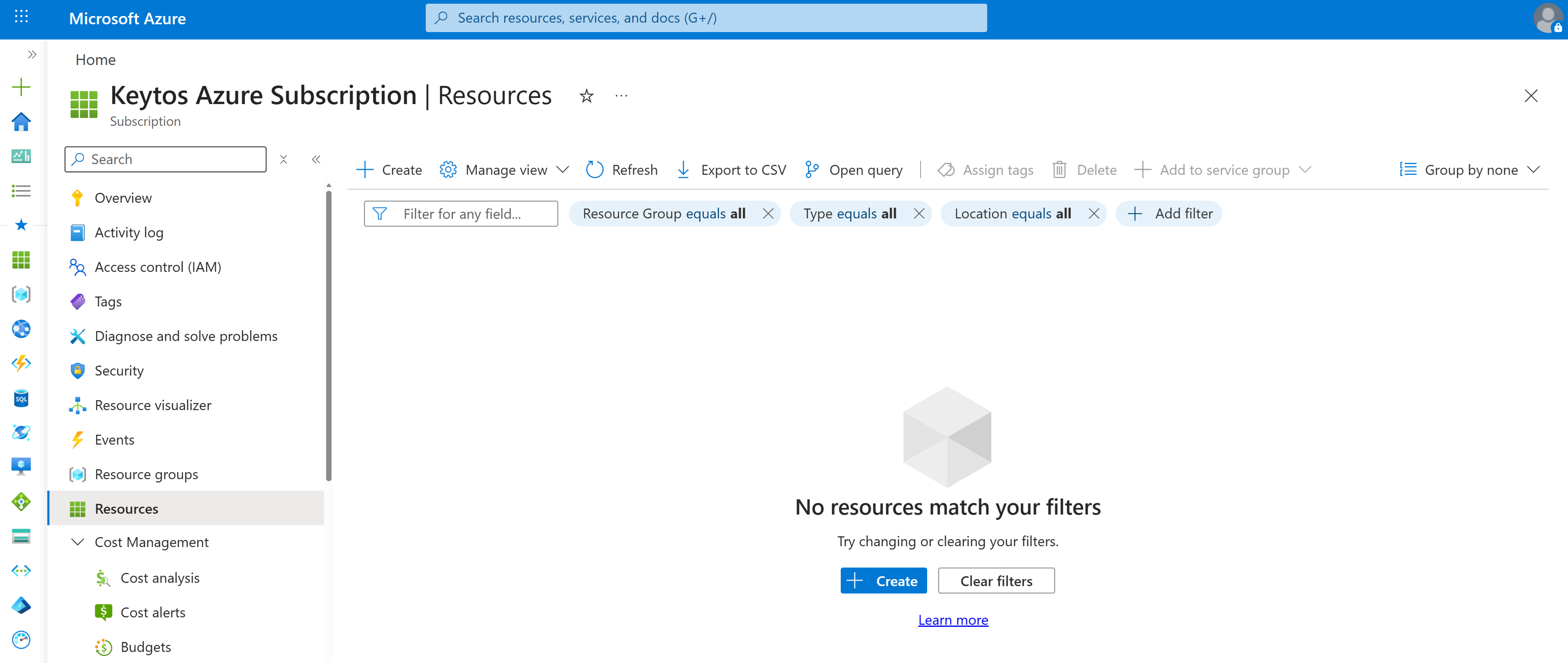
Even with a strong device isolation and identity isolation strategy in place, we also follow the principle of least privilege to ensure that our engineers only have access to the resources they need to do their job, and nothing more. This means that even if an attacker was able to steal my YubiKey, and my PAW, and crack my PIN, they still would not be able to access any of our production resources.
99.9% of the time, we use CI/CD pipelines and infrastructure as code to manage our cloud resources. Anytime an engineer is working on a new service, they can test things out quickly in their inner-loop in a demo tenant, and then when it’s time to deploy to production, they can create a pull request with the necessary changes to the infrastructure-as-code. This way we can ensure that all changes to our production environment are properly reviewed and approved before they are deployed, and we can also ensure that our engineers don’t need to touch anything in production to do their job, which reduces the risk of human error and insider threats.
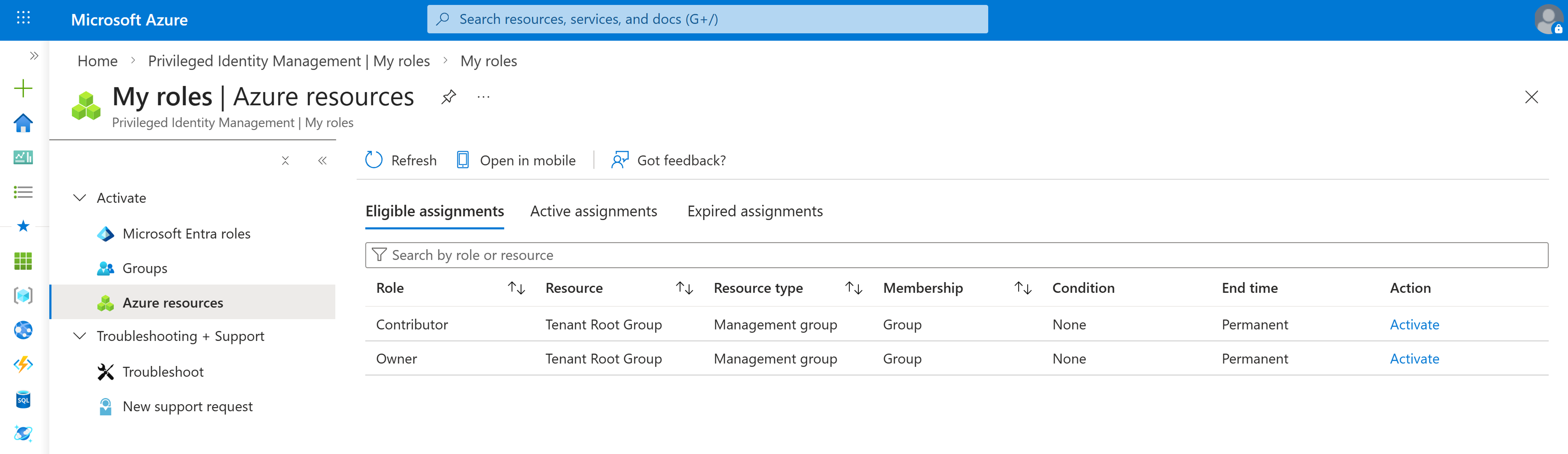
But in the .01% of the time when we do need to access production resources directly, we use Just-In-Time (JIT) access through Microsoft PIM to request temporary access to the resources we need, and that access is automatically revoked after a few hours. This way we can ensure that our engineers only have access to production resources when they absolutely need it, and that access is automatically revoked when it’s no longer needed. Email alerts are sent letting engineering managers know who accessed what resources and when, and we have a strong monitoring strategy in place to detect any anomalous access patterns.
Push it Real Good - Securing Our Git Repositories With Just-In-Time Access
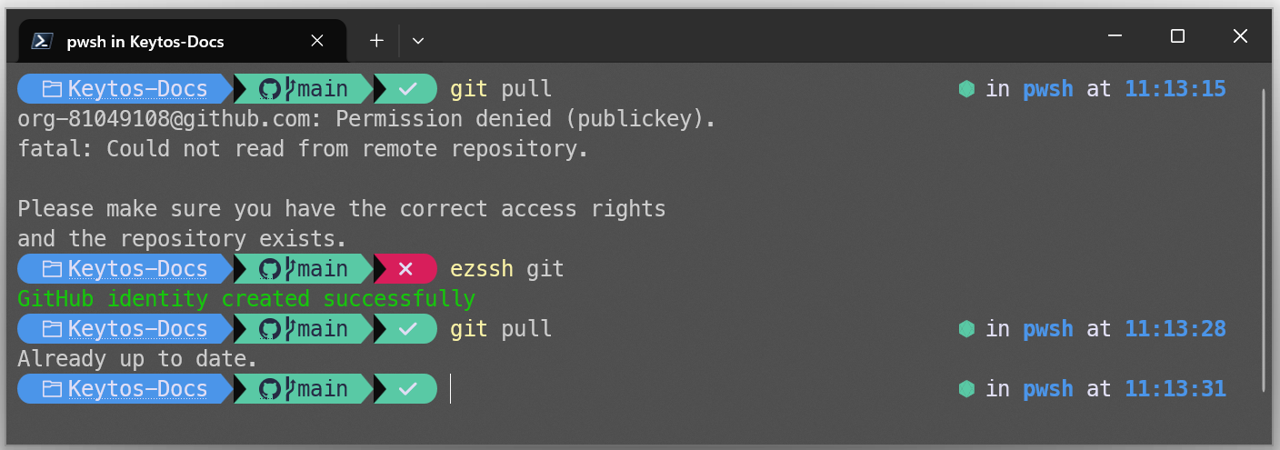
Least privilege isn’t just about cloud resources, it also extends to our git repositories as well. Anytime an engineer wants to push or pull code to their device, they must first elevate using EZSSH, which requires them to authenticate with their Entra ID account which will check that they are on a compliant device and using an unphishable credential. A short-lived SSH certificate is automatically generated for them with the appropriate access to the repositories they need, and that certificate is automatically revoked after a few hours. This way we can ensure that our engineers only have access to our code repositories when they need it, and that access is automatically revoked when they’re done for the day.
My First Day On-Call - GUIDs, GUIDs Everywhere!
I was only at Keytos for 24 hours before I began my first on-call rotation. We have a set of internal tools to help us manage customer environments, subscriptions, and billing. However, they are all built with the highest security standards in mind, which means they all contain absolutely no customer identifiable information. This means no passwords, no email addresses, and not even customer names. Instead, we use GUIDs for everything. This means that when a customer reaches out about an issue, they must provide me with their subscriptionId for me to look up. Without it, there’s no way to know which customer they are or access any of their information.
While this might seem like a hassle, it is a critical security measure to protect our customers. Even if an attacker was able to compromise my account, they would not be able to access any customer information without their subscriptionId. There have been way too many cases of attackers compromising support engineers’ accounts to access customer information and environments, and we want to make sure that even in the worst-case scenario, our customers are protected.
Conclusion - This is Actually Super Easy to Use!
When I first saw my three separate YubiKeys and learned about the various tenants, identities, devices, and access controls in place, I wasn’t so sure this was going to work out smoothly. I was fresh out of Microsoft here I saw first hand how inconvenient it was for engineers to have to deal with multiple devices, accounts, and YubiKeys. However, I’ve been at Keytos now for a few months and I can confidently say that this passwordless, identity isolated, device isolated, least privilege setup is actually super easy to use (I’m not exaggerating).
Each morning I use Windows Hello for Business to log into my corporate laptop with my face, I can access both my corporate and demo tenants with dedicated Edge browser profiles, and when it’s my turn in the rotation to be on-call, I pull out my PAW to access internal support tools and assist on support cases. I haven’t had to make any sacrifices in usability, and I feel much more secure knowing that even if one of my accounts or devices was compromised, the attacker would not be able to access any of our production resources or customer information.
Learn how you can implement a similar passwordless, identity isolated, device isolated, least privilege strategy in your own organization by checking out our passwordless onboarding solution, our cloud RADIUS solution, and our cloud certificate authority. If you want to see how all these solutions work together to create a seamless passwordless experience, check out our best practices guide:
Passwordless Best Practices GuideDoes This Sound Interesting to You? Join Us!
If you’ve made it this far and find the topics I covered interesting, then you should consider joining us at Keytos! We’re always looking for talented engineers who are passionate about security and want to work on cutting-edge technologies to help secure our customers’ infrastructure. We have a strong culture of learning and growth, and we offer competitive salaries, great benefits, and the opportunity to work with some of the smartest people in the industry. If you’re interested in joining us, check out our careers page to see our current openings and apply today!
Join the Keytos Team