









How to Connect Android Phones to Your Company Wi-Fi
 Keytos Team |
Introduction - Connecting Android Phones to the Company Wi-Fi
If you have employees that use Android phones, either corporate-owned or employee-owned, they will want to connect to the company Wi-Fi. However, connecting Android phones to enterprise Wi-Fi can be a bit tricky, especially if you want to use secure authentication methods like certificates or EAP-TTLS. In this post, we will cover various methods to connect Android phones to the company Wi-Fi, including using certificates, EAP-TTLS, and more. We will also cover how to use EZRADIUS to simplify the process and make it seamless for your users.
What is the Difference Between Corporate-Owned and Employee-Owned Android Phones?
Before we dive into the methods to connect Android phones to the company Wi-Fi, let’s talk about the difference between corporate-owned and employee-owned Android phones.
- Corporate-Owned Devices: These are devices that are owned and managed by the company. The IT department has full control over these devices, including the ability to install apps, configure settings, and enforce security policies.
- Employee-Owned Devices (BYOD): These are devices that are owned by the employees. The company may have limited control over these devices, depending on the Mobile Device Management (MDM) solution in place. Employees may be hesitant to allow the company to manage their personal devices, so it’s important to have a clear BYOD policy in place.
Methods to Connect Android Phones to the Company Wi-Fi
There are a few strategies for connecting Android phones to the company Wi-Fi, and the best method will depend on your specific requirements and constraints. Here are some common methods:
- Open Guest Wi-Fi Network: This is the simplest method, where you set up an open Wi-Fi network for guests and employees to connect to with internet access. There’s either no password at all, or you have a Captive Portal that users must authenticate through to gain access to the internet.
- WPA2/WPA3 Personal: This method uses a pre-shared key (PSK) for authentication, where you share a common password with all users.
- WPA2/WPA3 Enterprise: This method uses 802.1X authentication, where each user has their own credentials (username/password or certificates) to authenticate to the Wi-Fi network.
Let’s break down each method and see how you can implement it for Android phones.
Option 1: How to Set Up an Open Guest Wi-Fi Network for Android Phones
By far the simplest way to allow Android phones to connect to the company Wi-Fi is by setting up an open guest Wi-Fi network. In an open network, anyone can connect without needing a password. However, this can be a massive security risk if not properly configured, as it allows anyone within range to connect to your network. It’s not typically recommended for corporate environments, but it can be useful for temporary access or in public areas.
To set up an open guest Wi-Fi network, you will need to configure your Wi-Fi access points to broadcast a separate SSID for guests. Make sure to follow a few security best-practices:
- Isolate this network on a dedicated virtual network (VLAN) to prevent guests from accessing sensitive resources on your corporate network.
- Implement a captive portal to require users to authenticate before gaining internet access (like you see in airport Wi-Fi).
- Limit bandwidth to prevent abuse and ensure that guests don’t consume too much of your network resources.
- Apply a firewall policy to restrict access to certain websites or protocols to prevent misuse.
- Adhere to legal requirements by requiring users to accept terms of service or provide contact information before accessing the network. This varies by region, so make sure to check your local laws.
Be Careful with Open Networks
Open networks can be a big security risk if not properly configured, so make sure to follow best practices to protect your network and users. We usually recommend using this method only for temporary access or in public areas where security is less of a concern. For corporate environments, it’s generally better to use WPA2/WPA3 Enterprise with proper authentication methods to ensure that only authorized users can access the network.
Once configured, your Android phones can easily connect to the open guest Wi-Fi network by selecting the SSID and connecting without needing a password. If you have a captive portal, users will be prompted to authenticate with their personal and/or company credentials before gaining internet access.
Option 2: How to Connect Android Phones to WPA2/WPA3 Personal Wi-Fi Networks
Another option for connecting Android phones to the company Wi-Fi is to use WPA2/WPA3 Personal, which uses a pre-shared key (PSK) for authentication. In this method, you would set up a Wi-Fi network with a strong password that all users can use to connect with their Android phones.
This can be a simple solution for small businesses or temporary setups, but it has some drawbacks:
- Security Risk: Sharing a common password with all users can be a security risk, as it can be easily shared or leaked. If the password is compromised, anyone can access your network.
- No User Accountability: Since all users share the same password, it’s difficult to track who is connecting to the network and when. This can make it harder to track down security incidents or enforce policies.
- Not Scalable: As your organization grows, managing a shared password can become cumbersome, especially if you need to change it regularly for security reasons.
Option 3: How to Connect Android Phones to WPA2/WPA3 Enterprise Wi-Fi Networks
The most secure and scalable option for connecting Android phones to the company Wi-Fi is to use WPA2/WPA3 Enterprise, which uses 802.1X authentication. In this method, each user has their own credentials (either username/password or certificates) to authenticate to the Wi-Fi network. WPA Enterprise networks offer a long list of benefits, including:
- ✅ Dedicated User Credentials: Each user has their own unique credentials, which allows you to control and manage access on a per-user basis. This means you can easily revoke access for specific users without affecting others.
- ✅ Enhanced Security: WPA Enterprise provides stronger encryption and authentication methods compared to WPA Personal, making it more resistant to attacks.
- ✅ Scalability: As your organization grows, WPA Enterprise can easily accommodate new users without the need to change shared passwords. Simply use your existing identity provider (like Entra ID) to manage user credentials and access.
- ✅ Granular Access Control: With WPA Enterprise, you can implement policies that restrict access based on user roles, device types, or other criteria. This allows you to control VLANS, bandwidth, and access to specific resources based on who the user is and what device they are using.
WPA Enterprise networks require a RADIUS server for authentication, such as EZRADIUS. With WPA Enterprise and RADIUS, there are a couple different authentication methods you can use:
- Entra ID Accounts: You can use your existing Entra ID accounts for Wi-Fi authentication. This allows users to authenticate with their corporate credentials, even on their personal devices, without needing to manage separate accounts or passwords for Wi-Fi access.
- Certificates: You can issue passwordless certificates to your Android phones which can be used for seamless and secure Wi-Fi authentication. This method is highly secure and user-friendly, as users can connect to the Wi-Fi network without needing to enter a password, and it provides strong protection against unauthorized access. However, it requires a way to distribute and renew certificates.
Let’s explore how to set up WPA Enterprise with RADIUS for Android phones in more detail in the next section.
How to Create a WPA Enterprise Network with EZRADIUS
Setting up a RADIUS server for WPA Enterprise can be complex and time-consuming, especially if you want to integrate it with your existing identity provider like Entra ID. This is where EZRADIUS comes in. EZRADIUS is a cloud-based RADIUS service that simplifies the process of setting up WPA Enterprise Wi-Fi authentication, allowing you to connect Android phones to the company Wi-Fi with ease.
🚀 Get Started with EZRADIUS
How to Connect Android Phones to a WPA Enterprise Network
Now that you have your WPA Enterprise network set up with EZRADIUS, connecting Android phones to the company Wi-Fi is super straightforward. Let’s explore a few different scenarios for connecting Android phones to a WPA Enterprise network.
Connect Android Phones to an Enterprise Network with EAP-TTLS and Entra ID Accounts
Unlike other operating systems, Android has built-in support for EAP-TTLS authentication with Entra ID accounts without needing a Wi-Fi profile pushed to them, which means that you can connect Android phones to a WPA Enterprise network without needing to enroll them in a Mobile Device Management (MDM) solution like Intune (although you can still use Intune to push Wi-Fi profiles if you want to).
Unmanaged Android Phones - Simply Connect to the Network with Entra ID Credentials
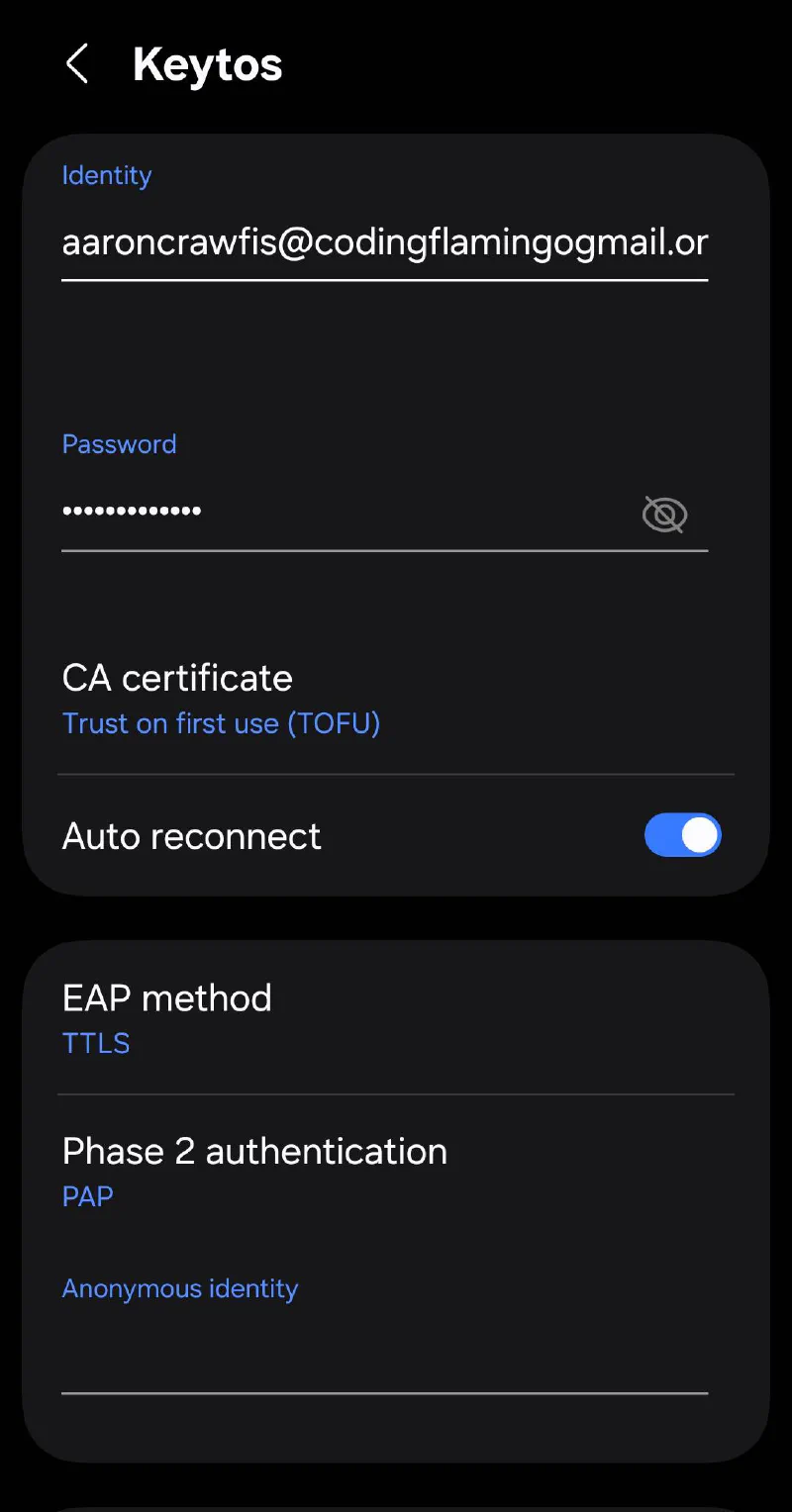
If the Android phone is not enrolled in an MDM, users can still connect to the WPA Enterprise Wi-Fi network using their Entra ID accounts. Simply select the network and enter the following information when prompted:
- Identity: User’s Entra ID email address
- Password: User’s Entra ID password
- CA certificate: Select Trust on first use (TOFU) to allow the device to trust the RADIUS server certificate on the first connection. Note that this does present a security risk, as it allows for potential man in the middle attacks, so it’s important to ensure that users are connecting to the correct network and not a rogue access point.
- EAP method: Select EAP-TTLS
- Phase 2 authentication: Select PAP
Managed Android Phones - Push Wi-Fi Profiles with Intune
If you manage your Android phones through an MDM solution like Intune, you can push Wi-Fi profiles to the devices, making the connection process seamless for users. This approach is preferred as it enhances security and simplifies management. With Intune, you can create a Wi-Fi profile that includes the necessary settings for connecting to the WPA Enterprise network, such as the SSID, EAP method, and authentication details. Once the profile is pushed to the devices, users can select the network, enter their Entra ID credentials, and connect without needing to manually configure the settings.
📖 Learn How to Set Up Wi-Fi Profiles with Intune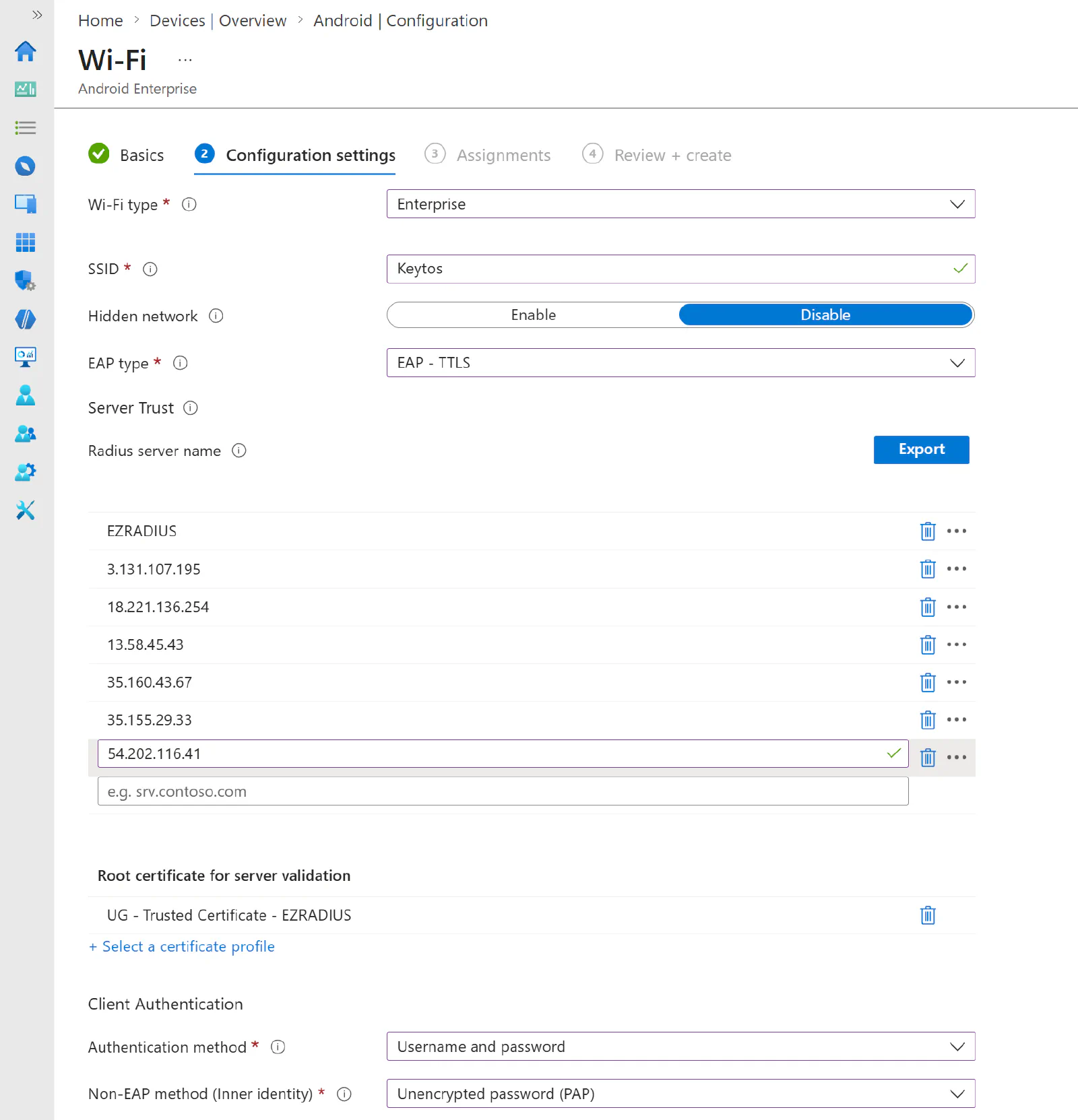
Connect Android Phones to an Enterprise Network with EAP-TLS and Certificates
Want a seamless experience where your Android devices “magically connect” to the Wi-Fi without users needing to enter any credentials? With EAP-TLS authentication using certificates, you can achieve just that. By issuing user or device certificates to your Android phones and configuring an EAP-TLS Wi-Fi profile, users can connect to the WPA Enterprise network without needing to enter a username or password.
Unmanaged Android Phones - Use Self-Service Wi-Fi Profiles with EZRADIUS
To use certificates you will need some way to distribute the certificates to your Android phones, which can be a bit tricky if you don’t have an MDM solution in place. However, with EZRADIUS Self-Service Wi-Fi Profiles you can provide a self-service portal where users can authenticate with their Entra ID accounts and download a Wi-Fi profile with the certificate embedded, allowing them to connect to the WPA Enterprise network with EAP-TLS authentication without needing to enroll in an MDM.
📖 Learn How to Set Up Self-Service Wi-Fi Profiles with EZRADIUS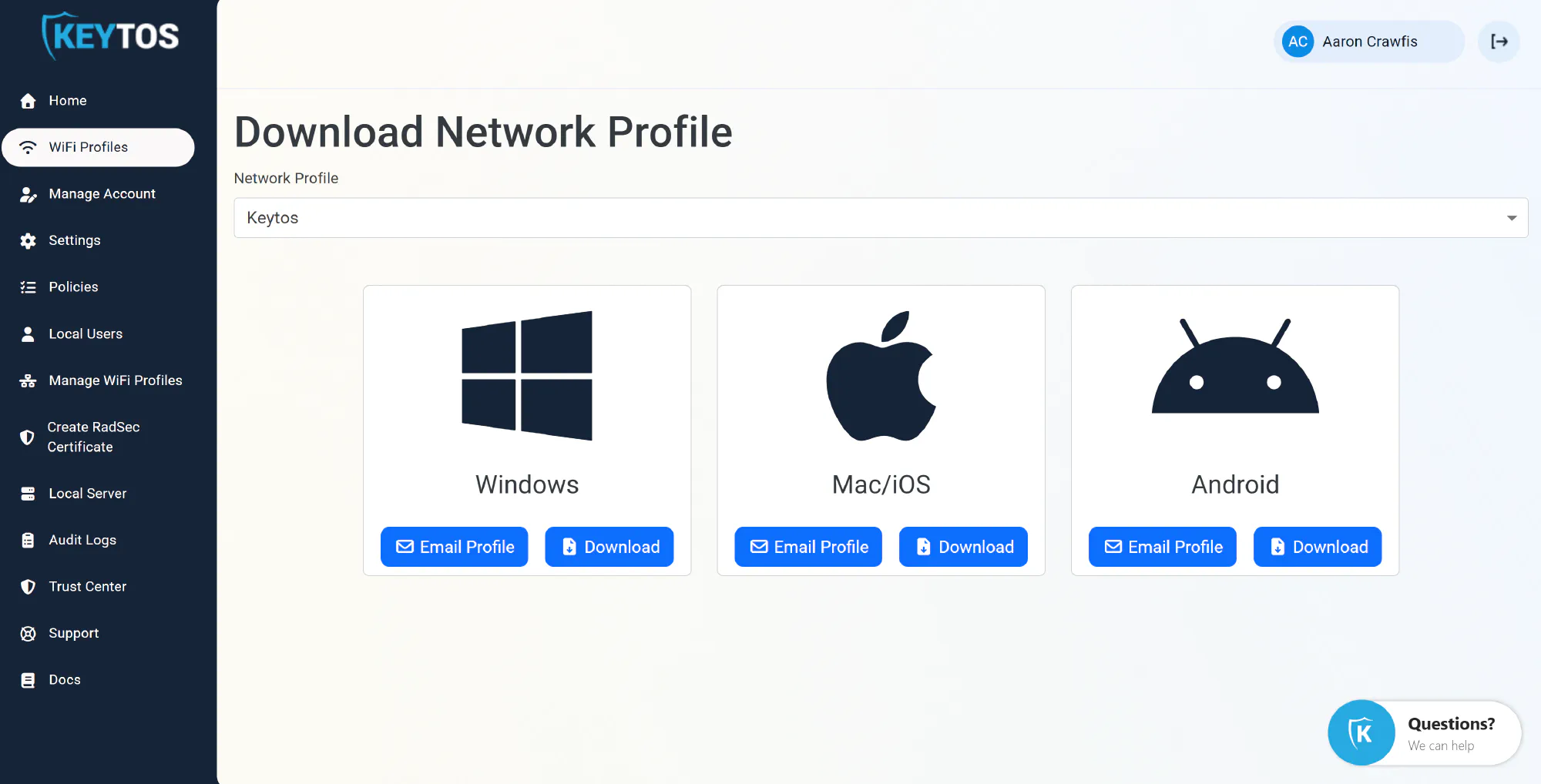
Managed Android Phones - Push Certificates and Wi-Fi Profiles with Intune
If you manage your Android phones with Intune, you can push both the certificates and the Wi-Fi profiles to the devices, providing a seamless and secure experience for users. With Intune, you can create a certificate profile to issue user or device certificates to the Android phones, and then create a Wi-Fi profile that references the certificate for EAP-TLS authentication. Once both profiles are pushed to the devices, users can connect to the WPA Enterprise network without needing to enter any credentials, as the certificate will handle the authentication process.
📖 Learn How to Push Certificates and Wi-Fi Profiles with Intune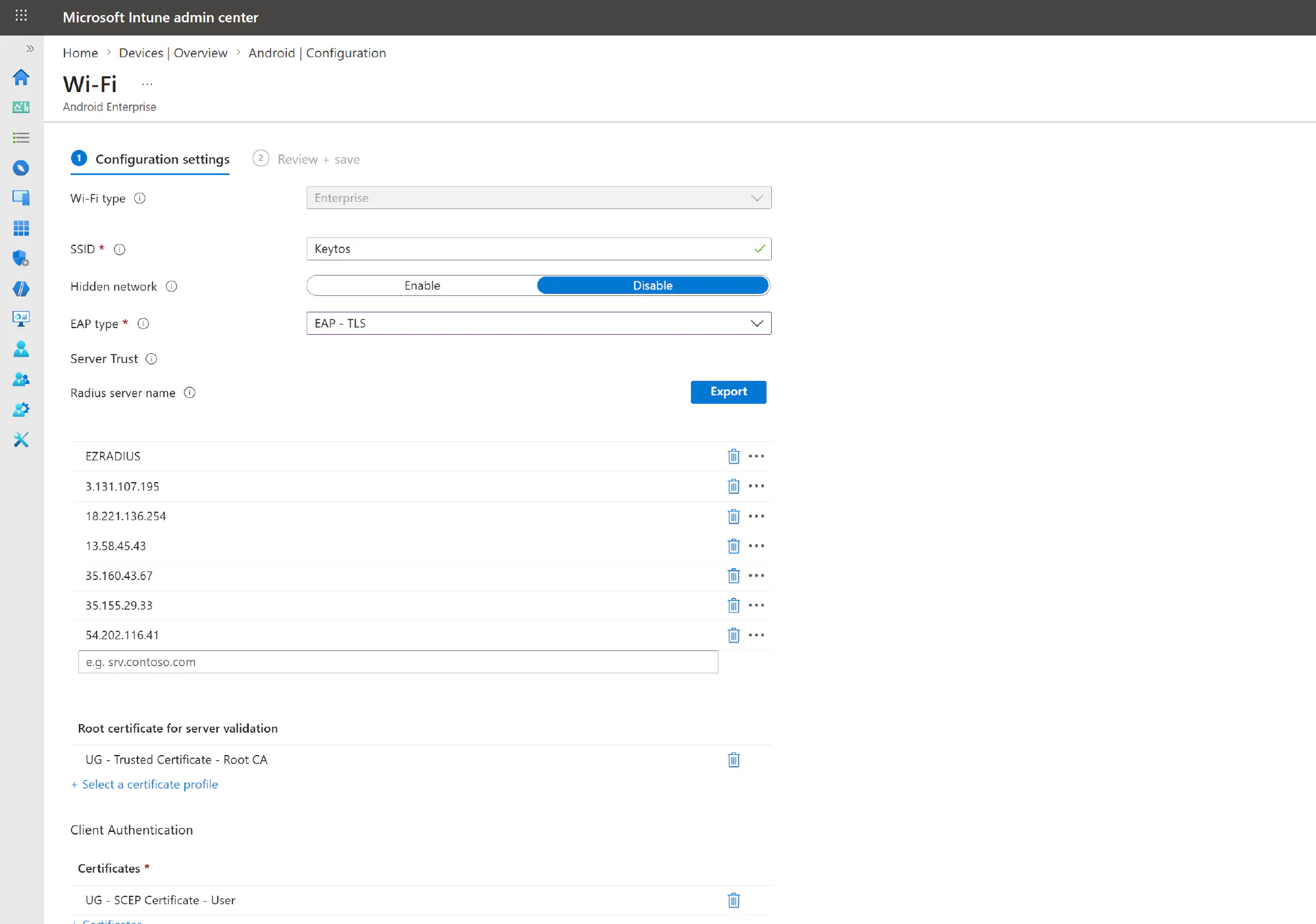
Conclusion - How to Set up a Secure, Seamless Wi-Fi Experience for Android Phones
There are a lot of different ways to connect Android phones to the company Wi-Fi, and the best method will depend on your specific requirements and constraints. For the most secure and seamless experience, we recommend using WPA2/WPA3 Enterprise with EAP-TLS authentication and certificates, as this allows users to connect without needing to enter credentials while providing strong security. With EZRADIUS, you can easily set up a RADIUS server for WPA Enterprise and provide self-service Wi-Fi profiles for unmanaged devices, as well as push certificates and Wi-Fi profiles with Intune for managed devices, making it easy to connect Android phones to the company Wi-Fi regardless of whether they are corporate-owned or employee-owned.
If you want to connect with one of our Identity Experts to learn more about how EZRADIUS can help you set up secure Wi-Fi authentication for your Android phones, please don’t hesitate to reach out. We’re here to help you create a secure and seamless Wi-Fi experience for your users!
📞 Connect with an Identity Expert