





How to Migrate Windows Certificate Authority to the Cloud
 Igal Flegmann |
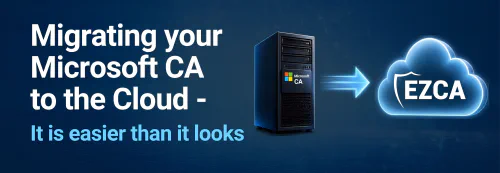
How to Migrate Windows Certificate Authority (ADCS) to the Cloud with EZCA
The first step on Migrating the Windows Certificate Authority to the cloud is to understand the scope of how your current CA is being used. The main 3 use cases for a CA in a modern enterprise are:
- Wifi and VPN authentication for devices.
- Server Certificates for internal sites and service-to-service authentication.
- Domain Controller Certificates for Windows Hello for Business Hybrid.
Depending on your organization’s needs, you will need to plan the migration of each of these use cases to the cloud. In this article, we will go through how to migrate each of these use cases to the cloud with EZCA, Keytos’s Azure-based PKI solution.
Making The Plan to Migrate Your ADCS CA to the Cloud
The first step to migrating your CA to the cloud is to make a plan. If you were using our professional services to help you with your migration, the first question the engineer would ask you is if you have any On-Premises use cases for your CA. If you don’t, then the setup is very straightforward, you just have to create a SCEP CA in the Cloud and connect your certificate authority to your MDM and you are good to go.
If you do have on-premises use cases, then the next question is who issues certificates for those use cases. If your on-premises certificates are issued only by the same people that manage your PKI, then you can migrate everything into one SCEP CA, otherwise, if you have different teams issuing certificates for different use cases, then you will need to create multiple CAs, one for SCEP for user and device certificates, and one for SSL certificates for internal sites and service-to-service authentication (we call our CA with granular permissions for certificates SSL CA). The reason for this, is that as we learned with KB5014754, without the right configuration, you can run into issues with certificate issuance when you have multiple use cases running on the same CA. If you have different teams issuing certificates for different use cases, it is best practice to separate those use cases into different CAs in order to avoid any potential issues.
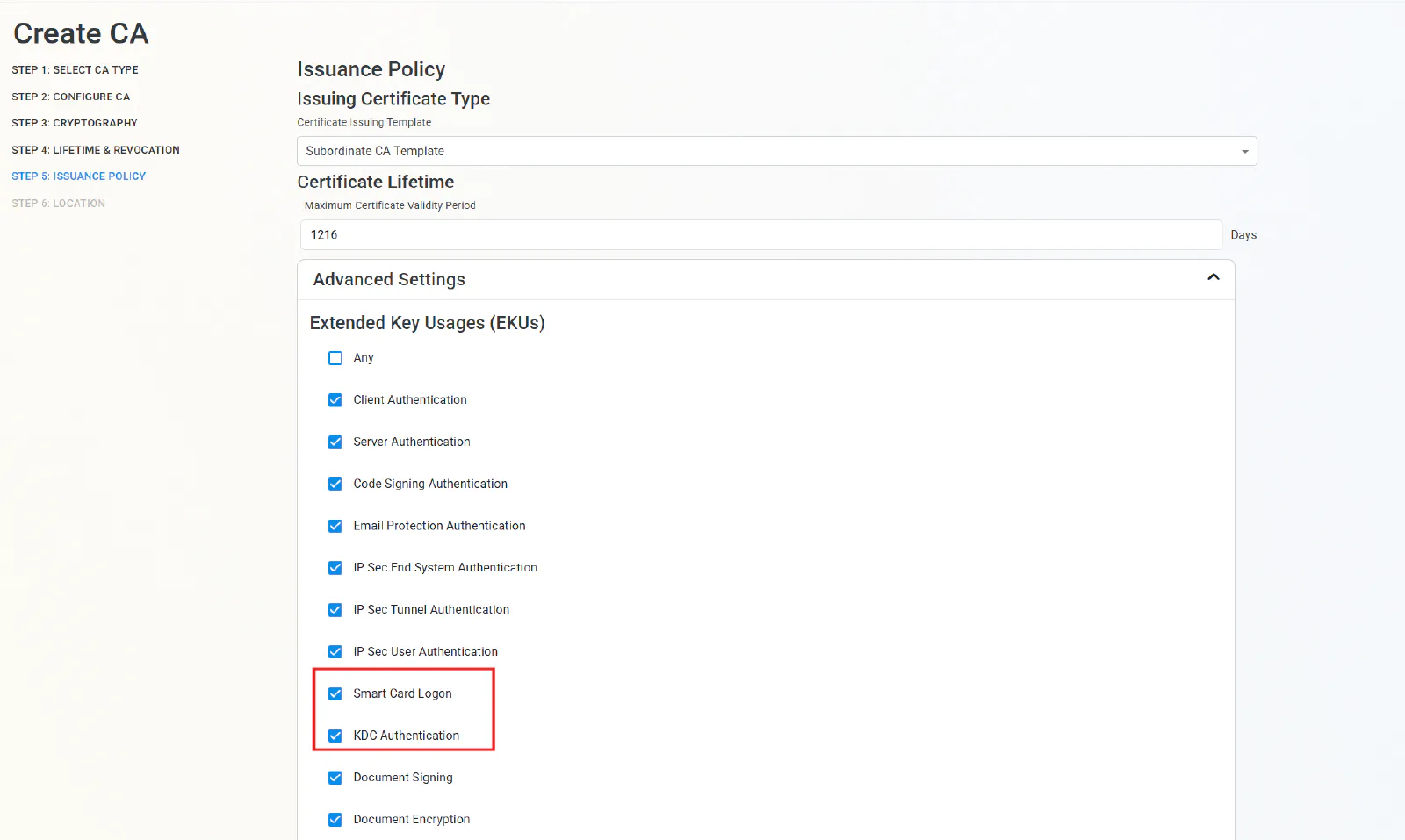
The last question we need to ask before we build your SCEP CA is whether you are planning to use Windows Hello for Business Hybrid for RDP. If you are, then you will need to ensure your SCEP CA (and, if you are doing a two-tier PKI, your Root CA) has the correct EKU for Domain Controller Authentication and Smart Card Authentication. When using EZCA, in Advanced Settings in the “Issuance Policy Step”, you will see the setting to ensure they are enabled. See screenshot below.
How to Create Your SCEP CA in the Cloud and Connect it to Intune
Now that you have a plan for how to migrate your CA to the cloud, the next step is to create your SCEP CA in the cloud and connect it to Intune. With EZCA, this process is very straightforward and can be done in a matter of minutes. You can follow our step-by-step guide on how to create a SCEP CA in Azure and how to connect your certificate authority to your MDM. Or the video below will walk you through the process in under 10 minutes:
Now that you have your SCEP CA set up and connected to Intune, you can start issuing certificates to your devices for Wifi and VPN authentication.
How to Migrate On-Premises Certificates for Domain Joined Devices to the Cloud without Intune
Now that you saw how easy it is to setup Intune SCEP with EZCA, I know what you are thinking: “What about my on-premises domain joined devices that are not connected to Intune? How do I migrate those certificates to the cloud?” Thankfully EZCA has you covered. Depending on your decision before, on whether to use one CA for all use cases or to separate them into a SCEP CA and an SSL CA, you can use the CA that you plan to use for your non-Intune use cases to also issue certificates for your domain joined devices.
To do this, you have two options, if you have a handful of certificates, you can create them directly in the EZCA Cloud CA and set certificates for autorenewal. If you have many certificates, and don’t want to do it manually, you can set your existing Windows CA to be trusted by the EZCA CA and then run the renewAll command in your servers (either manually or through GPO) and magically have all your certificates being now issued by EZCA. You can follow our step-by-step guide on how to add an existing CA to EZCA and Migrate Windows CA.
How to Migrate Domain Controller Certificates to a Cloud PKI
The next step is to migrate your domain controller certificates to the cloud. This is a crucial step since your domain controller certificates are used for Kerberos authentication as well as Secure LDAP. To migrate your domain controller certificates to the cloud, you can follow our step-by-step guide on how to add an existing CA to EZCA and Migrate Windows CA.
How to Register Windows Hello for Business Hybrid for RDP with a Cloud CA
The last piece of the puzzle is to register Windows Hello for Business Hybrid for RDP with a Cloud CA. This is a crucial step since it allows you to use your cloud CA to issue certificates for RDP authentication, which is a common use case for domain controllers. To do this, you can follow our step-by-step guide on how to register Windows Hello for Business Hybrid for RDP with a Cloud CA in Intune.
Need Help Migrating Your CA to the Cloud? Talk to a PKI Expert for Free!
If you would like to learn more or talk to a PKI expert about migrating your CA to the cloud, you can talk to a PKI expert for free. Our experts will guide you through the process and help you with any questions you may have. We are here to help you on your PKI migration journey and ensure that your PKI is set up properly and securely in the cloud, so you can stop worrying about your certificates.