

















How-To: Create Domain Controller Certificates for Windows Hello Hybrid
Introduction - How to Create a Domain Controller Certificate with Cloud PKI
If you are trying to migrate your PKI to the cloud, but still have Domain controllers on premises, you might still need certificates for your domain controllers. This certificates can be used for regular Domain Controller operations such as Secure LDAP or more advanced scenarios like hybrid key trust deployment for Windows Hello For Business.
This guide will show you how to create this without the need of running ADCS (Active Directory Certificate Services) offloading all your PKI needs to EZCA.
Prerequisites for Creating Domain Controller Certificates with EZCA
Before we start, there are a few prerequisites that need to be in place before we can create the domain controller certificates:
- You have created a SCEP CA.
- For Windows Hello for Business and LDAP scenarios, make sure you have the KDC Authentication, Smart Card Logon, Client Authentication, and Server Authentication EKUs added in your CA configuration.
- You are a PKI Admin in EZCA with permissions to create certificates.
- You have pushed your CA certificates to your Intune Devices.
How to Trust your EZCA CA Certificate in Active Directory
The first step step is to add the EZCA CA certificate to the NTAuth Store. This will enable the certificate to be used for authentication in Active Directory. First we must get the CA certificate from EZCA:
-
Navigate to the EZCA portal (If you have your private instance go to that specific portal)
-
Login with an account that is registered as a PKI Admin in EZCA.
-
From the left-hand menu, select Certificate Authorities.

-
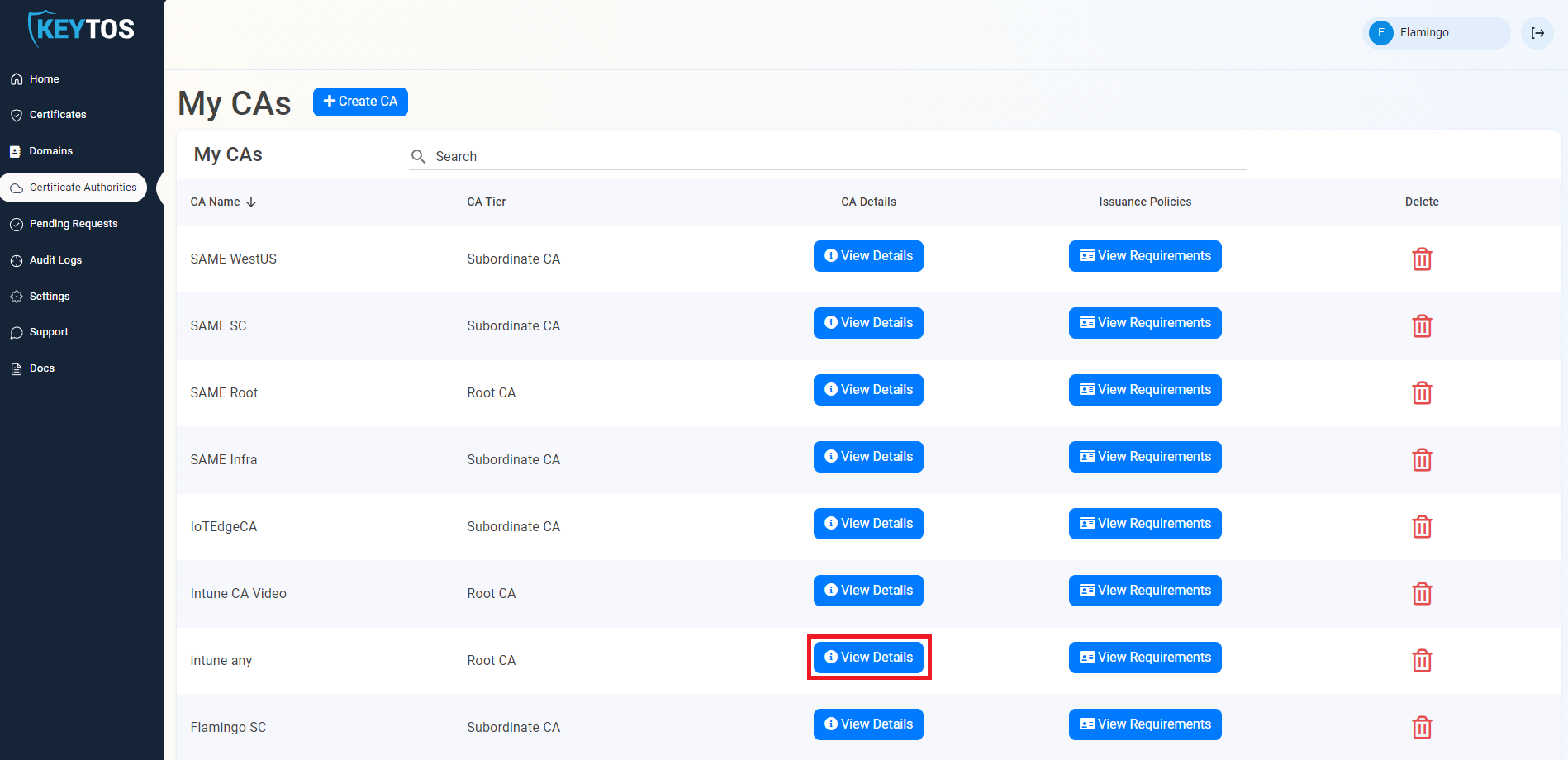
Scroll down to the CA you want to use for your domain controller certificates and click the View Details button.
-
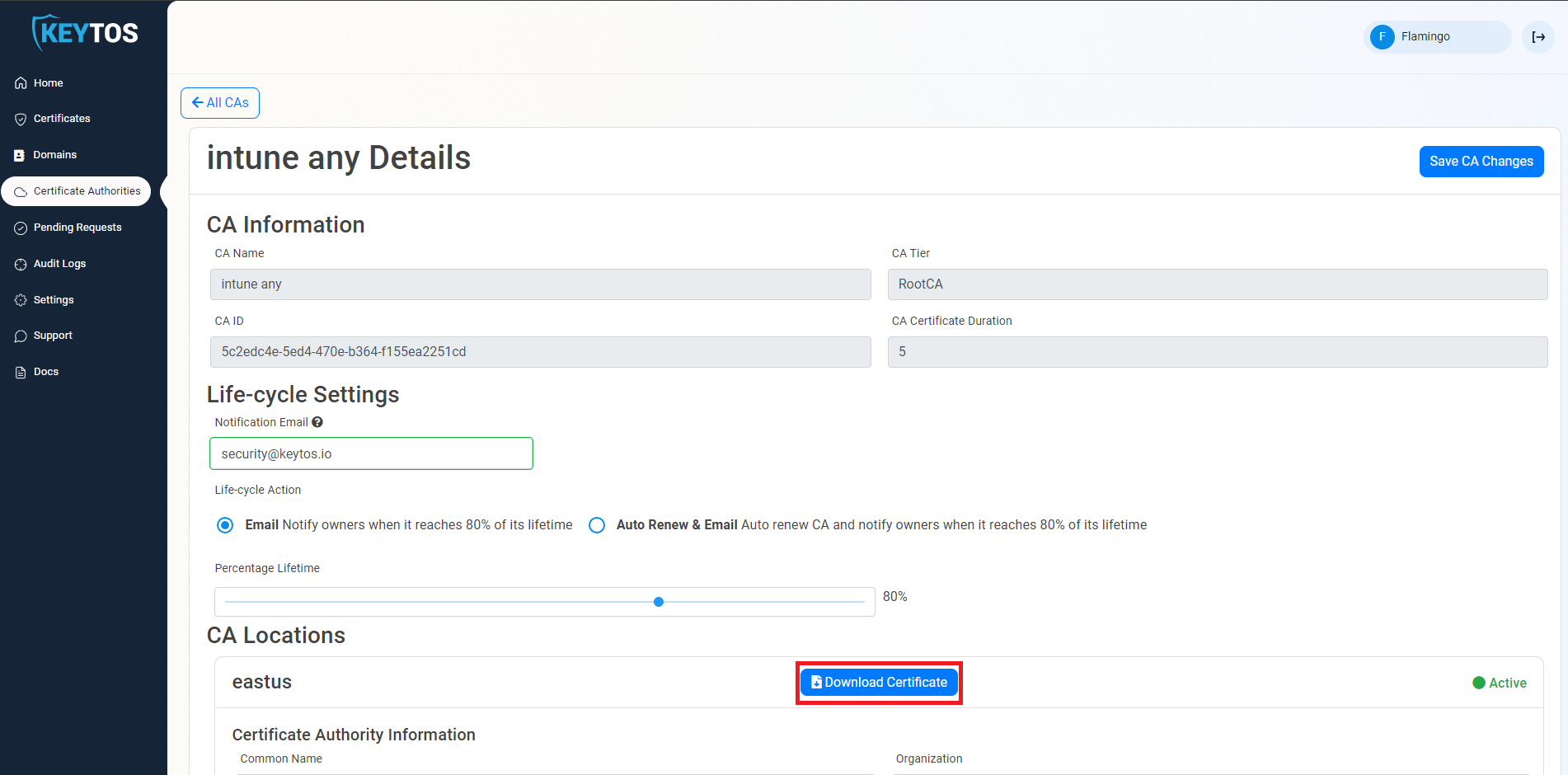
Click Download Certificate to download the CA certificate.
-
Run the following command using an account with enterprise administrator rights to add the certificate to the NTAuth Store to enable certificate issued by this CA to be used for authentication in AD.
certutil -f -dsPublish ca-cert.cer NTAuthCA -
Run the following command to add the certificate chain to the Windows trusted store. If the root certificate you used to sign the EZCA CA is already trusted by this domain you do not have to do this step.
certutil -f -dsPublish ca-root.cer RootCA -
If your EZCA CA is an issuing (subordinate) CA, also publish it to the SubCA store so Active Directory knows it as a subordinate of your root:
certutil -f -dsPublish ca-cert.cer SubCA -
It can take several hours for this certificate to replicate. To speed up the process you can run
gpupdate /forcein the domain controllers and any machine that you want this to take effect sooner.
How to Create Domain Controller Certificates with EZCA
Now that we have established the domain trust, we have to create certificates for the domain controllers (This must be repeated on each domain controller). The first certificate must be created by a PKI administrator and can be either created on the EZCA portal or using our open source certificate management application.
How to Create a Domain Controller Certificate with EZCA Certificate Client
The EZCA Cert Renewal Client is a lightweight CLI application that can be used to create and renew certificates from EZCA. This application is especially useful for scenarios like domain controller certificates where you want to automate the certificate creation and renewal process. You can run this application on the domain controller to create the certificate and set it up for automatic renewal. To create the certificate:
-
Navigate to the EZCA portal. (If you have your private instance go to that specific portal)
-
Login with an account that is registered as a PKI Admin in EZCA.
-
From the left-hand menu, select Certificate Authorities.
-
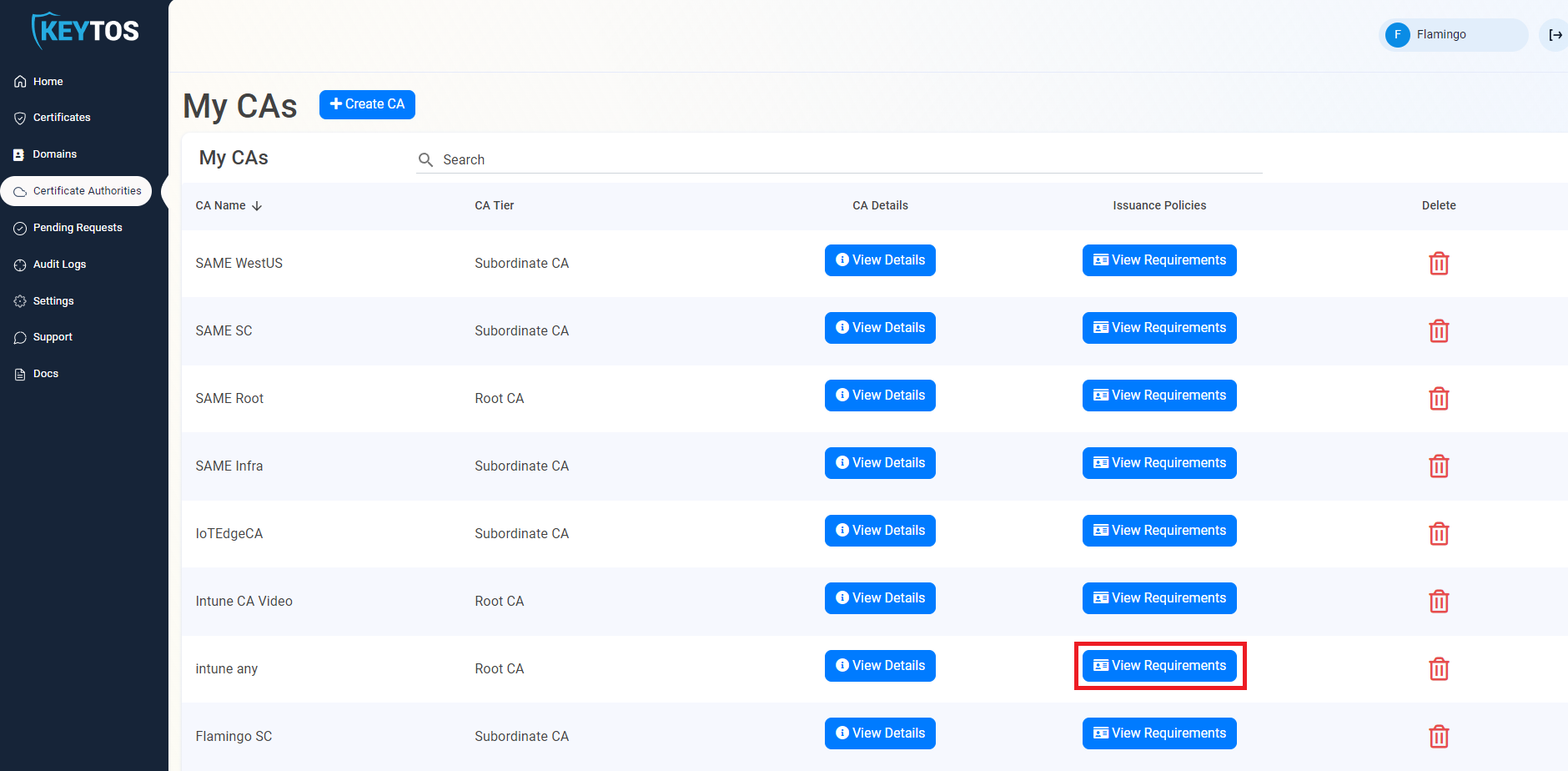
Scroll down to the CA you want to use for your domain controller certificates and click the View Requirements button.
-
From this page, copy the CAID and Template ID.
-
Download our signed open source certificate renewal tool and request the certificate by running the following command:
.\EZCACertManager.exe createDC --caid yourCAIDFromThePortal --TemplateID YourTemplateIDFromThePortal -g $guid -v 90If you prefer to set the subject name and domain controller FQDN manually, you can use the following command:
.\EZCACertManager.exe createDC -s \"CN=server1.contoso.com OU=Domain Controllers, DC=contoso DC=com\" -d your.fqdn --caid yourCAIDFromThePortal --TemplateID YourTemplateIDFromThePortal -g $guid -v 90
How to Automatically Renew Your Domain Controller Certificates
Once you have created your domain controller certificate, it’s important to set up a task within Task Scheduler to automatically renew the certificate before it expires. You can use the same EZCA Certificate Renewal Client to renew the certificate. To do this, you can create a scheduled task that runs the following command:
.\EZCACertManager.exe renew -s \"CN=server1.contoso.com\" --LocalStore
If you have multiple certificates with the same subject name we recommend using the Issuer name or template name to specify the certificate you want to renew.
How to Create a Domain Controller Certificate Using The EZCA Cloud PKI Portal
The EZCA portal provides an interactive way to create the domain controller certificate. You can follow the steps below to create the certificate:
-
Navigate to the EZCA portal (If you have your private instance go to that specific portal)
-
Login with an account that is registered as a PKI Admin in EZCA.
-
From the left-hand menu, select Certificate Authorities.
-
Scroll down to the CA you want to use for your domain controller certificates and click the View Requirements button.
-
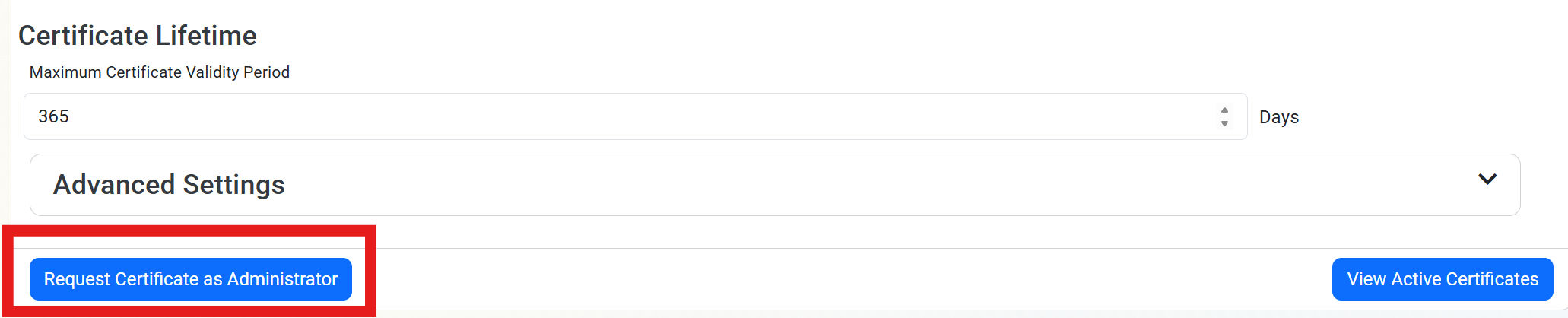
Select the Request Certificate as Administrator Button
-
Enter the Subject Name in format
CN=server1.contoso.com OU=Your OU DC=contoso DC=com -
If SMTP replication is used in your domain, enter your Domain Controller GUID. You can just run the following command in your Domain Controller to get the GUID:
$adcomputer = Get-ADComputer -Identity $env:COMPUTERNAME -Properties ObjectGUID | Select-Object Name, ObjectGUID $guid = $adcomputer.ObjectGUID.Guid $guid -
To ensure that the certificate works with Strong Authentication, add the SID of the Domain Controller. To get the SID, run Richard Hicks’ SID Tool by running
Install-Script -Name Get-Sid. You can also run his script directly. Once you installed the powershell script, run the following command to get the SID and enter it in the Domain Controller SID field (for exampleS-1-5-21-4178246833-4257920234-3815016409-1112).Get-Sid -Machine -
Enter your Host Name as a DNS Name entry. (i.e. domaincontroller1.same.domain)
-
Select the Validity Period of your certificate.
-
Leave Certificate Location as Import CSR and follow the instructions in How to create a CSR Locally to create the CSR on the domain controller and upload it to the portal.
-
Click Request Certificate to issue the certificate.
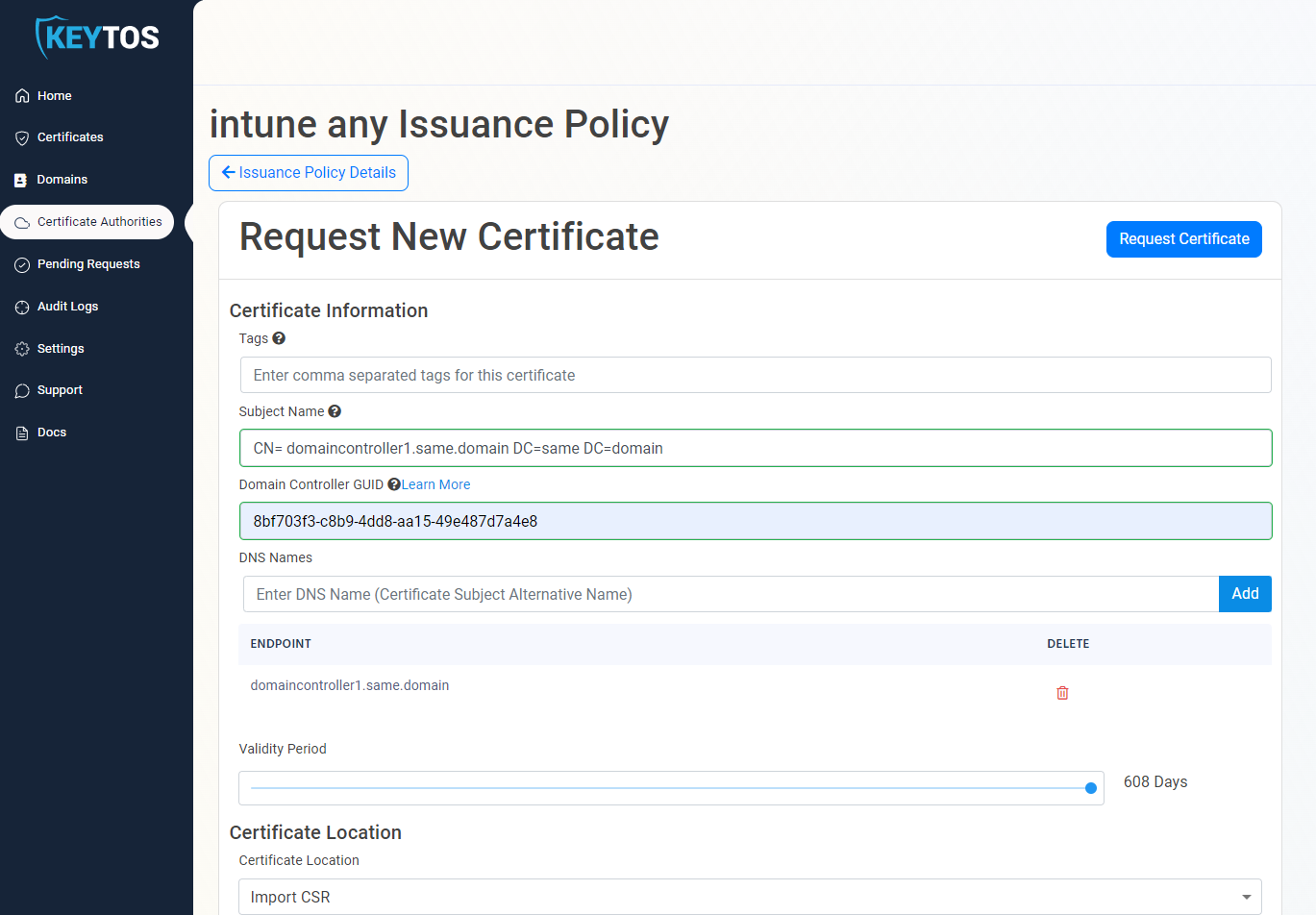
-
Download and install the certificate on the domain controller once the certificate is issued.
How to Validate that the Domain Controller Certificate is Being Used
To validate that the domain controller certificate you created is being used, you can run the following command on a machine that is joined to the domain:
openssl s_client -showcerts -connect <DOMAIN Controller FQDN>:636 -servername <DOMAIN Controller FQDN>
How To Phase Out An Existing ADCS Internal PKI with a Cloud PKI
Once you have created the certificates for all your domain controllers, you can start phasing out your existing ADCS PKI. To do this, please ensure that your internal PKI does not enroll Domain Controller certificates anymore. You can do this by removing the Domain Controller template from the CA. Otherwise, the domain controller might use the domain controller certificate from your ADCS instead of the one from EZCA.