

















How-To: Create Server Certificates with SCEP Cloud CA
Introduction - How to Create a Server Certificate with Cloud PKI
While EZCA SCEP CAs typically issue user and/or device certificates through an MDM solution such as Intune or Jamf, you can also use it to create server certificates for your network controllers or other servers that require certificate authentication, such as RADIUS servers, VPN servers, and web servers. This saves you from needing to deploy a second SSL CA or running ADCS (Active Directory Certificate Services) to issue server certificates.
Follow the instructions below to learn how to create server certificates with your EZCA SCEP CA.
When Should I Create an SSL CA in Addition to my SCEP CA, vs Using Server Certificates in my SCEP CA?
One of the most common questions we get is when to create a separate SSL CA in addition to the SCEP CA, vs. just using server certificates in the SCEP CA. It comes down to a simple question: Will your server certificates be issued by the PKI administrators only? Or will you also have other users (such as help desk or other IT staff) that will also need to issue server certificates?
- If only PKI administrators will issue server certificates, you can use the SCEP CA for both SCEP and server certificates.
- If other users (such as help desk or other IT staff) will also need to issue server certificates, we recommend creating a separate SSL CA for server certificates. This will allow you to have more granular control over who can issue server certificates and will also help you prevent a user or device impersonation by someone creating a “Server Certificate” with the identity of a user or device.
Prerequisites for Issuing Server Certificates with a SCEP CA
Before you can create server certificates with your SCEP CA, make sure you have the following prerequisites in place:
- You have created an EZCA SCEP CA. By default, SCEP CAs will have a limited set of required EKUs. However, if you need additional EKUs, please make sure you have added the KDC Authentication, Smart Card Logon, Client Authentication, and Server Authentication EKUs during the CA creation process.
- You are a PKI Admin of your EZCA subscription. Only PKI Admins can create server certificates in a SCEP CA.
How to Create a Server Certificate in a SCEP Cloud CA
The following steps will guide you through the process of creating a server certificate with your EZCA SCEP CA:
-
Navigate to the EZCA portal (If you have your private instance, or using our localized EZCA portals go to that specific portal)
-
Login with an account that is registered as a PKI Admin in EZCA.
-
From the left-hand menu, select Certificate Authorities.

-
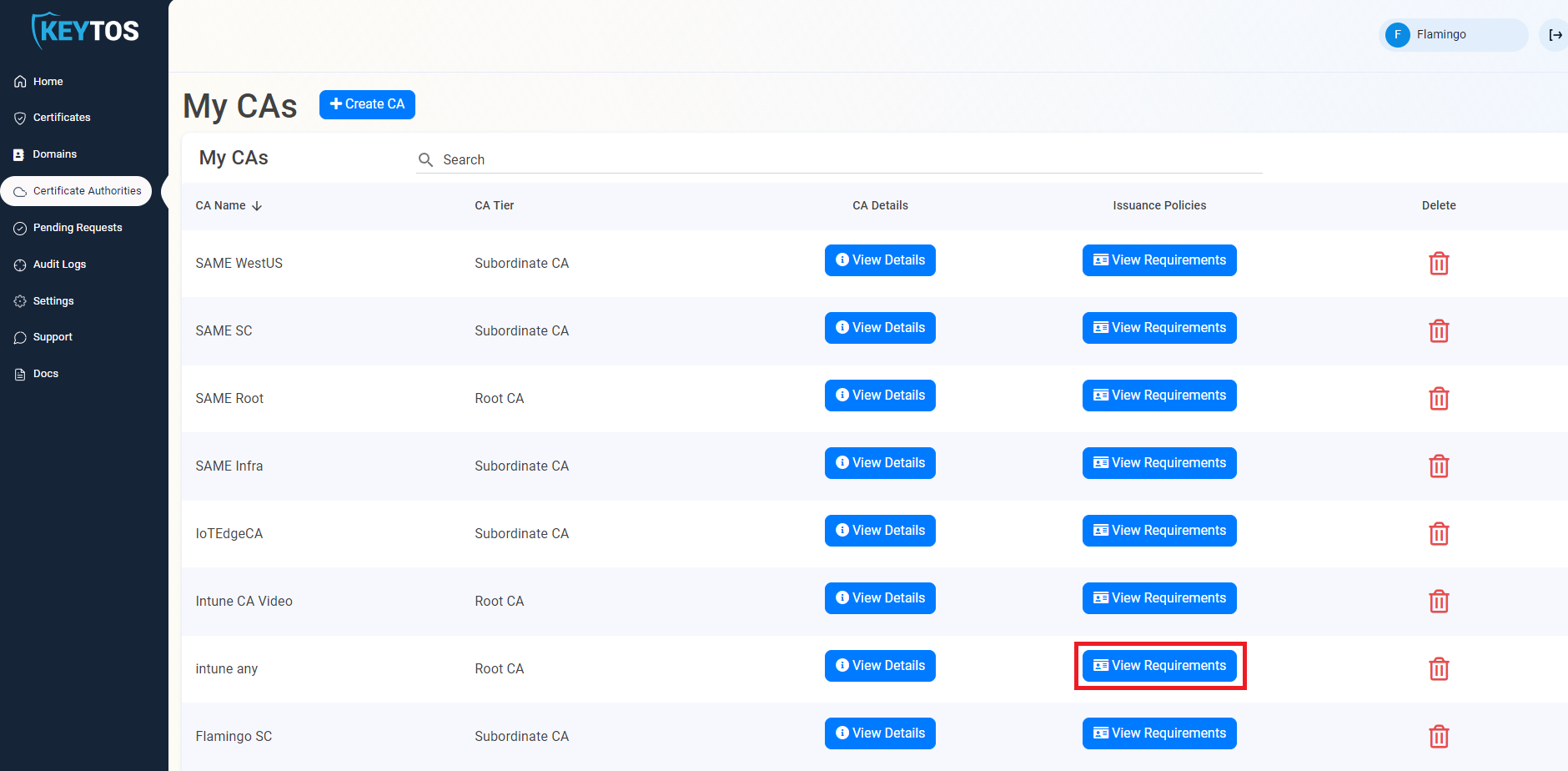
Select the View Requirements button for your CA
-
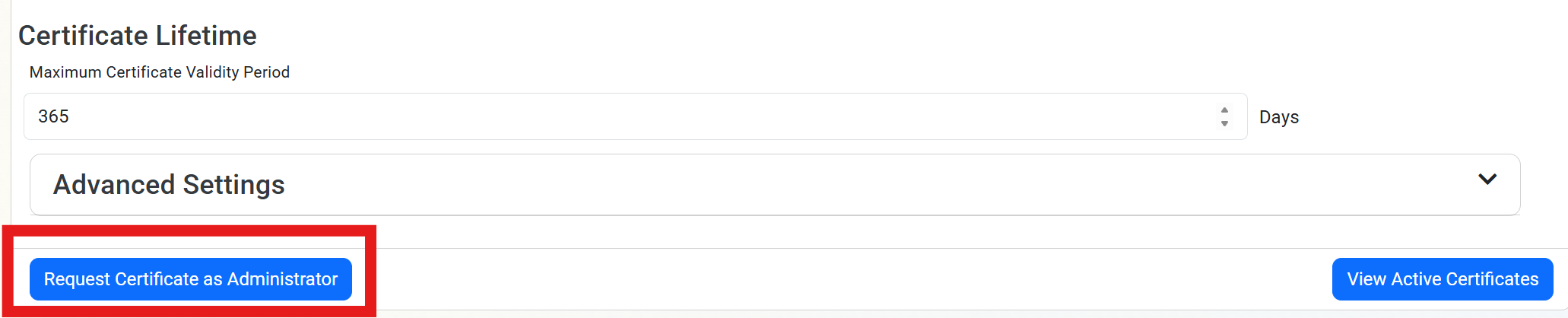
Select the Request Certificate as Administrator Button
-
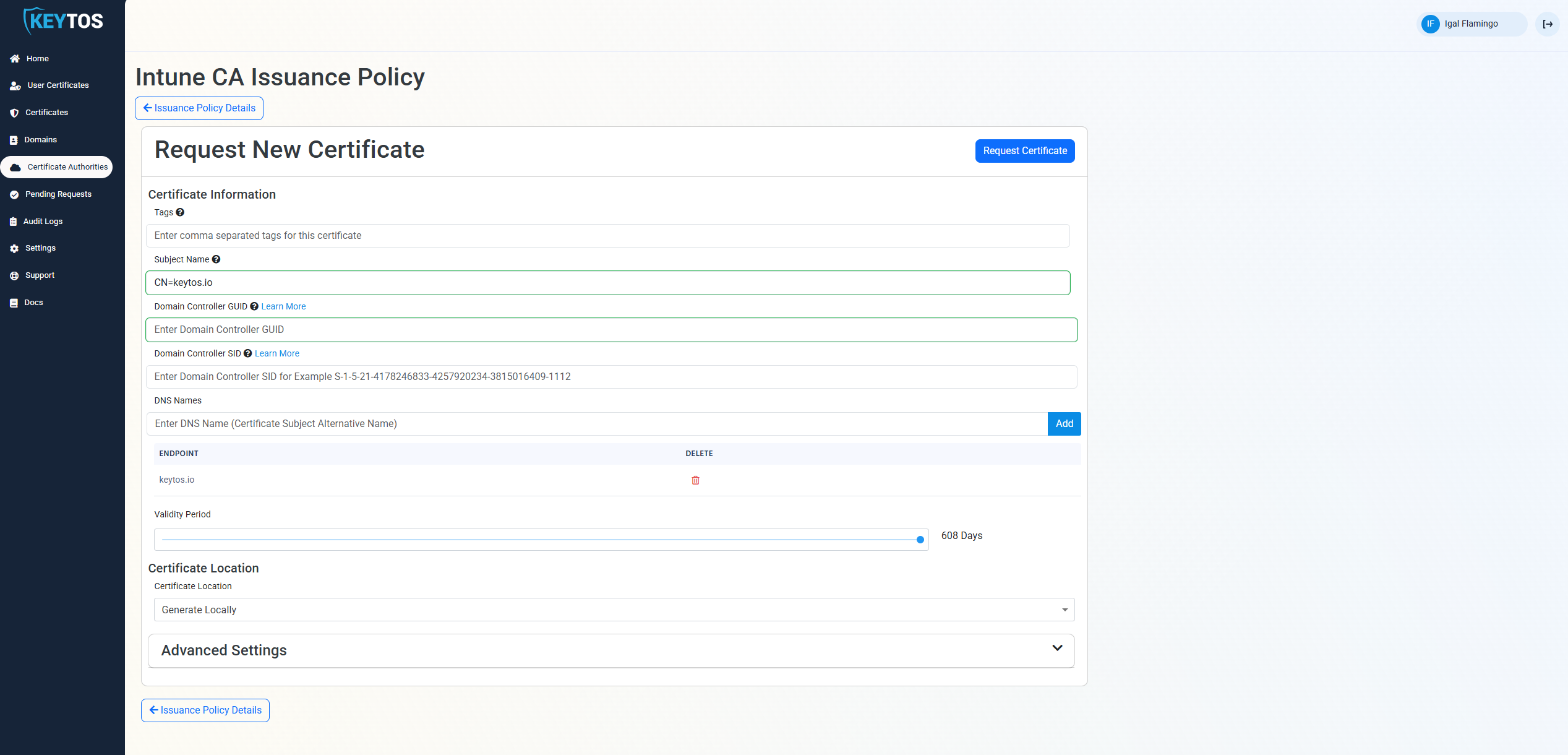
Enter the Subject Name in format
CN=server1.contoso.com OU=Your OU DC=contoso DC=com -
Enter your host name as a DNS Name.
-
Select the Validity Period of your certificate.
-
Under Certificate Location select whether you want to Generate Locally to create the certificate and private key directly in the browser, or Import CSR if you want to generate the certificate signing request and private key on your server and just use the portal to sign the CSR.
-
Click Request Certificate to issue the certificate.
-
Download an install the certificate on your server or network controller.
How to Migrate Existing Local CA Server Certificates to EZCA CA
While creating certificates for MDM managed devices is the most common use case for SCEP CAs, we understand that not all devices might be managed by an MDM, and that you might have existing certificates issued by a local CA that you want to migrate to your Cloud CA. If this is the case, you can use our EZCA Certificate Renewal Client with the renewAll feature to bulk renew all the certificates issued by your existing CA with your EZCA SCEP CA. This will allow you to keep all the existing certificate properties the same (such as Subject Name and SANs) while just changing the issuing CA to your EZCA SCEP CA.
Learn how to migrate your existing certificates from your local CA to your EZCA SCEP CA in the following guide: How-To: Migrate Your X.509 Certificates from an Existing CA.
How to Set Your Server Certificate for Automatic Rotation
Once you have created your server certificate in EZCA, you can optionally use the EZCA Certificate Renewal Client to automatically renew the certificate before it expires. To do this, you can create a scheduled task that runs the following command:
How to Renew a Single Certificate Using the Certificate Manager Tool
The certificate manager tool download is a command line tool that allows you to renew the certificates with just the existing certificate (no need for Entra ID users). To renew a certificate using the certificate manager tool, you can run the following command:
.\EZCACertManager.exe renew -s "mydomain"
How to Renew All Certificates Issued by a CA Using the Certificate Manager Tool
The certificate manager tool also allows you to renew all the certificates issued by a CA. This is useful when you have multiple certificates issued by the same CA in the same location and you want to renew all of them, or if you want to push the command to all the machines that have certificates issued by a specific CA (such as through GPO), to Renew all the certificates issued by a CA, you can run the following command:
Sample call:
.\EZCACertManager.exe renewAll -a myIssuingCASubjectKey
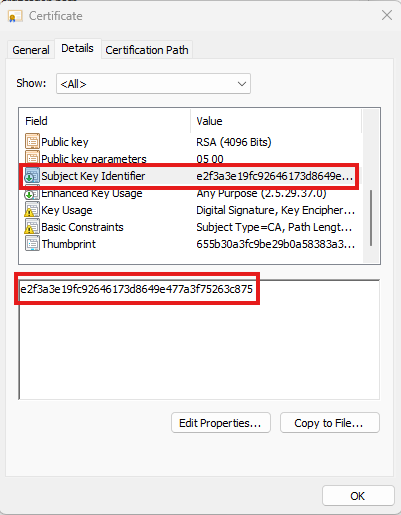
where the myIssuingCASubjectKey is the Subject Key of the Issuing CA of the certificates you want to renew. This can be found in the certificate details of the CA certificate. If you want to include multiple CAs, separate the values with a comma.
Same as the other commands, if you want to do this at the local store level, you must add --LocalStore (we don’t have to add the RDP flag here since this command will check if the certificate was used for RDP before and if it was, it will set the renewed certificate for RDP as well):
.\EZCACertManager.exe renewAll -a myIssuingCASubjectKey --LocalStore