

The Ultimate Guide to WPA Enterprise on Ubiquiti Unifi with Keytos Cloud RADIUS
 Keytos Team |
This guide will walk you through from start to finish on how to set up WPA Enterprise on your Unifi network using Keytos Cloud RADIUS. We’ll walk through some of the options you can choose from when setting up your RADIUS server, such as setting up ultra-secure passwordless certificates, and we’ll also cover how to configure your devices so they automatically connect to the Wi-Fi network as soon as they’re turned on.
Why Should I Use WPA Enterprise for My Unifi Network?
If you’re currently sharing your office or campus Wi-Fi password via email, Slack, or even a sticky note on the wall, it’s time to consider a more secure and efficient solution. WPA Enterprise, paired with a RADIUS server, allows each of your employees to have their own unique credentials for Wi-Fi access. If someone leaves the company, you can simply revoke their access without having to change the Wi-Fi password for everyone else.
Check out our video overview of WPA Enterprise to learn more about the benefits of using WPA Enterprise for your Unifi network:
How Much Will WPA Enterprise Cost Me?
One of the biggest misconceptions about WPA Enterprise is that it’s expensive and difficult to set up. Keytos Cloud RADIUS is built for organizations of any size, where you only pay for the users that connect each month. Starting at $1 USD per user per month, you can provide secure WPA Enterprise Wi-Fi access to your employees without breaking the bank. Plus, with our free 30-day free trial, you can test it out for yourself and see how easy it is to set up and manage.
Learn more about our pricing with some real-world examples in our video overview:
Can I Use RADIUS on a Wired Network?
Yes! Unifi supports 802.1X authentication on both wired and wireless networks, so you can use Keytos Cloud RADIUS to secure access to your wired network as well. This is especially important for sensitive areas of your network, such as server rooms or administrative offices, where you want to ensure that only authorized personnel have access. We’ll cover wired network setup in addition to wireless down below.
Video Guides - How to Set Up WPA Enterprise on Unifi with Keytos Cloud RADIUS
Want to follow along with a step-by-step video guide? Check out our YouTube videos where we walk you through the entire process of setting up WPA Enterprise on your Unifi network in 30 minutes or less:
Step-By-Step Guide - How to Set Up WPA Enterprise on Unifi with Keytos Cloud RADIUS
Setting up WPA Enterprise on your Unifi network might seem daunting at first, from configuring your RADIUS server to setting up your certificates and Wi-Fi policies. But don’t worry, we’ve got you covered with this comprehensive step-by-step guide to get you up and running in no time.
Prerequisites to Setting Up WPA Enterprise on Unifi
Before we dive into the setup process, there are a few prerequisites you’ll need to have in place:
- Entra ID Global Administrator Account - To install & consent the Keytos app in your Entra ID tenant, you’ll need to have a global administrator account to approve the necessary permissions for Keytos to integrate with your Entra ID and manage your RADIUS server.
- Unifi Network Administrator Account - You’ll need to have a Unifi network set up and running, with administrative access to configure the network settings.
Step 1: Decide How You Want to Authenticate Your Users
The first step in setting up WPA Enterprise on your Unifi network is to decide how you want to authenticate your users. There are two main options for authentication when it comes to WPA Enterprise:
- EAP-TLS (Certificate-Based Authentication) - This is the most secure option, as it uses certificates to authenticate users. With EAP-TLS, each user or device will have their own unique certificate that they can use to connect to the Wi-Fi network. This is a great option if you already have a PKI infrastructure in place (such as Microsoft Cloud PKI), but if you’re starting from scratch, our cloud PKI solution, Keytos EZCA, is super easy to set up and manage, and it integrates directly with Keytos Cloud RADIUS.
- EAP-TTLS (Username/Password Authentication) - This option uses an Entra ID username and password to authenticate users. It doesn’t require any certificates or PKI infrastructure, making it a simpler option to set up. However, it is less secure than EAP-TLS since it relies on passwords, which can be compromised.
Let’s cover how to set up both options.
How to Set Up Passwordless Certificate Authentication with RADIUS
While EZRADIUS supports any X.509 certificate such as ADCS and Microsoft Cloud PKI, the easiest way to create and manage certificates for your users is to use Keytos EZCA, a cloud-based PKI service that integrates directly with EZRADIUS. It only takes a few minutes to get started with EZCA and begin issuing certificates for passwordless Wi-Fi access in your NETWORKNAME network.
How to Set Up Entra ID Users to Authenticate with RADIUS in Unifi
Don’t want to manage certificates? No problem! You can authenticate your existing Entra ID users using their username and password without needing to manage any PKI infrastructure.
Note that if you have conditional access policies set up in Entra ID (such as MFA), you will need to add an exception for EZRADIUS in order for username/password authentication to work. View this page for more details on adding this exception.
Step 2: Install the Keytos App in Your Entra ID Tenant
The Keytos Entra Application allows you to integrate your RADIUS server directly with your Entra ID tenant, making it easy to manage your users and authentication methods. To set up the integration, you’ll need to install & consent the Keytos app in your Entra ID tenant and grant it the necessary permissions to manage your RADIUS server.

Learn how to consent the Keytos app in your Entra ID tenant using your global administrator account here:
Install Keytos App in Entra IDStep 3: How to Create Your Cloud RADIUS Subscription
Now that you’ve decided on your authentication method, the next step is to create your Cloud RADIUS subscription. Keytos Cloud RADIUS is a cloud-based RADIUS server that integrates directly with your Entra ID tenant, making it easy to set up and manage WPA Enterprise for your Unifi network.
You can create a subscription directly from EZRADIUS, or through the Microsoft Marketplace if you want to leverage Azure billing and use your enterprise agreement commitments. Both options will give you access to the same great features and capabilities of Keytos Cloud RADIUS, so you can choose the option that works best for you.
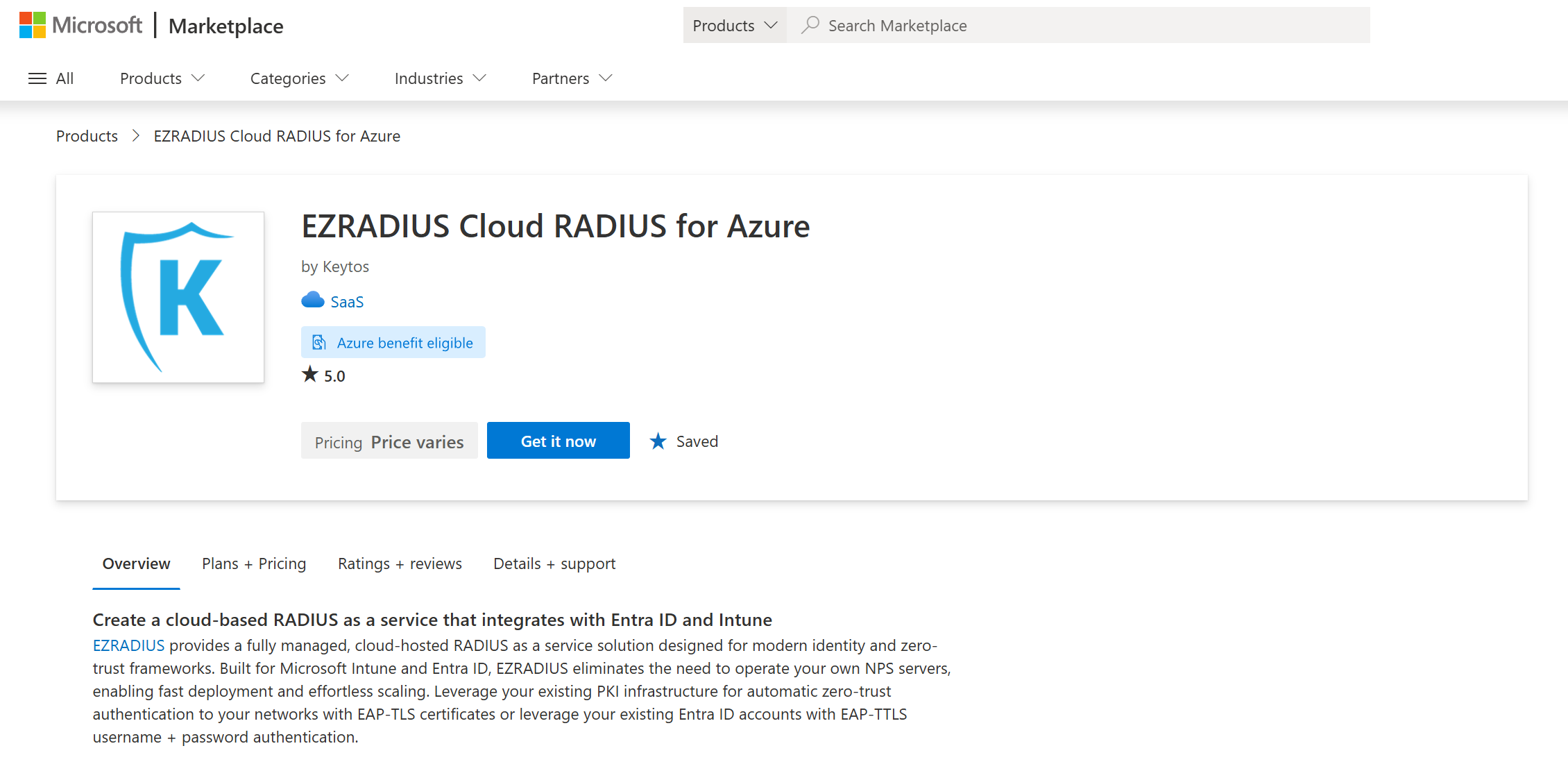
Visit this link to create your first Cloud RADIUS subscription:
Create a Cloud RADIUS SubscriptionStep 4: Create Your RADIUS Policy in EZRADIUS
Now that you have your Cloud RADIUS subscription set up, the next step is to create your RADIUS policy in EZRADIUS. Your RADIUS policy will define how users authenticate to your Unifi network, including which authentication method they use (EAP-TLS or EAP-TTLS), which users or groups have access, and any other conditions you want to set for network access.
There are two ways to set up your RADIUS policy in EZRADIUS: using certificates (EAP-TLS) or using Entra ID usernames and passwords (EAP-TTLS). Follow the links below to learn how to set up each type of policy:
How to Create a RADIUS Policy with Certificate Authentication for Unifi Networks
Learn how to create a RADIUS policy in EZRADIUS that uses certificate-based authentication with EAP-TLS:
How to Create a RADIUS Policy with Entra ID Username/Password Authentication for Unifi Networks
Learn how to create a RADIUS policy in EZRADIUS that uses Entra ID username and password authentication with EAP-TTLS:
Step 5: Configure Your Unifi Network to Use RADIUS Authentication
Now that you have your RADIUS policy set up in EZRADIUS, the next step is to configure your Unifi network to use RADIUS authentication. This involves adding a new Unifi RADIUS server and then updating your Wi-Fi or wired ports to use RADIUS authentication.
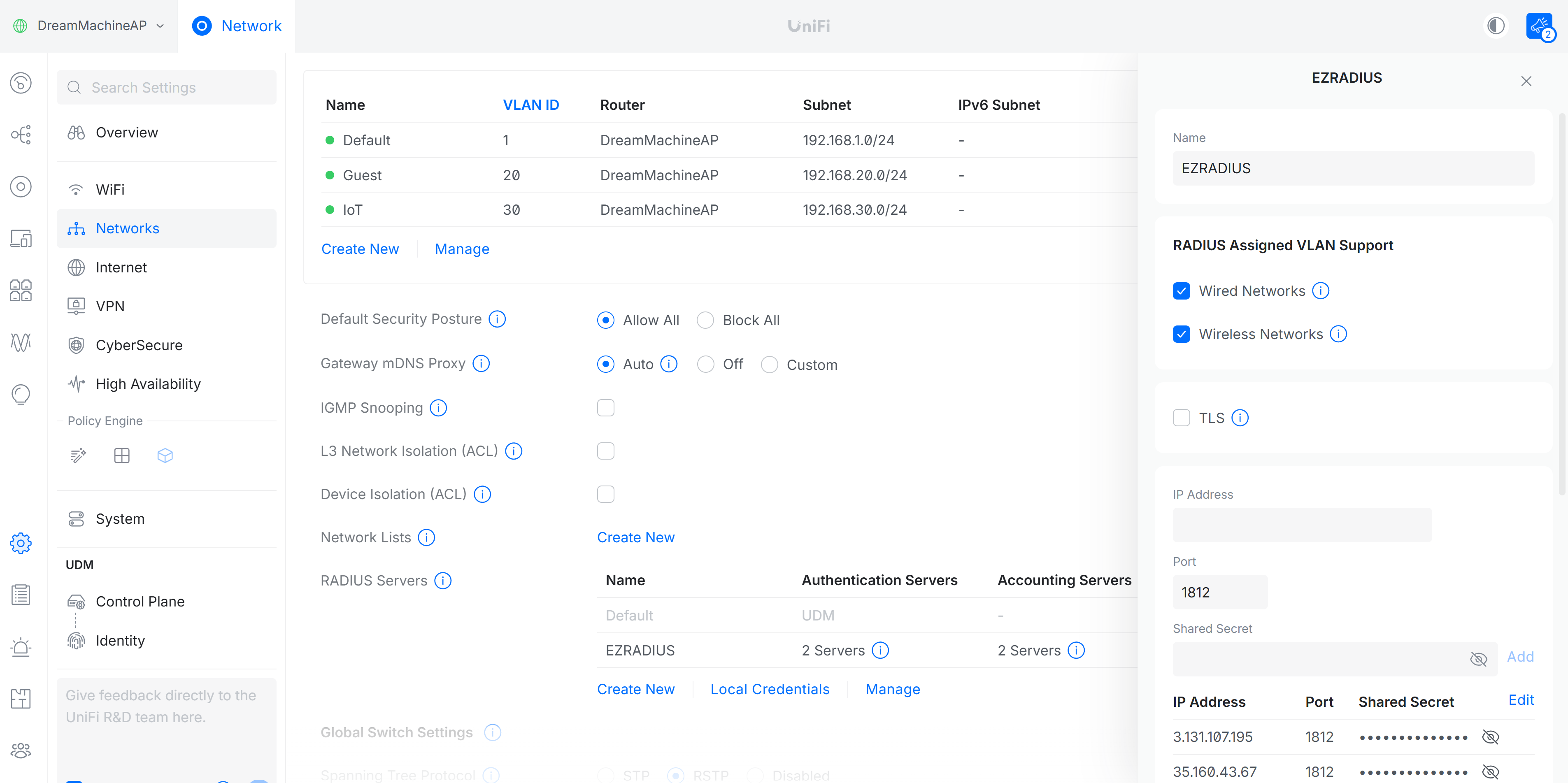
Learn how to configure your Unifi network to use RADIUS authentication with this step-by-step guide:
Configure Unifi for RADIUSStep 6: Connect Your Devices to the Wi-Fi Network
Having a WPA Enterprise network set up is great, but you also need to make sure your devices are configured to connect to the network using the correct authentication method. This involves configuring your Wi-Fi settings on each device to use the WPA Enterprise network. Depending on how you manage your devices, there are a few different ways to do this:
How to Configure Devices to Connect to WPA Enterprise with Microsoft Intune
If you use Microsoft Intune to manage your devices, you can create a Wi-Fi profile that automatically configures your devices to connect to your WPA Enterprise network using the correct authentication method. This is a great option for organizations that want to ensure all of their devices are configured correctly without having to manually set up each one.
How to Configure Devices to Connect to WPA Enterprise with Jamf Pro
If you use Jamf Pro to manage your Apple devices, you can create a Wi-Fi profile that automatically configures your devices to connect to your WPA Enterprise network using the correct authentication method. This is a great option for organizations that want to ensure all of their Apple devices are configured correctly without having to manually set up each one.
How to Configure Devices to Connect to WPA Enterprise with a Self-Service Wi-Fi Portal
Have unmanaged devices or just want to give your users the ability to set up their own Wi-Fi access? With Keytos Cloud RADIUS, you can create a self-service Wi-Fi portal that allows your users to log in with their Entra ID credentials and automatically configure their devices to connect to the WPA Enterprise network. This is a great option for organizations that have a mix of managed and unmanaged devices or want to give their users more control over their Wi-Fi access.
How to Manually Configure Devices to Connect to WPA Enterprise
Don’t use an MDM or want to set up a few devices manually? You can also configure your devices to connect to the WPA Enterprise network manually by selecting the network and entering the appropriate authentication information. Check out this guide for instructions on how to do this for both EAP-TLS and EAP-TTLS authentication methods:
Devices Not Connecting? Troubleshooting WPA Enterprise on Unifi
If you’re having trouble getting your devices to connect to the WPA Enterprise network, you can check out our troubleshooting guide for some common issues and solutions:
Troubleshooting WPA EnterpriseWe also have a video walkthrough of some common troubleshooting steps you can take if your devices aren’t connecting to the Wi-Fi network:
Conclusion - Start Securing Your Unifi Network with WPA Enterprise and Keytos Cloud RADIUS
Setting up WPA Enterprise on your Unifi network with Keytos Cloud RADIUS is a great way to enhance the security of your Wi-Fi network and provide a better experience for your users. With unique credentials for each user, you can easily manage access to your network and ensure that only authorized users are able to connect. Plus, with our easy-to-use cloud-based RADIUS server, you can set up and manage WPA Enterprise without needing any specialized knowledge or infrastructure.
Ready to get started? Create your Keytos Cloud RADIUS subscription today and take the first step towards a more secure Unifi network with WPA Enterprise:
Get Started With a Cloud RADIUS Subscription