


Entra ID + RADIUS - How to Connect to Wi-Fi & VPNs Without NPS or On-Prem Active Directory
 Aaron Crawfis |
Does Entra ID Support RADIUS Authentication?
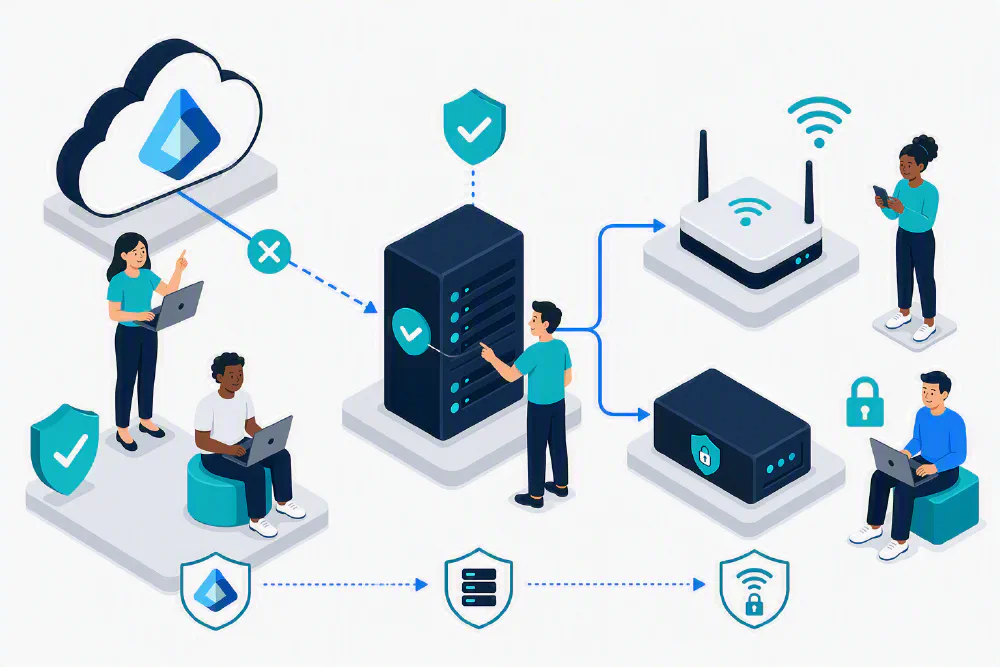
Unlike Windows Server which can run both your user directory (Active Directory) and your RADIUS server (Network Policy Server), Entra ID (formerly Azure AD) does not support RADIUS authentication natively. This means that you cannot use Entra ID directly to authenticate your users and devices for Wi-Fi or VPN connections. Instead, you will need to use a RADIUS server that can sit in between your Entra ID tenant and your network devices (like Wi-Fi access points or VPN servers) to handle the authentication requests.
What Options Are Available to Run a RADIUS Server That Supports Entra ID?
There are a few options for running a RADIUS server that can authenticate your Entra ID users and devices. Some involve running your own RADIUS server on-premises or in a virtual machine, while others provide a cloud-based RADIUS service that natively supports Entra ID and doesn’t require you to manage any servers yourself.
Run Your Own RADIUS Server With Windows Server Network Policy Server (NPS)
If you still have your on-premises Windows Server with Active Directory and Network Policy Server (NPS), you can continue to use that for RADIUS authentication. Simply point your Wi-Fi access points or VPN servers to your NPS server, and configure NPS to authenticate against your on-premises Active Directory.
However, this quickly becomes a problem if you have cloud-only users or devices that are not joined to your on-premises Active Directory. Since NPS talks to Active Directory and not Entra ID, it won’t know about the Entra ID cloud users or devices and will fail to authenticate them. If you’ve ever seen an NPS Event ID 6273 error, this is likely the reason why. To get around this you’ll either need to create “ghost accounts” in your on-premises Active Directory for your cloud users, or use a different RADIUS solution that can talk directly to Entra ID.
Another shortcoming of using NPS is that it requires you to manage your own server, which can be a pain if you don’t have the time, equipment, or expertise to do so. If you have multiple offices or locations, this can quickly get out of hand to manage multiple NPS servers and keep them all in sync.
Issues Running NPS in Azure
Due to a lack of support for partial UDP packet fragmentation in Azure, NPS can’t run in Azure with classic RADIUS (RADIUS over UDP). If you want to run NPS in Azure, you’ll need to use RadSec (RADIUS over TLS) instead. Be careful to check your Wi-Fi access points and VPN servers to make sure they support RadSec, as many of them do not. If they don’t, you’ll need to run NPS on-premises or use a cloud RADIUS service that supports classic RADIUS.
Use a Cloud RADIUS Service That Natively Supports Entra ID
A cloud RADIUS solution, such as EZRADIUS, can get you up and running in just a few minutes without any servers, infrastructure, or maintenance. It connects directly to your Entra ID tenant and can authenticate your users and devices for Wi-Fi and VPN connections without needing NPS or on-premises Active Directory.
Since cloud RADIUS services talk directly to Entra ID, they can authenticate both your cloud-only users and devices, as well as your hybrid users and devices that are AD joined and sync to Entra ID. This makes it a great solution for organizations that are moving to the cloud and want to get rid of their on-premises Active Directory and NPS servers.
Plus, cloud RADIUS services are often cheaper than running your own NPS server, especially if you have multiple locations or offices. You don’t have to worry about server maintenance, updates, or backups, and you can scale up or down as needed without having to buy new hardware or licenses. You only pay for the users and devices that actually use the service, which can save you a lot of money in the long run.
Comparing NPS vs Cloud RADIUS
To help you decide which option is best for your organization, here’s a quick comparison of NPS and cloud RADIUS services:
| Feature | NPS | Cloud RADIUS |
|---|---|---|
| Native Entra ID Support | ❌ No | ✅ Yes |
| Cloud-Only User Support | ❌ No | ✅ Yes |
| Hybrid User Support | ✅ Yes | ✅ Yes |
| Legacy Device Support | ✅ Yes | ✅ Yes |
| Pricing Model | Pay for server & licenses | Pay for users that connect |
| Who Maintains the Server | You | Cloud RADIUS Provider |
| Classic RADIUS Support | ✅ Yes | ✅ Yes |
| RadSec Support | ✅ Yes | ✅ Yes |
What Authentication Method Should I Use With My Entra ID Accounts?
Connecting to your Wi-Fi or VPN with Entra ID accounts can be done a few different ways, depending on the user experience you want to provide, the security requirements of your organization, and the limitations of your environment. Certificate-based authentication with EAP-TLS is by far the most secure method and the one we recommend, but it does require a PKI environment to issue certificates. Username + password authentication with EAP-TTLS can work as well, but it is less secure and can be more difficult to manage. Let’s take a look at the differences between them.
Entra ID Usernames and Passwords Using EAP-TTLS
The simplest way to authenticate your users and devices with Entra ID is to use their Entra ID username and password with EAP-TTLS. This method doesn’t require any certificates or PKI infrastructure, and it works with most Wi-Fi access points and VPN servers. However, it is less secure than certificate-based authentication, as it relies on the strength of the user’s password and can be vulnerable to phishing attacks.
When using EAP-TTLS, users will be prompted to enter their Entra ID username and password when connecting to the Wi-Fi or VPN. There are some limited caching options so users don’t have to enter their credentials every time, but this can lead to bad experiences when passwords are changed or expired. If your organization requires users to change their passwords regularly, this can lead to a lot of failed authentication attempts and support calls.
Username + password authentication with EAP-TTLS also doesn’t support multi-factor authentication (MFA) natively, which is a big drawback if your organization requires MFA for all users. To get this to work in your environment, you’ll need to create an MFA bypass policy in Entra ID for your RADIUS server, which can be a security risk if not configured properly. Your auditor may have concerns about this approach for regulatory compliance, which is why we recommend using certificate-based authentication with EAP-TLS instead.
Certificates Using EAP-TLS (Recommended)
Certificate-based authentication with EAP-TLS is the most secure method for authenticating your users and devices with Entra ID. It uses digital certificates to verify the identity of the user or device, which can make it impossible for attackers to impersonate them. Certificates also renew automatically and can connect to the Wi-Fi or VPN without requiring the user to enter their credentials every time, which leads to a way better user experience, as the device just connects automatically without any prompts.
Certificates are also MFA by default, as the certificate itself is a form of authentication (what you have) and the user usually needs to enter a PIN or password to unlock their device (what you know). This makes it a great option for organizations that require MFA for all users, as it provides a seamless and secure experience without the need for additional prompts or policies.
Legacy Authentication with PEAP or MS-CHAPv2
Legacy protocols like PEAP and MS-CHAPv2 cannot be used with Entra ID accounts, as the backing NT hash check is not supported in Entra ID. If you have legacy devices that only support these protocols, you’ll need to create separate, local accounts for them in your RADIUS server.
Many cloud RADIUS services, like EZRADIUS, provide local account support for legacy devices that cannot use Entra ID accounts. These accounts can be managed by your existing Entra ID users, so you can either centrally manage these local accounts or enable self-service account creation for your users. This can be a great option for organizations that have a mix of modern and legacy devices, as it allows you to support both without needing to maintain separate user directories.
MAC Authentication Bypass
Some devices don’t support authentication at all and cannot authenticate with RADIUS. Printers, cameras, and other IoT devices often fall into this category. For these devices, you can use MAC Authentication Bypass (MAB) to allow them to connect to your network without authenticating with RADIUS. MAB works by allowing the device to connect to the network based on its MAC address, which is a unique identifier for the device.
Since MAC addresses can be easily spoofed, MAB is not a secure method of authentication and should only be used for devices that cannot authenticate with RADIUS, and these devices should be placed on a separate VLAN or network segment to limit their access to your network. Many cloud RADIUS services, like EZRADIUS, provide MAB support for these types of devices.
Comparison of Authentication Methods
To quickly compare the different authentication methods available for Entra ID accounts, here’s a table that summarizes the pros and cons of each method:
| Authentication Method | Pros | Cons |
|---|---|---|
| EAP-TTLS (Username + Password) | Simple to set up, works with most devices | Less secure, no native MFA support, can lead to bad user experience |
| EAP-TLS (Certificates) | Most secure, seamless user experience, MFA by default | Requires PKI infrastructure to issue certificates |
| Legacy Protocols (PEAP, MS-CHAPv2) | Works with legacy devices | Not supported with Entra ID accounts, requires local accounts |
| MAC Authentication Bypass (MAB) | Allows non-authenticating devices to connect | Not secure, should be limited to separate VLAN or network segment |
If you’re already looking into a cloud RADIUS solution like EZRADIUS, we recommend using EAP-TLS with certificates for your Entra ID users and devices. There are a lot of great cloud PKI solutions available such as Microsoft Cloud PKI or EZCA Cloud PKI which can make it easy to issue and manage certificates for your users and devices without needing to maintain your own PKI infrastructure.
How Much Does It Cost For A RADIUS Server That Supports Entra ID?
The cost of running a RADIUS server that supports Entra ID can vary widely depending on the solution you choose. If you run your own NPS server on-premises, you’ll need to factor in the cost of the Windows Server license, hardware, and ongoing maintenance. This can be expensive, especially if you have multiple locations or offices. Even if you run NPS in Azure using RadSac (since Azure doesn’t support classic RADIUS), you’re looking at hundreds of dollars per month for the server and licensing costs, plus the time and effort to maintain it.
EZRADIUS, on the other hand, is free to deploy and you only pay for the users and devices that actually use the service, starting at just $1 per user per month. For a lot of organization’s it’s actually cheaper to use a cloud RADIUS service like EZRADIUS than to run their own NPS server. You can learn more about EZRADIUS and its pricing model to see if EZRADIUS is the right solution for your organization. You can also book a demo with a member of our team to see how EZRADIUS works and get answers to any questions you may have.