



Fixing NPS Event 6273 Reason Code 8 (And Why Cloud-Only Devices Always Hit It)
 Aaron Crawfis |
What Does NPS Event ID 6273, Reason Code 8 Mean?

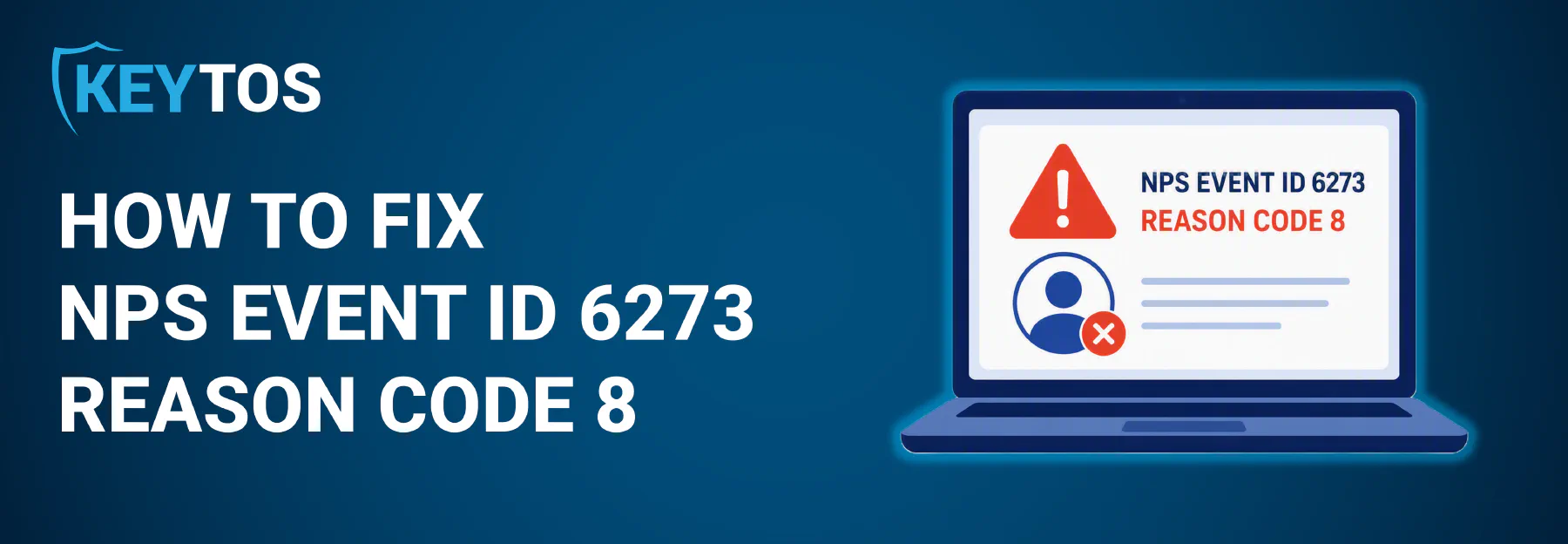
In Network Policy Server (NPS), Event ID 6273 means that a RADIUS request was rejected when a device tried to connect to a network. Reason Code 8 specifically means that the user/device account that was trying to authenticate does not exist in Active Directory (AD). The good news with Reason Code 8 is that your actual EAP-TLS certificate is valid and NPS is able to validate it. The bad news is that the account that the certificate is associated with does not exist in AD, so NPS cannot allow the connection. Let’s break down what this means and why it happens, and why cloud-only devices always hit this error.
How Does NPS Look Up Device or User Accounts For RADIUS Authentication?
When a device or user tries to authenticate through NPS, there are a few steps that NPS takes to validate the incoming request and determine whether to allow or deny the connection. At a high level, NPS does the following:
- NPS receives the RADIUS request from the device or user.
- For EAP-TLS (certificate) authentication, NPS grabs the UPN (User Principal Name) or DNS value from the certificate’s Subject Alternative Name (SAN) field. This is the value that NPS will use to look up the account in Active Directory.
- NPS queries Active Directory to find a matching user or device account based on the UPN or DNS value from the certificate. If NPS does not find a matching account in AD, it logs Event ID 6273 with Reason Code 8, indicating that the specified user account does not exist.
- NPS also verifies the strong identity mapping requirements introduced in KB5014754, to ensure that the certificate is properly bound to the account in AD. If the certificate does not have a SID extension or a matching
altSecurityIdentitiesentry, NPS will log Event ID 6273 with Reason Code 16, indicating that the identity binding failed.
A matching account in Active Directory (AD) is required by NPS to allow a connection, even if the certificate itself is valid. If the account does not exist, NPS cannot proceed with the authentication, resulting in the rejection of the connection attempt.
What Causes an Active Directory Lookup to Fail with Event ID 6273 During NPS RADIUS Authentication?
If you’re hitting NPS Event ID 6273 with Reason Code 8, it means that NPS was unable to find a matching account in Active Directory for the UPN or DNS value extracted from the certificate. There are several common reasons why this lookup might fail:
SAN Field in Certificate Does Not Contain UPN or DNS and Cannot Be Used for RADIUS Authentication
The Subject Alternative Name (SAN) field in the certificate must contain either a UPN or DNS value that NPS can use to look up the account in Active Directory. If the SAN field is missing these values, NPS will not be able to perform the lookup, resulting in Event ID 6273 with Reason Code 8.
Certificate UPN or DNS Value is Formatted Incorrectly or Does Not Match Expected Format for AD Lookups During NPS RADIUS Authentication
If your certificate does have a UPN or DNS value in the SAN field, but it is formatted incorrectly or does not match the expected format for Active Directory lookups, NPS will not be able to find the account. This can happen if there are prefixes, suffixes, or domain mismatches in the UPN or DNS value.
For example, this can occur if you set {{UserName}} in Intune instead of {{UserPrincipalName}} when configuring the certificate profile. The {{UserName}} variable will populate the certificate with just the username instead of the full UPN. You can double check your UPN or DNS value by grabbing your certificate’s SAN value and checking it against AD:
Get-ADUser -Filter "UserPrincipalName -eq '<UPN from certificate SAN>'"
or for a device account:
Get-ADComputer -Filter "DNSHostName -eq '<DNS SAN from certificate SAN>'"
UPN Changed in Active Directory After Certificate Was Issued Can Cause NPS RADIUS Authentication to Fail
If the UPN for the account associated with the certificate has changed in Active Directory after the certificate was issued, NPS will not be able to find the account using the UPN from the certificate. This will result in Event ID 6273 with Reason Code 8. If you suspect this is the case, you can check the current UPN for the account in AD and compare it to the UPN in the certificate’s SAN field. If they are different, you may need to reissue the certificate with the updated UPN or update the account in AD to match the UPN in the certificate.
No Account in Active Directory Causes NPS RADIUS Authentication to Fail
If the account associated with the certificate does not exist in Active Directory, NPS will not be able to find it during the lookup process. This is a common scenario for cloud-only devices that are registered in Entra ID but do not have corresponding accounts in on-premises Active Directory. In such cases, NPS will treat the account as non-existent, resulting in Event ID 6273 with Reason Code 8.
See the section below on cloud-only devices for more information on how to handle this scenario.
You can check if the account exists in Active Directory by running the following PowerShell command:
Get-ADUser -Filter "UserPrincipalName -eq '<UPN from certificate SAN>'"
or for a device account:
Get-ADComputer -Filter "DNSHostName -eq '<DNS SAN from certificate SAN>'"
Cross-Forest or Cross-Domain Issues Can Cause NPS RADIUS Authentication to Fail
If your NPS RADIUS server is part of a multi-domain or multi-forest environment, there may be issues with account lookups across domains or forests. If the account associated with the certificate is in a different domain or forest than the NPS server, and there are trust issues or misconfigurations, NPS may not be able to find the account, resulting in Event ID 6273 with Reason Code 8. Make sure that the necessary trusts are in place and that the NPS server has the appropriate permissions to query accounts in other domains or forests.
What’s The Difference Between NPS Event ID 6273, Reason Code 8 and Reason Code 16?
It’s important to quickly call out the difference between Reason Code 8 and Reason Code 16 in NPS Event ID 6273. Both reason codes indicate that the RADIUS request was rejected, but they have different underlying causes:
- Reason Code 8: The specified user account does not exist in Active Directory, for one of the reasons outlined above. This is typically seen with cloud-only devices or users that do not have corresponding accounts in on-premises AD.
- Reason Code 16: NPS found something, but the identity binding or credential failed validation. On PEAP-MSCHAPv2 this is usually just a wrong password. On EAP-TLS, it is most often a strong certificate mapping failure under KB5014754. The account exists, but the certificate has no SID extension and no matching
altSecurityIdentitiesentry, so the domain controller refuses to bind the certificate to the account.
How to Handle Cloud-Only Devices That Don’t Have an AD Account And Cannot Authenticate via NPS RADIUS
If you have Entra ID joined users or devices that are trying to authenticate via NPS RADIUS, they will always hit Event ID 6273 with Reason Code 8 because NPS cannot find their accounts in on-premises Active Directory. This is becoming more and more common with the rise of cloud-first and cloud-only environments, especially if you use Microsoft Cloud PKI for certificate issuance and management without any on-prem Active Directory.
There are a couple options to handle this scenario though, which can get you up and running without needing to stand up an entire on-premises Active Directory environment or hybrid join solution just to support RADIUS authentication.
How to Create Ghost Accounts in Active Directory for Cloud-Only Devices So They Can Authenticate via NPS RADIUS
If you want to use your NPS RADIUS server as-is to authenticate cloud-only devices, you can create “ghost” accounts in Active Directory for each of your Entra ID joined users or devices. These ghost accounts have the same UPN or DNS value as the cloud-only account, allowing NPS to find them during the lookup process. You can create these accounts manually or automate the process using PowerShell scripts. This community-maintained GitHub project has some automation to create ghost accounts in AD for cloud-only devices.
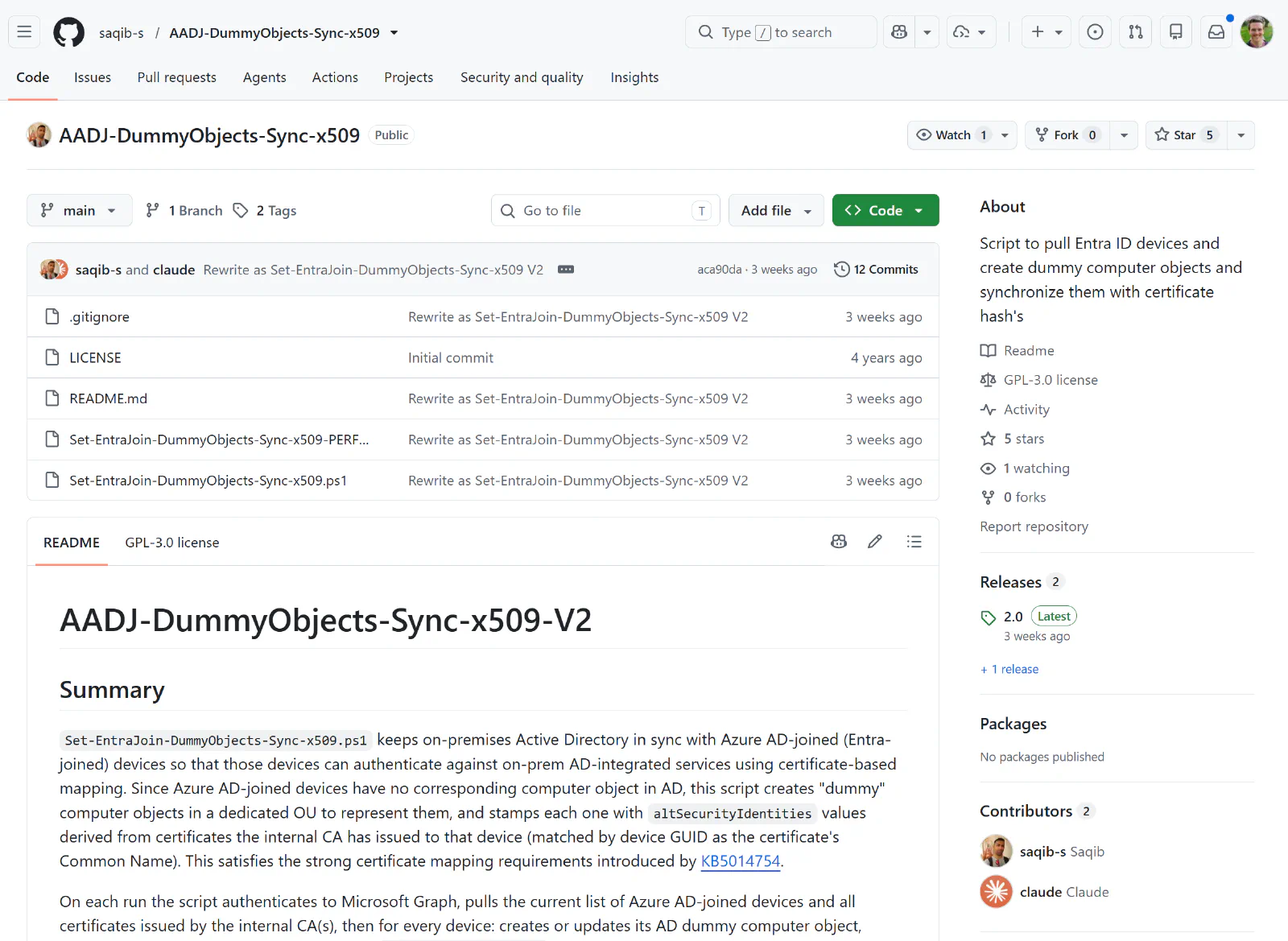
In this set up, you’ll need to set up sync processes and automation to ensure that the ghost accounts in AD are kept in sync with the cloud-only accounts in Entra ID. If the sync job fails or is not run, the ghost accounts in AD may become out of sync with the cloud-only accounts, resulting in authentication failures. This also requires a high-privilege account to create and manage the ghost accounts in AD, which may not be ideal for all organizations. For CMMC or ISO 27001 compliance, this can be a big problem if your sync job doesn’t properly handle account deletions or changes, as it can leave orphaned accounts in AD that may be a security risk.
How to Use a Cloud RADIUS Service to Authenticate Cloud-Only Devices Without Needing an AD Account
If ghost accounts and sync jobs don’t sound appealing, another option is to replace your on-premises NPS RADIUS server with a cloud RADIUS service that can authenticate cloud-only devices without needing an account in Active Directory. EZRADIUS Cloud RADIUS integrates directly with Entra ID and can authenticate on-premises, hybrid, and cloud-only devices directly against Entra ID without needing any account in Active Directory. This allows you to support cloud-only devices without needing to create ghost accounts or manage sync jobs, and it simplifies your RADIUS authentication architecture.
Learn More About EZRADIUS Cloud RADIUS
How Do I Migrate To a Cloud RADIUS Service Without Disrupting My Existing NPS RADIUS Authentication?
If you want to migrate to a cloud RADIUS service like EZRADIUS without disrupting your existing NPS RADIUS authentication, it’s easy to move over as part of a phased migration. You can run both your on-premises NPS RADIUS server and the cloud RADIUS service in parallel, allowing you to migrate users and devices over to the cloud RADIUS service at your own pace. EZRADIUS offers a 1-month free trial without a credit card required, so you can test it out and see how it works with your existing RADIUS authentication setup before committing to a paid plan. Plus, our team of identity experts can help you with the migration and answer any questions you have along the way.
Start Your Free Trial of EZRADIUS Cloud RADIUS
Talk to an Identity Expert