

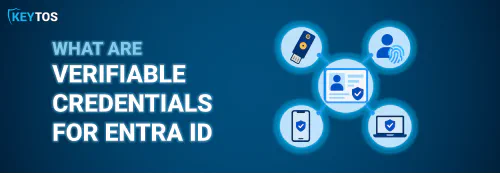

What are Verifiable Credentials and How Do I Use Them?
 Aaron Crawfis |
What are Verifiable Credentials and How Do They Protect my Entra ID Users?
If you’ve made the move to a passwordless and unphishable Entra ID environment, you may think that you’re all set: users sign in with phishing-resistant credentials, conditional access is locked down, and SMS is long gone. Then a new hire starts on Monday, or someone drops their phone in a lake, and suddenly your help desk is stuck asking, “Can you confirm your manager’s name?”, and the security of your environment relies on the user’s ability to provide accurate information rather than cryptographic proof.
Attackers are exploiting weaknesses like this more and more frequently, targeting help desks and relying on social engineering to bypass strong authentication controls. If you have strong, unphishable credentials in every other part of your environment, but allow TAPs to reset passwords or grant access based on easily guessed or socially engineered information, your security is only as strong as your weakest link.
That is the gap verifiable credentials are built to close. A verifiable credential is a tamper-proof, digitally signed statement that an issuer makes about a person, such as “this is Alice, her government ID checks out, and she is an employee of Contoso.” Alice can present her verifiable credential whenever someone needs proof, and the party receiving it can check the signature cryptographically, without calling the issuer and without trusting anything the user types or says.
In the words of the W3C Verifiable Credentials Data Model that Microsoft implements, verifiable credentials are “data objects consisting of claims made by the issuer attesting information about a subject.” If you have worked with PKI, the idea will feel familiar: a trusted party signs a set of claims, and anyone with the issuer’s public key can confirm those claims haven’t been forged or modified.
What are Issuers, Holders, and Verifiers in the Context of Verifiable Credentials?
Every verifiable credential flow has three roles:
- Issuer: The organization that checks something about the user and signs a credential attesting to it. That could be your company (proof of employment), an identity verification provider (proof that a government ID and a live face match), or a university (proof of a degree).
- Holder: The user. They store the credential in a wallet app, such as Microsoft Authenticator, and decide when to share it with a verifier.
- Verifier: The app or service that asks the holder for a credential and validates the issuer’s signature before granting something: an account, access, a password reset, or a discount.
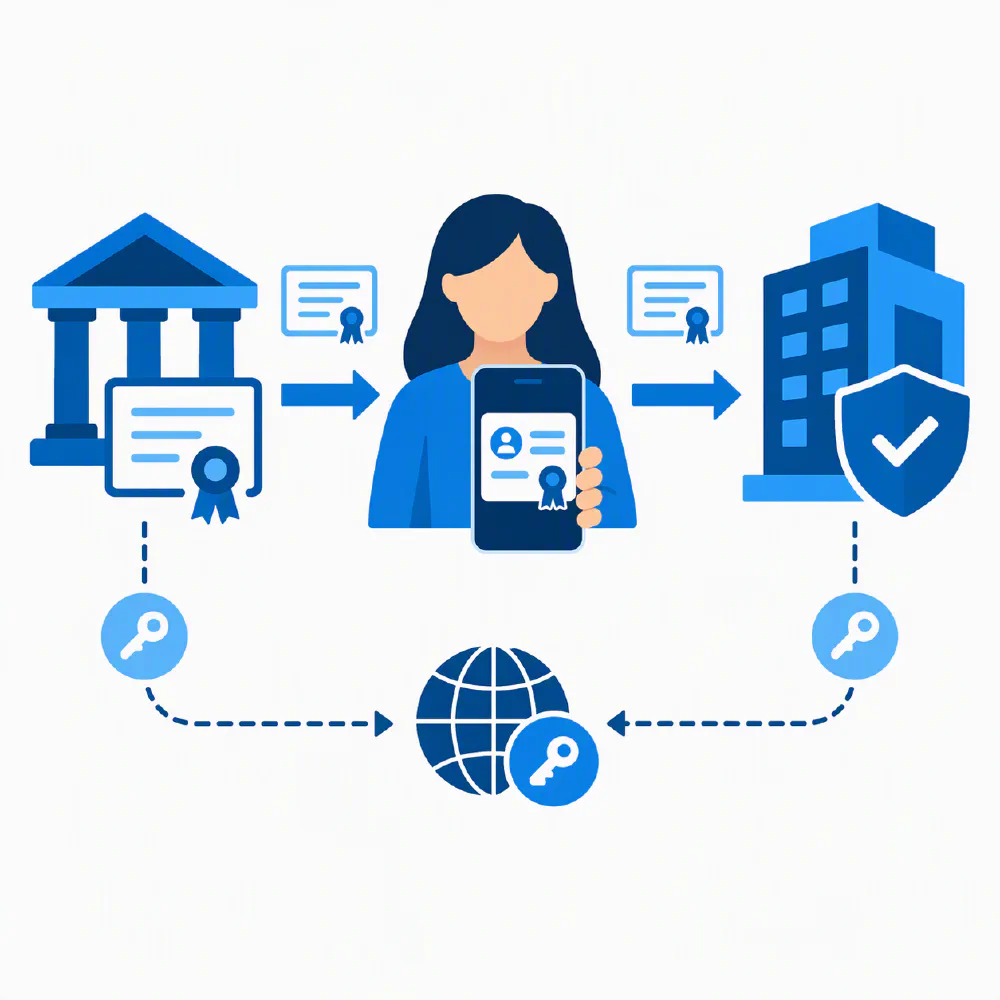
The important part is that the issuer and verifier never have to talk to each other in real time. The verifier only needs to know the issuer’s public key, which it looks up through the issuer’s Decentralized Identifier (DID).
What Are Decentralized Identifiers (DIDs)?
A Decentralized Identifier is a globally unique ID that resolves to a document containing public keys and service endpoints. Think of it as the verifiable credential world’s equivalent of a CA certificate. When Contoso signs a credential, the signature ties back to Contoso’s DID. Microsoft Entra Verified ID uses the did:web method, which anchors trust in a web domain you already own, so a verifier can confirm that did:web:contoso.com really belongs to the company that owns contoso.com.
Can I Use Verifiable Credentials to Sign In to Entra ID?
This is where most people get confused. A verifiable credential is proof of identity, not an authentication method. You don’t sign in to Teams with a verifiable credential the way you would with a passkey or a certificate. Instead, verifiable credentials answer the question that comes before authentication: “Is this person really who they claim to be, and should we let them register a credential?”
That makes verifiable credentials the answer to the chicken and egg problem of passwordless. You can’t use a passkey to prove who you are before you have a passkey, and you shouldn’t fall back to something phishable to bootstrap something unphishable.
How Do Verifiable Credentials Work in Entra ID?
Microsoft’s implementation of verifiable credentials is Microsoft Entra Verified ID. It is built on the open W3C and Decentralized Identity Foundation standards, which means credentials issued by one organization can be verified by another, even if the second organization doesn’t use Microsoft.
In an Entra ID environment, the pieces map out like this:
| Component | What It Does in Entra ID |
|---|---|
| Entra Verified ID service | Issues and verifies credentials through a REST API and the Entra admin center |
| Microsoft Authenticator | Acts as the user’s wallet, stores credentials, and presents them when asked |
| did:web trust system | Ties your issuer DID to your verified custom domain |
| Verified Workplace Credential | The default “proof of employment” credential, issued from your directory |
| Face Check | Compares a live selfie against the photo inside a Verified ID before accepting it |
| Identity verification (IDV) partners | Third parties in the Microsoft Security Store that check government IDs and issue a Verified ID |
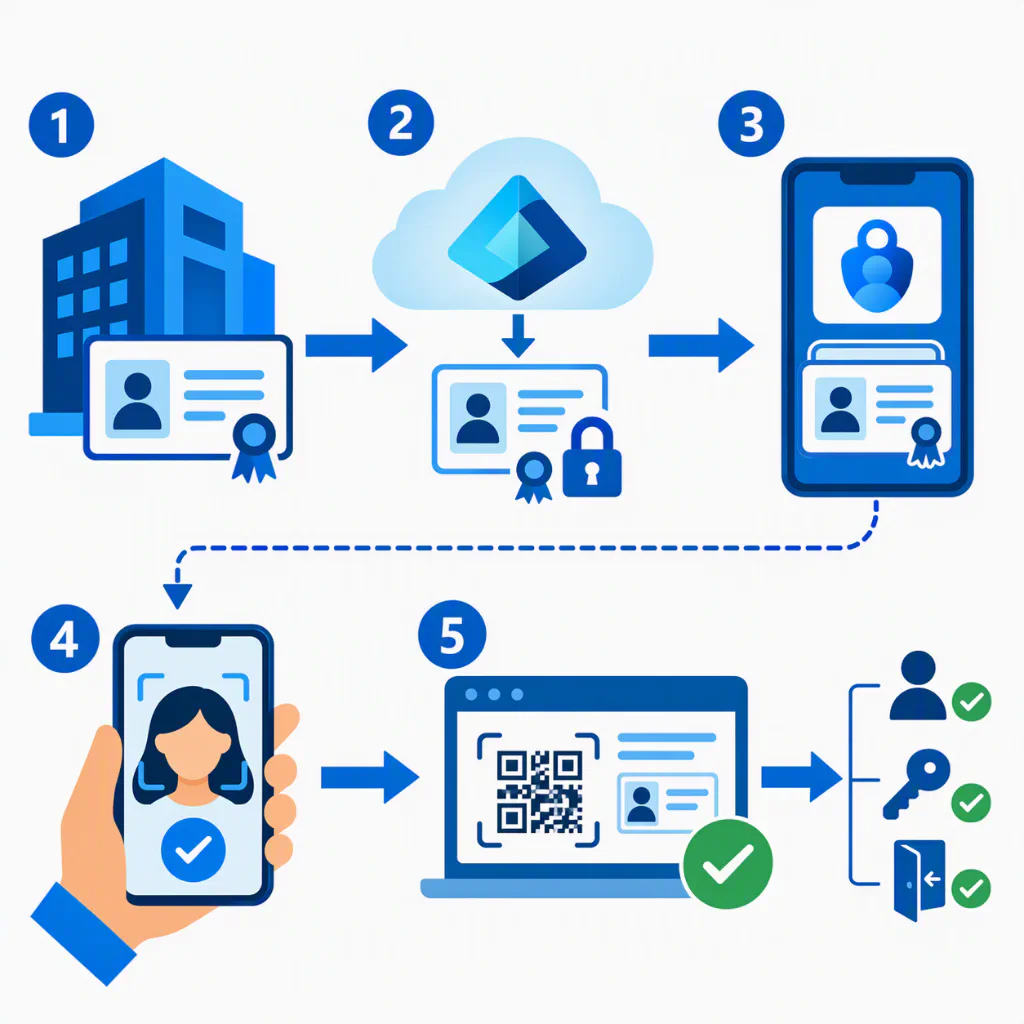
Here is what a typical flow looks like:
- The issuer verifies something about the user. For a workplace credential, the user signs in to MyAccount and selects Get my Verified ID. For a government ID credential, an IDV partner scans the user’s driver’s license or passport and matches it to a live photo.
- Entra Verified ID (or the IDV partner) signs a credential containing claims like name, employee ID, and photo, and the user accepts it into Microsoft Authenticator.
- Later, a verifier (Entra itself, an access package, a help desk portal, or a custom app) shows a QR code or deep link requesting a specific credential type.
- The user approves the request in Authenticator, optionally completing a Face Check so the verifier knows the person holding the phone matches the photo in the credential.
- The verifier validates the signature against the issuer’s DID and takes action, such as issuing a Temporary Access Pass (TAP) or approving an access request.
Those of you familiar with TAPs (Temporary Access Passes) might be asking “wait, isn’t that a phishable credentials that could be intercepted?”. Yes it is, and that’s why you should never transmit them over insecure channels like email or SMS. We’ll cover this more in a bit.
What are Use Cases for Verifiable Credentials in Entra ID?
Verifiable Credentials are a useful technology, but what problems does it actually solve for an Entra ID admin? Almost all of them sit at the moments attackers love most: when an account is being created, when it is being recovered, and when someone is asking for more access.
How to Onboard New Employees in Person Using Verifiable Credentials
When a new hire shows up at the office, the traditional process is that IT or a manager checks their ID, generates a TAP, and walks them through registering an authentication method. It works, but it relies on whoever happens to be at the desk looking closely at a plastic card, and it doesn’t leave a cryptographic record of what was checked.
With verifiable credentials, the new hire scans a QR code at a kiosk or on the IT tech’s screen, completes a government ID check and Face Check from their own phone, and receives a credential that proves the verification happened. IT can then hand over a pre-provisioned security key or issue a short-lived TAP tied to that verified identity. The human in the loop is still there, but they’re confirming a cryptographic result instead of making a judgment call.
How to Onboard Remote Employees Using Verifiable Credentials
Remote onboarding is where verifiable credentials really shine. Without them, most organizations end up emailing a TAP to a personal email address, texting it to a phone number from the HR system, or reading it out over a video call. Every one of those channels can be intercepted or socially engineered, which means the brand new phishing-resistant credential you’re about to issue is only as strong as the phishable step that created it.
A remote verifiable credential flow looks like this instead:
- The new hire receives a link to start onboarding (the link alone grants nothing).
- They scan their government ID and take a selfie through an IDV partner, which issues them a Verified ID.
- Entra or your onboarding app verifies the credential, runs Face Check, and matches the verified name against the user’s record from HR.
- Only then does the user get a TAP, or better yet, register their passkey or YubiKey directly via a tool like Keytos Shield.
No one on the IT team ever has to see the user’s face or read a code over the phone. Pair this with a process for shipping YubiKeys to remote workers and you can onboard someone to unphishable authentication on day one without them ever stepping into an office.
How to Restore Access to a Locked-Out Entra ID Account With Verifiable Credentials
Account recovery is the soft underbelly of almost every identity program. You can enforce phishing-resistant MFA everywhere, but if a user who loses their YubiKey or phone can get back in by answering a security question, receiving an SMS code, or convincing the help desk to reset their MFA, then that is the real security level of your tenant. Attackers know this. The 2023 MGM Resorts breach famously started with a phone call to the help desk, not a technical exploit.
All ALPHV ransomware group did to compromise MGM Resorts was hop on LinkedIn, find an employee, then call the Help Desk.
— vx-underground (@vxunderground) September 13, 2023
A company valued at $33,900,000,000 was defeated by a 10-minute conversation.
Microsoft now offers self-service account recovery in Entra ID (in preview at the time of writing) built on Verified ID. A locked-out user:
- Selects Other ways to sign in → Recover your account on the Entra sign-in page.
- Completes a government ID and selfie check with the IDV partner your organization configured, which issues a Verified ID into Microsoft Authenticator.
- Presents that Verified ID to Entra and completes a Face Check against the credential’s photo.
- Receives a TAP only if the verified name matches the user’s Entra profile, then registers a new passkey from the Security info page.
At no point does the user fall back to SMS, a security question, or a help desk agent’s gut feeling. This is the same pattern we’ve been advocating for onboarding without TAPs for years, and it is great to see Microsoft building it into the platform. However, it does fall back to TAPs which can be phished, and which add considerable user friction of copying/pasting values, so it is not a perfect solution from a security or usability perspective.
How to Verify Callers to the Help Desk With Verifiable Credentials
Even with self-service recovery, some users will still call the help desk. Rather than asking knowledge-based questions that anyone with LinkedIn can answer, the agent can send the caller a verification request. The caller presents their Verified Workplace Credential (or a government ID credential) from Authenticator with a Face Check, and the agent sees a pass or fail result before they reset anything. Voice cloning and a convincing backstory don’t help an attacker who can’t produce a signed credential and a matching face.
How to Gate High-Risk Access Requests With Verifiable Credentials
Verifiable credentials aren’t only for proving who someone is; they can also prove something about them. With Entra ID Governance entitlement management, you can require users to present a specific Verified ID before they can request an access package. Common examples:
- Requiring a government ID credential with Face Check before granting access to production or privileged roles
- Requiring a credential from a training provider proving someone completed security or compliance training
- Requiring a work authorization or clearance credential before granting access to regulated data
How to Onboard Contractors, Guests, and Partners With Verifiable Credentials
Contractors and B2B guests are notoriously hard to verify because they don’t live in your HR system. If a partner organization issues its own workplace credentials, you can accept those as proof of employment, and an IDV partner can cover individual contractors. Either way, you get a much better signal than “someone sent an invitation to this email address.”
How to Prove Employment Outside Your Tenant With Verifiable Credentials
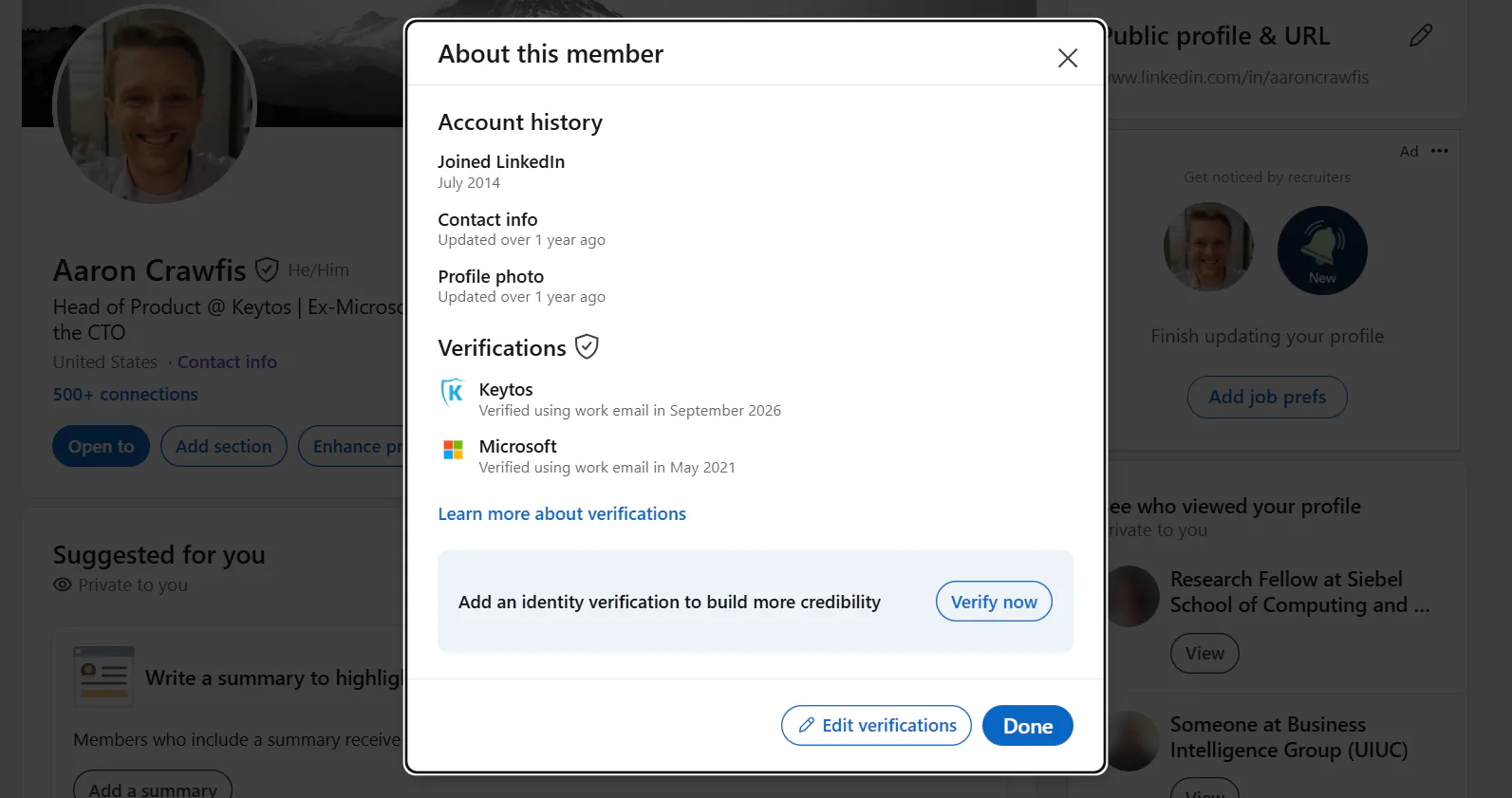
Because verifiable credentials are portable, your employees can present their workplace credential to third parties. The most visible example is LinkedIn workplace verification, which lets users show a verified badge for their employer. It isn’t a security control for your tenant, but it does make it harder for scammers to impersonate your staff in recruiting and social engineering campaigns.
Do I Need Verifiable Credentials?
Not every organization needs to roll out Entra Verified ID tomorrow. Here’s how I’d think about it:
You probably need verifiable credentials (or an equivalent identity proofing process) if:
- You hire remote employees or contractors you will never meet in person
- Your help desk resets MFA or issues TAPs based on a phone call or a ticket
- You still allow SMS, voice, or email as a recovery method because “users need some way back in”
- You’re rolling out passwordless authentication and don’t have a phishing-resistant way to bootstrap the first credential
- You have regulatory requirements around identity proofing, such as NIST 800-63 IAL2
You can probably wait if:
- Every employee is onboarded in person by someone who checks ID
- Users already hold multiple phishing-resistant credentials (for example, two security keys, or a key plus a platform passkey), so losing one doesn’t lock them out
- Your organization is small enough that the help desk genuinely knows every user by face
One thing to be clear-eyed about: a verifiable credential is only as strong as the verification that happened when it was issued. A Verified Workplace Credential issued from MyAccount proves that someone signed in to your tenant, which means it is exactly as trustworthy as the sign-in behind it. If that sign-in used a password and an SMS code, you’ve built a very elegant wrapper around a phishable credential. For onboarding and recovery, the credential that matters is the one backed by a government ID check and Face Check, not the one backed by a password.
The other thing to keep in mind is that Verified ID doesn’t replace your authentication methods, it protects the process of getting them. Most flows still end with a TAP that the user then uses to register a passkey. That TAP is short-lived and is issued only after a strong check, which is a huge improvement, but the end goal is still getting a phishing-resistant credential into the user’s hands, not just a verified ID in their wallet.
How to Set Up Verifiable Credentials in Entra ID
Microsoft has made the initial setup much simpler than it was when we first wrote about Azure Verifiable Credentials, when you had to stand up your own Azure Key Vault and upload DID configuration files by hand. The quick setup now handles signing keys, DID registration, and domain verification for you.
Prerequisites for Setting Up Verifiable Credentials in Entra ID
- Authentication Policy Administrator role in your Entra ID tenant (plus Application Administrator if you’ll register custom issuer or verifier apps)
- A verified custom domain in Entra ID, required for quick setup. Quick setup hosts your
did:webidentifier underverifiedid.entra.microsoft.com, rather than using your custom domain as the DID hostname. - Microsoft Authenticator on your users’ phones, which serves as the wallet
- Licensing for the scenarios you plan to use. Verified ID itself is included with Entra ID, while Face Check is billed per verification or included with Microsoft Entra Suite, and government ID checks are paid per verification through your chosen IDV partner. Check Microsoft’s current pricing before you budget.
How to Configure Entra Verified ID with Quick Setup
- Sign in to the Microsoft Entra admin center as an Authentication Policy Administrator.
- Select Verified ID, then select Setup from the left-hand menu.
- Select Get started. If your tenant has multiple custom domains, choose the one that should anchor your DID.
- When setup completes, Entra creates a default Verified Workplace Credential. Edit its display name, logo, and colors if your tenant branding doesn’t already cover them.
- Under the MyAccount issuance settings, choose which groups can issue themselves a workplace credential. Start with a pilot group rather than all users.
- Have a pilot user browse to myaccount.microsoft.com, select Get my Verified ID, and scan the QR code with Microsoft Authenticator to confirm issuance works.
Quick setup uses a Microsoft-managed signing key shared across tenants in your region, which limits you to 2 requests per second for issuance and verification and caps credential lifetime at six months. That is plenty for most workforce scenarios. If you need custom keys or longer-lived credentials, use the advanced setup instead.
How to Enable Face Check and Account Recovery
Once Verified ID is running, you can build the higher-value scenarios on top of it:
- Add Face Check to your Verified ID configuration so verifiers can require a live selfie match, not just possession of the phone.
- Choose an identity verification partner from the Microsoft Security Store to issue government ID-backed credentials.
- Configure account recovery under Entra ID → Account recovery → Profiles as at least an Authentication Administrator, following Microsoft’s setup guide, and scope the profile to a pilot group. Separately, enable TAP for those users under Authentication methods. Test the profile in Evaluation mode, then change its recovery mode to Production once you’ve confirmed identity verification works.
- Require Verified ID in access packages for privileged or sensitive resources through entitlement management.
How to Skip the TAP: Verify Identity and Enroll Phishing-Resistant Credentials in One Step
Entra Verified ID solves the “who is this person?” problem well, but most Microsoft flows still hand the verified user a TAP and send them off to register a credential on their own. For a lot of organizations, especially those rolling out YubiKeys or smart cards for Entra CBA, that last step is where users get stuck and tickets get opened.
Keytos Shield, the passwordless onboarding tool for Entra ID built by ex-Microsoft identity engineers, collapses those steps. Users verify their identity by scanning their government ID and face (or with an existing phishing-resistant credential), and Keytos Shield enrolls their security key for both FIDO2 passkeys and Entra CBA in the same session, on Windows, macOS, and Linux. Keytos Shield also uses hardware attestation to confirm that the key the user plugs in is a genuine key your organization approved, so you’re protected from supply chain tampering on top of identity fraud. And when a key is lost or a PIN is forgotten, users go through the same verification to set up a replacement, without calling the help desk.
Conclusion
Verifiable credentials give you a phishing-resistant answer to the two moments your identity program is most exposed: when an account is created and when it is recovered. In Entra ID, Microsoft Entra Verified ID, Face Check, and the new account recovery experience make it practical to onboard remote employees and restore access without SMS codes, security questions, or a help desk agent’s best guess. Just remember that a verifiable credential is only as strong as the check behind it, and the finish line is still getting an unphishable credential into every user’s hands.
If you want to talk through how verifiable credentials, Entra Verified ID, and Keytos Shield fit into your onboarding and recovery process, schedule a FREE call with one of our identity experts. We’re happy to help you design it.