





Should I Use Synced or Device-Bound Passkeys in Entra ID?
 Aaron Crawfis |
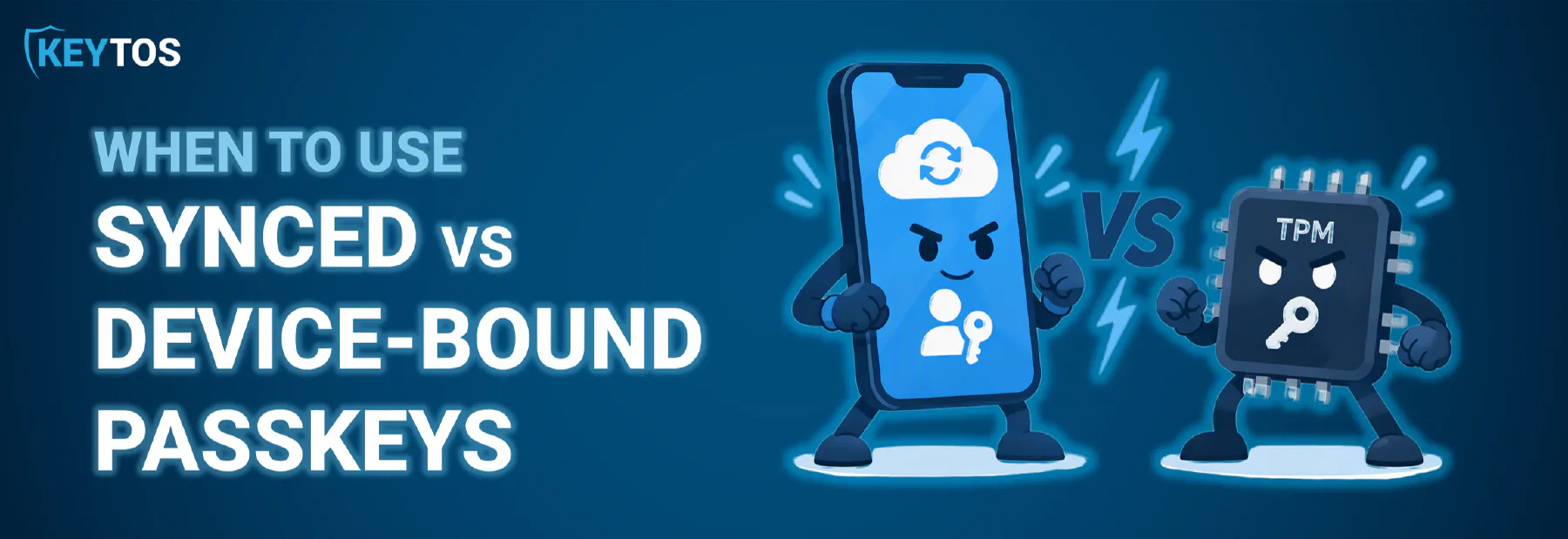
Synced vs. Device-Bound Passkeys in Entra ID
Congratulations! You’ve decided to get rid of passwords and move your users to passkeys in Entra ID. Then you opened the passkey settings in the Entra admin center and hit this question: should you allow synced passkeys, or require device-bound passkeys? Microsoft supports both, and while the end-result is the same for the user in the moment (a passkey is created on their device), and the choice has a big impact on how secure your passwordless deployment actually is, and how easy it is to maintain over time.
What is a Passkey and How Does It Work for Entra ID?
A passkey is a FIDO2 credential built on a public/private key pair. When a user registers a passkey, Entra ID stores the public key, and the private key stays with the user’s authenticator. At sign-in, Entra ID sends a challenge, the authenticator signs it with the private key after the user unlocks it with a biometric or PIN, and Entra ID checks the signature. The signature is bound to the website’s origin, which is why passkeys are phishing-resistant: a fake login page can’t get a valid signature for login.microsoftonline.com.
What is the Difference Between Synced and Device-Bound Passkeys in Entra ID?
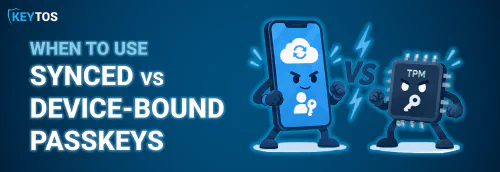
The difference between synced and device-bound passkeys comes down to one question: where does the private key live, and can it be moved or copied?
- Device-bound passkeys generate the private key inside a piece of hardware, such as a TPM (Trusted Platform Module), a Secure Enclave, or a security key like a YubiKey, and the key never leaves it. If you want to use another device, you need to register a new passkey. The existing one cannot be moved or copied.
- Synced passkeys store the private key in a passkey provider such as iCloud Keychain, Google Password Manager, or a password manager like 1Password. The provider encrypts the key and syncs it to every device signed in to that provider account, which makes the passkey survive a lost or replaced phone.
Synced vs. Device-Bound Passkey Comparison
| Device-Bound Passkey | Synced Passkey | |
|---|---|---|
| Where the private key lives | A single TPM, Secure Enclave, or security key | A cloud passkey provider (iCloud Keychain, Google Password Manager, 1Password, etc.) |
| Can the private key leave the device? | No, it’s non-exportable | Yes, it syncs to every device on the provider account |
| Who controls the copies | Your organization | The user’s provider account (which may be their personal account) |
| Attestation | Supported, so you can enforce specific authenticator models | Generally not available, so you can’t verify where the key is stored |
| Phishing-resistant | Yes | Yes |
| Lost or replaced device | The user must re-register a new passkey | The passkey restores automatically on the new device |
| Typical examples | Windows Hello for Business, Platform SSO on macOS, YubiKey, Microsoft Authenticator | Apple Passwords / iCloud Keychain, Google Password Manager, third-party password managers |
| Best fit | Default for corporate identities | Mobile devices, only with device restrictions in place |
Both types stop phishing. The real risk with synced passkeys isn’t the cryptography, it’s governance: once the private key syncs to a personal Apple or Google account, you no longer know how many devices hold your user’s credential, or who else can use them.
The Goal State: Two Passkeys for Every Entra ID User
Before we get into the details, here’s where you want every user to end up:
- A device-bound passkey on their primary computer. On Windows that’s Windows Hello for Business, backed by the TPM. On macOS that’s Platform SSO with a Secure Enclave key. This is the credential they use dozens of times a day, and it should be the most secure one they have. Having the passkey on the primary computer ensures that the most frequently used credential is both secure and convenient.
- A mobile passkey they carry with them. This is either a passkey on their phone (in Microsoft Authenticator or the phone’s passkey provider) or a hardware security key like a YubiKey. This is what they use on shared devices, to bootstrap a new laptop, and as a backup if their primary computer dies.
Two passkeys means no single lost device locks a user out, and no fallback to a password or SMS code when something goes wrong. Now let’s look at which type of passkey to use for each one.
How to Use Device-Bound Passkeys for Entra ID on Laptops and Workstations
For a laptop or workstation that’s assigned to a single user, always use a device-bound passkey (see below for info on shared devices for Entra ID users). There’s no good reason to sync this one. The device is already corporate-managed, it already has a TPM or Secure Enclave, and the passkey never needs to go anywhere else. Windows Hello for Business and Platform SSO both generate non-exportable keys in hardware, so even malware running as the user can’t copy the private key off the machine.
To unlock the key:
- Use biometrics if the device supports it. Windows Hello facial recognition or fingerprint, or Touch ID on a Mac. It’s faster for the user and harder to shoulder-surf than a PIN.
- Fall back to a PIN if it doesn’t. A Windows Hello PIN isn’t a password: it never leaves the device and only unlocks the TPM-protected key. Someone who learns the PIN still needs physical possession of that specific laptop. This is why PINs can safely be 6-8 digits long and still be secure (unlike a password which can be used anywhere if you know it).
What About Device Boud Passkeys for Shared Devices for Entra ID Users?
If the device is shared, such as a kiosk, a nurses’ station, a lab workstation, or a manufacturing floor PC, skip this step. Registering a dozen users’ Windows Hello credentials on a machine none of them own isn’t helpful and it increases the attack surface. Instead, those users sign in with their mobile passkey, either over cross-device authentication with their phone or by plugging in their YubiKey. This is also one of the biggest reasons every user needs that second, mobile passkey.
Use Device-Bound Passkeys on Phones and Security Keys When You Can
For the mobile passkey, device-bound is still the better choice. On a YubiKey or other FIDO2 security key there’s no decision to make: hardware security keys only support device-bound passkeys, and the private key can never be extracted. On a phone, Microsoft Authenticator stores device-bound passkeys that stay on that one device.
What’s the Risk of Synced Passkeys for Entra ID?
Device-bound passkeys on mobile solve the problem that keeps security teams up at night with synced passkeys: the corporate passkey ends up in the user’s personal iCloud or Google account. This can mean that the family iPad now has access to all your corporate resources. It also means that your security boundary now includes every employee’s personal accounts and passwords. There’s no way to even begin to track every place the corporate passkey has been synced, or to enforce corporate security policies on those devices like requiring a PIN or device encryption.
So why even allow synced passkeys for corporate use if they introduce such a significant security risk? The answer is convenience. Synced passkeys solve the problem of your users upgrading their iPhones or replacing them after their old device is lost or broken. They don’t need to manually transfer their passkeys or go through a recovery process, as the passkeys simply appear on the new device.
Before you decide to enable or disable synced passkeys, let’s go through how to plan out your deployment, and cover some ways to safely enable synced passkeys for corporate use.
How to Plan Your Entra ID Passkey Recovery Flow Before You Roll Out
When planning a passwordless rollout with passkeys, one of the most important things to know is that the weakest link in any passwordless deployment is recovery. If the recovery path is “call the help desk and tell them your manager’s name,” attackers will skip your phishing-resistant passkeys and go straight for the help desk, which is exactly how several high-profile breaches in the last few years started.
A good recovery flow:
- Lets users self-service re-register without waiting on IT, so a new phone doesn’t mean a lost day of work.
- Verifies identity strongly using Verifiable Credentials before issuing a new credential, using something like a government ID and face match instead of knowledge questions.
- Never falls back to a password or SMS code, which would undo the security you just put in place.
This is where Keytos Shield comes in. Shield uses verifiable credentials to verify a user’s identity and then lets them self-service onboard a new passkey, whether they’re a new hire on day one or an existing employee setting up a new phone. Users verify once and register their device-bound passkey, with no help desk ticket and no Temporary Access Pass sent over email.
Learn More About Keytos ShieldWhen Are Synced Passkeys in Entra ID OK?
Synced passkeys aren’t flawed or inherently insecure. They’re far better than passwords, SMS, or push notifications, and for a lot of organizations they remove the biggest support headache with passkeys on phones. If you choose to allow them for the mobile passkey, pair them with a device restriction so that a leaked passkey is useless outside of the user’s assigned device.
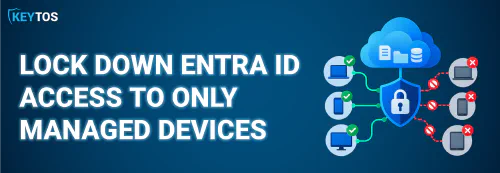
That way, even if a synced passkey ends up on your family iPad, Entra ID will only accept sign-ins from corporate-managed devices. So the iPad can’t use the passkey and sign in. So the passkey proves who the user is, and the device check proves where they’re signing in from.
How to Require Compliant Devices with Intune and Conditional Access
If you use Intune, or a third-party MDM that reports device compliance to Entra ID, this is the easy path:
- Enroll your users’ mobile devices in your MDM and assign a compliance policy.
- Create a Conditional Access policy that targets your users and all resources.
- Under Grant, require Require authentication strength → Phishing-resistant MFA, and Require device to be marked as compliant, and set the policy to require all selected controls.
Now a synced passkey on an unmanaged device fails the compliance check, even though the passkey itself is valid.
Restrict Access with Entra CBA and SCEP for Other MDMs
If your MDM can’t report compliance to Entra ID, you can still lock sign-ins to managed devices by using certificates. Your MDM deploys a non-exportable SCEP certificate to each managed device, and you require Entra certificate-based authentication (CBA) in Conditional Access with a custom authentication strength. Since only managed devices have the certificate, the synced passkey can’t be used anywhere else.
We walk through this setup step by step in our guide on how to restrict Entra ID access to corporate-managed devices without Intune. Keytos Shield issues SCEP certificates to Intune, Jamf, NinjaOne, SimpleMDM, and other MDM platforms, so you can set this up without standing up an on-premises PKI.
What is the Recommended Passkey Setup for Entra ID
So, should you use synced or device-bound passkeys in Entra ID? Device-bound wherever you can, synced only where you’ve locked access to managed devices. The goal state for every user looks like this:
- Two passkeys per user: a device-bound passkey on their primary laptop or workstation (Windows Hello for Business or a Secure Enclave key), and a mobile passkey on their phone or a YubiKey.
- Corporate-managed devices required: Conditional Access requires a compliant device, or Entra CBA with SCEP certificates for MDMs that don’t report compliance, so a leaked or synced passkey can’t be used on a personal device.
- A strong onboarding and recovery flow: Keytos Shield verifies users with verifiable credentials and lets them self-service onboard and recover passkeys, so a new phone never turns into a help desk call or a password reset.
Get those three things right, and you have a passwordless deployment that’s both phishing-resistant and survivable when users inevitably lose, break, or upgrade their devices.
Want help planning your passkey rollout? Schedule a FREE call with one of our identity experts and we’ll walk through the right passkey strategy for your Entra ID environment.
Schedule a Free Call