


How to Migrate a Windows Certificate Authority (CA) to the Cloud
 Keytos Team |
Should I Move My Windows AD CS CA to the Cloud?
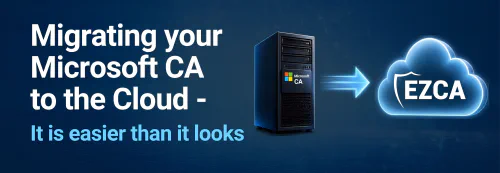
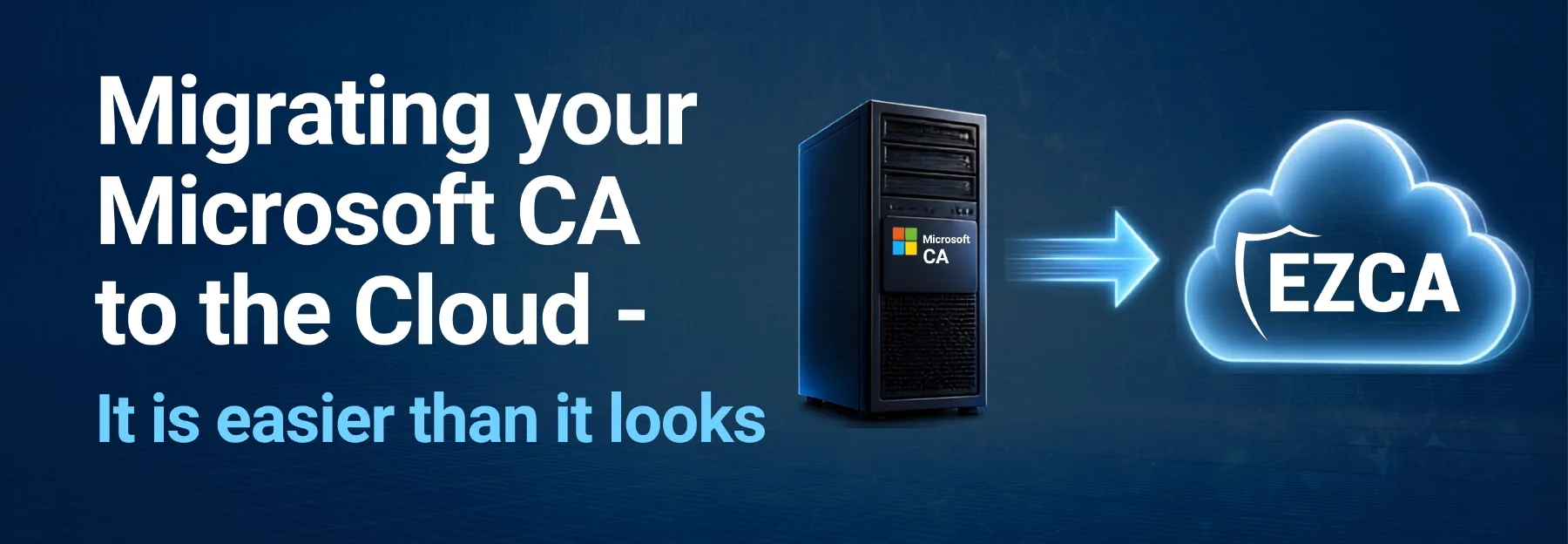
When moving to the cloud, one of the questions your security team will ask is, whether to move the Windows AD CS CA to the cloud or not. Let’s face it, you probably got flashbacks to the setup process when they brought it up but thanks to new Cloud PKI technology, moving your PKI to the cloud is now easier than ever. In this article we will guide you through the whole planning process and make you a cloud PKI expert in no time!
What Do I Need to Know Before Moving My Windows ADCS CA to the Cloud?
The first question that you need to ask yourself when moving your Windows AD CS CA to the cloud is: “How are we currently using our PKI? And how are we planning to use it in the future?”. The answers to these questions will help you determine the best approach for your PKI migration. Here are some of the common scenarios where PKI is used on premises as well as in the cloud:
- Domain Controllers: Domain Controllers use PKI for Kerberos and LDAP authentication. If you are planning to move your domain controllers to the cloud, you will need to ensure that your PKI is also moved to the cloud. This is because domain controllers need to be able to authenticate users and devices using certificates issued by the PKI.
- Windows Hello For Business: Windows Hello for Business uses PKI for certificate-based authentication. If you are planning to use Windows Hello for Business in hybrid environments where you might need a smartcard certificate to authenticate to your on-premises resources, you will need to ensure that your Cloud PKI can issue Windows Hello for Business Certificates (As long as your PKI connects to Intune this is possible).
- VPNs: VPNs use certificates for the server as well as for certificate-based authentication. Check your VPN and see how you are issuing your server certificate and how you are doing the authentication.
- RDP: RDP uses certificates for trusting the server when you connect to it without getting that annoying warning that the server is not trusted. Check your RDP and see if you are using certificates.
- Wi-Fi: Wi-Fi can use certificates for authentication. Check how you are doing your Wi-Fi authentication, and if you are looking at moving your NPS to the cloud, read this step by step guide on how to move your NPS to the cloud.
- TLS Inspection: TLS-Inspection services usually get a subordinate CA certificate from your Root CA and use it to generate certificates for the TLS-Inspection service. If you are using TLS-Inspection, you will need to ensure that your Cloud PKI can issue subordinate CA certificates to external providers.
- Smart Card Authentication: Smartcard authentication is still very popular in many security first organizations that have on-premises resources. If you are using smart card authentication, you will need to ensure that your Cloud PKI can issue smartcard certificates.
How To Plan Your PKI Migration to the Cloud
Now that we have the usages of PKI, we have to see which Cloud PKI provider can support all of our current and future needs. There are many Cloud PKI providers out there, but the three most popular for Microsoft customers are Microsoft Intune Cloud PKI, Keytos Shield/EZCA and SCEPMan. Each of these providers has its own strengths and weaknesses, and you will need to evaluate them based on your specific needs.
- Microsoft Intune Cloud PKI: Microsoft Intune Cloud PKI is a good option if you are only using Intune and you have an E5 License (if you don’t have an E5 license, using Keytos Shield gives you more features than Intune Cloud PKI and it is cheaper than Microsoft Intune Cloud PKI). The only thing to keep in mind, is that Microsoft Intune Cloud PKI cannot issue certificates for devices that are not managed by Intune, this includes BYOD devices, but more importantly during your migration, it cannot issue certificates for your on-premises servers including domain controllers, smartcards, Azure Key Vaults, etc. This means that if you are using Microsoft Intune Cloud PKI, you will need to keep your on-premises PKI until you fully decommission your full on-premises infrastructure.
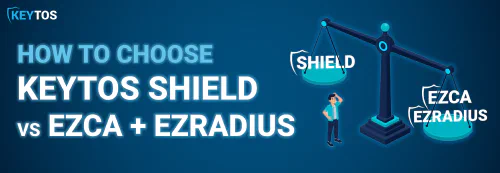
- Keytos Shield/EZCA: Keytos Shield or EZCA (Choose EZCA if you only need the Certificate Authority, if you need a full passwordless solution with Cloud RADIUS and Smartcard and Passkey onboarding, Keytos Shield is the way to go) is a good option if you are looking for a Cloud PKI that can issue certificates for devices that are not managed by Intune, this includes BYOD devices, but more importantly during your migration, it can issue certificates for your on-premises servers including domain controllers, smartcards, azure key vaults, etc. This means that if you are using Keytos Shield/EZCA, you can fully decommission your on-premises PKI and move to the cloud.
- SCEPMan: SCEPMan is a good option if you are looking for a Cloud PKI that can issue certificates for devices that are managed by Intune or other MDMs, but it cannot issue certificates for devices that are not managed by Intune or other MDMs, this includes BYOD devices, if you are getting the premium version you can also issue certificates for your on-premises servers. However, it will be more expensive than Keytos Shield/EZCA and it does not have all the features that Keytos Shield/EZCA has, meaning you are paying more for less features and you also have to manage the infrastructure yourself vs EZCA, Keytos Shield, and Microsoft Intune Cloud PKI which are fully managed services.
How To Start the AD CS Migration to a Cloud PKI
After selecting the PKI, now we have to plan the migration. The first step is to create a new Cloud PKI depending on your needs, you might need a one tier PKI or a two-tier PKI. When Migrating PKIs I like using the analogy of changing badges in the office, imagine you currently use blue badges and are going to move to the new PKI (red badges), you will need to first get all the doors to trust both the blue and red badges, then start issuing the red badges to everyone, and once everyone has the red badge, you can stop trusting the blue badges. This is the same process when migrating PKIs, you will need to first get all the services that are using certificates to trust both the old and new PKI, then start issuing certificates from the new PKI, and once everyone has a certificate from the new PKI, you can stop trusting the old PKI.
Step 1: How To Trust a New Cloud PKI
Once you have your new Cloud PKI, you need to get the new Root CA certificate and install it on all your devices. This can be done using Group Policy, Intune or any other MDM. Once you have the new Root CA certificate installed on all your devices, you will need to add the CAs that you will be using for authentication to the NTAuth store of your AD. Other services that might need the new CAs are: VPN services, RADIUS Services, Entra ID (if using for Entra CBA) and any other service that is using certificates for authentication.
How to Issue Certificates From the New Cloud PKI
After trusting the new CA everywhere you will be using it, we can start issuing certificates for all the devices and people that will need certificates in your new security model. This can be broken down into 3 categories: Managed Devices (Devices managed by an MDM such as Intune, Jamf Pro, ManageEngine, etc.), Unmanaged Devices, and servers including domain controllers.
How to Issue Certificates for End User Devices
The easiest category of certificates to issue is to managed devices, it is the only one of the three categories that is supported by all 3 PKI services. For this one you just have to create your SCEP or ACME Device Profiles and the MDM will take care of creating the certificates, renewing the certificates, in the case of some PKI providers even revoking the certificates.
How to Issue Certificates for Unmanaged Devices
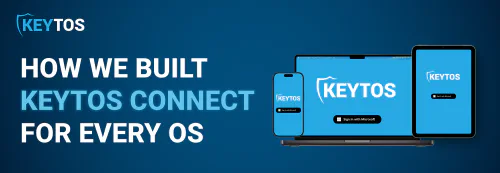
While Managed devices are very easy in the cloud world, unmanaged devices are usually very hard to issue certificates to. Luckily, EZCA and Shield are compatible with Keytos Connect an end user application that uses your Entra ID credentials to issue certificates in the background and automatically connect you to Wi-Fi. Watch the quick demo below on how easy it is for the end user.
How to Issue Certificates for Domain Controllers
Now that all our end user devices have certificates, we have to issue certificates to our domain controllers. This is a very important step, if you are using domain controllers and you turn off your on-premises PKI before creating new certificates, Windows Hello for Business and LDAPS will break. If you are using EZCA follow this guide to issue domain controller certificates. If you are using Keytos Shield, follow this guide to issue domain controller certificates
How To Issue Server Certificates With a New Cloud PKI
The last step is to issue certificates for your servers that are not managed, this might be web servers, or just servers that user certificates for RDP, SQL, etc. Once again this feature is only supported by Keytos Shield and EZCA, so this guide will assume you are using one of these two CAs. If it is a one off certificate that is new in your environment you can create it directly in the portal EZCA create certificate as administrator instructions or in Keytos Shield Create a server certificate as an administrator.
If you have a lot of certificates that have to be migrated, it would be a lot of work to do it one by one, therefore we have created an open source certificate tool that after you add your existing CA as a trusted CA in EZCA or in Shield you can use the existing certificate to issue a new certificate from your new CA, and set it for automatic rotation.
Next Steps After Migrating to Cloud PKI
That should complete your PKI migration, once this is done, turn off your on-premises CRL, and monitor for a few weeks to ensure that nothing breaks, once you have confirmed that nothing broke, you can decommission your existing ADCS CA. If you are using NPS, you might have issues with cloud-only devices to solve this, you can migrate your RADIUS server to the cloud. If you have any questions or you just want to talk to our identity experts about your current setup, schedule a call with one of our experts.