




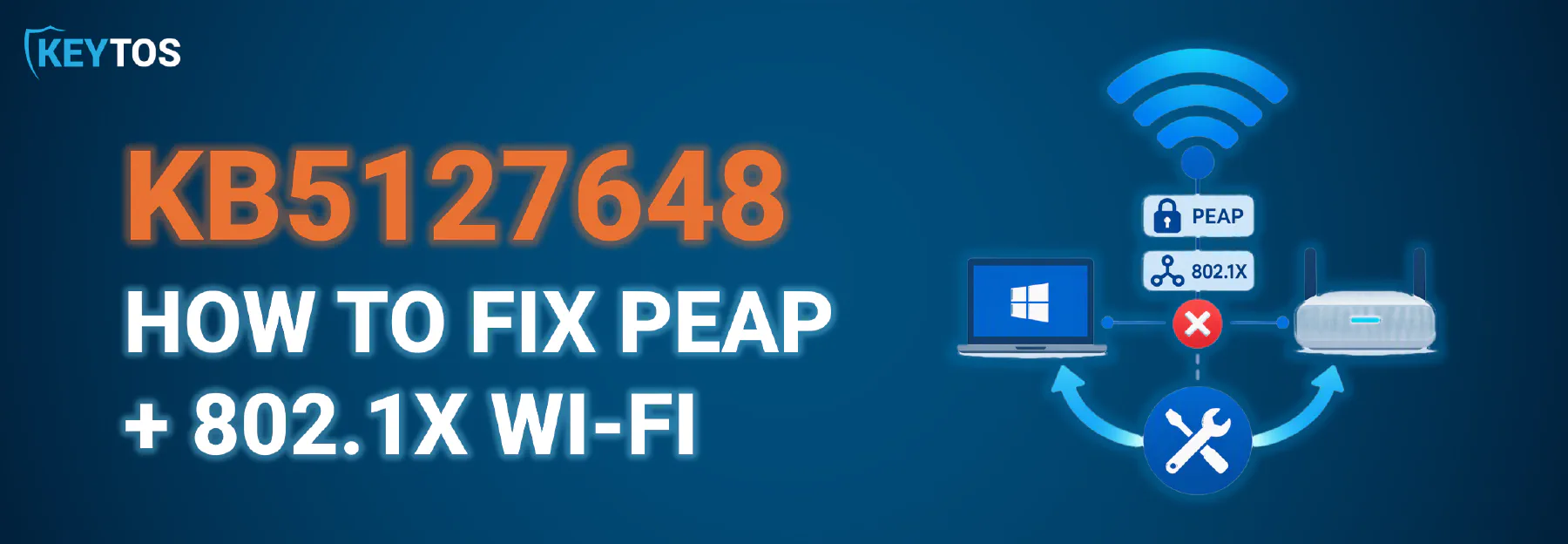
KB5127648 Breaks PEAP Wi-Fi and 802.1X Authentication: What Happened and How to Fix It
 Aaron Crawfis |
What is KB5127648?
KB5127648 is the October 13, 2026 (Patch Tuesday) cumulative security update for Windows 11. But what does that mean and what did it change?
`“KB” stands for “Knowledge Base” and is used by Microsoft to identify specific updates and articles related to their software. In this case, KB5127648 refers to the specific cumulative update released for Windows 11 in October 2026. Depending on what version of Windows 11 you are running, your OS build number may be a little different:
| Windows 11 version | OS build |
|---|---|
| 24H2 | 26100.9711 |
| 25H2 | 26200.9711 |
| 26H2 | 26300.9711 |
What is in the KB5127648 Update?
There are over 1,400 CVEs in the October 2026 release, including some additional improvements listed here.
There’s even an actively exploited high-severity zero-day vulnerability, CVE-2026-96951 (Windows Shell Mark of the Web bypass), addressed in this update. This means that you should install the update ASAP to prevent potential exploitation.
However, while there’s not any mention of NTLM, 802.1X, PEAP, or Wi-Fi in the release notes, there are widespread reports from the community indicating that PEAP with MS-CHAPv2 authentication is broken on domain-joined Windows 11 devices after installing KB5127648.
What Did KB5127648 Break?
Admins on r/sysadmin, Microsoft Q&A, and EduGeek started reporting the same pattern within hours of the release:
- Affected: Domain-joined Windows 11 24H2/25H2/26H2 devices using PEAP with MS-CHAPv2 (“Use my Windows user account” / SSO) for WPA2-Enterprise Wi-Fi and wired 802.1X.
- Both machine and user authentication fail.
- Not affected: WPA2/WPA3-Personal (PSK) networks, so home and hotspot Wi-Fi keep working.
- Manually typing
DOMAIN\usernameand password works. Only the SSO path fails. - Uninstall fixes it, reinstall breaks it again, as reproduced by multiple admins.
- EAP-TLS (certificate-based) clients are not reported as affected.
While we wait for Microsoft to confirm the issue, it’s clear from multiple independent reports that KB5127648 breaks PEAP with MS-CHAPv2 authentication on domain-joined Windows 11 devices.
What Are the Symptoms and Event IDs of the KB5127648 PEAP Issue?
The failure happens on the client before a request is ever sent to RADIUS, so in most environments your NPS or RADIUS logs show nothing at all. If you look at your client Windows Event Logs, you’ll see the following:
| Log | Event ID | What it means |
|---|---|---|
| WLAN-AutoConfig | 12011 | PEAP authentication started |
| WLAN-AutoConfig | 12014 | Authentication restarted — OneX Held State timeout |
| WLAN-AutoConfig | 12013 | Authentication failed, error 0x80070285 |
| Wired-AutoConfig | 15514 | Authentication failed, reason 0x50005, error 0x80070285 |
| Wired-AutoConfig | 15506 | Authentication suspended after explicit EAP failure, BlockingTime 600 (wired shows “Connected, not authenticated” and loops every 10 minutes) |
| EapHost | 2088 | “User uses saved credentials” — no Schannel/certificate errors |
| Microsoft-Windows-NTLM/Operational | 4025 | “An attempt to use NTLMv1-derived credentials for Single Sign-On was blocked due to policy”. Before the update, these devices logged the audit-only 4024 instead (both events are documented by Microsoft). |
Am I Running KB5127648?
To check if KB5127648 is installed on your device:
- Open the Settings app.
- Navigate to Windows Update > Update history.
- Look for KB5127648 under the list of installed updates.
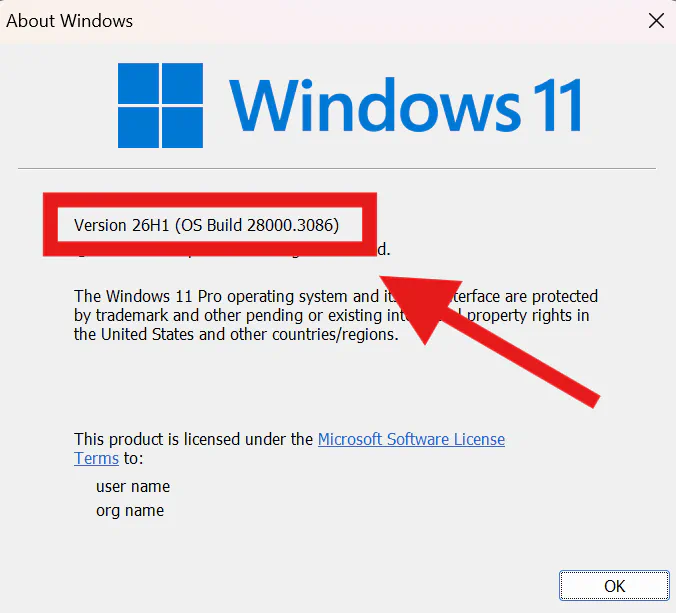
Alternatively, you can run winver to check your build number and compare it against the known affected builds from above.
Emergency User Workaround for KB5127648 PEAP Failures
For a user who’s stuck right now, there are reports of the following steps getting them reconnected successfully:
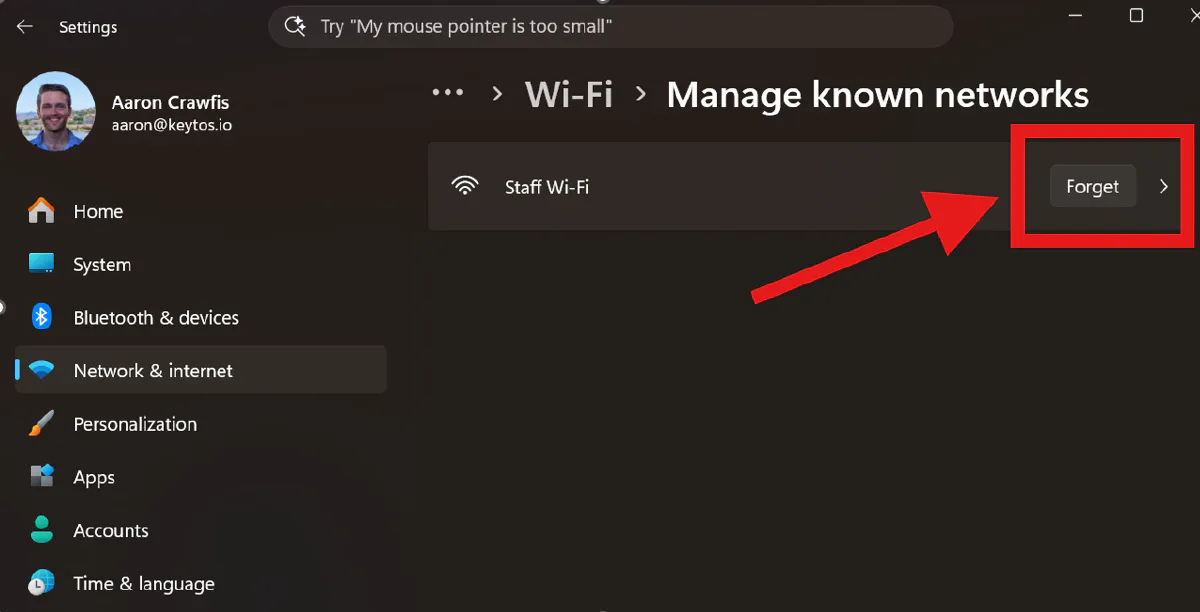
- Forget the network under Settings > Network & Internet > Wi-Fi > Manage known networks.
- Reconnect and enter credentials manually instead of using “Use my Windows user account.”
If the Wi-Fi profile was pushed via Intune, you may need to remove it via a Terminal window:
netsh wlan delete profile name="YOUR_WIFI_PROFILE_NAME"
However, this requires each user to manually perform these steps, which may not be practical in larger environments. Let’s look at some ways to mitigate the issue more broadly from your central management tools.
How to Mitigate KB5127648 PEAP Authentication Failures
There are a couple ways to mitigate the PEAP authentication failures caused by KB5127648.
Option 1: Pause the Update (Not Recommended)
For devices that have not yet received the update, you can pause the October quality update in Windows Autopatch, Intune update rings, or WSUS for devices that still haven’t installed it. This stops the spread, but leaves those devices without the October security fixes (including an actively exploited zero-day).
While this can be a very temporary measure to stop the immediate impact of the update, it is not a medium or long-term solution and leaves devices vulnerable to the security issues addressed by KB5127648.
Option 2: Set the BlockNtlmv1SSO Registry Value (Recommended Short-Term Fix)
There is another workaround circulating on Reddit and Microsoft Q&A, and it lets you keep KB5127648 installed.
| Setting | Value |
|---|---|
| Path | HKLM\SYSTEM\CurrentControlSet\Control\Lsa\MSV1_0 |
| Name | BlockNtlmv1SSO |
| Type | REG_DWORD |
| Data | 0 = Audit (allowed, logs event 4024) · 1 = Enforce (blocked, logs event 4025 — the new default) |
To apply this workaround, you will need to create or modify the BlockNtlmv1SSO registry value and set it to 0 (Audit mode).
New-Item -Path "HKLM:\SYSTEM\CurrentControlSet\Control\Lsa\MSV1_0" -Force | Out-Null
New-ItemProperty -Path "HKLM:\SYSTEM\CurrentControlSet\Control\Lsa\MSV1_0" `
  -Name "BlockNtlmv1SSO" -PropertyType DWord -Value 0 -Force
Things to know before you push it:
- Why it works: Microsoft’s NTLMv1 change announcement says the default for
BlockNtlmv1SSOflips from Audit to Enforce in October 2026 only on devices where the value hasn’t been explicitly set. Setting it to0explicitly opts the device out of the new default. - Intune: There is no Settings Catalog or Policy CSP entry for this value. Deploy it as a Remediation (detect + remediate) or platform script, running in system context with the 64-bit PowerShell host.
- Group Policy: Use a Group Policy Preferences registry item.
- Chicken-and-egg: a device that’s already off the network can’t receive the Intune remediation. Plan for wired, guest/PSK SSID, or manual-credential fallback to get policy to those machines.
- It won’t help Credential Guard devices. Credential Guard blocks MS-CHAPv2 SSO independently of this value. Those devices were already broken (our 2024 write-up).
- You are re-enabling a deprecated, weak credential path. In the words of one admin on Microsoft Q&A, it “only bought us time.”
Option 3: Uninstall KB5127648 (Not Recommended)
If the registry change doesn’t work, wusa /uninstall /kb:5127648 followed by a reboot restores connectivity in every report. The downside is you lose the October security fixes, and the update will reinstall unless you also pause it.
How to Permanently Fix the KB5127648 Break
Everything above is a band-aid to get users reconnected immediately. The only fix that doesn’t depend on Microsoft keeping a deprecated credential path alive is to stop using passwords for network authentication, and instead use certificate-based authentication (EAP-TLS).
Learn how to implement certificate-based authentication (EAP-TLS) for your network below.
Learn MoreWhy Did KB5127648 Break PEAP?
This month’s change was the final step of a schedule Microsoft published in August 2025 in Upcoming changes to NTLMv1 in Windows 11, version 24H2 and Windows Server 2025:
| Date | Change |
|---|---|
| Late August 2025 | NTLMv1 usage auditing enabled on Windows 11 24H2+ (event 4024) |
| September 2025+ | Changes roll out to Windows 11 24H2+ clients in Audit mode |
| November 2025 | Rollout begins on Windows Server 2025 |
| October 2026 | BlockNtlmv1SSO default flips from Audit to Enforce — delivered in KB5127648 |
That same Microsoft NTLMv1 article calls out exactly who would be hit: NTLMv1-derived credentials are still used for SSO in “Wi-Fi, Ethernet, and VPN deployments using MS-CHAPv2 authentication” in domain-joined environments.
So why does manual entry still work? With SSO, the Windows supplicant asks LSA (Local Security Authority) for the logged-on user’s (or computer account’s) stored NTLM-derived credential to compute the MS-CHAPv2 response (that’s the request Enforce mode blocks). When you type the password, the supplicant computes the response itself from what you typed, without asking LSA.
The reason SSO is considered insecure in this context is that it relies on the Windows LSA to provide stored NTLM-derived credentials for network authentication. This can be exploited by an attacker who gains access to the LSA or can trick the system into using these credentials for malicious purposes. When you manually enter your password, the supplicant computes the response independently, bypassing the LSA and mitigating this risk.
How PEAP Authentication Works
A common question we hear is: “Why does PEAP still use NTLM-derived credentials for authentication?” The answer lies in how the protocol is designed to work in two phases:
- Phase 1: TLS tunnel (server-authenticated only). The client and RADIUS server build a TLS tunnel. Only the server presents a certificate. The client is supposed to validate it against a trusted root and expected server name.
- Phase 2: Inner authentication (EAP-MSCHAPv2). Inside the tunnel, the client proves it knows a password via an MS-CHAPv2 challenge-response. The response is derived from the NT hash (MD4 of the password). This is the same hash family as NTLM, which is why Windows treats it as an “NTLMv1-derived credential.”
- RADIUS validates the response against Active Directory (NPS) or its own directory and returns Access-Accept, and both sides derive keys for the Wi-Fi session.
There are a few key weaknesses with PEAP-MSCHAPv2:
- MS-CHAPv2 is cryptographically broken. At DEF CON 20 (2012), Moxie Marlinspike and David Hulton showed MS-CHAPv2 reduces to cracking a single 56-bit DES key, regardless of password strength.
- The entire security model depends on the client validating the server certificate. If clients don’t (or users click “Connect” through the warning), an evil-twin AP with tools like hostapd-wpe or EAPHammer captures the MS-CHAPv2 exchange for offline cracking or relay.
- It’s still a password. Phishable, shareable, expires, and every password reset is a “why can’t I connect” ticket.
- It depends on legacy NTLM-era crypto that Microsoft is actively removing — which is exactly what happened this week.
Why is EAP-TLS Better Than PEAP?
EAP-TLS is considered more secure than PEAP-MSCHAPv2 because it uses certificate-based authentication instead of passwords, providing mutual authentication and reducing the risk of phishing and offline attacks. Here’s a quick comparison:
| PEAP-MSCHAPv2 | EAP-TLS | |
|---|---|---|
| Client credential | Password (NT hash) | X.509 certificate + private key |
| Mutual authentication | Server cert only; client proves password | Both sides present certificates |
| Phishable / crackable | Yes. Evil twin + MS-CHAPv2 offline crack | No password to steal; private key can be non-exportable in the TPM |
| Depends on NTLM | Yes | No |
| Affected by Credential Guard / KB5127648 | Yes | No |
| Password resets/expiry break Wi-Fi | Yes | No |
| Device identity / compliance | Weak (any domain creds work on any device) | Cert issued only to managed, compliant devices |
| Microsoft guidance | Being deprecated | Recommended |
We also have an explainer video explaining why EAP-TLS is the preferred method for secure network authentication:
Migrating from PEAP to EAP-TLS Without Downtime
If you’re interested in migrating from PEAP to EAP-TLS without downtime, you’ll need a few pieces:
- A certificate authority (CA) that can issue device/user certificates via your MDM. Keytos Shield, EZCA, Microsoft Cloud PKI, or AD CS with the Intune Certificate Connector are all good options.
- A RADIUS server configured to accept EAP-TLS authentication. This can be an on-premises NPS server or a cloud-based solution like Keytos Shield or EZRADIUS.
- A device configuration profile that deploys the necessary trusted root and certificate profiles to your devices, ensuring they can authenticate using EAP-TLS. Microsoft Intune, Jamf, or any MDM solution that supports certificate deployment can be used for this purpose.
Keytos Shield is a great option for both a cloud PKI and certificate authority, as well as a RADIUS server solution for EAP-TLS authentication. It supports all major network vendors and MDM providers, making it easy to deploy and manage secure network authentication across your organization.
Try Shield for FreeConclusion
If you want help getting off PEAP before the next Patch Tuesday, schedule a FREE call with one of our identity experts. We’ll help with your migration to EAP-TLS and ensure a smooth transition without downtime.