











How to Lock Down Access to Entra ID From Only Corporate Managed Devices Without Intune
 Keytos Team |
Overview - Why Should I Lock Down Access to Entra ID From Only Corporate Managed Devices?
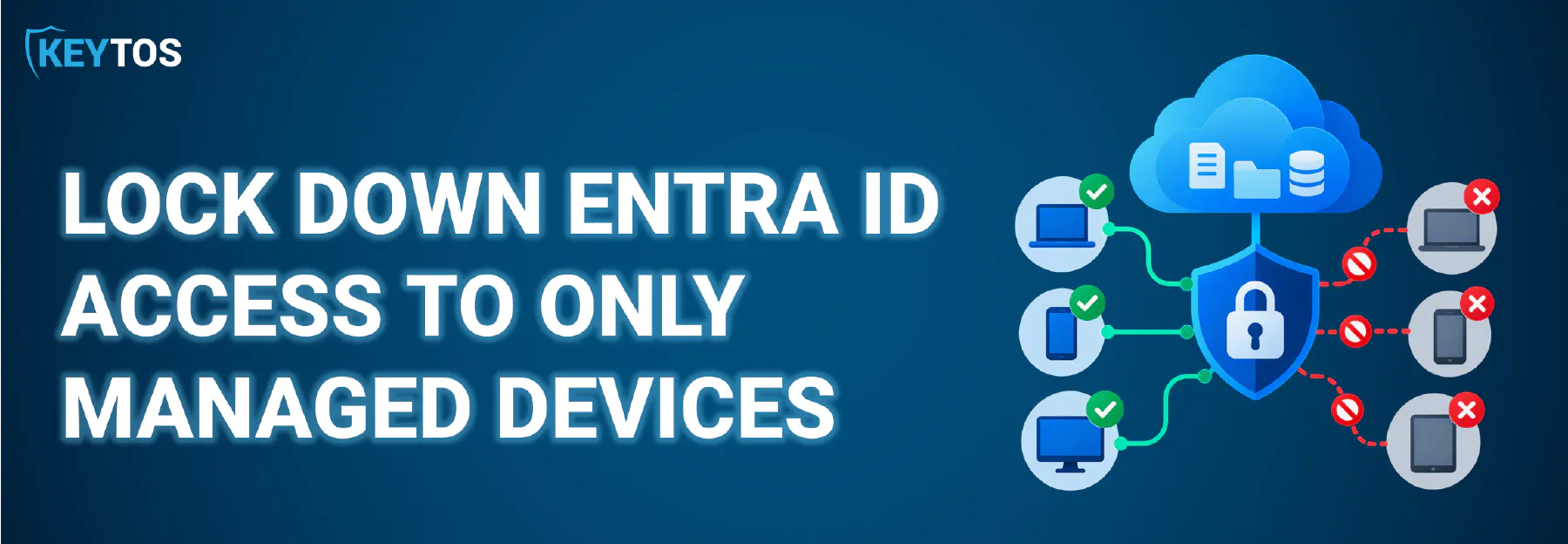
If you manage a Microsoft 365, Azure, and/or Entra ID environment for your organization, you probably have sensitive data stored across various cloud services and applications such as SharePoint, OneDrive, Teams, and Outlook. From client and customer information to internal documents and communications, if a malicious actor can log in with compromised credentials, they could exfiltrate data, disrupt operations, or impersonate users to carry out further attacks. Locking down access to Entra ID from only corporate managed devices helps mitigate these risks by ensuring that only devices under your organization’s control can authenticate and access sensitive resources. Personal devices (phones, laptops, tablets) that are not managed by your organization will be unable to login to Entra ID and access corporate resources.
In this guide, we will walk you through the steps to restrict access to Entra ID from only corporate managed devices, even if you are not using Intune for device management. We’ll walk through how to secure your device, configure Conditional Access policies, and ensure that only compliant corporate managed devices can access your organization’s resources.
How Do I Restrict Access to Entra ID If I Do Use Microsoft Intune?
While the focus of this guide is on restricting access without using Intune, let’s briefly cover how you would achieve the same goal if you were using Intune for device management. At a high level, to restrict access to Entra ID from only corporate managed devices with Intune, you would:
- Enroll devices in Intune to ensure they are recognized as corporate managed.
- Set up compliance policies in Intune to define what constitutes a compliant device. (patching, antivirus, encryption, etc.)
- Create Conditional Access policies in Entra ID that require devices to be compliant before granting access to corporate resources.
Your first question might be “Why am I checking device compliance in Intune instead of the management system directly?” The answer is that a personal/unmanaged device and a non-compliant corporate managed device both have security risks that could compromise your organization’s data. If you only check for device management without verifying compliance, you might inadvertently grant access to devices that are technically managed but still vulnerable due to missing security updates or misconfigurations. It’s much better to enforce compliance checks to ensure that only secure and up-to-date devices can access your organization’s resources.
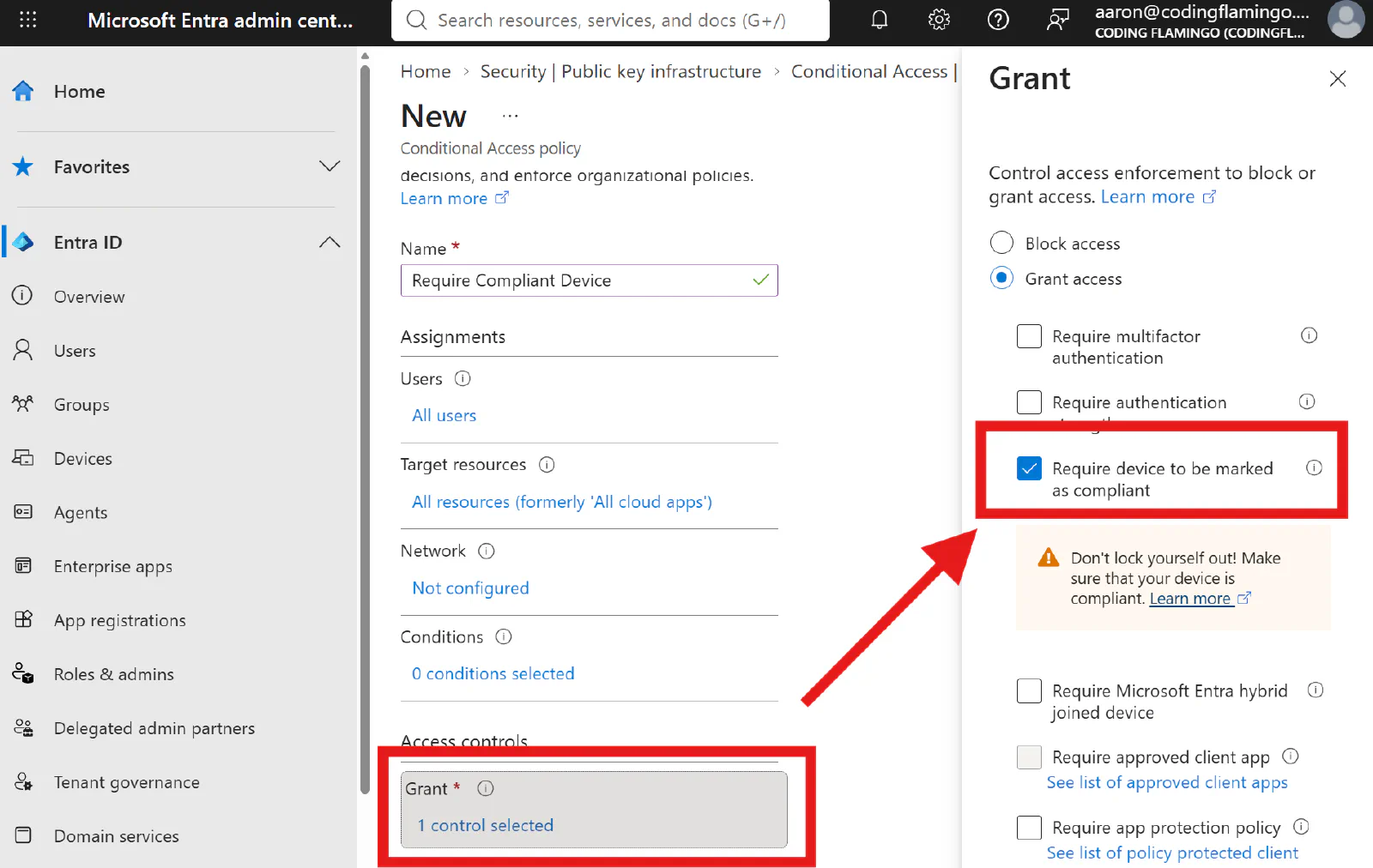
Thankfully in Entra ID, there’s a single checkbox you can enable in your Conditional Access policies to require that devices be marked as compliant before granting access:
Do Compliance Checks Work with 3rd Party MDM Platforms?
If you’re using a 3rd party MDM platform instead of Intune, you should check if your platform supports compliance reporting to Entra ID. If supported, your MDM platform will report the compliance status of devices to Entra ID, allowing you to enforce Conditional Access policies based on device compliance, even for devices not managed by Intune. If your MDM does support compliance reporting, you can check the box in Conditional Access just like you would with Intune. If it doesn’t, the remainder of this guide will focus on how to restrict access without relying on compliance reporting from an MDM platform.
How to Restrict Access to Entra ID Using Certificates
To restrict access to your corporate resource to only your corporate managed devices without using compliance signals, you can leverage certificates instead via Entra Certificate Based Authentication (CBA). At a high level, the process involves:
- Issue X.509 certificates to your corporate managed devices via SCEP (Simple Certificate Enrollment Protocol).
- Configure Entra CBA to use the issued certificates as a single authentication factor.
- Set up a custom authentication strength in Entra ID that requires certificate-based authentication for accessing your corporate resources.
- Configure your Conditional Access policies to require the custom authentication strength for accessing your corporate resources.
Looking for a step-by-step guide? Check out our guide on setting up Entra CBA with SCEP certificates. For background, see what SCEP is and how certificate authorities work.
Entra CBA with SCEP Certificates GuideLet’s walk through each of the steps to understand how to restrict access to Entra ID using certificates without relying on Intune compliance signals.
Step 1: How to Issue X.509 Certificates via SCEP
The first step is to issue user-scoped X.509 certificates to users on your corporate-managed devices via SCEP. This involves setting up a SCEP Certificate Authority (CA) in EZCA or Keytos Shield and configuring your Mobile Device Management (MDM) platform to issue certificates from the configured SCEP CA. Configure each profile with a supported Entra user identity, such as the user’s UPN in SAN PrincipalName, and configure Entra CBA to use the matching username binding. When setting up your SCEP policies, make sure to bind your certificates to a Trusted Platform Module (TPM) or disable private key export if your platform allows it. This prevents a user from exporting the private key and using the certificate on an unauthorized device.
Visit our MDM guides for examples of how to set up 3rd party MDM platforms like Jamf, NinjaOne, SimpleMDM, and more.
MDM GuidesStep 2: How to Add Your SCEP Certificate Authority to Entra CBA
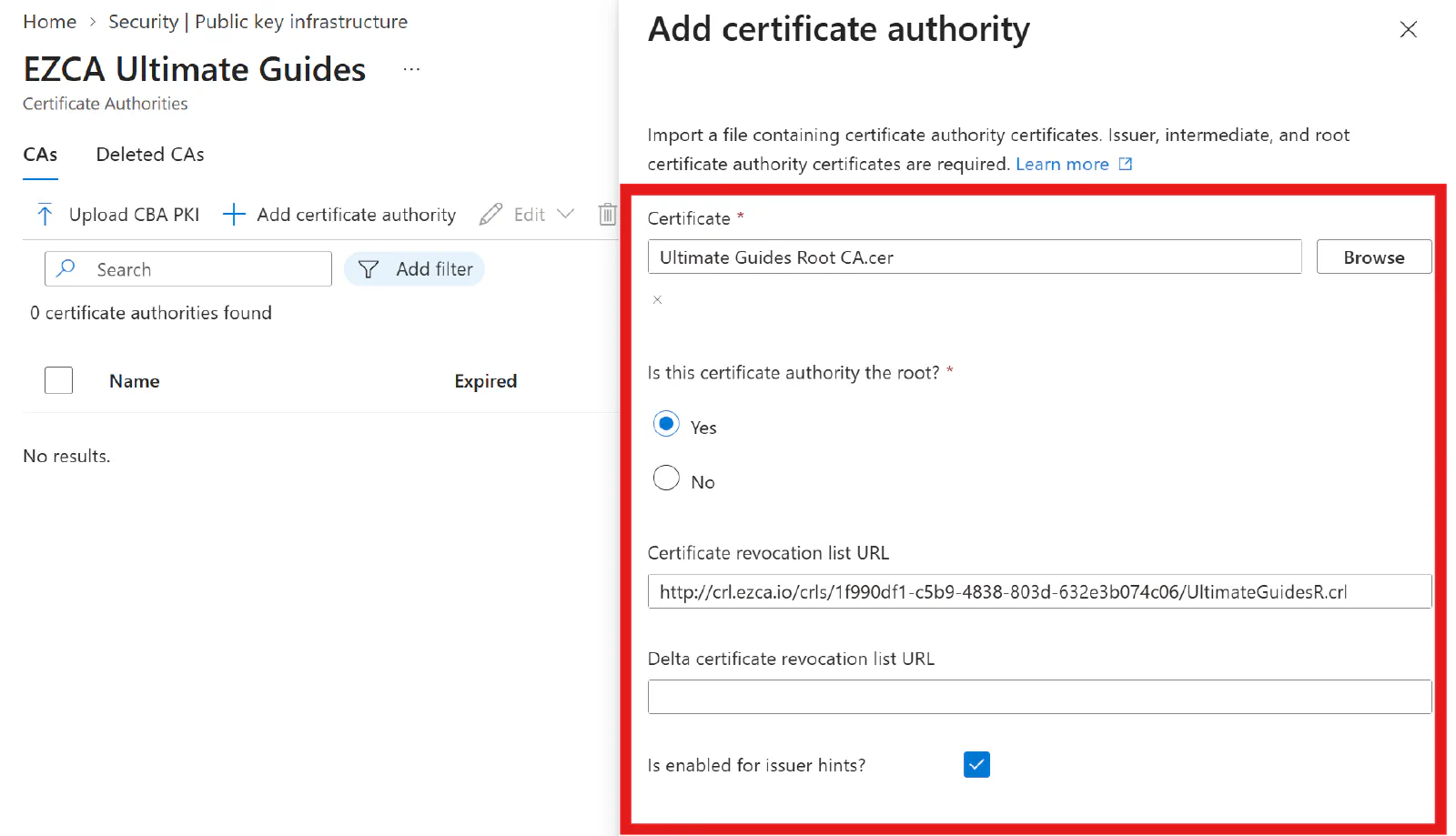
After issuing the certificates via SCEP, the next step is to add your SCEP Certificate Authority to Entra CBA. This allows Entra ID to recognize and trust the certificates issued by your SCEP CA for authentication purposes. To do this, navigate to the Public Key Infrastructure section in the Entra ID portal, add your root and issuing/SCEP CAs, and configure an internet-accessible CRL URL for the issuing CA so Entra ID can perform revocation checks.
Step 3: How to Enable and Configure Entra CBA
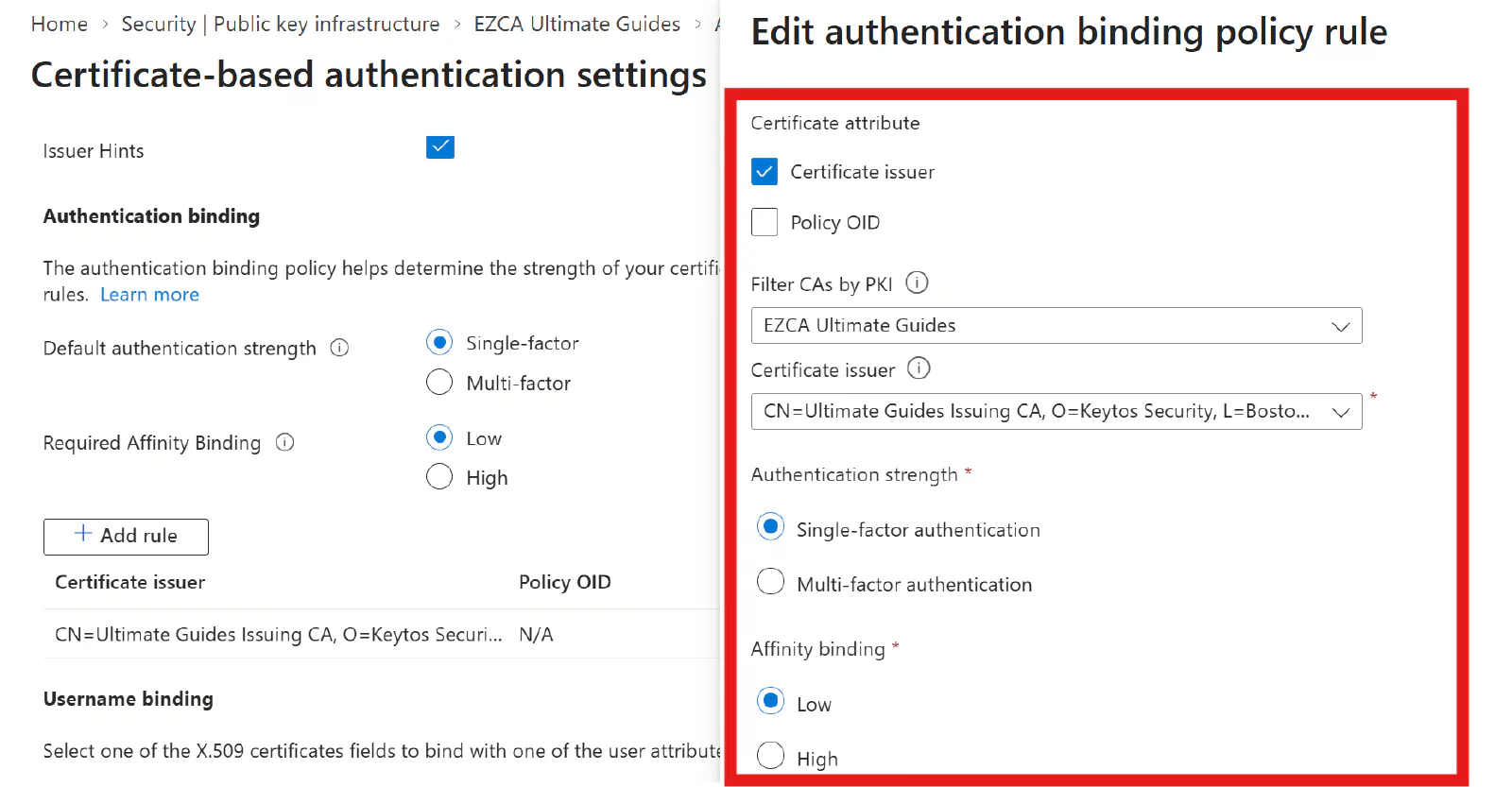
Now that you’ve added your PKI details to Entra CBA, the next step is to enable and configure Entra Certificate-Based Authentication (CBA) for your organization. To do this, navigate to Authentication methods > Certificate-based authentication in the Entra ID portal, where you can add your pilot users and configure CBA to use your SCEP-issued certificates.
Step 4: How to Create a Custom Authentication Strength in Entra ID
A custom authentication strength is used to take the ability to authenticate using Entra CBA, and enforce it as a requirement for specific users or scenarios. Think of it as the “bridge” between having the capability to authenticate with certificates and actually requiring it for access via Conditional Access policies (which we’ll configure in the next step). To configure a custom authentication strength, navigate to Authentication methods > Authentication strengths in the Entra ID portal, and create a new authentication strength that includes the certificate-based authentication method as a single factor.

Step 5: Create a Conditional Access Policy to Enforce Certificate-Based Authentication
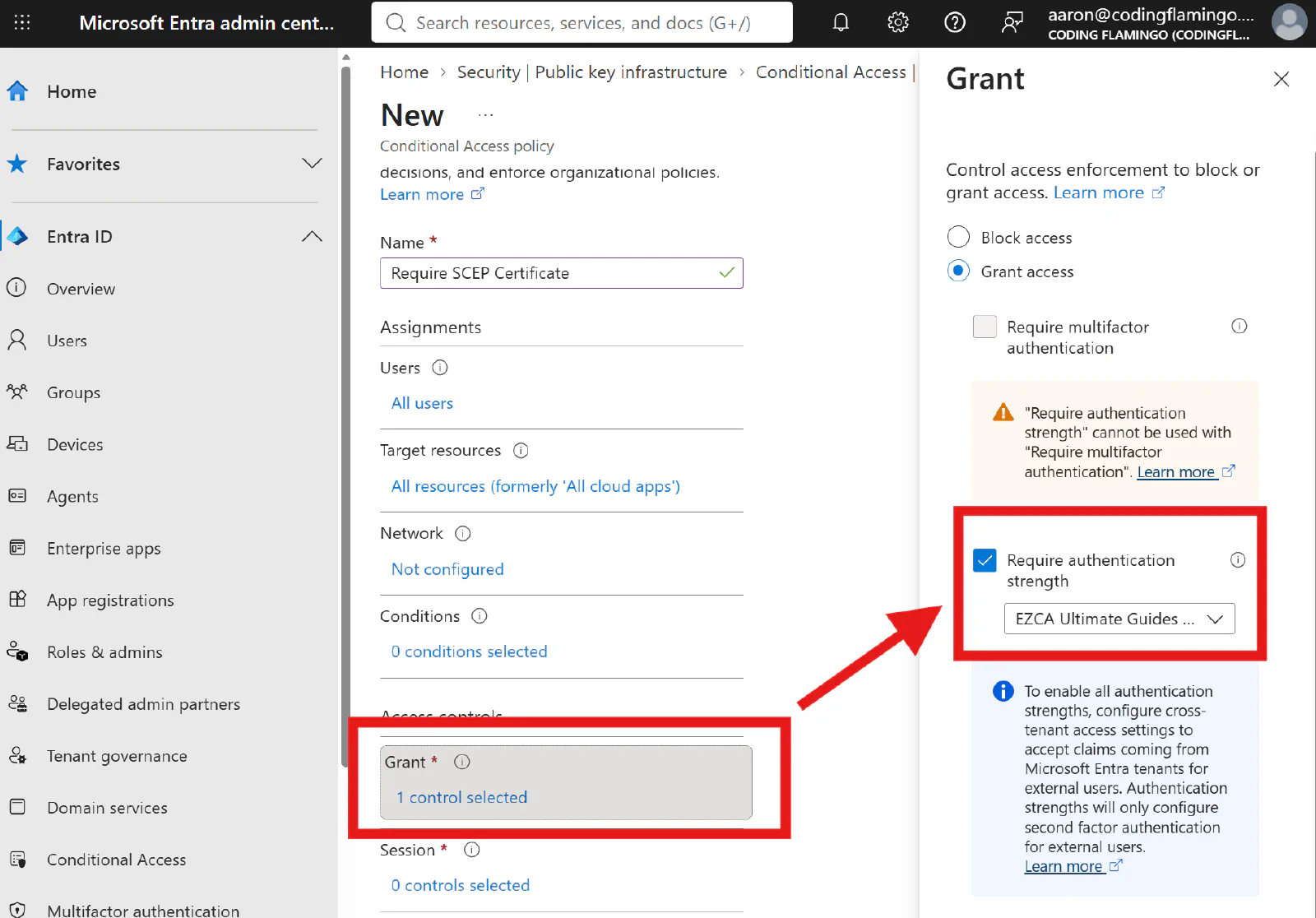
The last set up step is to create a Conditional Access policy that enforces the use of certificate-based authentication for specific users or scenarios. To do this, navigate to your Conditional Access policies in the Entra ID portal, create a new policy, and configure it to require the custom authentication strength you created in the previous step for the targeted users or scenarios.
How to Require Multi-Factor Authentication Alongside Certificate-Based Authentication
In most scenarios you probably don’t want to use just a SCEP certificate for authentication, as a SCEP certificate typically isn’t protected by an additional factor like a PIN or biometric verification. To enhance security, you should require multi-factor authentication (MFA) alongside certificate-based authentication. In Entra Conditional Access, you can configure a second policy or modify your existing policy to require MFA in addition to the custom authentication strength that enforces certificate-based authentication. This ensures that users must provide both a valid SCEP certificate and an additional authentication factor to gain access.
How to Authenticate to Entra ID Using Certificate-Based Authentication
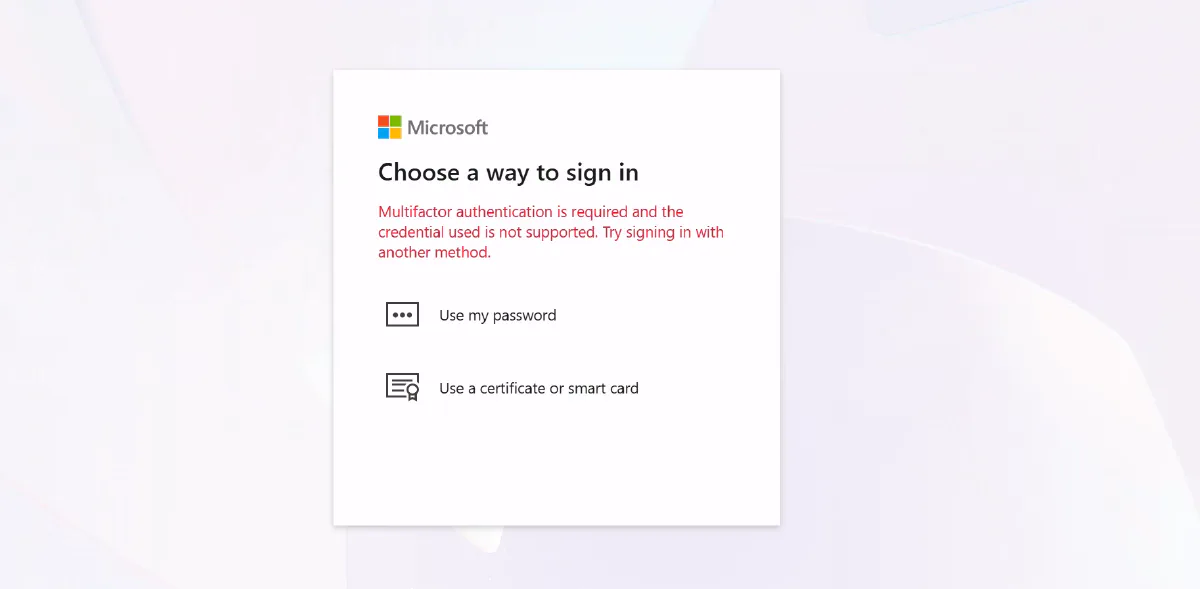
After setting up certificate-based authentication and the necessary Conditional Access policies, users can authenticate using their SCEP-issued certificates. When prompted to sign in, users will select the certificate-based authentication option and provide their SCEP certificate.
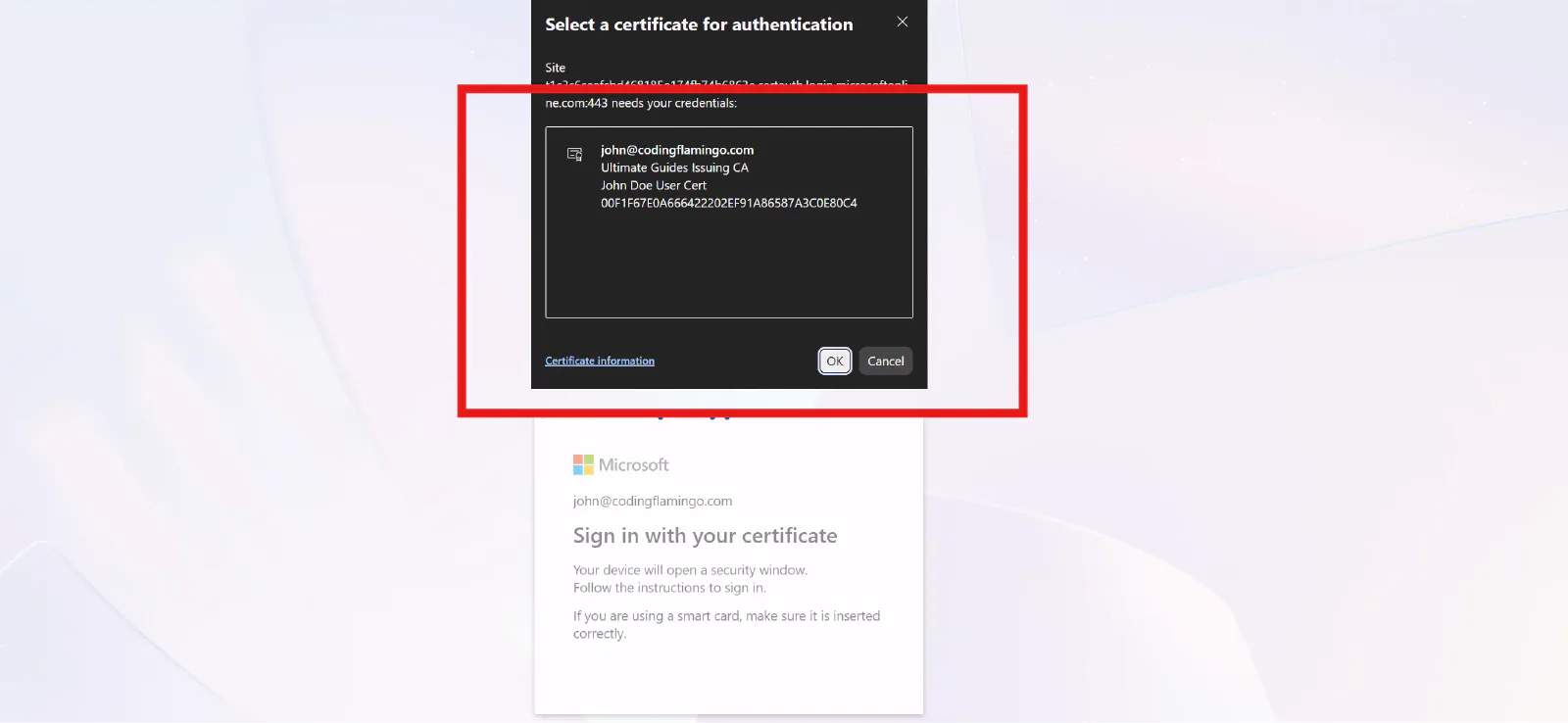
If multi-factor authentication is also required, users will be prompted to complete the additional authentication step after successfully presenting their certificate. This process ensures that only users with valid certificates and, if configured, an additional authentication factor can access the protected resources.
Summary - Certificate-Based Authentication for Corporate Managed Devices
In this guide, we walked through the process of restricting Entra ID access to corporate managed devices without using Intune. We covered how to issue SCEP certificates to your devices, configure certificate-based authentication in Entra ID, create a custom authentication strength, and enforce it through Conditional Access policies. Finally, we demonstrated how users authenticate using their SCEP-issued certificates, optionally alongside multi-factor authentication, ensuring secure access to your organization’s resources.
By following these steps, organizations can enhance the security of their Entra ID environment by ensuring that only corporate managed devices with valid SCEP certificates can access sensitive resources, even in scenarios where Intune is not used for device management.
Want to Talk to an Entra ID and Identity Expert?
If you have questions or need guidance on implementing certificate-based authentication for corporate managed devices, feel free to reach out to our team of Entra ID and identity experts. We can help you design and deploy a secure authentication strategy tailored to your organization’s needs.
Talk to an Entra ID Expert