












Connect to Work or School Wi-Fi on Windows with Keytos Connect
Learn how to connect to your workplace or school Wi-Fi on Windows with Keytos Connect.
Solutions

One platform. Zero passwords.

Cloud PKI for Azure, Intune, and Entra ID

The best cloud RADIUS for Microsoft environments

Entra ID authentication to SSH endpoints

Passwordless authentication onboarding for Entra ID

SSL certificate monitoring tool
Blog
Partner

Your trusted partner for passwordless security
Join our global partner network
If your workplace or school allows personal and bring-your-own-devices (BYOD) to connect to their Wi-Fi network, Keytos Connect simplifies the process and makes it as easy as just a few clicks to get connected.
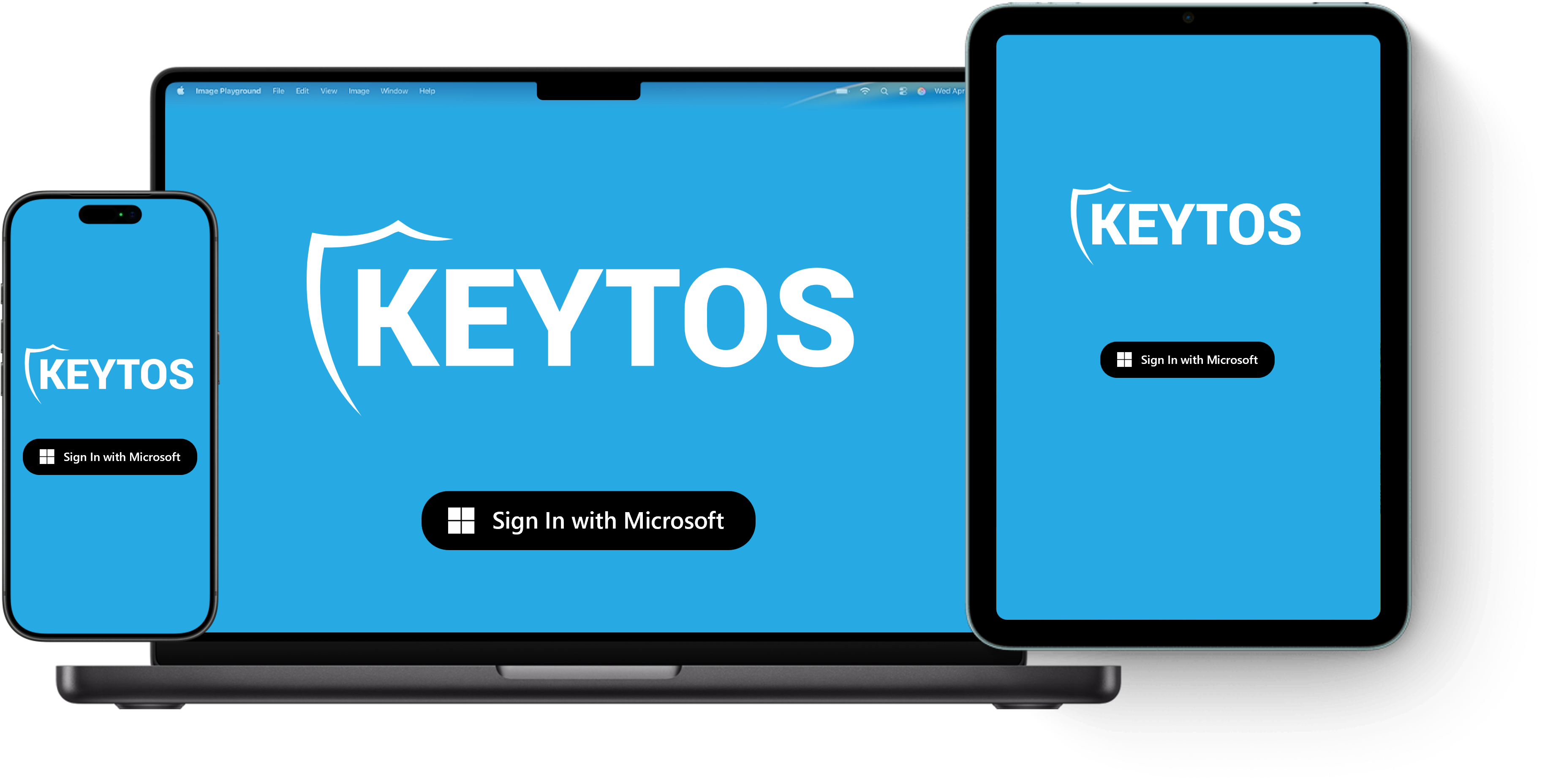




Simply download Keytos Connect, sign in, and you’ll be up and running in no time. Keytos Connect will automatically detect the Wi-Fi network and configure your device to connect securely without the need for any manual configuration.
Keytos Connect supports all major desktop and mobile operating systems including:
Check out one of the guides below to learn how to install and set up Keytos Connect on your device.
Check with your IT department or network administrator to see if your workplace or school supports Keytos Connect. They’ll need to enable it on their end for you to be able to sign in and connect.
If you’d like to set up Keytos Connect for your workplace or school, follow the EZRADIUS Set Up Guide to get it up and running. Keytos Connect can be installed alongside your existing MDM and Microsoft Intune flow, making it easy to add secure Wi-Fi connectivity for your users without disrupting your current device management processes.
Check out one of our guides below to learn how to connect to your workplace or school Wi-Fi using Keytos Connect on your specific operating system:
Learn how to connect to your workplace or school Wi-Fi on Windows with Keytos Connect.
Learn how to connect to your workplace or school Wi-Fi on macOS with Keytos Connect.
Learn how to connect to your workplace or school Wi-Fi on iOS and iPadOS with Keytos Connect.
Learn how to connect to your workplace or school Wi-Fi on Android with Keytos Connect.