

















How-To: Setup Access To Azure Resources
To give Azure users seamless access to Azure resources, the Keytos application need read permissions in your subscription to verify who has access to those resources.
Prerequisites
Introduction
Creating an Azure Policy requires EZSSH to have access to your subscription. Based on what features you want to enable you can give it different permissions. If you want to use our “Auto Add” Feature that automatically adds your EZSSH Policy certificate to the machines we detect in your subscription, Contributor role is required. If you only want EZSSH to detect the machine and you will add the certificate to the machines, using your deployment templates (Pulumi Example) then only Reader role is required.
Adding Application to RBAC in Azure Portal
- Login to https://portal.azure.com
- Navigate to the Subscription or resource group that you want to enroll in EZSSH
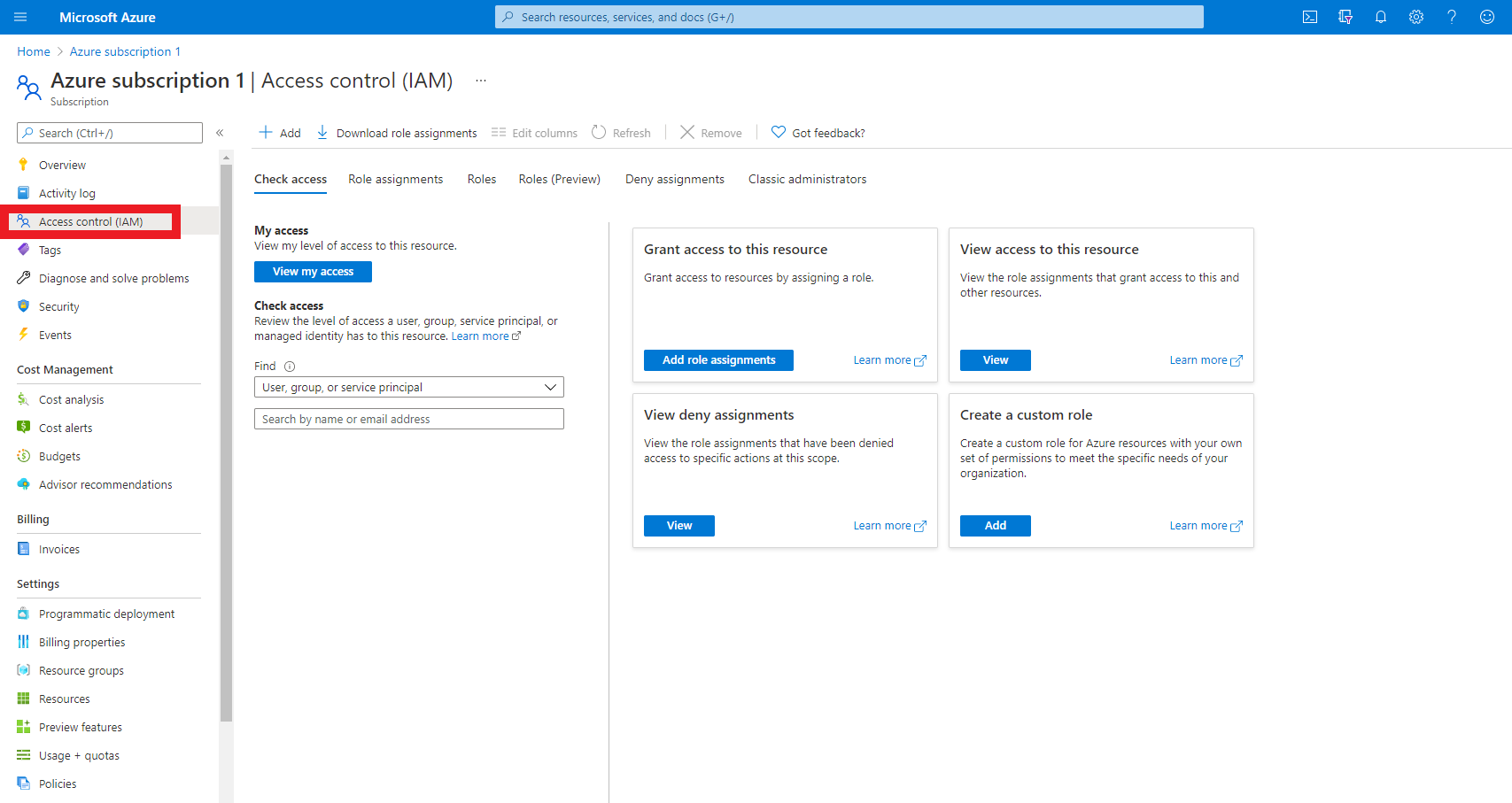
- Click on Add
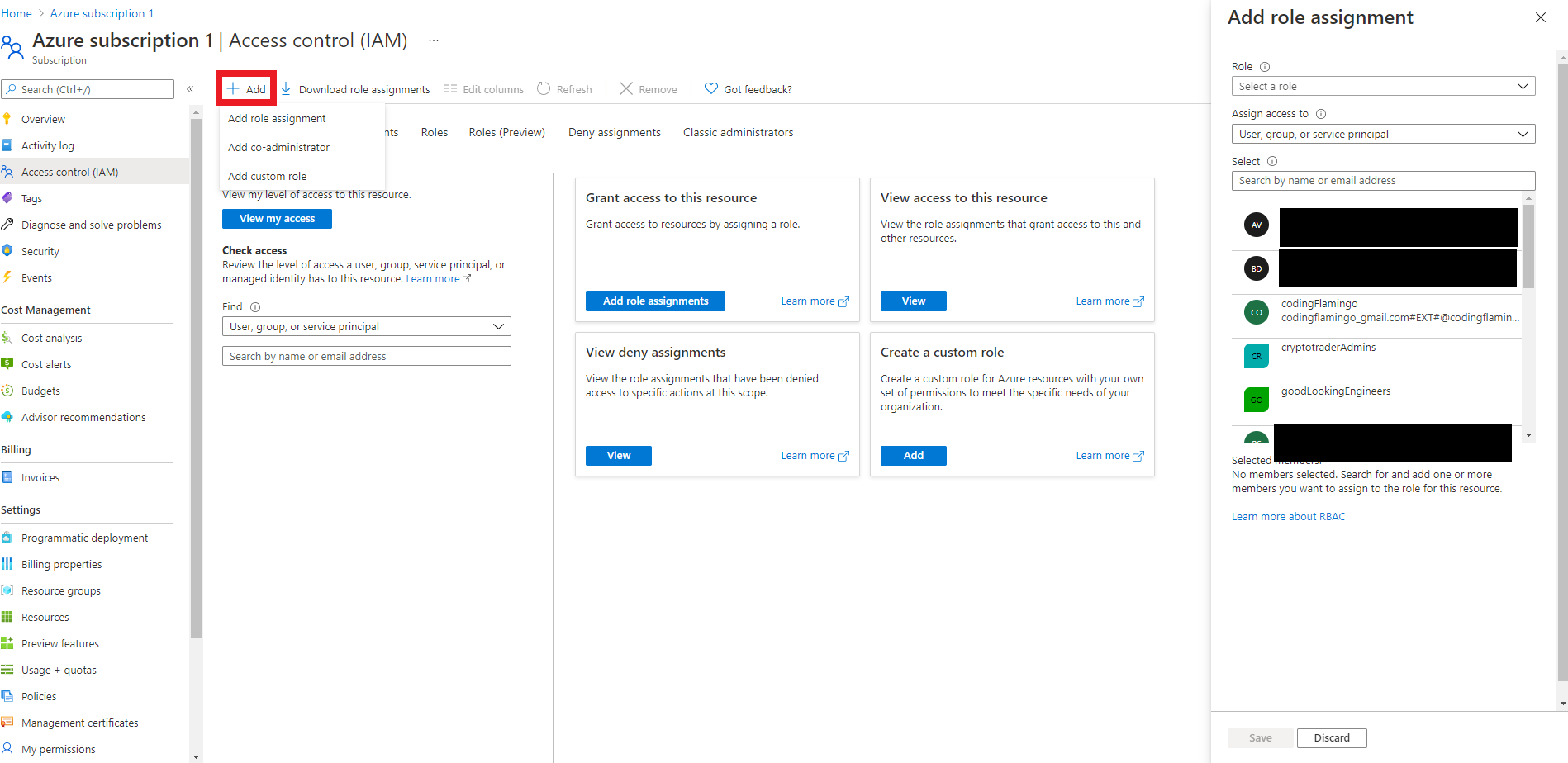
- Select the “Add Role Assignment” Option
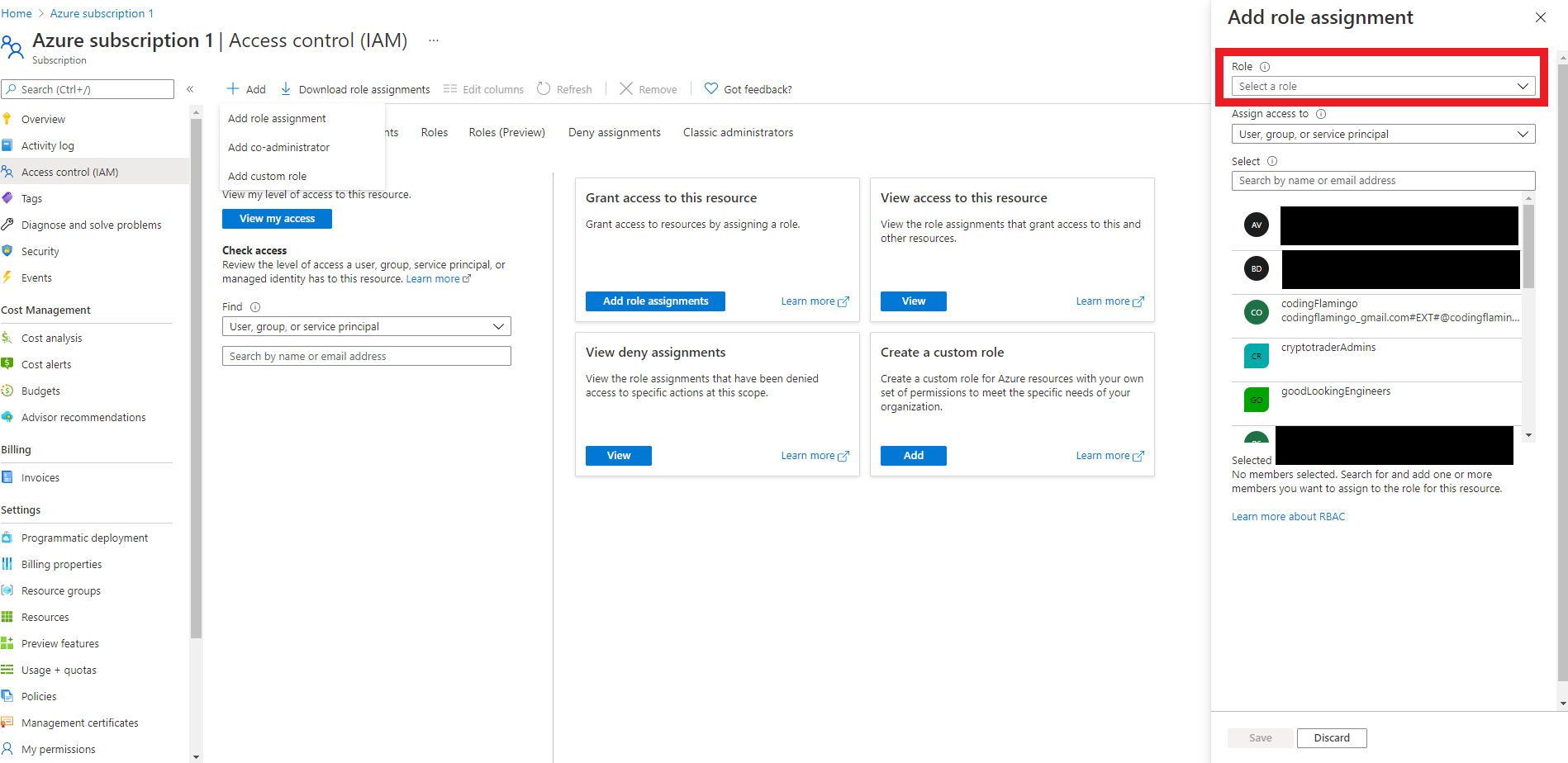
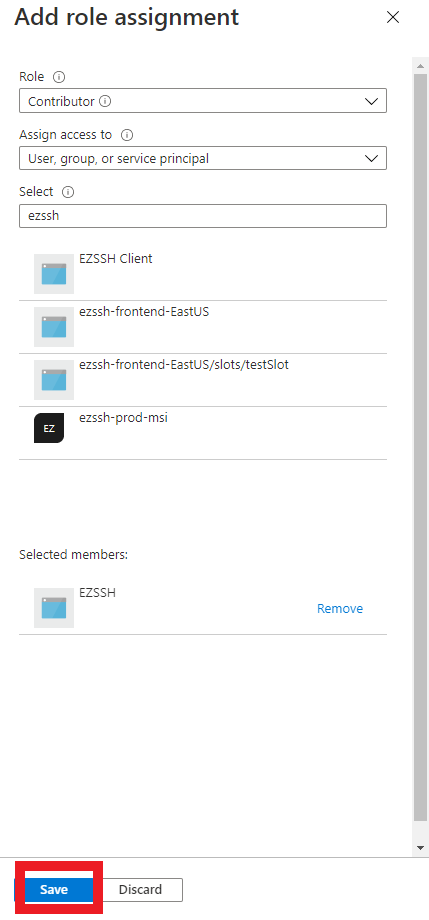
- Select the Role you need for EZSSH. Contributor or Reader
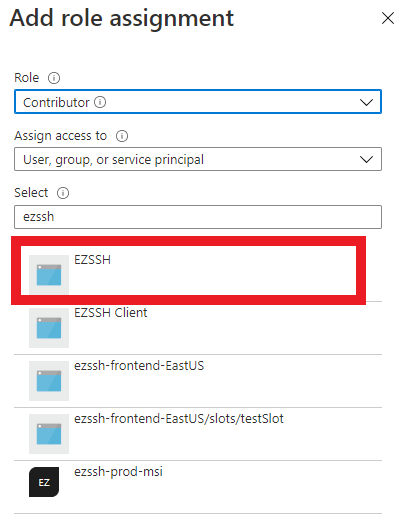
- Select the EZSSH Application
- Click the Save button
- You are ready to create your first Azure Policy