How-To: Export your EZCA Cloud PKI Logs to Azure Log Analytics and Azure Sentinel
This guide applies to both Azure Log Analytics and Azure Sentinel since Sentinel is built on top of Log Analytics. Azure Sentinel is not required if you only want to collect and analyze logs, but it provides additional security features if you choose to use it.
Prerequisites
- The Keytos Entra ID application is registered in your tenant
- You have an active EZCA plan
- You are an Owner or User Access Administrator on the Resource Group containing your Log Analytics workspace.
How to Grant Log Contributor Permissions to the EZCA Application in Azure
To allow EZCA to send logs to your Log Analytics and Azure Sentinel workspace, you need to grant the Keytos application the following roles on the Resource Group containing your Log Analytics workspace:
This can be done manually in the Azure Portal or using the Azure CLI.
How to Grant Permissions using the Azure Portal
It’s easy to enable the required permissions using the Azure Portal:
-
Navigate to the Azure Portal.
-
Open the Log Analytics Workspace you want to connect to EZCA. If you are using Azure Sentinel, open the Log Analytics workspace connected to your Sentinel instance.
-
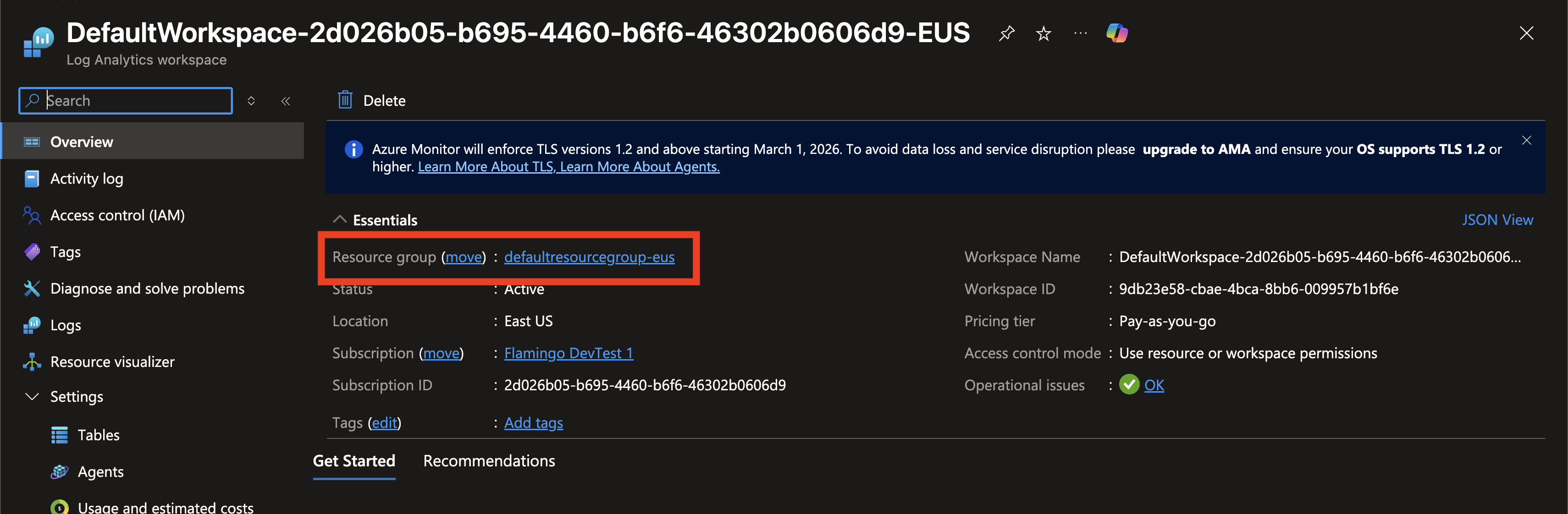
Click on Resource group to open the Resource Group containing your Log Analytics workspace.
-
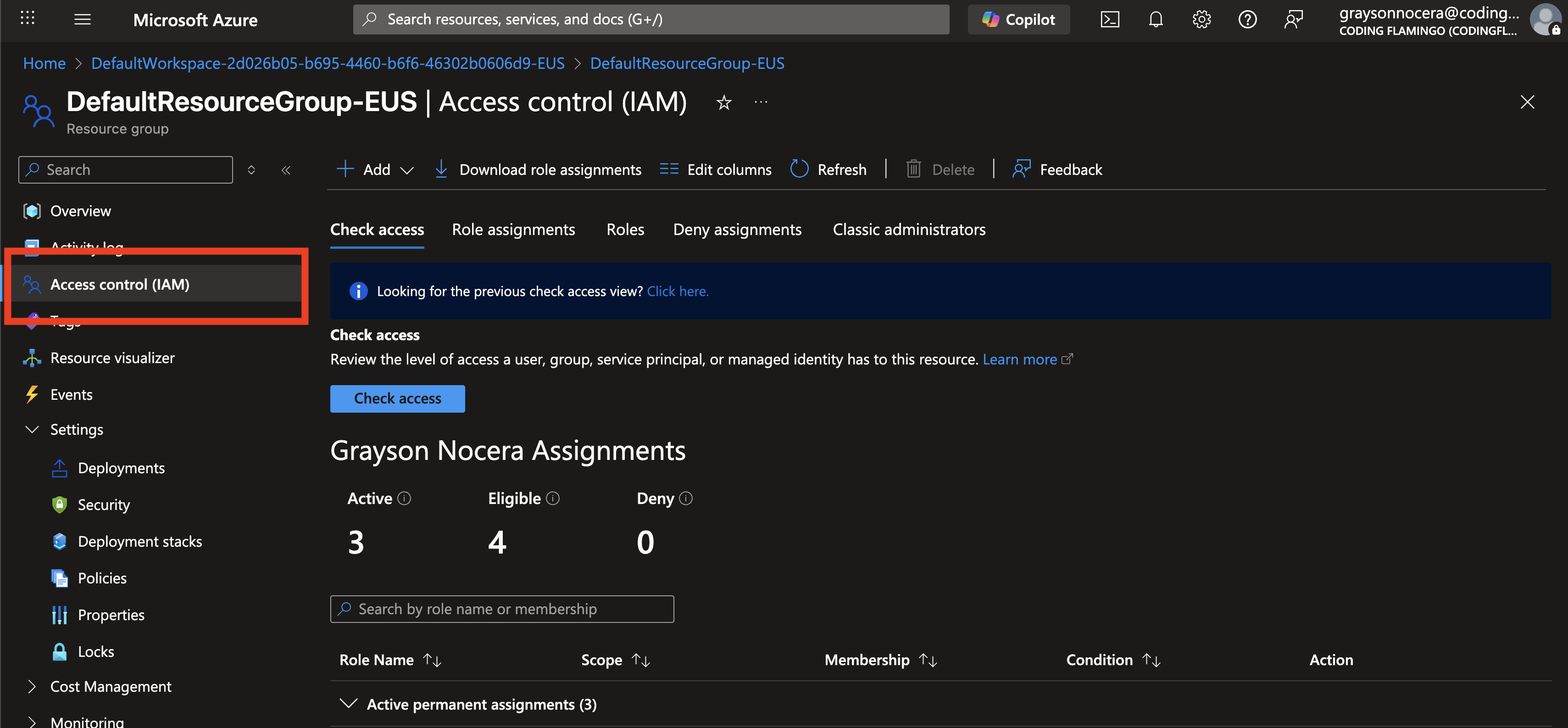
Click Access control (IAM) in the left menu.
-
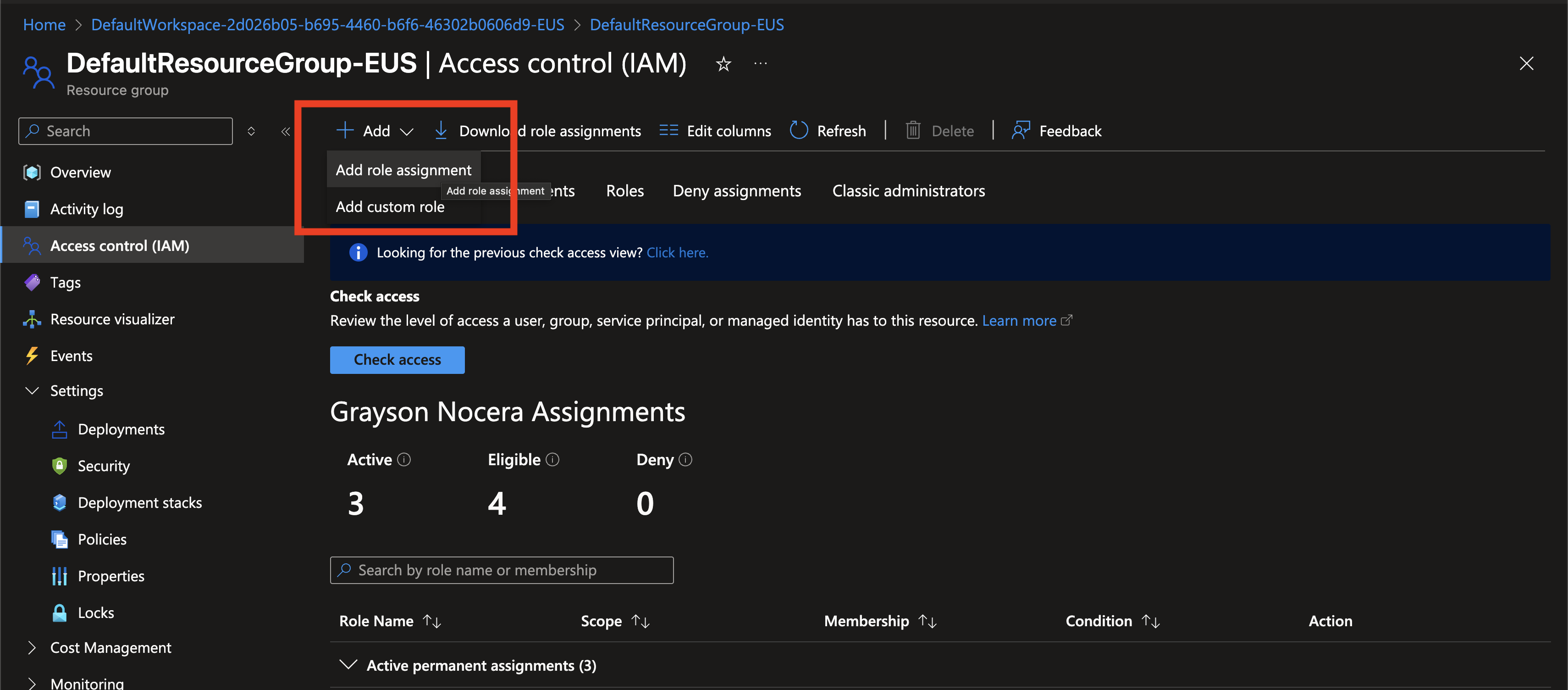
Click + Add and Add role assignment.
-
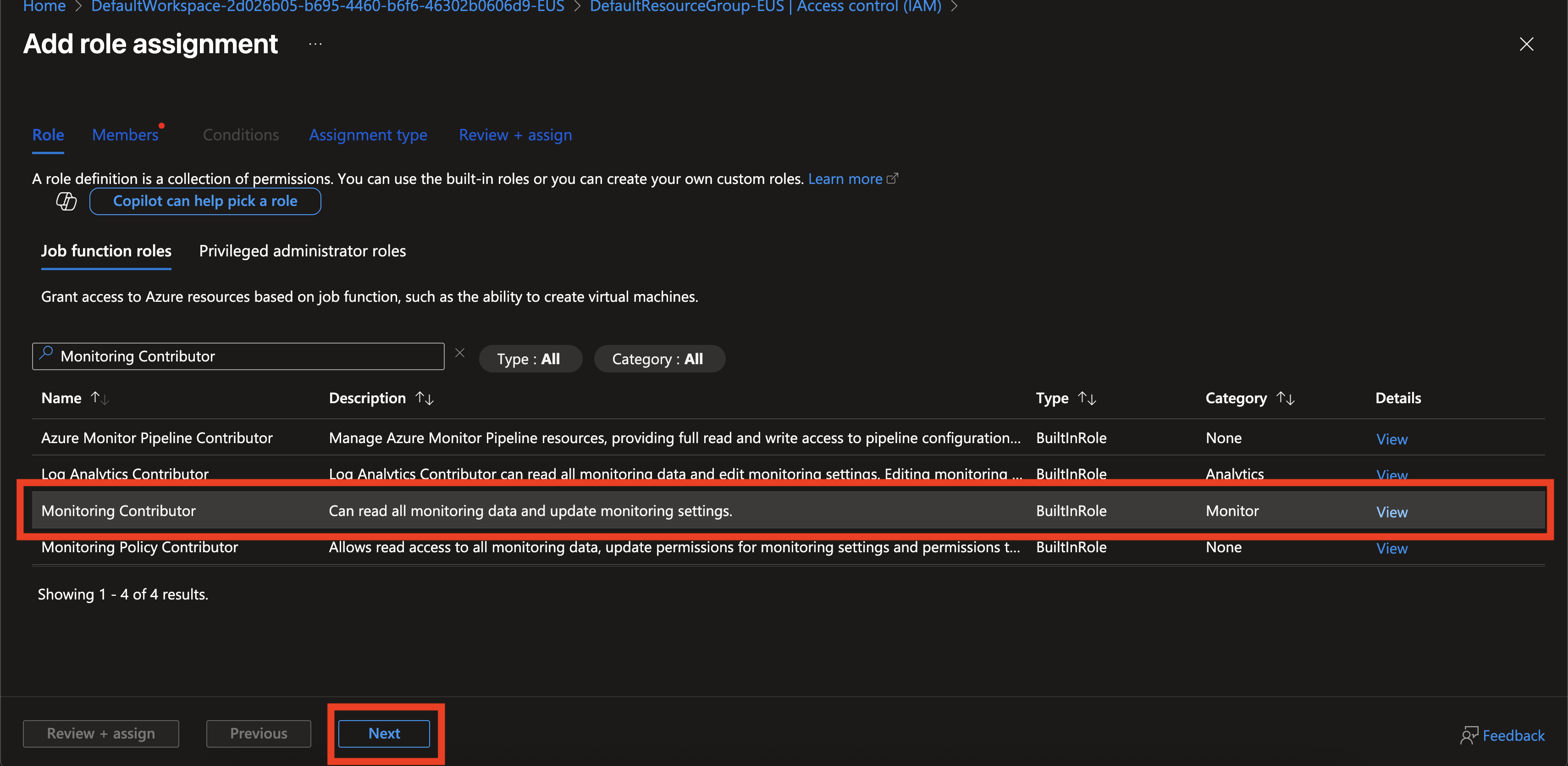
Search for Monitoring Contributor in the list of Azure roles. Select the role and click Next.
-
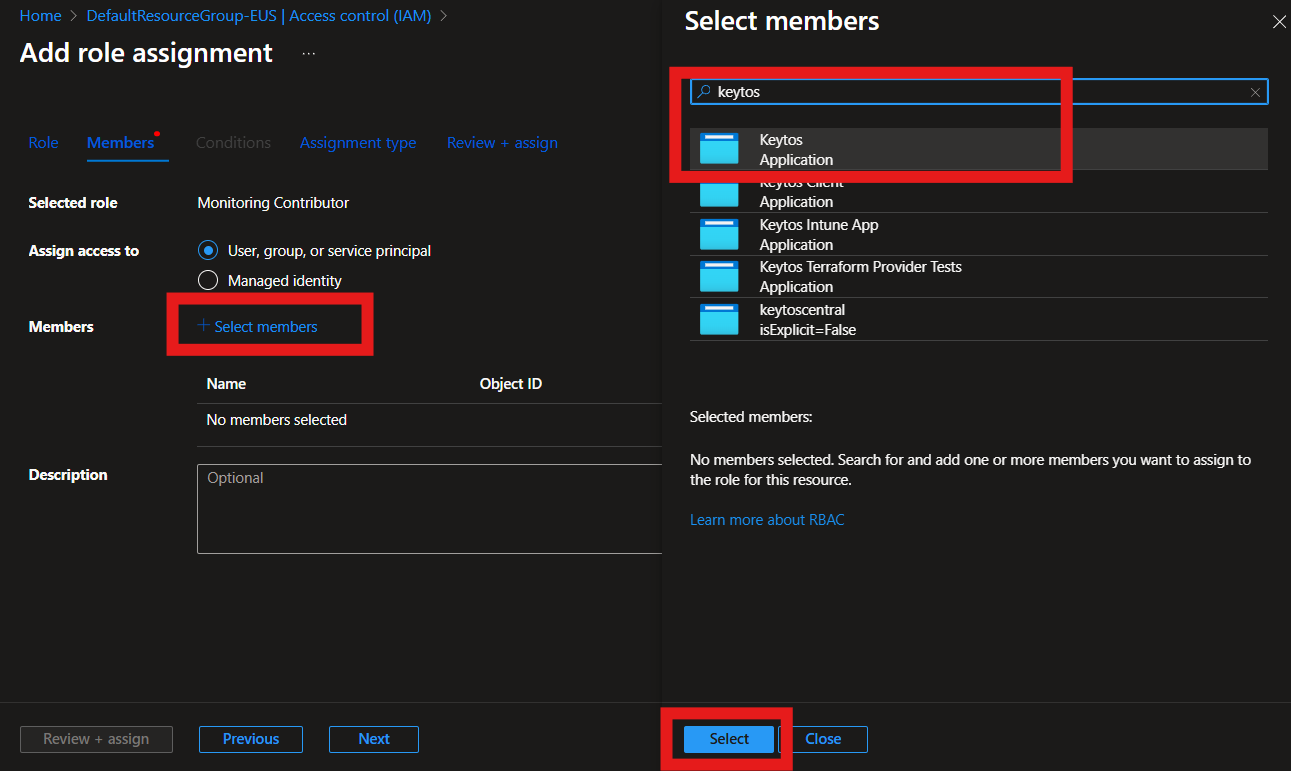
Click + Select members and search for Keytos. Select the Keytos application.
-
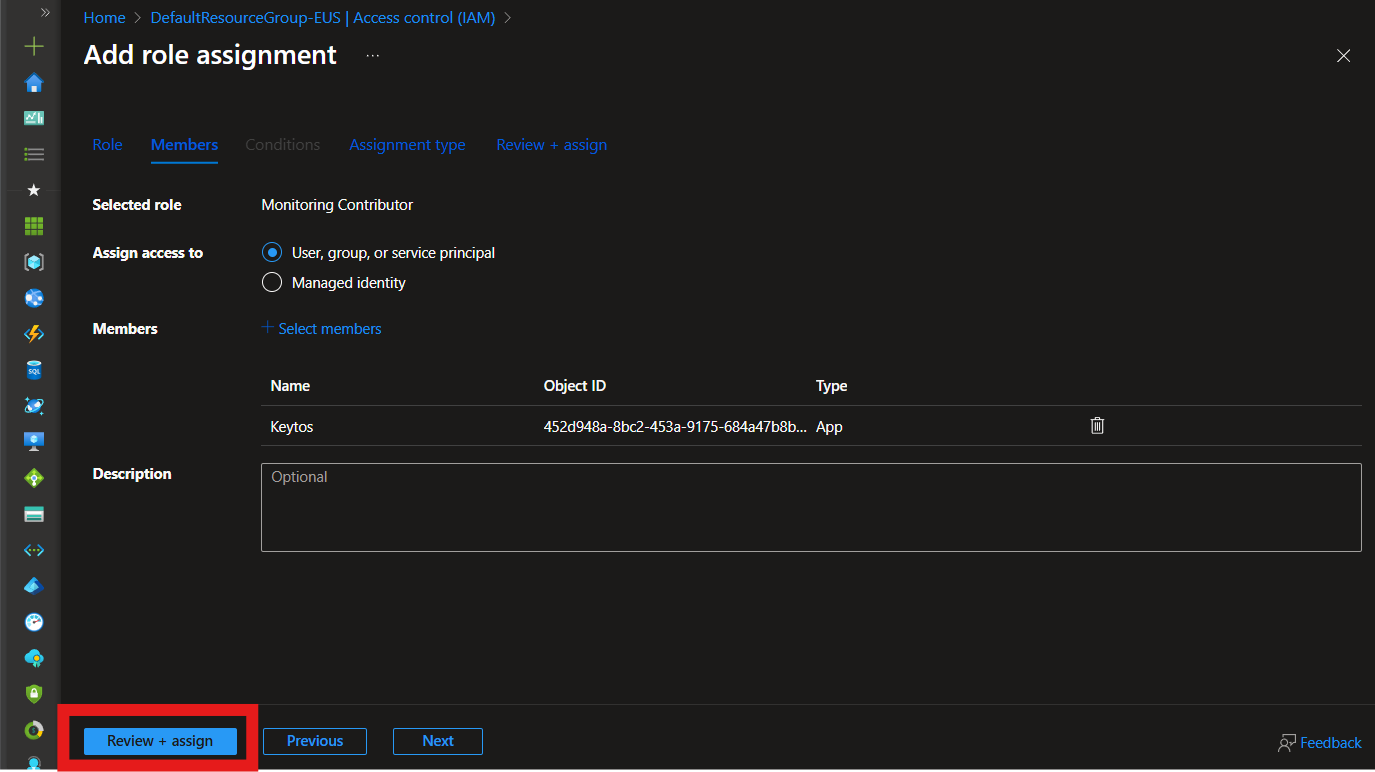
Click Review + assign twice to grant the role to the Keytos application.
-
Repeat steps 1-8 for the Monitoring Metrics Publisher and Log Analytics Contributor roles.
How to Grant Permissions using the Azure CLI
The Azure CLI can also be used to enable the required permissions. Follow these steps:
-
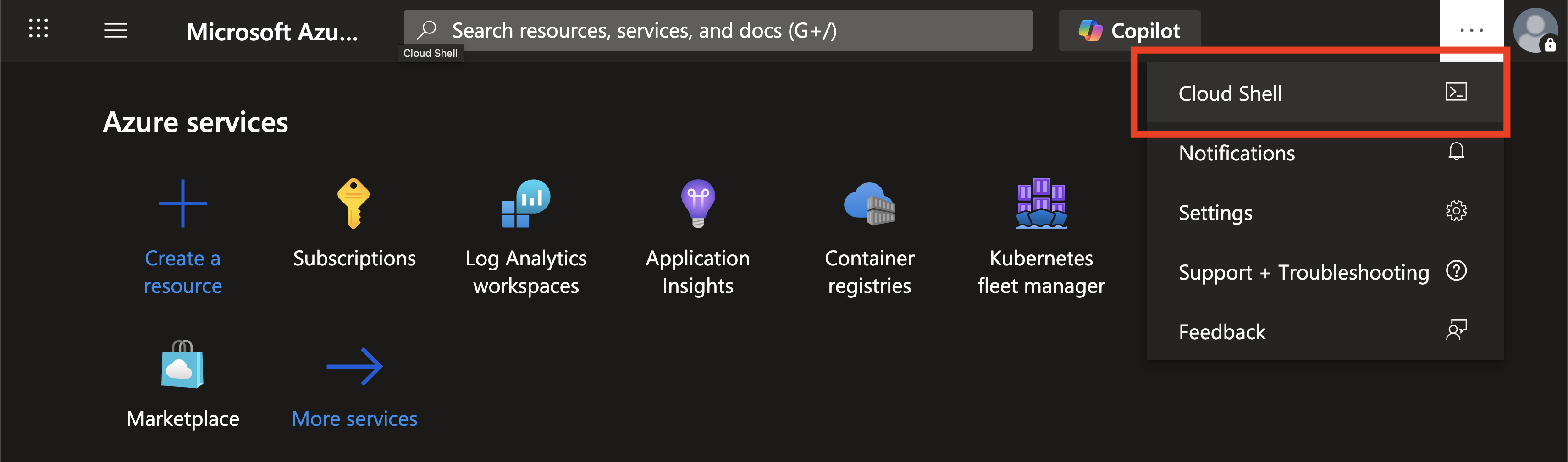
Open a terminal window on your device or navigate to the Azure Portal and open Azure Cloud Shell.
-
Begin by getting the object ID of the service principal for the Keytos application in your tenant:
$objectId = az ad sp list --filter "appId eq '68554b48-233f-42b4-9aa7-2eadca4d7727'" --query "[].{id:id}" --output tsv -
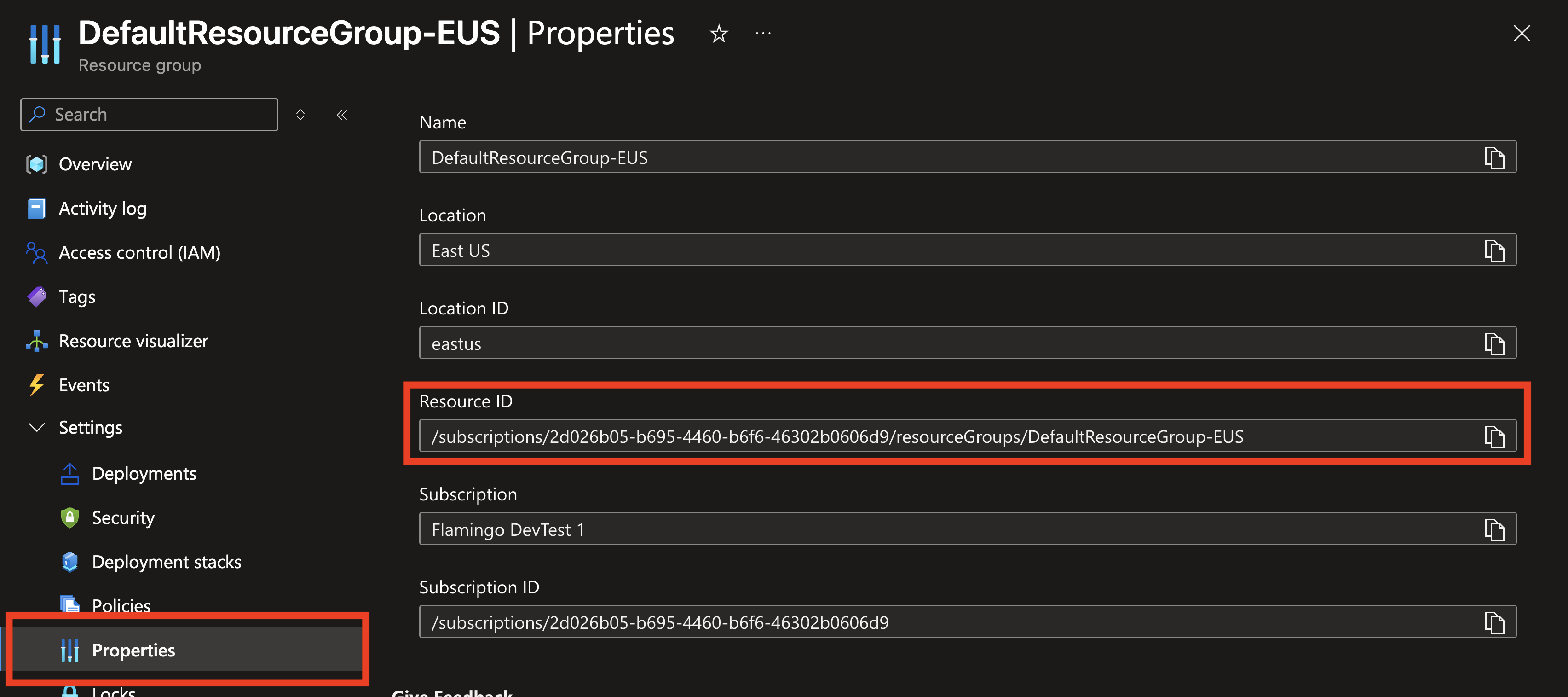
Copy the Resource ID of the Resource Group containing your Log Analytics workspace. This can be found by going to the Resource Group in Azure, selecting Properties, and copying the Resource ID.
-
Save the Resource ID as a variable for easier use:
$resourceGroupId = "/subscriptions/<YOUR-SUBSCRIPTION-ID>/resourceGroups/<YOUR-RESOURCE-GROUP-NAME>" -
Grant the Monitoring Contributor role to the Keytos application:
az role assignment create --scope "$resourceGroupId" --role "Monitoring Contributor" --assignee $objectId -
Grant the Monitoring Metrics Publisher role to the Keytos application:
az role assignment create --scope "$resourceGroupId" --role "Monitoring Metrics Publisher" --assignee $objectId -
Grant the Log Analytics Contributor role to the Keytos application:
az role assignment create --scope "$resourceGroupId" --role "Log Analytics Contributor" --assignee $objectId
How to Export your Cloud PKI Audit Logs to Log Analytics and Azure Sentinel
Now that you have granted the necessary permissions to the Keytos application, you can configure EZCA to send your CA management logs to your Log Analytics and Azure Sentinel workspace:
How To Enable Log Export in EZCA
-
Go to the EZCA Portal.
-
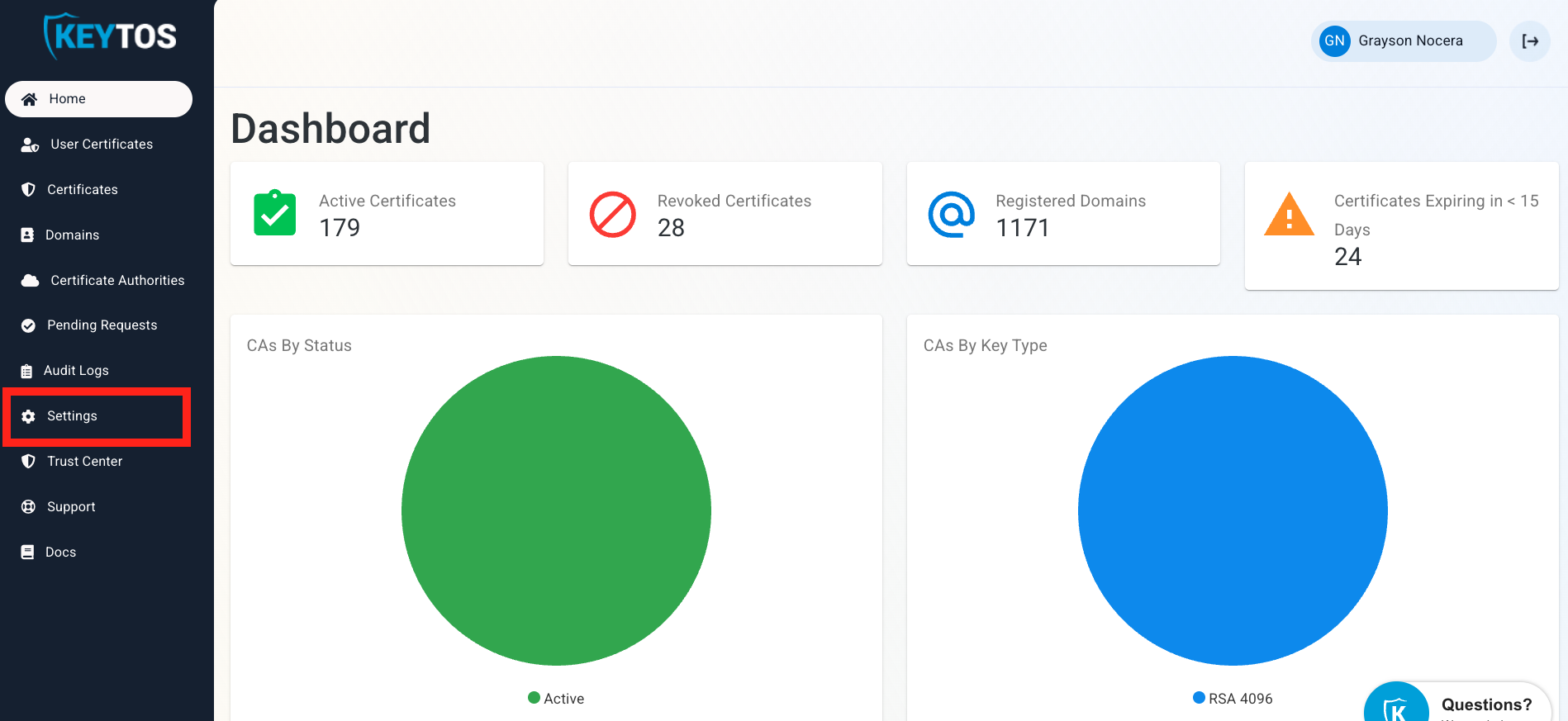
Click on Settings.
-
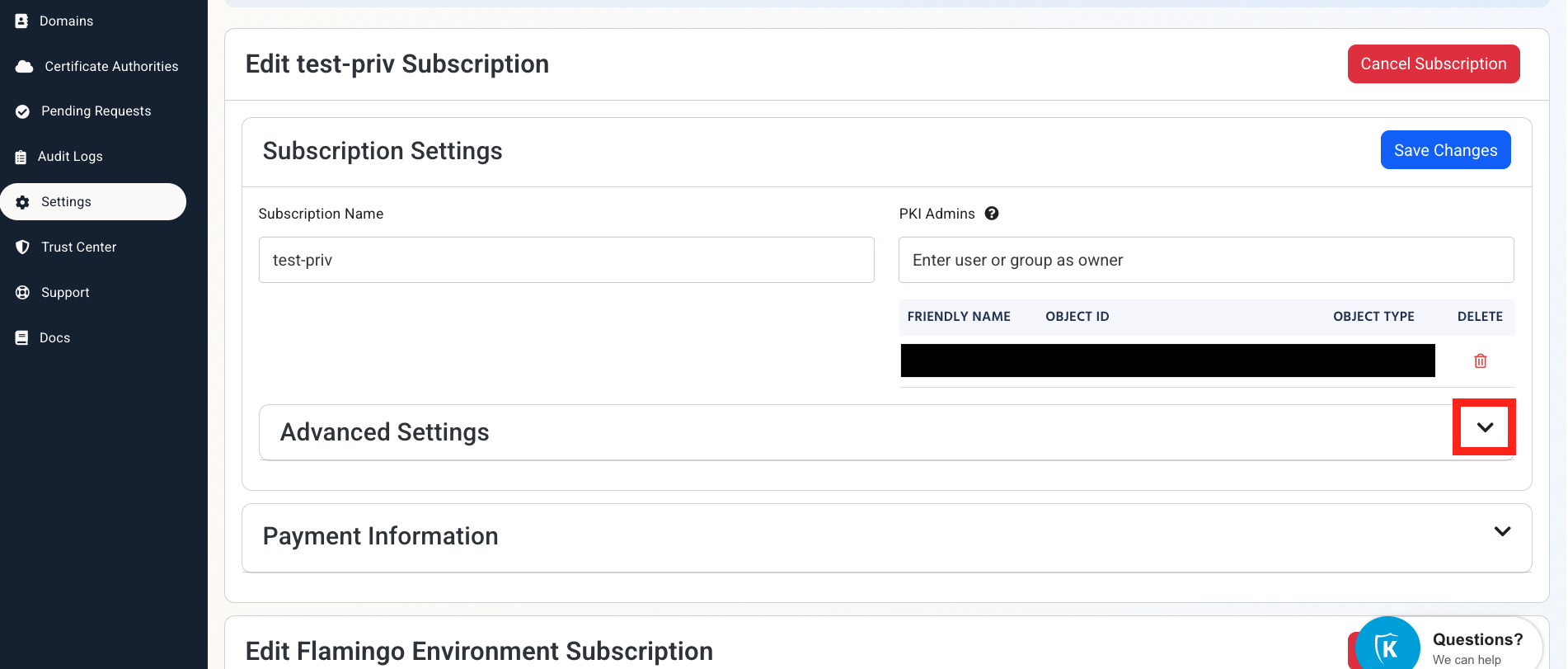
Expand your subscription’s Advanced Settings.
-
Enable the Send Audit Logs to SIEM option.

How to Configure the Azure Sentinel Exporter in EZCA
-
Under SIEM Provider, select Sentinel.
-
In another tab, navigate to the Azure Portal.
-
Select the Log Analytics workspace connected to your Sentinel instance (or any Log Analytics workspace you want to use if you are not using Sentinel).
-
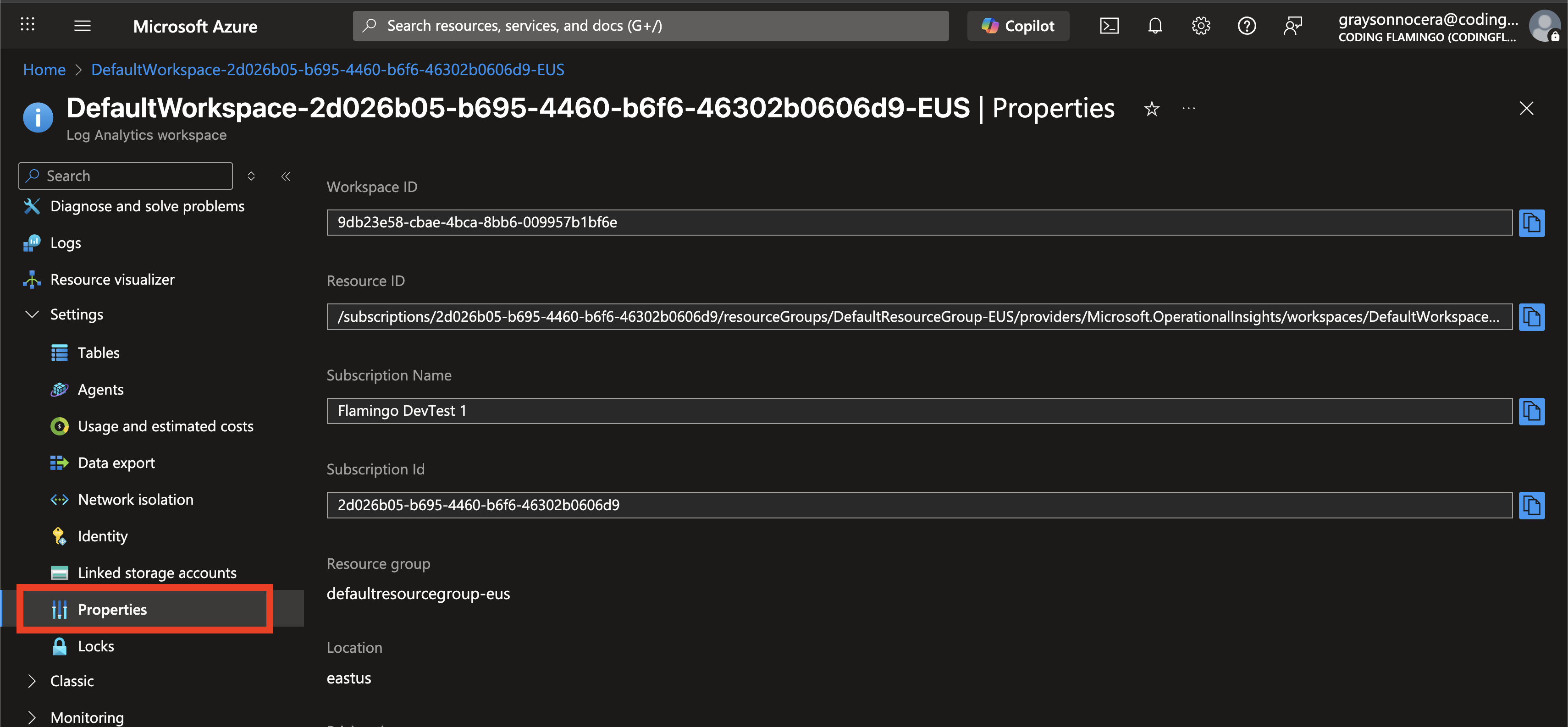
Click on Properties.
-
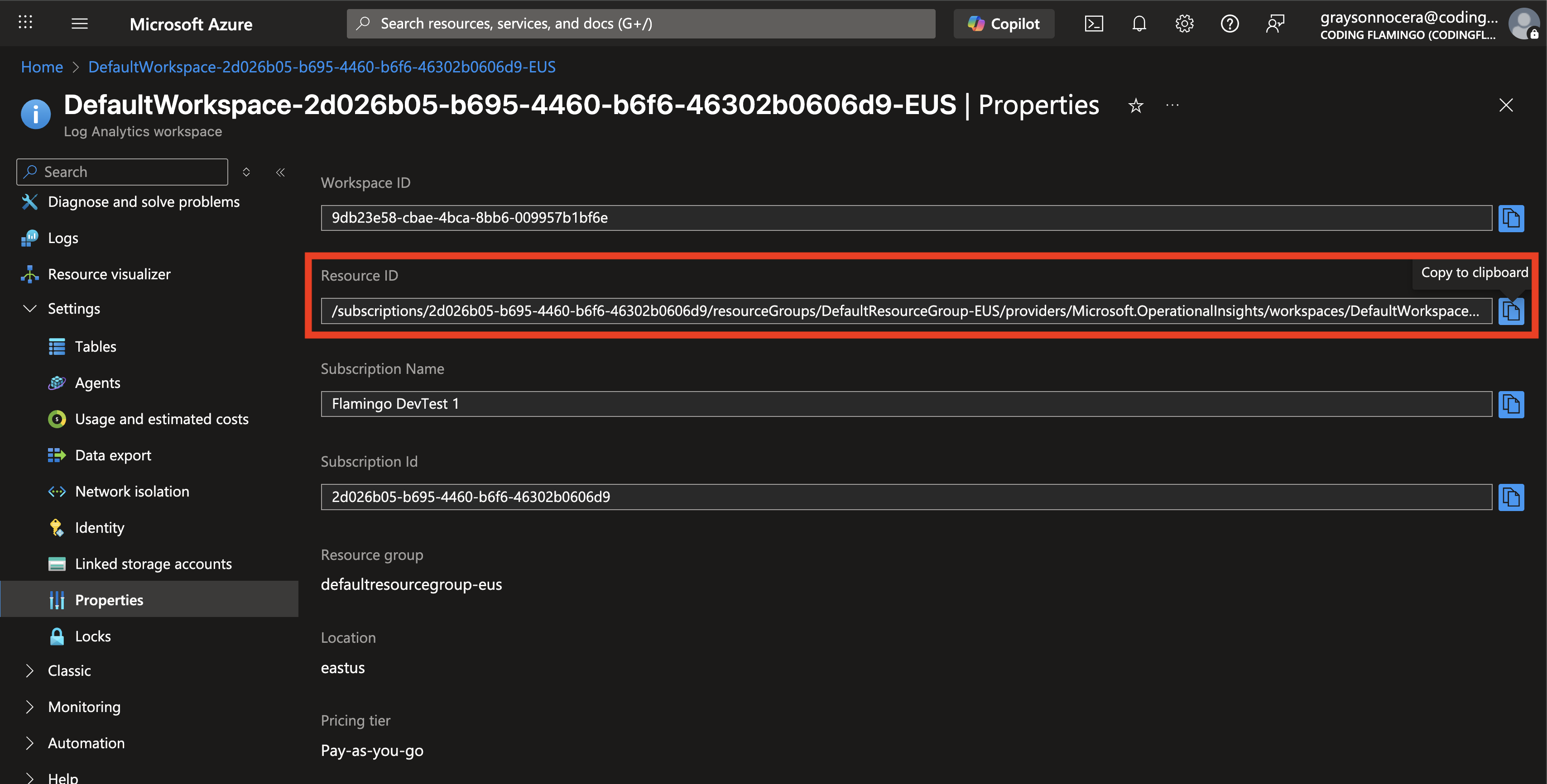
Copy the Resource ID.
-
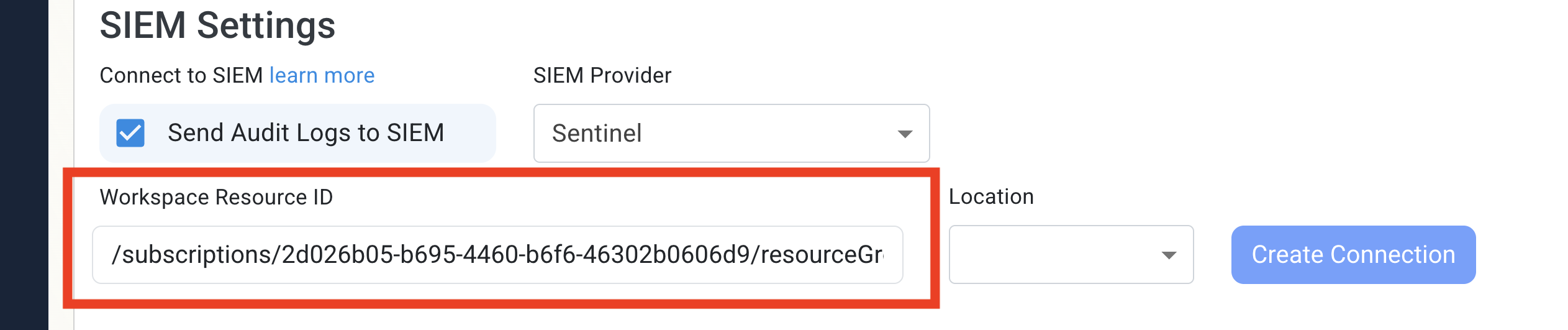
Go back to the EZCA tab and paste the Resource ID into the Workspace Resource ID field.
-
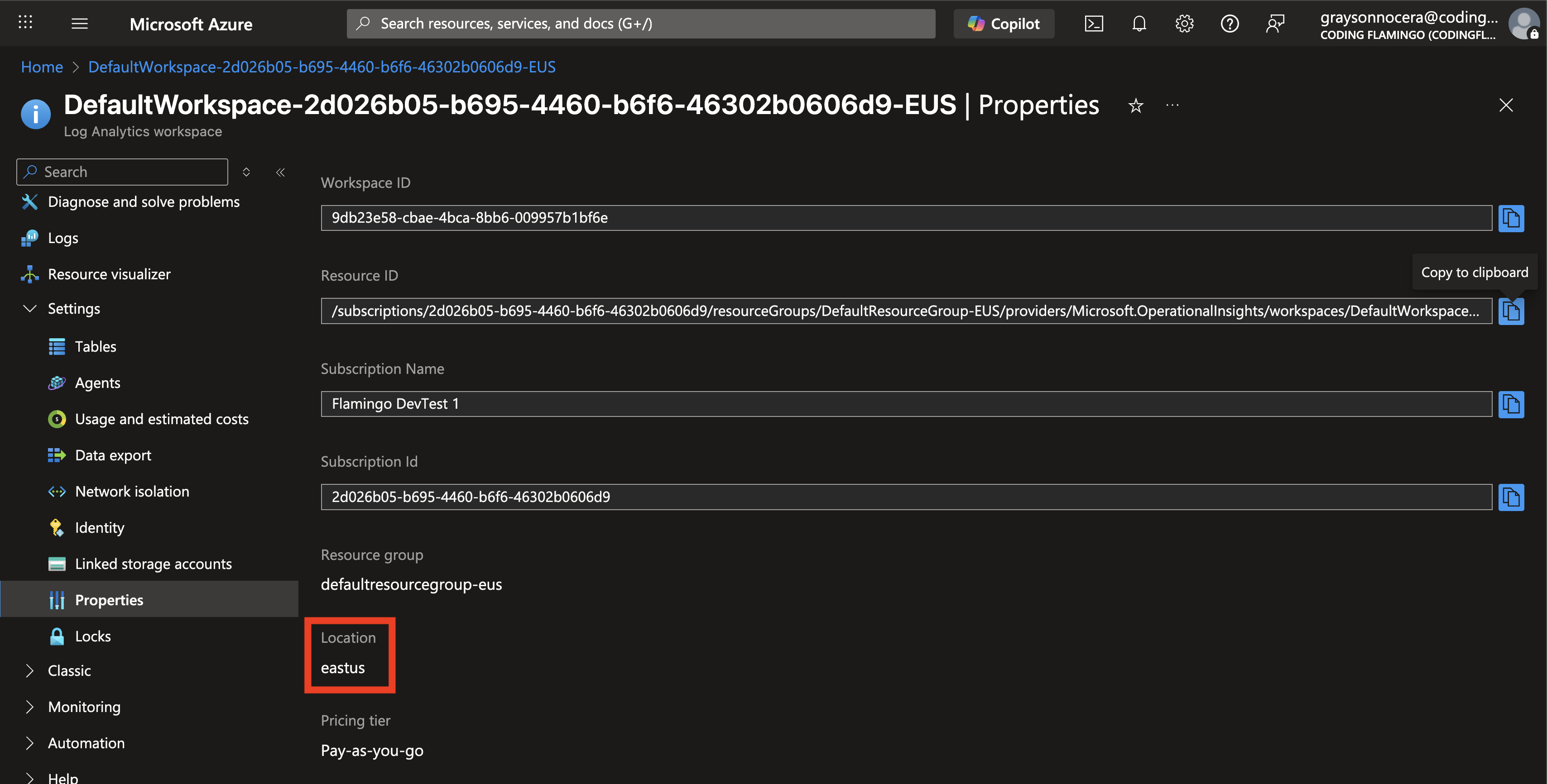
Back in the Azure tab note the Location of the Log Analytics workspace.
-
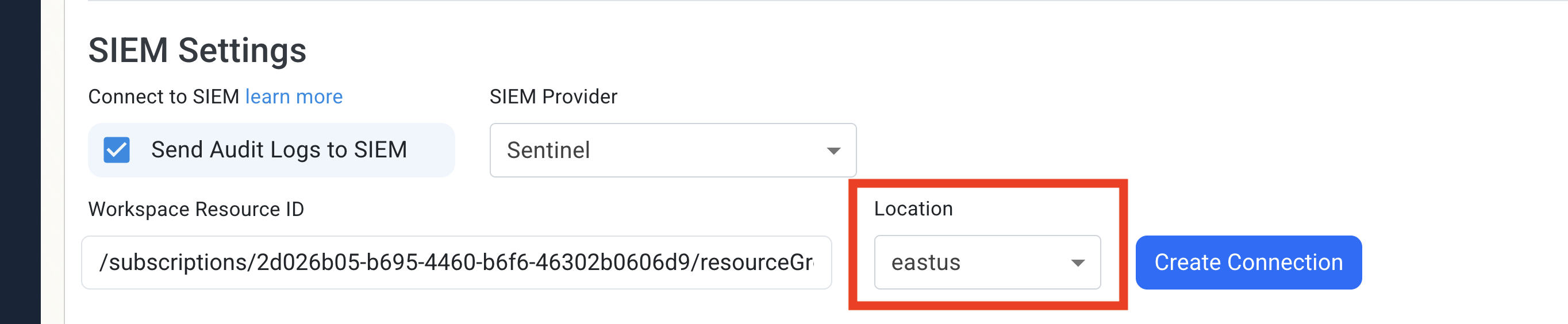
In EZCA select the same location in the Location dropdown.
-
Click the Create Connection button. This will create the necessary connection in your Resource Group to communicate with Log Analytics, and send a test message to ensure proper connection.
-
Once the test succeeds, make sure to click Save changes to save your SIEM settings.
-
Done! EZCA will now send your security logs to your SIEM.
How To Create Alerts in Azure Sentinel to Monitor Your Cloud PKI Activity
We recommend setting up alerts for any high criticality event, and closely monitor medium and low events. Here are some example queries to get you started:
Certificate Request Denied (Event ID 4888)
Certificate request denied is an event that is created when a user requests a certificate that they do not have permission to request. It is important to alert on this event since it can be an attacker attempting to escalate privileges by requesting a certificate.
EZCA_Certificates_CL
| where  EventID_d == 4888
CA Permission Changed (Event ID 4882)
CA Permission Changed is an event that is created when a user changes the security permissions for a CA. This event should be monitored since it is a low frequency high impact action that could indicate a compromise to your PKI administrator’s accounts.
EZCA_CAs_CL
| where EventID_d == 4882
CA Changes Denied (Event ID 92)
CA Permission Denied is an event that is created when a user attempts to change the security permissions for a CA without having the proper security permissions. It is important to alert on this event since it can be an attacker attempting to escalate privileges by changing the security configuration of your certificate authority.
EZCA_CAs_CL
| where EventID_d == 92
Deleted CA (Event ID 19)
CA Deleted is an event that is created when a user deletes a CA. This event should be monitored since it is a low frequency high impact action that could indicate a compromise to your PKI administrator’s accounts.
EZCA_CAs_CL
| where EventID_d == 19
What Logs are Sent to Azure Sentinel?
EZCA sends the following log types to your SIEM:
CA Operation Events
| Event ID | Event Summary | Description | Potential Criticality |
|---|---|---|---|
| 4882 | The security permissions for Certificate Services changed | A change in CA settings that might give or remove critical permissions | High |
| 92 | CA change denied due to insufficient permissions | A user attempted to change CA settings without the proper permissions | High |
| 23 | Intermediate CA request rejected | A new Intermediate CA request has been rejected | High |
| 19 | CA deleted | This indicates that a CA was deleted | High |
| 28 | Intermediate CA was imported | A new Intermediate CA has been created chaining to an external CA | Medium |
| 22 | Intermediate CA created with EZCA Root | A new Intermediate CA has been created chaining to an EZCA CA | Medium |
| 12 | CA was renewed | A CA has been renewed | Low |
Certificate Operation Events
| Event ID | Event Summary | Description | Potential Criticality |
|---|---|---|---|
| 4888 | Certificate request denied due to insufficient permissions | A user attempted to request a certificate without the proper permissions | High |
| 4870 | A certificate has been revoked | This can cause an outage if was done by mistake or the new certificate is not added to all the endpoints that use the certificate | Medium |
| 4872 | Publish CRL | This is an even that the CRL has been published, this does not have to be tracked as we take care of it for you. | Low |
| 4887 | Certificate was created | This event indicates a certificate was created successfully | Low |