















How-To: Install an Entra ID Wi-Fi Profile on Unmanaged Windows Device
Overview - Entra ID Wi-Fi Profiles for Unmanaged Windows Devices with EZRADIUS
While this is not necessary since you can set up Windows for Entra ID Wi-Fi authentication, if your organization has enabled self-service Wi-Fi profiles, you can create your own Wi-Fi profile for your Windows devices. There are three ways to obtain them: EZRADIUS sent you an email with the profile, you downloaded the profile from the EZRADIUS portal, or request an email with your profile from the EZRADIUS portal.
The Windows Entra ID Wi-Fi profile is made up of two files, each used to install the profile on your Windows device:
root.cer: the Root CA certificate.wifi-profile.xml: the Windows Wi-Fi profile.
Step-by-Step Guide - How to Install an Entra ID Wi-Fi Profile on Windows
Follow the steps below to install an Entra ID Wi-Fi profile on your Windows device.
Step 1 - How to Download Your Windows Wi-Fi Profile
The first step is to download your Wi-Fi profile from either the email sent by EZRADIUS or from the EZRADIUS portal.
How to Request an Email with your Wi-Fi Profile from the EZRADIUS Portal
If you haven’t received an email with your Wi-Fi profile, you can request an email with your profile from the EZRADIUS portal.
Your administrator must have enabled self-service profile distribution in EZRADIUS for you to request an email with your Wi-Fi profile. If it is not enabled, ask them to email you the profile directly.
-
Go to the EZRADIUS portal (this URL will be provided by your organization).
-
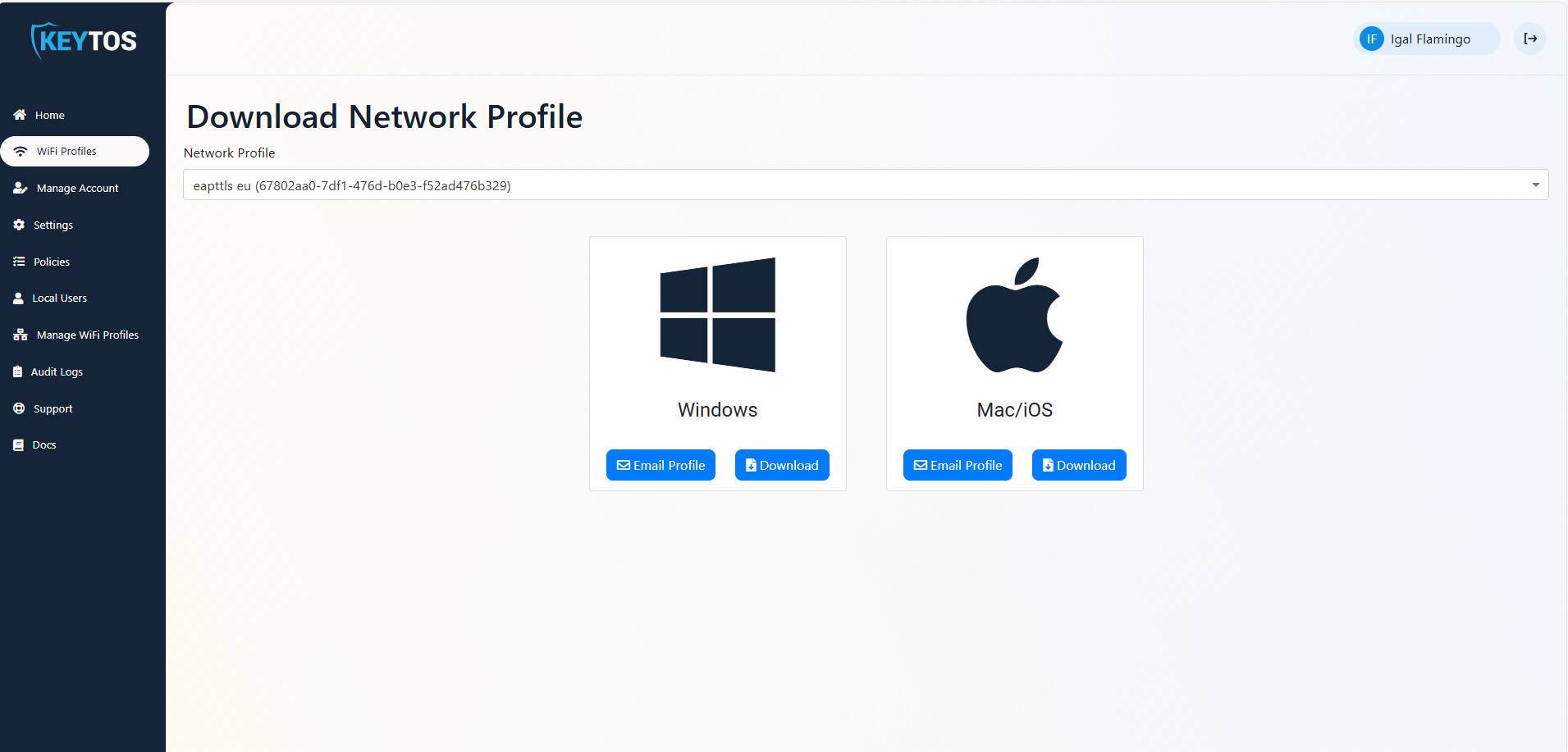
From the left-hand menu, click on the WiFi Profiles button.
-
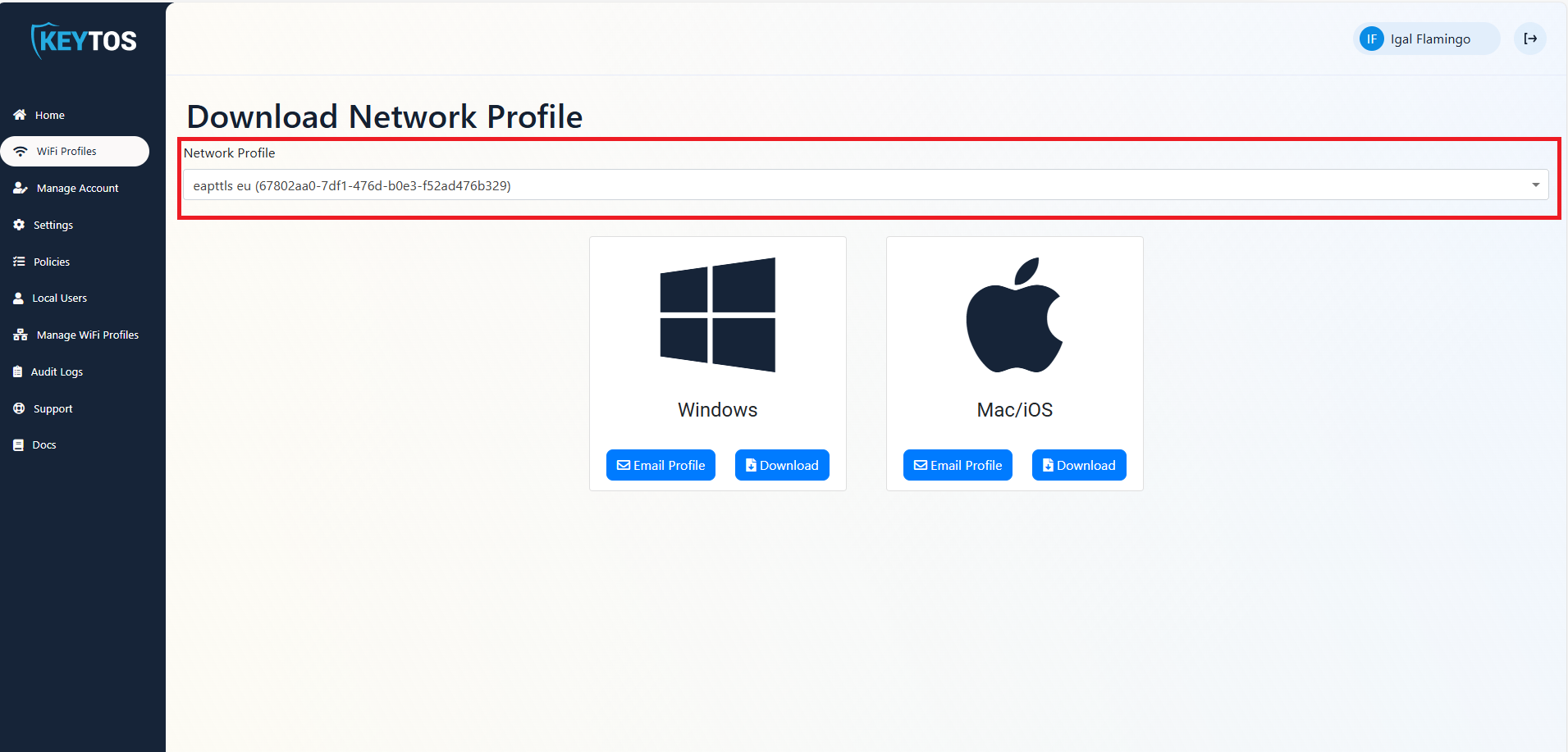
If your organization has multiple profiles available, select the profile you want to request.
-
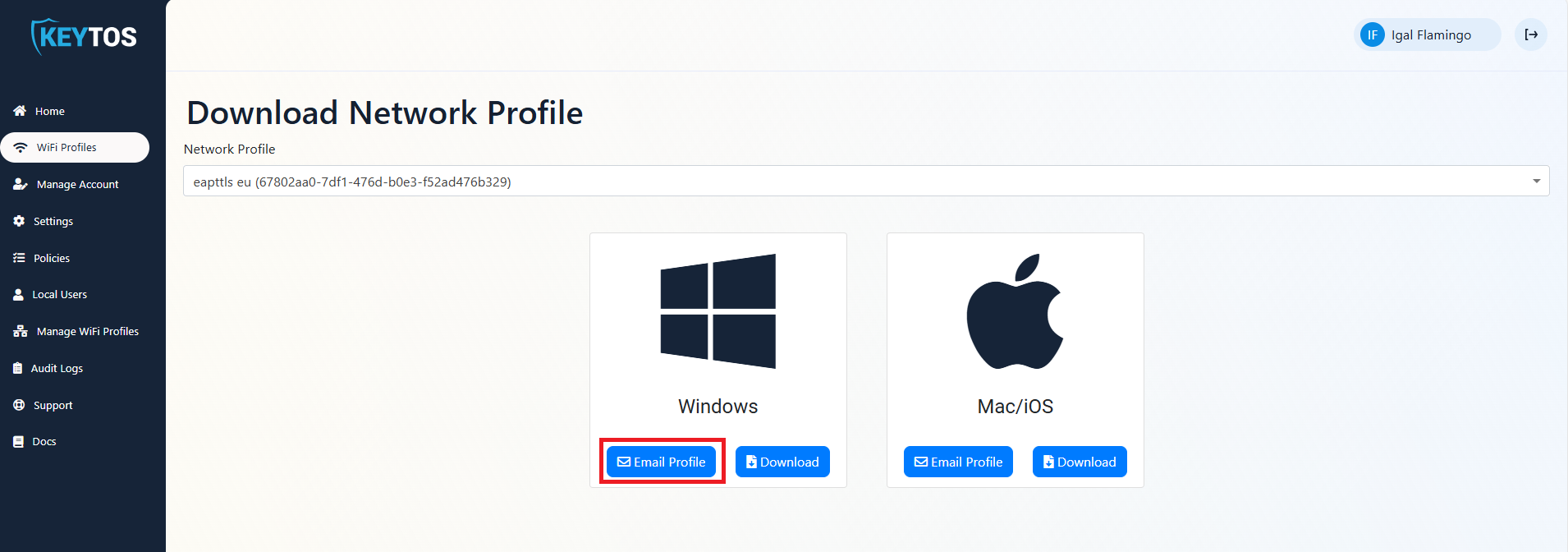
Under Windows, click on the Email Profile button.
-
An email will be sent to your registered email address with the Wi-Fi profile attached.
How to Download Your Wi-Fi Profile from Email
If you received an email from EZRADIUS with your profile, follow these steps to save the files on your Windows device:
-
Open the email from EZRADIUS on your Windows device.
-
Save the
root.cerandwifi-profile.xmlattachments to a folder on your device.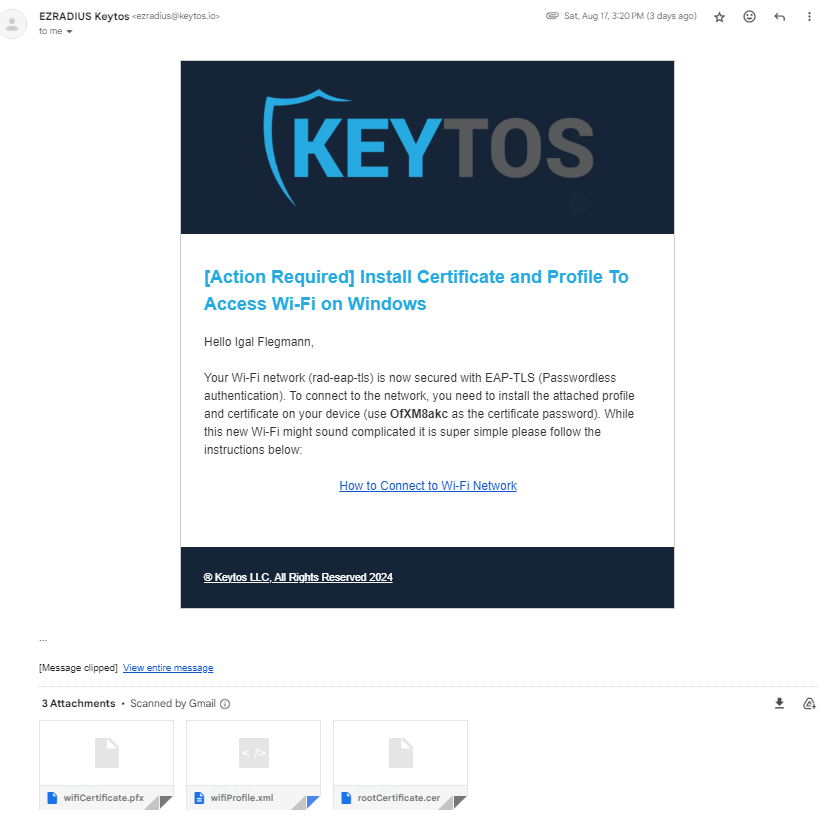
How to Directly Download a Wi-Fi Profile from the EZRADIUS Portal
You can also directly download your Wi-Fi profile from the EZRADIUS portal.
-
On the device you want to install the profile on, open your browser and go to the EZRADIUS portal (this URL will be provided by your organization).
-
From the left-hand menu, click on the WiFi Profiles button.
-
If your organization has multiple profiles available, select the profile you want to download.
-
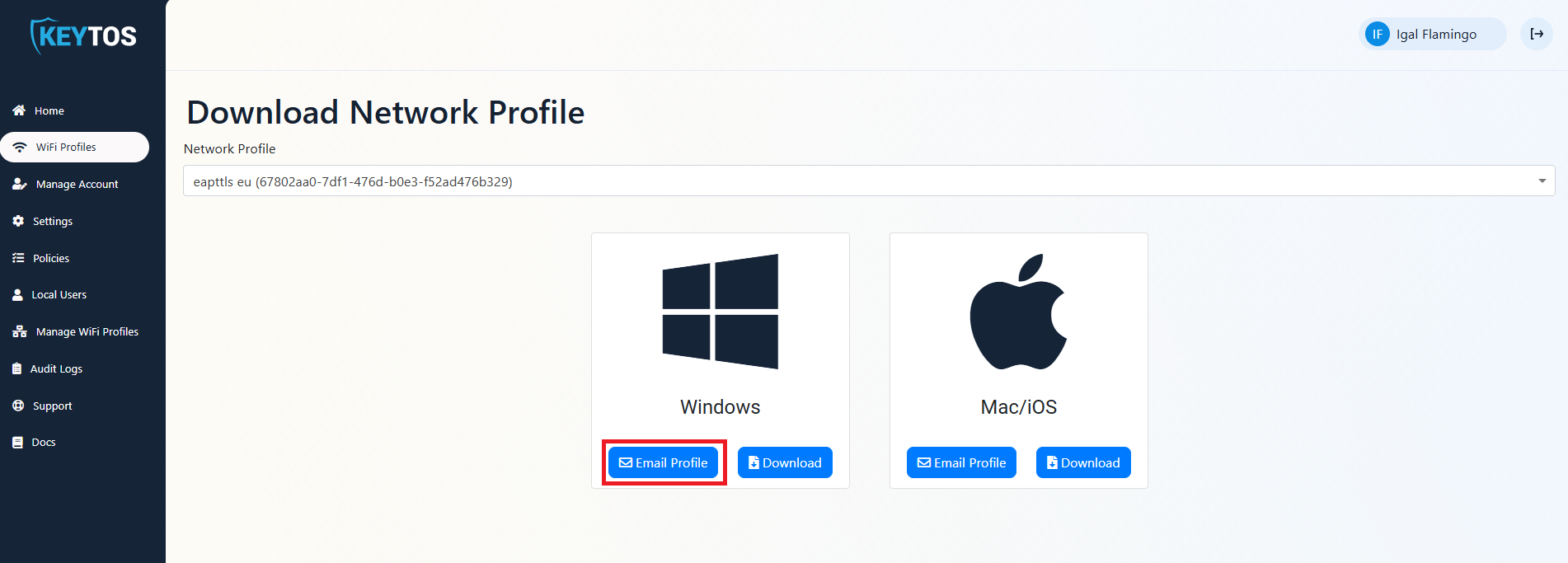
Under Windows, click on the Download button.
-
A zip file with the
root.cerandwifi-profile.xmlfiles will be downloaded. Extract the files to a folder.
Step 2 - How to Install the Root CA Certificate on Windows
You only have to install the Root CA certificate if it shows a red X on the top left corner when you open it. If it doesn’t have a red X, you can skip to Step 3.
-
Double-click on the
root.cerfile and click on the Install Certificate button. The certificate will be installed in the Trusted Root Certification Authorities store.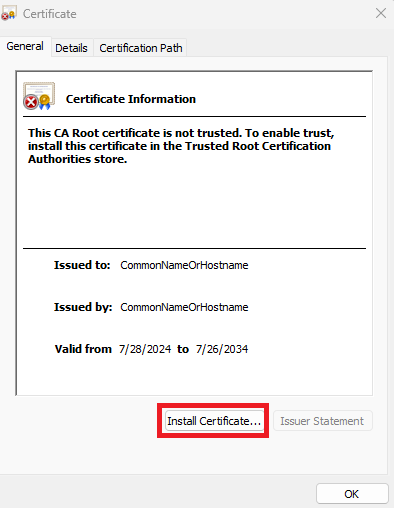
-
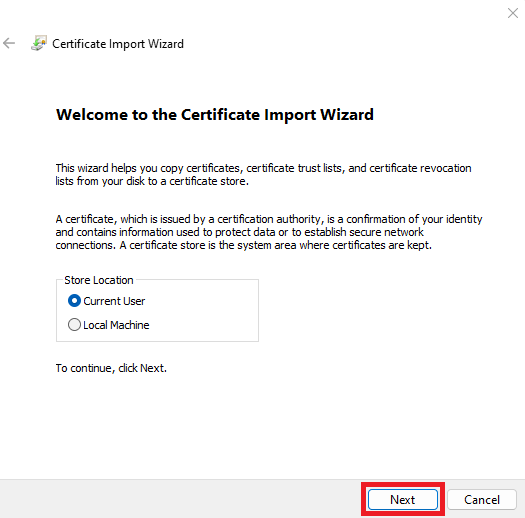
Click Next on the Certificate Import Wizard.
-
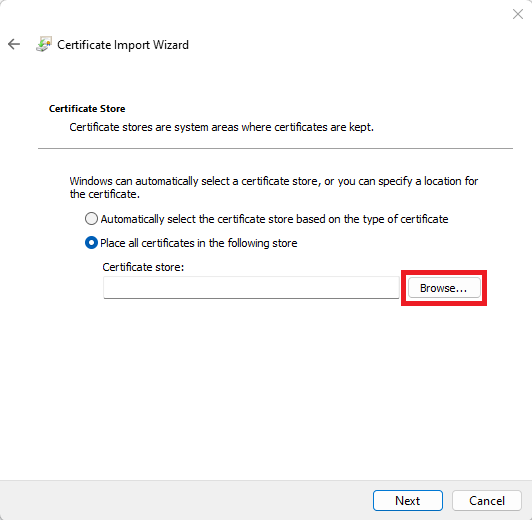
Select the Place all certificates in the following store option and click Browse.
-
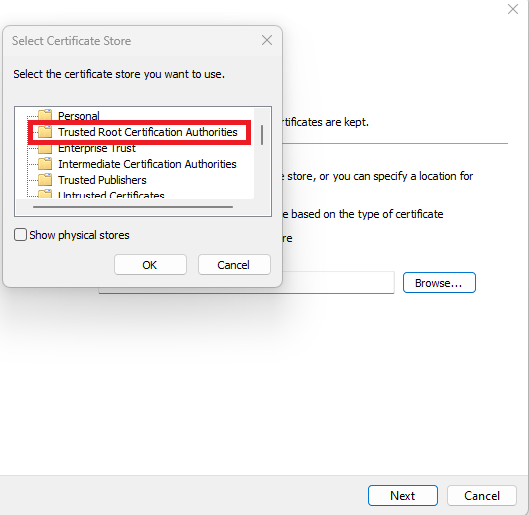
Select the Trusted Root Certification Authorities store and click OK.
-
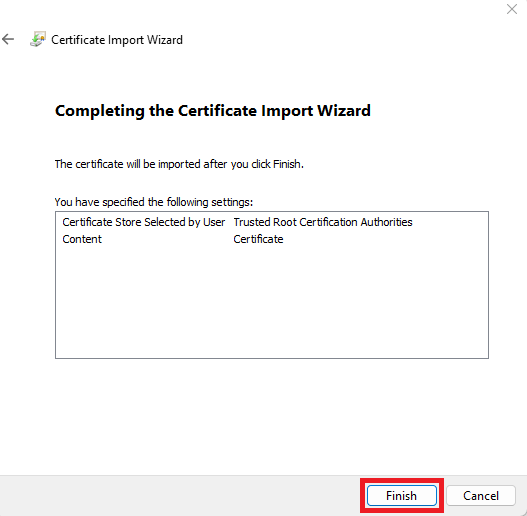
Click Next and then Finish.
Step 3 - How to Install an Entra ID Wi-Fi Profile on Windows
Once the Root CA certificate is trusted, you can add the Wi-Fi profile to Windows.
-
Find the full path of the
wifi-profile.xmlfile, for example,C:\Users\Marcos\Desktop\wifi-profile.xml. -
Run the following command in PowerShell, replacing the path with your own:
netsh wlan add profile filename="C:\Users\Marcos\Desktop\wifi-profile.xml" user=current -
Done! You can now connect to the Wi-Fi network using your Entra ID username and password.