










How-To: Export your EZMonitor SSL Monitoring Logs to CrowdStrike Falcon
Prerequisites
How To Export Your SSL Monitoring Audit Logs To CrowdStrike Falcon
To export your EZMonitor logs to CrowdStrike Falcon, you will need to enable Audit Log exports in your EZMonitor subscription, set up your CrowdStrike Falcon environment with the proper endpoint, and then establish a connection from EZMonitor to CrowdStrike Falcon. The following steps will walk through how to set this up.
How To Enable Log Export in EZMonitor
-
Navigate to the EZMonitor Portal.
-
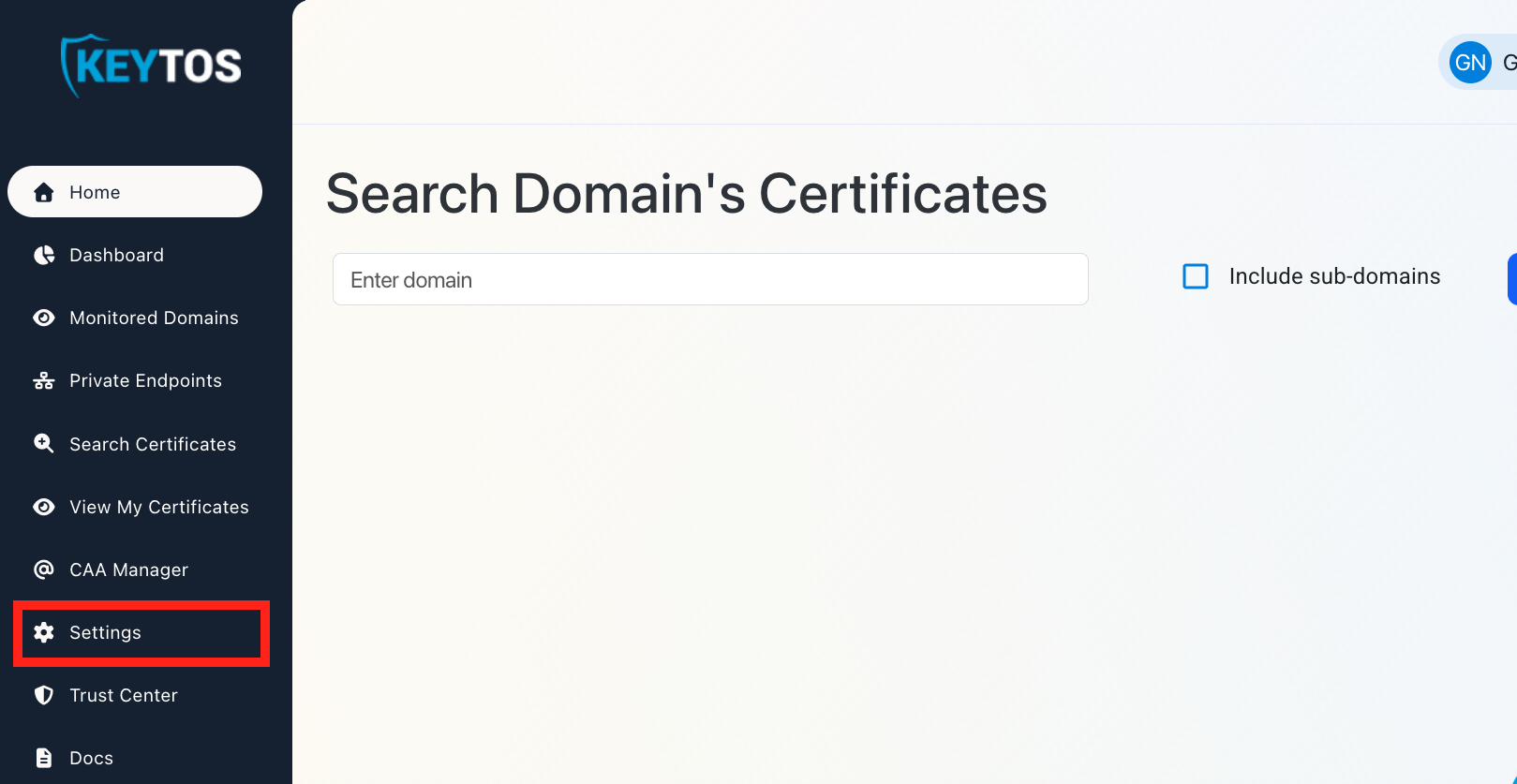
Click on Settings.
-
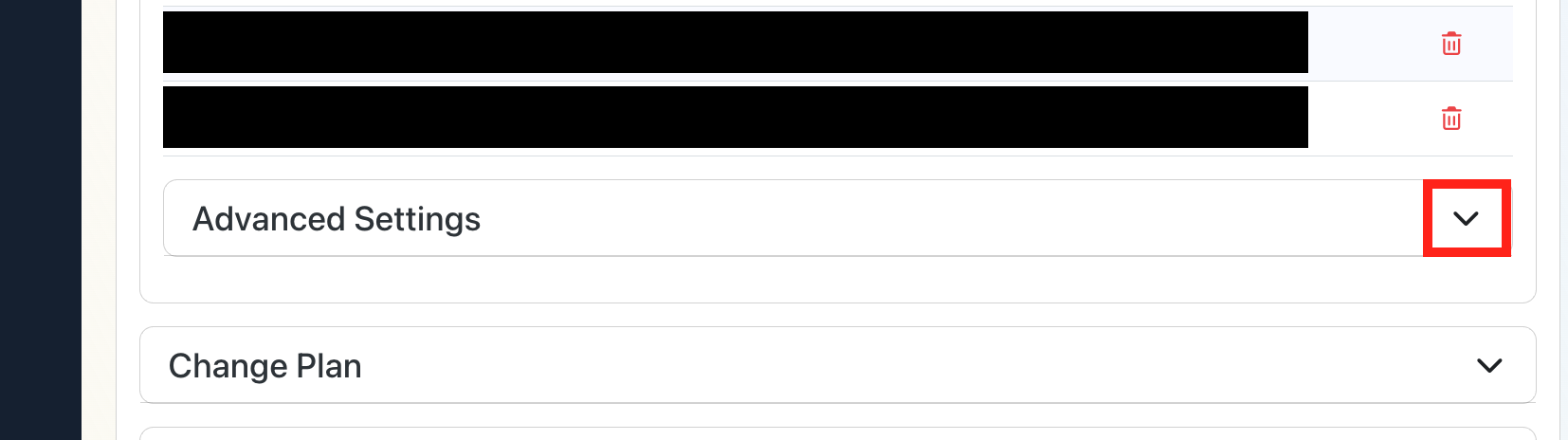
Expand your subscription’s Advanced Settings.
-
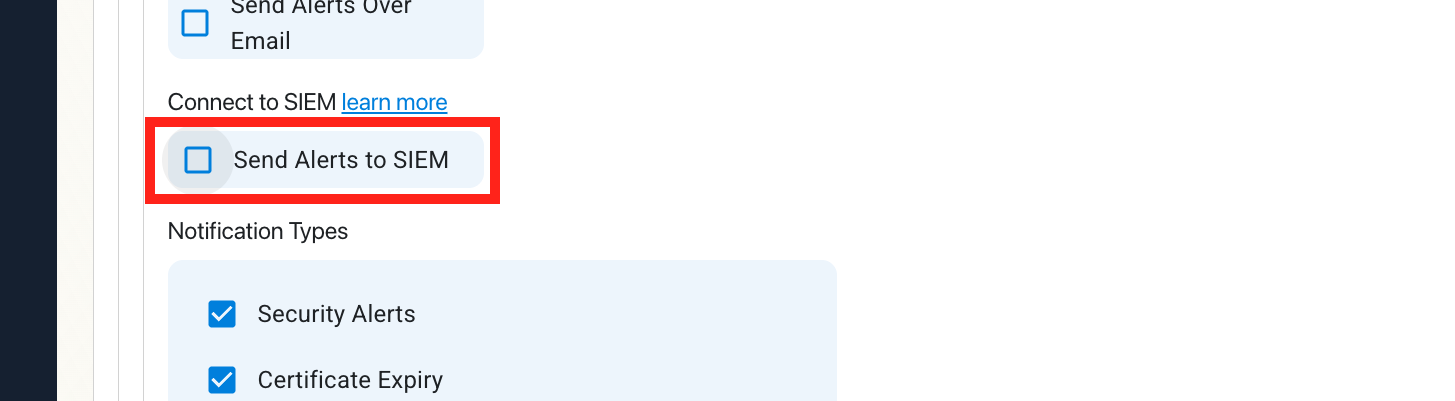
Enable the Send Alerts to SIEM option.
How to Configure the CrowdStrike Falcon SIEM
To complete the connection in EZMonitor you’ll need to configure your SIEM settings in CrowdStrike Falcon first. Follow these steps to set up EZMonitor log imports.
How to Create a CrowdStrike Falcon Next-Gen SIEM HEC Data Connector
-
In another tab, log into CrowdStrike Falcon.
-
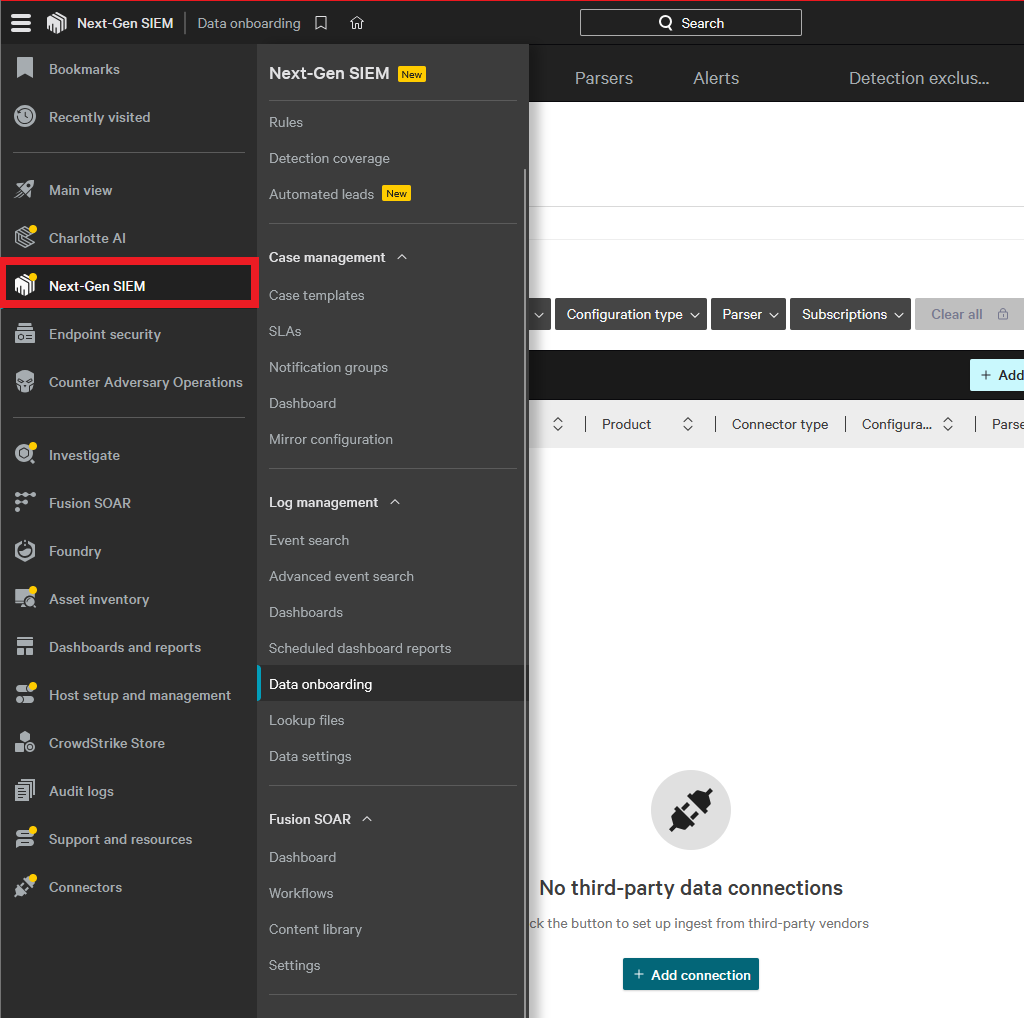
From the left-hand nav menu, click Next-Gen SIEM.
-
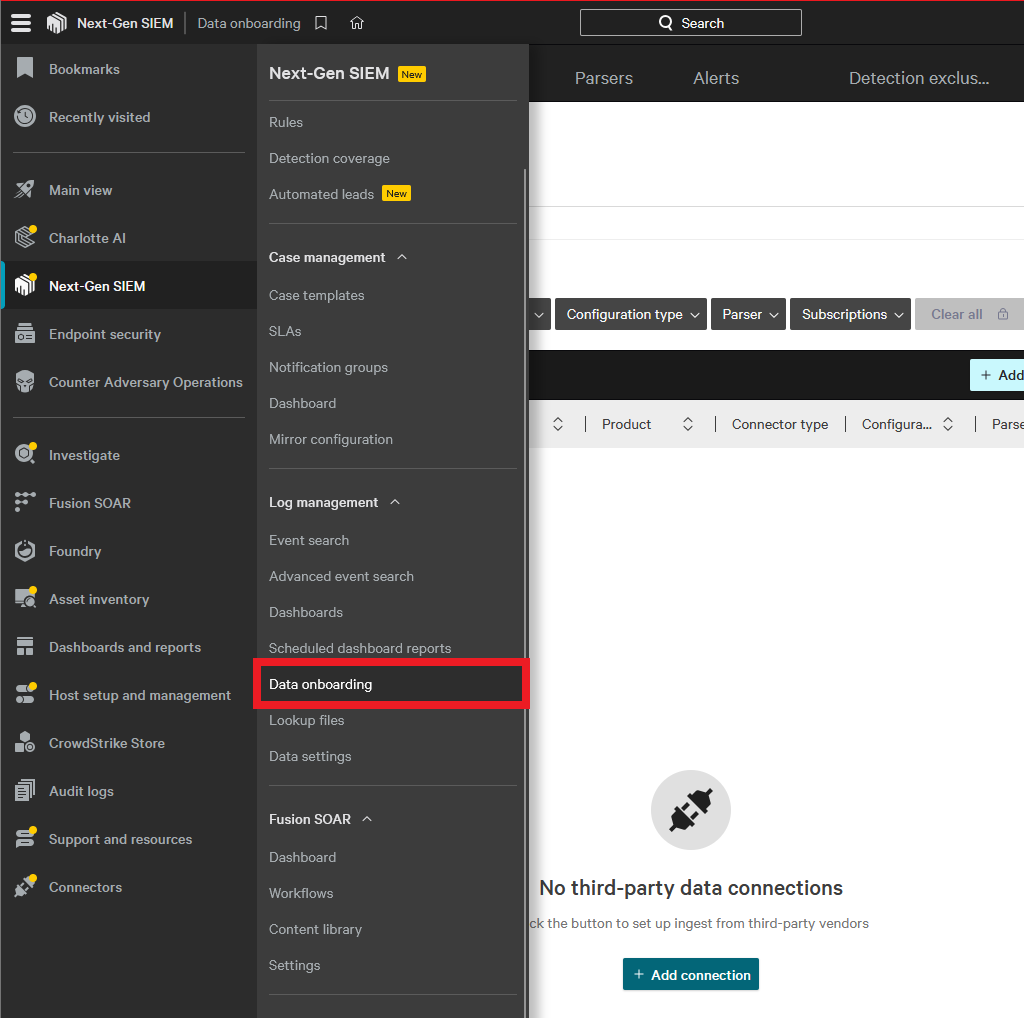
Under Log management click Data onboarding.
-
Click Add connection.
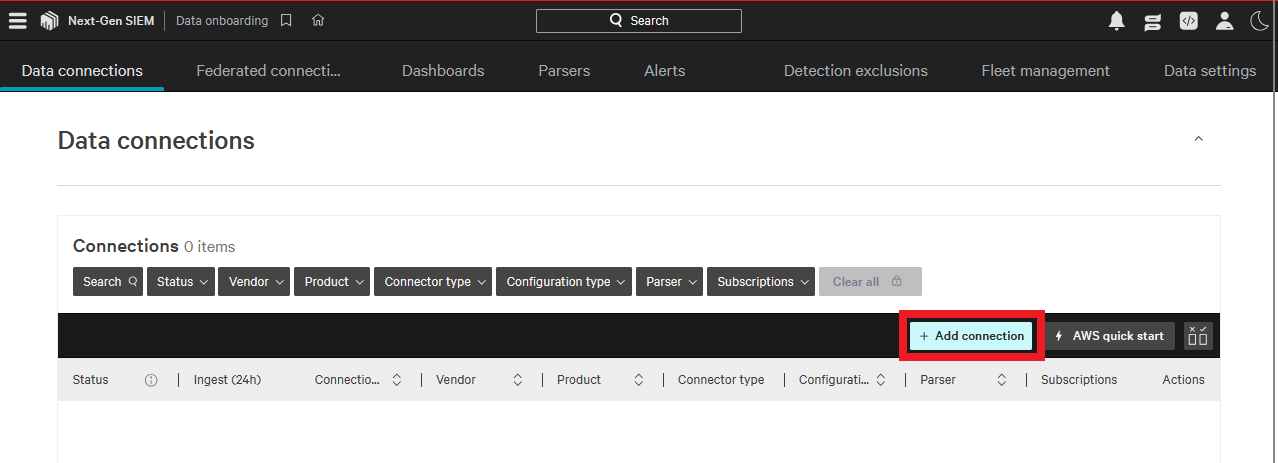
-
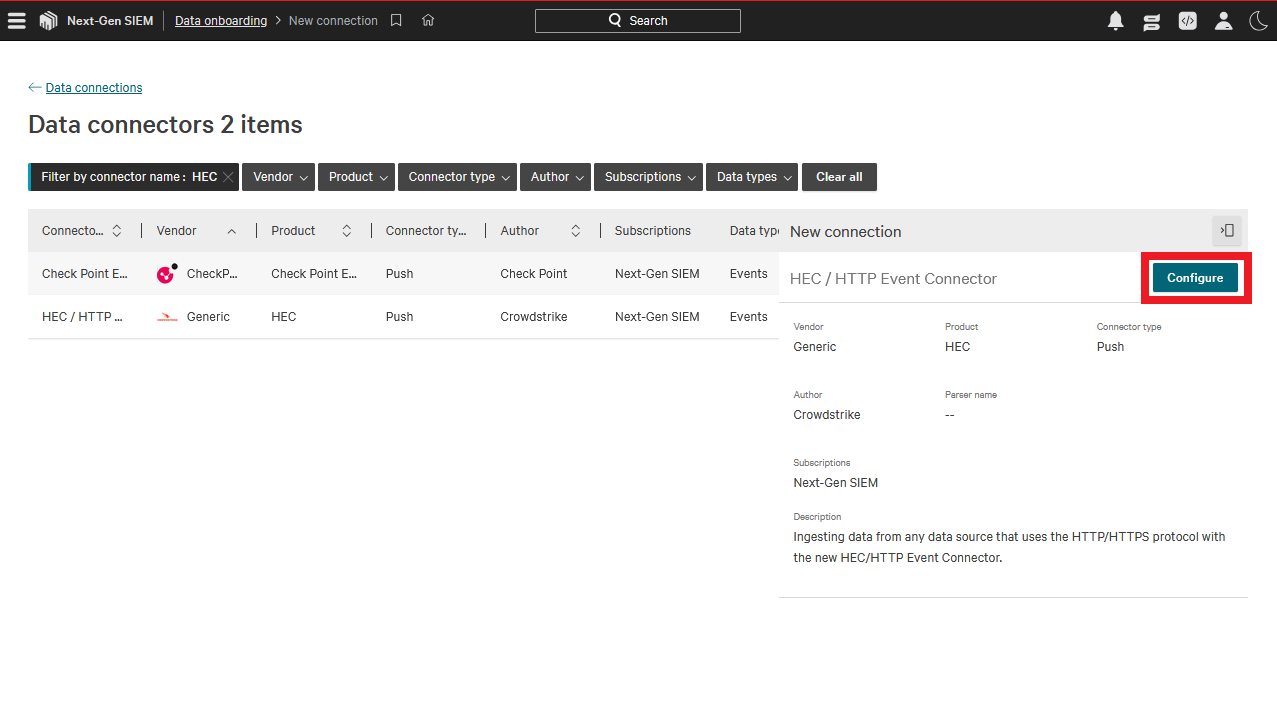
Find and select HEC/HTTP Event Data Connector.
-
Click Configure.
-
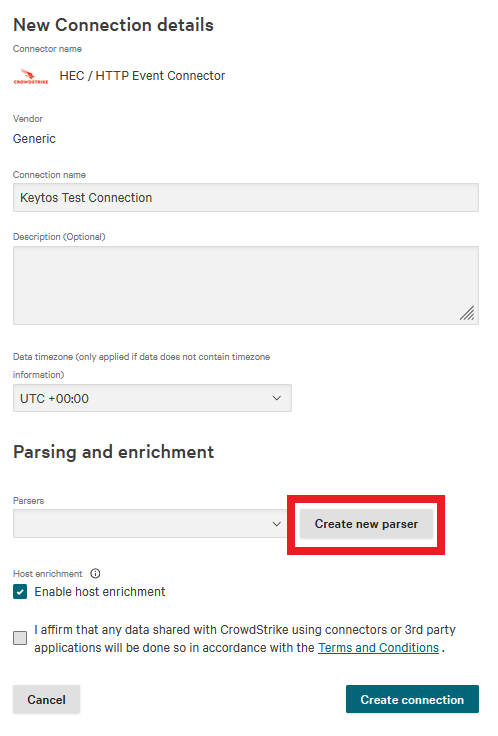
Fill in the Connection name.
-
Under Parsing and enrichment click Create new parser.
-
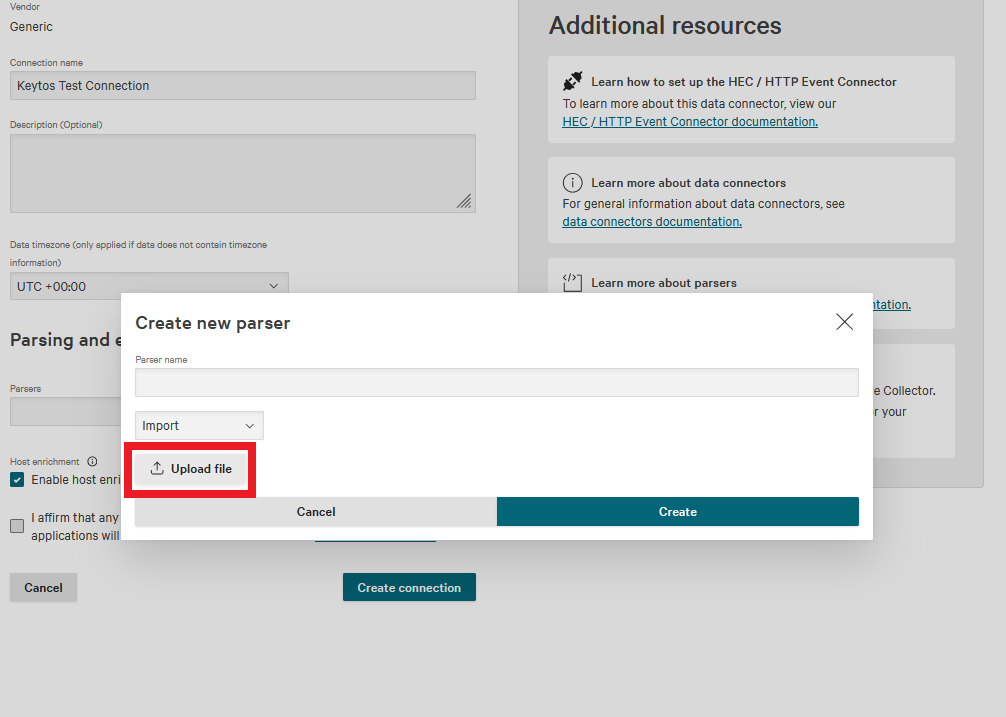
Change the dropdown from Blank template to Import.
-
Download the EZMonitor parser template: keytos-ezmonitor.yaml
Note: This is a template parser for EZMonitor that is designed to be used as a starting point for your final parser. It is intentionally bare-bones so it can be customized to your needs.
-
Click Upload file to upload the provided parser.
-
Name the parser and click Create.
-
Check the Terms and Conditions box.
-
Click Create connection.
-
Click Close.
-
It will take a few seconds for the connector to be ready to receive data. Reload the page every few seconds until you see a prompt to Generate API key.

-
Click Generate API key. (This page can only be opened during setup so record you API key.)
-
Copy your API Key and your API URL.
How to Add Your Next-Gen SIEM HEC Connection Details in EZMonitor
-
Go back to your EZMonitor tab.
-
Select Splunk Cloud as the SIEM Provider, as Splunk uses the same HTTP Event Collector (HEC) log format used by Next-Gen SIEM.
-
Paste your API key in Workspace Key.
-
In EZMonitor, paste your API URL in Splunk URL. It should look something like this.
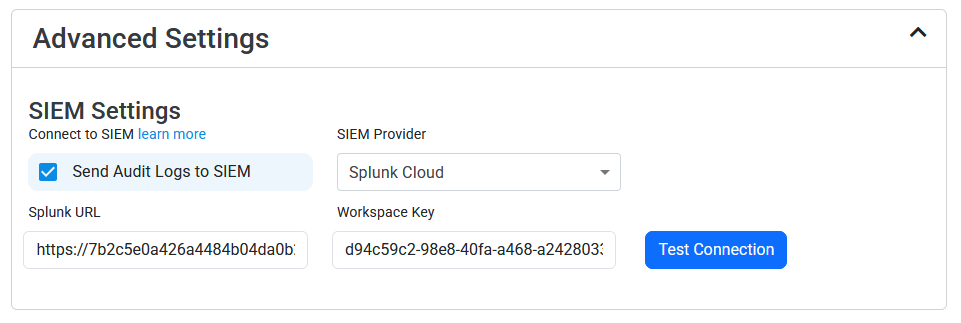
-
Click the Test Connection button, this will create a test log in Next-Gen SIEM to make sure EZMonitor can write to Next-Gen SIEM.
-
If the connection test was successful, click Save changes at the top of the page.
How To Create a CrowdStrike Falcon LogScale SIEM Data Connector
-
In another tab, go to your CrowdStrike Falcon LogScale instance.
-
Click on the Settings tab.
-
Select the Ingest Tokens menu.
-
Click on the Add Token button.
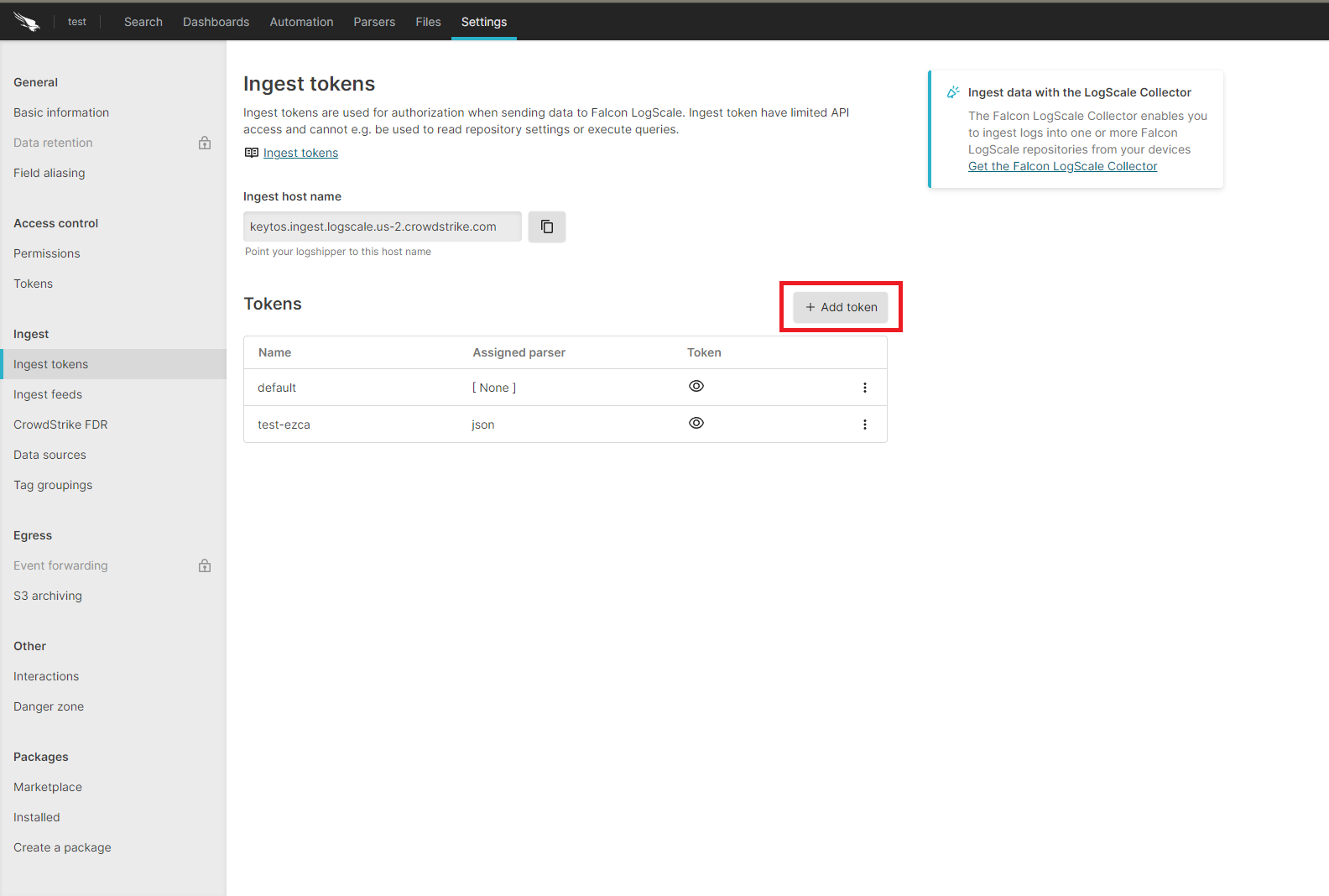
-
Enter the token name.
-
Assign the json parser and click Create.
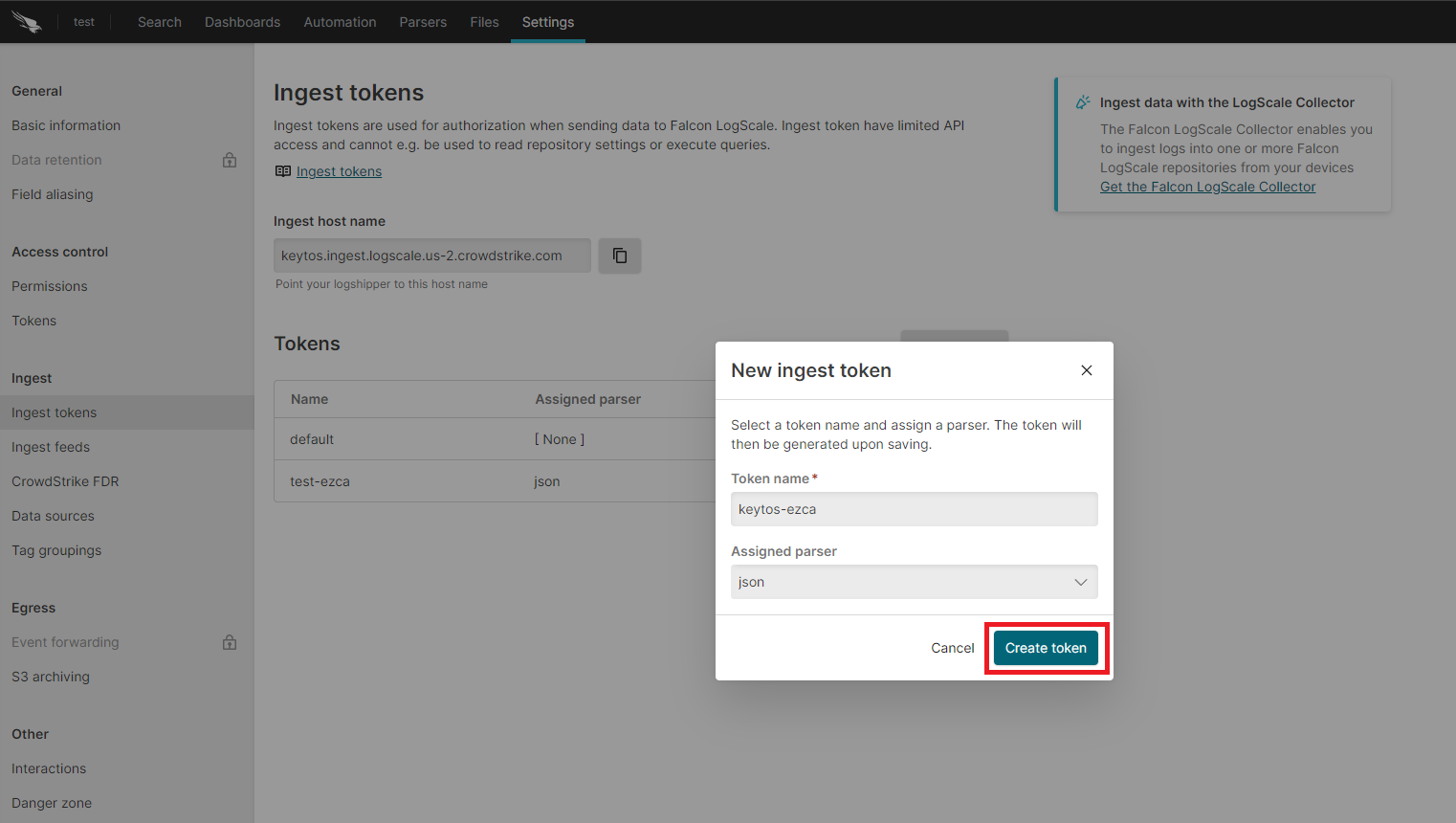
-
Copy the token and the ingest host name.
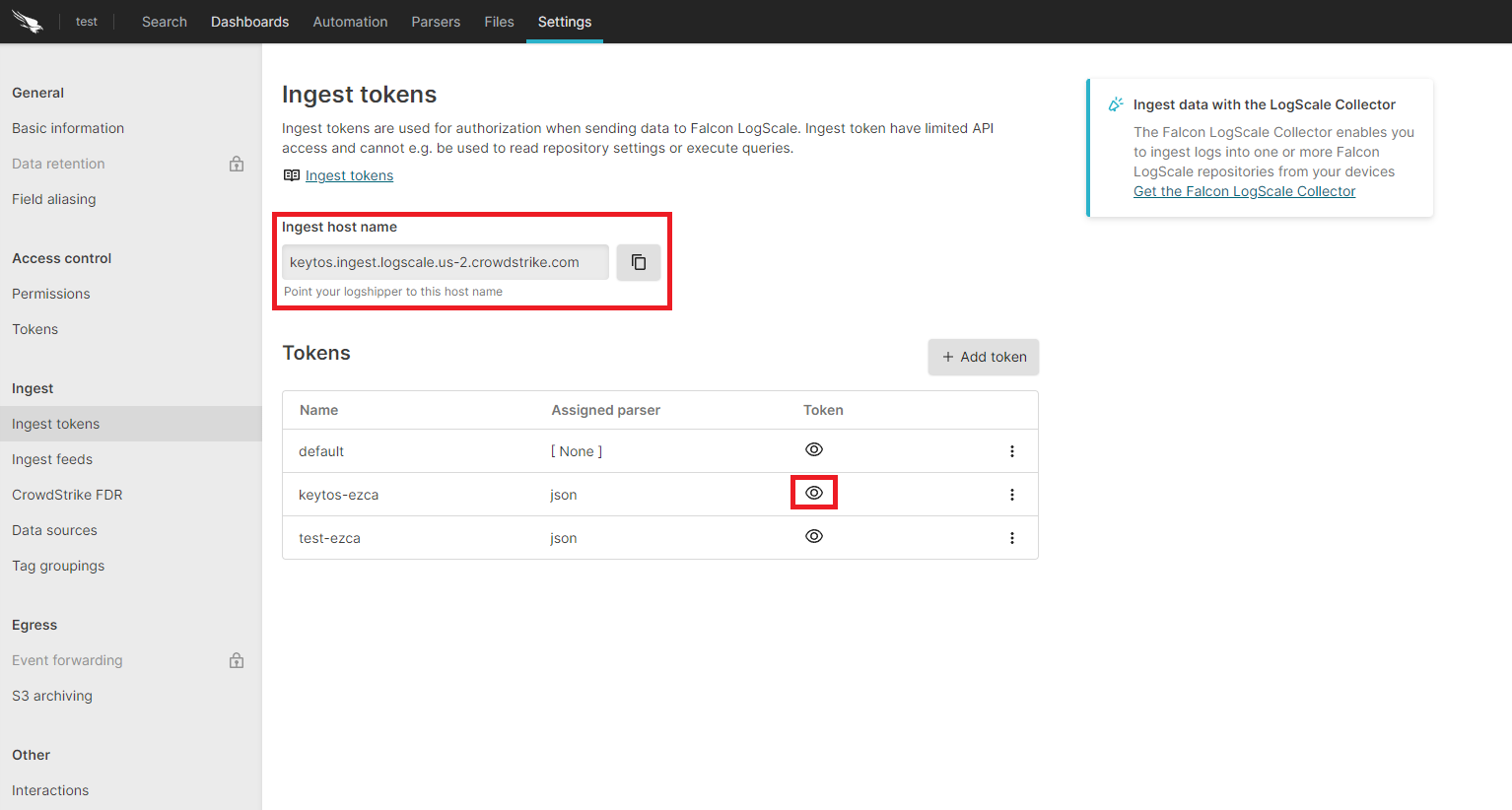
How to Add Your LogScale Connection Details in EZMonitor
-
Go back to the EZMonitor tab.
-
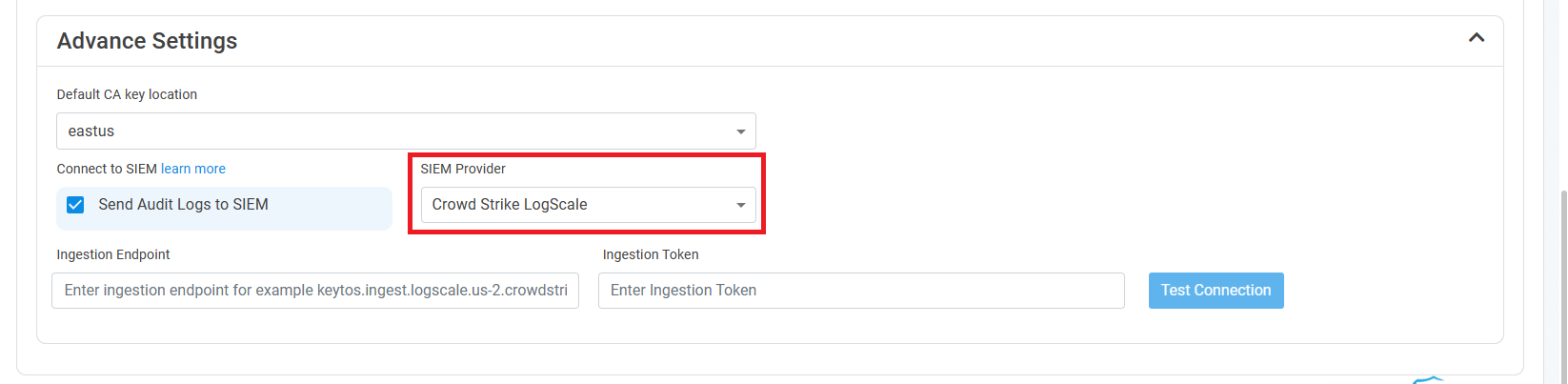
Select CrowdStrike Falcon LogScale as the SIEM Provider.
-
Paste the ingest host name in the Ingestion Endpoint field.
-
Paste the token in the Ingestion Token field.
-
Click the Test Connection button, this will create a test log in LogScale to make sure EZMonitor can write to LogScale.

-
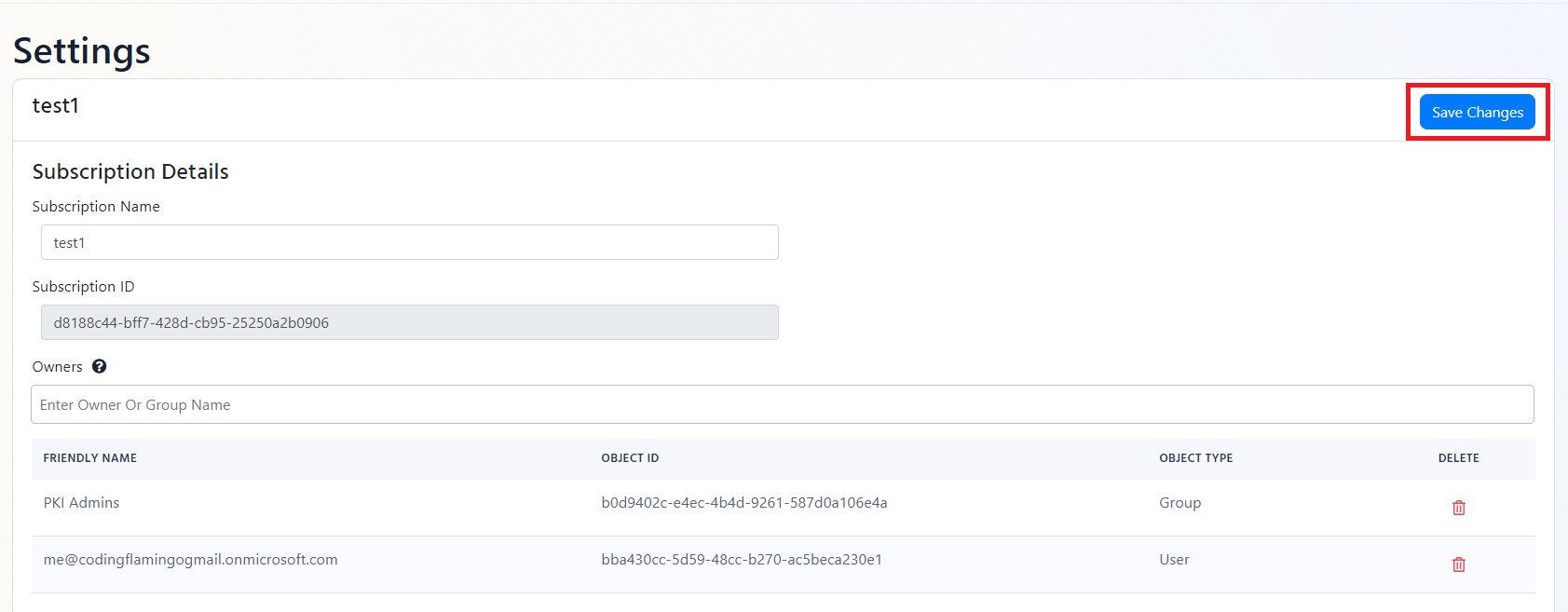
If the connection test was successful, click Save changes at the top of the page.
How To Create Alerts in CrowdStrike Falcon LogScale to Monitor Your SSL Activity
Using CrowdStrike Falcon enables you to create alerts and automation for critical operations or abnormal behavior. We recommend setting up alerts for all EZMonitor events. Below are sample queries that can be used to create alerts. The best way to separate each alert is by their Vulnerability ID, below is a query that will return all the dangle DNS entries that are vulnerable to domain takeover.
LogType = "EZMonitor_Alerts" and EventID = 18
What Logs are Sent to CrowdStrike Falcon?
EZMonitor has two types of alerts. The first type are alerts generated by scanning Certificate Transparency logs, and the second are alerts generated by scanning the SSL health of your servers.
Certificate Transparency Logs Based Alerts
| Event ID | Event Summary | Description |
|---|---|---|
| 12 | A similar domain has been found. | A domain that might be impersonating your domain was found please verify this domain is not being used to impersonate your organization. |
| 13 | A similar domain with different Top Level Domain was found. | A domain that might be impersonating your organization by using a different top domain (for example yourcompany.co instead of yourcompany.com) please verify this domain is not being used to impersonate your organization. |
| 18 | Your domain is vulnerable to domain takeover. | Your DNS record is pointing to an Azure resource that is no longer being used. please remove the CNAME record pointing to this resource to avoid a bad actor taking over your sub domain. |
| 20 | The certificate was issued from a different Root CA. | A certificate was issued from a different Root CA, verify with your team to make sure this certificate was issued by someone in your organization. |
| 25 | A new sub domain was registered. | A new sub domain found, please verify with that this action was done by someone in your organization. |
| 29 | Certificate does not meet CAA policy. | A certificate was issued by a CA not allowed by your CAA policy. |
Network Scan Based Alerts
| Event ID | Event Summary | Description |
|---|---|---|
| 19 | The newest certificate is not installed in your server. | A certificate that is expiring soon has been renewed, but our systems detect that it has not been installed in all your web servers. |
| 26 | No subject alternative name matches the domain. | The certificate returned by the server does not have any subject names matching the domain, this can cause an error when the user is accessing the site. |
| 27 | The server did not serve a certificate when an HTTP request was sent | The server did not return a certificate. Please make sure HTTPS is enabled and the server has a valid certificate and the certificate is binded to this domain. |
| 28 | Certificate contains wild-card Subject Alternate Name | This Certificate contains a wild card subject alternate name. This type of subject alternate name can cause an outage since there is not record of where this certificate is being used. Please change this certificate to one containing the specific domains. |
| 40 | Error validating installed certificate. | The certificate served by the server was not valid. Please check the alert details on the steps needed to solve this issue. |
| 41 | Error validating installed certificate chain. | There was a problem validating the certificate chain of the certificate served by the server. Please follow the steps on the alert to remediate this issue. |
| 42 | HTTPS Is Not Enforced | Strict-Transport-Security header was not found. Please add this header to enforce HTTPS and prevent man in the middle attacks. |
| 68 | The certificate installed in the web server is expiring soon. | The certificate installed in the web server is expiring soon. Please install the latest certificate to avoid an outage |
| 99 | Certificate is expiring soon. | Your domain’s certificate is expiring soon, and it has not been renewed. Renew your certificate and replace the expiring certificate to avoid an outage |
Internal Network Scan Based Alerts (Includes all Network Scan Alerts)
| Event ID | Event Summary | Description |
|---|---|---|
| 30 | This Certificate Has Been Revoked | This Certificate has been revoked and will rejected by clients. Please create a new certificate and install it in this endpoint. |
| 31 | Self Signed Certificate | This Certificate is self signed, please issue a certificate from a trusted authority. |
| 32 | The CRL was not accessible when EZMonitor tried downloading it | EZMonitor was not able to download the CRL, make sure your CRL is available in your network |
| 33 | SHA1 Certificate | This certificate uses SHA1 hashing algorithm. This algorithm is no longer secure, please replace this certificate with a certificate using a stronger hashing algorithm. |
| 34 | Weak Cryptographic Key | This certificate uses a weak cryptographic algorithm. Please replace this certificate with a certificate using a stronger cryptographic key. |
| 35 | Current CRL is expired | EZMonitor downloaded an expired CRL, make sure your CRL is updated in all your CRL endpoints. |
| 36 | Certificate is Missing SID Extension | This certificate is missing the SID mapping and will not be accepted in Active Directory in future releases. learn more https://support.microsoft.com/en-us/topic/kb5014754-certificate-based-authentication-changes-on-windows-domain-controllers-ad2c23b0-15d8-4340-a468-4d4f3b188f16 |
| 37 | The certificate was not found in any of your servers | The certificate was found while scanning your PKI database, but it was not found in any of your web servers. Please make sure this certificate is not being used by any of your services. |