How To: Setup Certificate Authentication in GitHub
Introduction - Protecting Your GitHub Repositories with SSH Certificates
EZSSH Helps you protect your code hosted in GitHub by removing the non-expiring ssh keys from the equation. Instead using your secure corporate identity to authenticate the engineers and issuing a short term SSH certificate that can be used to authenticate with GitHub.
Prerequisites
Before you can set up SSH Certificate Authentication for GitHub, you will need to have the following:
How to Enable GitHub SSH Certificates - Video Walkthrough
Follow along with this video to set up SSH Certificate Authentication for GitHub. The video will cover the steps to enable SSH certificates in GitHub and how to configure EZSSH to work with GitHub.
How to Enable GitHub SSH Certificates - Step by Step Guide
-
Go to the EZSSH Portal https://portal.ezssh.io
-
Click on Settings
-
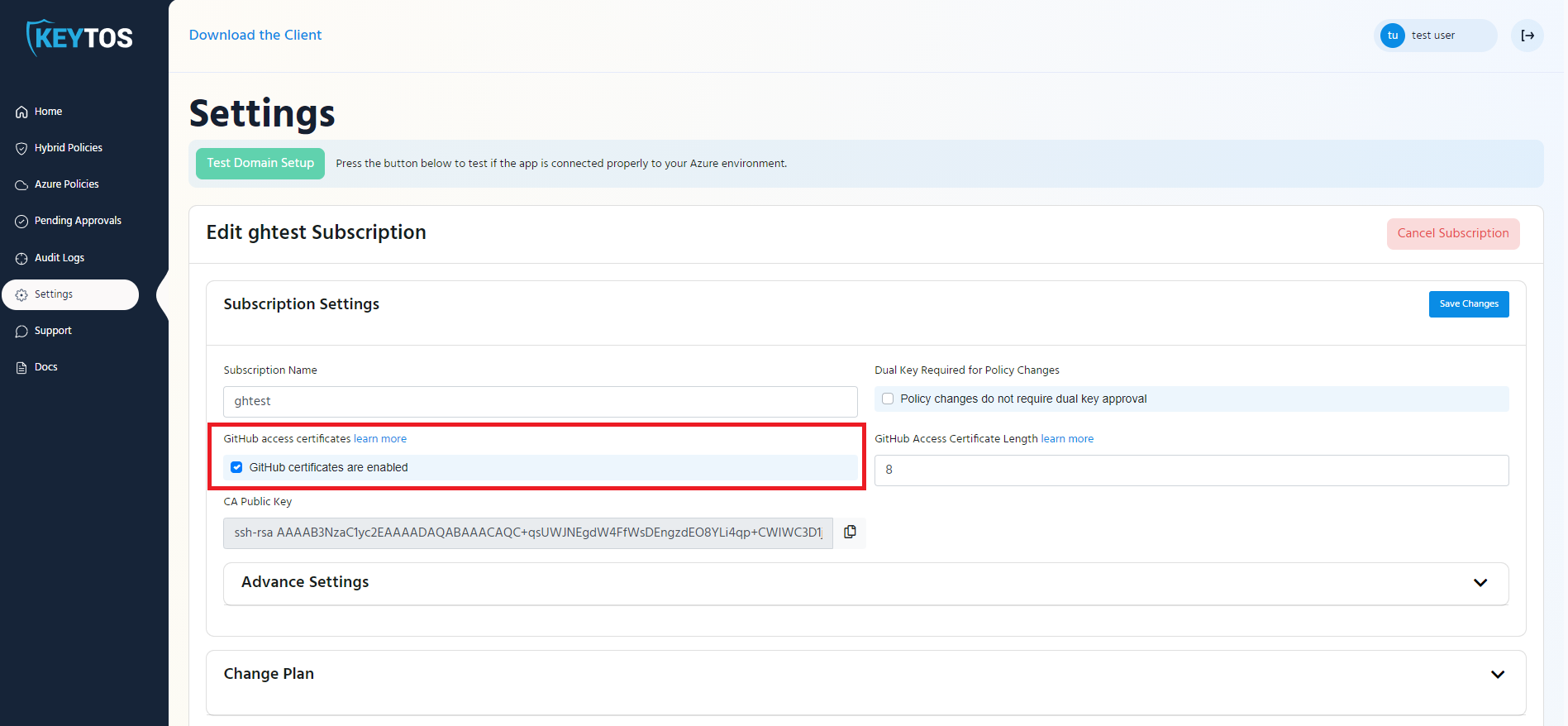
In the settings page, make sure that GitHub Certificates are enabled for your subscription.
-
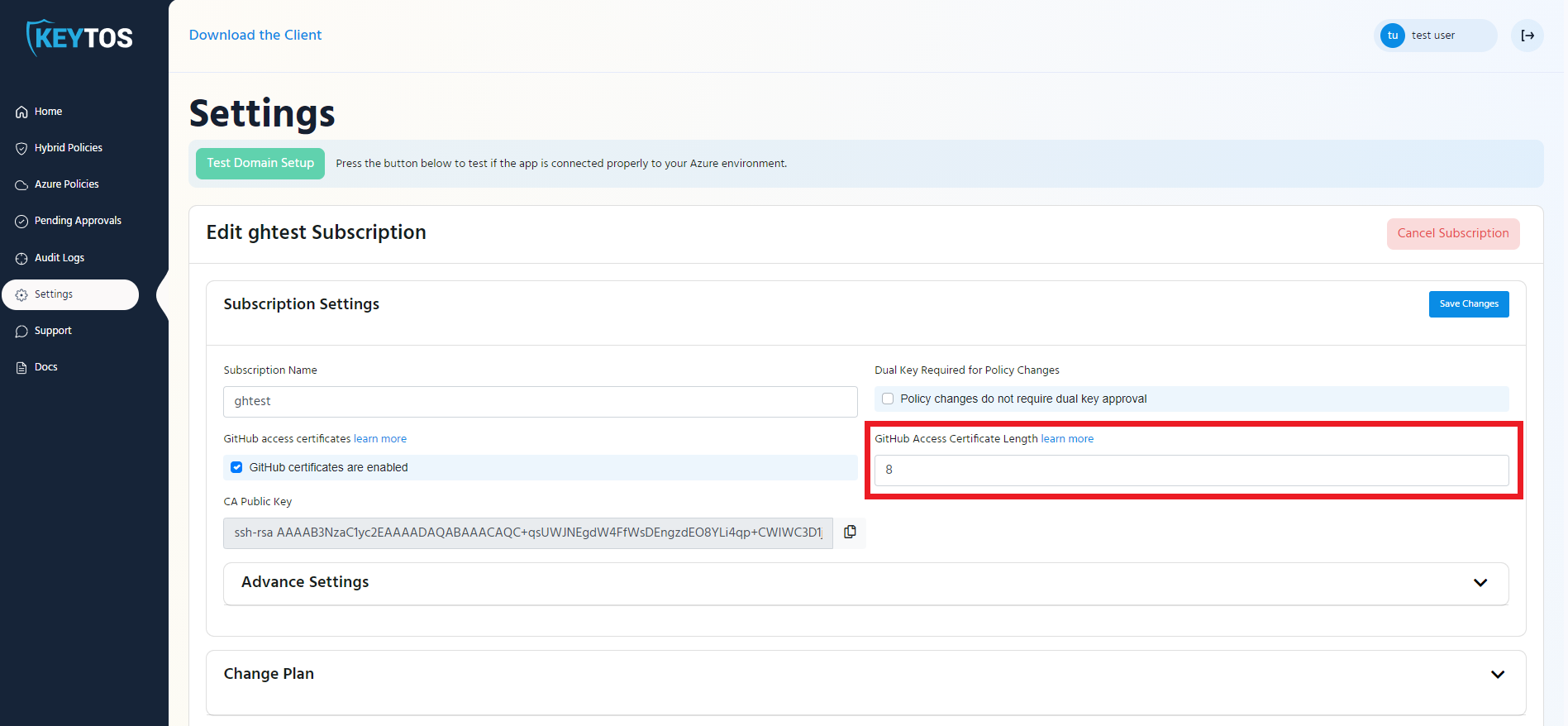
Enter the length in hours that you want your developers certificates to last (This is how ofter the engineer has to get a new certificate). Note: In Keytos we have it set to 8 hours so our engineers only request access once a day
-
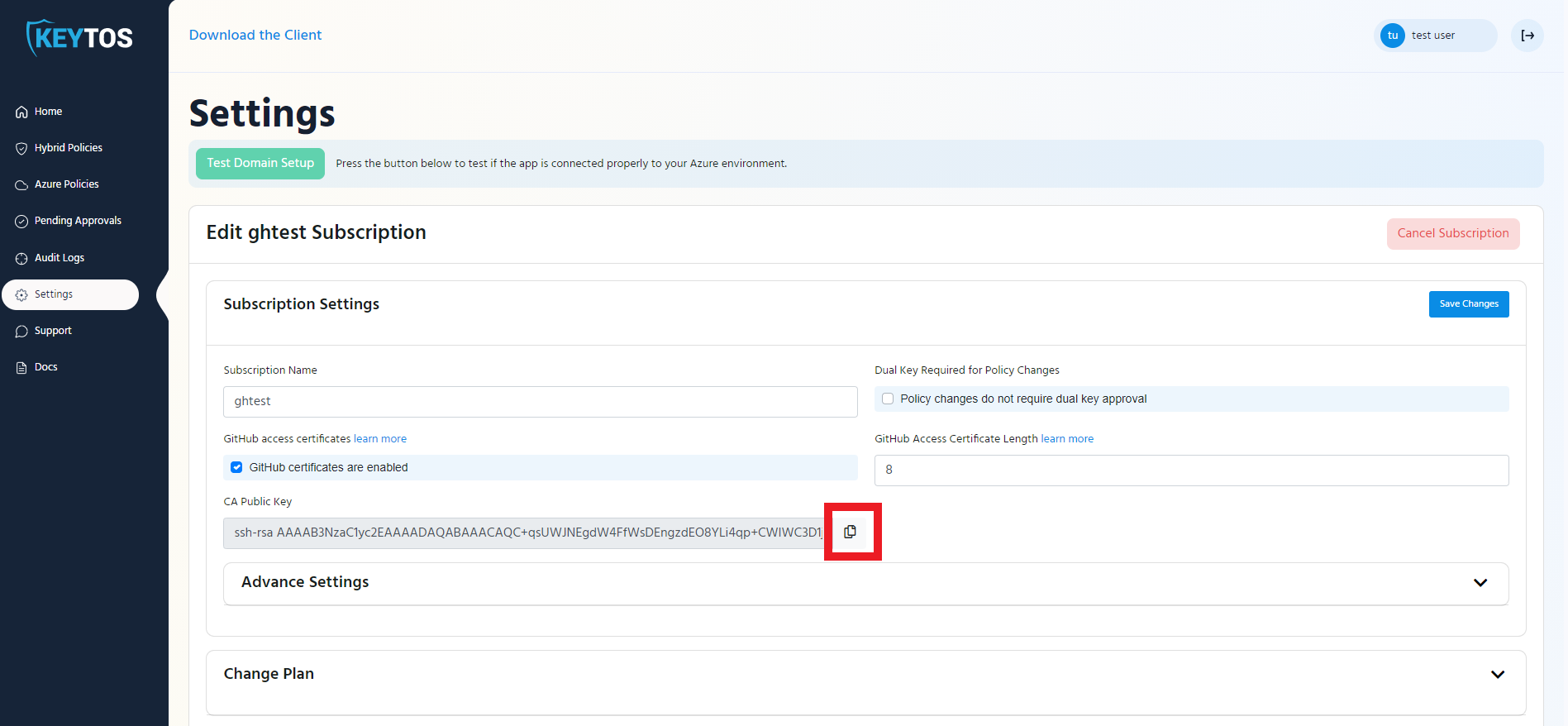
Copy the CA Key and save it somewhere or leave this tab open. You will need it when setting up your GitHub Enterprise Security
-
Now we need to add the SSH CA Certificate to GitHub. Go to https://github.com
-
Click on your profile picture on the right

-
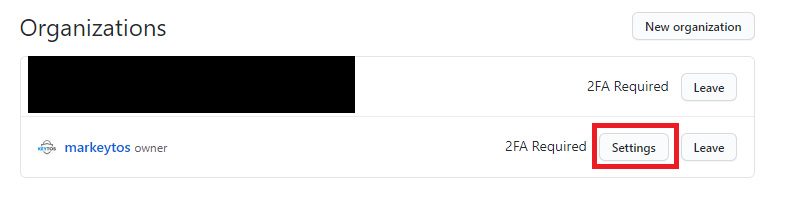
Click on the settings button of your organization
-
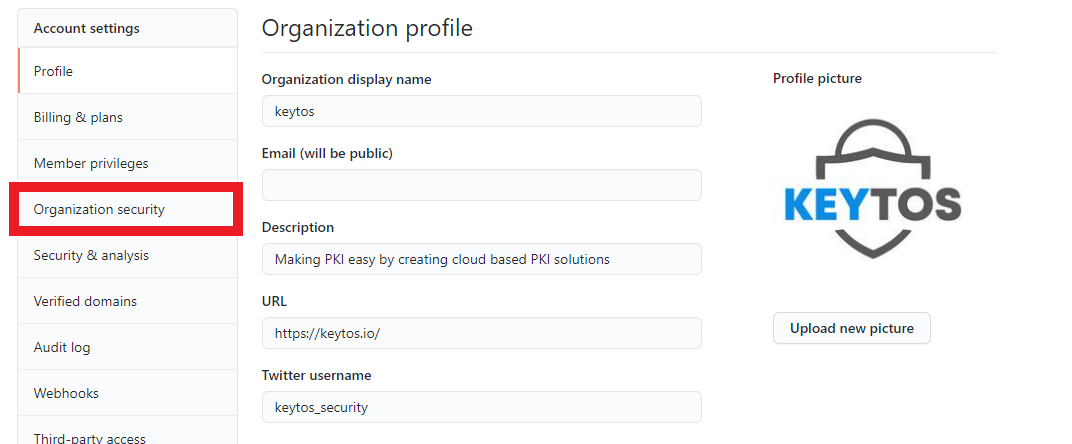
Click on Organization Security
-
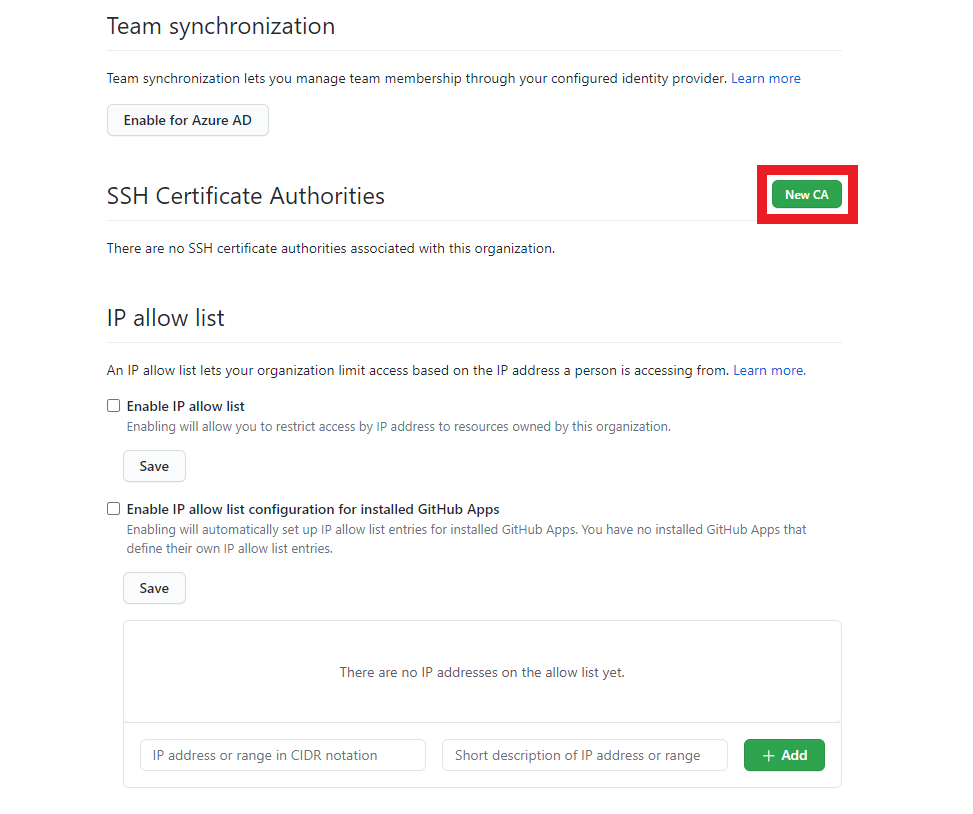
Scroll down to “SSH Certificate Authorities, and click on the “New CA” button.
-
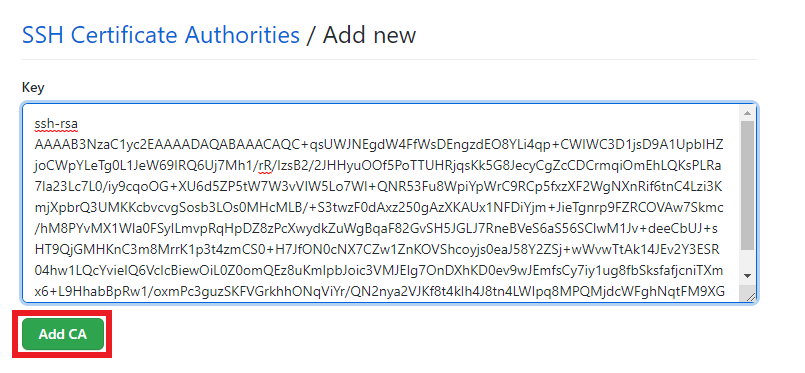
Enter the key we copied in step 5 and click save.
-
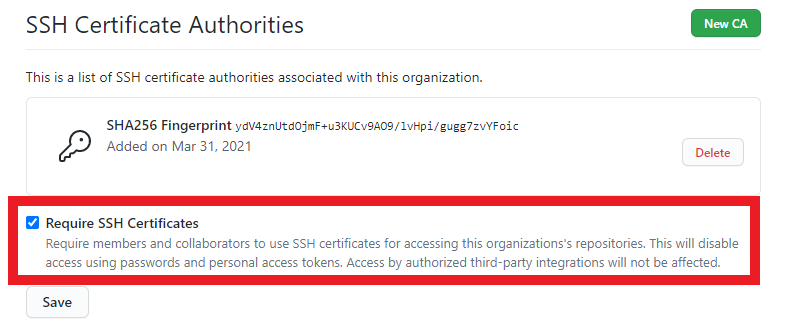
You should now have a CA listed in your SSH Certificate Authorities.
-
Click the Require SSH Certificates checkbox to only allow git operations with SSH Certificates (Recommended)
-
Click the “Save” button.
NoteEZSSH will assume that the username in the identity provider matches the user’s GitHub username. If user names are different, they will have to be mapped using the SAML mapping below.
-
You are ready to start using EZSSH for GitHub
How to Set Up User Mapping - Step by Step Guide
In GitHub, the certificates must have a valid GitHub username in the Principals field to be able to authenticate with GitHub. By default, EZSSH will put the user’s identity provider username in the Principals field. If your users have the same username in GitHub and your identity provider, then no additional configuration is needed. However, if your users have different usernames in GitHub and your identity provider, you will need to set up user mapping by following the steps below.
GitHub Enterprise
When using GitHub Enterprise, you might let your engineers use their personal GitHub identity by linking it to your organization and their SAML Identity. To give EZSSH Access to that mapping information, the following steps are needed:
How to Create a GitHub Access Token with the Required Permissions for SAML Mapping
-
First we have to create a GitHub access token. To get started, go to https://github.com and login with an account that is an owner of the organization.
-
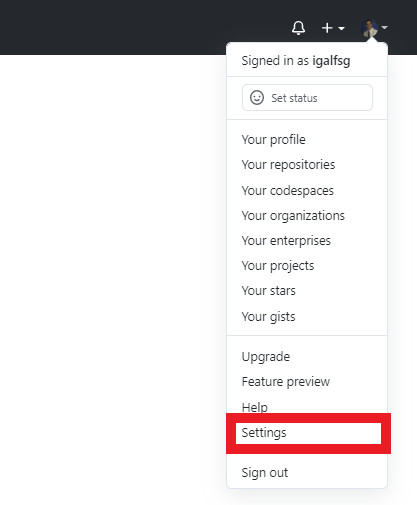
On the top right, click on your profile picture and then click on settings.
-
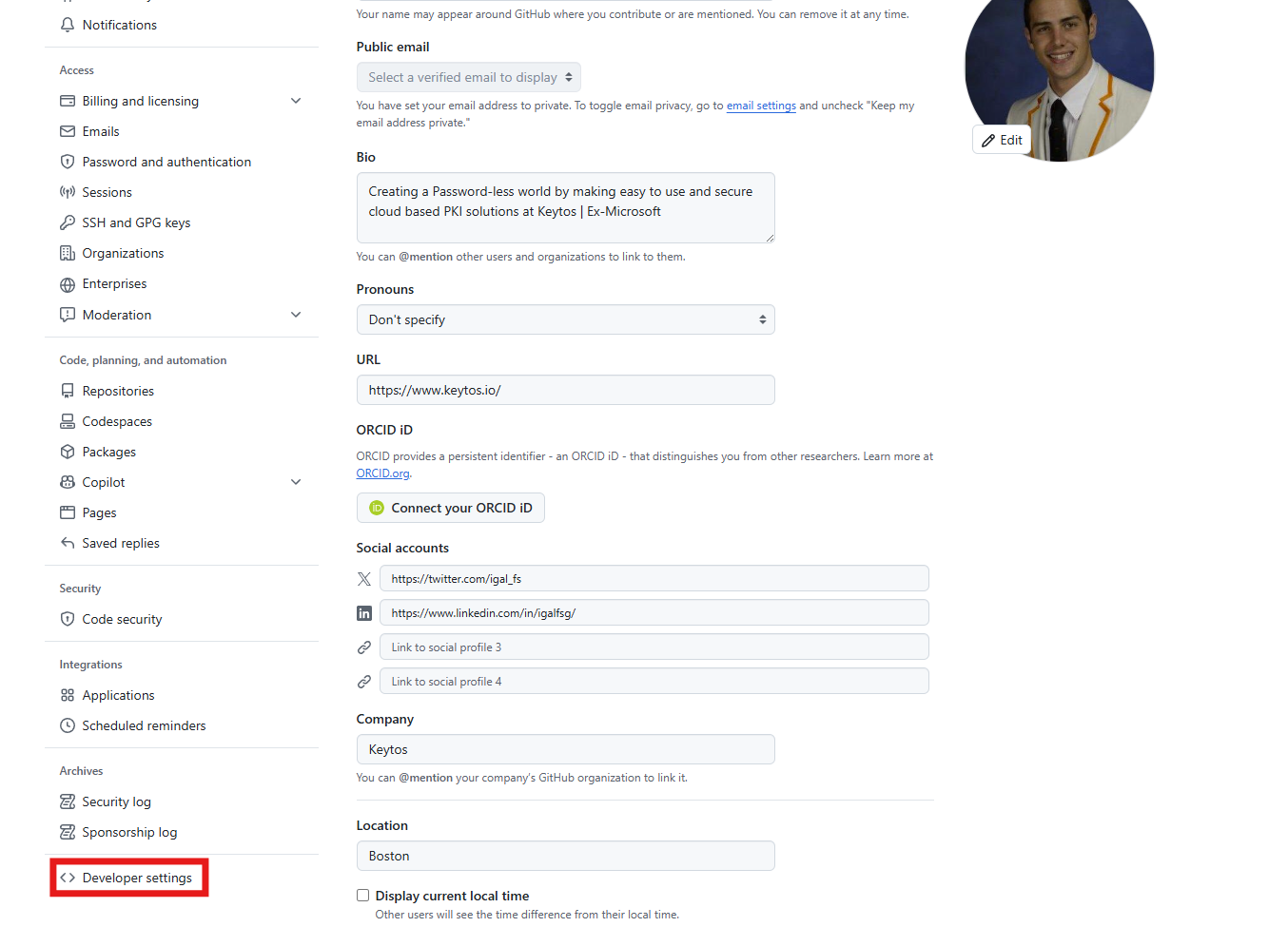
Then Click on Developer Settings.
-
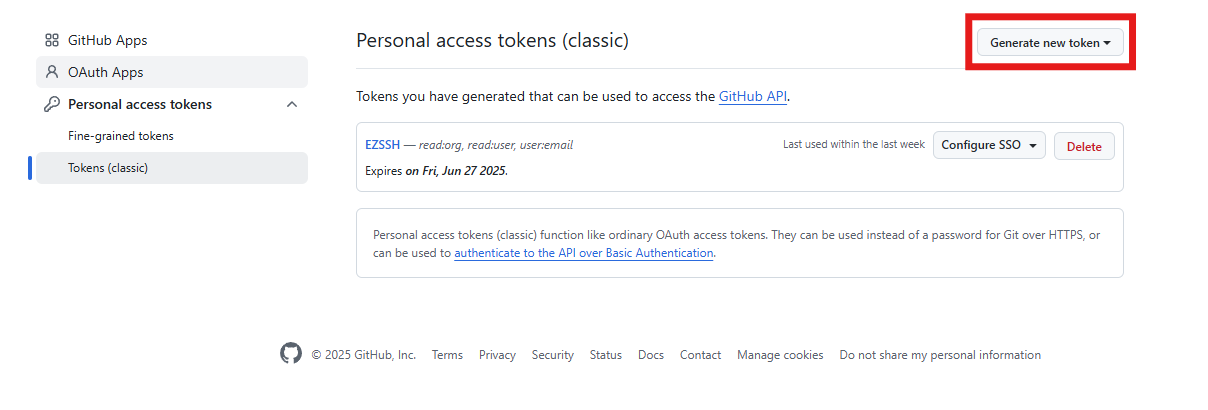
Click on the “Personal access tokens (Classic)” section.
-
Click the “Generate new token” button.
-
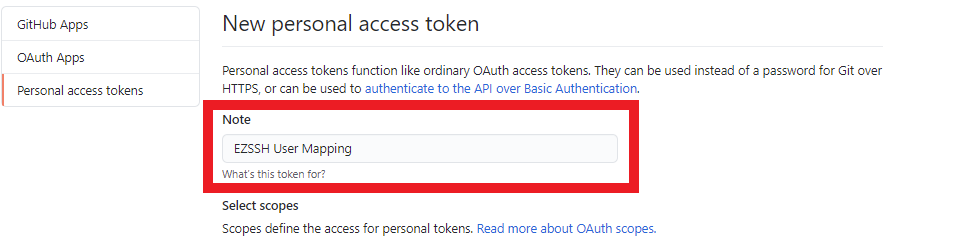
Enter a name for the token. For Example “EZSSH User Mapping”
-
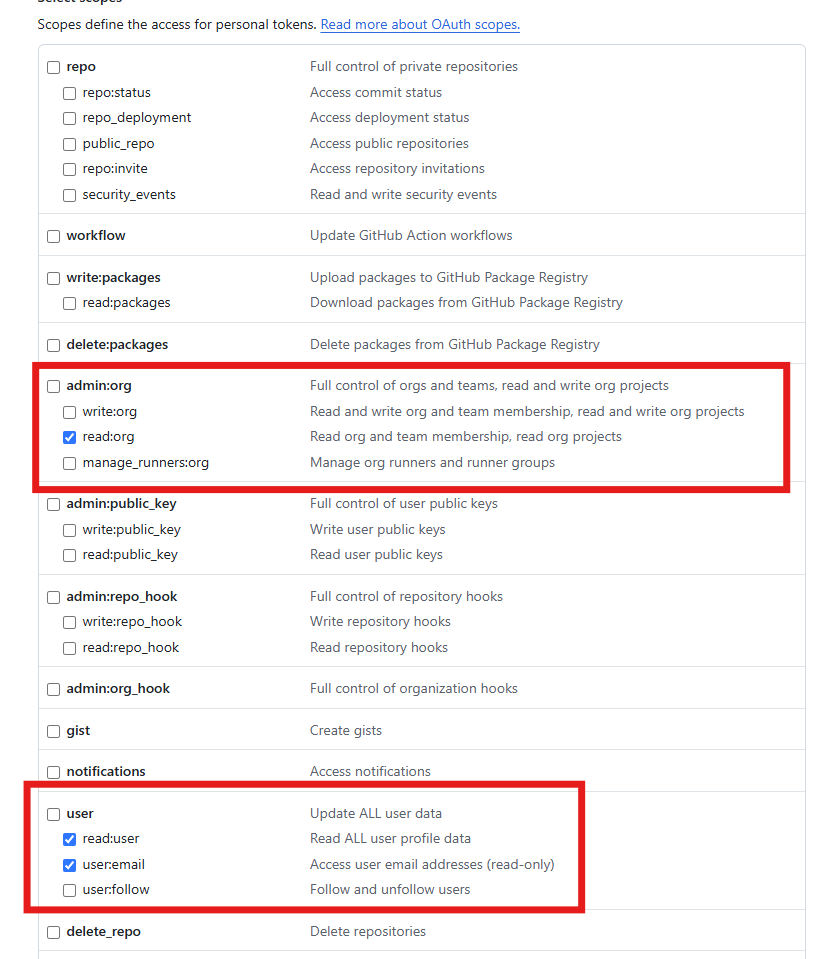
Select following Scopes:
- read:org
- read:user
- user:email
-
Click the “Generate token” button.
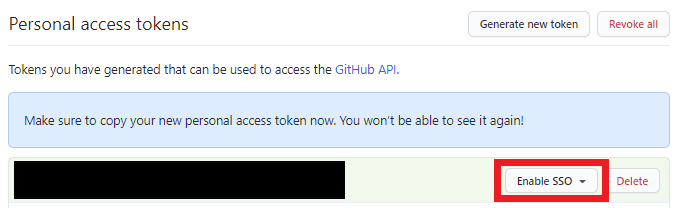
Single-Sign OnIf your organization uses SSO, you will have to grant SSO Access to your token.
-
Click the “Enable SSO” button.
-
Authenticate with your SSO Identity.
-
-
Copy your token (you will need it for part two).
How to Add Mapping Information to EZSSH
-
Once you have created your GitHub token, go to the EZSSH Portal, login with an account that owns the subscription that generates the GitHub certificates and go to settings.
-
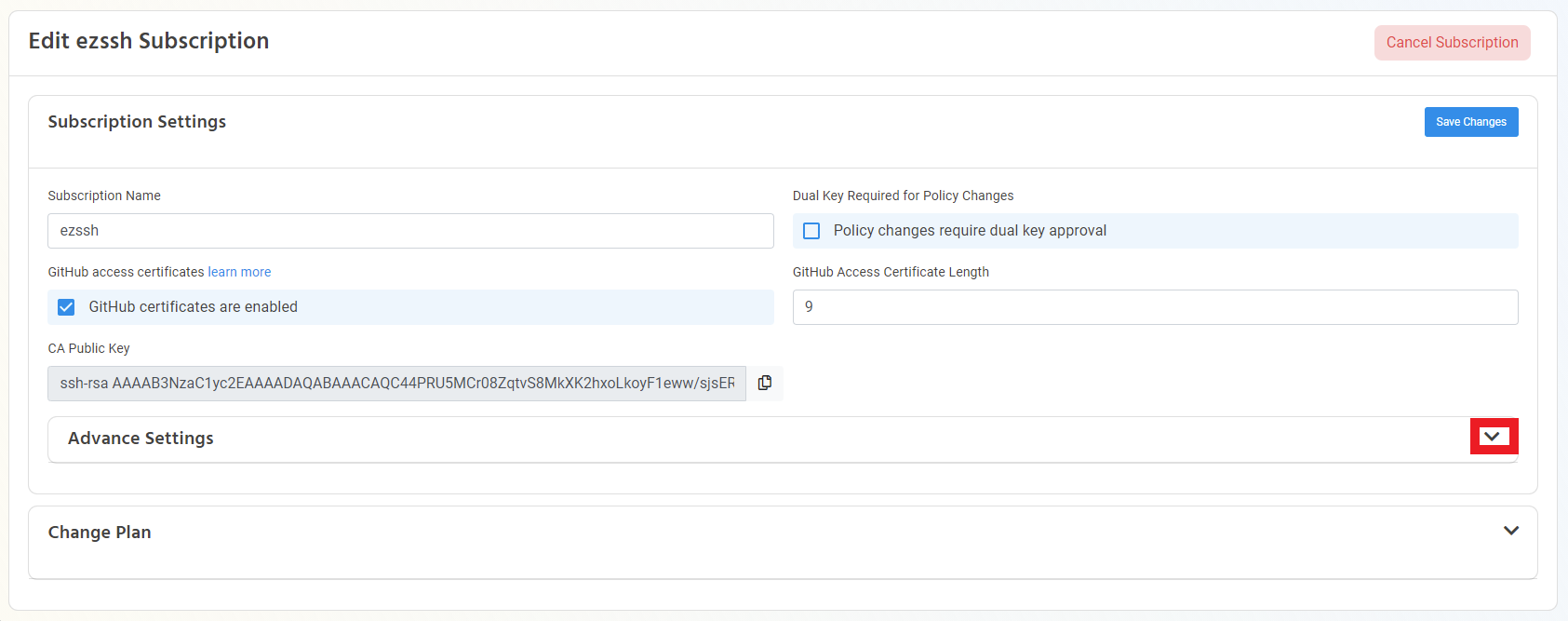
Find the correct subscription in the settings page and expand the Advance Settings Tab.
-
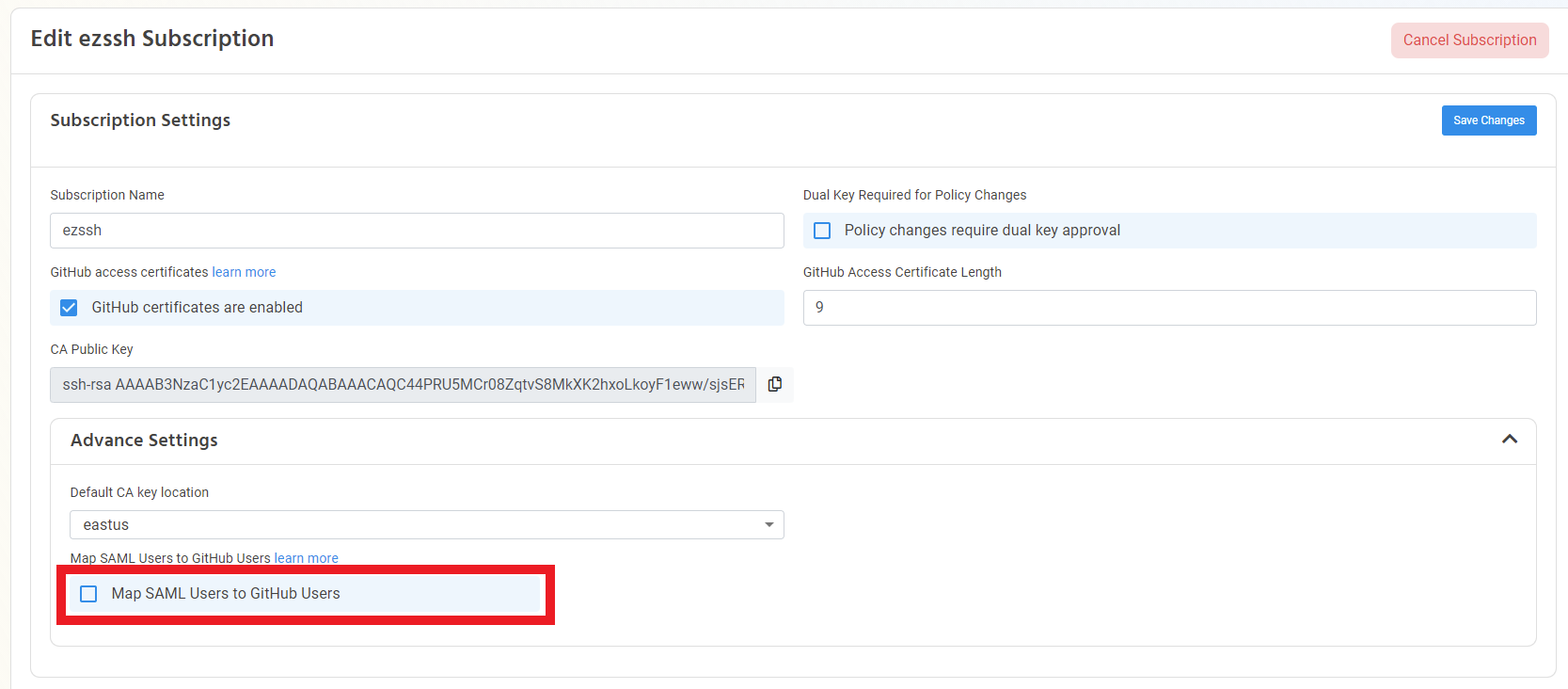
Enable the “Map SAML Users to GitHub Users” option.
-
Enter your organizations URL in the format
https://github.com/orgName: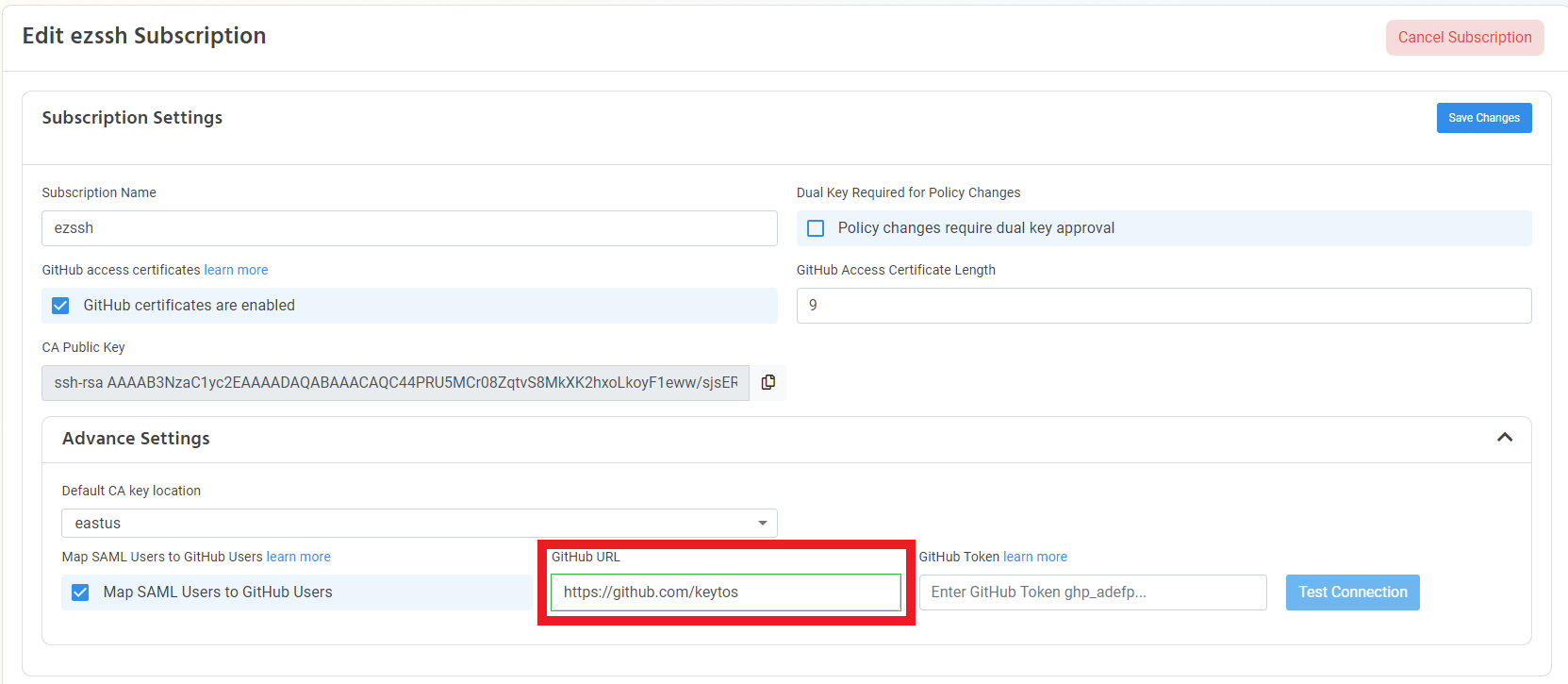
-
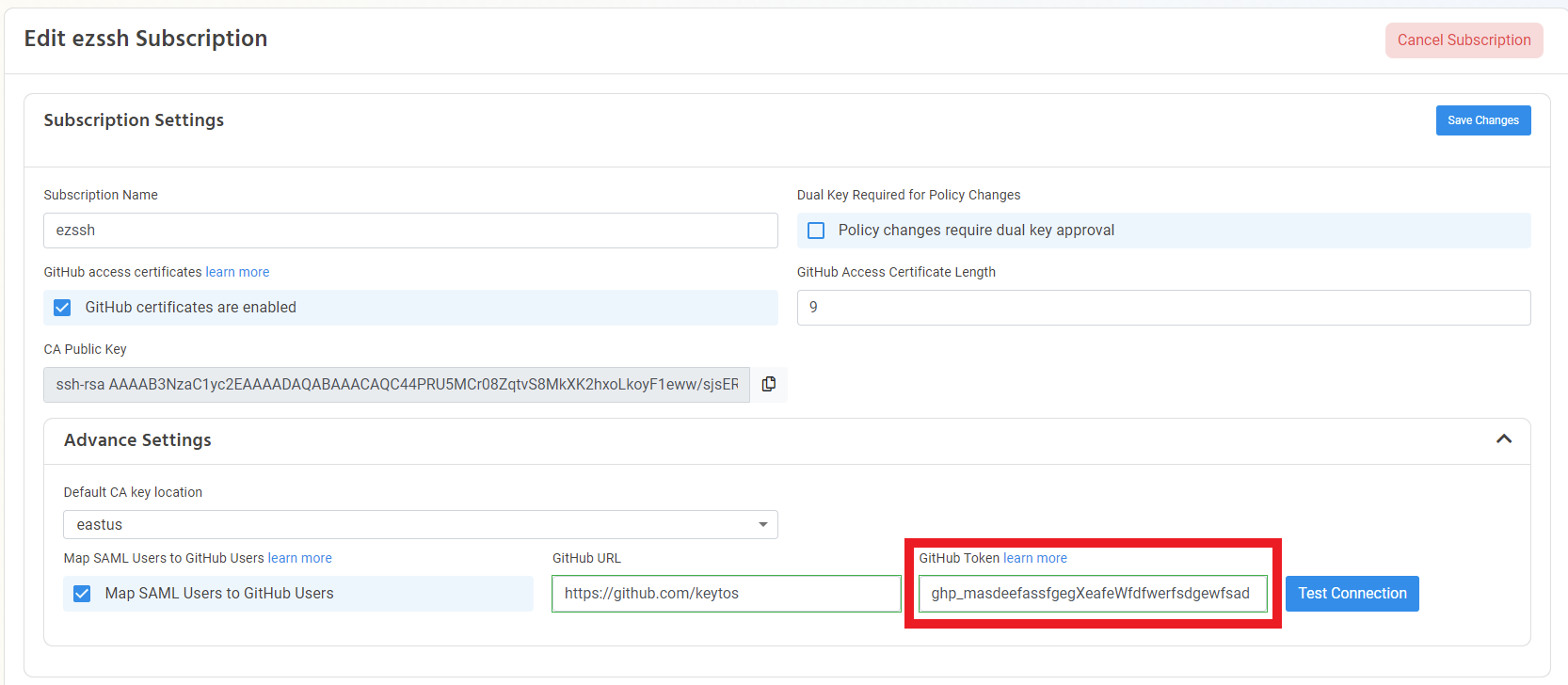
Enter the GitHub Token generated in the previous section.
-
Click Test Connection.
-
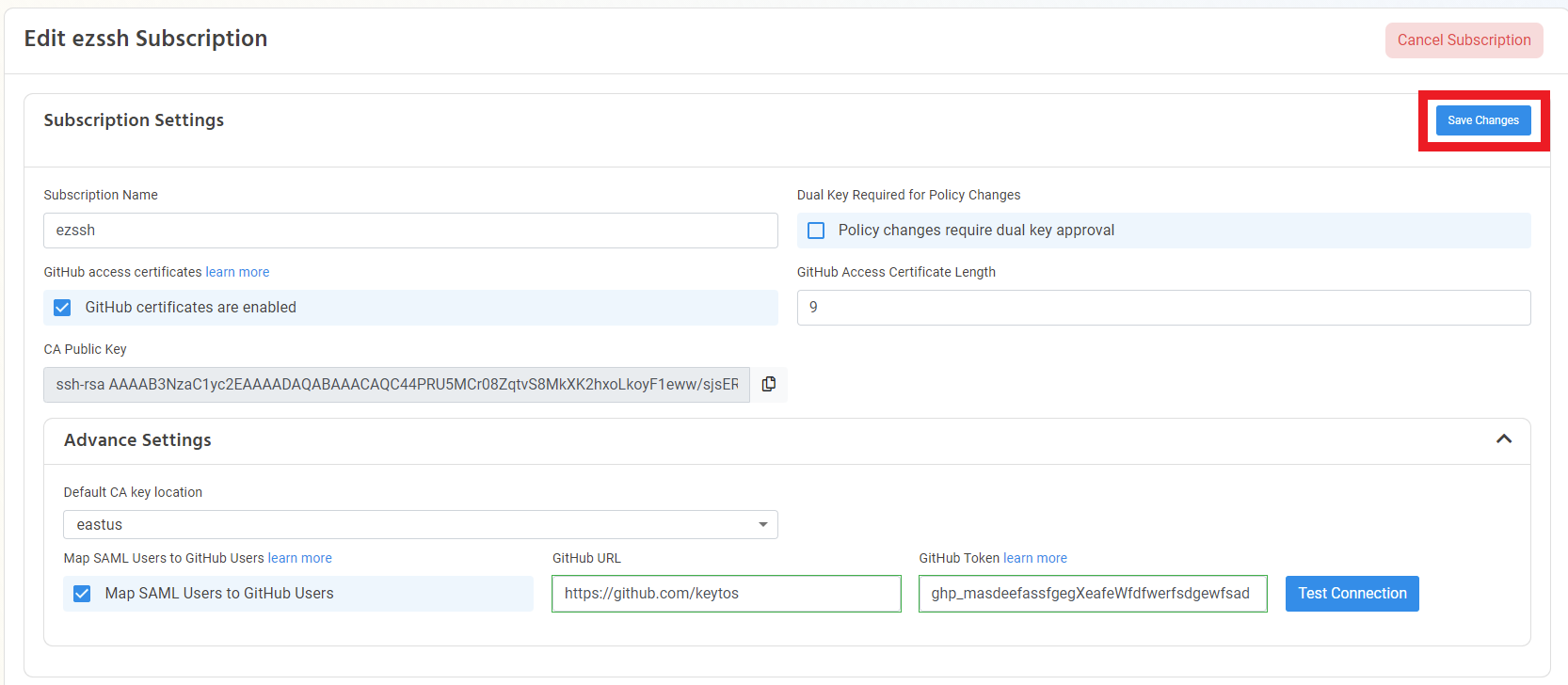
If the connection is successful, click the “Save Changes” Button.
-
Your users will now be mapped at least once a day.
GitHub Enterprise Managed Users
For GitHub Enterprise Managed Users, we support both SCIM and SAML. The setup process is different for each option. If you are using SAML with SCIM user provisioning, use the SCIM guide because GitHub does not keep track of the mapping.
How to Create SSH Certificate mapping for SCIM Users in GitHub EMU
For SCIM Mapping, GitHub does not keep track of the user mapping between the identity provider and GitHub. Instead, EZSSH will append the same text as GitHub does to transfer the user from the identity provider to GitHub. For example, if your users have an email like sirtifficate@keytos.io in your identity provider, GitHub will create a user with the user name sirtifficate_keytos in GitHub. To enable this mapping, you will need to add the suffix in the settings section of EZSSH.
-
Go to the EZSSH Portal https://portal.ezssh.io
-
Click on Settings
-
In the setting page, select a subscription that has GitHub Certificates enabled and expand the Advanced Settings Tab.
-
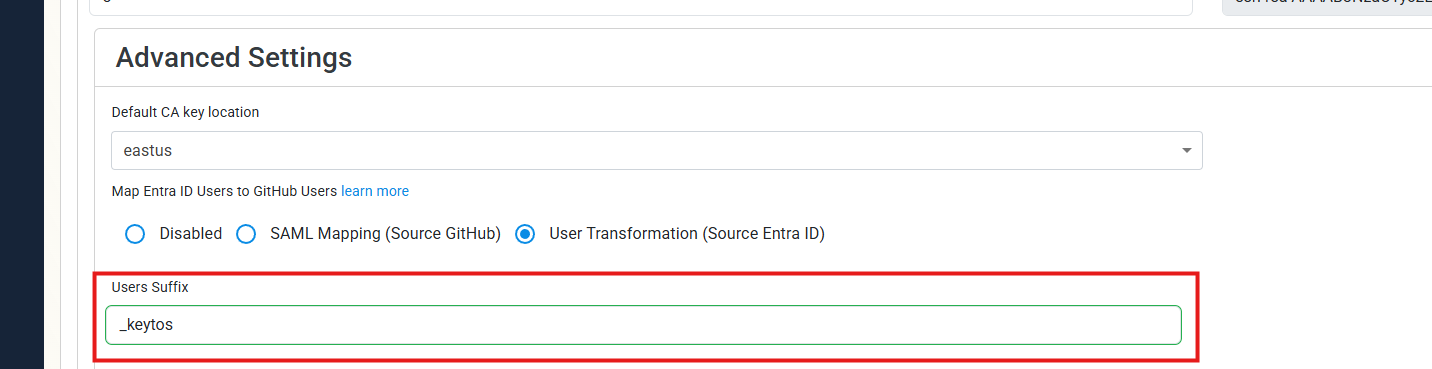
Enable the “User Transformation (Source Entra ID)” option.

-
Then enter the suffix that GitHub adds to the user when it is transferred from the identity provider to GitHub. In our example, we would enter
_keytosin the suffix field.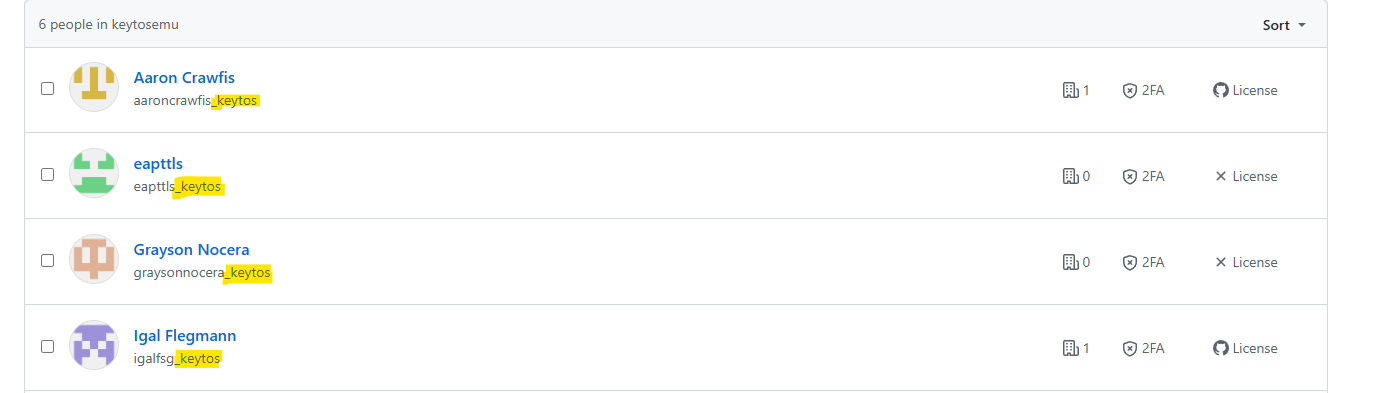
-
The mapping should now look like the image below.
-
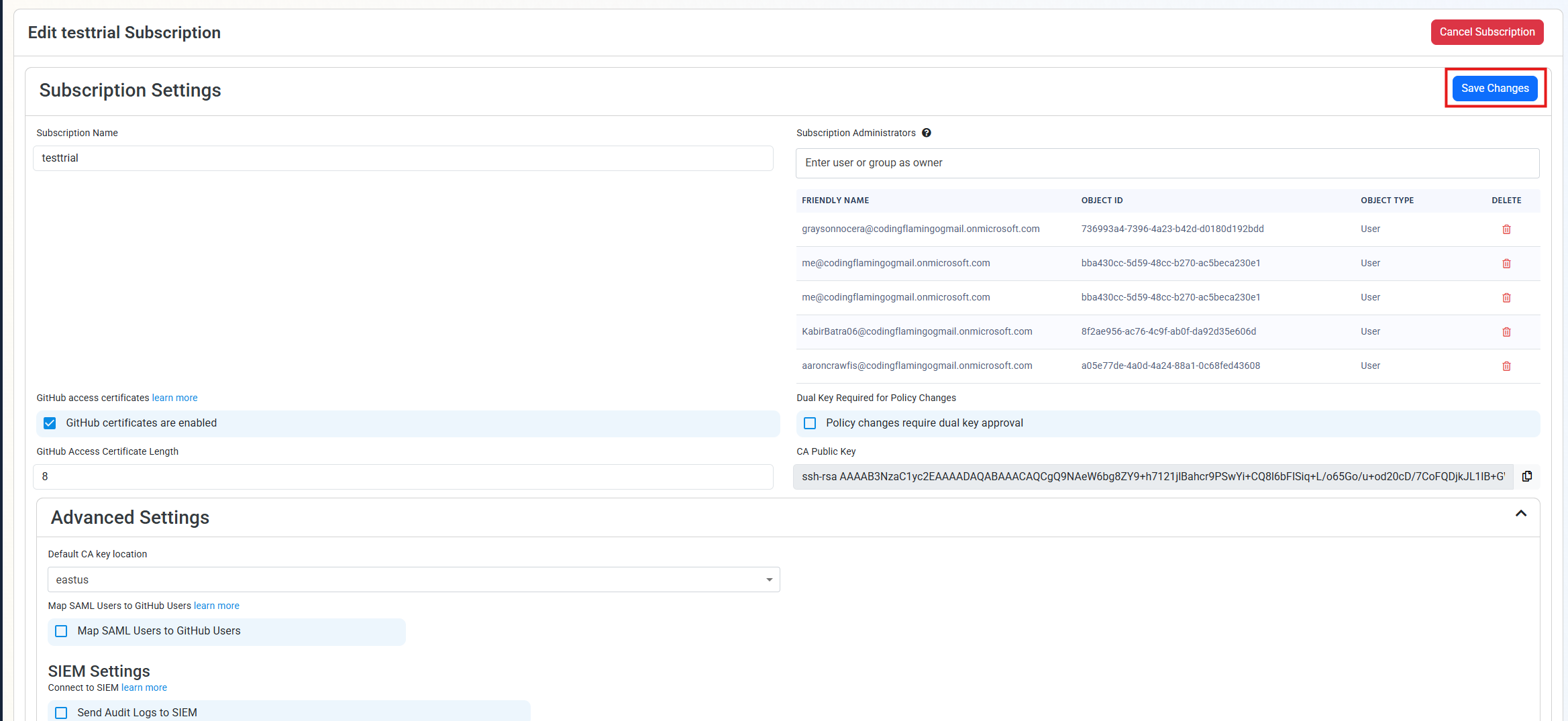
Once you have entered the correct information, click the “Save Changes” Button at the top right of the subscription.
How to Map User Certificates to GitHub SAML in EMU
How to Create a GitHub Access Token with the Required Permissions for SAML Mapping
-
First we have to create a GitHub access token. To get started, go to https://github.com (or your enterprise instance) and login with an account that is an owner of the organization.
-
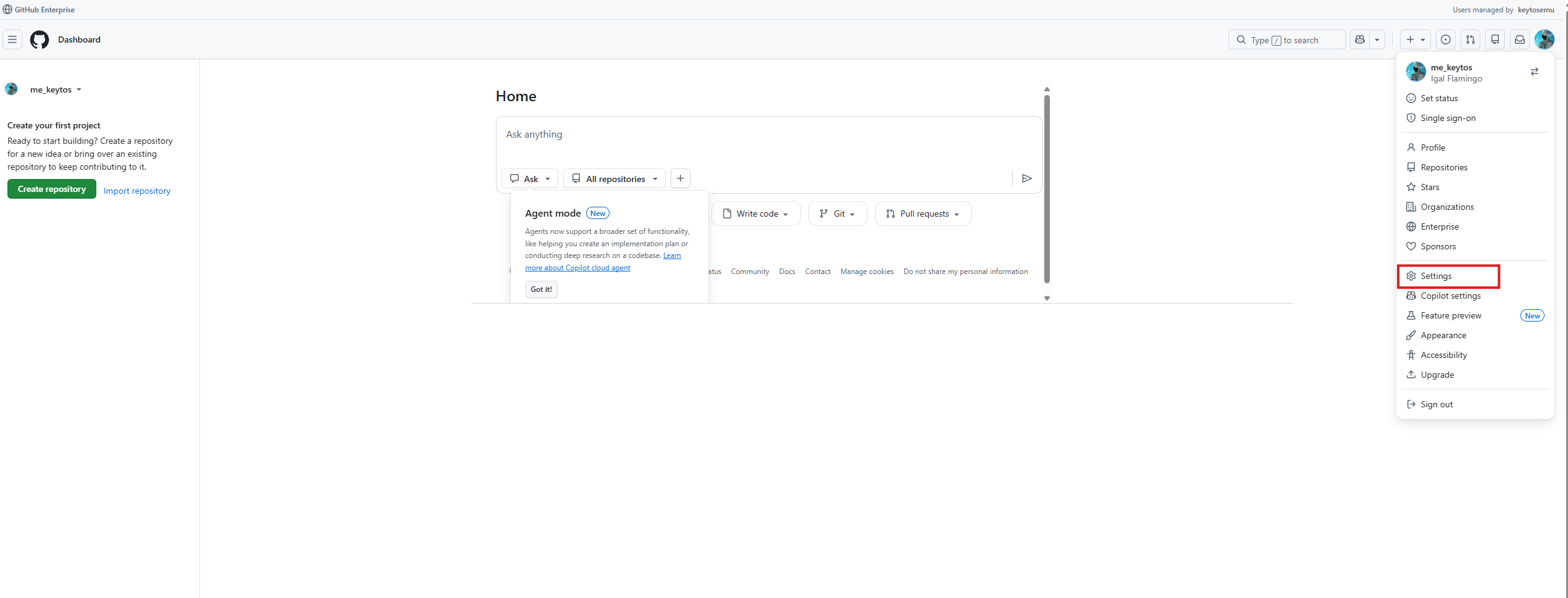
On the top right, click on your profile picture and then click on settings.
-
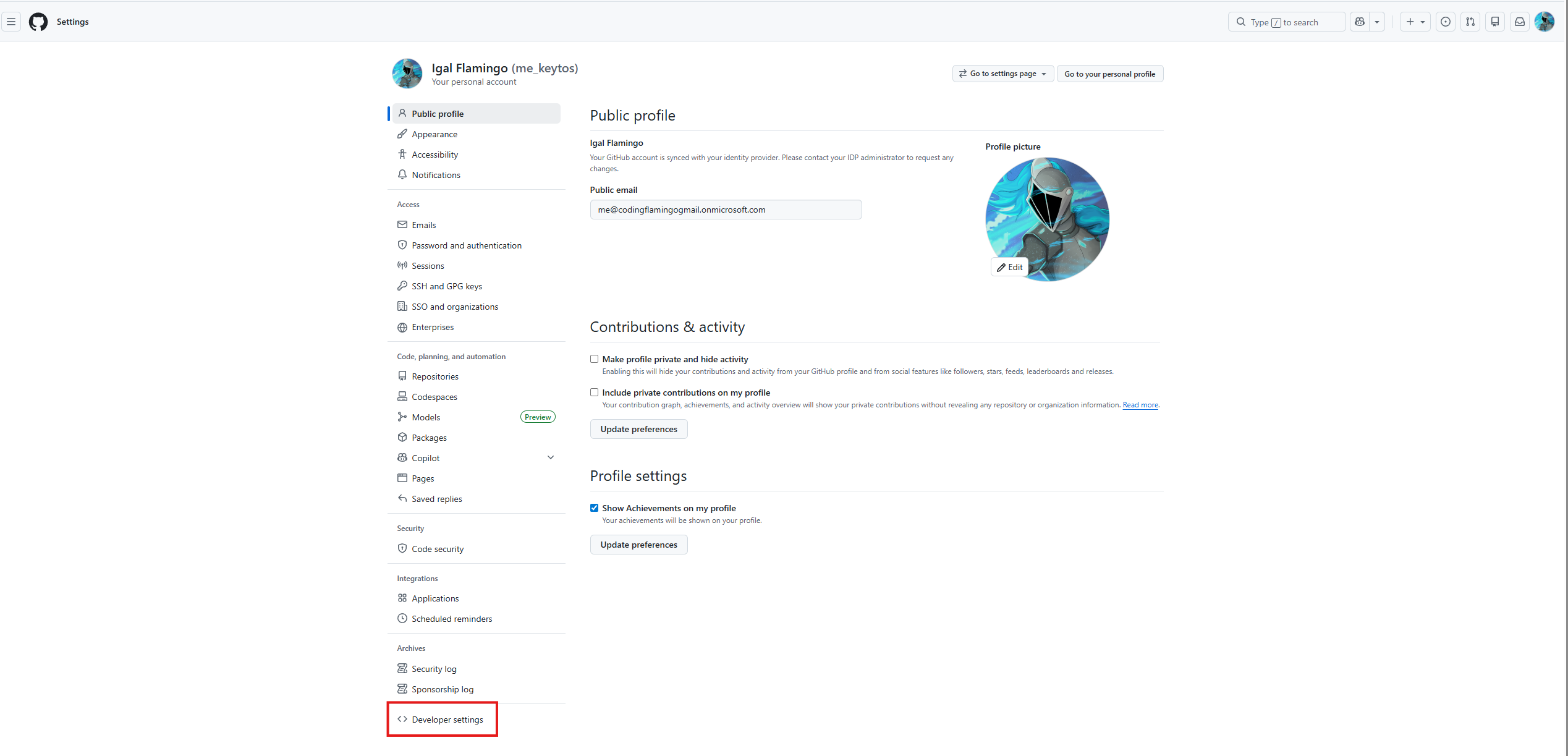
Then Click on Developer Settings.
-
Click on the “Personal access tokens (Classic)” section.
-
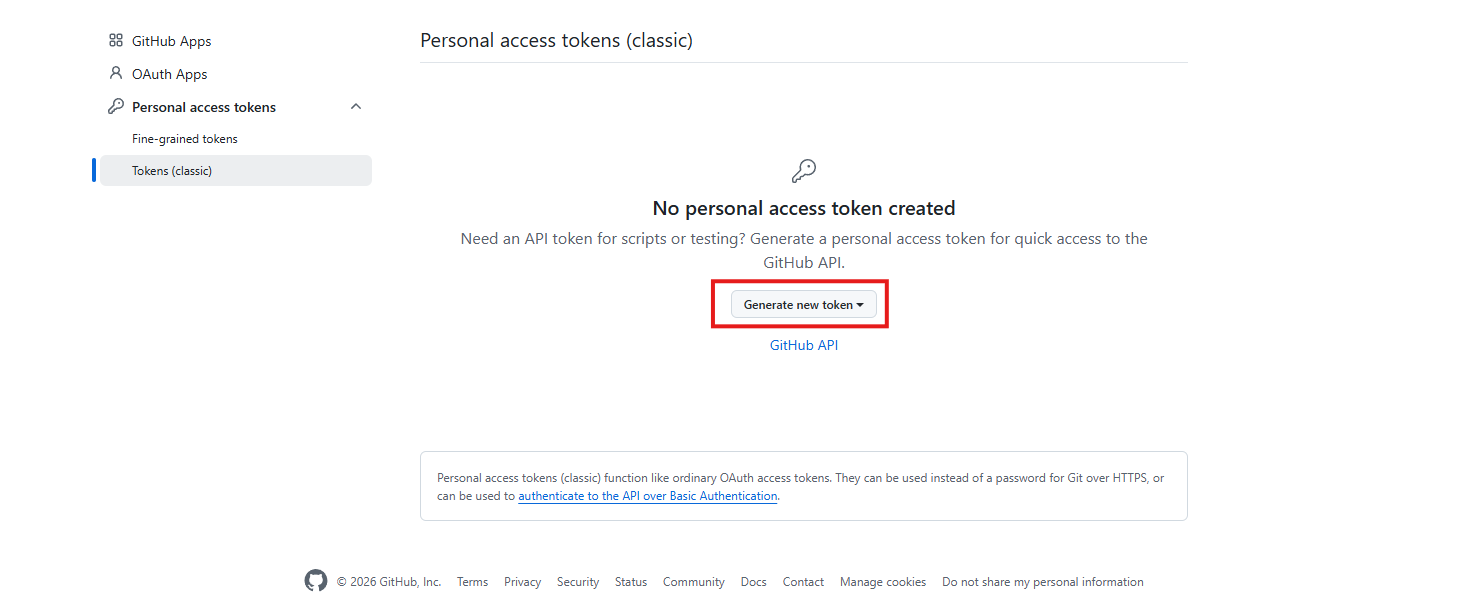
Click the “Generate new token” button.
-
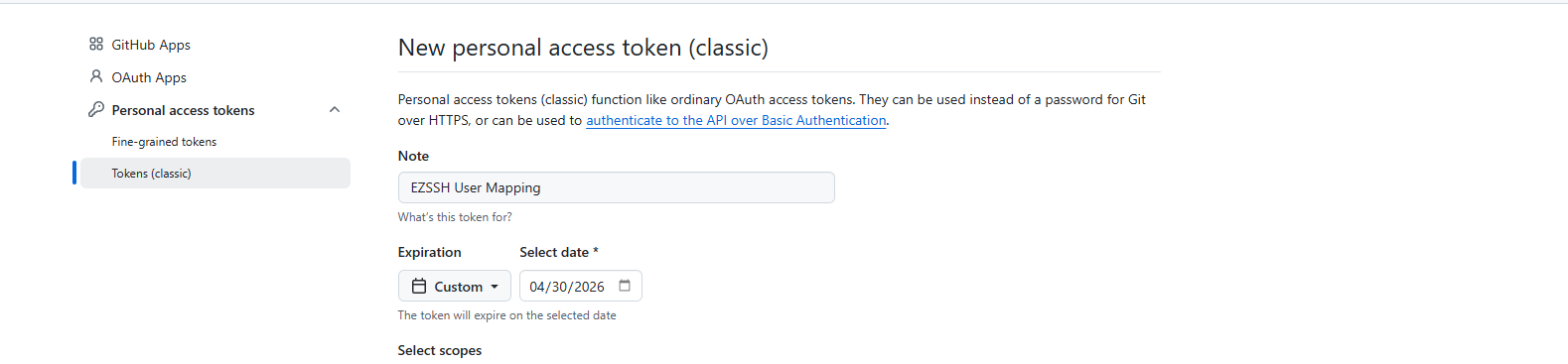
Enter a name for the token. For Example “EZSSH User Mapping”
-
Select an Expiration for the token (I recommend 365 days).
-
Select following Scopes:
- read:org
- read:user
- user:email
- read:enterprise
-
Click the “Generate token” button.
Single-Sign OnIf your organization uses SSO, you will have to grant SSO Access to your token.
-
Click the “Enable SSO” button.
-
Authenticate with your SSO Identity.
-
-
Copy your token (you will need it for part two).
How to Add SAML Mapping Information to EZSSH
-
Once you have created your GitHub token, go to the EZSSH Portal, login with an account that owns the subscription that generates the GitHub certificates and go to settings.
-
Find the correct subscription in the settings page and expand the Advanced Settings Tab.
-
Enable the “Map SAML Users to GitHub Users” option.
-
Enter your enterprise name for example
keytosemu(Note: This is not the full URL like with GitHub Enterprise Cloud) -
Enter the GitHub Token generated in the previous section.
-
Click Test Connection.

-
If the connection is successful, click the “Save Changes” Button.
How To Restrict IP Addresses that can Access GitHub with SSH Certificates
To further secure your GitHub Enterprise, you can restrict the IP addresses that can be used to access GitHub with SSH certificates. This is done by adding the IP addresses to the “Allowed IP Addresses” field in the EZSSH settings. This will ensure that even if a certificate is compromised, it cannot be used to access GitHub from an unauthorized location. To Enable this feature, follow the steps below:
-
Go to the EZSSH Portal https://portal.ezssh.io
-
Click on Settings
-
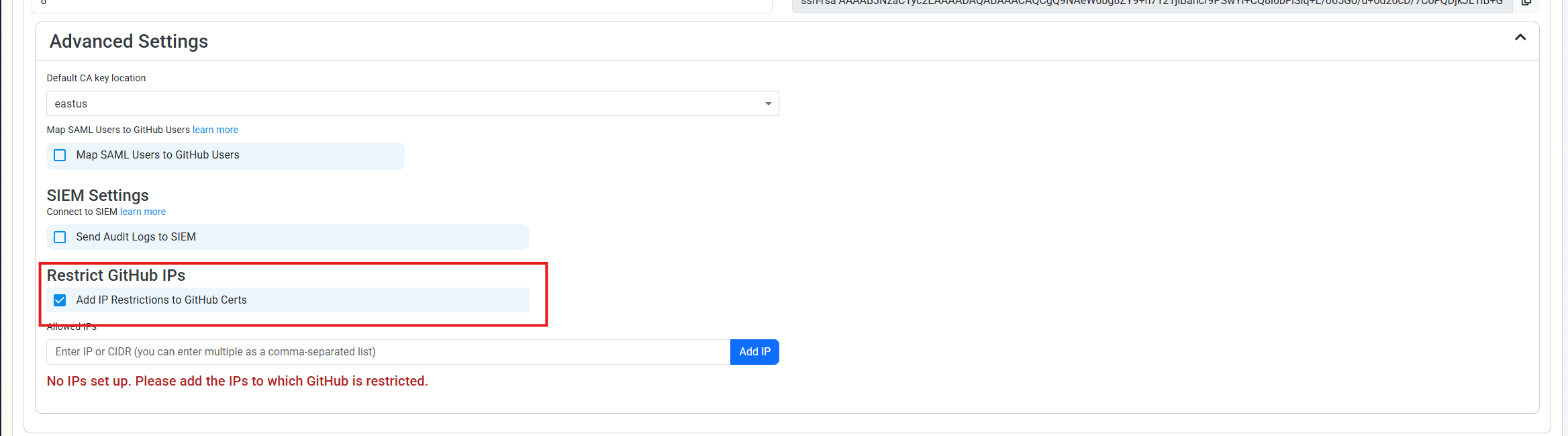
In the setting page, select a subscription that has GitHub Certificates enabled and expand the Advanced Settings Tab.
-
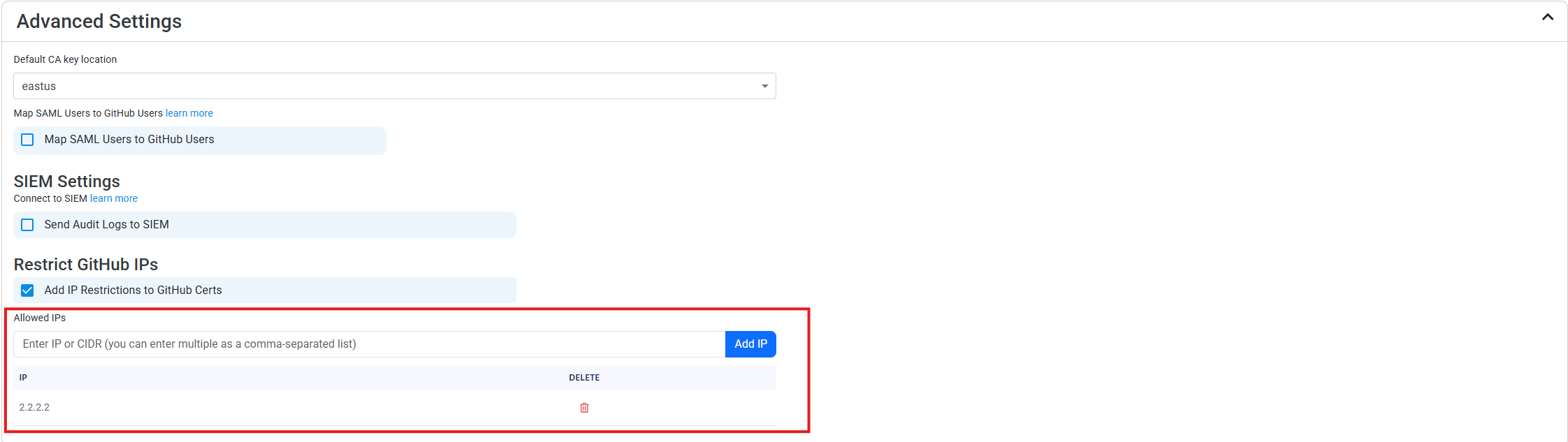
In the “Allowed IP Addresses” field, enter the IP addresses (e.g., 1.168.1.1 or 12.168.1.0/24) that you want to allow access to GitHub with SSH certificates. You can enter individual IP addresses or CIDR blocks.
-
Click the “Save Changes” button located at the top of the subscription settings.