

















How-To: Issue Entra CBA Smart Cards with Azure PKI
Prerequisites for Creating Entra CBA Smart Cards with EZCMS and EZCA
Overview
Having certificate based authentication requires you to have a Certificate Authority that will issue certificates for your smart cards. We recommend using a PKI as a service CA such as our EZCA tool to have a compliant, HSM backed CA without all the management overhead.
Getting Started - Creating a Cloud PKI for Entra CBA
- Go to https://portal.ezca.io/
- Login with an account that is registered as a PKI Admin in EZCA.
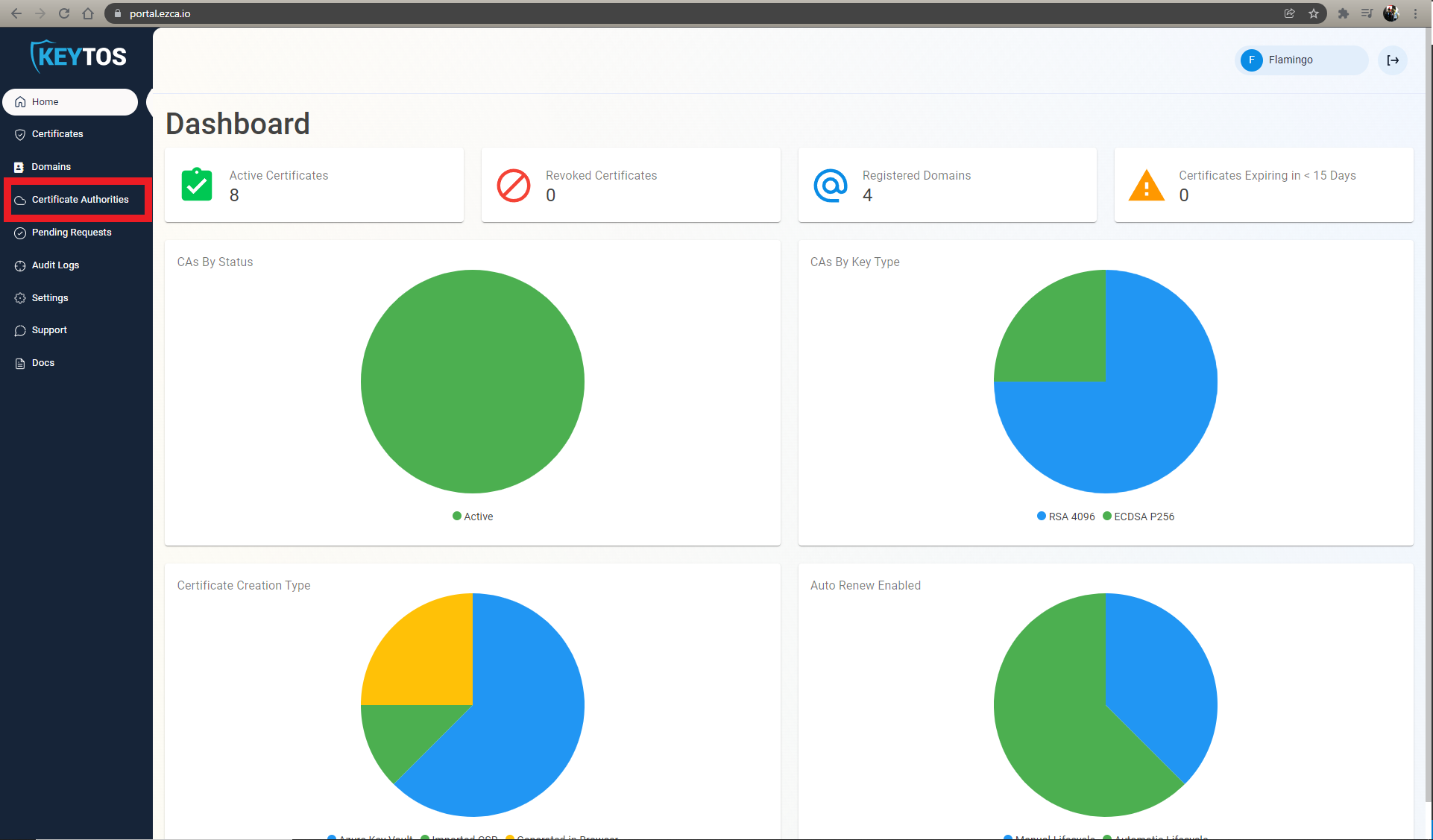
- Navigate to Certificate Authorities.
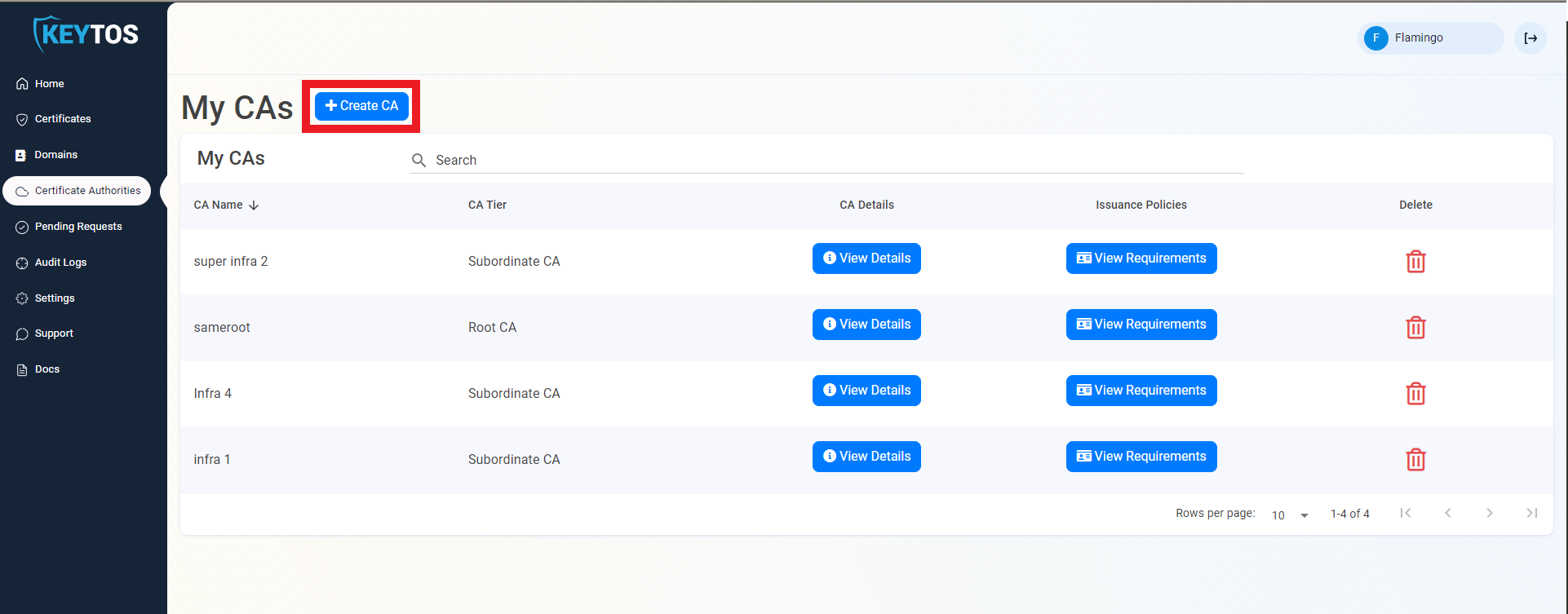
- Click on the “Create CA”
- Select Subordinate/Intermediate CA.
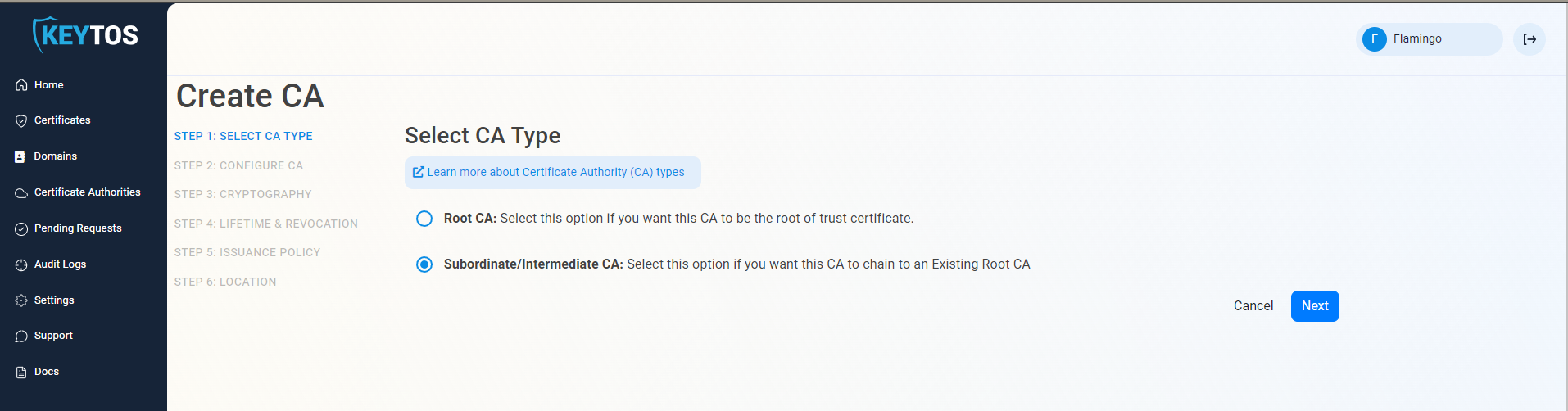
- Click Next
Entering Cloud CA Information
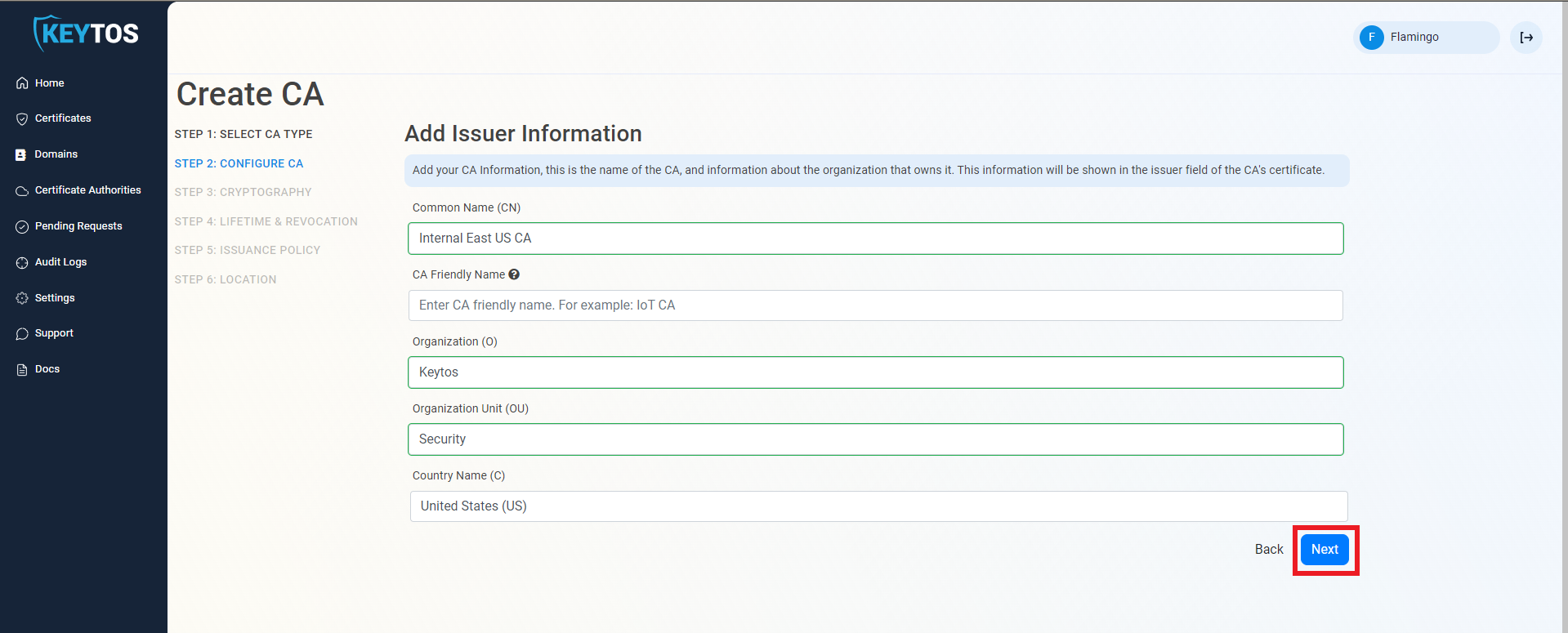
- Enter Common Name: This is the name of the CA how it will appear in the certificate.
- (Optional) Enter CA Friendly Name This is the name that will appear in the EZCA portal, by default we will use the Common Name
- (Optional) Enter the Organization The Organization field is an optional certificate field that usually has the company name.
- (Optional) Enter the Organization Unit The Organization Unit field is an optional certificate field that usually contains the unit that runs this CA (For example: IT or HR).
- (Optional) Enter the Country Code The Country Code field is an optional certificate field that identifies the country where this CA is located.
- Click Next.
Cryptographic Requirements
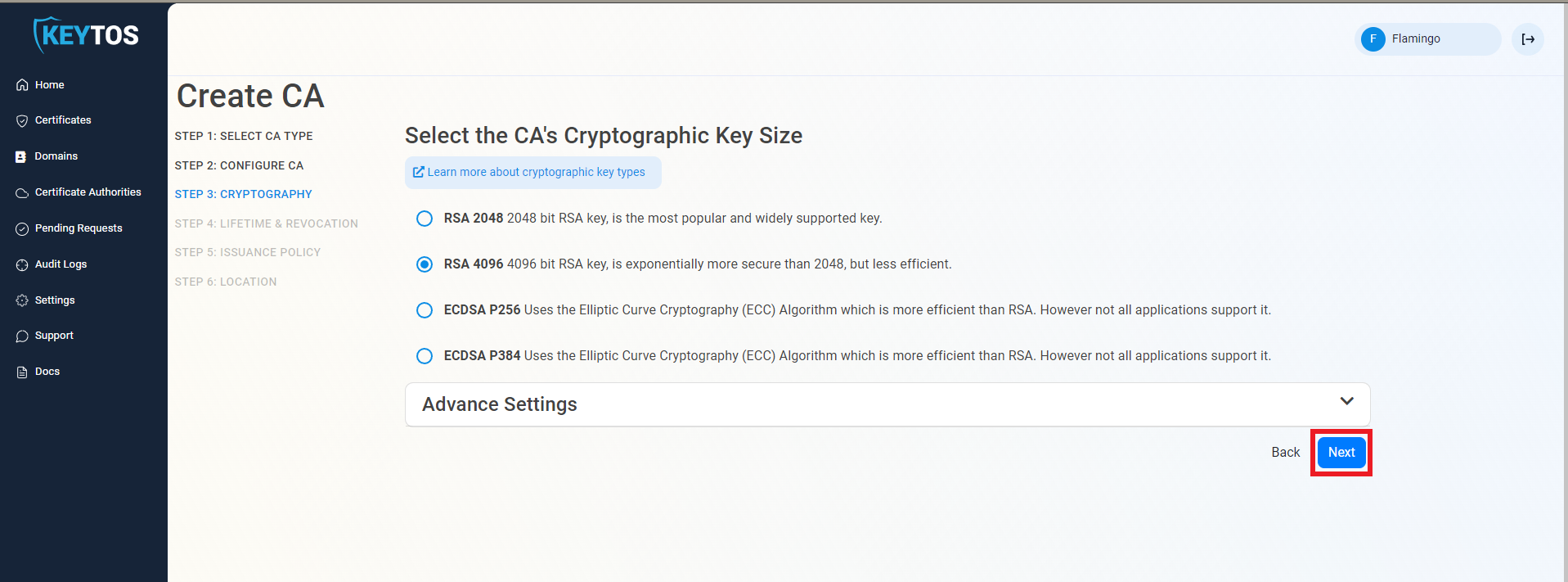
- Unless you have specific compliance or security requirements, leave the default cryptographic values for best security and compatibility.
Validity Period
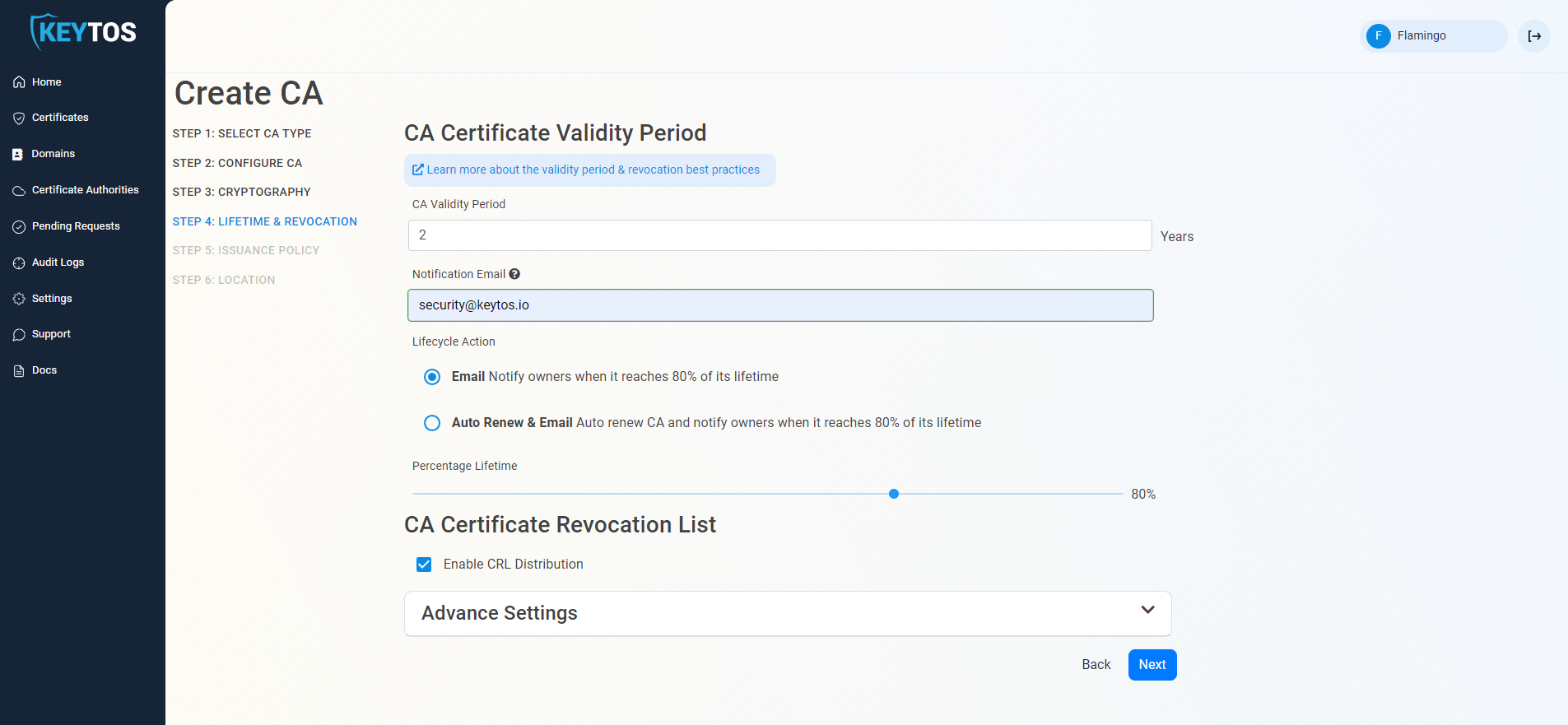
- Select your Validity Period Learn more about Validity Period best practices
- Enter a Notification Email this email address (as well as the PKI Administrators) will get all the notifications for the lifecycle of the CA.
- Select the lifecycle action you want EZCA to take when expiry of the CA is approaching (for now we recommend manually rotating the Certificate Authorities since Entra CBA does not support automatic CA rotation).
- Select the percentage of lifetime of the certificate when you want EZCA to start taking Lifecycle actions.
CA Certificate Revocation List
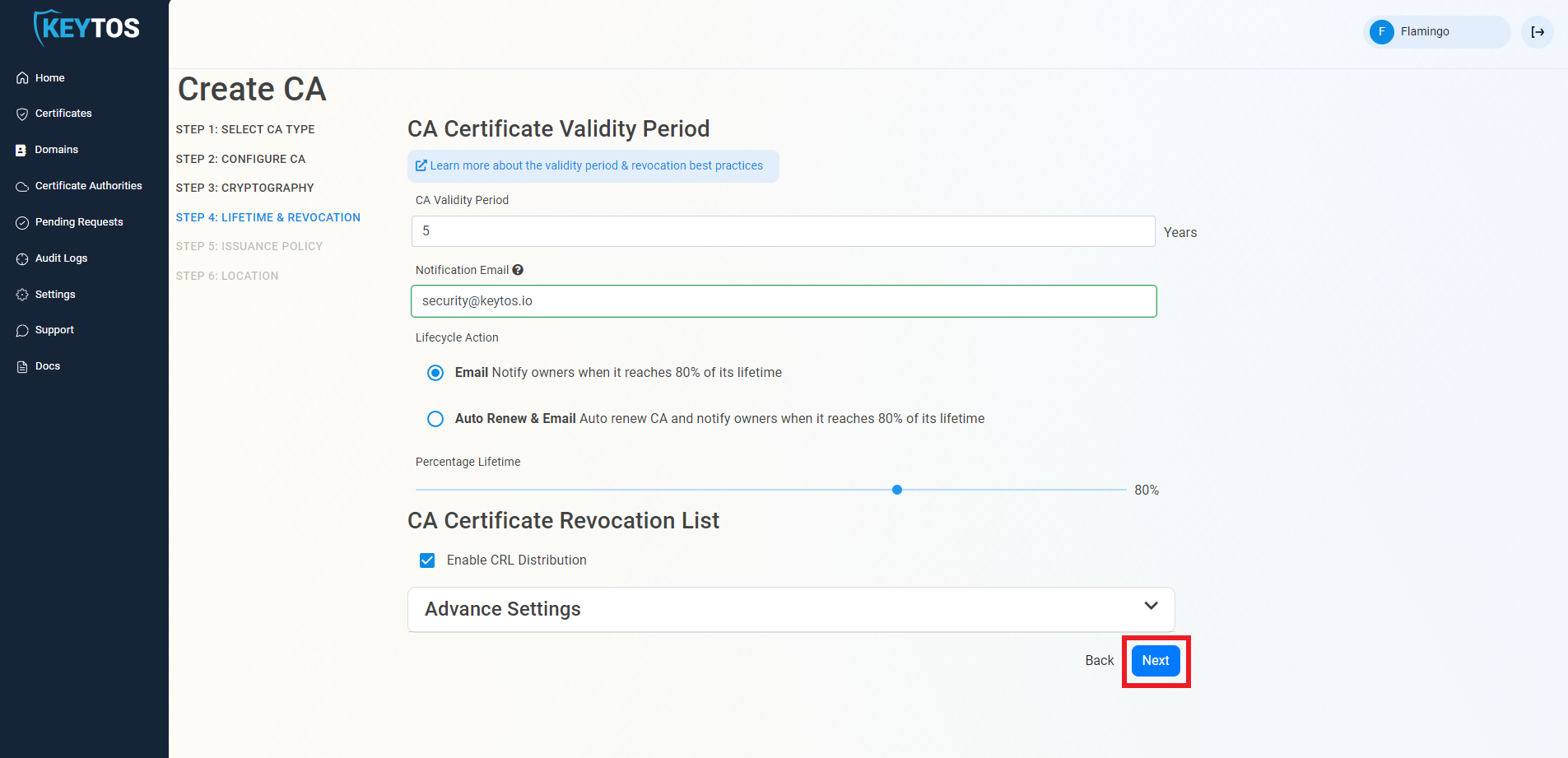
- Select if you want this CA should issue a CRL (Highly recommended)
- Click Next.
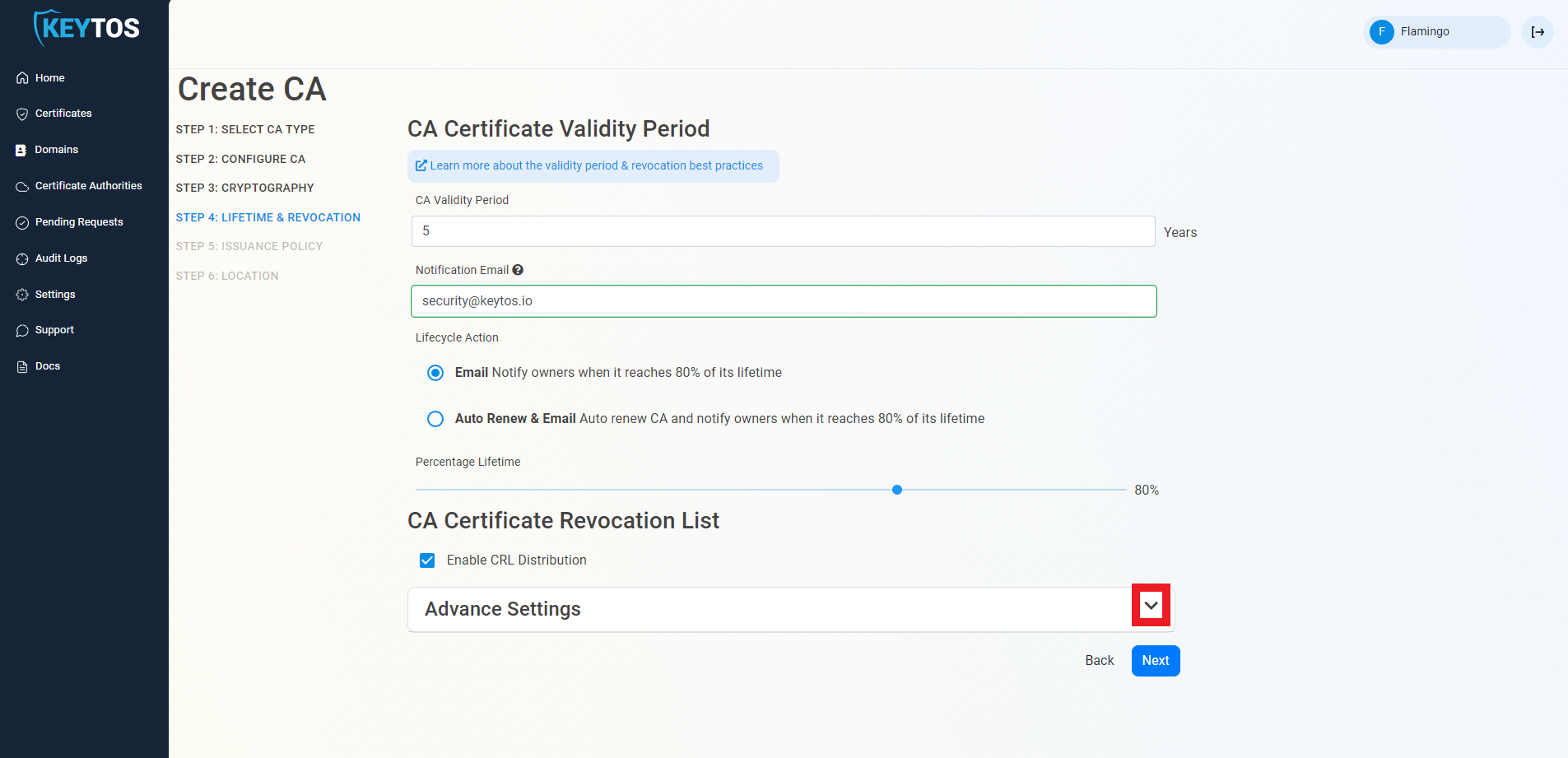
CA Certificate Revocation List Advance Settings
Changes to this section are only recommended for PKI experts with specific requirements.
- Click the expand button
- Enter the desired CRL Validity Period in days
- Enter the desired CRL Overlap Period in hours
- (Optional) Enter the CRL endpoint where you will publish your CRLs
Custom CRL endpoints are supported by EZCA by adding the CRL endpoint as the CRL endpoint in the certificate. However, your PKI admins are responsible from getting the CRL from EZCA and posting it in that specific endpoint.
- Do not Enable OCSP, this is not supported by Entra CBA.
- Click Next.
- Change the issuing template to “Smart Card Template”.
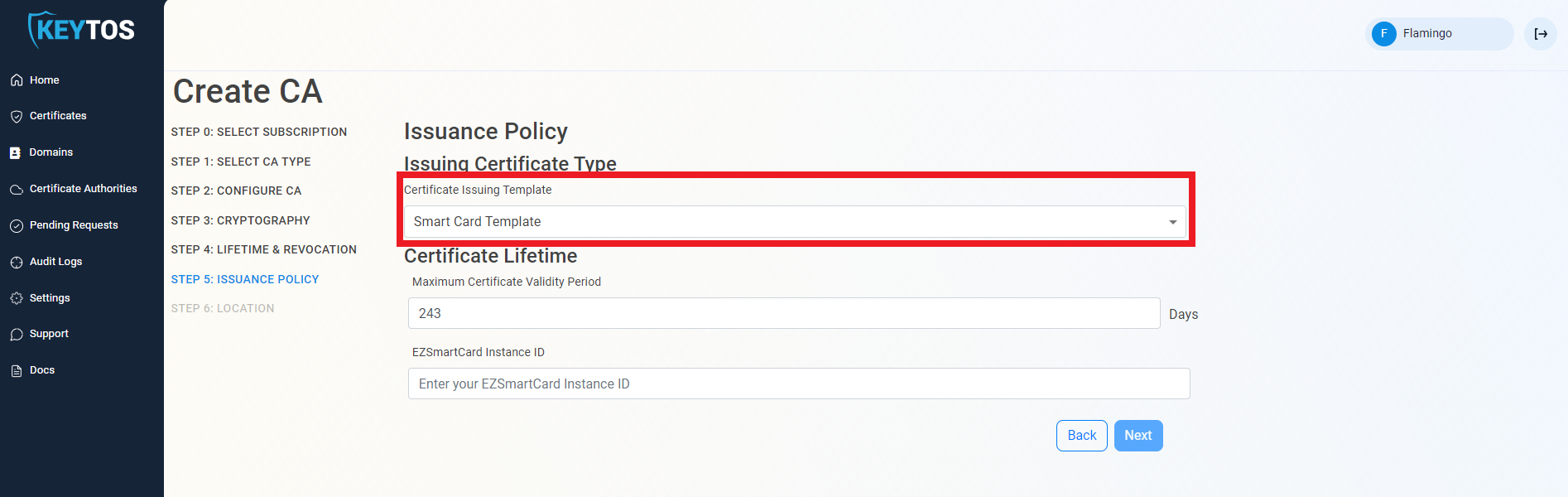
- Set the desired smart card certificate lifetime.
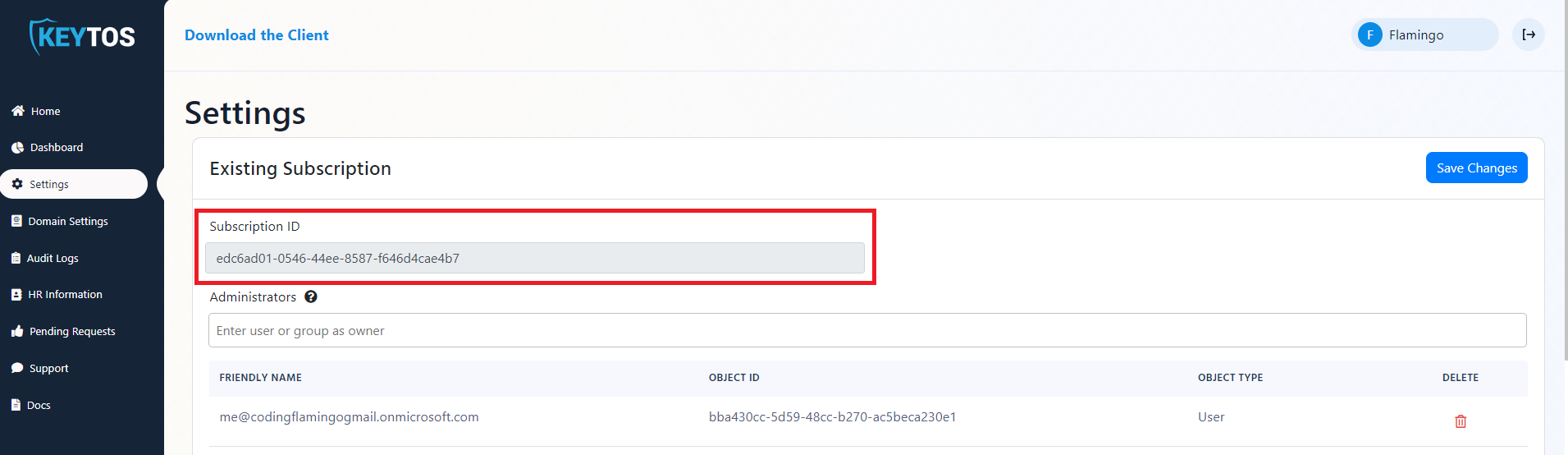
- In another tab, open your EZCMS instance and in the settings page copy the Subscription ID.
- Paste the subscription ID into the “EZSmartCard Instance ID” field (the EZCMS subscription ID).
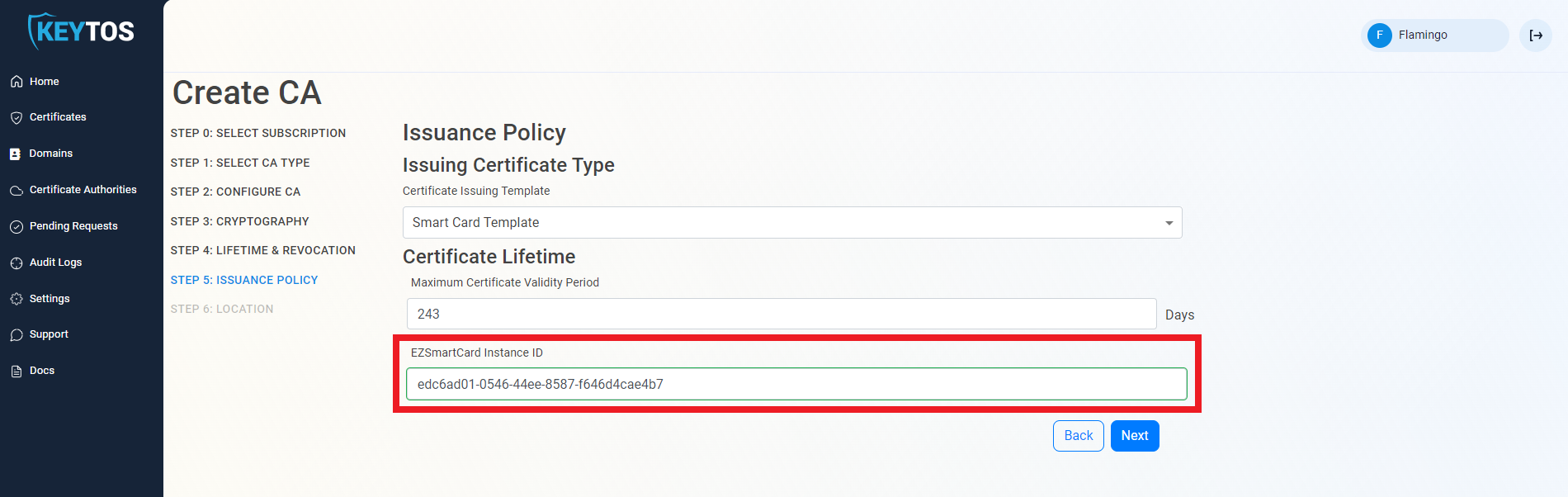
- Click Next.
Select Cloud PKI Location for Entra CBA
- Select the location where you want your CA to be created.
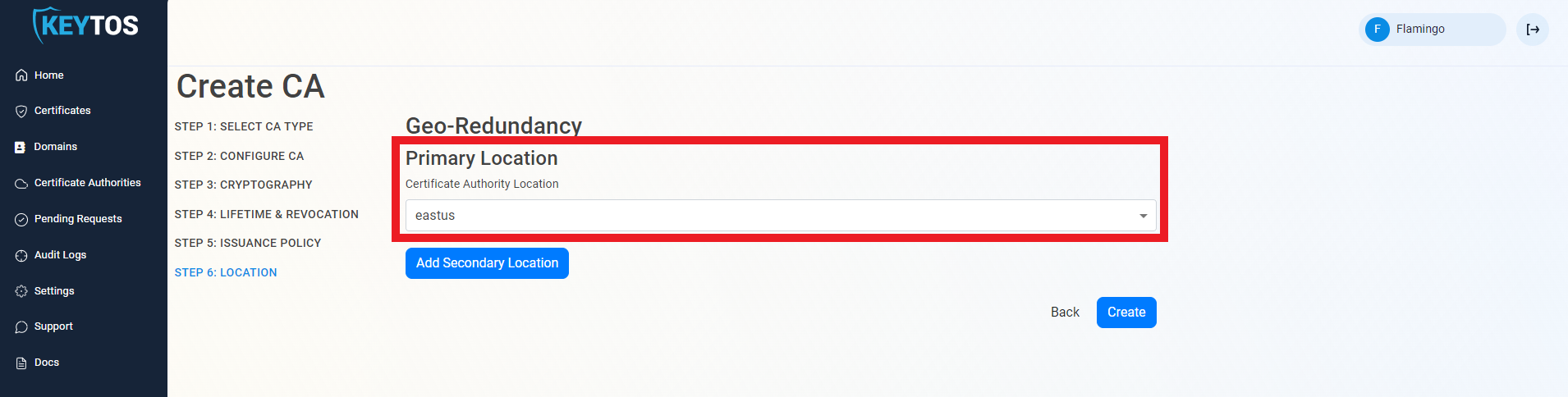
Add Geo-Redundancy to your Cloud PKI for Entra CBA
EZCA Allows you to create multiple CAs across many regions to create Geo-Redundancy.
Each location will be charged as an extra Certificate Authority.
- Click the “Add Secondary Location” Button.
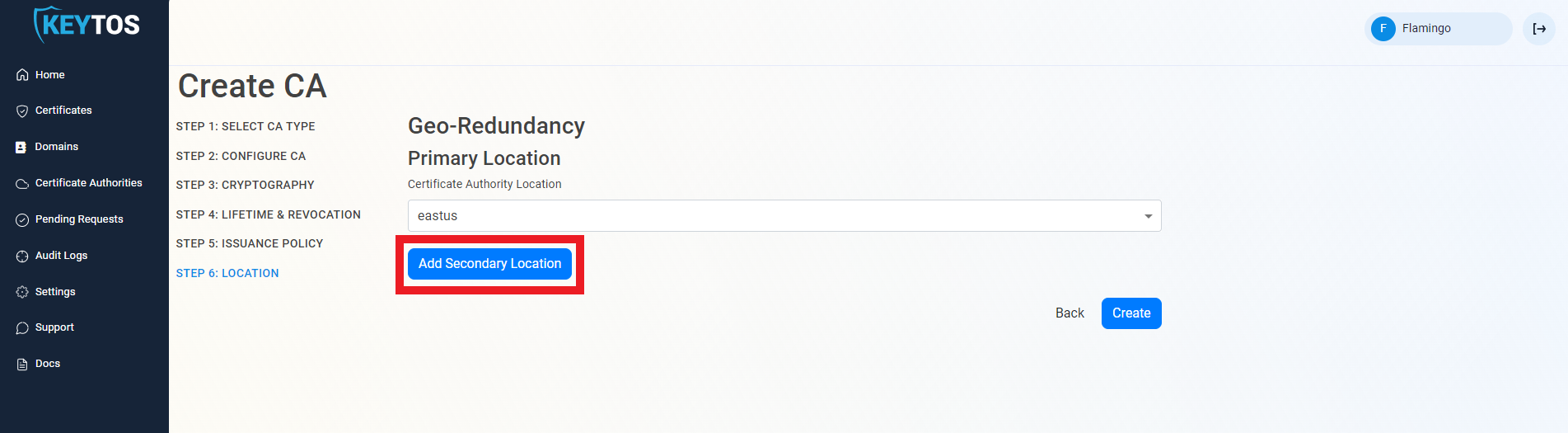
- Enter the Location information.
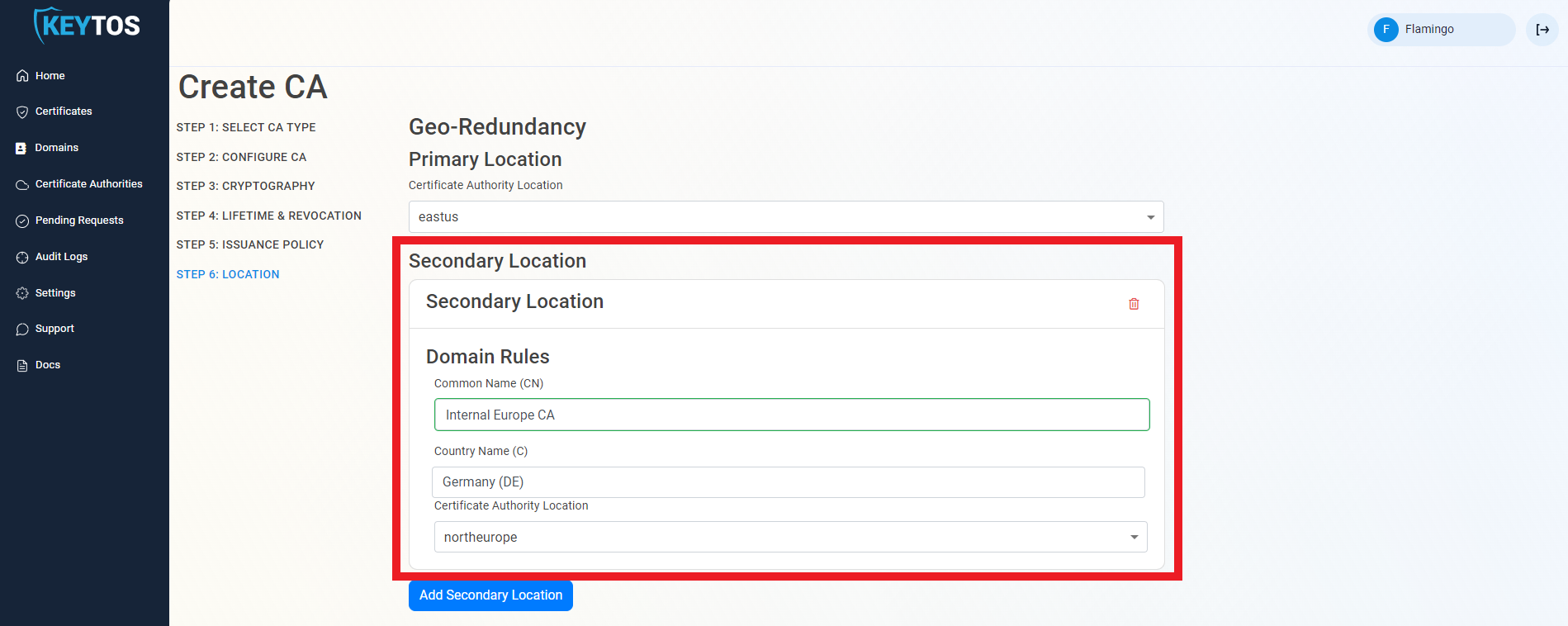
- Add as many locations as needed.
Create Cloud CA for Entra CBA
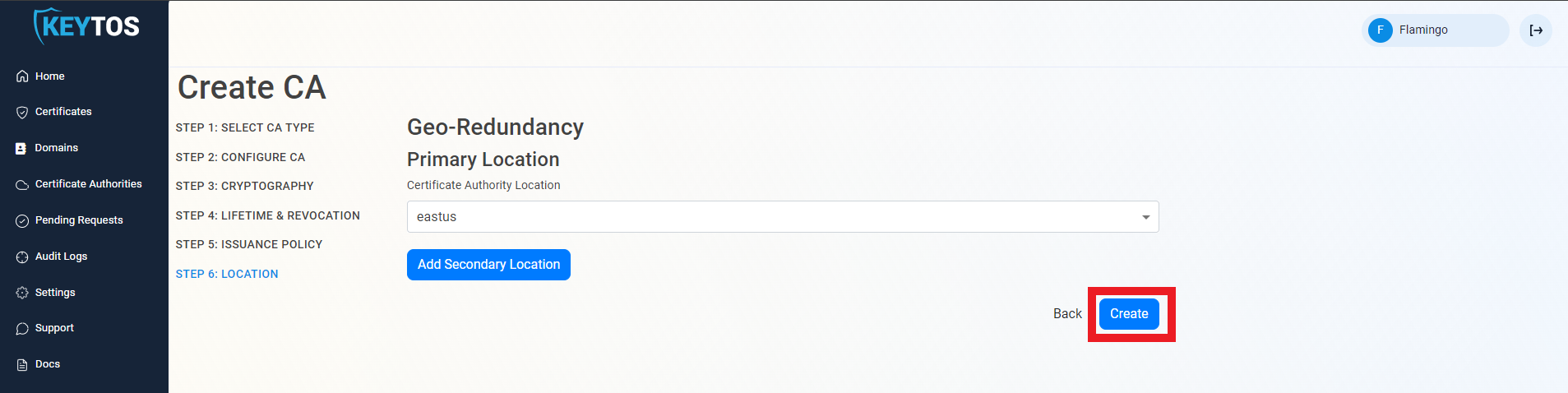
- Click Create.
Chaining to EZCA Root CA
- Once the CA is requested, a Certificate Signing Request (CSR) will be created for each location.
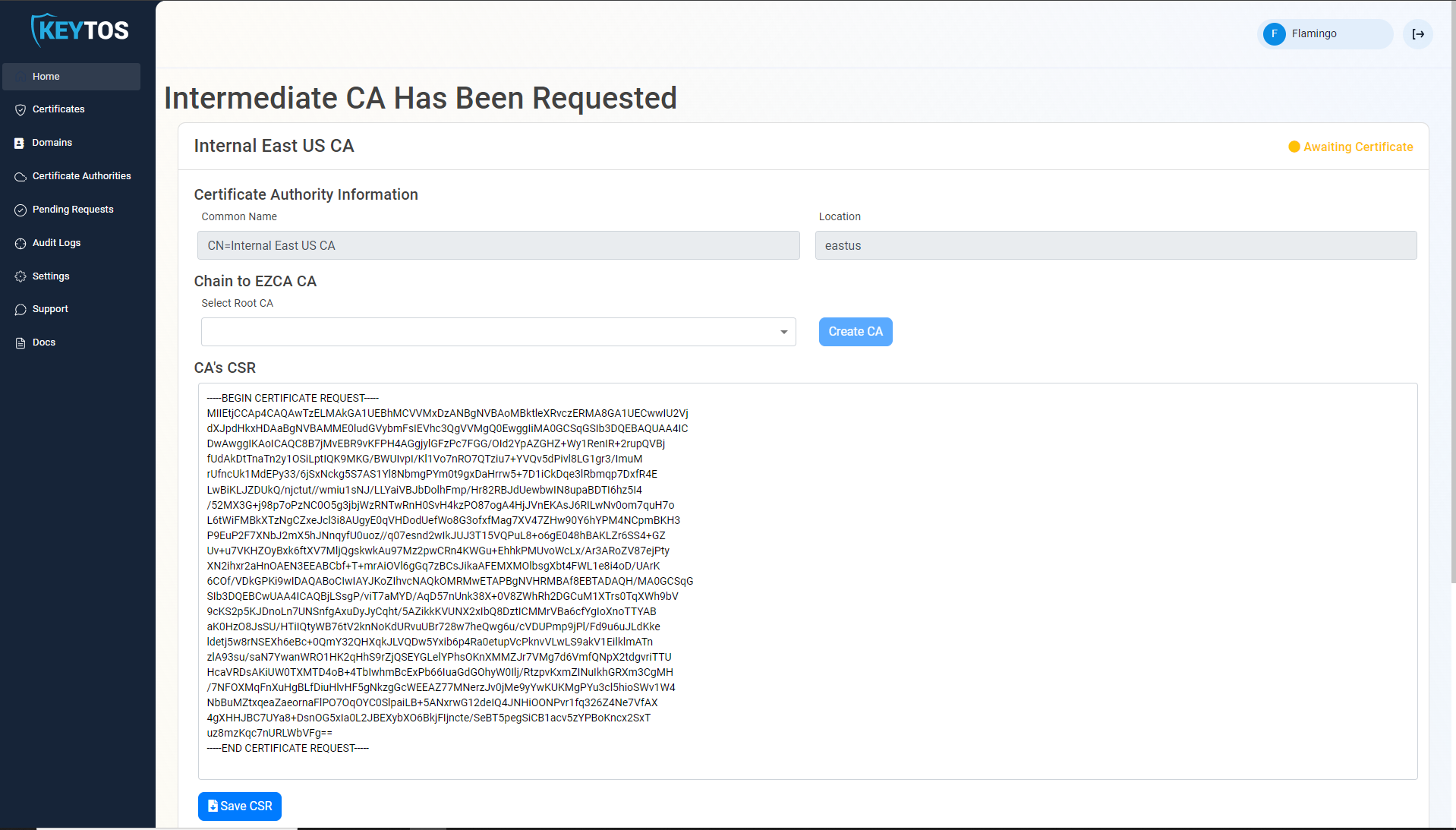
- If your desired Root CA is an EZCA CA, Select it from the dropdown and click create CA. If you do not have a Root CA, you can create one by following the EZCA Root CA Creation Guide
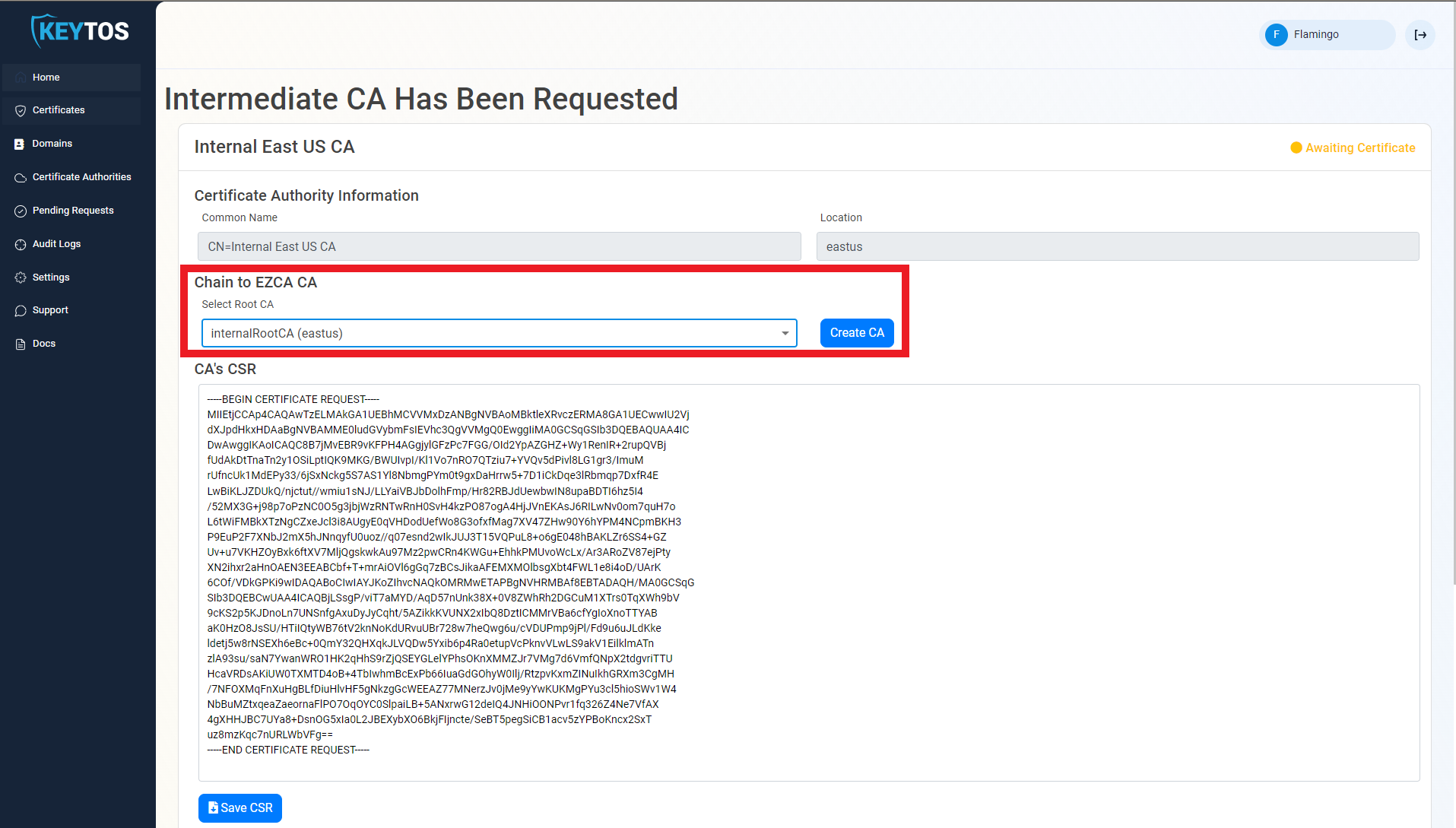
- Repeat these steps for each location.
- Your CA is ready to be used!
Chaining to Offline Root CA
- Once the CA is requested, a Certificate Signing Request (CSR) will be created for each location.
- Click the “Save CSR” Button.
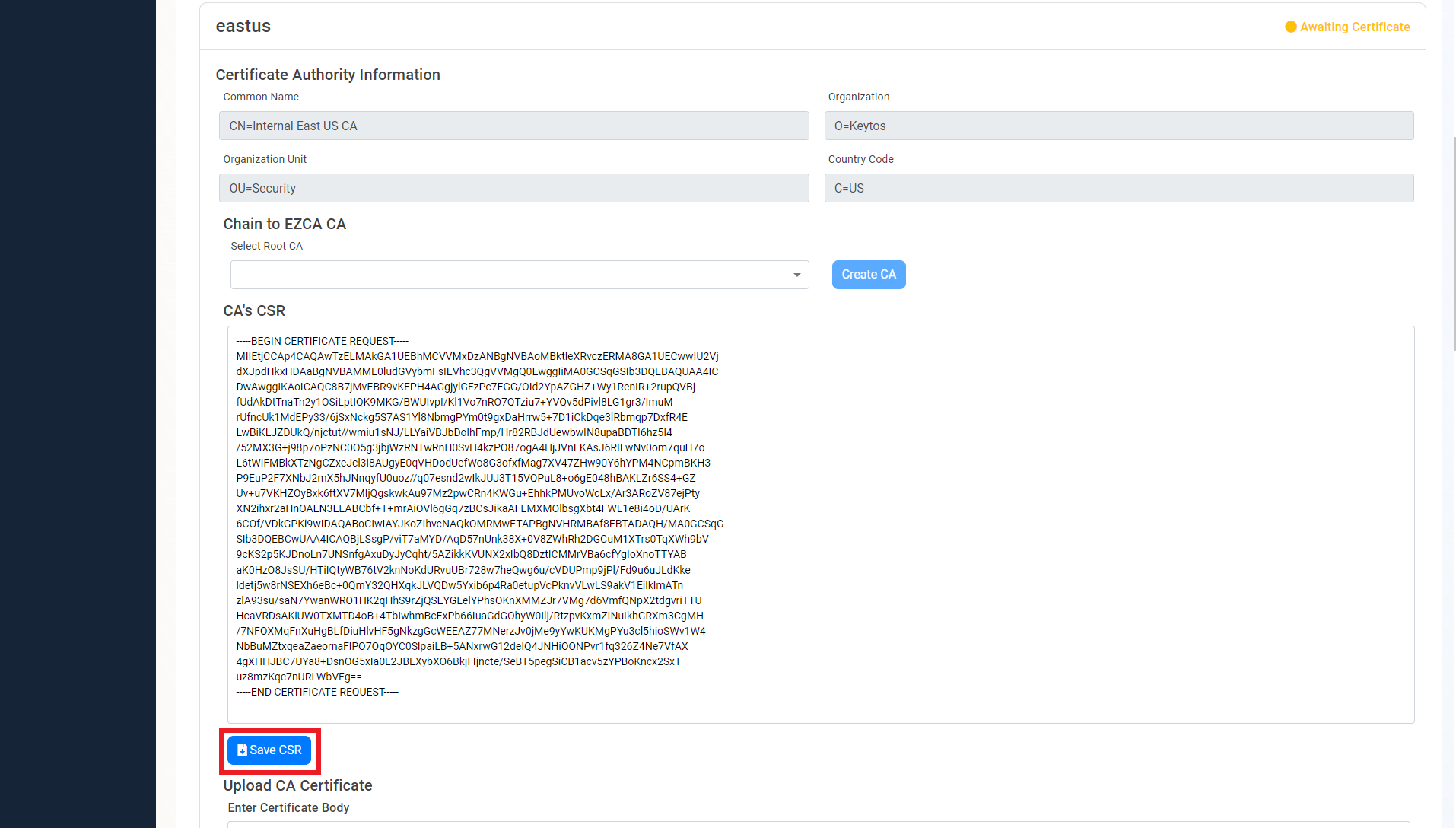
- Once the CSR is download, follow your internal guidance to transfer that CSR to your offline Root CA.
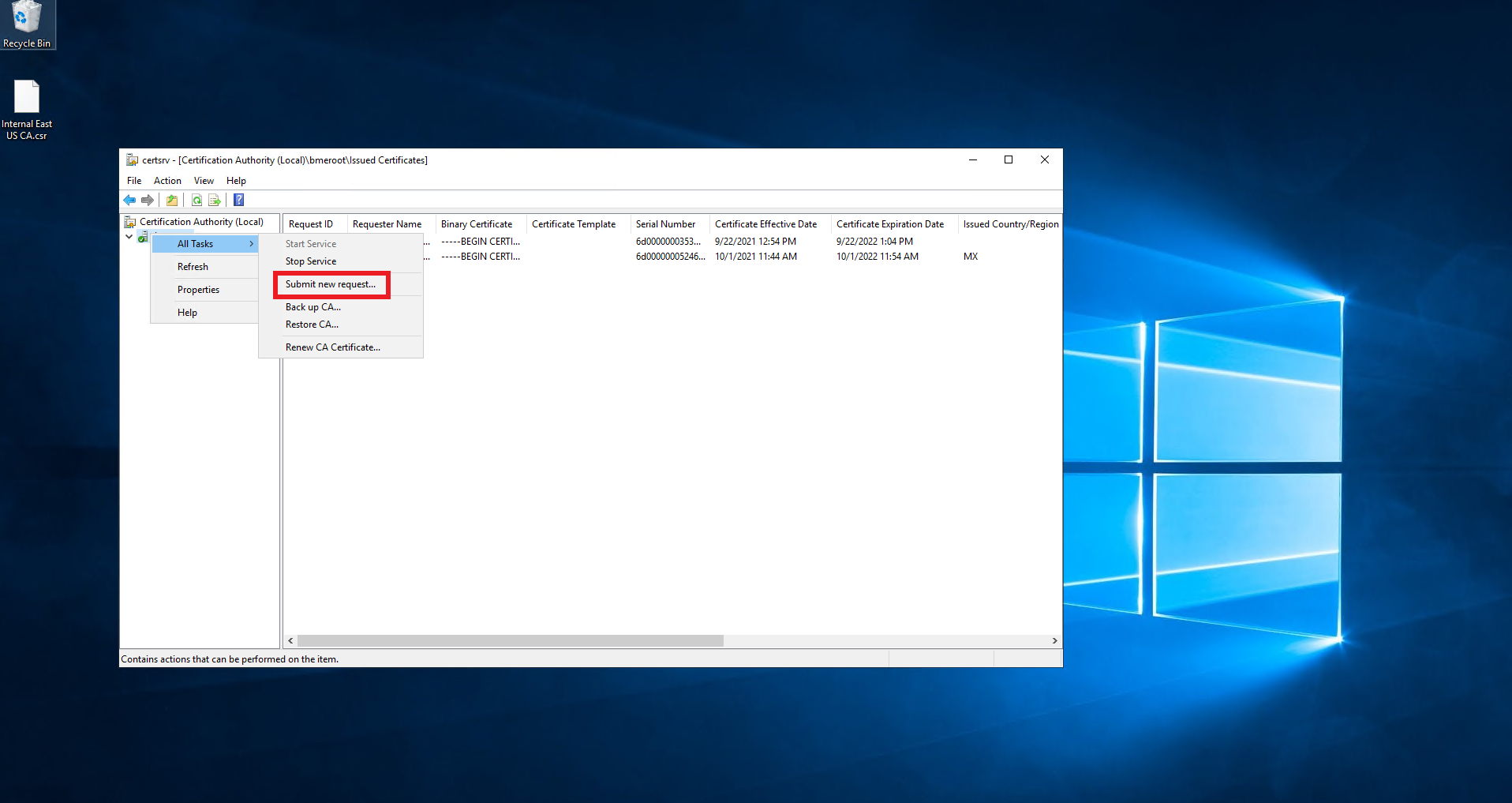
- Open “Certificate Authority”.

- Right click the CA.
- Select All Tasks -> Submit new Request.
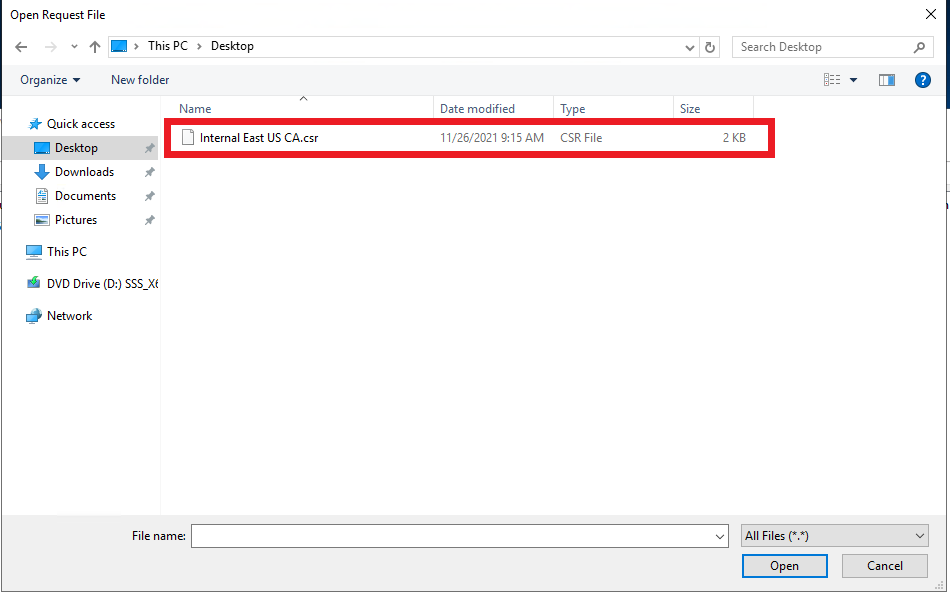
- Select the downloaded CSR.
- Click on pending requests.
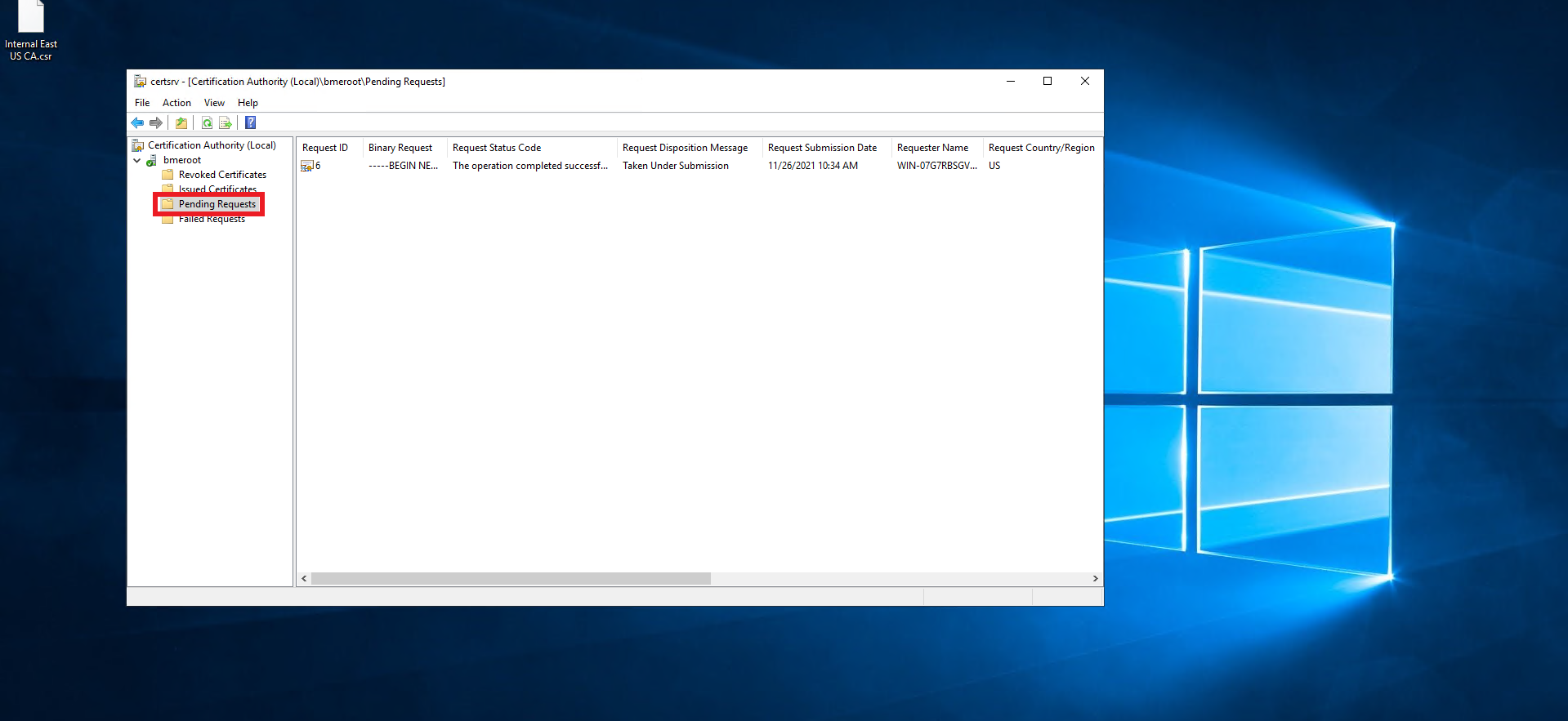
- Right click on the newly created request.
- Select All Tasks -> Issue.
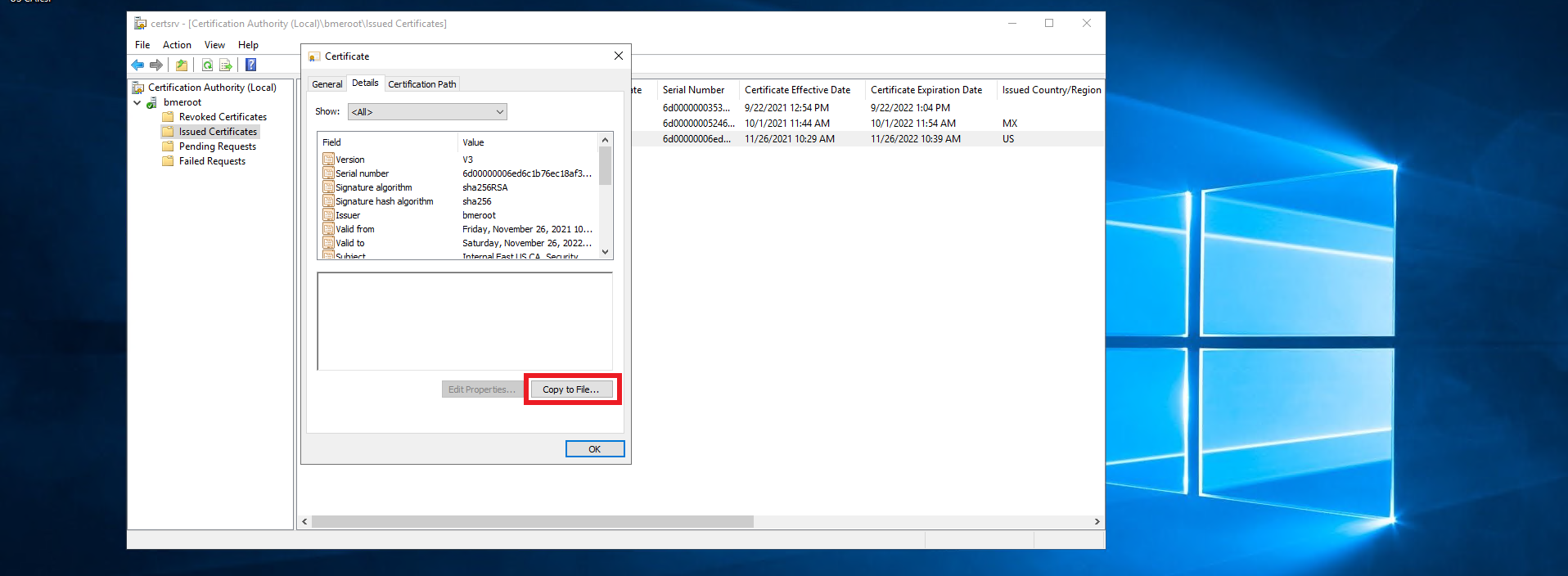
- Click on Issued Certificates.
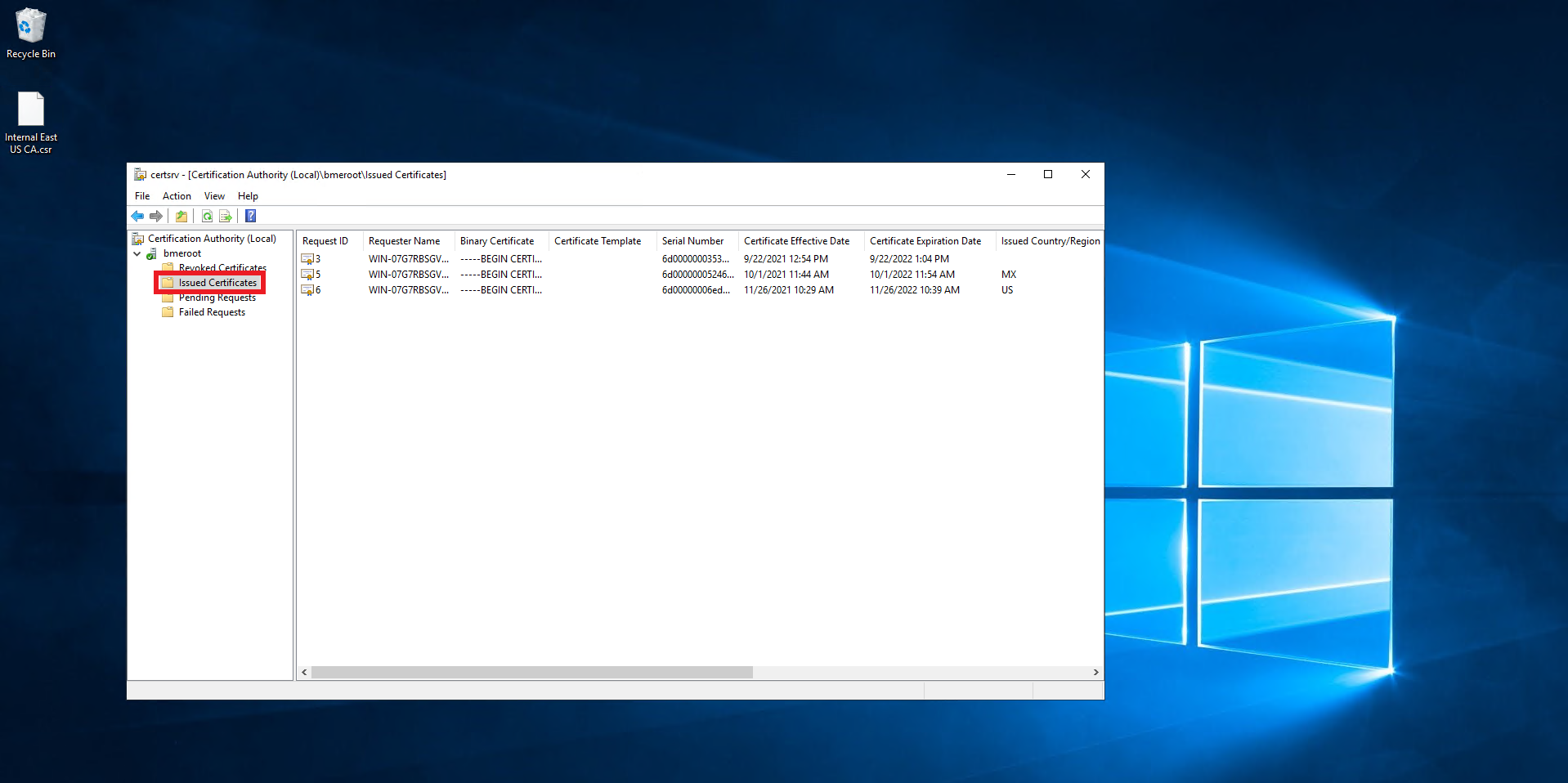
- Double click on the newly created certificate.
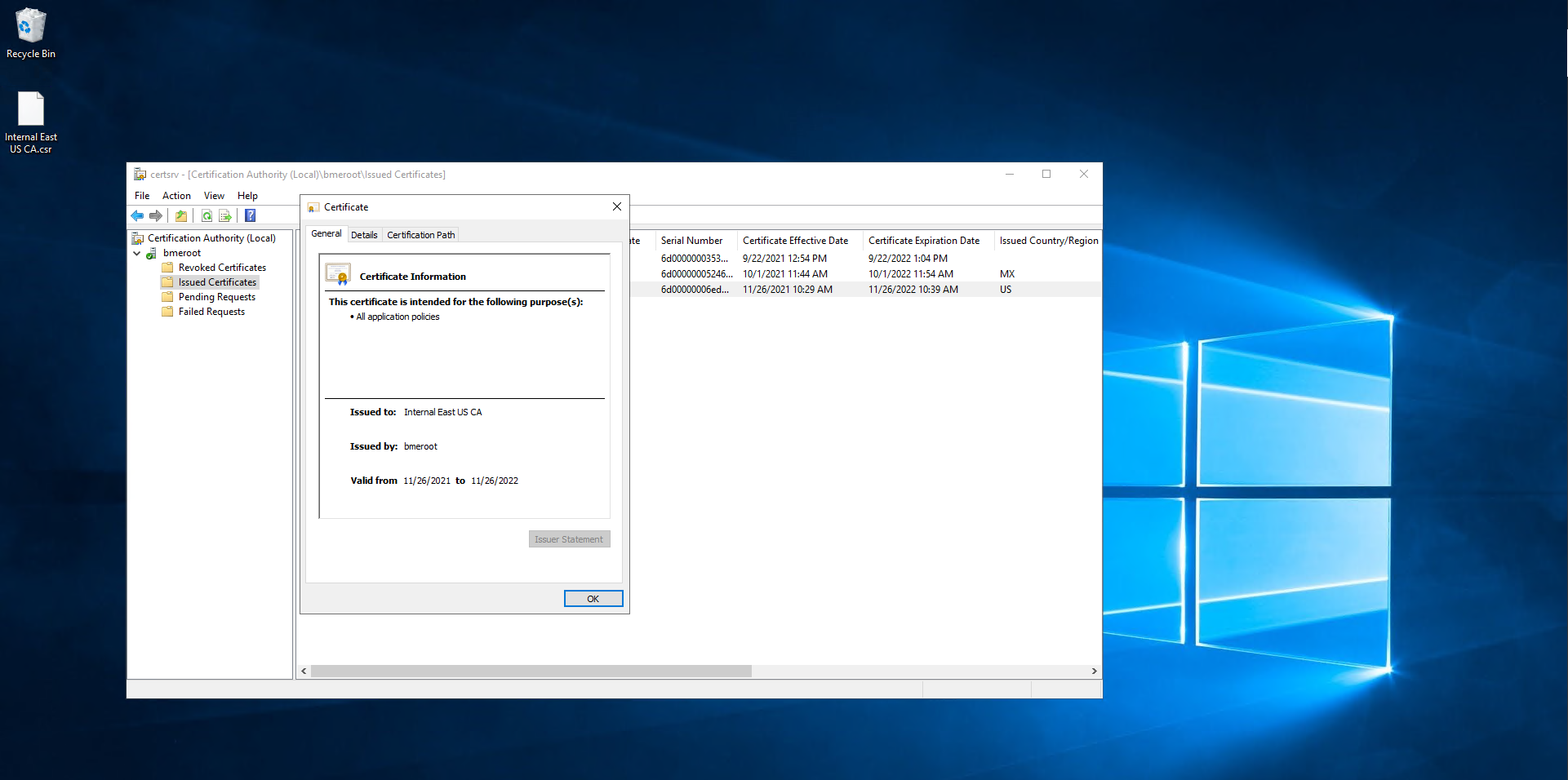
- Click on Details.
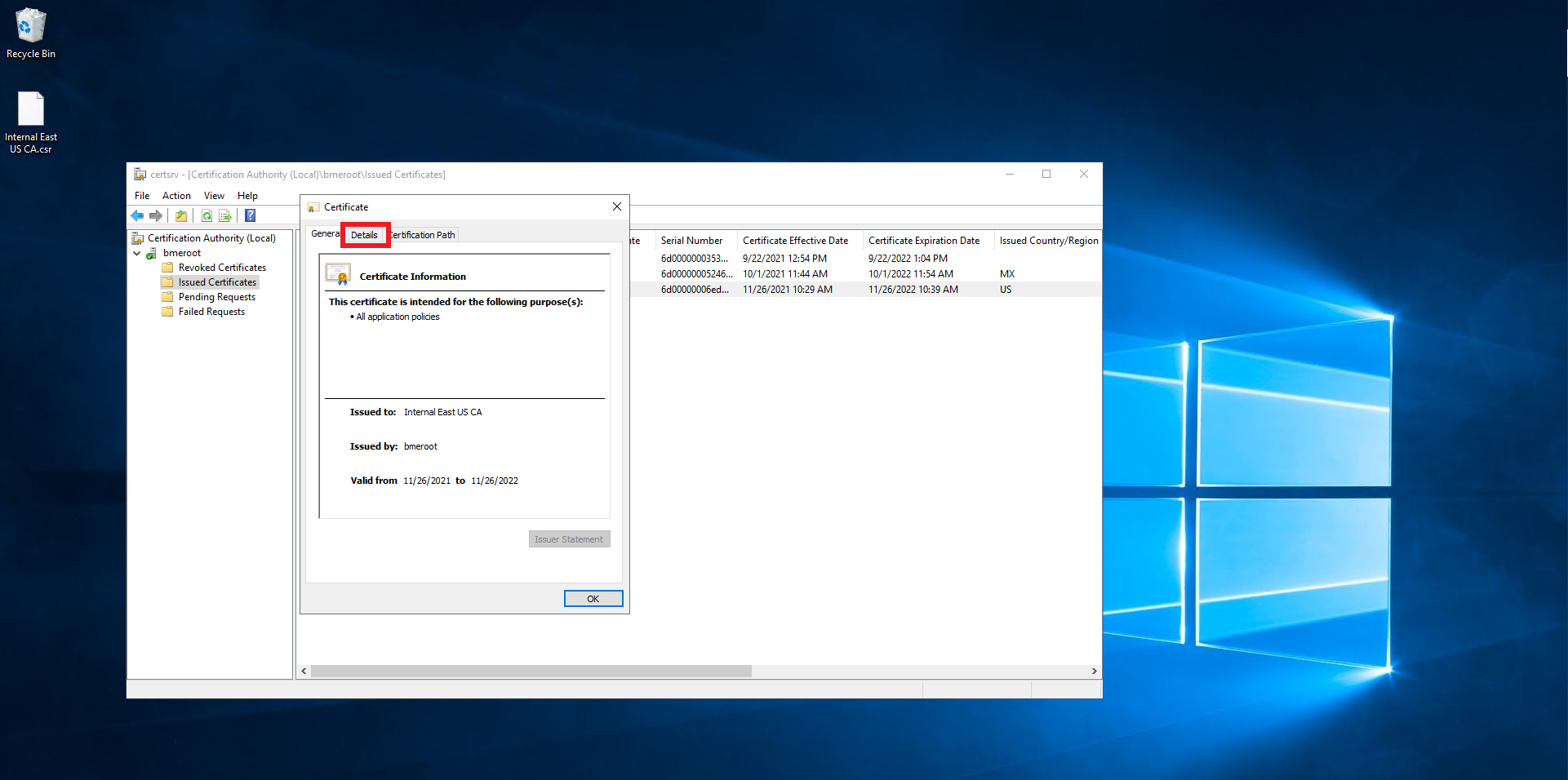
- Click on the “Copy ti File…” Button.
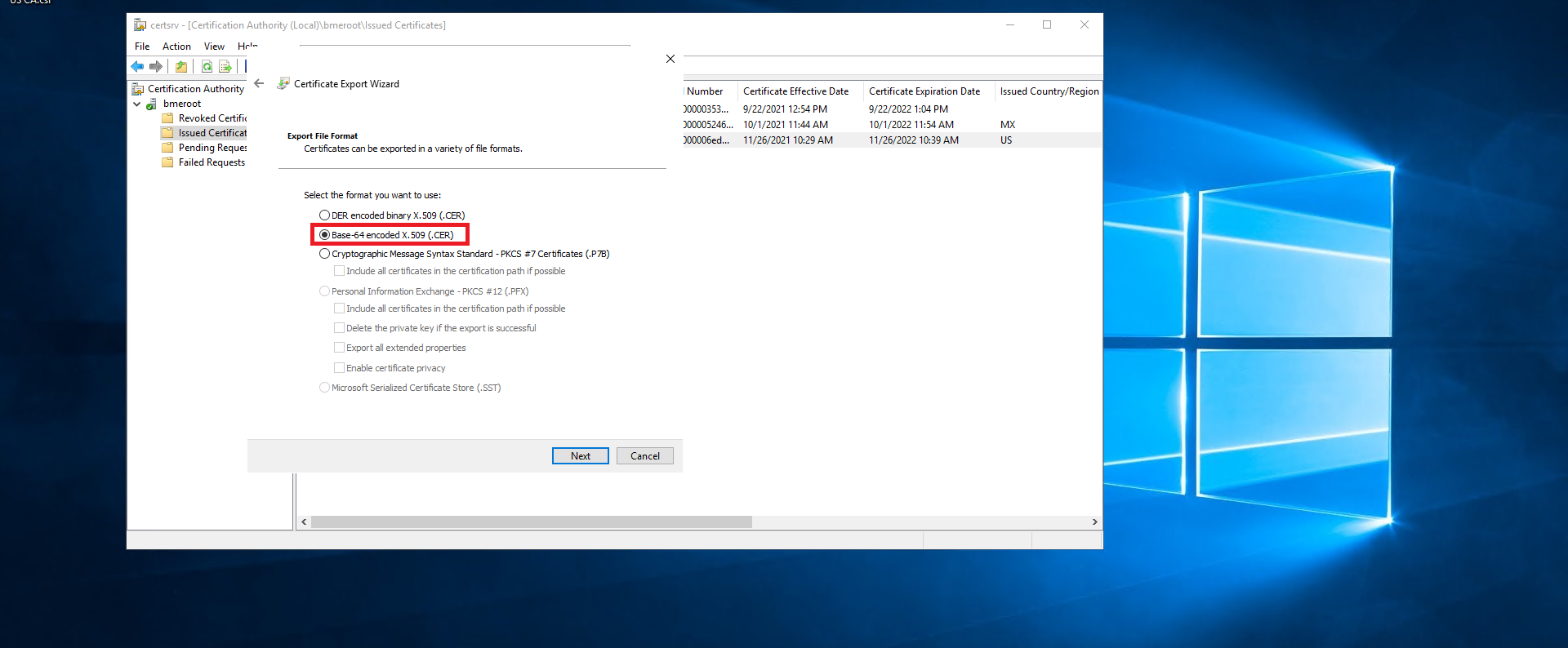
- Click next
- Select the “Base-64 encoded X.509 (.CER) option.
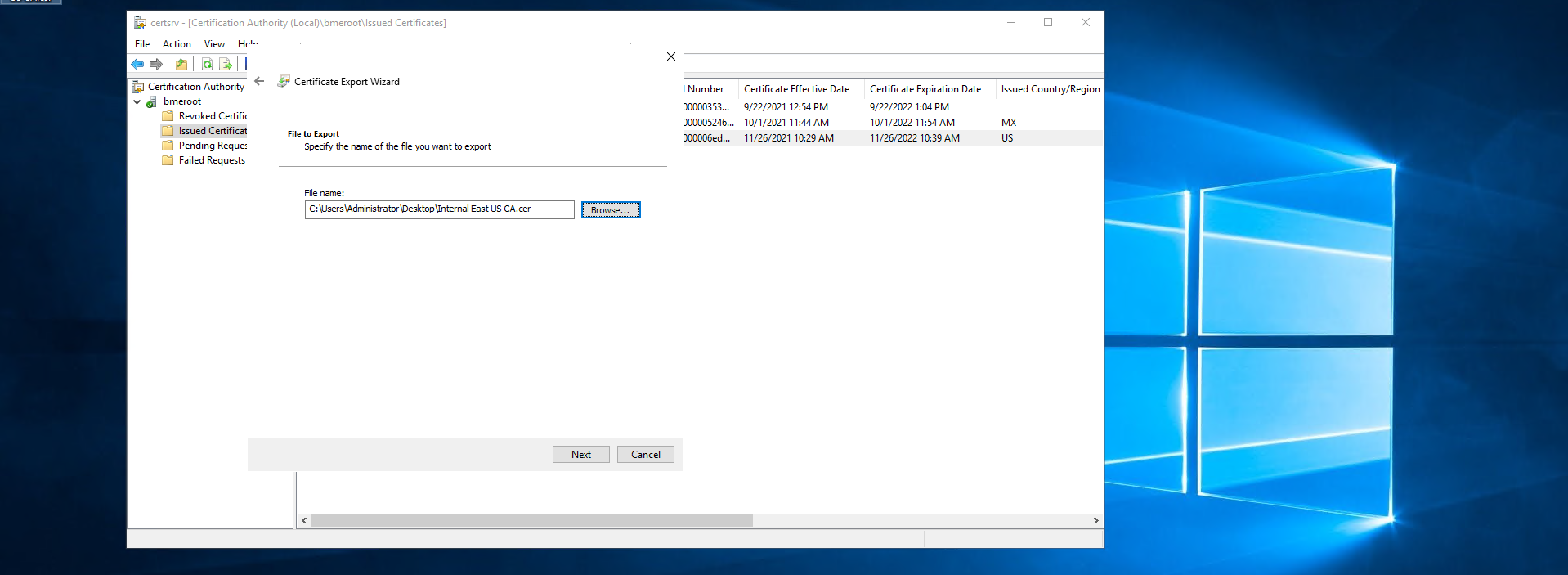
- Click next.
- Select where you want to save the newly created certificate.
- Click next.
- Click Finish.
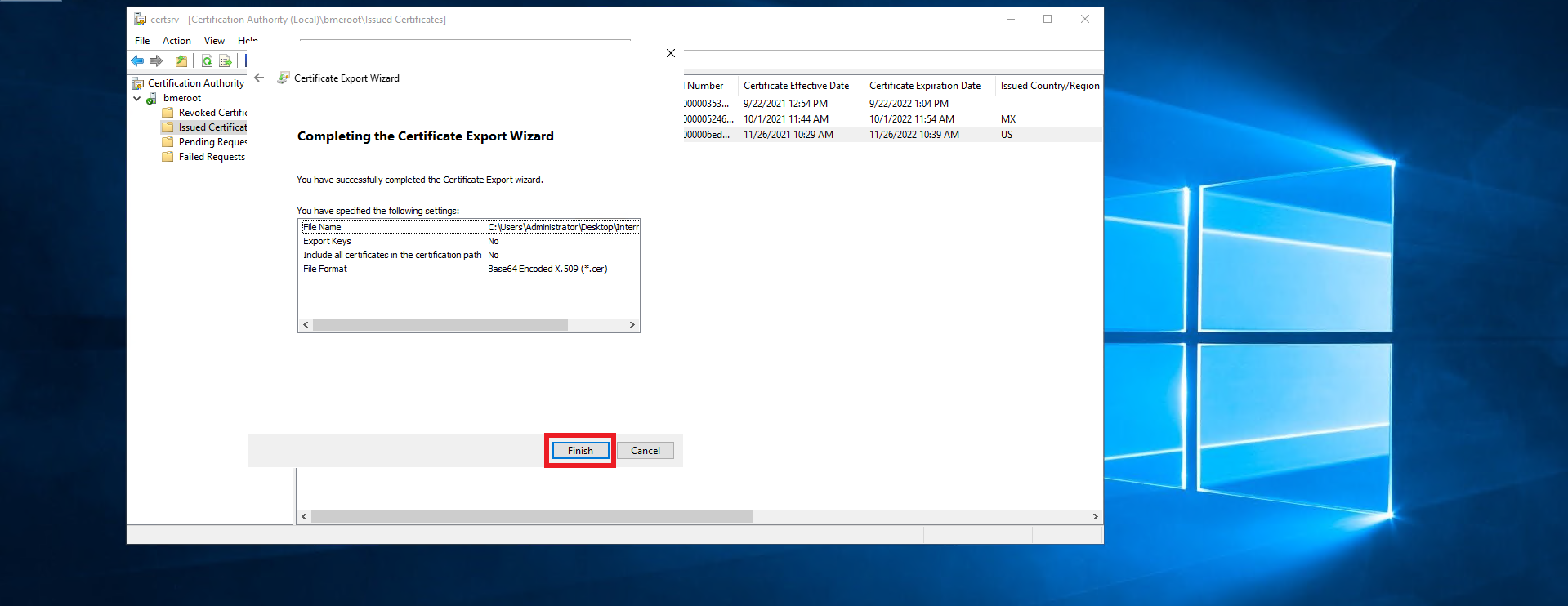
- This should create a .cer file in the location you selected.
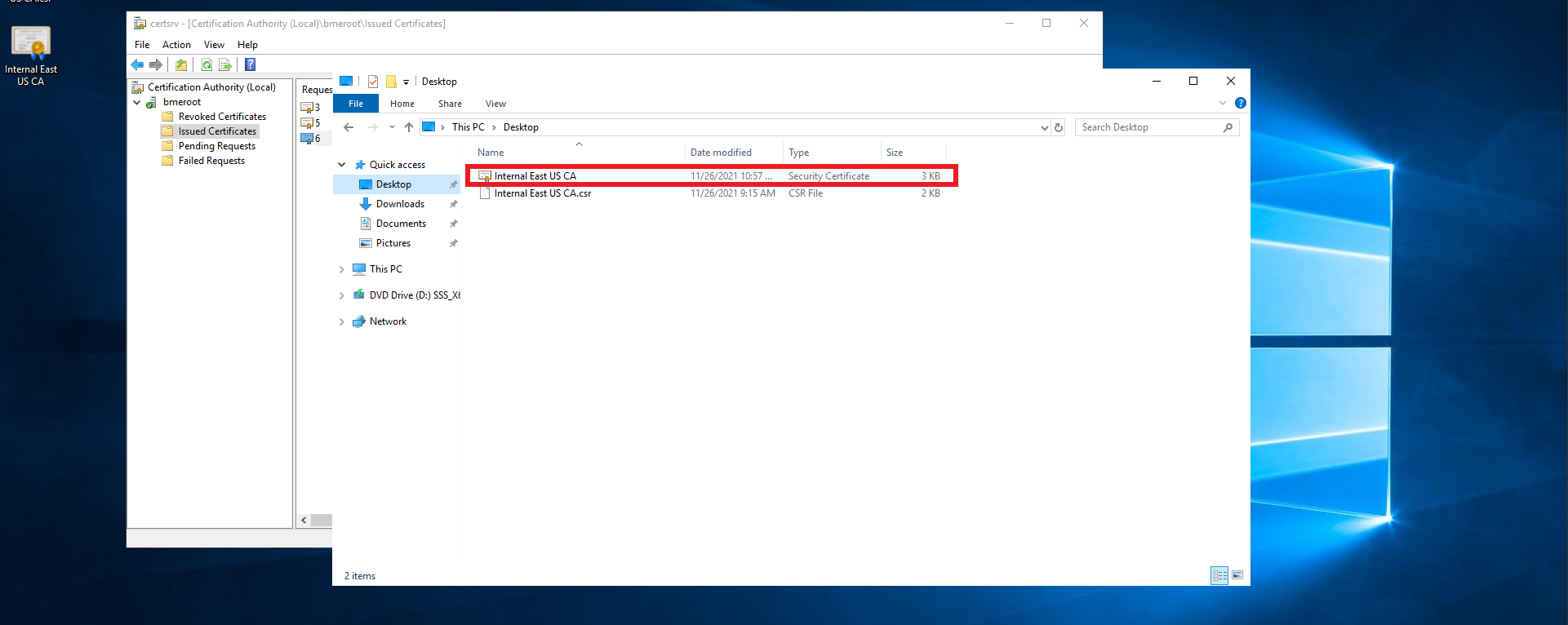
- Follow you PKI team’s guidance on transferring the certificate file out of the offline CA into an internet connected computer.
- Once you have the certificate in an internet connected computer, go to https://portal.ezca.io/
- Login with an account that is registered as a PKI Admin in EZCA.
- Navigate to Certificate Authorities.
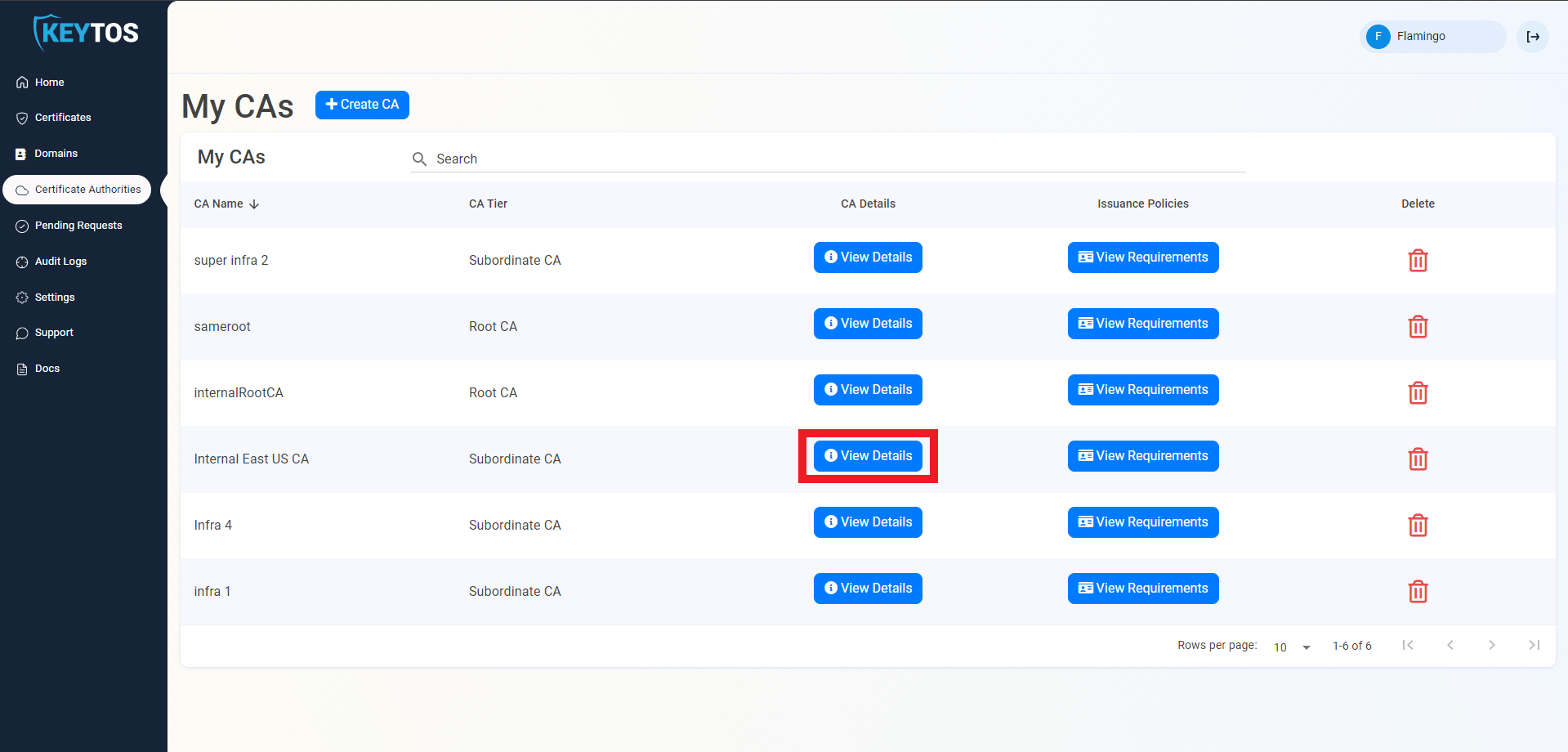
- Click View details of the CA you want to import the certificate for.
- Scroll down to the location you want to import, and click the “Upload CA Certificate” button.
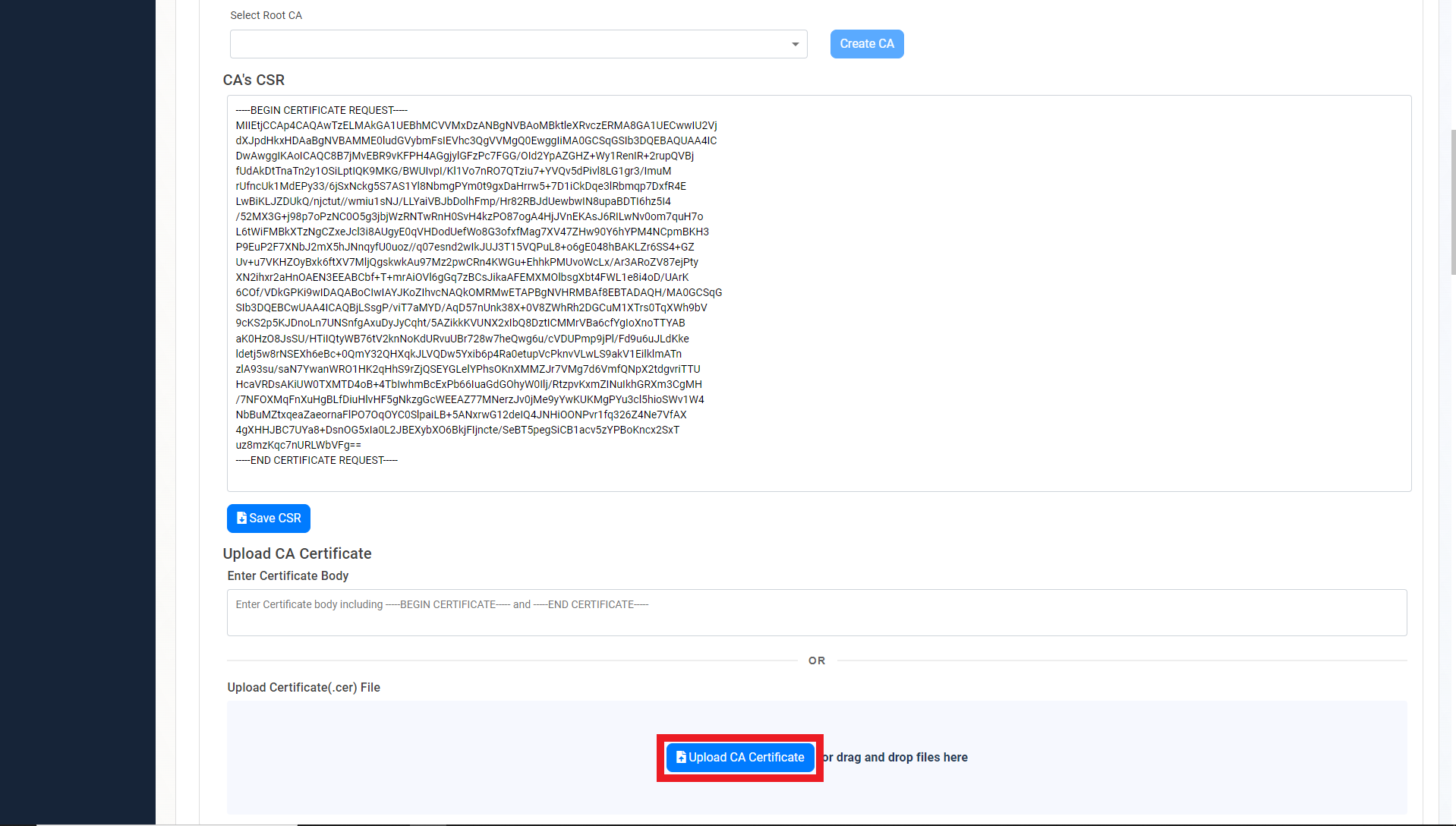
- Select the newly created certificate file.

- Click on the “Save Certificate” button
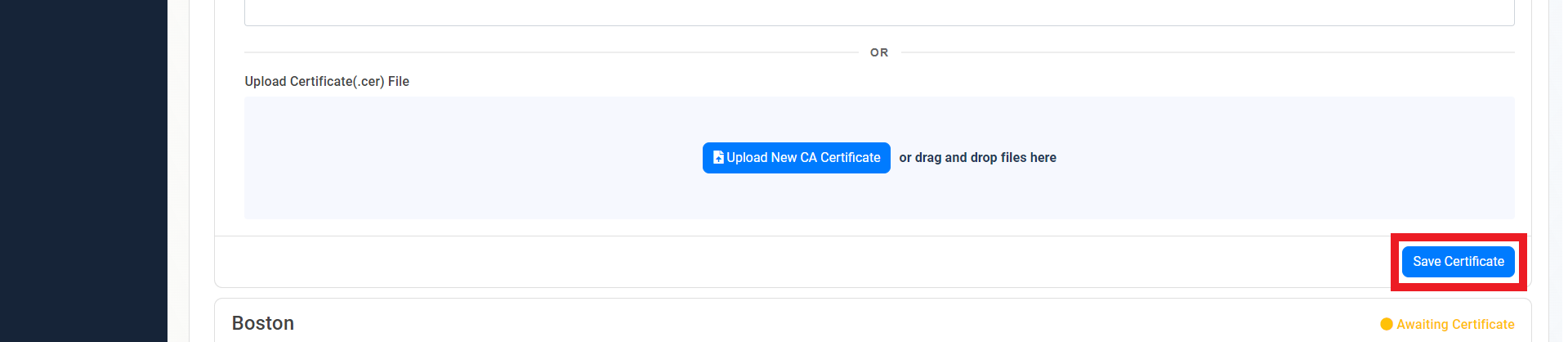
- Repeat these steps for each location.
- Your CA is ready to be used!
Registering 3rd Certificate Authority with Active Directory
If you are going to use these certificates with Active Directory, you will need to register the CA with Active Directory. the certificates will have all the information required for Smartcard Certificate Authentication in AD, but you will need to register the CA with AD, and ensure that your Domain Controllers have the CA certificate in their Trusted Root Certification Authorities store.
Registering the Root CA with Active Directory
First we are going to going to add the Root CA to the Trusted Root Certification Authorities store on the Domain Controllers. Run the following command an elevated powershell prompt.
certutil.exe -dspublish -f <path to Cloud PKI root CA certificate> RootCA
Registering the Subordinate CA with Active Directory
Next we are going to add the Subordinate CA to the Intermediate Certification Authorities store on the Domain Controllers. Run the following command an elevated powershell prompt.
certutil.exe -dspublish -f <path to Cloud PKI Subordinate CA certificate> SubCA
How to add the Smart Card to the NTAuth Store
Finally, we are going to add the Smart Card template to the NTAuth store. Run the following command an elevated powershell prompt.
certutil.exe -dspublish -f <path to Cloud PKI issuing CA certificate> NtAuthCa