

















How-To: Enable Self Service User Certificates
Introduction - What are Self Service User Certificates?
If you are using X509 Certificates for user authentication either for Wi-Fi or a VPN, you might have setup a SCEP CA that connects to your MDM and enables your to automatically create certificates for your users. However, some users that require certificates for your organization might not have a device managed by your MDM. In this case you can enable self service user certificates for your users. This will enable your users to create their own certificates for authentication and encryption with a single in our portal; removing the need of an MDM.
Prerequisites for Enabling Self Service User Certificates
Before enabling self service user certificates, make sure that:
- You have created a SCEP Certificate Authority (CA).
- You are a PKI Admin that can manage your CAs in the EZCA portal.
How to Enable Self Service User Certificates in Your SCEP CA - Video Tutorial
Want to follow along as we enable self service user certificates? Check out our video tutorial below where we walk you through how to enable self service user certificates in your SCEP CA:
How to Enable Self Service User Certificates in Your SCEP CA - Step by Step Guide
The following steps will show you how to enable self service user certificates in your SCEP CA.
How to Enable Self Service User Certificates in Your SCEP CA
The first step of steps is to enable self service user certificate issuance in your SCEP CA. To do this you can:
-
Go to the EZCA portal (If you have your private instance go to that specific portal) and login with your credentials.
-
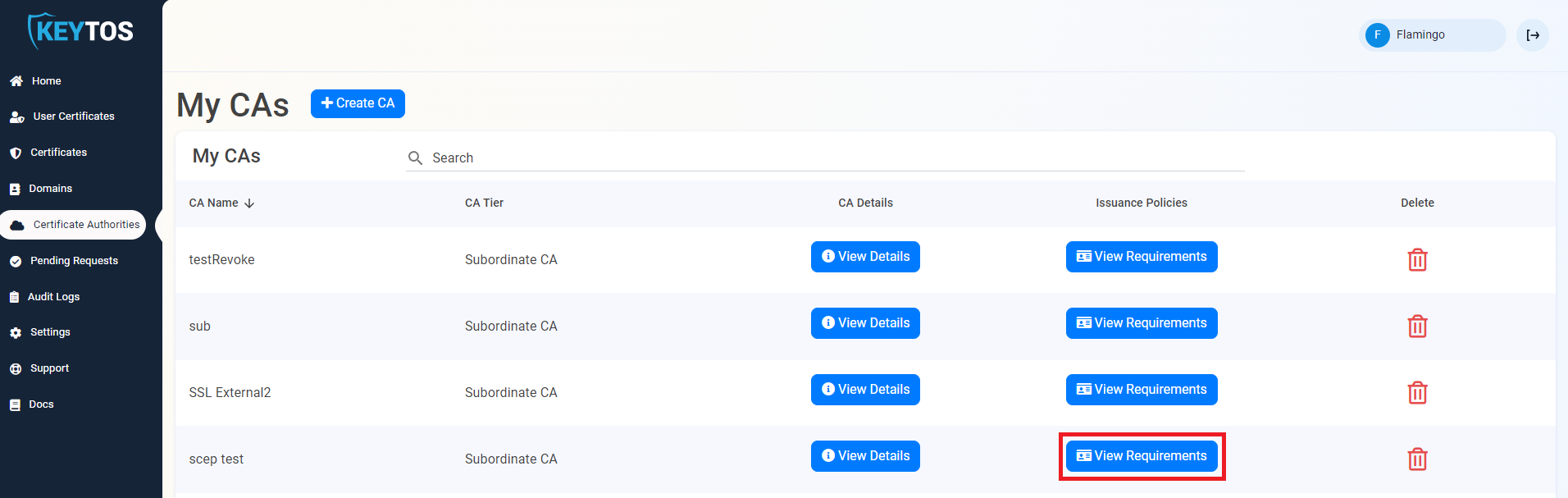
Click on the Certificate Authorities button.

-
Next to your SCEP CA, click on the View Requirements button to view the CA details.
-
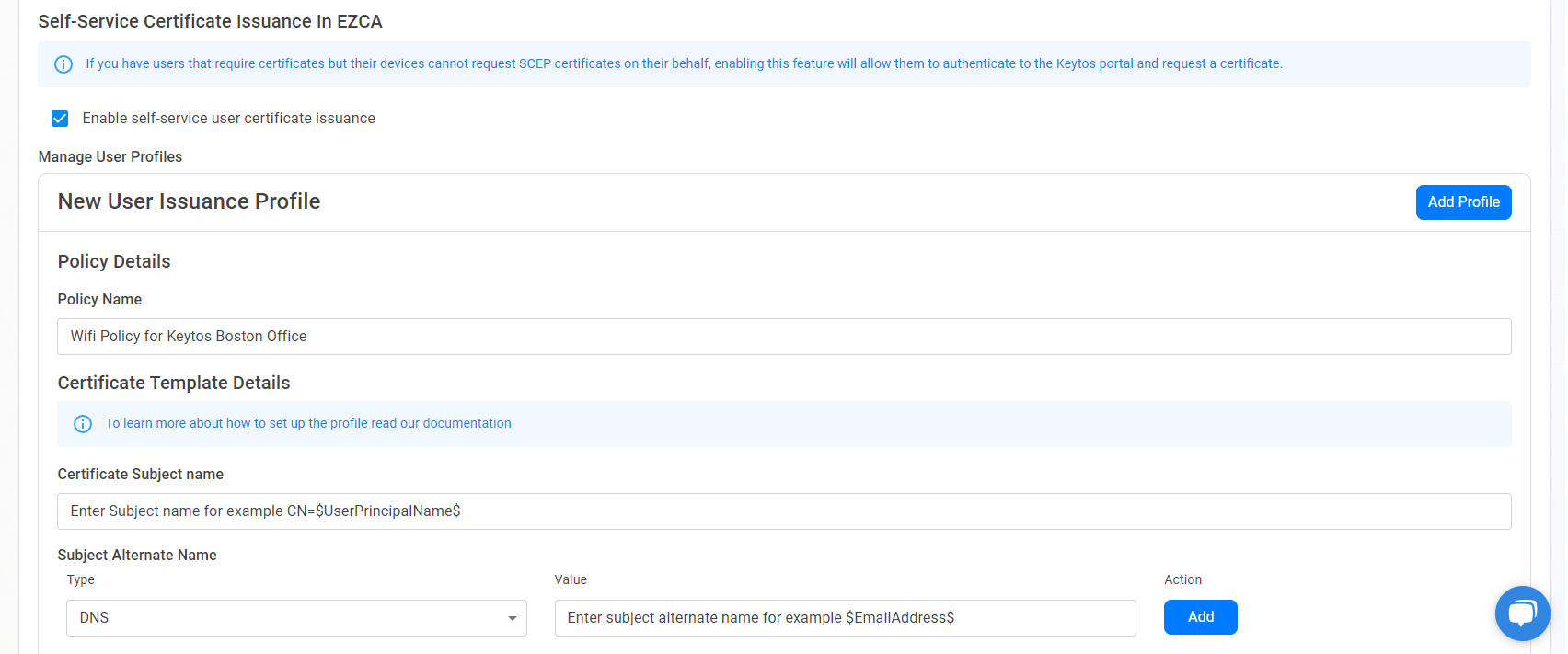
Scroll down to the Self-Service Certificate Issuance In EZCA section and click on the Enable self-service user certificate issuance checkbox.
-
The New User Issuance Profile section will appear. First, enter the Policy Name. This is just for your reference, and if you offer multiple policies to your users, this will be the name the users see when creating their certificate.
-
Next, we will enter the Certificate Template Details. This is the information that will be used to create the certificate. You can use the following variables to create your certificate which will be dynamically replaced by the user’s information when they create the certificate:
$UserName$: The full name of the user, such asJared Dunn.$UserPrincipalName$: The user principal name (UPN) of the user, such asjared@pidepiper.com$Alias$: The alias of the user, which is the part of the UPN before the @ symbol, such asjared.$EmailAddress$: The email address of the user, from the mail attribute in Entra ID. If this is empty, the UPN will be used instead.$OnPremisesSamAccountName$: The on-premises SAM account name of the user. If this is empty, the UPN will be used instead.$OnPremisesDistinguishedName$: The on-premises distinguished name of the user. If this is empty, the UPN will be used instead.$OnPremisesUPN$: The on-premises user principal name (UPN) of the user. If this is empty, the UPN will be used instead.$OnPremisesSid$: The on-premises security identifier (SID) of the user. If this is empty, the UPN will be used instead.$OnPremisesDomainName$: The on-premises domain name of the user.$OnPremisesSamAndDomainName$: This field combines the on-premises SAM account name and domain name in the formatusername@DOMAIN. If this is empty, the UPN will be used instead.
-
Enter the Subject Name of the certificate, using the above variables as needed. This is the name that will appear in the certificate’s subject name. Consult with your identity provider to see if they have any requirements for the content and format of your certificate subject name. For example, if you want the subject name to be the user’s email address, you can enter
CN=$EmailAddress$.NoteThe Subject Name must start with
CN=. -
Enter the Subject Alternative Names of the certificate. This is the name that will appear in the certificate’s subject alternative names. Consult with your identity provider to see if they have any requirements for the content and format of your certificate subject alternative name.You can use the variables above to create the subject alternative name. For example, if you want the subject alternative name to be the user’s email address, you can enter a RFC822 Name record of
$EmailAddress$. If you plan to use these certificates for Wi-Fi authentication with EZRADIUS or Keytos Shield Entra ID user matching, also add a User Principal Name (UPN) record of$UserPrincipalName$, since those access policies read the user from the Subject Alternate Name (UPN) field by default.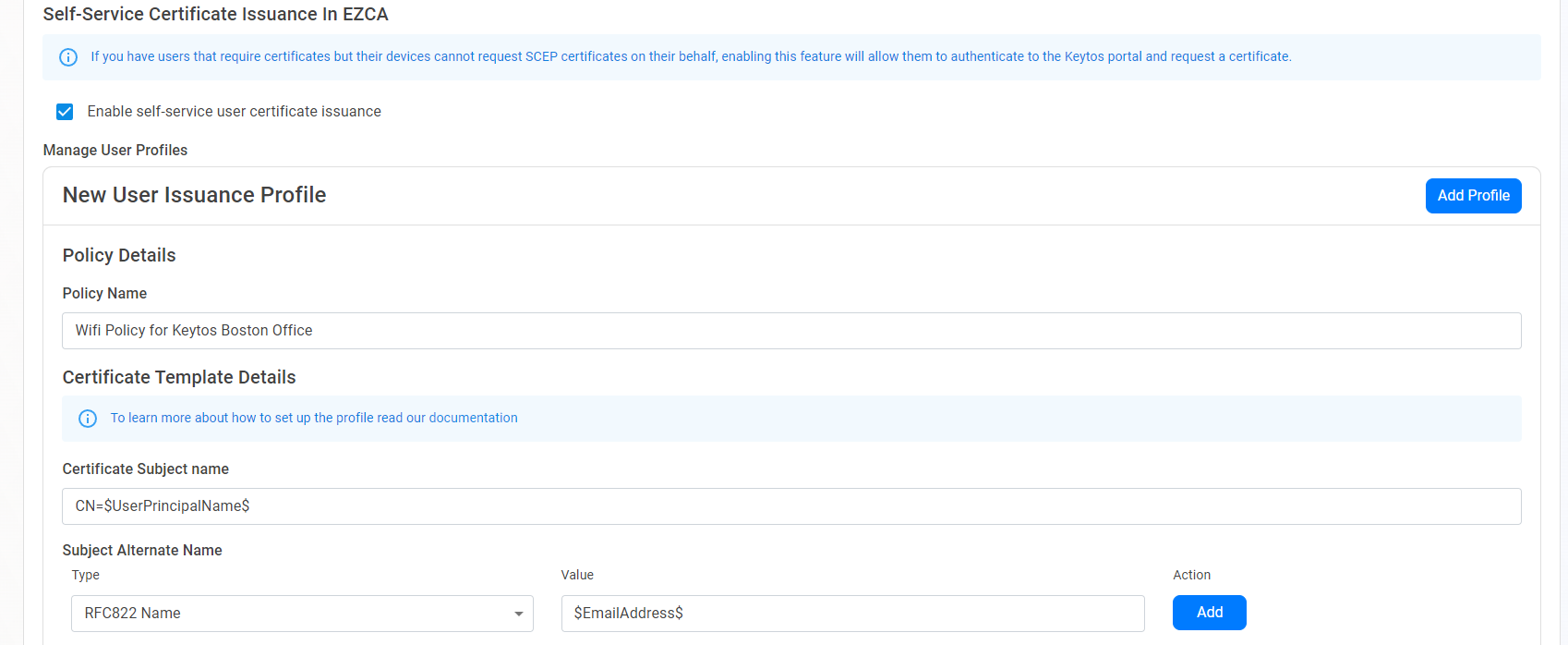
-
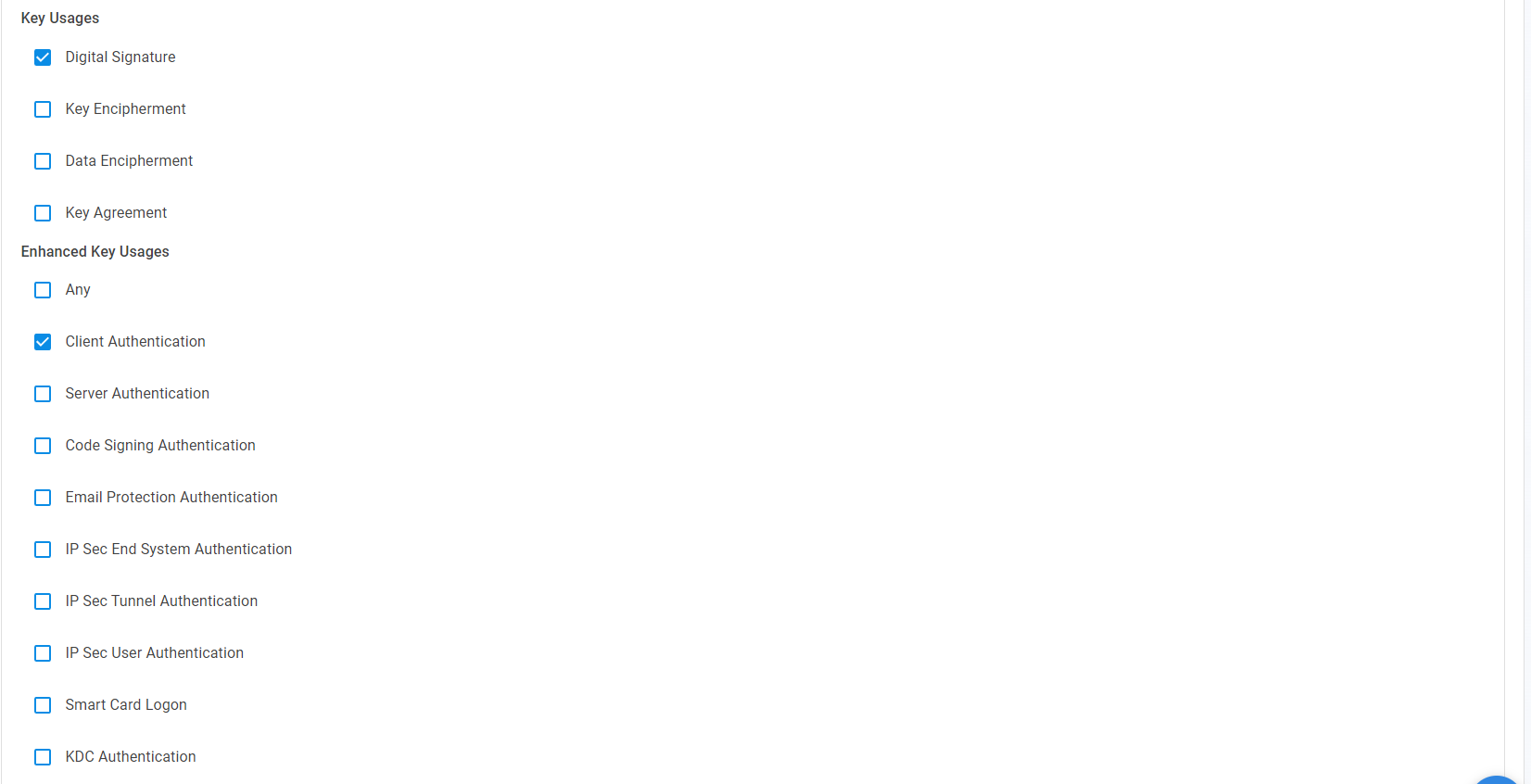
Enter the Key Usage of the certificate. This is the key usage that will appear in the certificate’s key usage. Consult with your identity provider to see if they have any requirements for the content and format of your certificate key usage. By default it will have digital signature enabled.
-
Enter the Extended Key Usage of the certificate. This is the extended key usage that will appear in the certificate’s extended key usage. Consult with your identity provider to see if they have any requirements for the content and format of your certificate extended key usage. By default it will have client authentication enabled.
How to Enable Key Management for Self Service User Certificates
Do to compliance or security requirements, you might want to enable key management for your self service user certificates. This enables a full backup of the certificate, including its private key, into EZCA. This is useful for S/MIME certificates where you want to have a backup of the private key in case the user loses access to their device and certificate.
Enabling this option will allow the user to use the same certificate and private key on multiple devices, which is required for S/MIME certificates. However, this also means that if a user requests a certificate on a new device, they will be able to access the certificate and private key from their previous device. Make sure to only enable this option if you understand the security implications of allowing users to share the same certificate and private key across multiple devices, and for use cases that require it such as S/MIME.
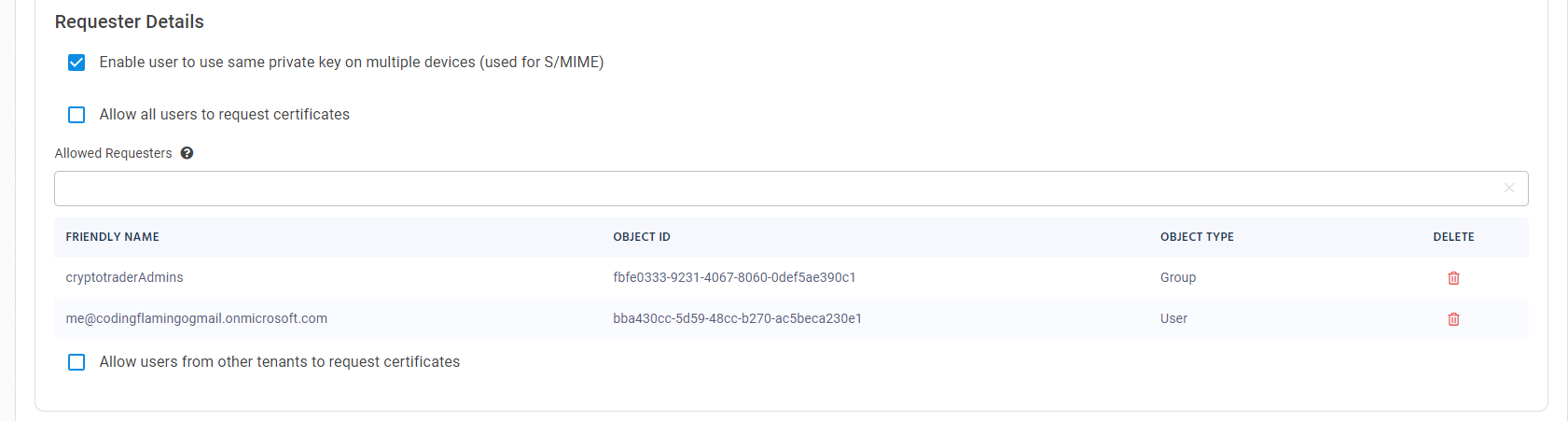
To enable key management for your self service user certificates, check the Enable user to use same private key on multiple devices (used for S/MIME) checkbox. This will enable you to have a copy of the private key of the certificate in EZCA (encrypted by your CA’s HSM).

How to Limit Who Can Create Certificates Using This Policy
By default, all users in your organization will be able to create certificates using this policy. If you want to limit who can create certificates using this policy, you can limit this functionality to only specific Entra ID users and/or groups.
-
Uncheck the Allow all users to request certificates checkbox
-
Enter the Entra ID groups and/or users that are allowed to issue certificates for this policy.
How to Enable Certificate Issuance for External Users
As your organization grows and you leverage user certificates for more scenarios, you might want to enable certificate issuance for Entra ID external users. To enable certificate issuance for external users follow the steps below.
The administrator of the guest tenant must register the EZCA application to allow EZCA to authenticate the users in their tenant.
-
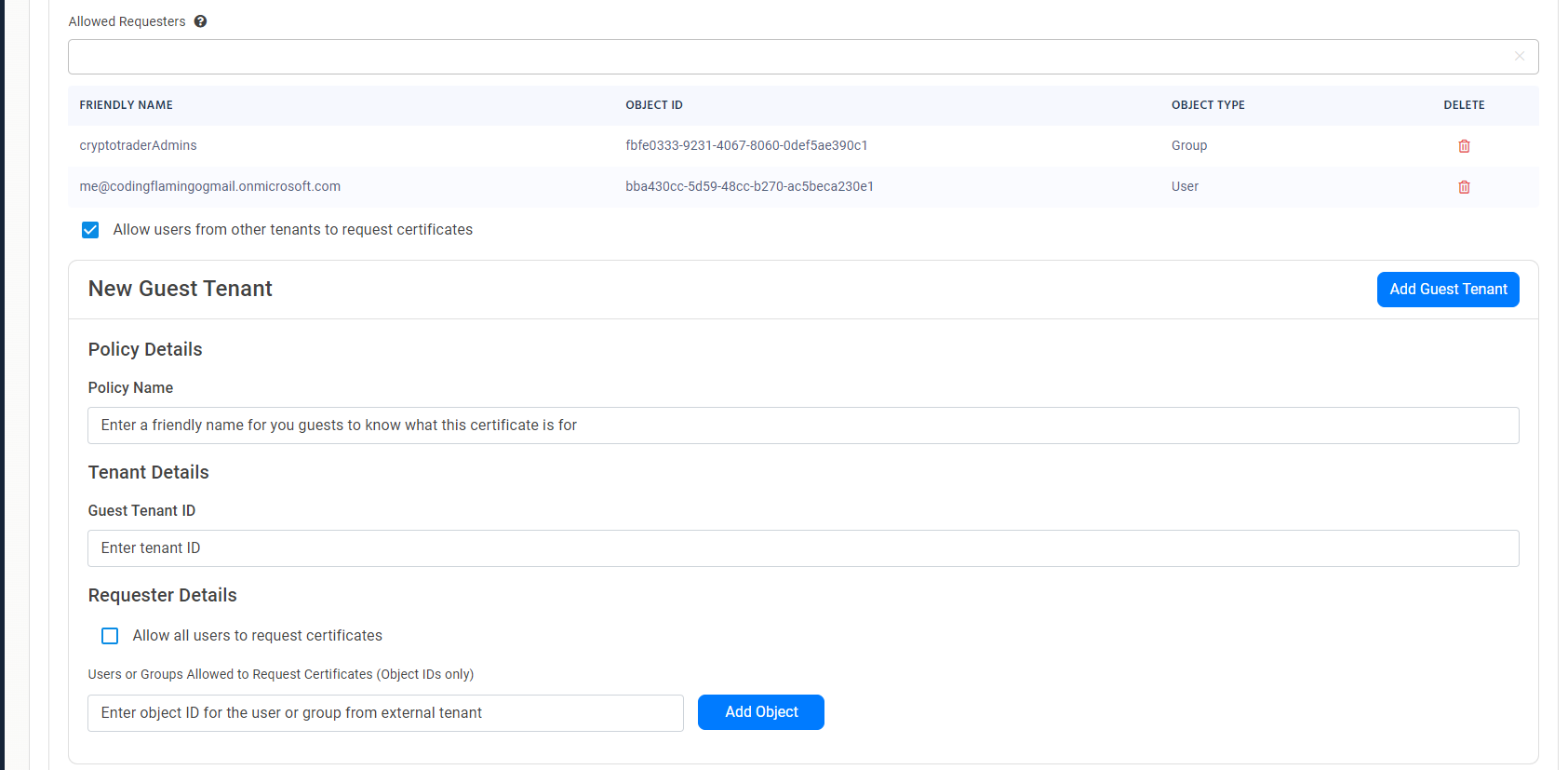
Check the Allow users from other tenants to request certificates checkbox. This will open a New Guest Tenant Card where you can enter the information of the tenant you want to allow users to request certificates from.
-
Enter the Policy Name. This is the name that your guests will see when they log in to the portal to create their certificate.
-
Then enter the Guest Tenant ID of the tenant you want to enable certificate issuance for.
-
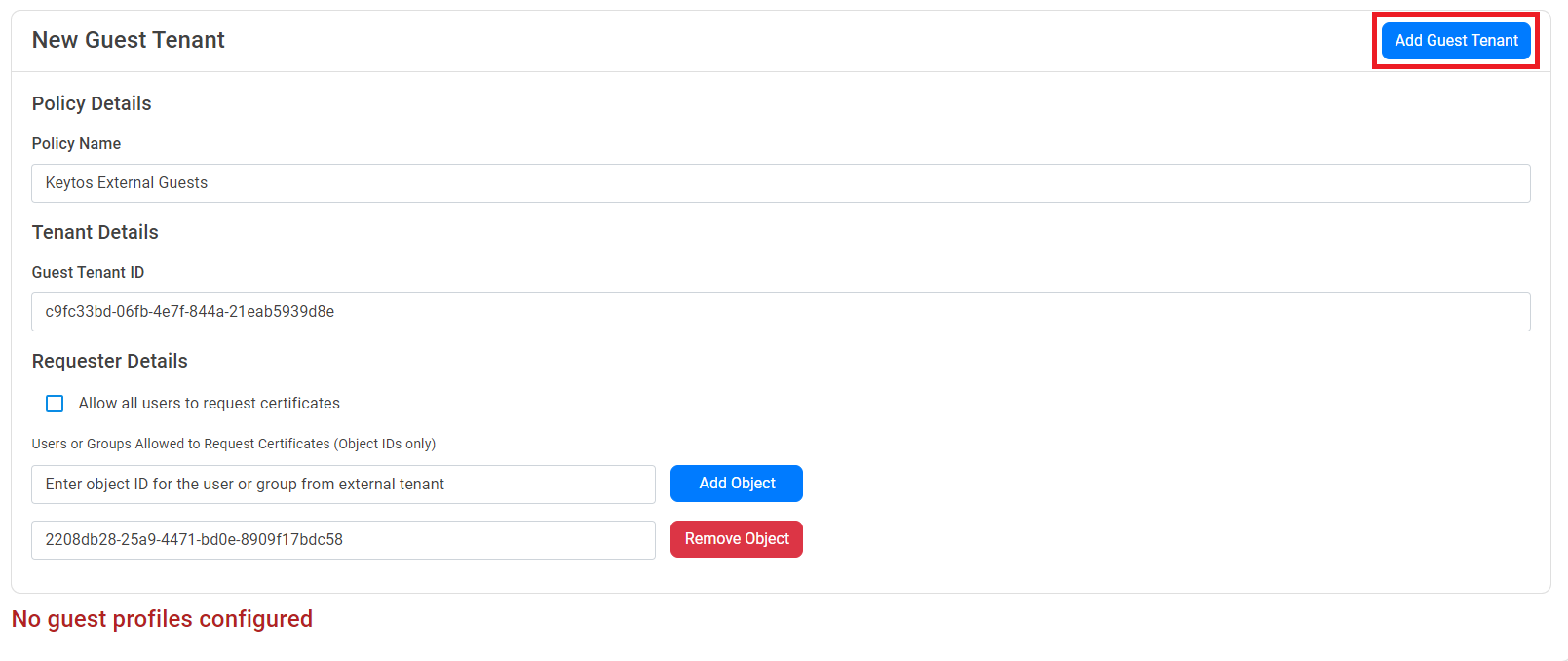
Next you can either check the Allow all users to request certificates to allow all guest users to create certificates, or you can add Users or Groups Allowed to Request Certificates to limit who can create certificates from that tenant. Note that you will need to add the Entra Object IDs of the users and/or groups from the guest tenant.
-
Once you have added all the groups and/or users you want to allow to issue certificates, click on the Add Guest Tenant button to add the tenant to the policy.
-
Repeat the steps above to add more tenants to the policy.
How to Save the Self Service User Certificate Policy
-
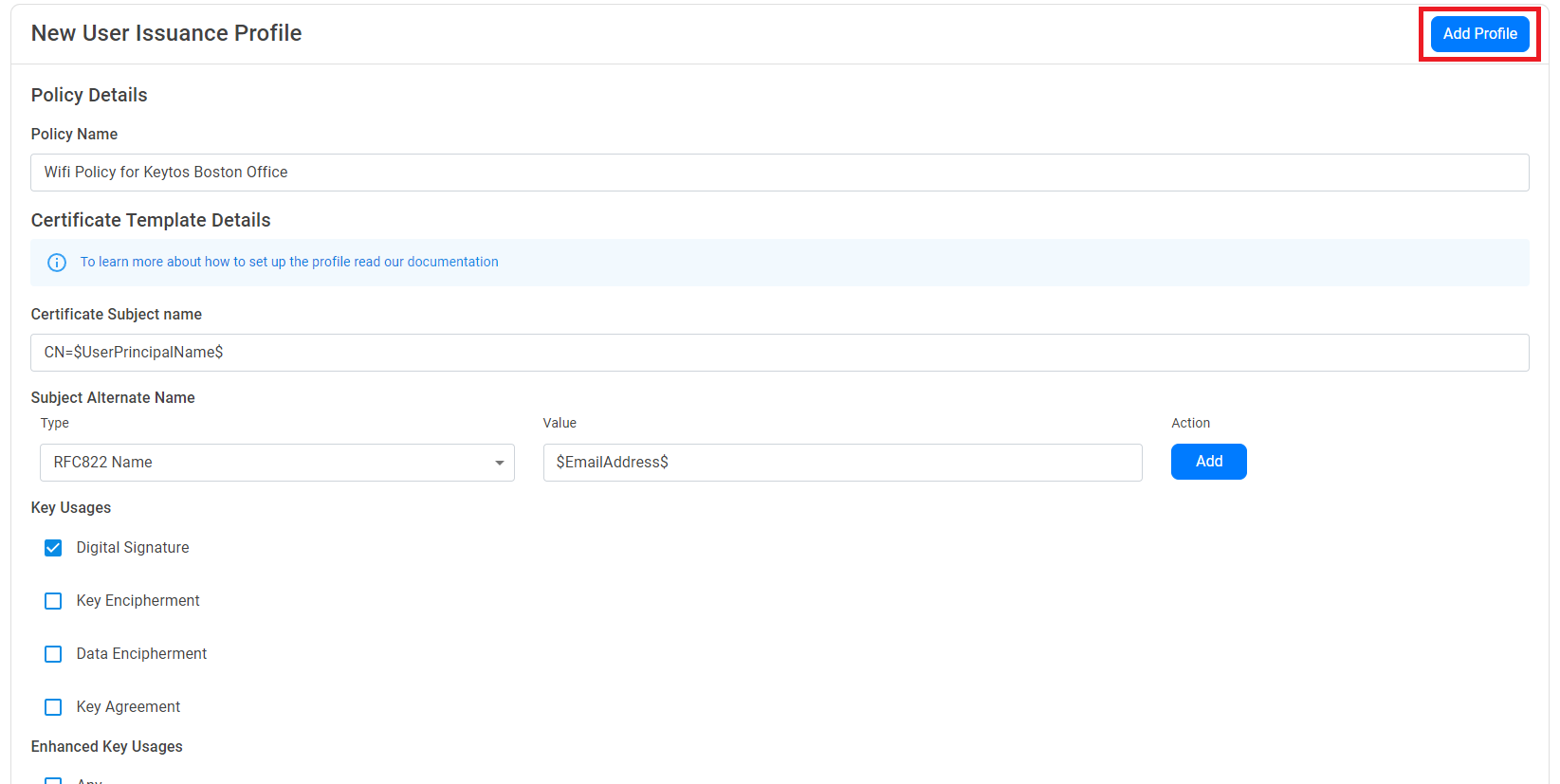
Once you have entered all the information for the policy, click the Add Profile button at the top of the policy.
-
Repeat the steps above to add more policies as needed.
-
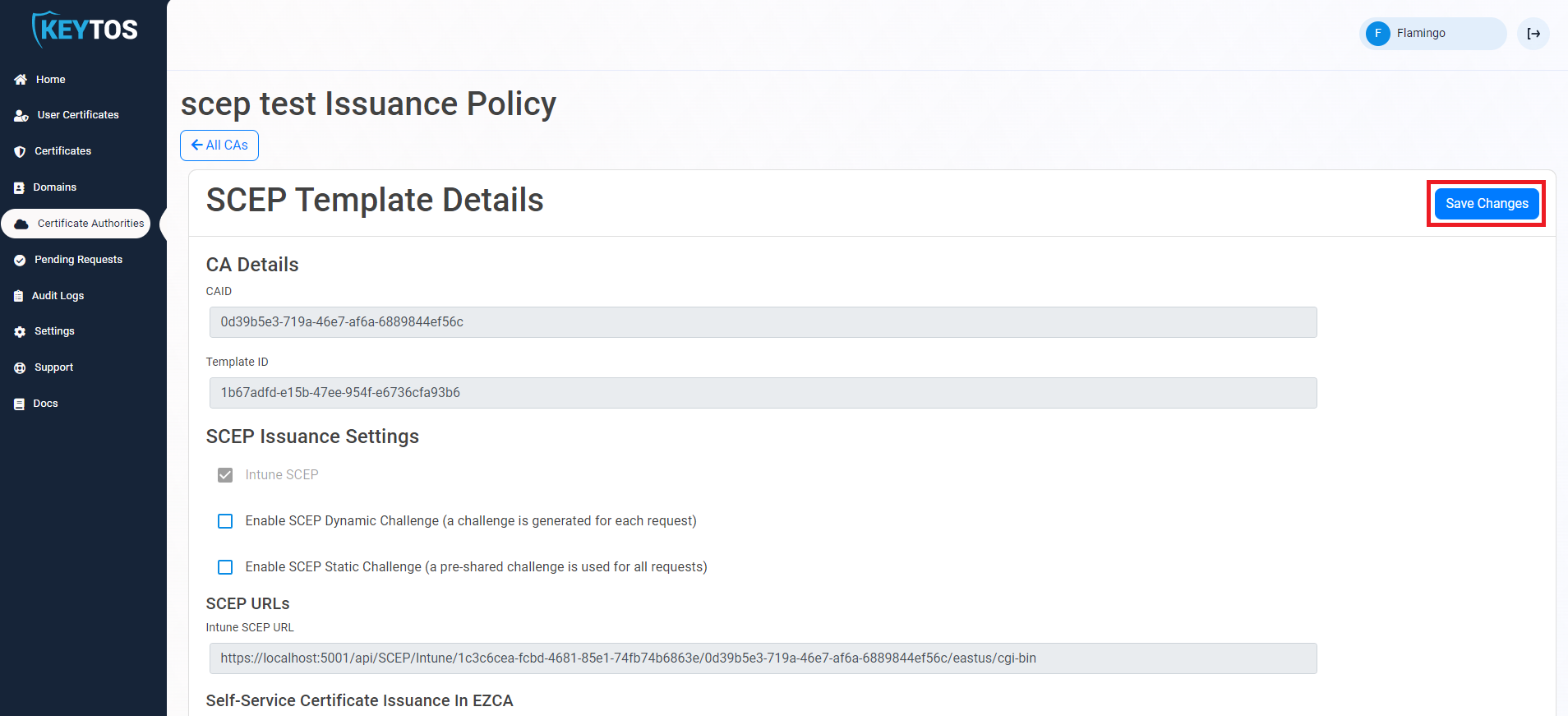
Once you have added all the policies you want to enable, click on the Save Changes button at the top of the page.
Next Steps - How Users Can Create Certificates with Self Service User Certificate Issuance
Now that you have enabled self service certificate issuance, users will be able to create their own certificates in the portal.
Create User Certificates