

















How-To: Enable Azure IoT Hub Certificate Authentication in EZCA
Enable Azure IoT Hub Access For Certificate Authentication in EZCA
If you are using EZCA for Azure IoT and would like to EZCA to automatically add new CA certificates to Azure IoT, EZCA must to have Contributor role access to your IoT Hubs. With this access, EZCA will be able to automatically add new CA certificates to your IoT Hubs, and rotate your CAs when they expire. If you would also like EZCA to disable your IoT devices when a certificate is revoked, EZCA must also have the IoT Hub Registry Contributor role on your IoT Hubs as well.
Prerequisites
Add the RBAC Contributor Role to Azure IoT Hub
-
Login to https://portal.azure.com
-
Navigate to the IoT Hub you want EZCA to manage.
-
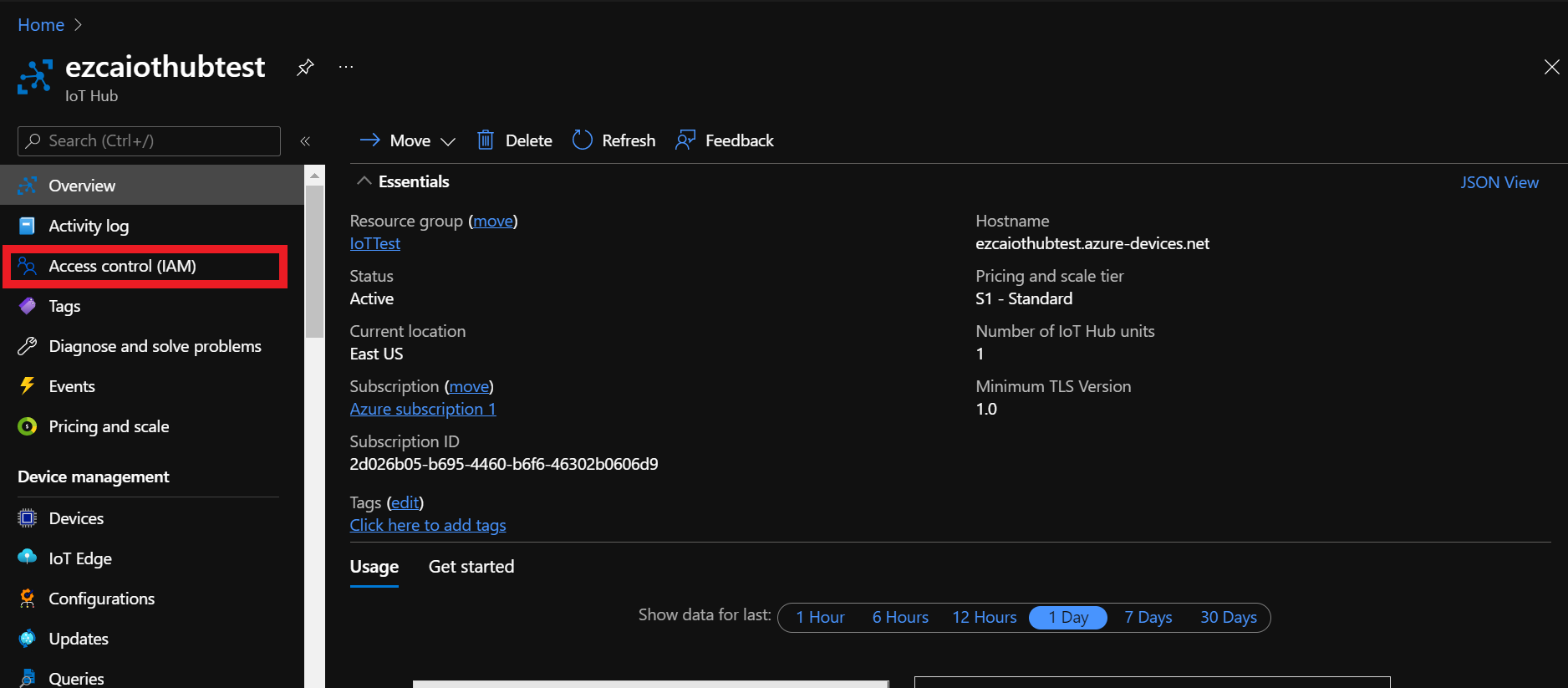
Click on the Access control (IAM) menu option
-
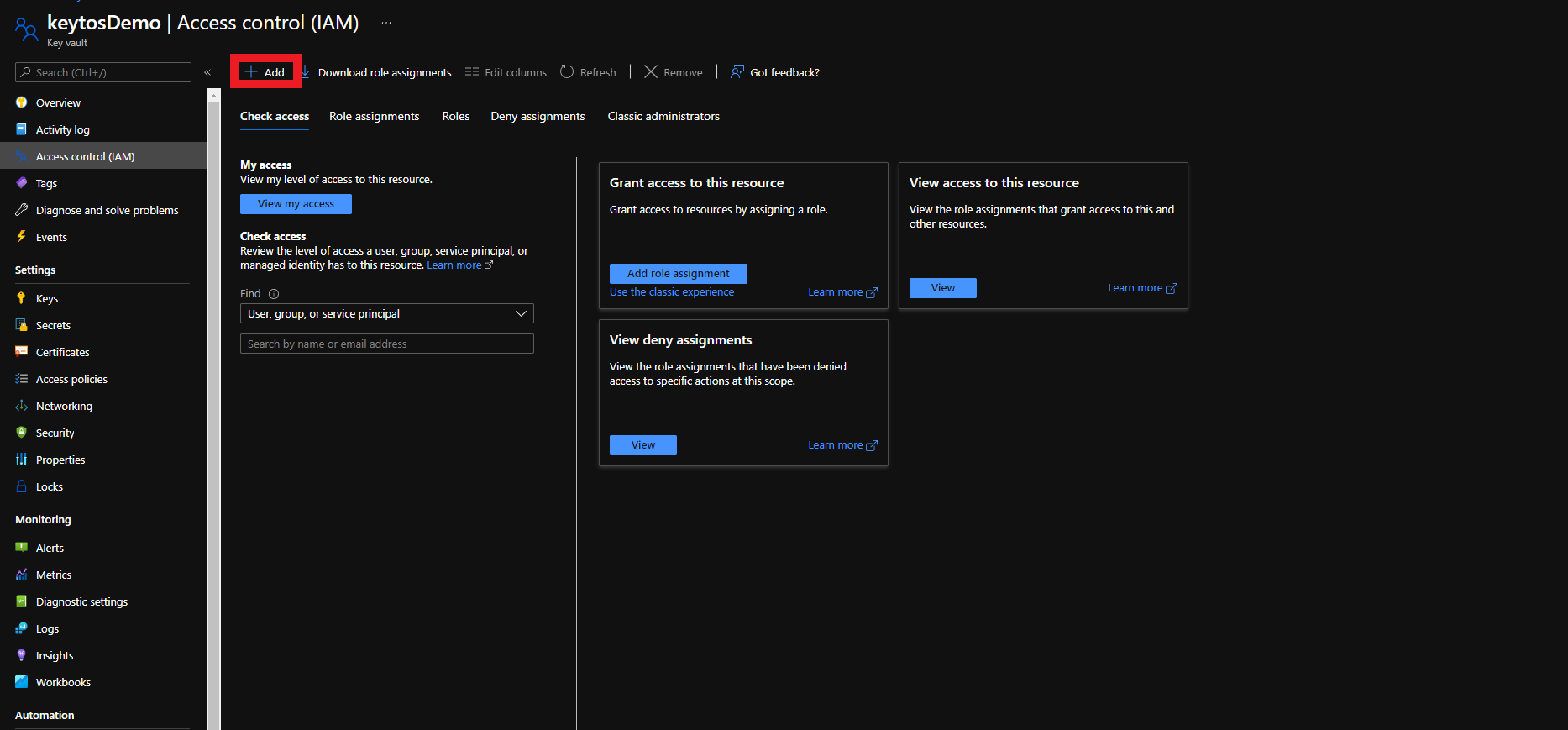
Click on + Add
-
Select the Add Role Assignment Option
-
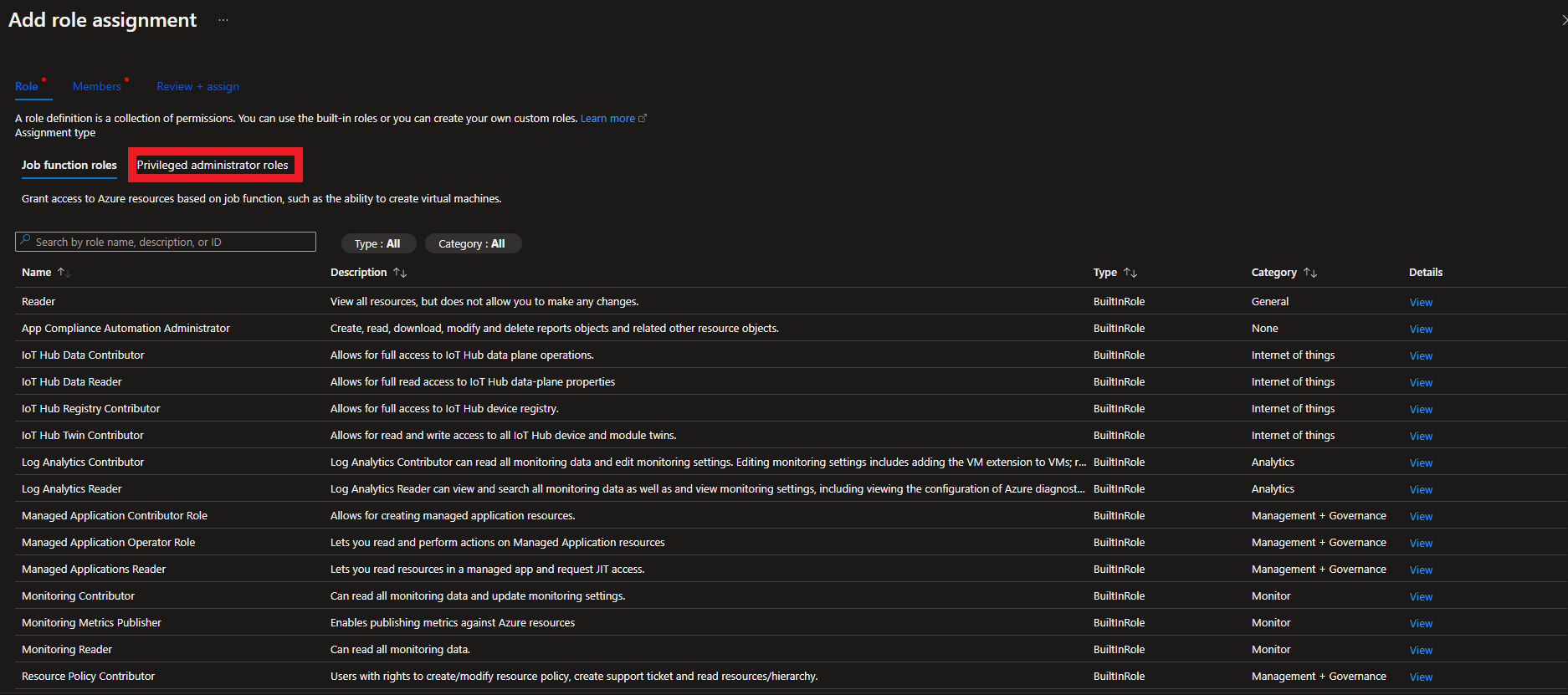
Select the Privileged administrator roles tab
-
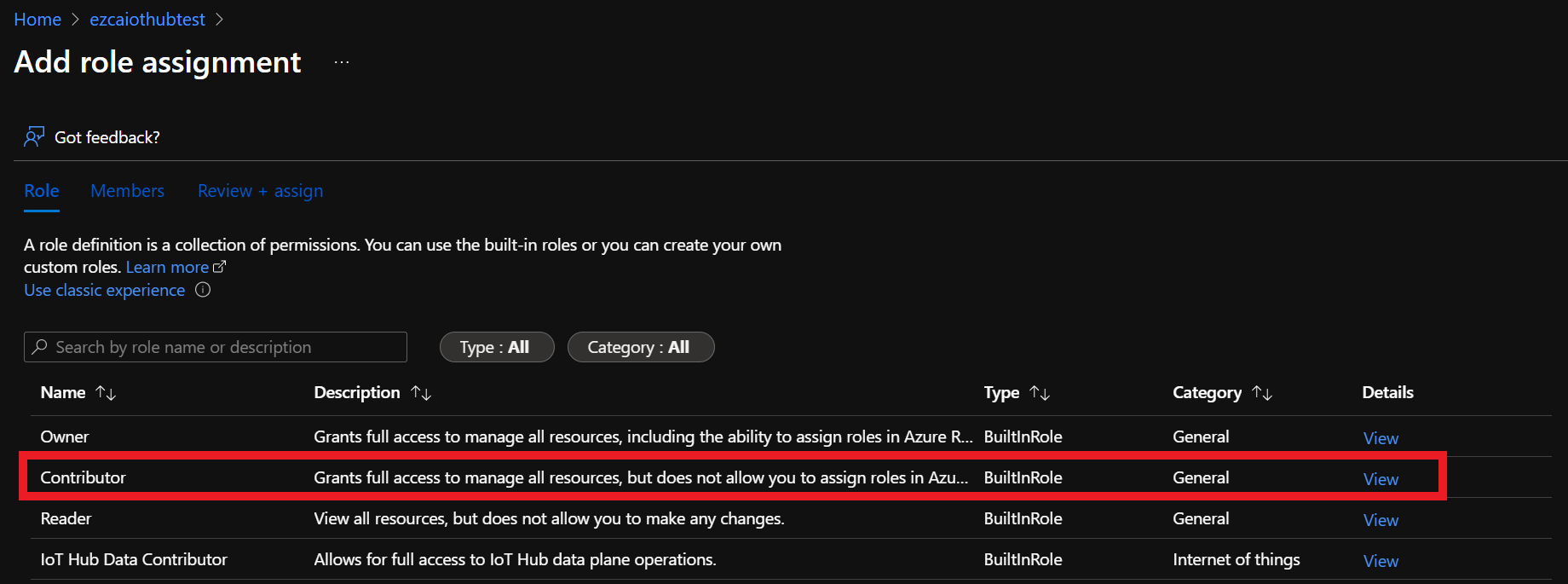
Select Contributor role
-
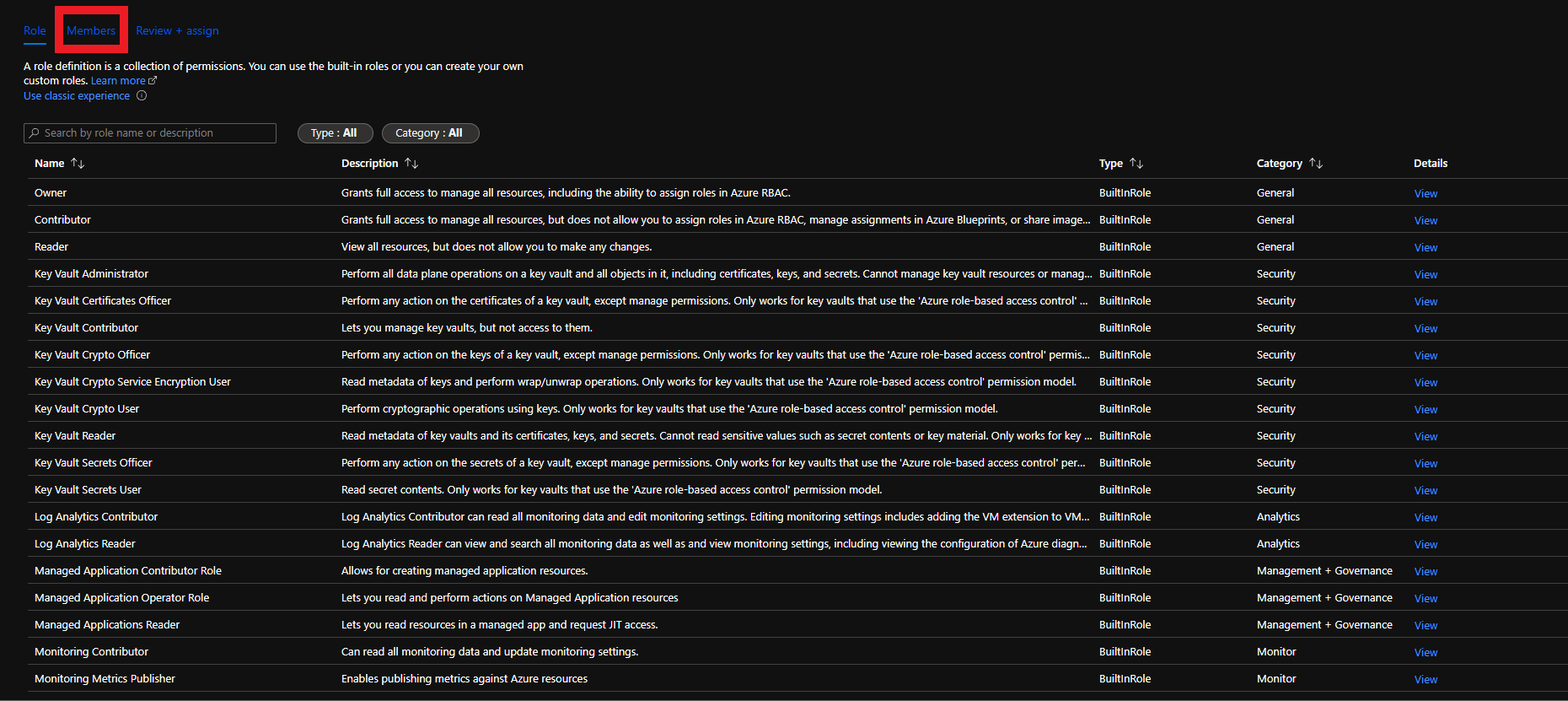
Click on Members
-
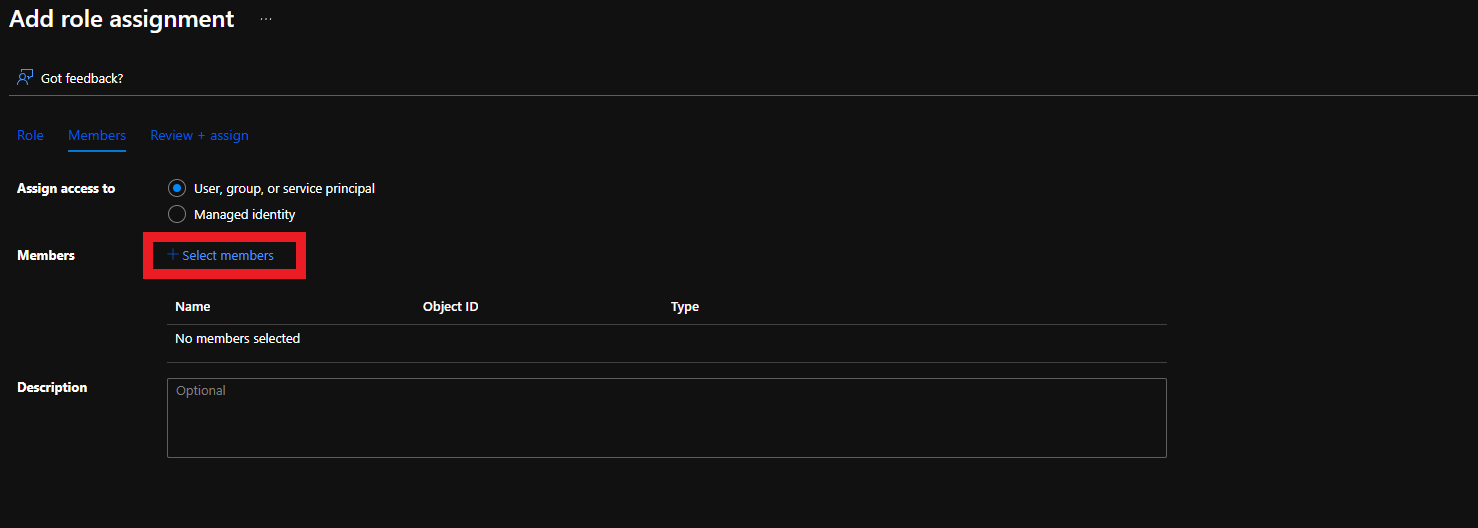
Click on Select Members
-
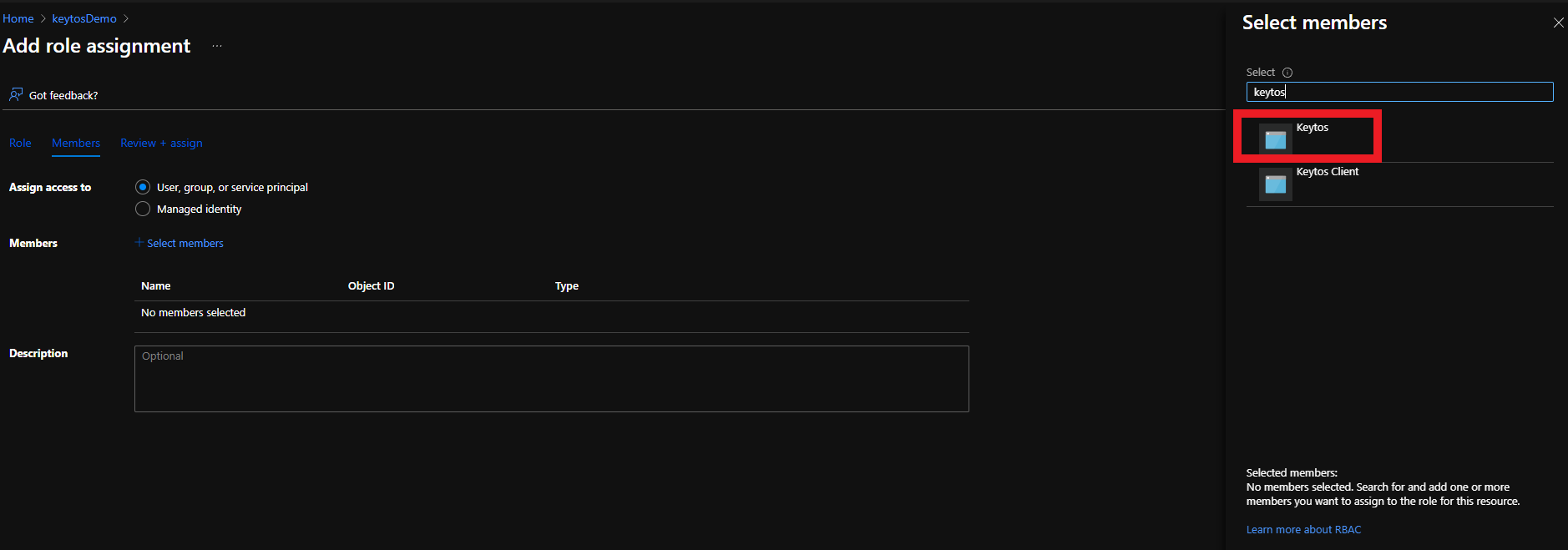
Search for “keytos” and select the Keytos Application
-
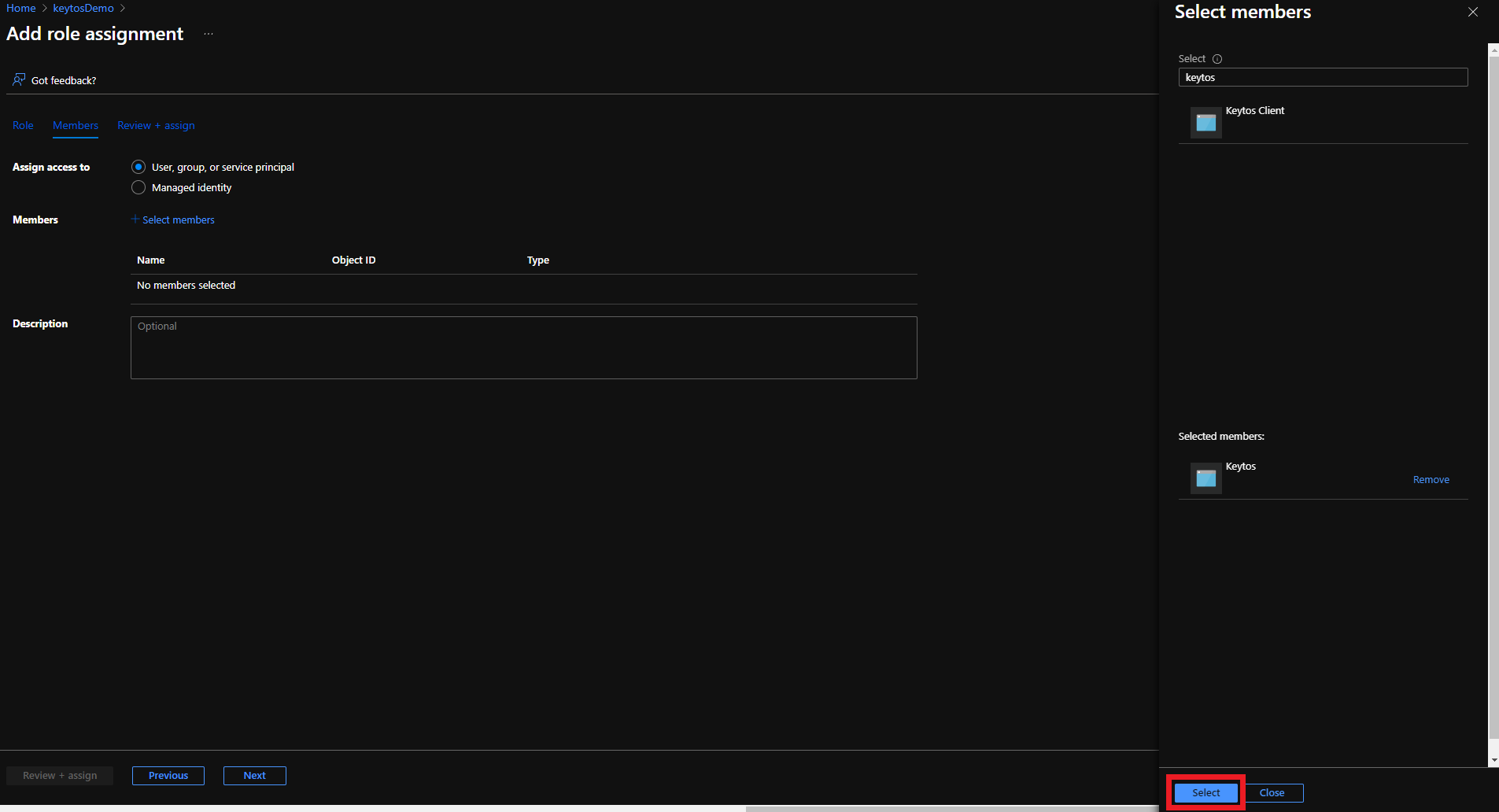
Click the Select button
-
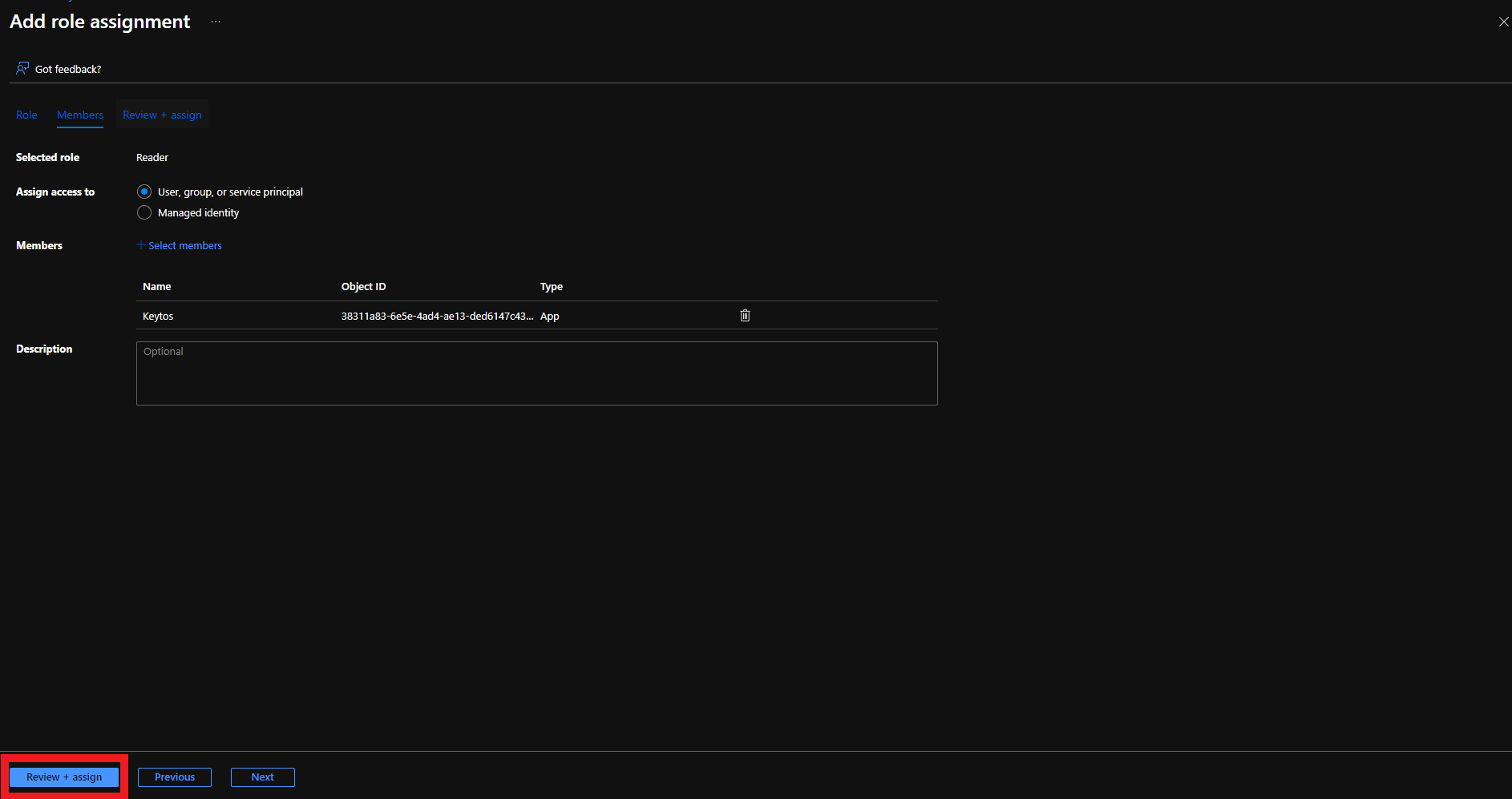
Click the Review + assign button
-
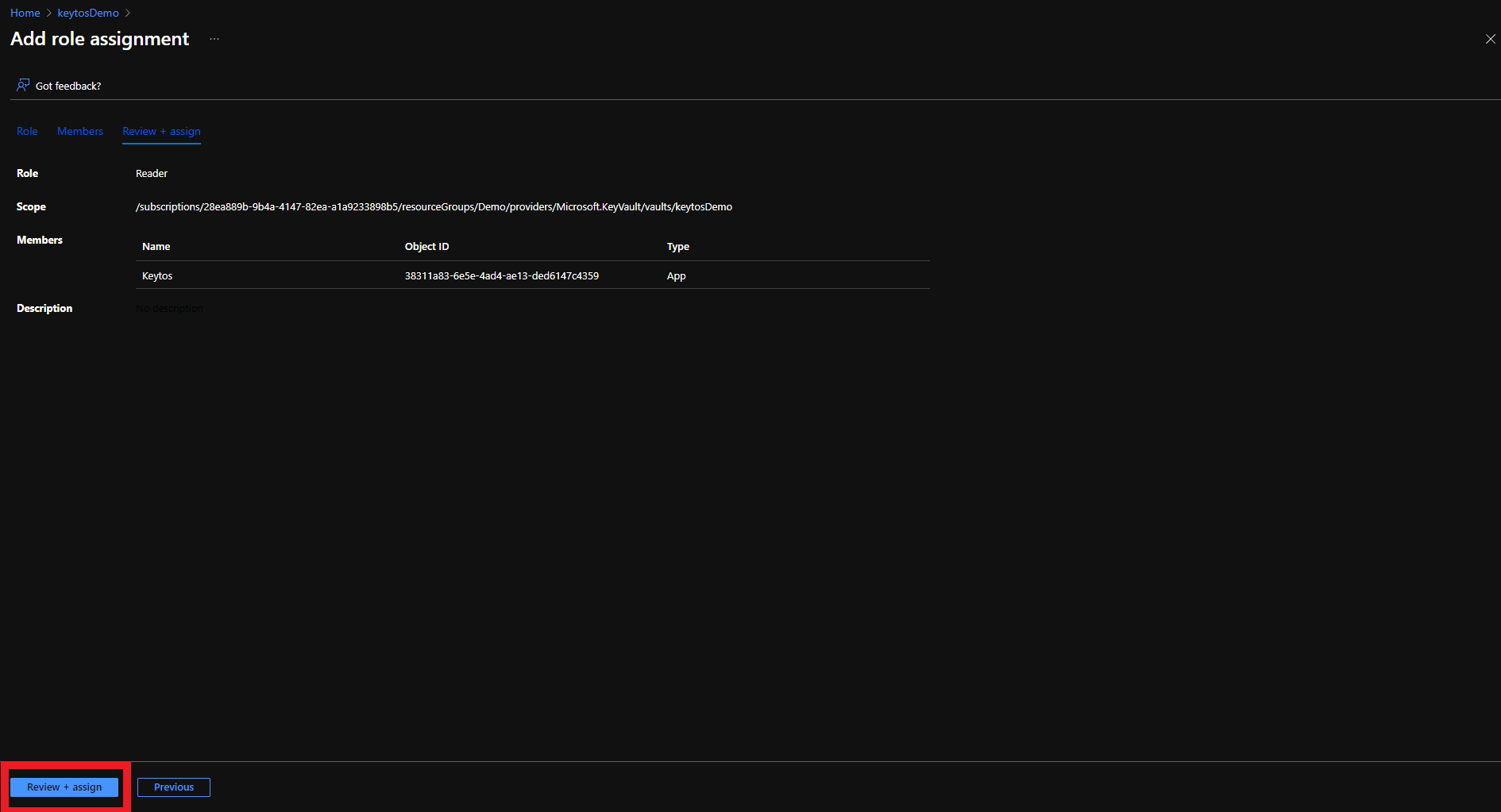
Click the Review + assign button
Add the IoT Hub Registry Contributor Role to Enable Revocation
-
Once You are back in the Access Control (IAM) screen, click on + Add
-
Select the Add Role Assignment Option
-
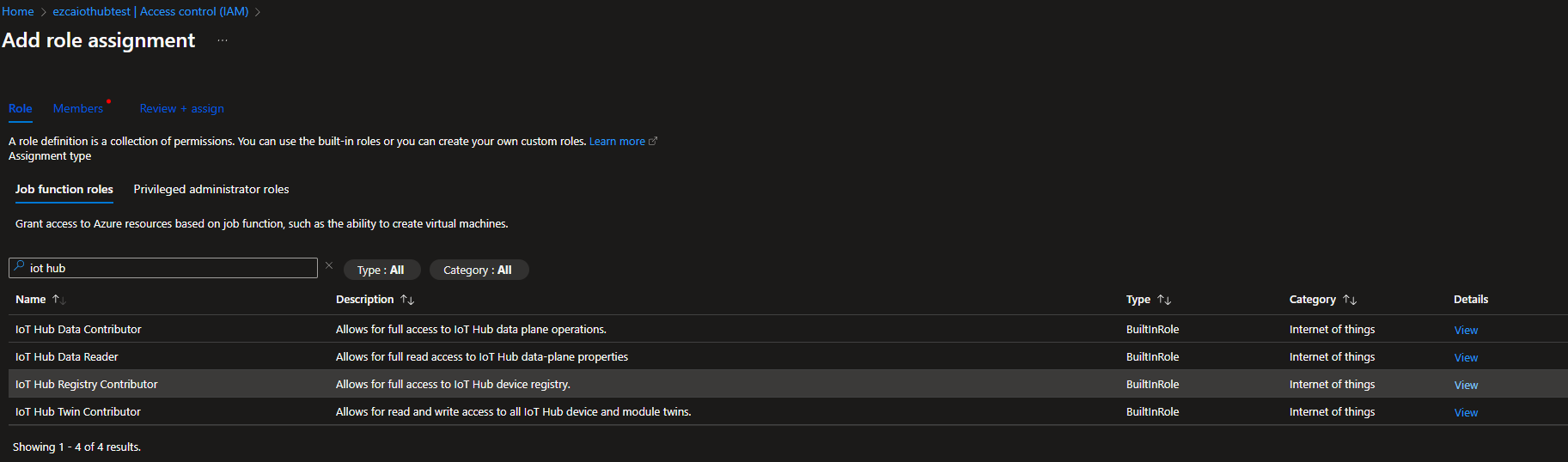
Select the IoT Hub Registry Contributor role
-
Click on Select Members
-
Search for “keytos” and select the Keytos Application
-
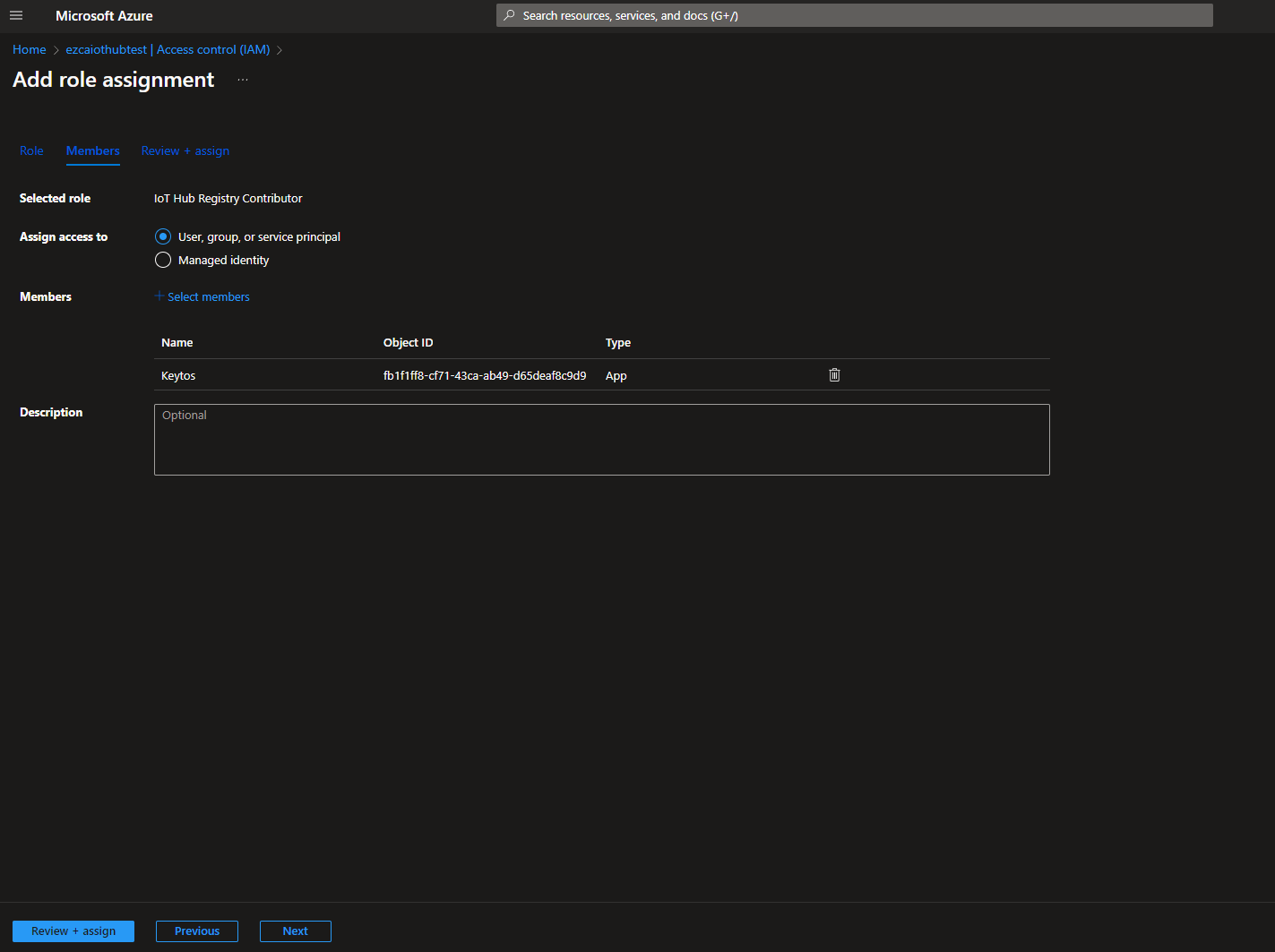
Click the Review + assign button
-
Click the Review + assign button