














How-To: Install an Entra ID Wi-Fi Profile on Unmanaged iOS and iPadOS
Overview - Entra ID Wi-Fi Profiles for Unmanaged iPhones and iPads with EZRADIUS
If your organization has enabled self-service Wi-Fi profiles, you can create your own Entra ID Wi-Fi profile for your Apple devices. There are three ways to obtain them: EZRADIUS sent you an email with the profile, you downloaded the profile from the EZRADIUS portal, or request an email with your profile from the EZRADIUS portal.
Step-by-Step Guide - How to Install an Entra ID Wi-Fi Profile on iOS and iPadOS
Follow the steps below to install an Entra ID Wi-Fi profile on your iPhone or iPad. You can repeat these steps on each of your devices.
Step 1 - How to Download Your iOS Wi-Fi Profile
The first step is to download your Wi-Fi profile from either the email sent by EZRADIUS or from the EZRADIUS portal.
How to Request an Email with your Wi-Fi Profile from the EZRADIUS Portal
If you haven’t received an email with your Wi-Fi profile, you can request an email with your profile from the EZRADIUS portal.
Your administrator must have enabled self-service profile distribution in EZRADIUS for you to request an email with your Wi-Fi profile. If it is not enabled, ask them to email you the profile directly.
-
Go to the EZRADIUS portal (this URL will be provided by your organization).
-
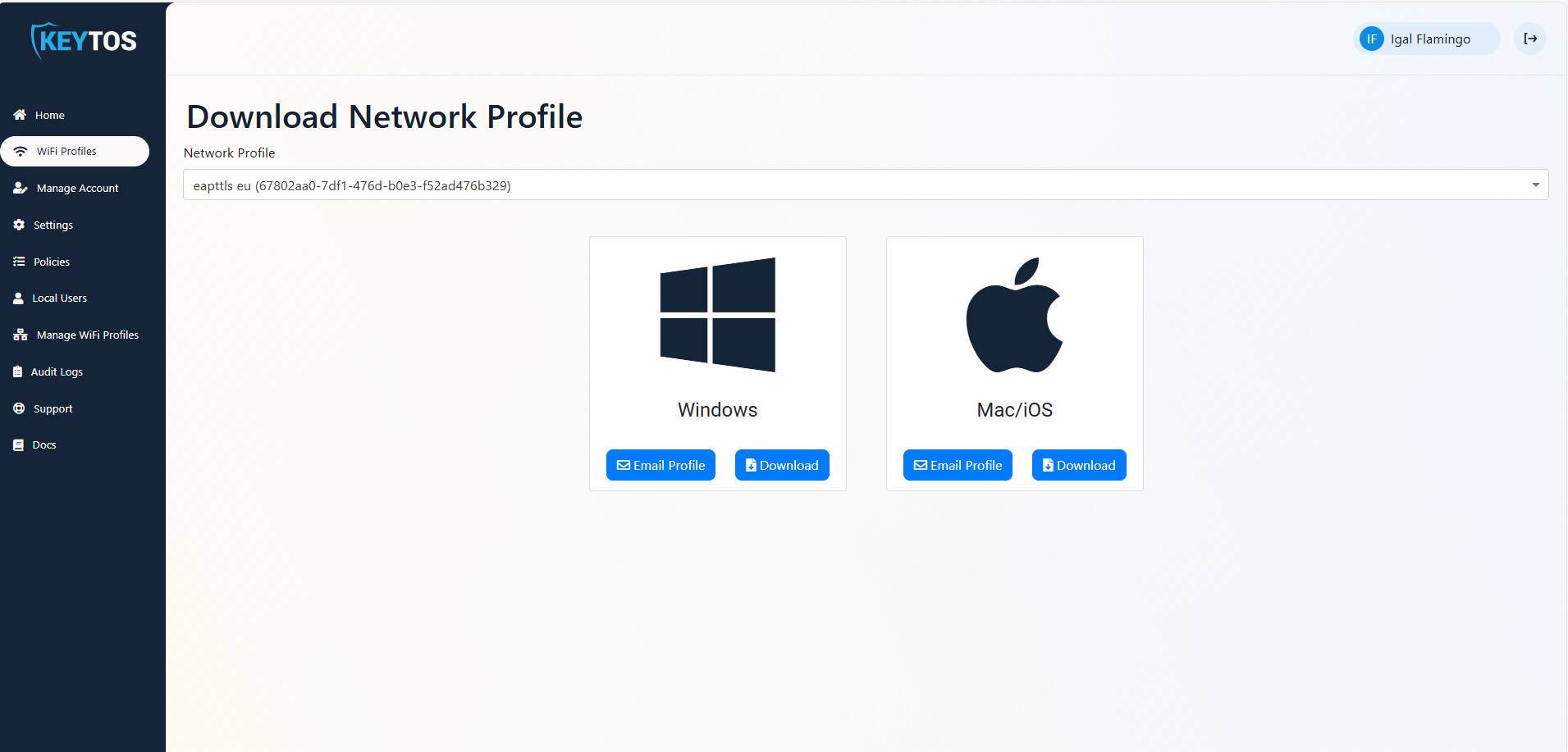
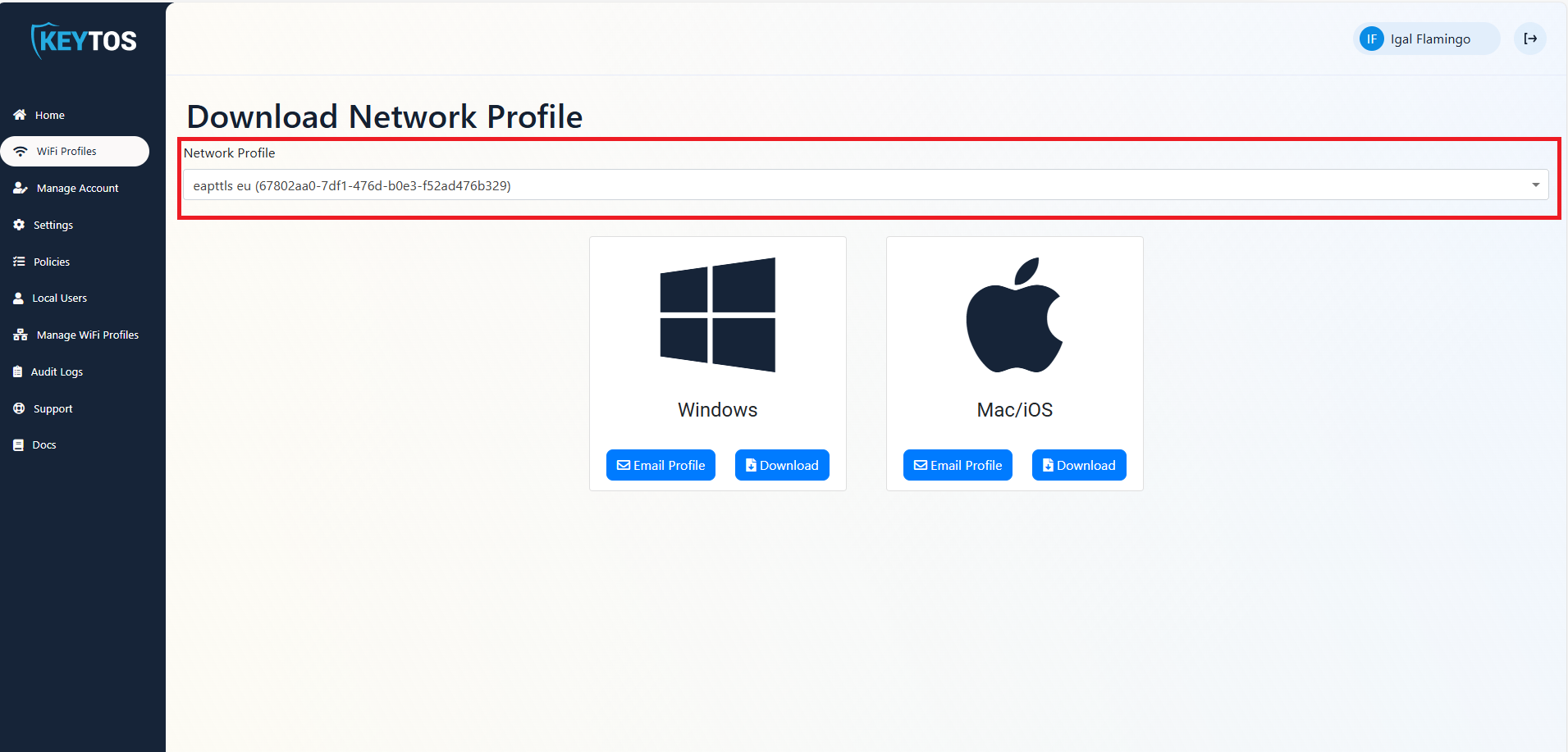
From the left-hand menu, click on the WiFi Profiles button.
-
If your organization has multiple profiles available, select the profile you want to request.
-
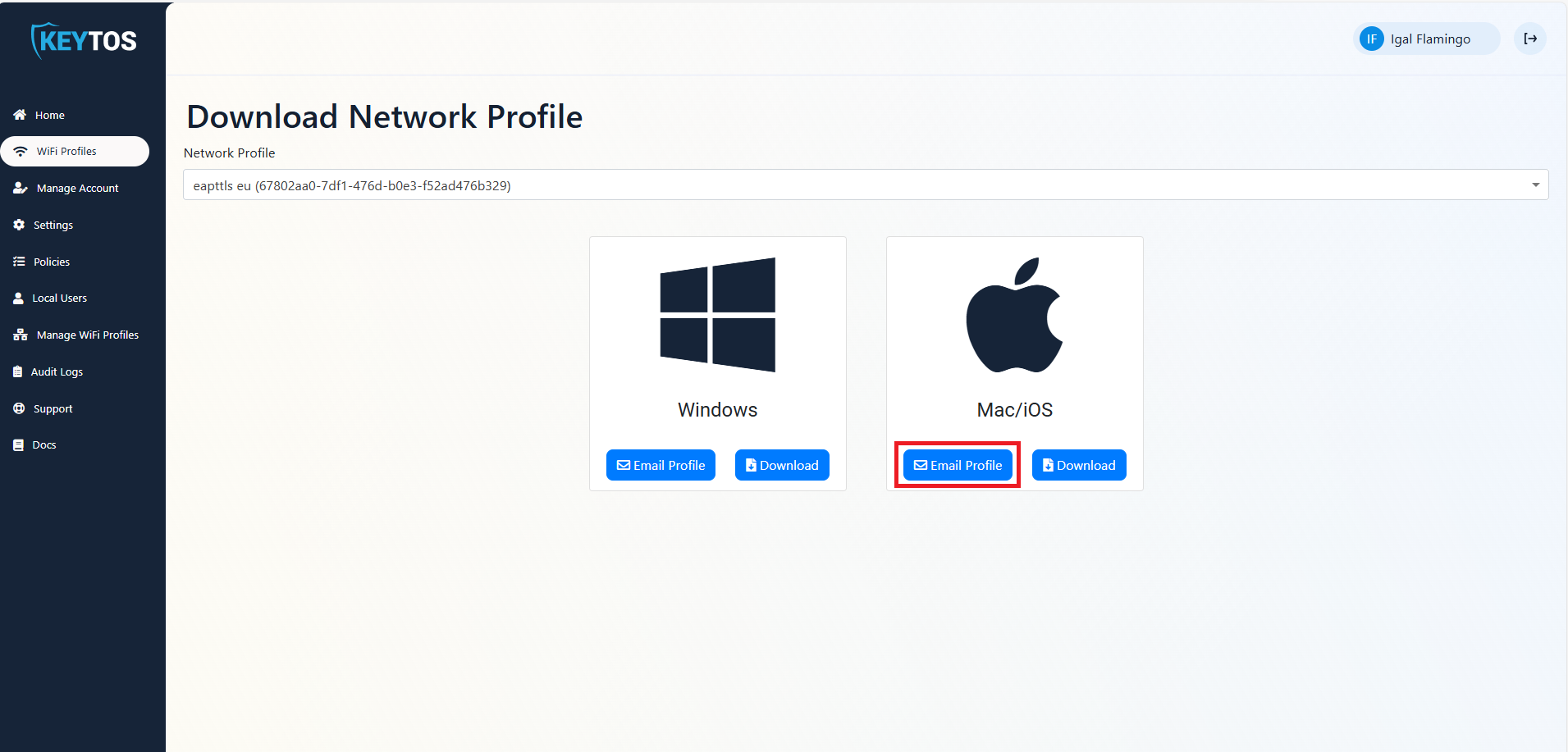
Under Mac/iOS, click on the Email Profile button.
-
An email will be sent to your registered email address with the Wi-Fi profile attached.
How to Download Your Wi-Fi Profile from Email
If you received an email from EZRADIUS with your profile, follow these steps to save the profile on your iPhone or iPad:
-
Open the email from EZRADIUS on your iPhone or iPad.
-
Tap the
profile.mobileconfigattachment.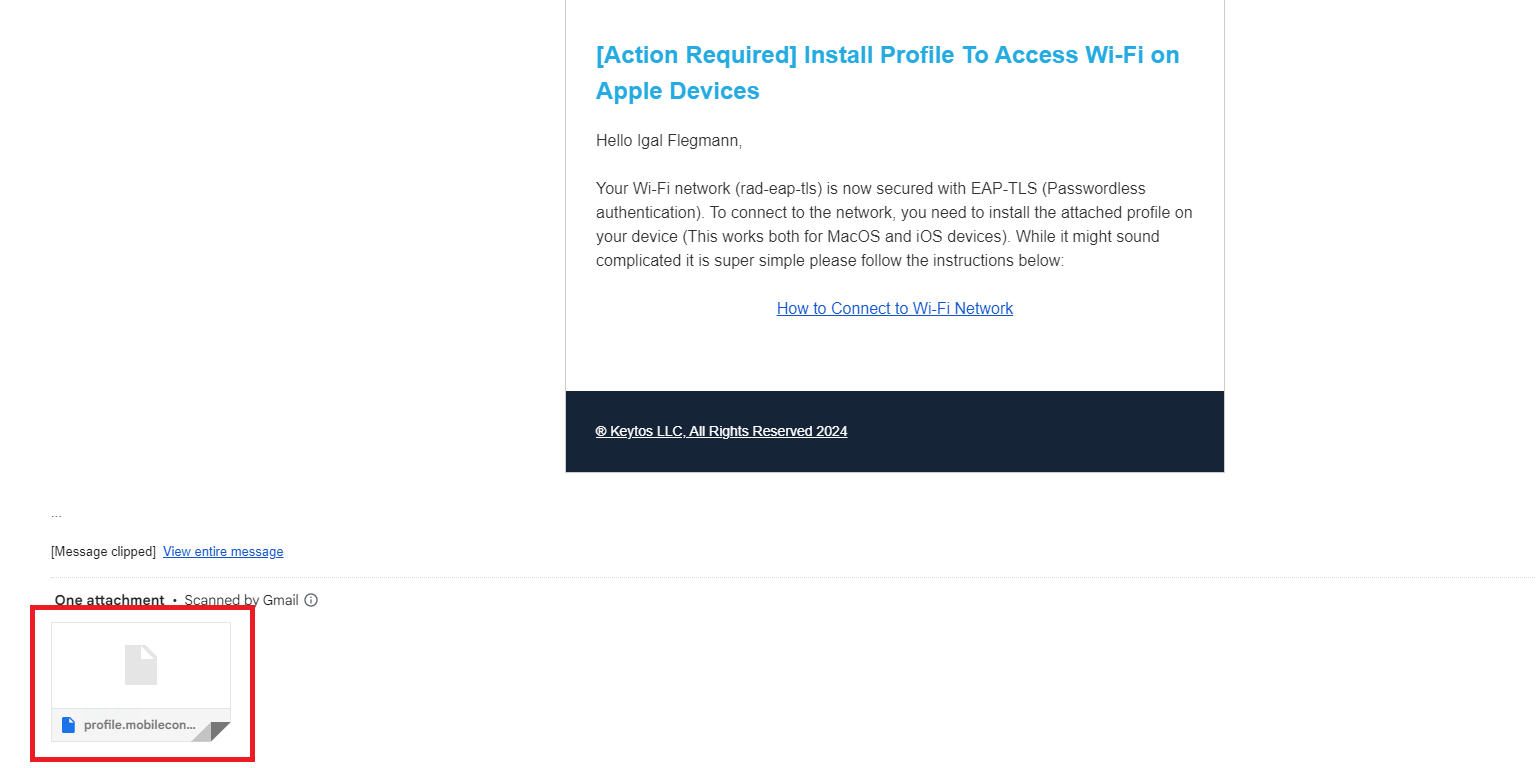
-
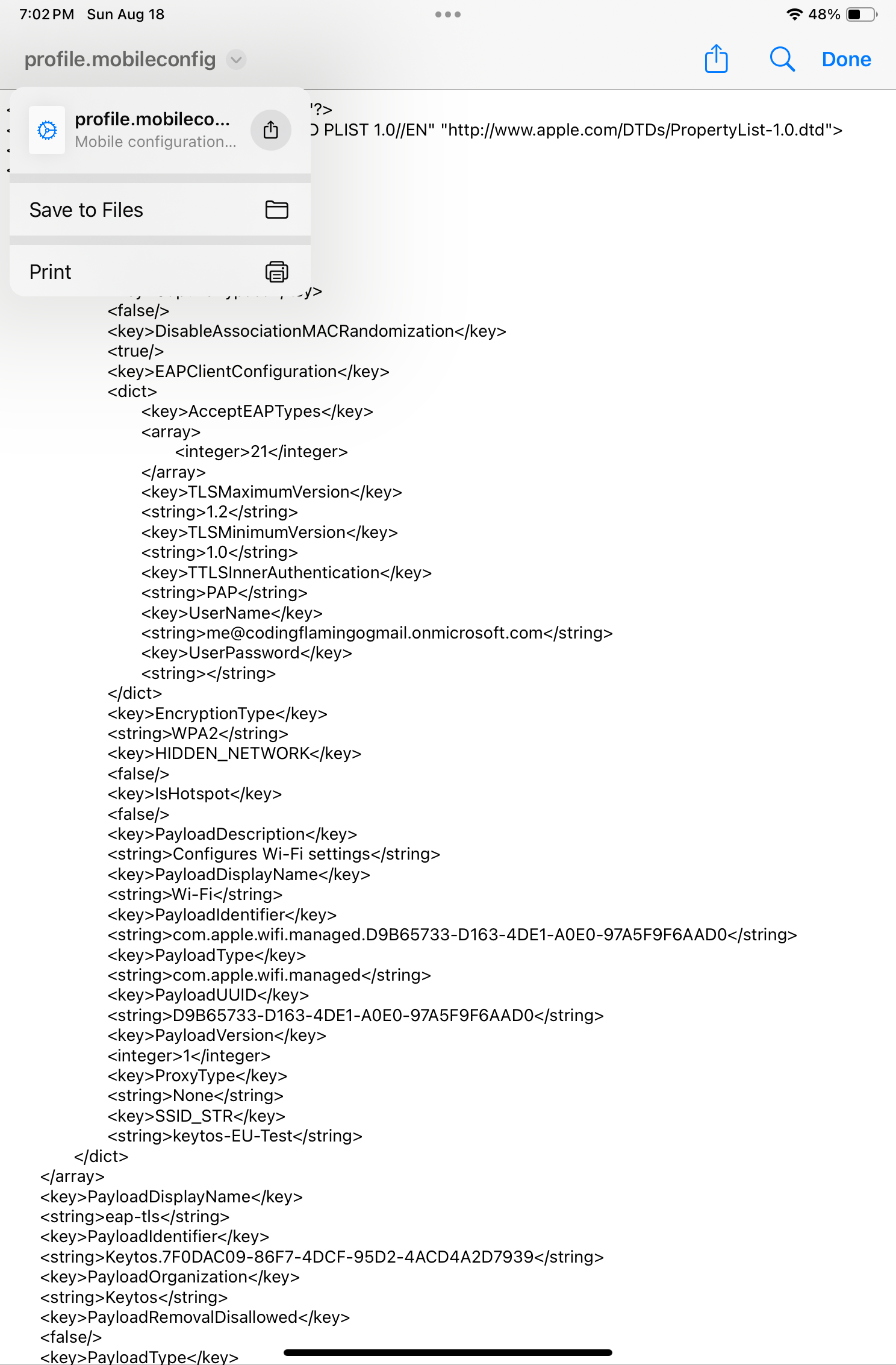
Save the attachment to your device.
How to Directly Download a Wi-Fi Profile from the EZRADIUS Portal
You can also directly download your Wi-Fi profile from the EZRADIUS portal.
-
On the device you want to install the profile on, open your browser and go to the EZRADIUS portal (this URL will be provided by your organization).
-
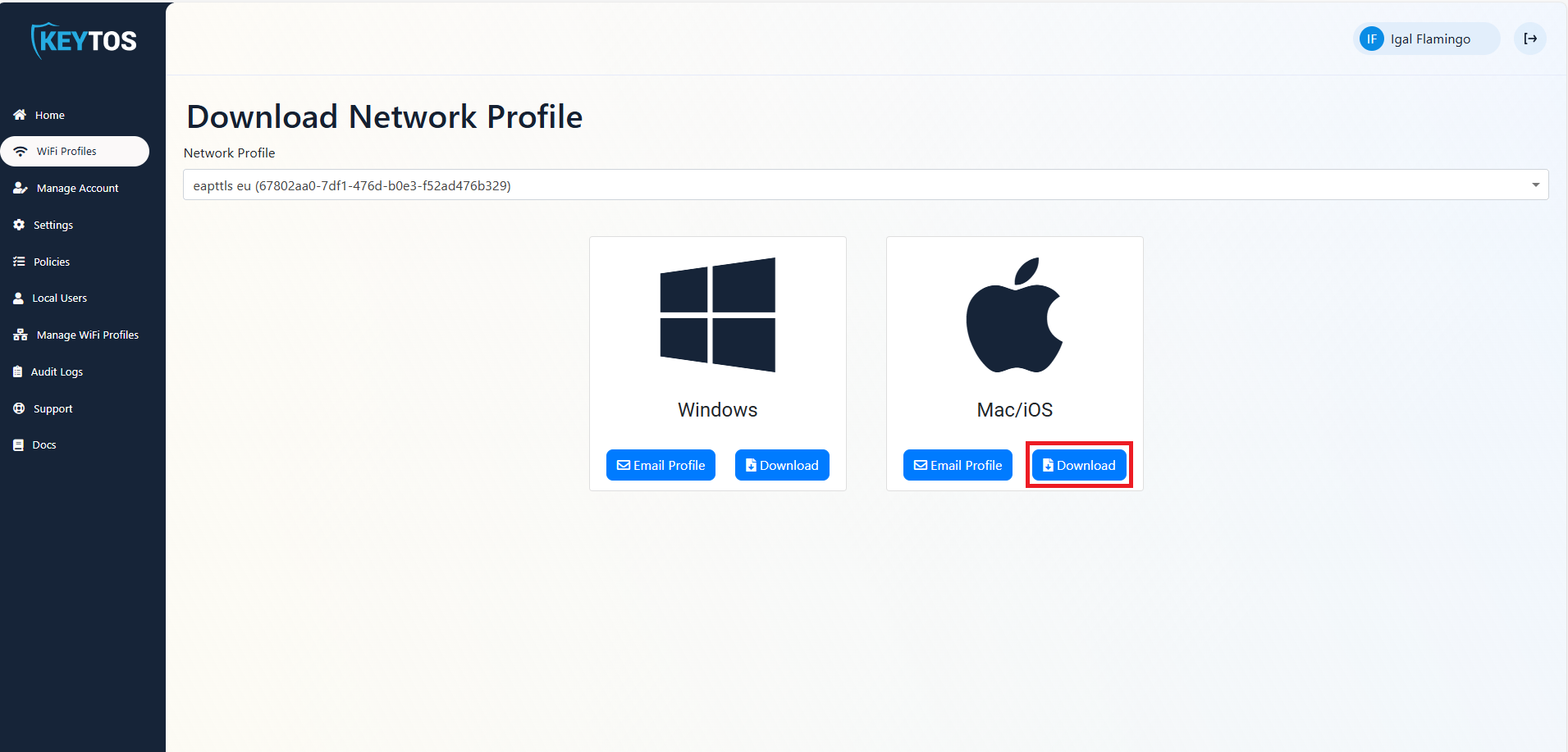
From the left-hand menu, click on the WiFi Profiles button.
-
If your organization has multiple profiles available, select the profile you want to download.
-
Under Mac/iOS, click on the Download button.
Step 2 - How to Install an Entra ID Wi-Fi Profile on iOS and iPadOS
Once you have downloaded your Wi-Fi profile, you can proceed to install it on your iPhone or iPad.
-
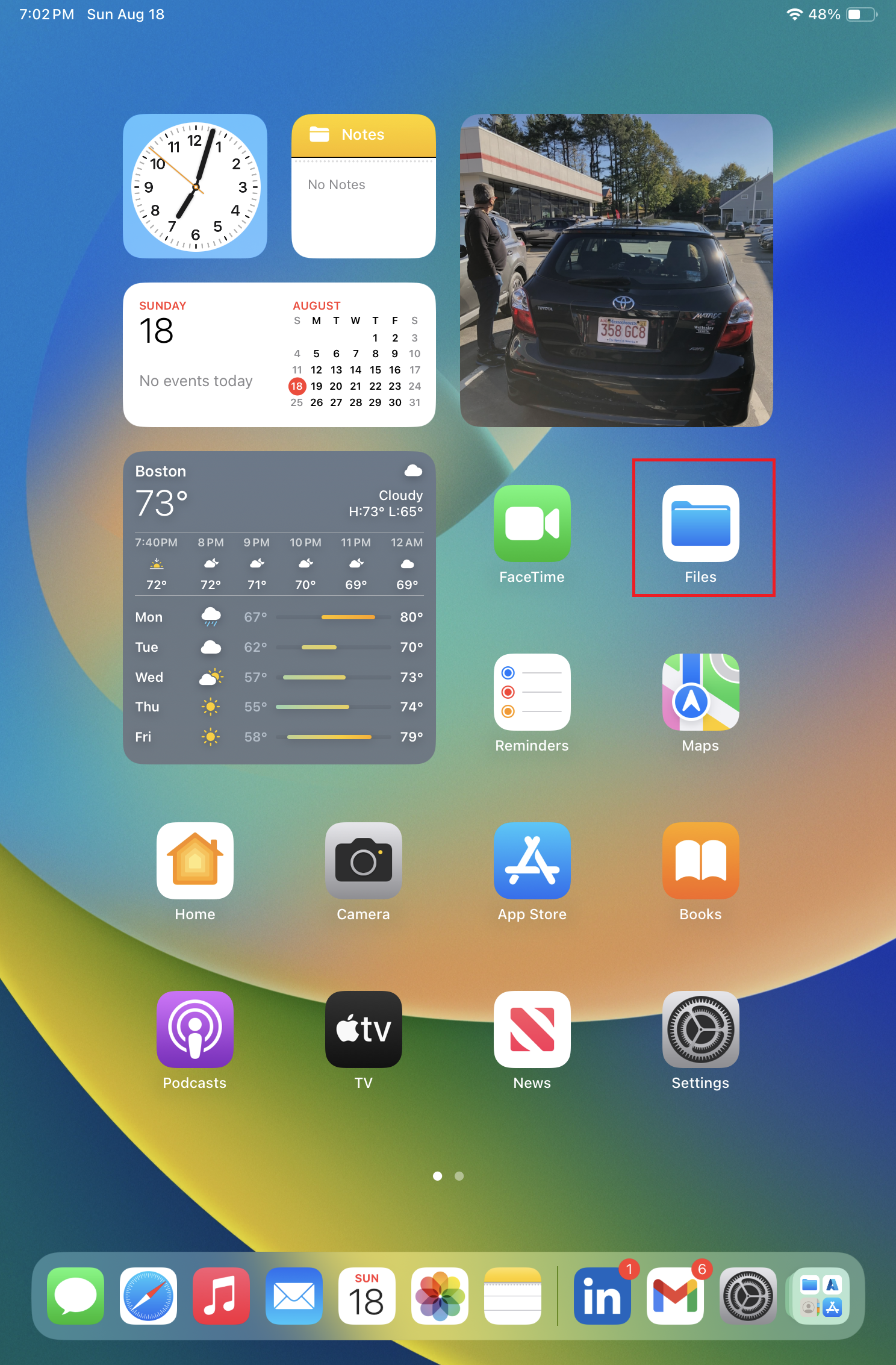
Open the Files app on your device.
-
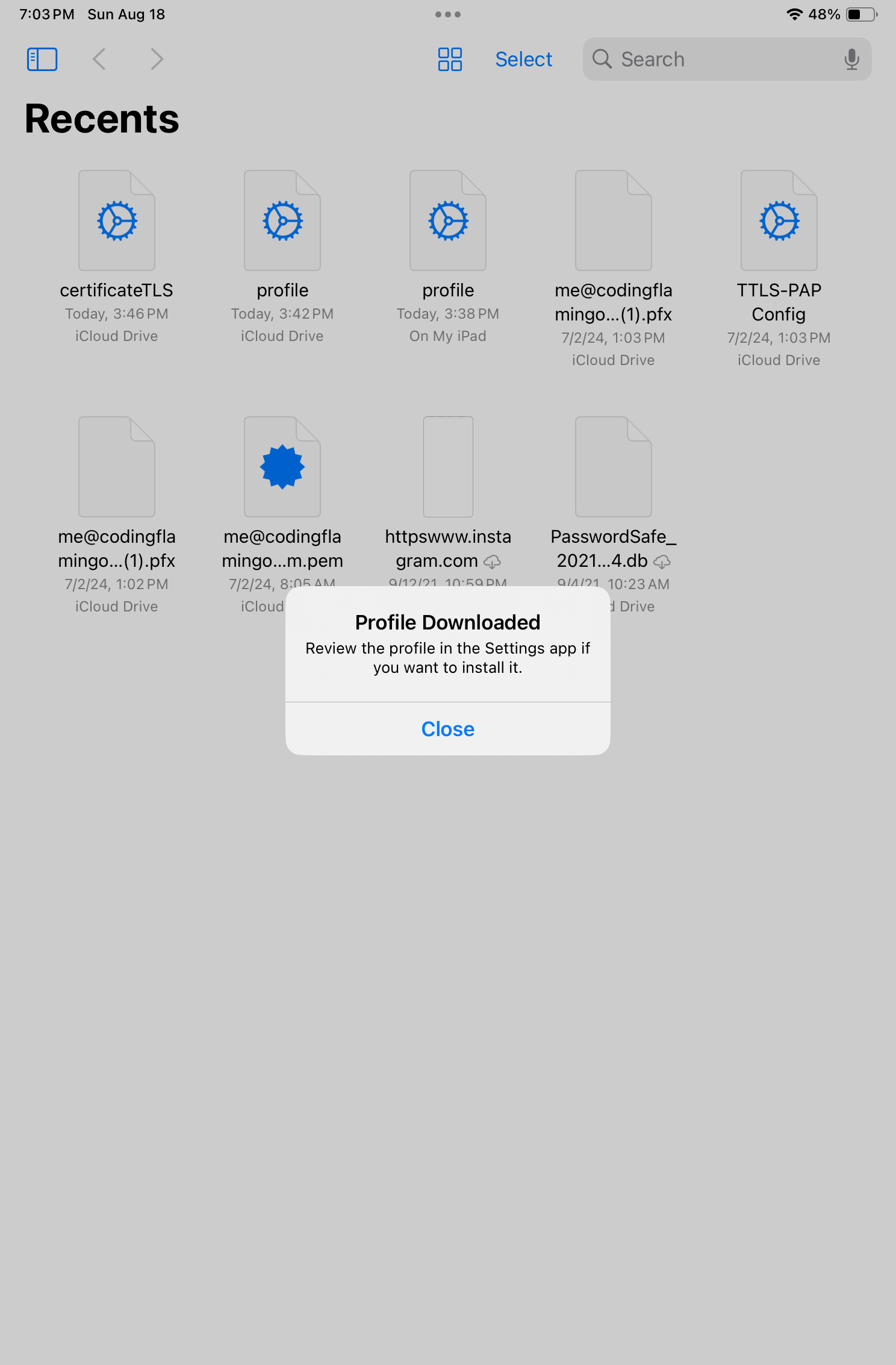
Navigate to the Downloads folder (or the folder where you saved the profile).
-
Tap on the profile.mobileconfig file. A Profile Downloaded prompt will appear.
-
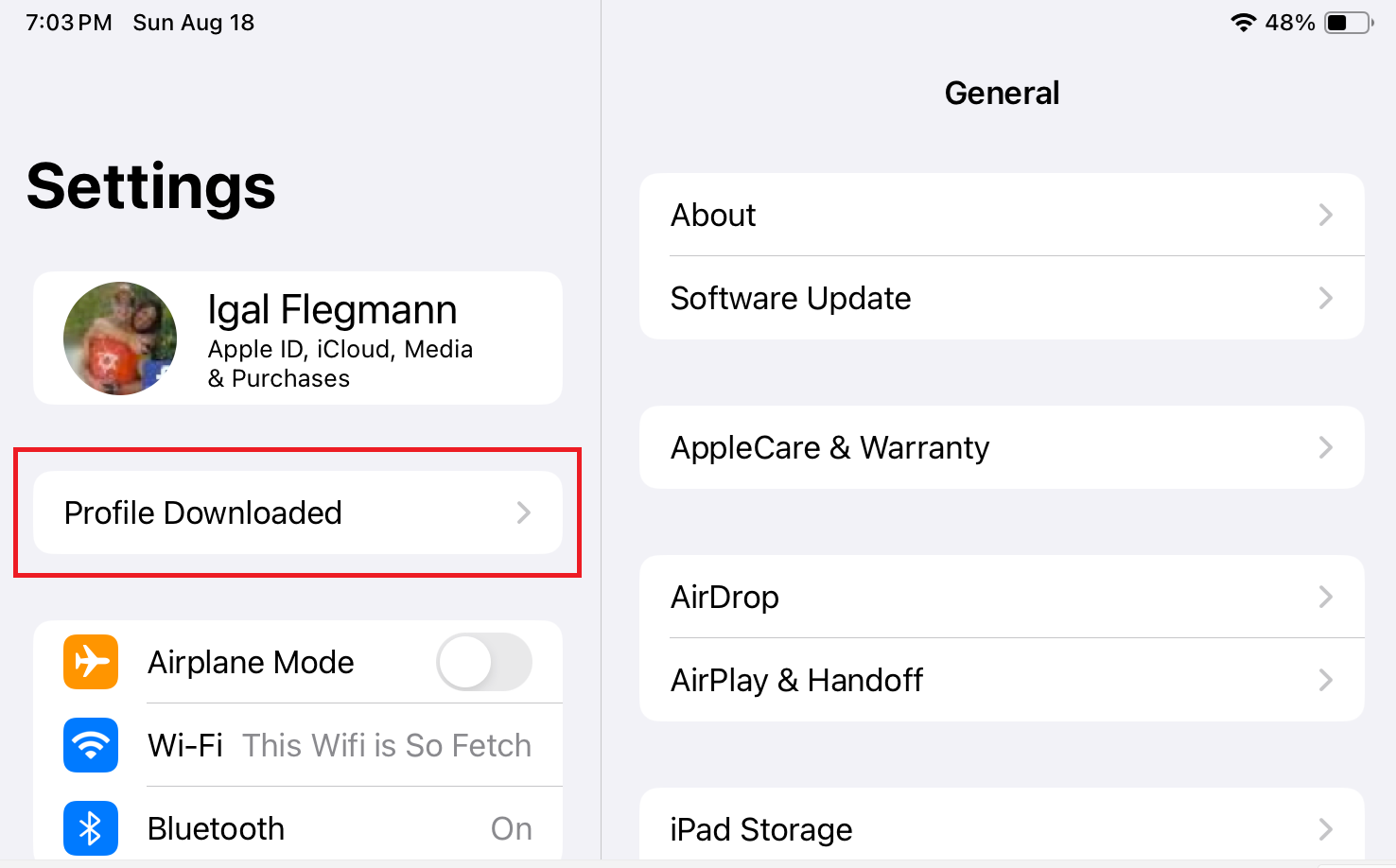
Open the Settings app and tap on the Profile Downloaded option.
-
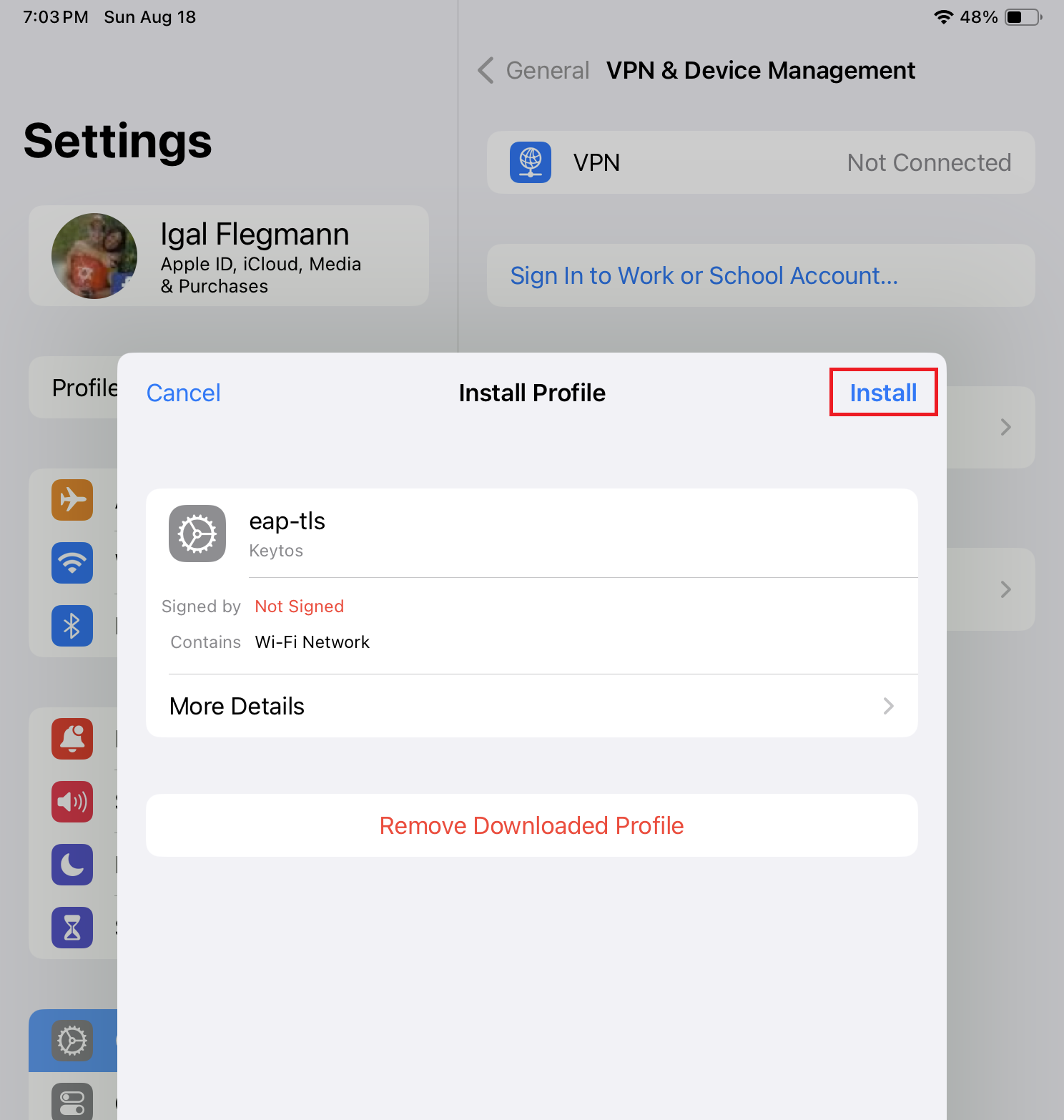
Tap on Install on the top right.
-
Enter your device passcode.
-
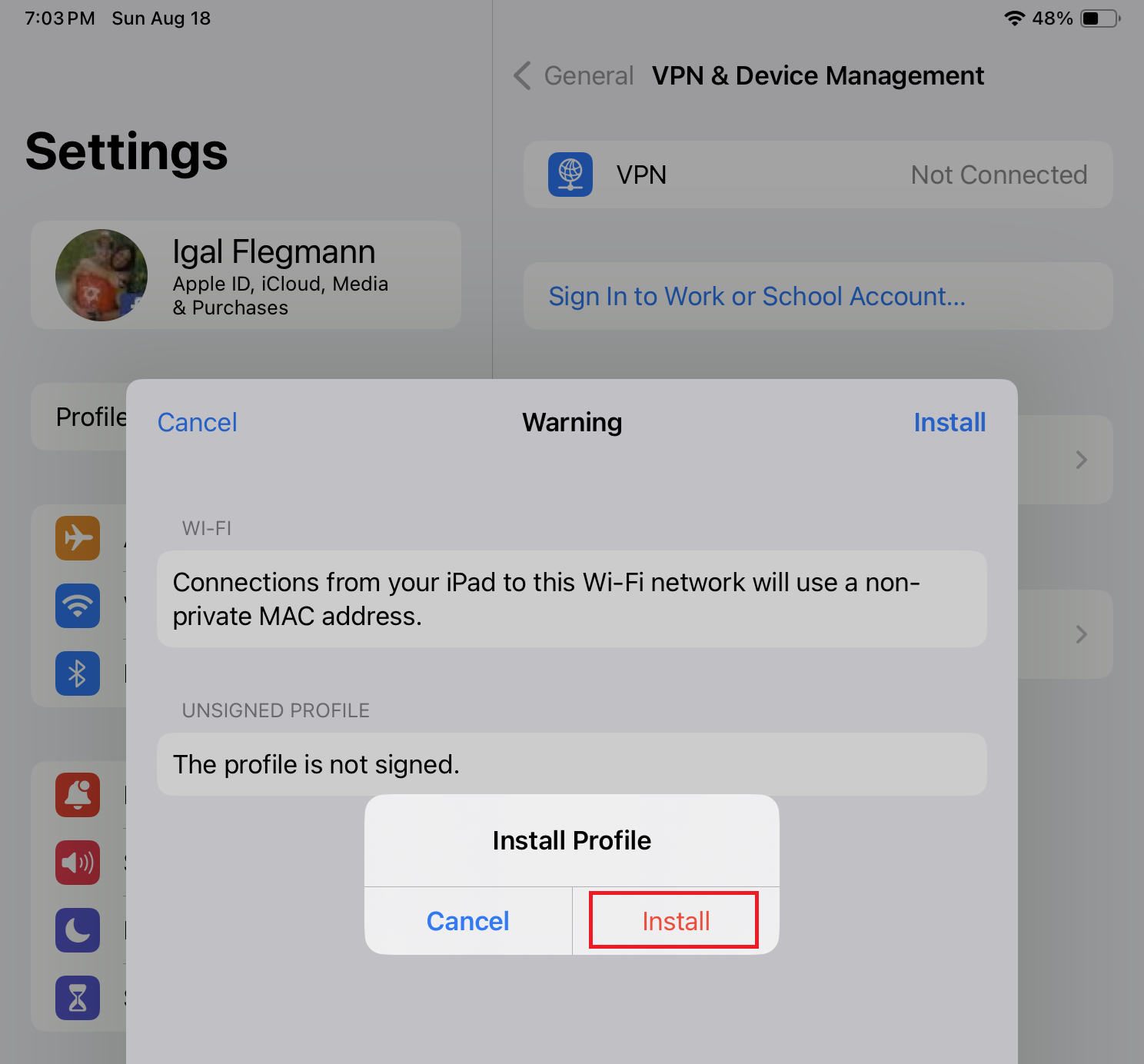
Tap Install on the pop-up.
-
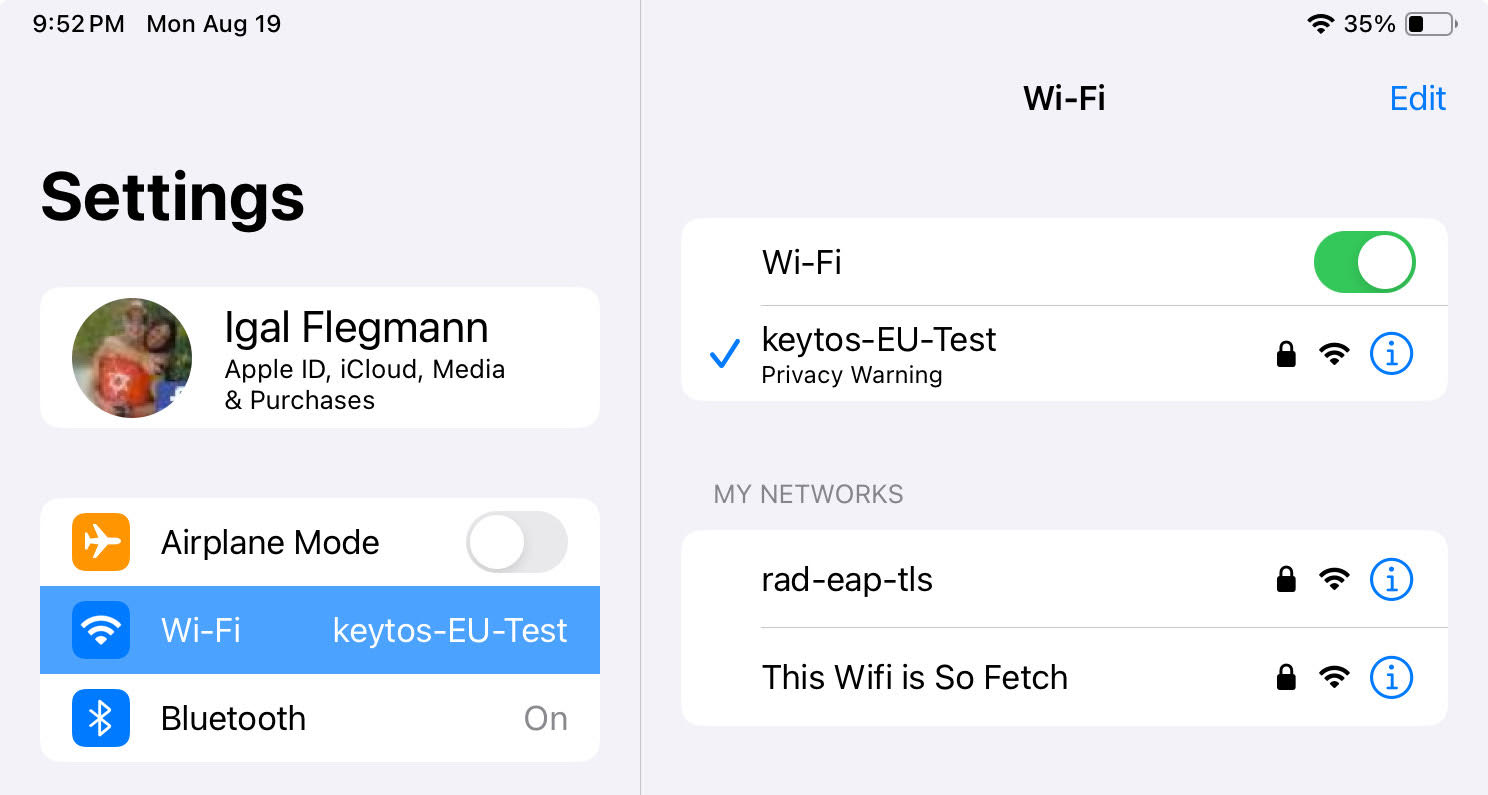
Your Wi-Fi profile is now installed on your device.
-
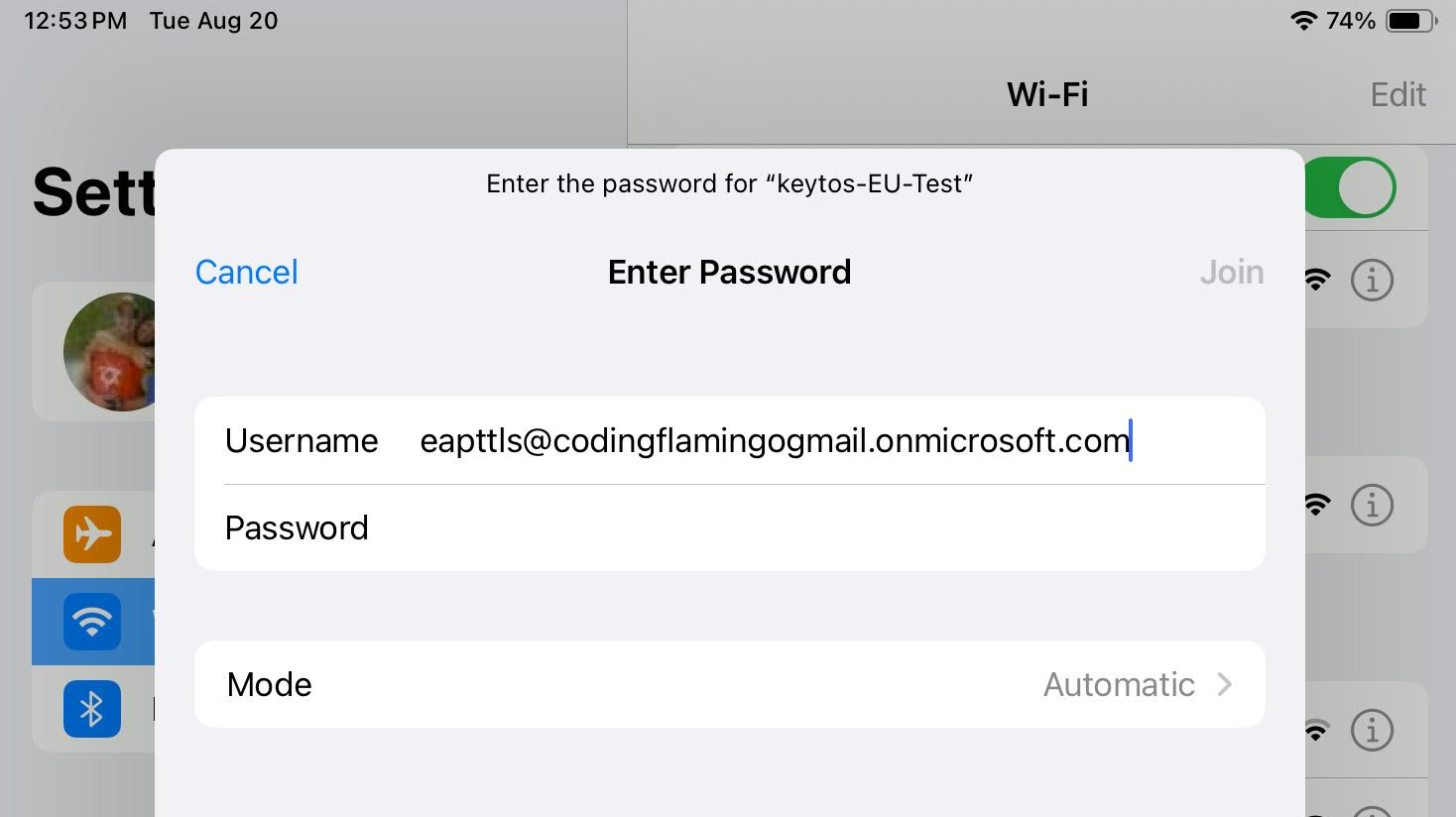
The first time you connect to the network, enter your Entra ID username and password. After that, your device will connect to the network without asking for your credentials.
-
Done! Your device should now connect to the Wi-Fi network automatically.