

















How-To: Enable MAC Address Bypass Cloud RADIUS with Entra ID in EZRADIUS
Prerequisites
- Registering the application in your tenant
- Creating Cloud Radius Instance
- Being a Subscription Owner or Network Administrator
How to Enable WiFi MAC Address Bypass (MAB) in RADIUS - Video Version
How to Enable MAC Address Bypass in EZRADIUS
If you are using RADIUS authentication, you might have devices that do not support EAP-TLS or other secure authentication methods. In this case, you can use MAC Address Bypass to allow these devices to connect to your network without needing to authenticate. This is not recommended for most devices as it is not secure, but it can be useful for devices that do not support secure authentication methods. To enable MAC Address Bypass, follow these steps:
-
Go to your EZRADIUS portal.
-
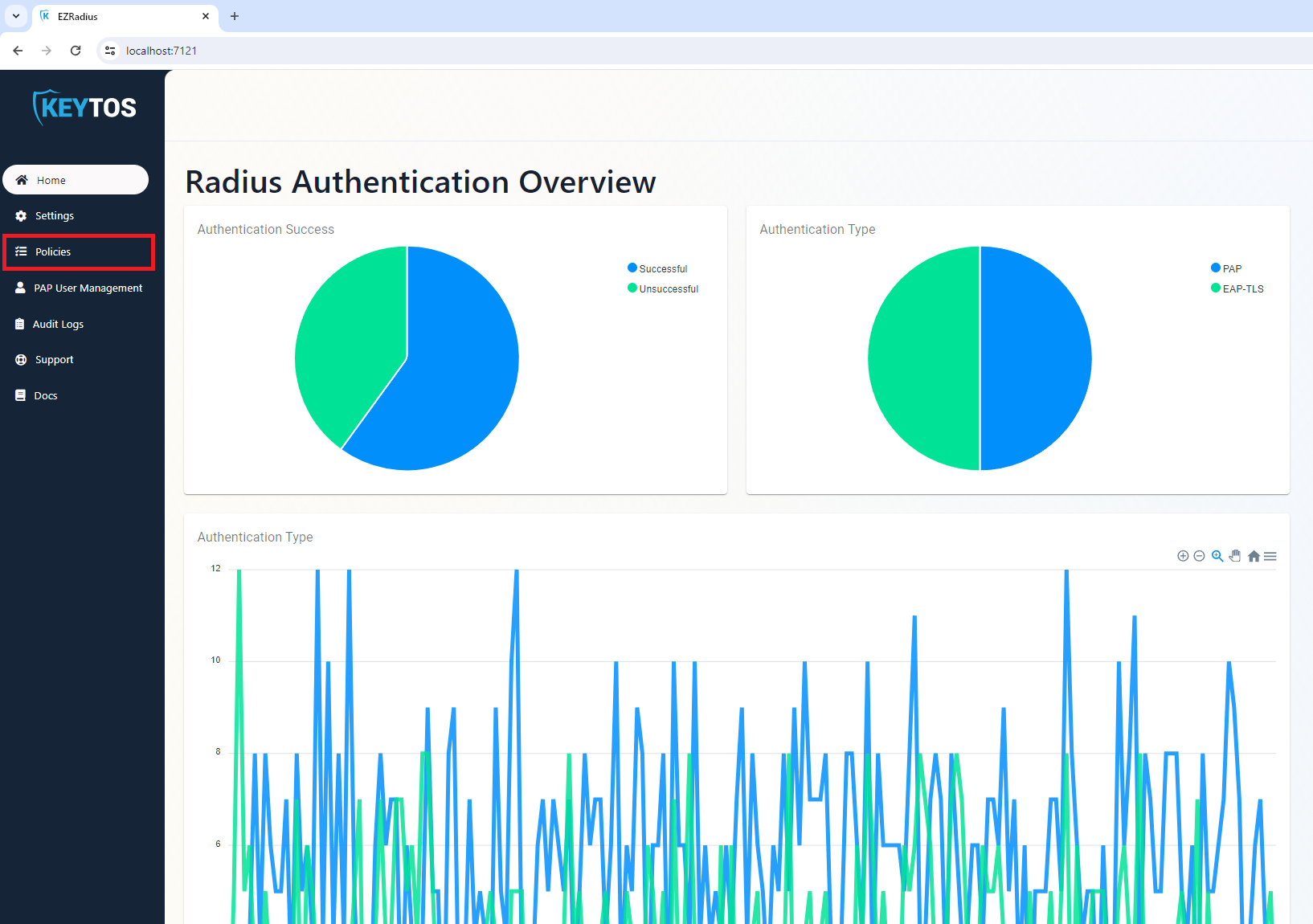
Click on Policies.
-
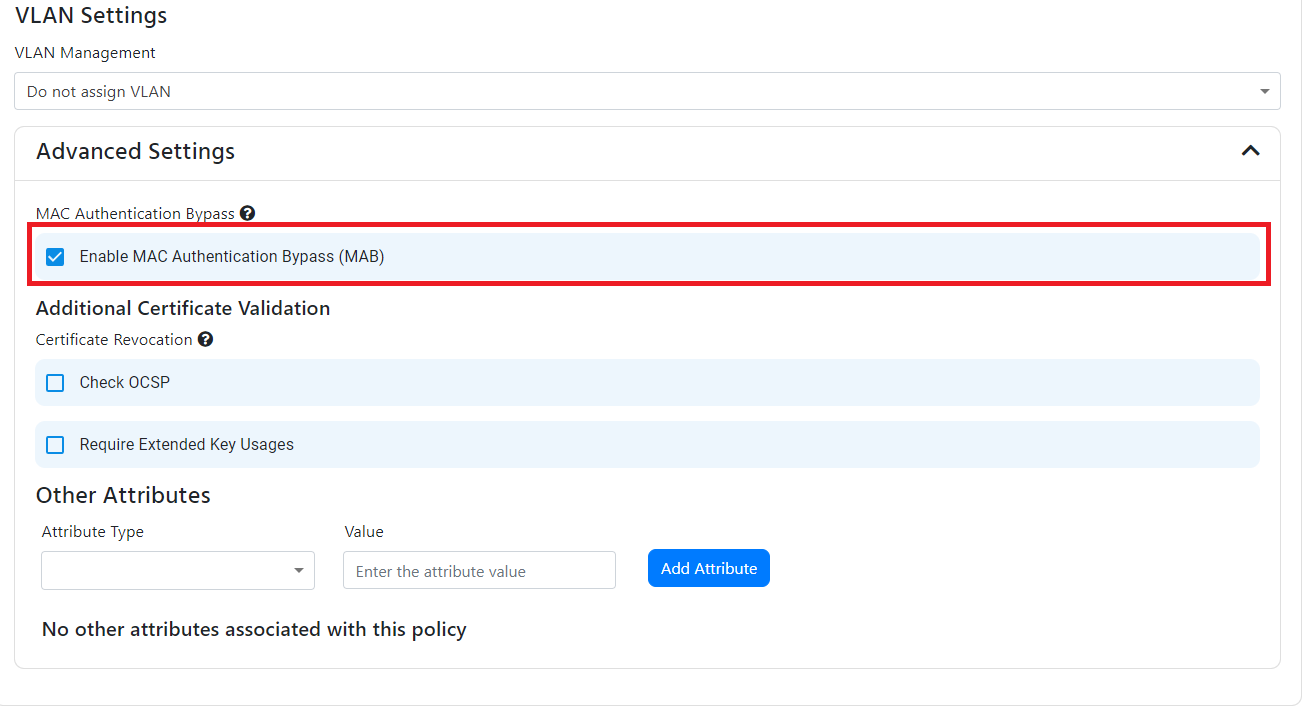
Navigate down to the access policy where you want to enable MAC Address Bypass and expand the Advance Settings section.
-
Click on “Enable MAC Authentication Bypass” checkbox.
-
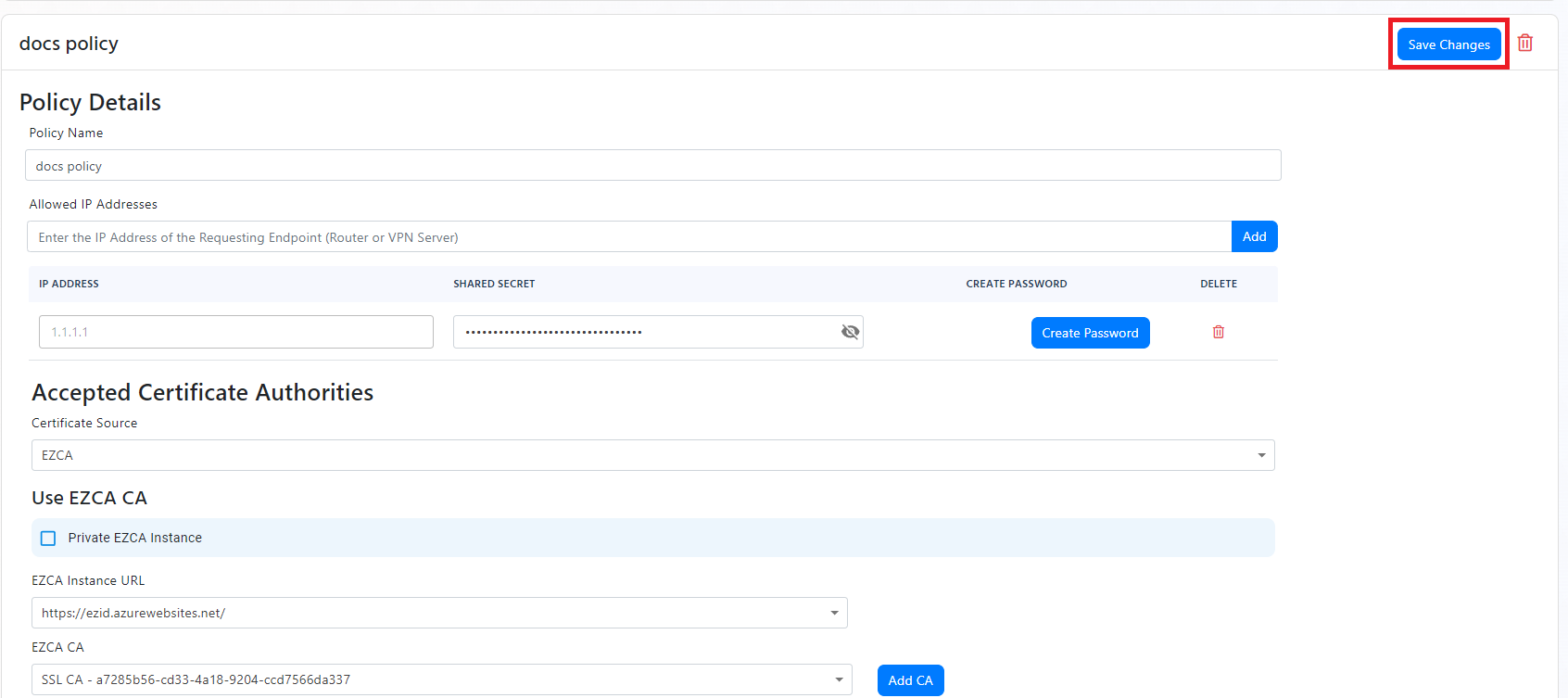
Navigate to the top and click on “Save Changes” on the top right.
-
You have now enabled MAC Address Bypass for your network. Now we have to add the MAC addresses of the devices that you want to bypass authentication.
How to Add MAC Addresses to MAC Address Bypass in EZRADIUS Cloud RADIUS
-
Go to your EZRADIUS portal.
-
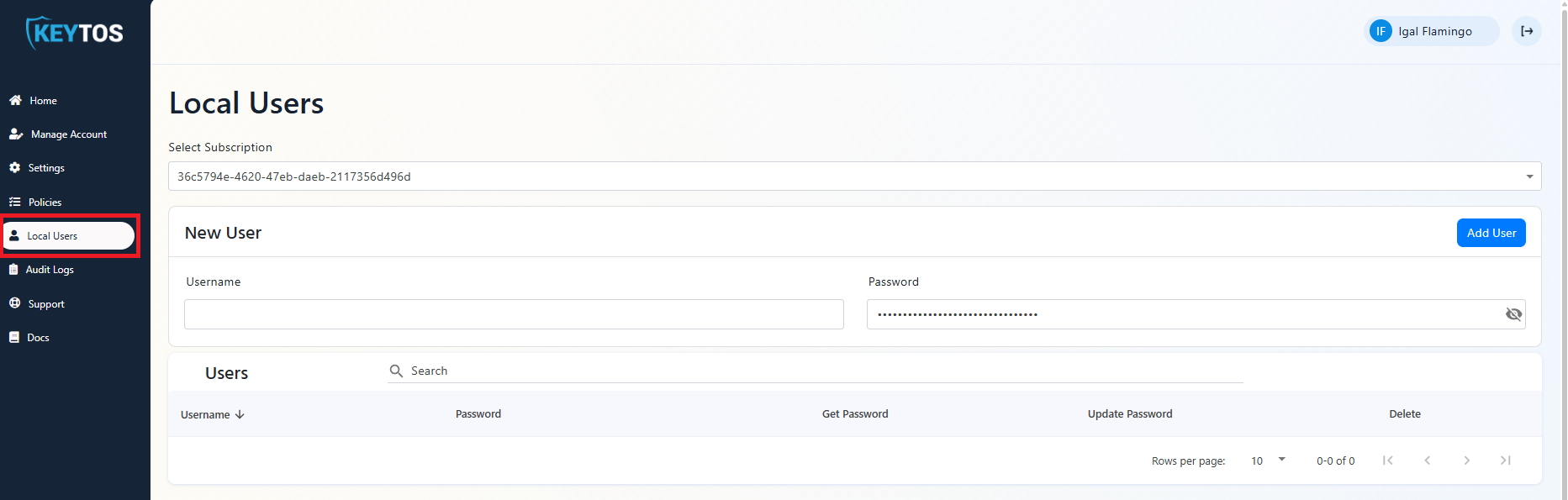
Click on local users.
-
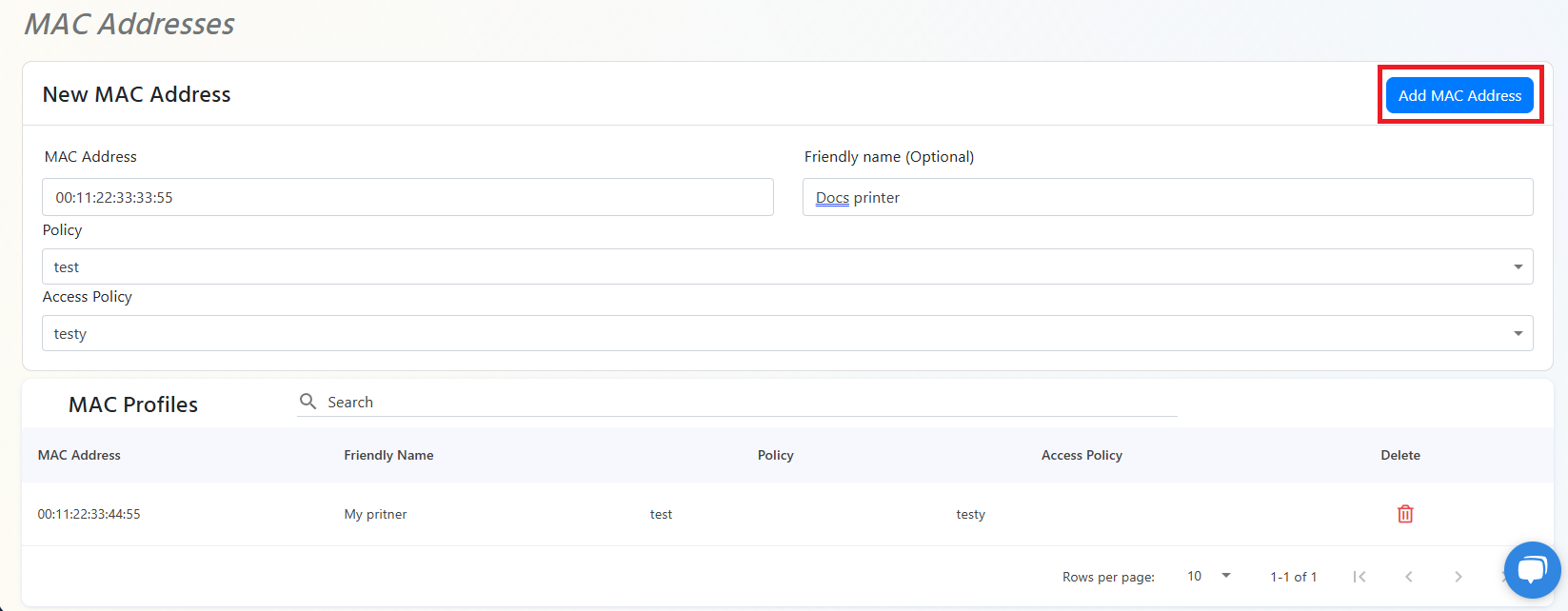
Scroll down to MAC Addresses section.
-
In the New MAC Address field, enter the MAC address of the device you want to bypass authentication.
-
You can also enter a description for the device in the Friendly name field.
-
Select the policy that you want to apply to this device.
-
Select the access policy that you want to apply to this device.
-
Click on Add MAC Address to add the MAC address to the MAC Address Bypass list.
If you select Bulk Upload Addresses, select a CSV file with the MAC addresses and their friendly names that you want to bypass authentication. The CSV file should have the following format:
00:0a:95:9d:68:16, Device 1
00:0a:95:9d:68:17, Device 2
Make sure to remove any quotation marks or other special characters from the CSV file, as this can cause issues with the upload. After uploading, verify that all MAC addresses were added correctly to the list.
How to Enable MAC Address Bypass in Your Network
After you have enabled MAC Address Bypass in your EZRADIUS portal and added the MAC addresses of the devices that you want to bypass authentication, you need to enable MAC Address Bypass in your network. The steps to do this will vary depending on the type of network equipment you are using. Refer to your network equipment documentation for instructions on how to enable MAC Address Bypass.
While MAC Address Bypass can function on both wired and wireless networks, capabilities and results may vary depending on your network equipment and configuration. For example, Wired connections can attempt an EAP-TLS authentication first, and if it fails, it can fall back to MAC Address Bypass. On the other hand, Wi-Fi connections may not have this fallback option you may need to have separate Wi-Fi networks for MAB devices. Always refer to your network equipment documentation for specific details on how MAC Address Bypass is implemented and behaves in your environment.