
















How-To: Install a Certificate Wi-Fi Profile on Unmanaged Windows
Overview - Wi-Fi Profiles for Unmanaged Windows Devices with EZRADIUS
If your organization has enabled self-service Wi-Fi profiles, you can create your own Wi-Fi profile for your Windows devices. There are three ways to obtain them: EZRADIUS sent you an email with the profile, you downloaded the profile from the EZRADIUS portal, or request an email with your profile from the EZRADIUS portal.
The Windows Wi-Fi profile is made up of three files, each used to install the profile on your Windows device:
root.cer: the Root CA certificate.certificate.pfx: your Wi-Fi certificate.wifi-profile.xml: the Windows Wi-Fi profile.
Step-by-Step Guide - How to Install a Wi-Fi Profile on Windows
Follow the steps below to install a Wi-Fi profile on your Windows device.
Step 1 - How to Download Your Windows Wi-Fi Profile
The first step is to download your Wi-Fi profile from either the email sent by EZRADIUS or from the EZRADIUS portal.
How to Request an Email with your Wi-Fi Profile from the EZRADIUS Portal
If you haven’t received an email with your Wi-Fi profile, you can request an email with your profile from the EZRADIUS portal.
Your administrator must have enabled self-service profile distribution in EZRADIUS for you to request an email with your Wi-Fi profile. If it is not enabled, ask them to email you the profile directly.
-
Go to the EZRADIUS portal (this URL will be provided by your organization).
-
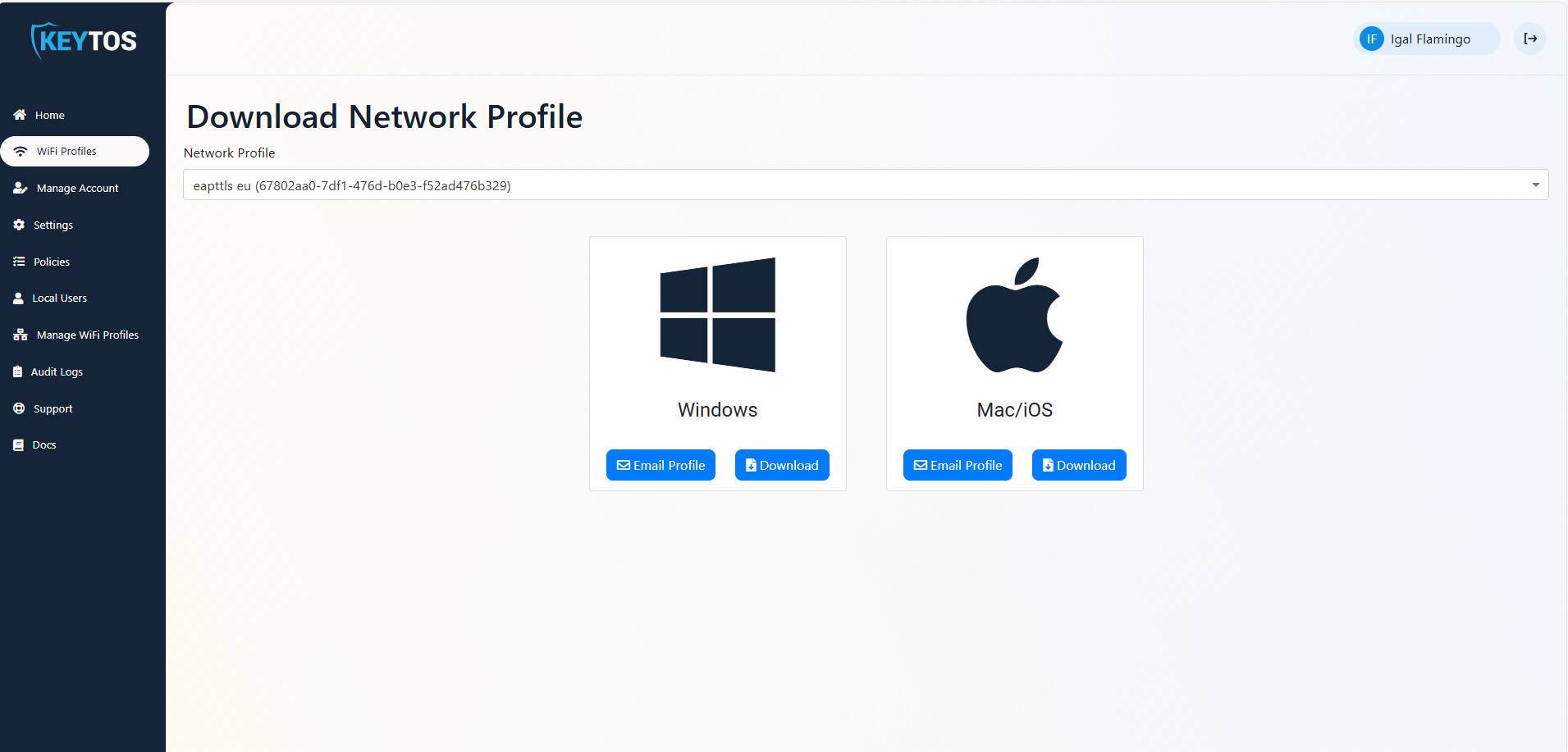
From the left-hand menu, click on the WiFi Profiles button.
-
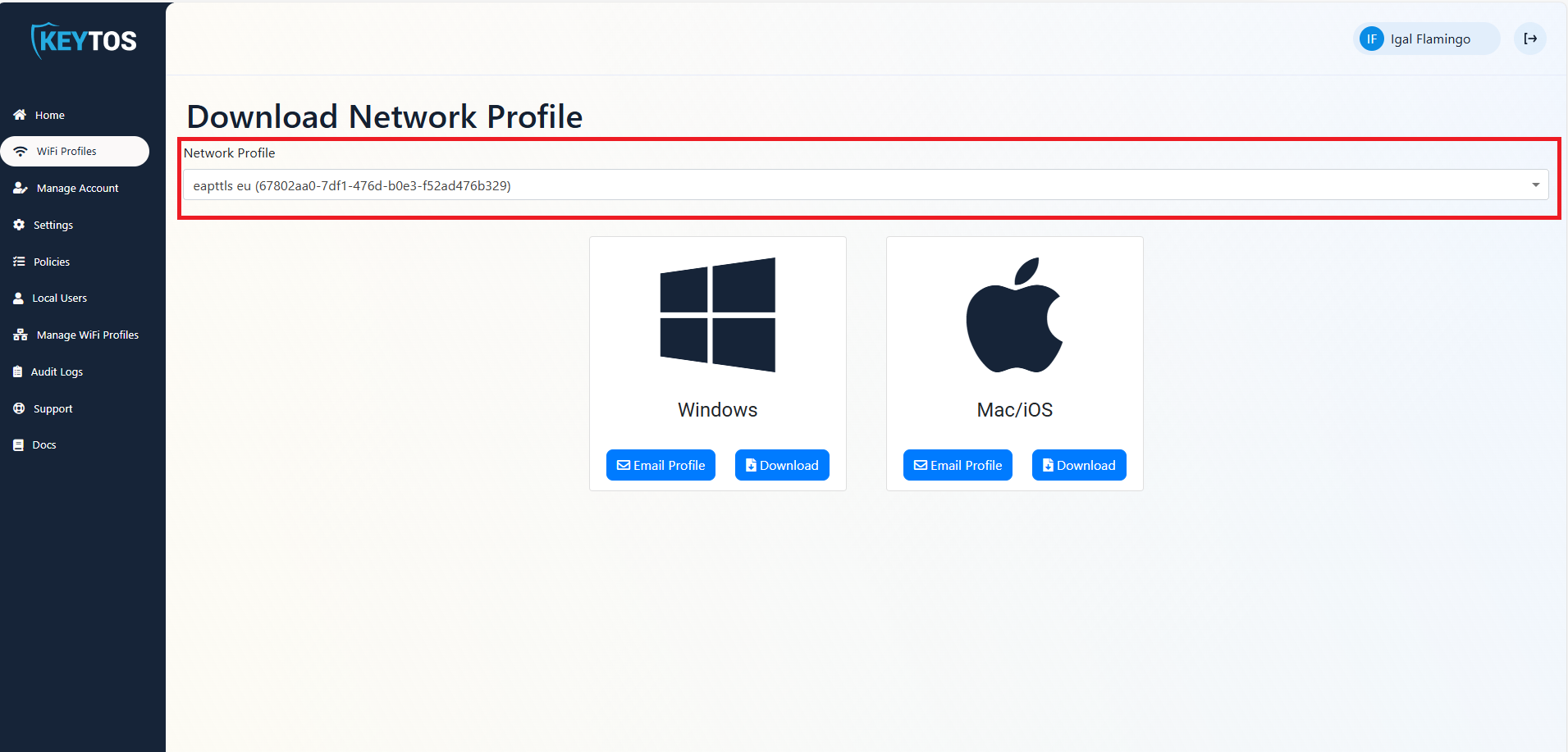
If your organization has multiple profiles available, select the profile you want to request.
-
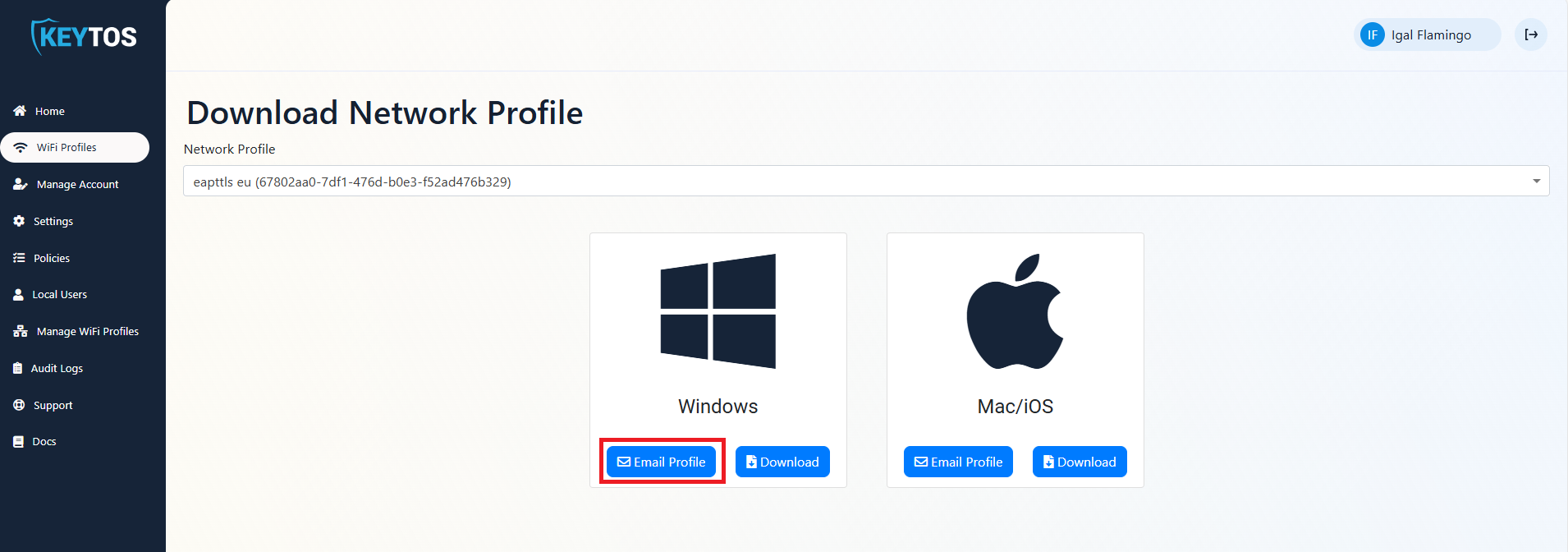
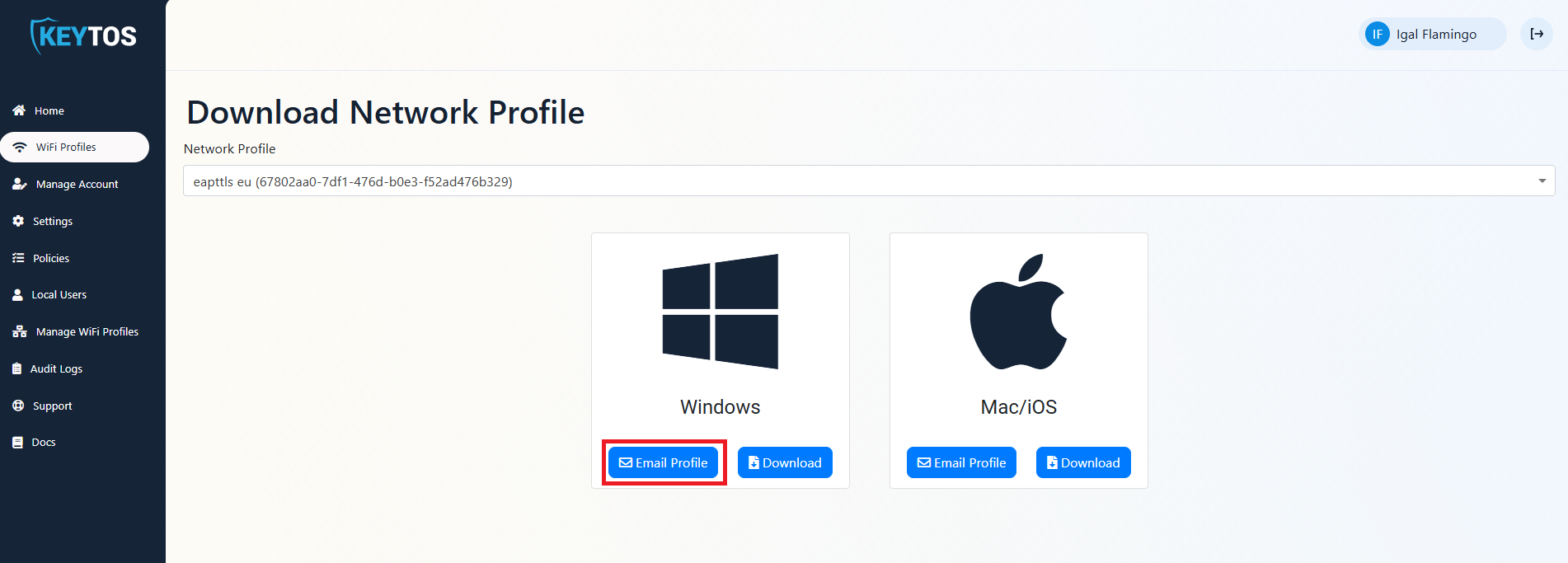
Under Windows, click on the Email Profile button.
-
An email will be sent to your registered email address with the Wi-Fi profile attached.
How to Download Your Wi-Fi Profile from Email
If you received an email from EZRADIUS with your profile, follow these steps to save the files on your Windows device:
-
Open the email from EZRADIUS on your Windows device.
-
Save the
root.cer,certificate.pfx, andwifi-profile.xmlattachments to a folder on your device. Keep the email open, since you will need the certificate password from it in Step 3.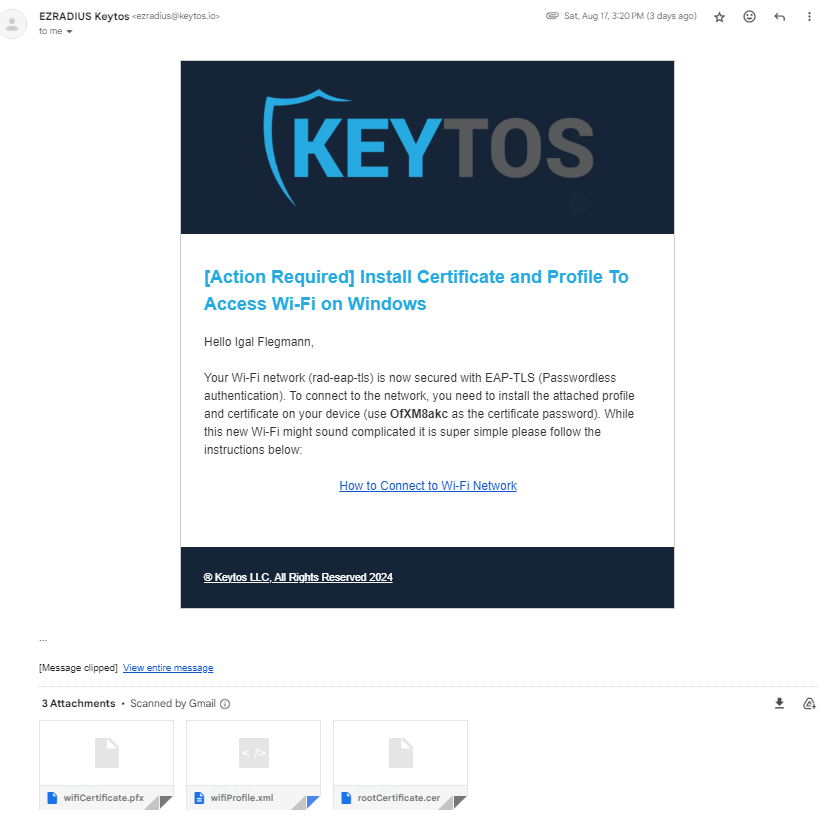
How to Directly Download a Wi-Fi Profile from the EZRADIUS Portal
You can also directly download your Wi-Fi profile from the EZRADIUS portal.
-
On the device you want to install the profile on, open your browser and go to the EZRADIUS portal (this URL will be provided by your organization).
-
From the left-hand menu, click on the WiFi Profiles button.
-
If your organization has multiple profiles available, select the profile you want to download.
-
Under Windows, click on the Download button.
-
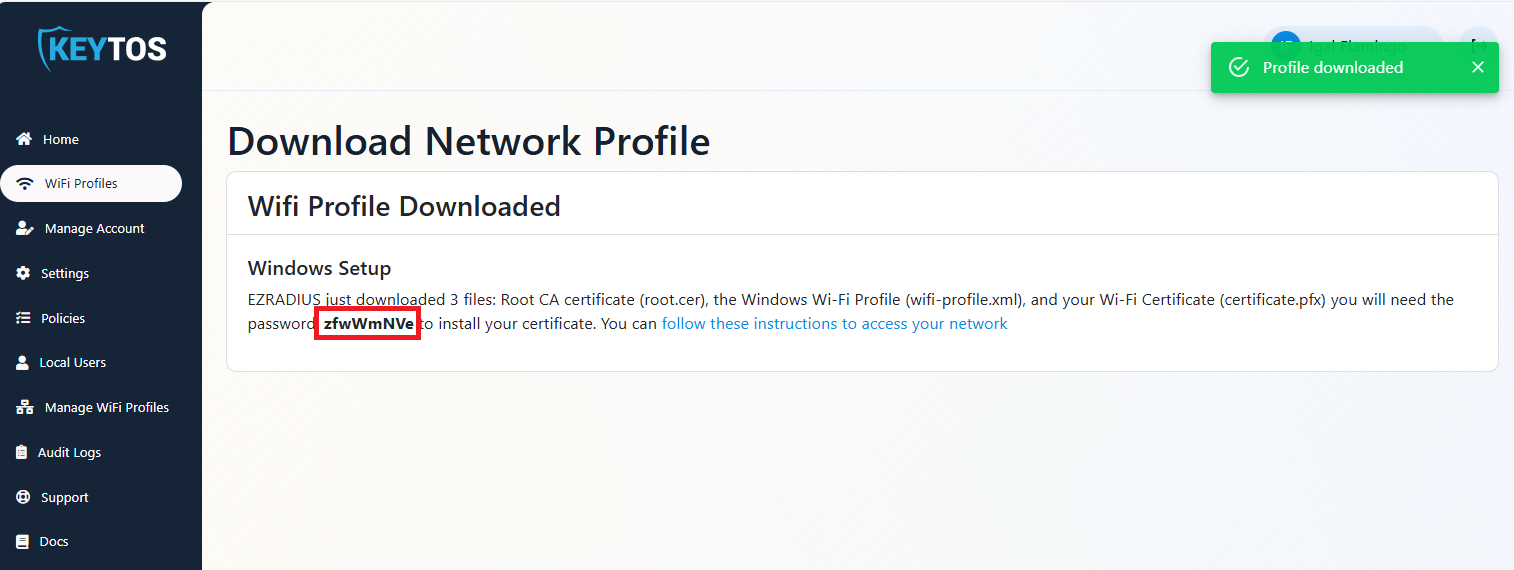
Copy the certificate password shown in the portal. You will need it in Step 3.
-
A zip file with the
root.cer,certificate.pfx, andwifi-profile.xmlfiles will be downloaded. Extract the files to a folder.
Step 2 - How to Install the Root CA Certificate on Windows
You only have to install the Root CA certificate if it shows a red X on the top left corner when you open it. If it doesn’t have a red X, you can skip to Step 3.
-
Double-click on the
root.cerfile and click on the Install Certificate button. The certificate will be installed in the Trusted Root Certification Authorities store.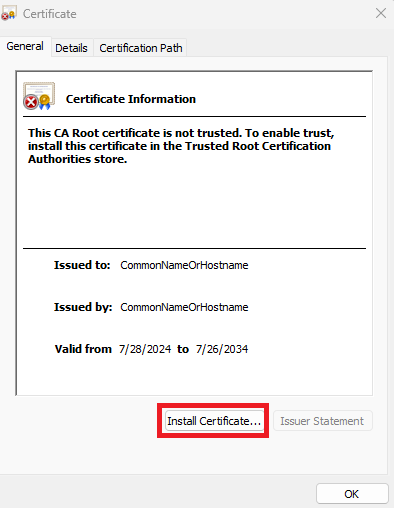
-
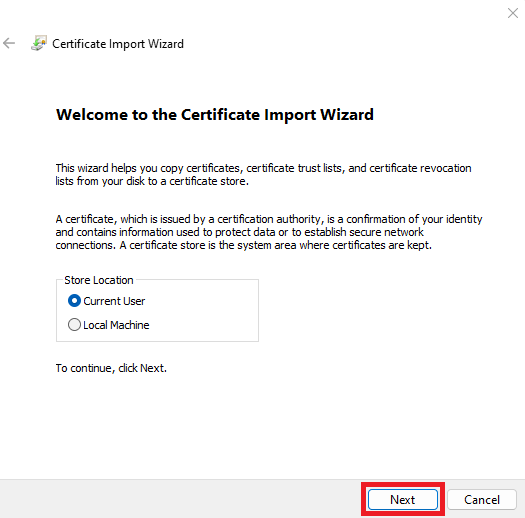
Click Next on the Certificate Import Wizard.
-
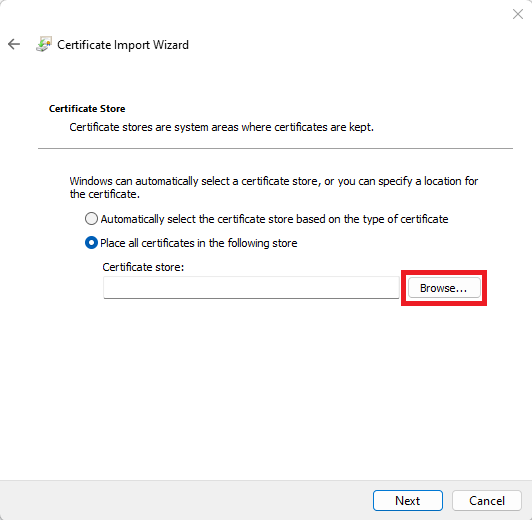
Select the Place all certificates in the following store option and click Browse.
-
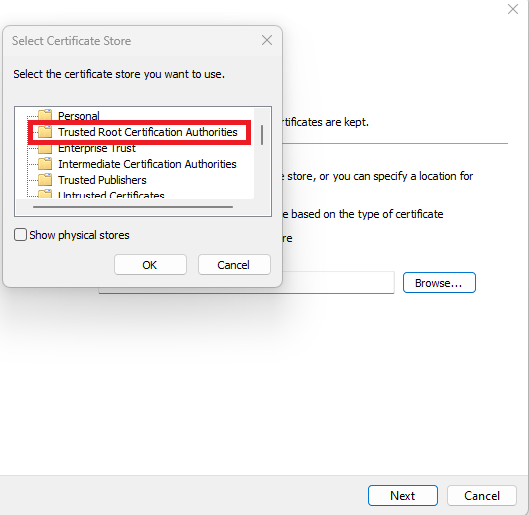
Select the Trusted Root Certification Authorities store and click OK.
-
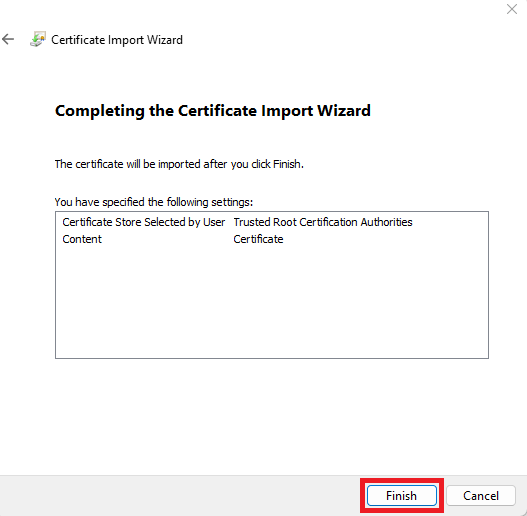
Click Next and then Finish.
Step 3 - How to Install the Wi-Fi Certificate on Windows
Next, install your Wi-Fi certificate in your Personal certificate store.
-
Double-click on the
certificate.pfxfile and click Next.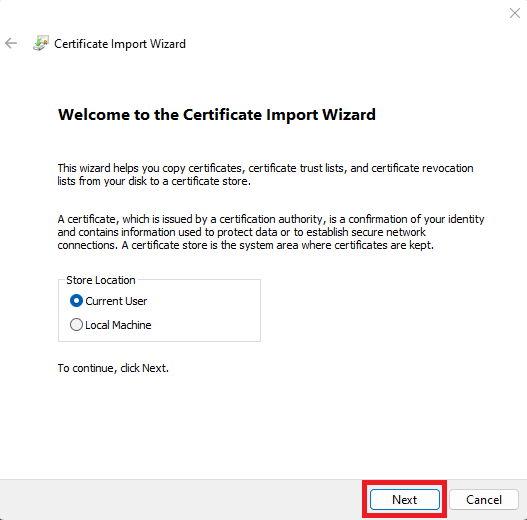
-
Click Next on the Certificate Import Wizard.
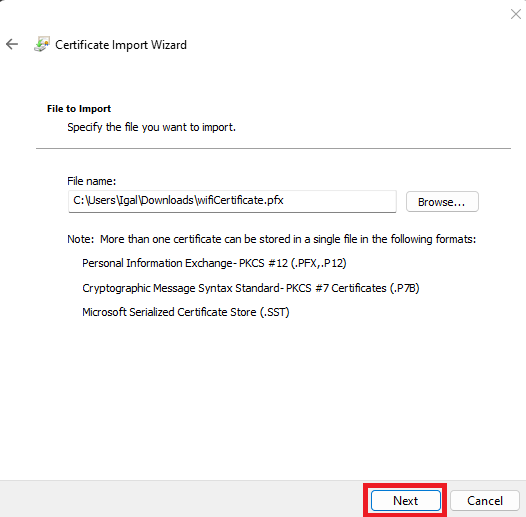
-
Enter the certificate password from the EZRADIUS email or portal in the Password field.
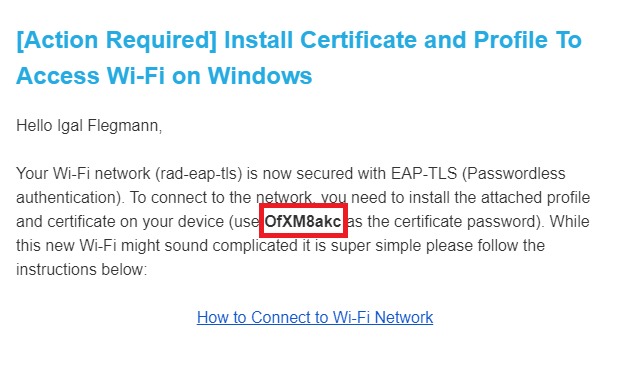
-
Click Next.
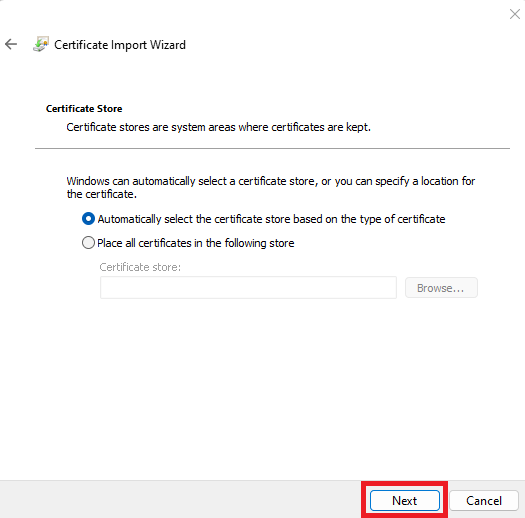
-
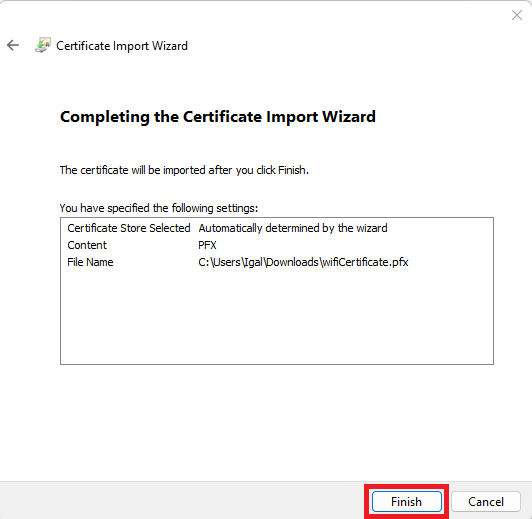
Click Finish.
-
Click OK.
Step 4 - How to Install a Wi-Fi Profile on Windows
Once the certificates are installed, you can add the Wi-Fi profile to Windows.
-
Find the full path of the
wifi-profile.xmlfile, for example,C:\Users\Marcos\Desktop\wifi-profile.xml. -
Run the following command in PowerShell, replacing the path with your own:
netsh wlan add profile filename="C:\Users\Marcos\Desktop\wifi-profile.xml" user=current -
Done! Your device should now connect to the Wi-Fi network automatically.