How-To: Add PKI Administrators to your Azure PKI
What is a PKI Administrator?
A PKI Administrator is an Entra ID user or group that has been granted administrative privileges to manage your EZCA subscription and Certificate Authorities. PKI Administrators can perform tasks such as creating and managing CAs, issuing and revoking certificates, and configuring PKI settings.
When choosing PKI Administrators, it’s important to select individuals or groups who are trusted and have the necessary expertise to manage your PKI effectively. This may include members of your IT security team, system administrators, or other personnel responsible for managing digital certificates and encryption within your organization.
For your most business critical PKI deployments, you may also consider Privileged Identity Management (PIM) to only enable PKI Administrator access when needed, or dedicated break-glass accounts that are only used in emergency situations.
By default, EZCA will send important notifications regarding your PKI to all PKI Administrators. If you use PIM or break-glass accounts, ensure you have add an additional email address to your Certificate Authority settings to receive expiration and other important notifications.
Prerequisites
How To Add PKI Administrators to Azure PKI
- Go to the your EZCA Portal.
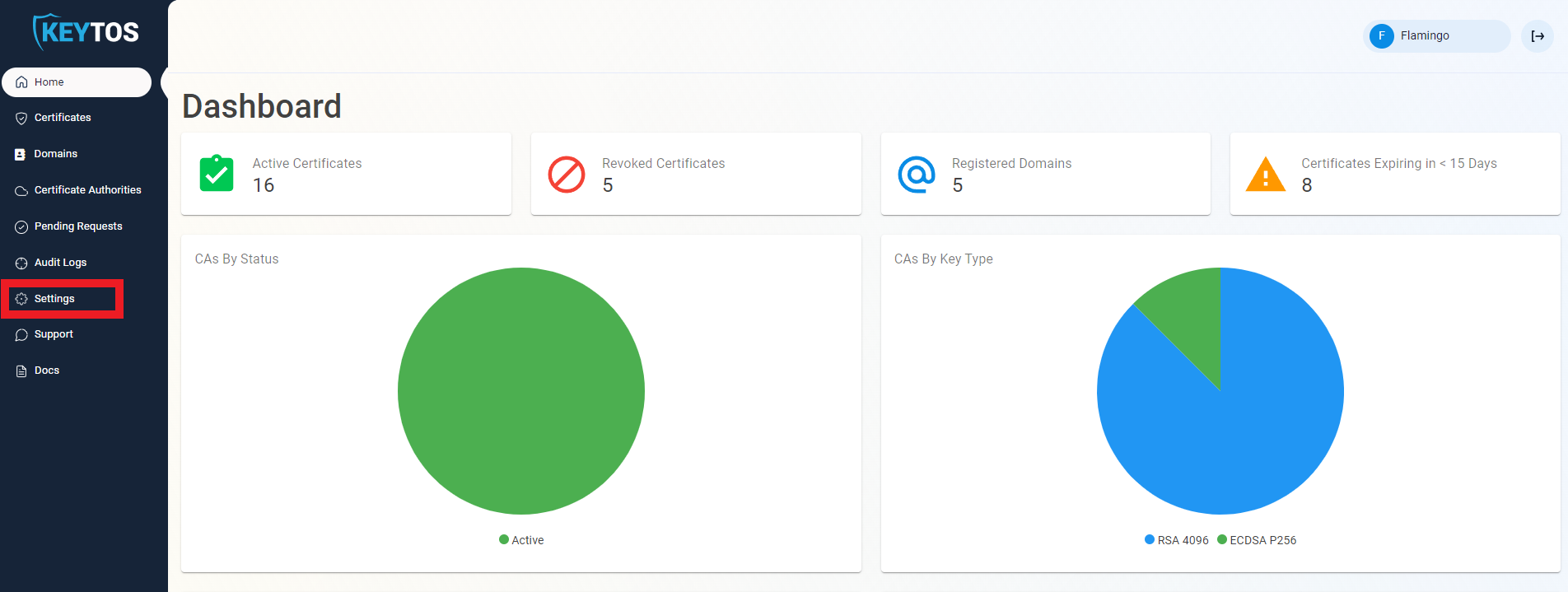
- Click on Settings.
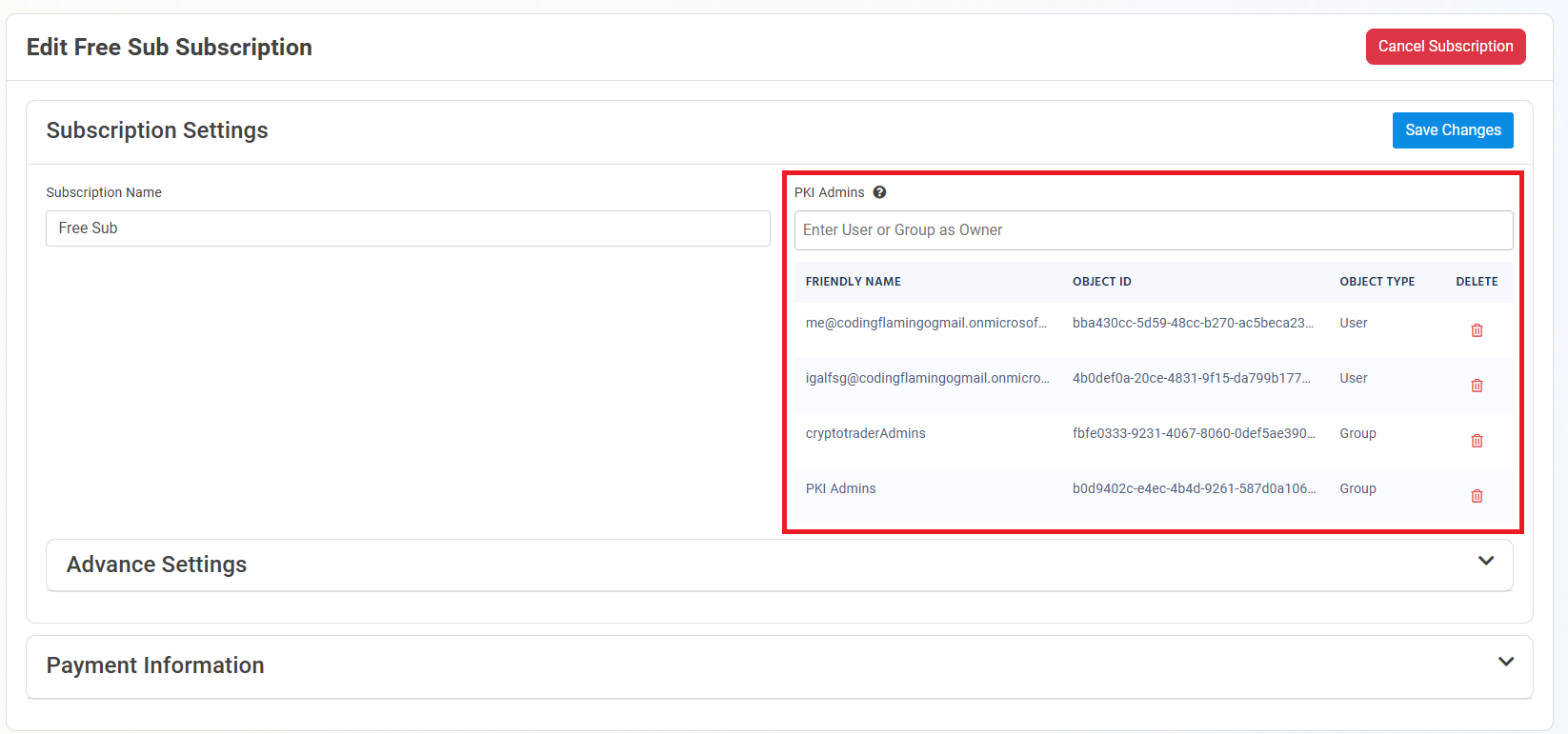
- In the “PKI Admins” section, start typing the name of the user or you want to add as a PKI Administrator. Note you can add Entra ID Groups allowing you to use PIM to manage the PKI Administrators.
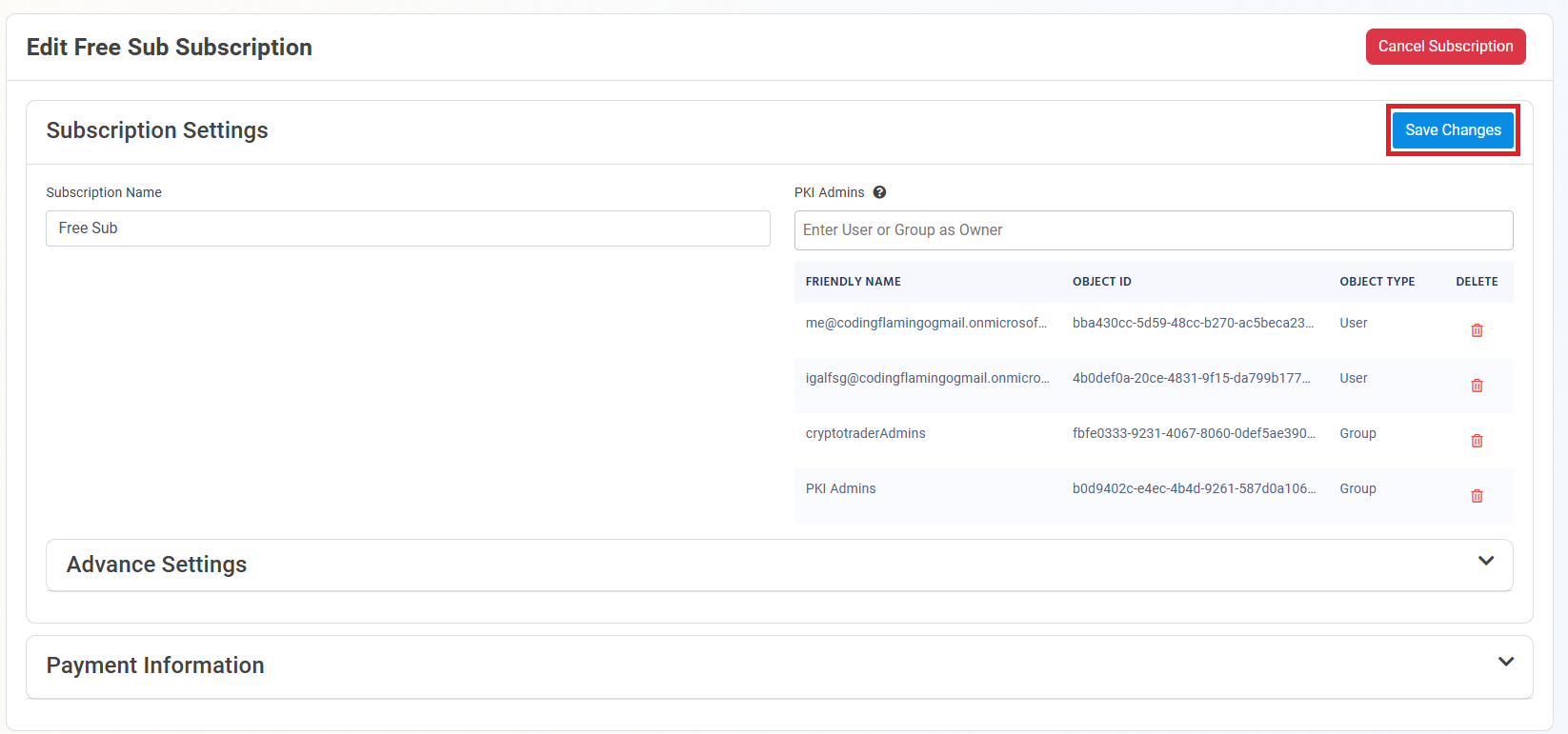
- Once you have modified the PKI Administrators, click on “Save Changes” on the top right.