

















How-To: Export EZSSH Logs to Azure Sentinel
Prerequisites
Video Version
Introduction
EZSSH enables your security team to monitor access granted through EZSSH by pushing the information to your SIEM. If your SIEM provider is not currently supported email your Keytos contact and request a connector for that specific provider.
Connecting To Azure Sentinel
- Go to the EZSSH Portal.
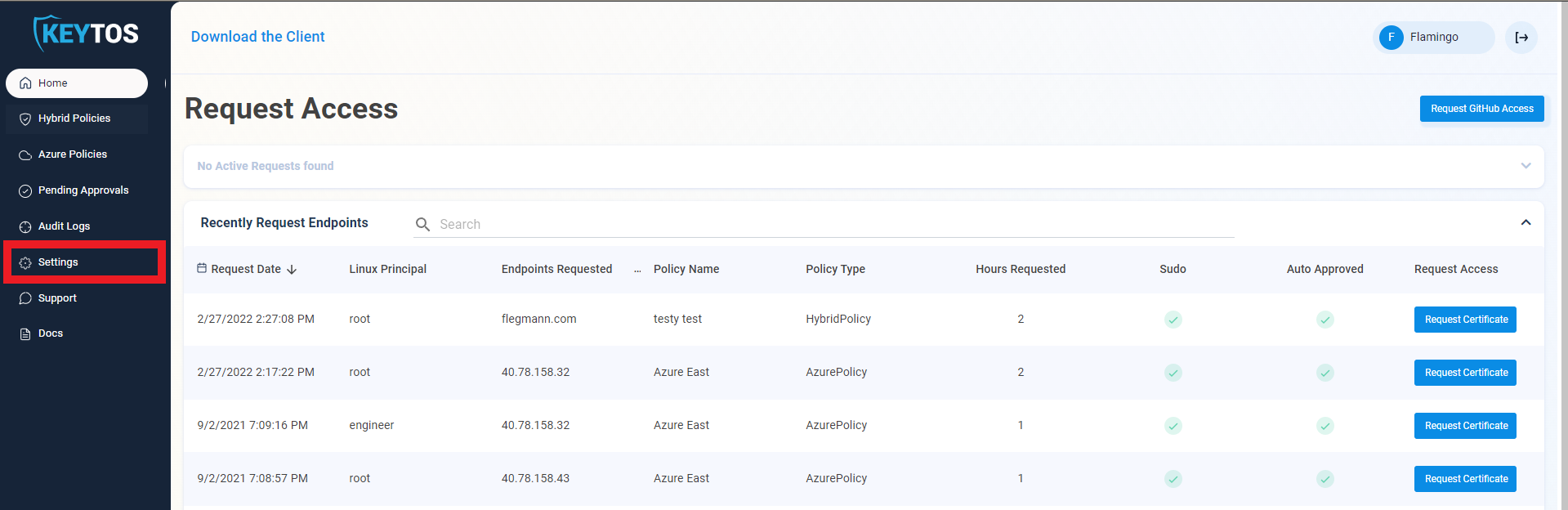
- Click on Settings.
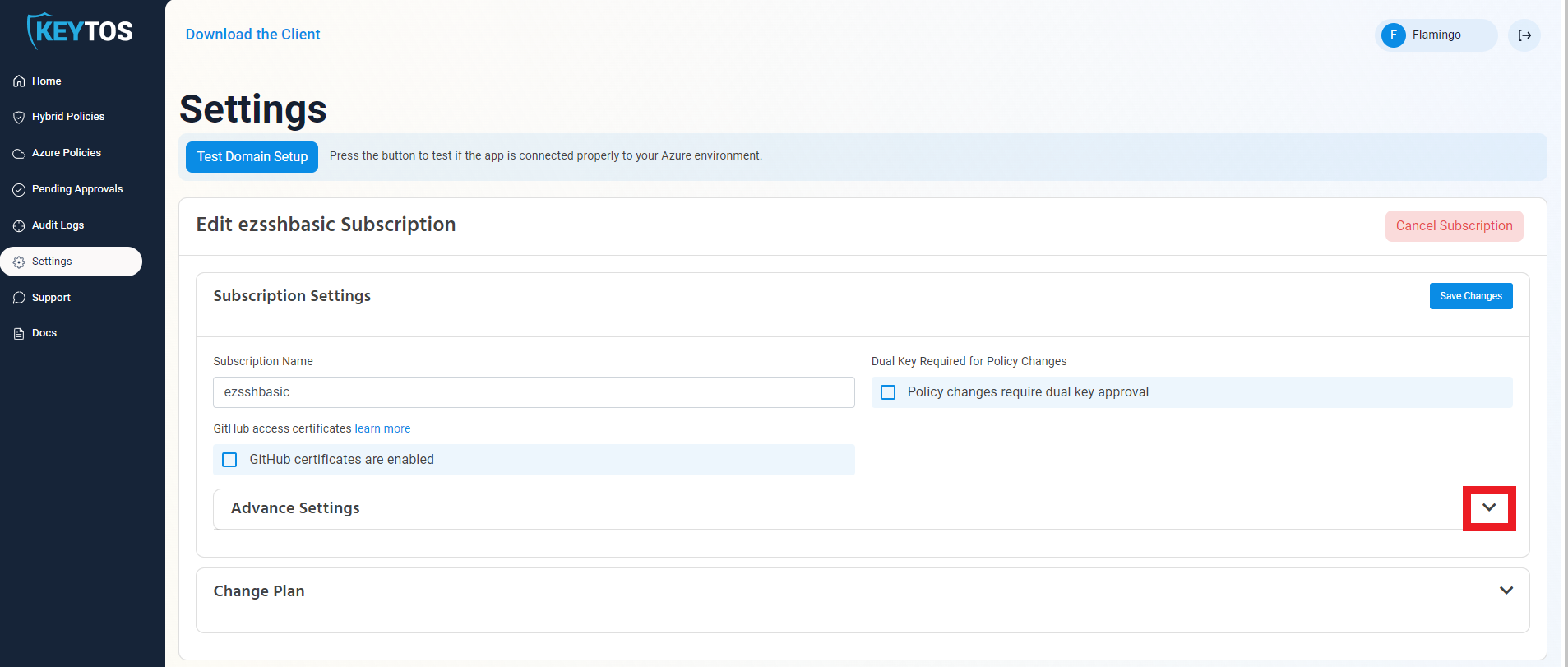
- Expand your subscription’s advanced settings.
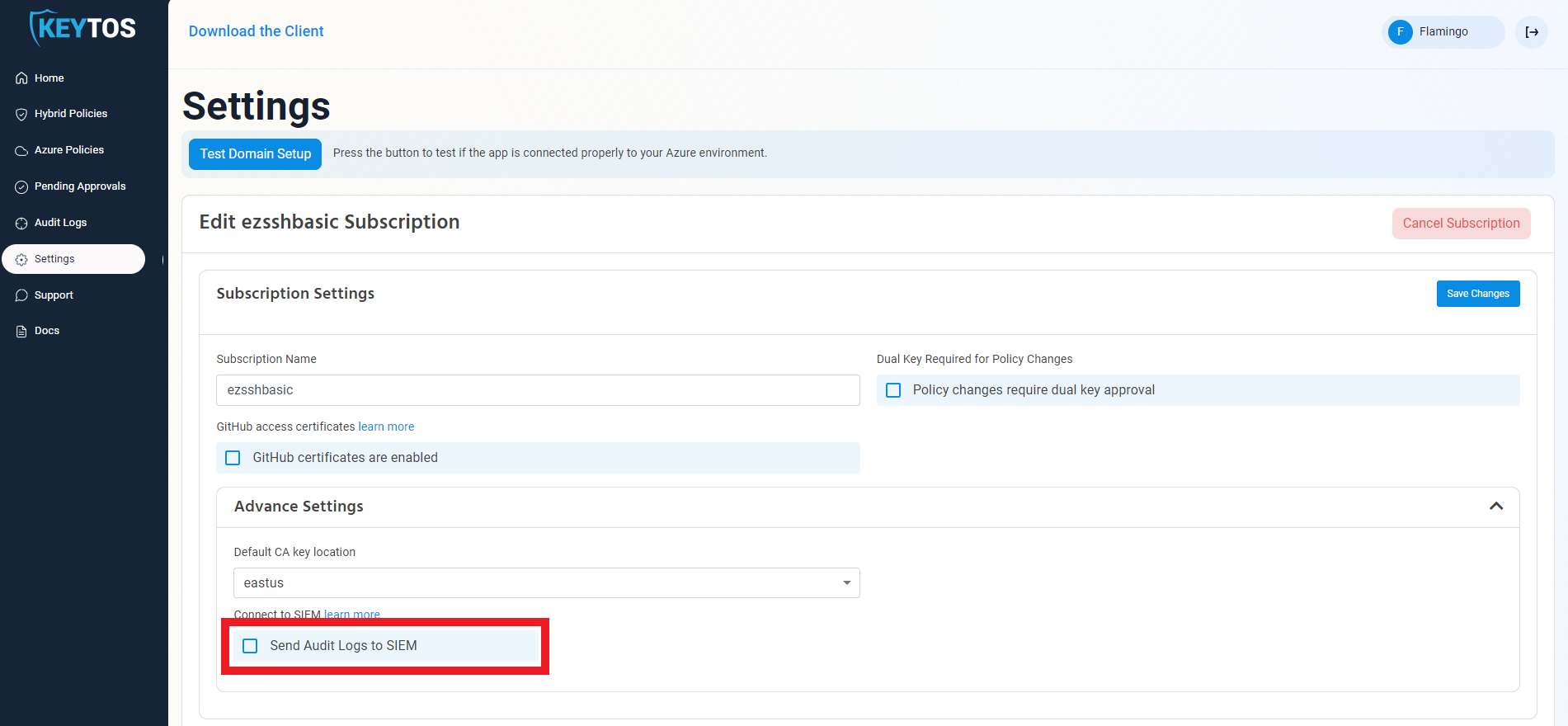
- Enable the “Send Audit Logs” to SIEM option.
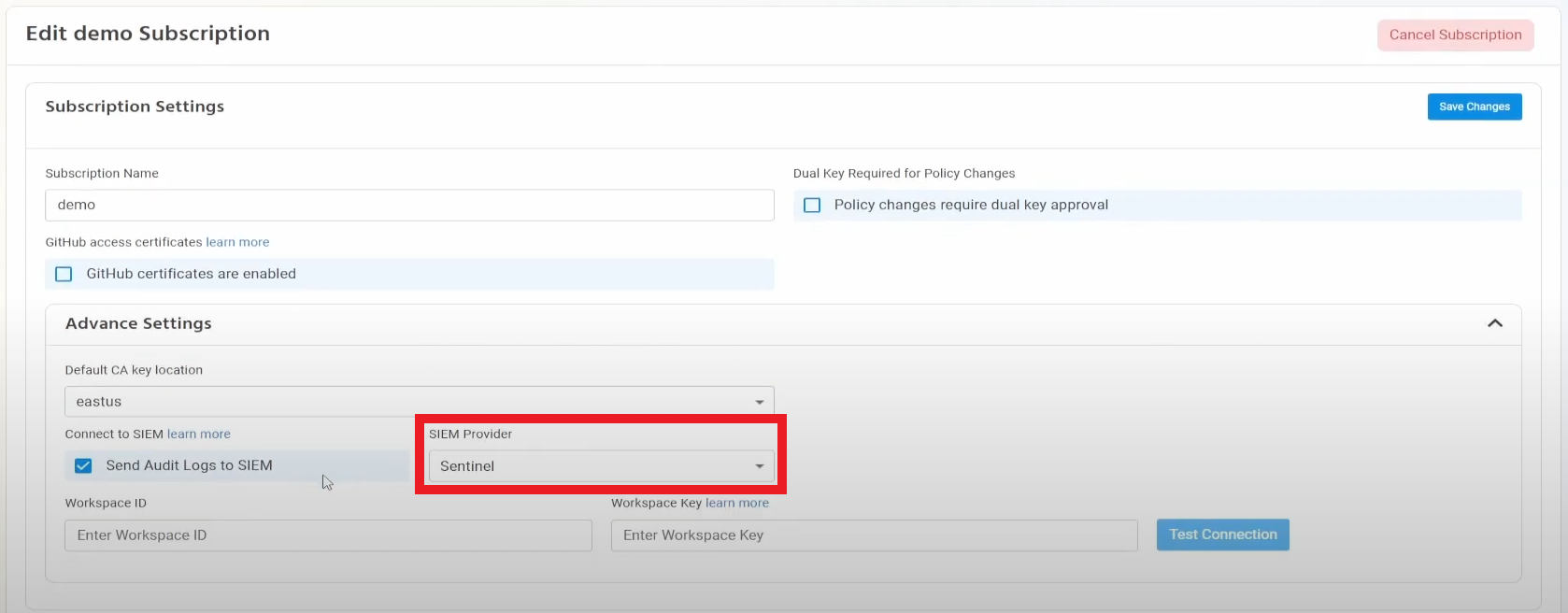
- Select Sentinel as the SIEM Provider.
- In another tab, go to the Azure Portal
- Select the log analytics connected to your Sentinel instance.
- Click on “Agents Management”.
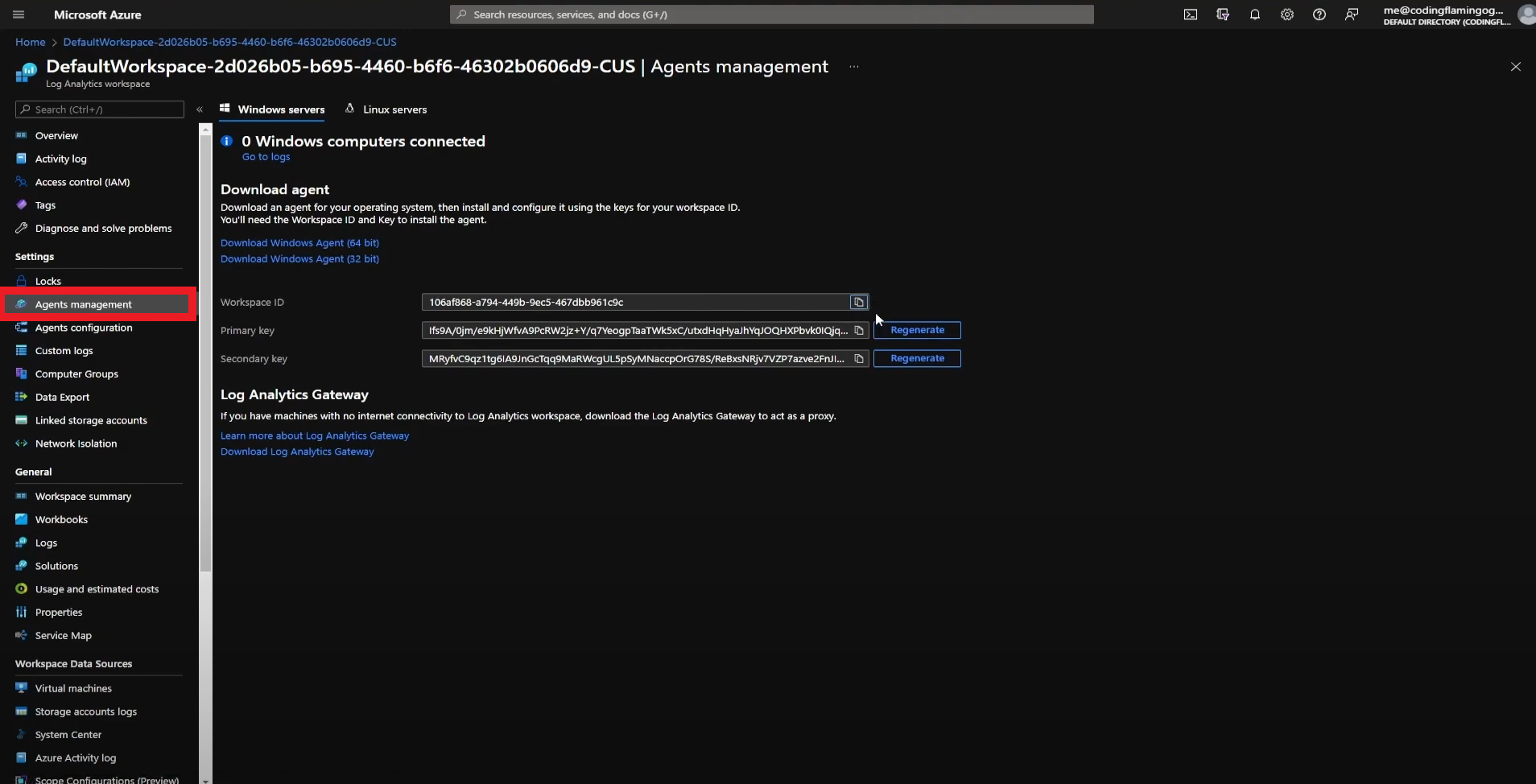
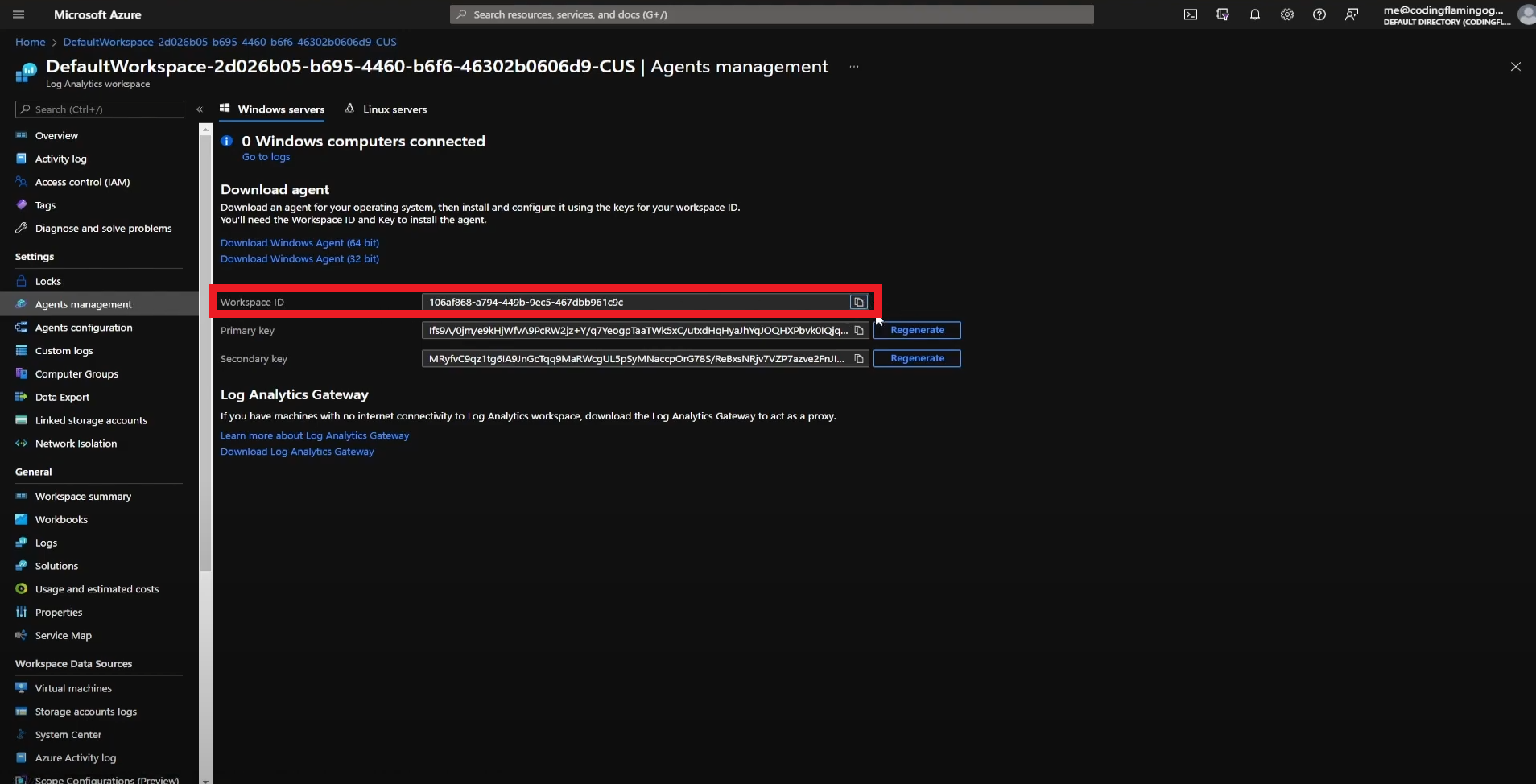
- Copy Your Workspace ID.
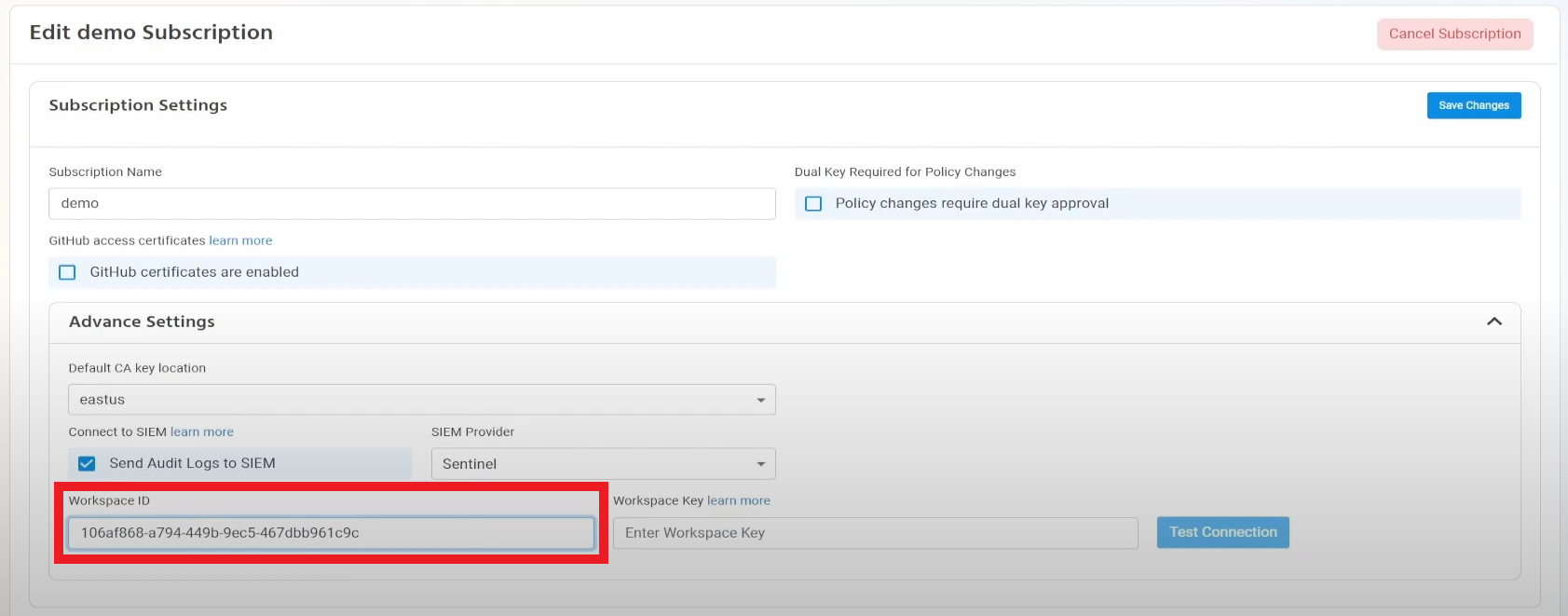
- Go back to the EZSSH tab and paste it in the “Workspace ID” field.
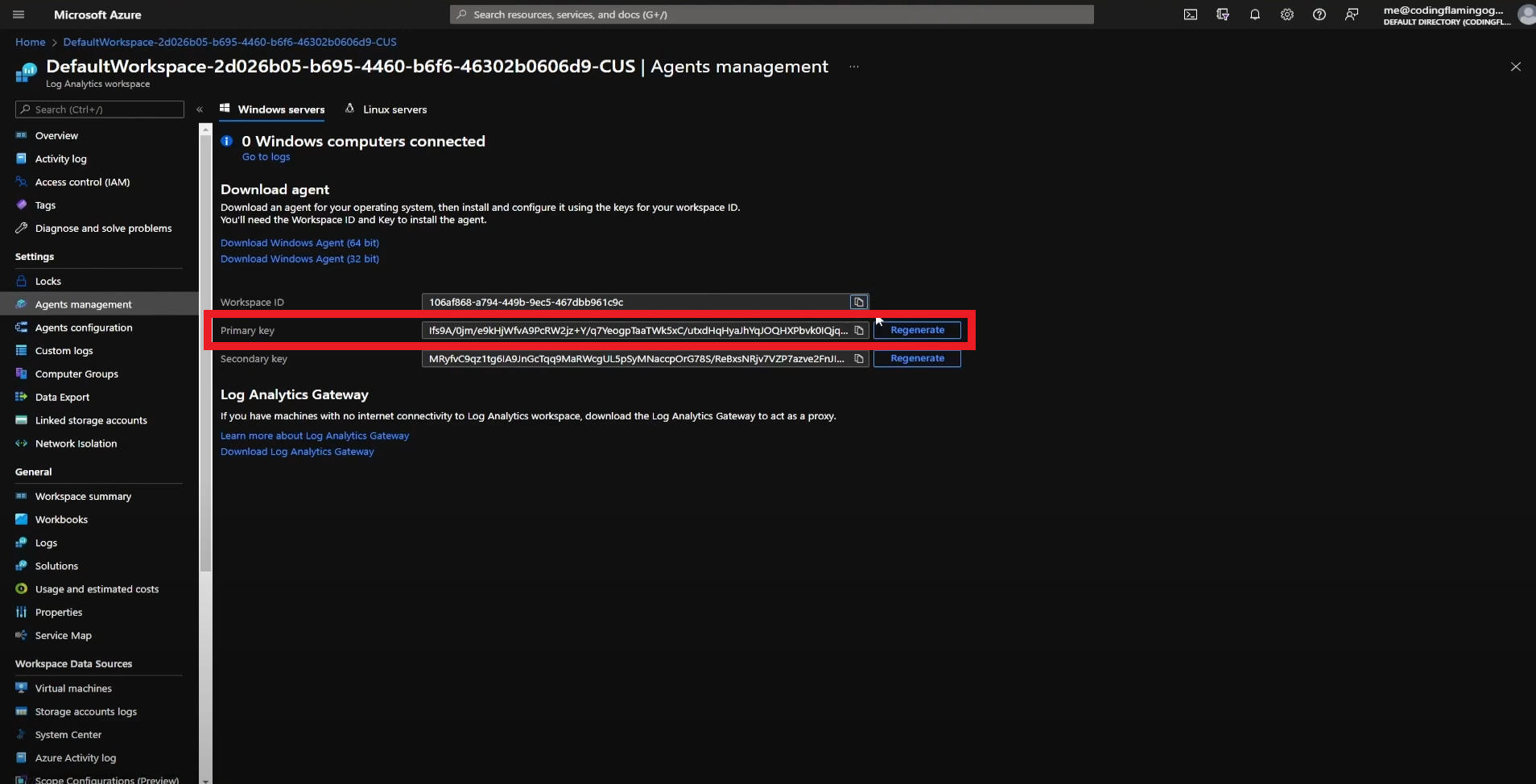
- Go back to the Azure tab and copy the primary key.
- Go back to the EZSSH tab and paste the key in the “Workspace Key” field.
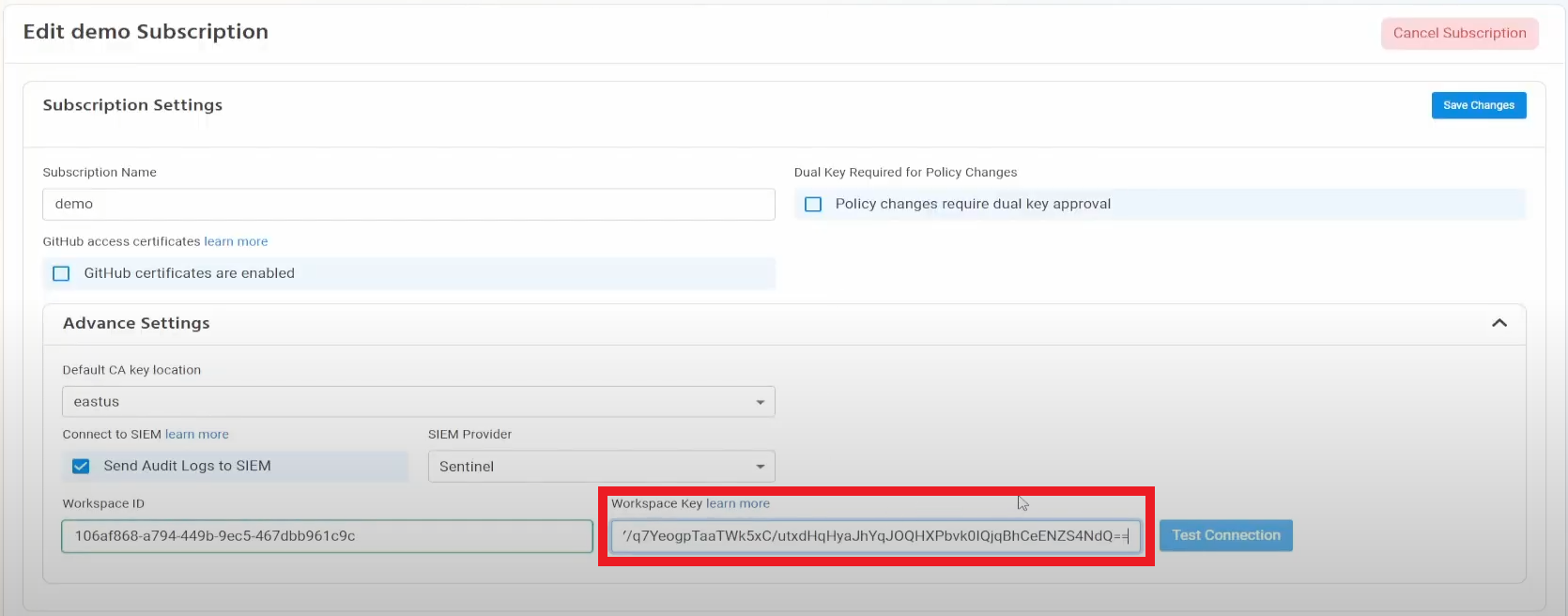
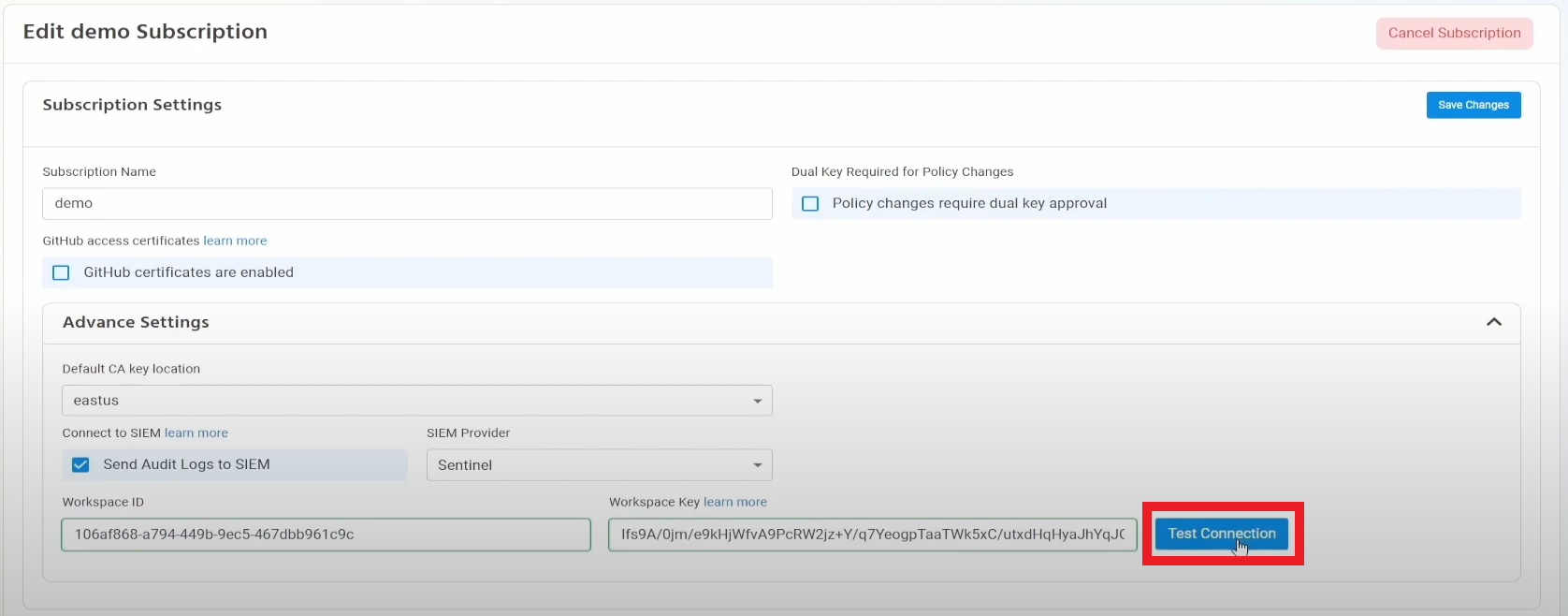
- Click the “Test Connection” button, this will create a test log in your SIEM to make sure EZSSH can write to the SIEM.
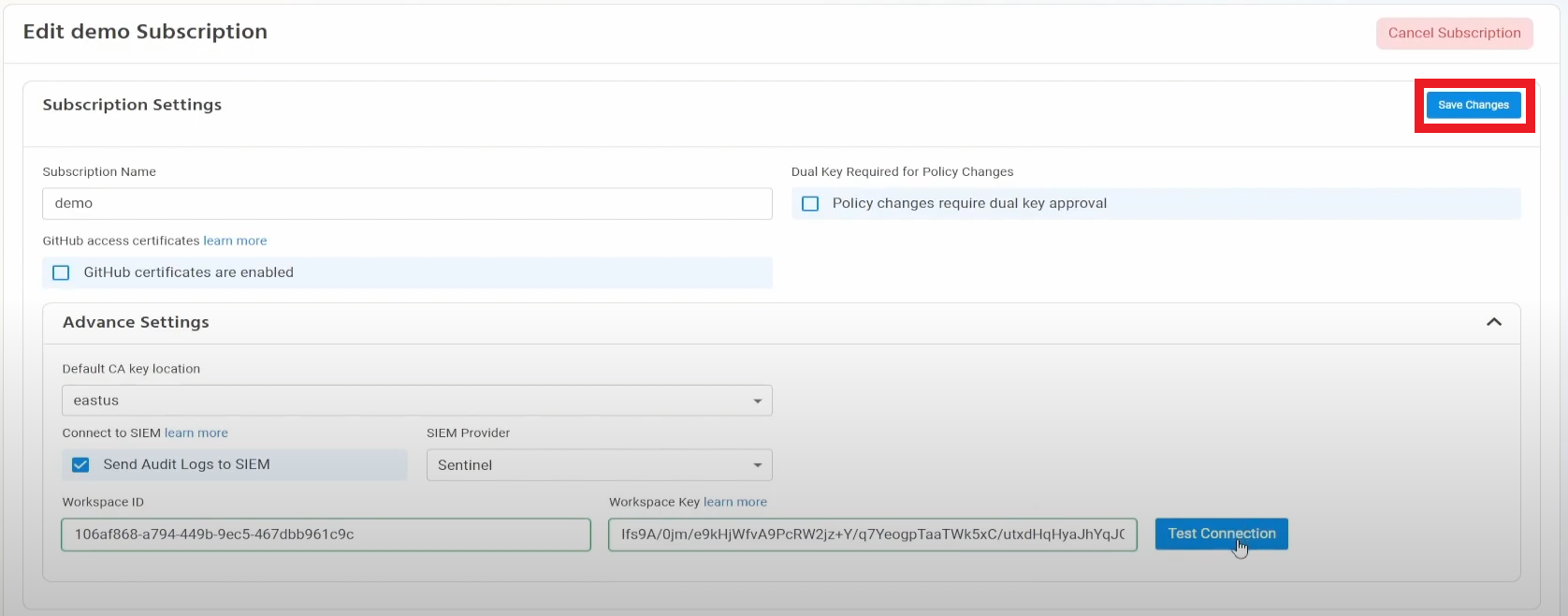
- If the connection test is successful, click “Save changes”.
- EZSSH will now send your access logs to your SIEM. If an error occurs it will email your subscription owners.
Creating Alerts in Azure Sentinel
Using Azure Sentinel enables you to create alerts for abnormal behavior. This section will show you a sample of an alert you can set to detect misuse of EZSSH.
Creating an alert to detect if a user is re-using SSH Keys
- In your Azure Sentinel instance, go to Analytics.
- Click create in the top left.
- Select “Schedule Query”
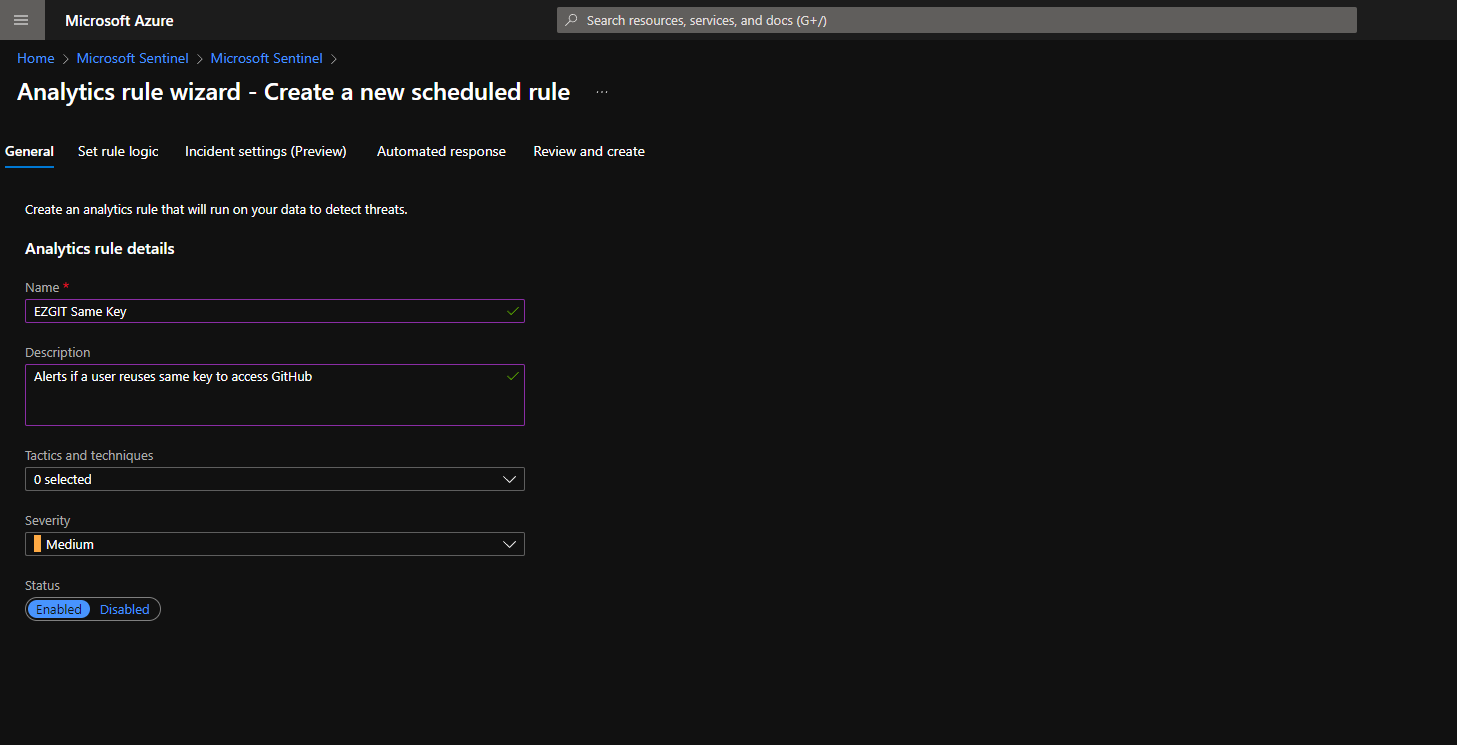
- In the Alert Name enter “EZGIT Same Key”
- In the description “Alerts if a user reuses same key to access GitHub”
- Select the appropriate severity.
- Enter the following Query:
EZSSH_GIT_CL | summarize Count=count() by UserPublicKey_s | where Count > 1 - Select how often you want to check for this alert.
- Set the response you want the SIEM to perform. (We would recommend an email to the user copying the security team to learn more if this was an intended activity).
- Create the Alert.
Other Queries
EZSSH uses custom tables to store the data in Azure log analytics. Below are some sample queries that should help you get started with exploring the EZSSH data.
Get All SSH Requests that granted an SSH Certificate
To get all the requests that created an SSH certificate, run the following Query:
EZSSH_SSH_CL | where ActionPerformed_s != "Test Connection" and isempty(Certificate_s) == false
This query can be then used to correlate with SSH logins to verify that all logins are done with an EZSSH certificate.
Getting the count of Git Certificate requested by user
To get the number of Git certificate a user has requested, run the following query:
EZSSH_GIT_CL | summarize Count=count() by Date=format_datetime(RequestDate_t, 'd-M-yyyy '), RequestorFriendlyName_s
This query is useful to find anomalies on a user requesting a higher number of certificates than usual.