

















How-To: Export your RADIUS Logs to Huntress
Prerequisites
How To Export Your Cloud RADIUS Audit Logs To Huntress
How To Enable Log Export in EZRADIUS Portal
-
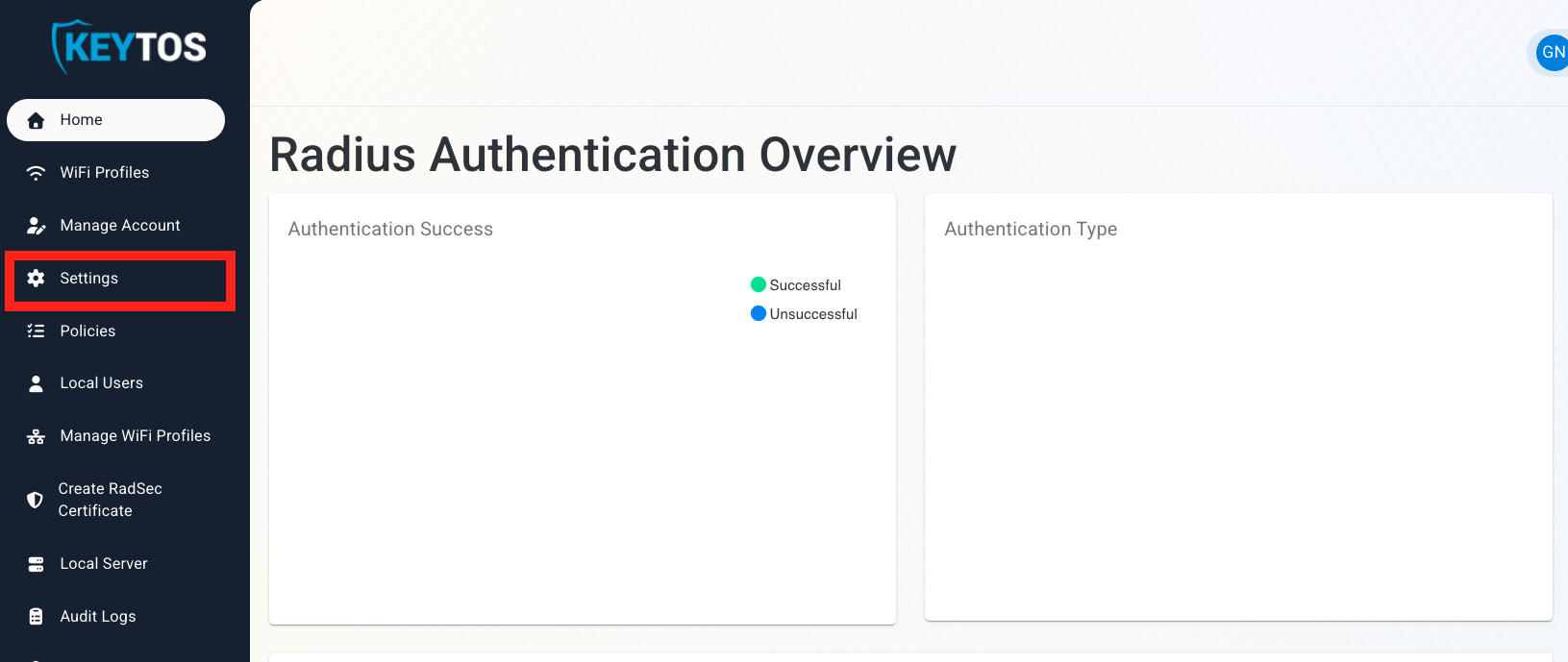
Go to your EZRADIUS Portal.
-
Click on Settings.
-
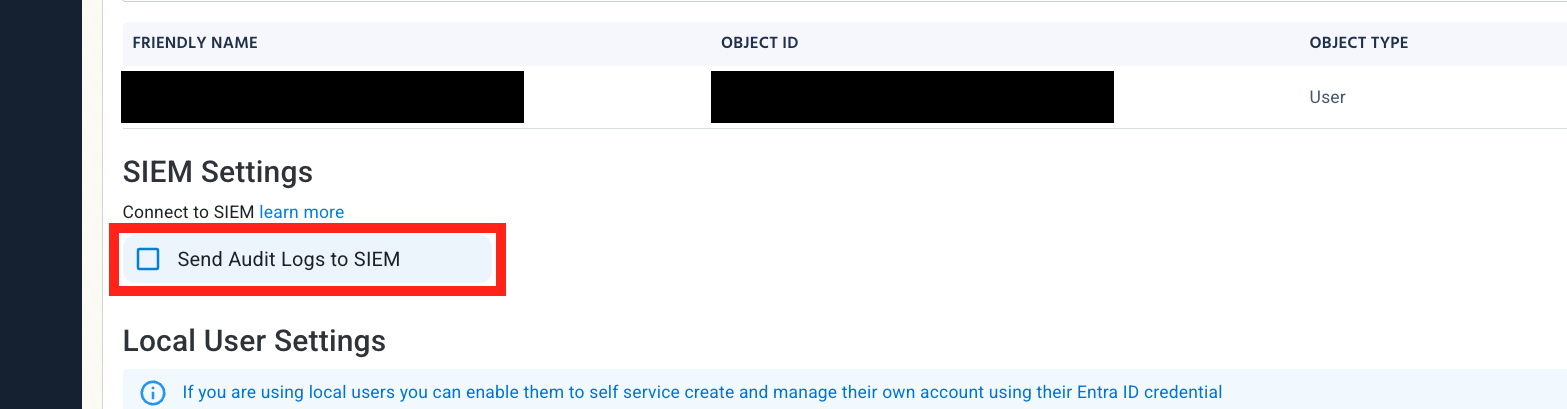
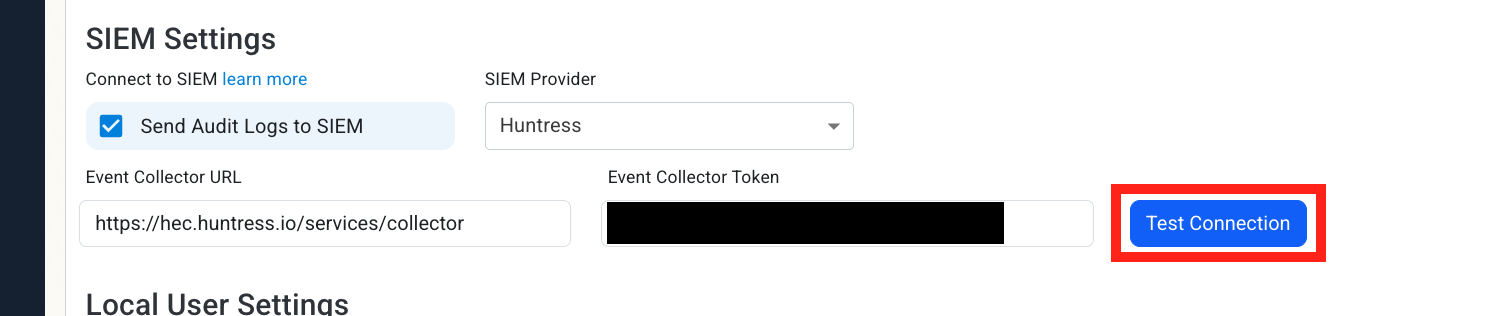
Scroll down to SIEM Settings and enable the Send Audit Logs to SIEM option.
How To Configure the Huntress Exporter in the Huntress Portal
-
In another tab, go to your Huntress instance.
-
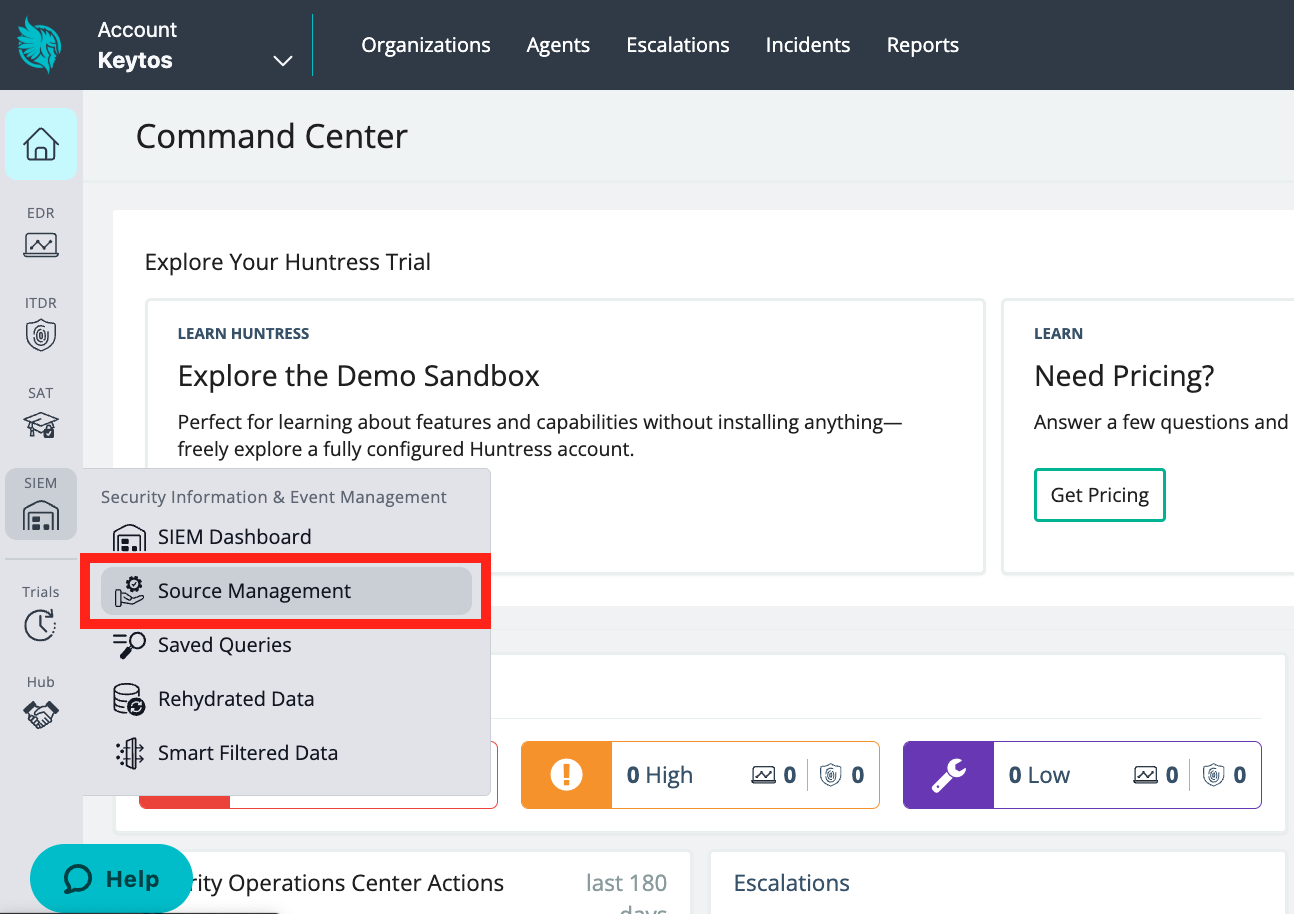
Click on the SIEM menu. Then, click Source Management.
-
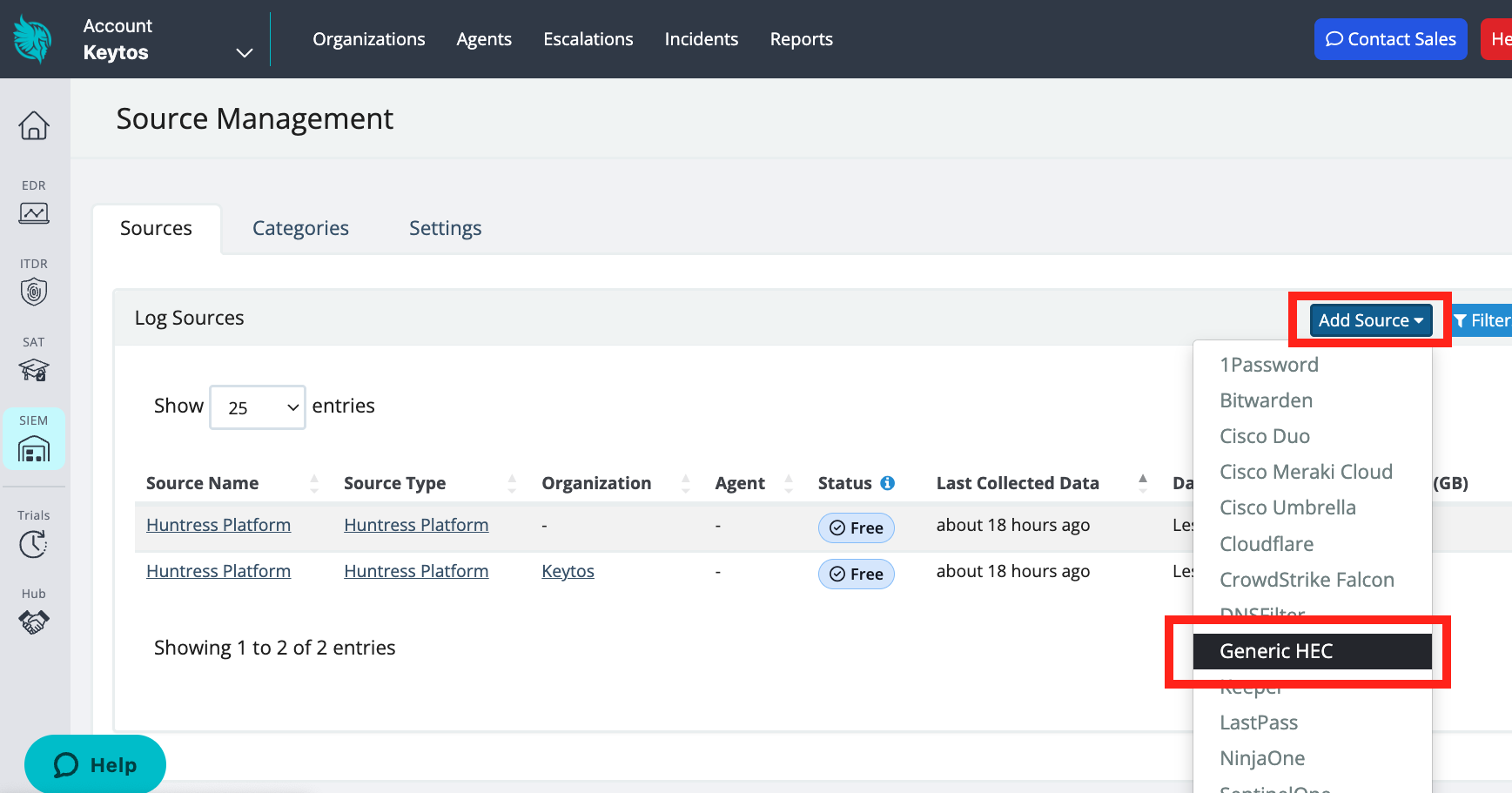
Click Add Source. Then, click Generic HEC (HTTP Event Collector).
-
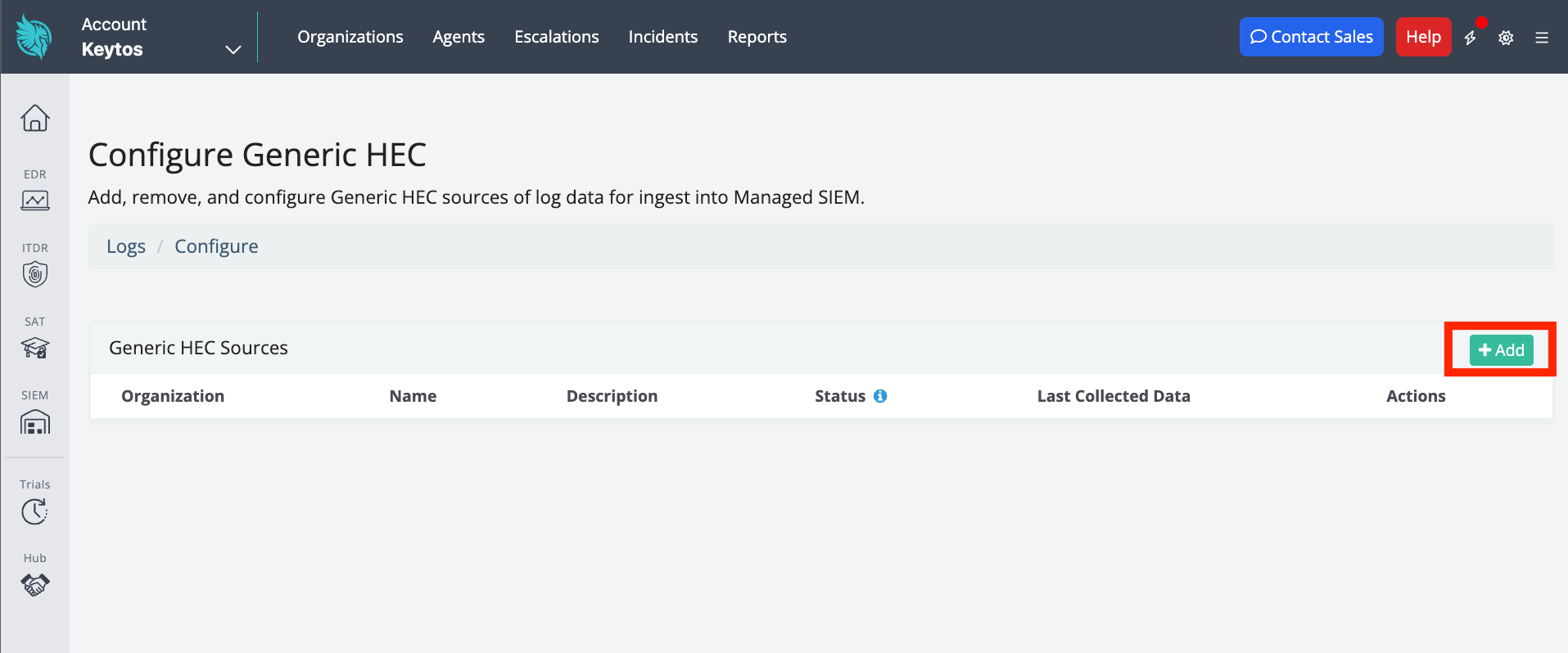
Click + Add to add a new HEC.
-
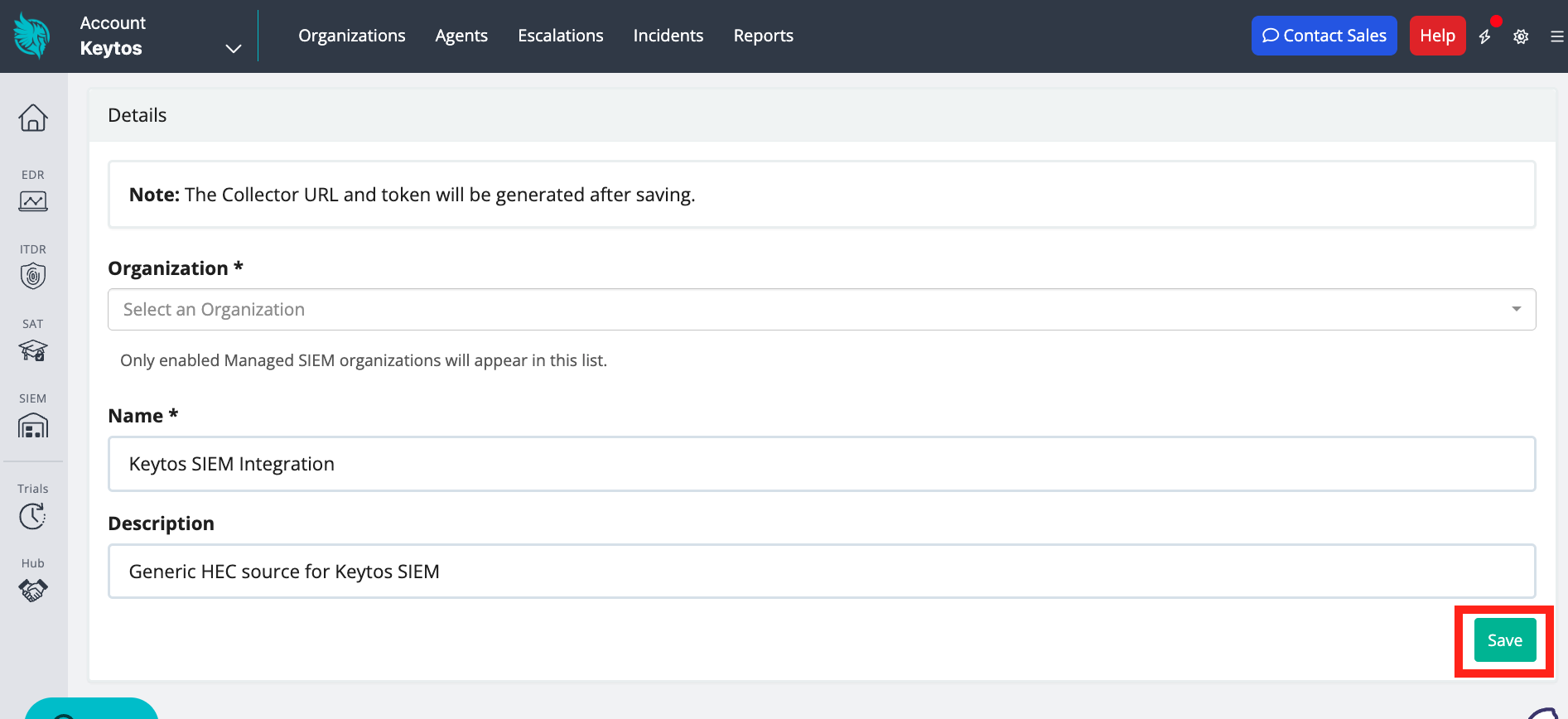
Add an Organization, Name, and optional Description. Then, click Save.
-
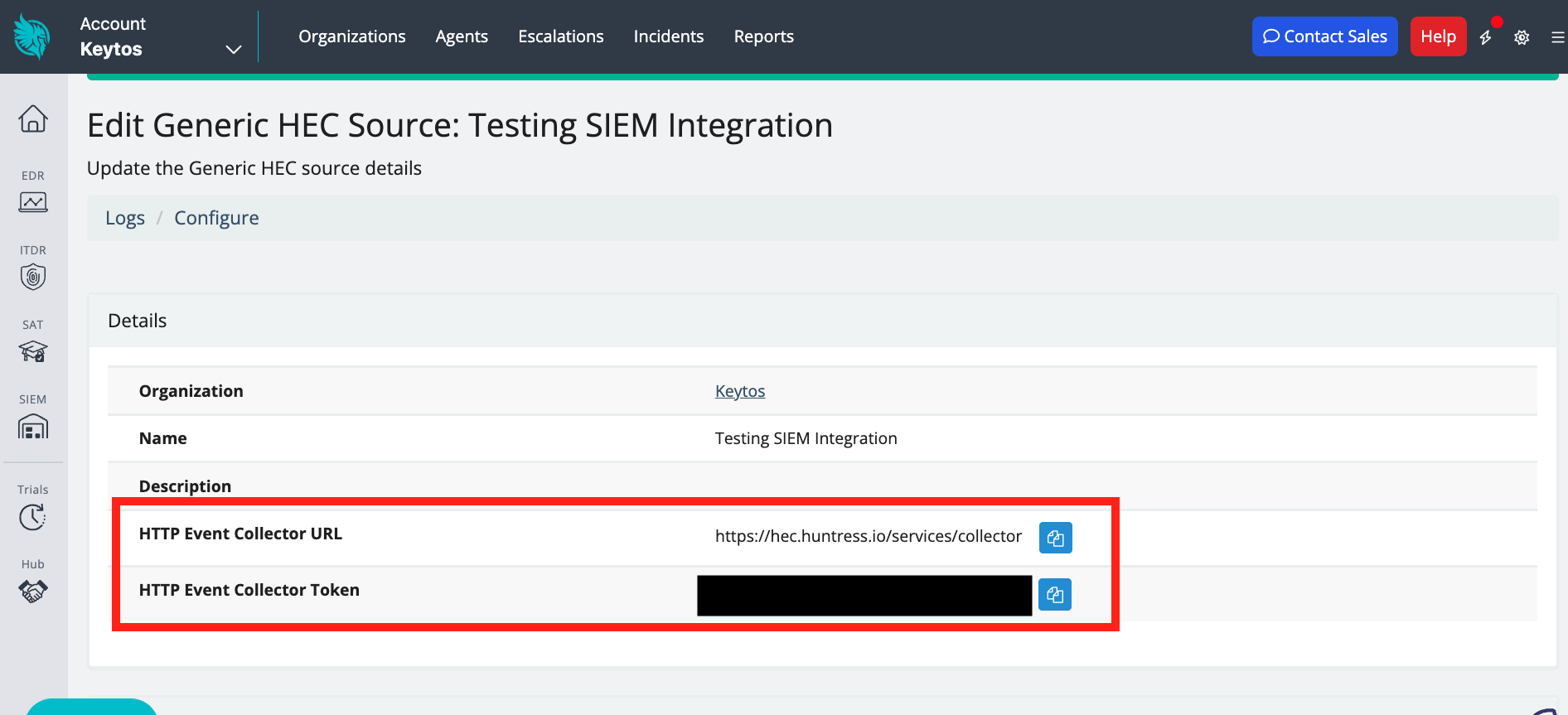
After the HEC is created, copy the HTTP Event Collector URL and the HTTP Event Collector Token.
How To Configure the Huntress SIEM in EZRADIUS Portal
-
Now go back to the EZRADIUS Portal.
-
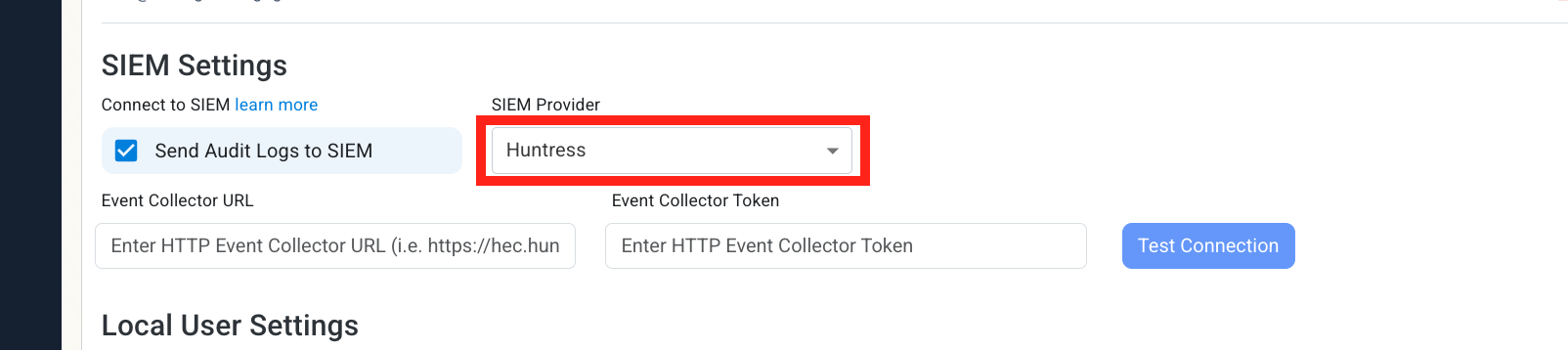
Select Huntress as the SIEM Provider.
-
Input the values that you copied from the Huntress portal. Then, click Test Connection. This will create a test log in your Huntress SIEM (please allow a few minutes for the log to show up in the Huntress portal).
-
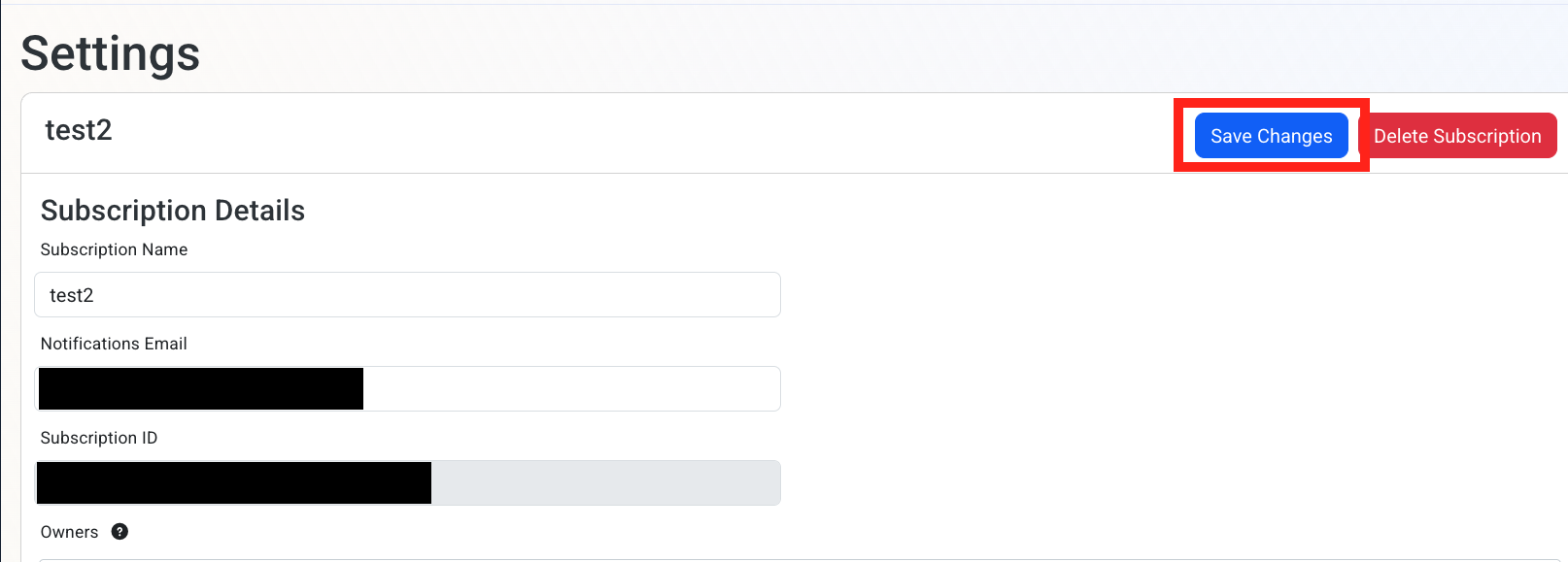
If the connection test is successful, click Save changes
-
Done! EZRADIUS will now send your security alerts to your SIEM. If an error occurs it will email your subscription administrators.
How To Create Alerts in Huntress to Monitor Your Cloud RADIUS Activity
Using a SIEM enables you to create alerts for critical operations or abnormal behavior. We recommend setting up alerts for any high criticality event, and closely monitor medium and low events. Below are sample queries for the Administrator events.
from logs | where generic_hec.EventType == "EZRadiusAdministrator" and generic_hec.Action == "SubscriptionUpdated"