How-To Register the EZCA App in your Azure Tenant
How to Register the Keytos Applications for EZCA
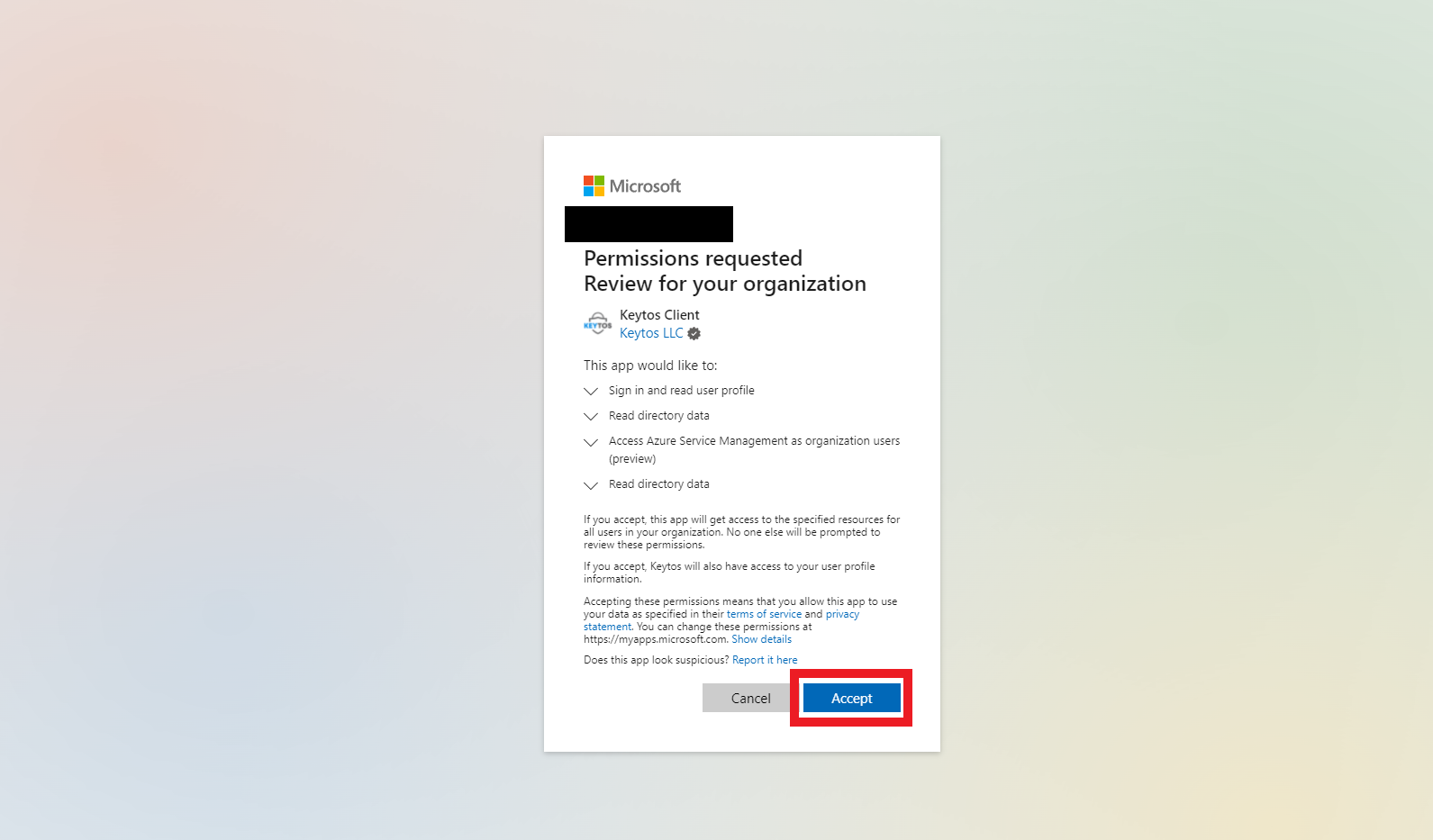
EZCA uses two Entra ID Applications to authenticate you to our services. To register the Keytos applications in your tenant, use your Global Administrator account and follow these steps:
The easiest way to register the applications is to click the button below while logged in with your Global Administrator account:
Register Keytos ApplicationsAlternately, you can copy & paste the following URL into your browser. Make sure you are logged in with your Global Administrator account before accessing the link.
https://login.microsoftonline.com/common/oauth2/authorize?client_id=eddb4ead-89dd-4da8-9196-09c7ea82d724&prompt=admin_consent&response_type=code&redirect_uri=https%3A%2F%2Fportal.ezca.io%2FWelcome
Plan to Use EZCA with Microsoft Intune?
If you will be using EZCA with Microsoft Intune to issue SCEP certificates you will also need to register the Keytos Intune Application in your Azure Tenant.
Register Keytos Intune App →Next Step - Select an EZCA Plan
Once you have registered the Keytos applications, you are ready to select an EZCA Plan and start using EZCA!
Select an EZCA Plan →Additional Information
If you would like to learn more about the Keytos applications and the permissions they require, please read the sections below.
What Permissions Am I Granting the Keytos Applications?
When you register the Keytos application in your tenant you are granting it the following permissions:
Permissions Granted to the Keytos Client Application
The Keytos Client application (Application ID eddb4ead-89dd-4da8-9196-09c7ea82d724) is the front-end application that runs in your browser when you access the EZCA Portal. It requires the following permissions:
| Description | Name | Type | Why is this needed? |
|---|---|---|---|
| Sign in and read user profile | User.Read |
Delegated | This permission allows EZCA to read your basic profile information such as your name and email address to create your account in our system. |
| Read directory data | Directory.Read.All |
Delegated | This permission allows EZCA to read information about your organization’s directory, such as users and groups, which is necessary for managing access to your domains and certificates. |
| Access Azure Resource Manager as organization users | user_impersonation |
Delegated | This permission allows EZCA to manage Azure resources on behalf of the signed-in user, which is used for creating and rotating certificates stored in Azure Key Vault and Azure IoT Hub. Can optionally be removed/revoked if you are not using these features. |
Keytos Client also has the API.Access permission on the Keytos application to allow it to call the back-end APIs using delegated permissions.
Permissions Granted to the Keytos Application
The Keytos application (Application ID 68554b48-233f-42b4-9aa7-2eadca4d7727) is the back-end application that runs the EZCA services. It requires the following permissions:
| Description | Name | Type | Why is this needed? |
|---|---|---|---|
| Sign in and read user profile | Directory.Read.All |
Application | This permission allows EZCA to read information about your organization’s directory, such as users and groups. This is used to check group permissions for users when providing access to your domains and certificates. |
Do I Need to Grant Access to My Azure Resources?
Azure Resource Manager delegated permissions is included by default so Azure Key Vault and IoT Hub integration works out of the box. While it only has access to the resources accessible by the signed-in user, you can choose to remove or revoke this permission if you do not plan to use EZCA features that interact with your Azure resources. Other Keytos features will continue to work without this permission, but you will no longer be able to create or rotate certificates stored in Azure Key Vault or Azure IoT Hub.
To remove or revoke access to your Azure resources, follow these steps:
-
Navigate to the Azure Portal and sign in with your Global Administrator account.
-
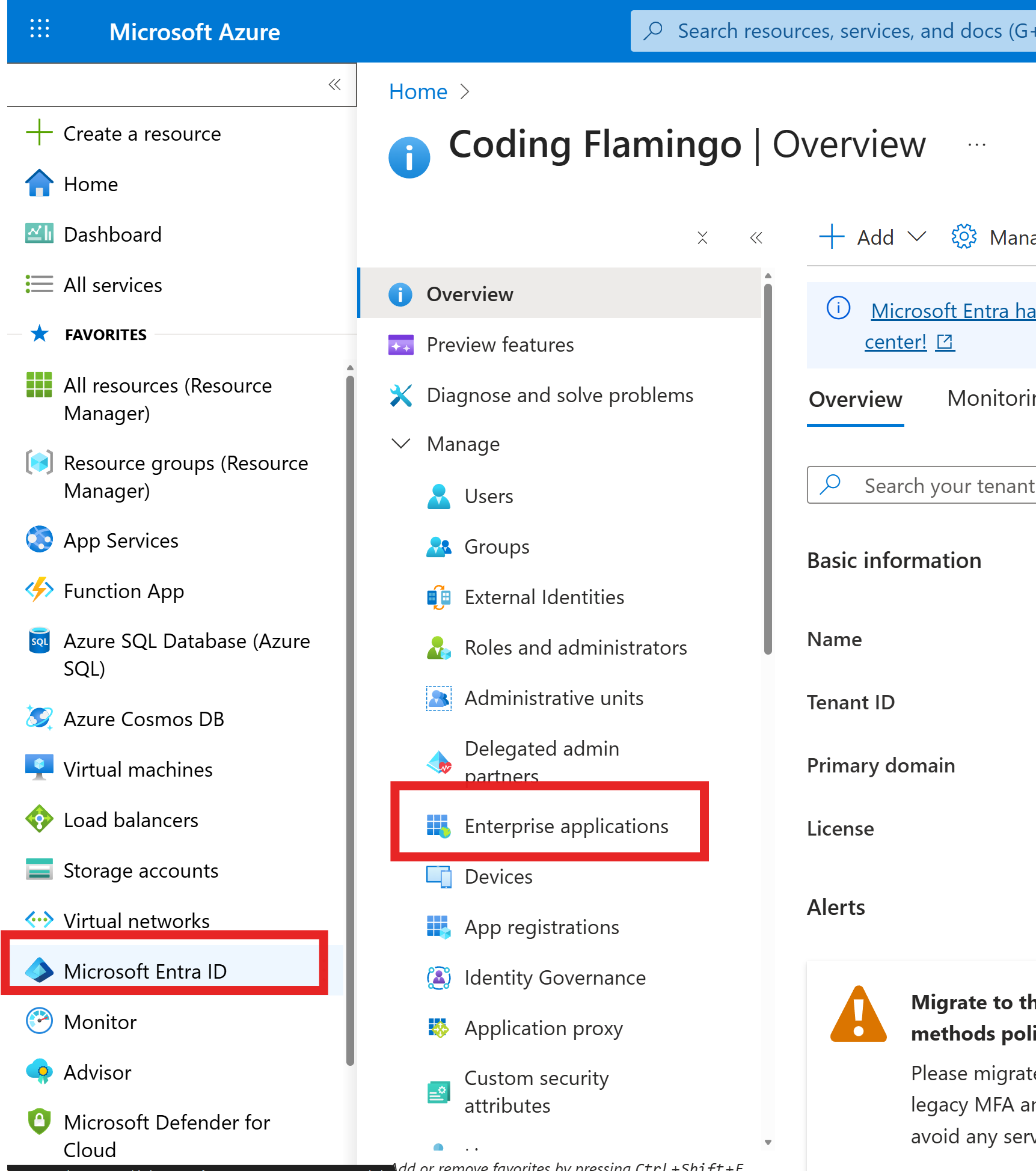
Go to Entra ID -> Enterprise Applications.
-
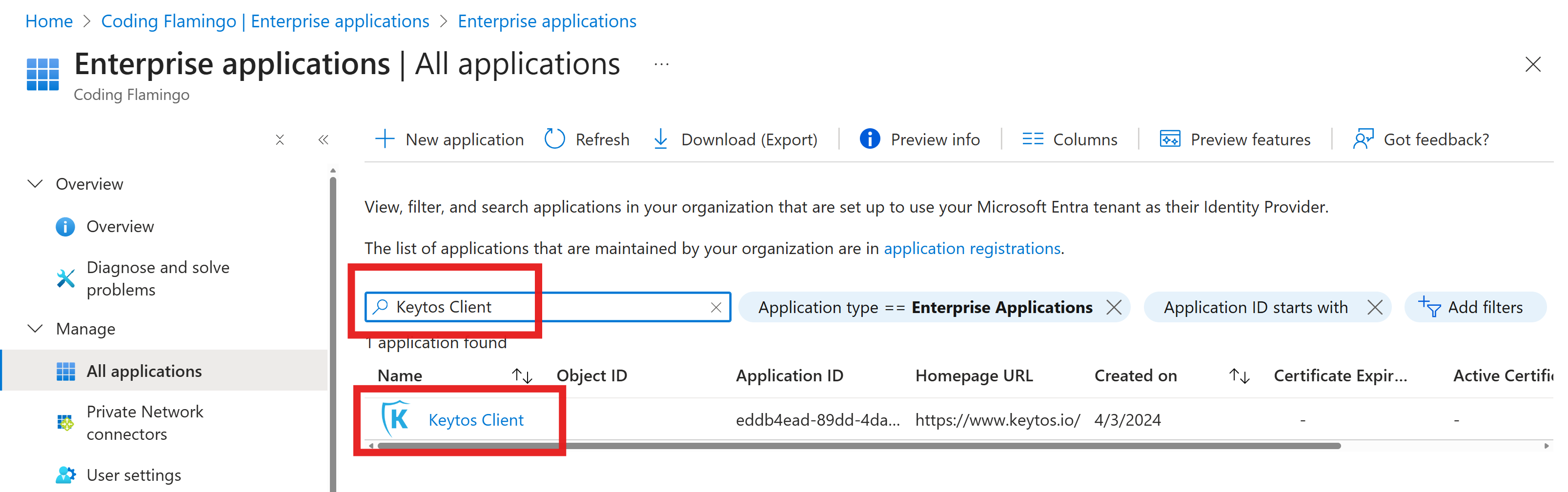
Search for and select the Keytos Client application.
-
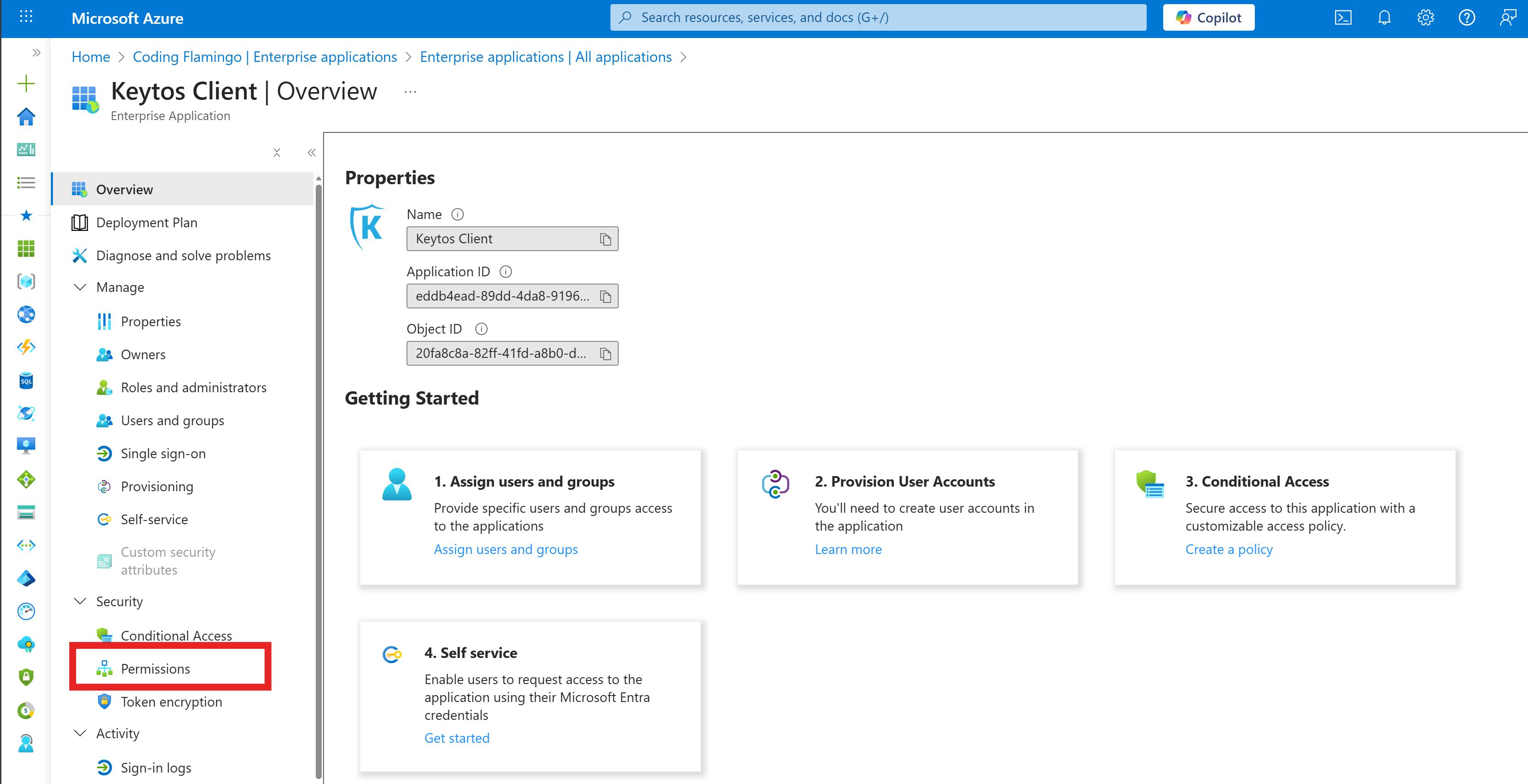
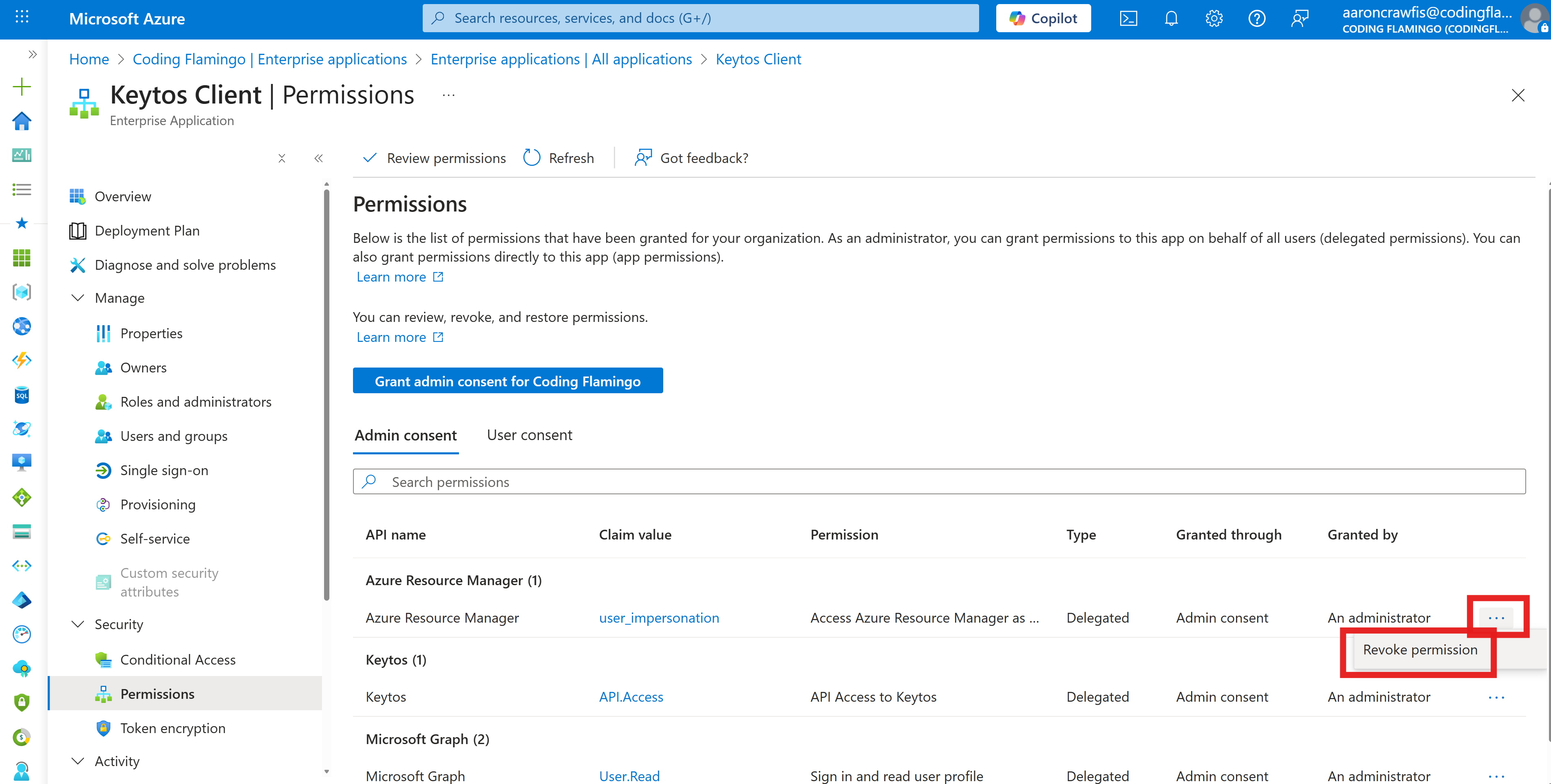
Go to the Permissions section.
-
Find the Azure Resource Manager permission and click on … and then Revoke permission.
-
Done. The Keytos Client application will no longer have access to Azure Resource Manager.
How Do I Verify the Applications are Registered?
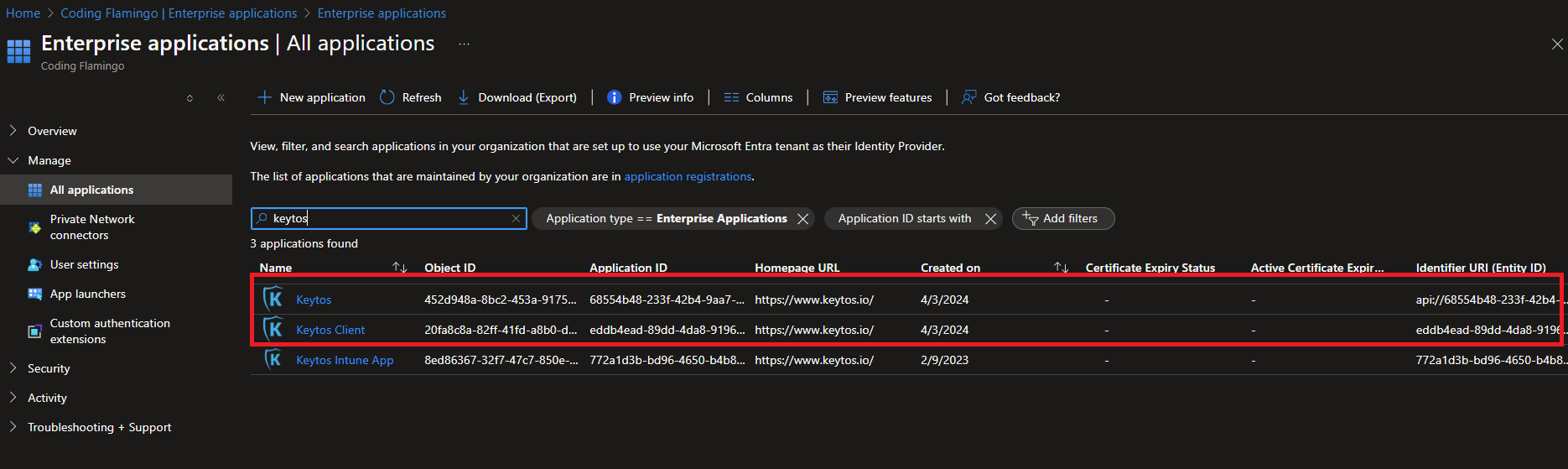
You can validate that the 2 applications (3 if you are using EZCA for Intune) are registered in your tenant by going to the Azure Portal -> Entra ID -> Enterprise Applications and search for “Keytos” and you should see the Keytos and Keytos Client applications (and Keytos Intune App if you are using EZCA for Intune):
Registering the EZCA Application if You are Using Your Account in Multiple Tenants
In the case that you are using your account in multiple tenants and Azure is not selecting the correct tenant to register the application under you can use the following link (where $yourorganization$ is the name of your organization) to register the application in the correct tenant:
https://login.microsoftonline.com/$yourorganization$.onmicrosoft.com/oauth2/v2.0/authorize?client_id=eddb4ead-89dd-4da8-9196-09c7ea82d724&response_type=code&redirect_uri=https%3A%2F%2Fportal.ezca.io%2FWelcome&scope=openid
How Do I Unregister the Keytos Applications?
If you need to unregister the Keytos applications from your tenant, you can do so by following these steps:
-
Navigate to the Azure Portal and sign in with your Global Administrator account.
-
Go to Entra ID -> Enterprise Applications.
-
Search for and select the
Keytos Clientapplication.
-
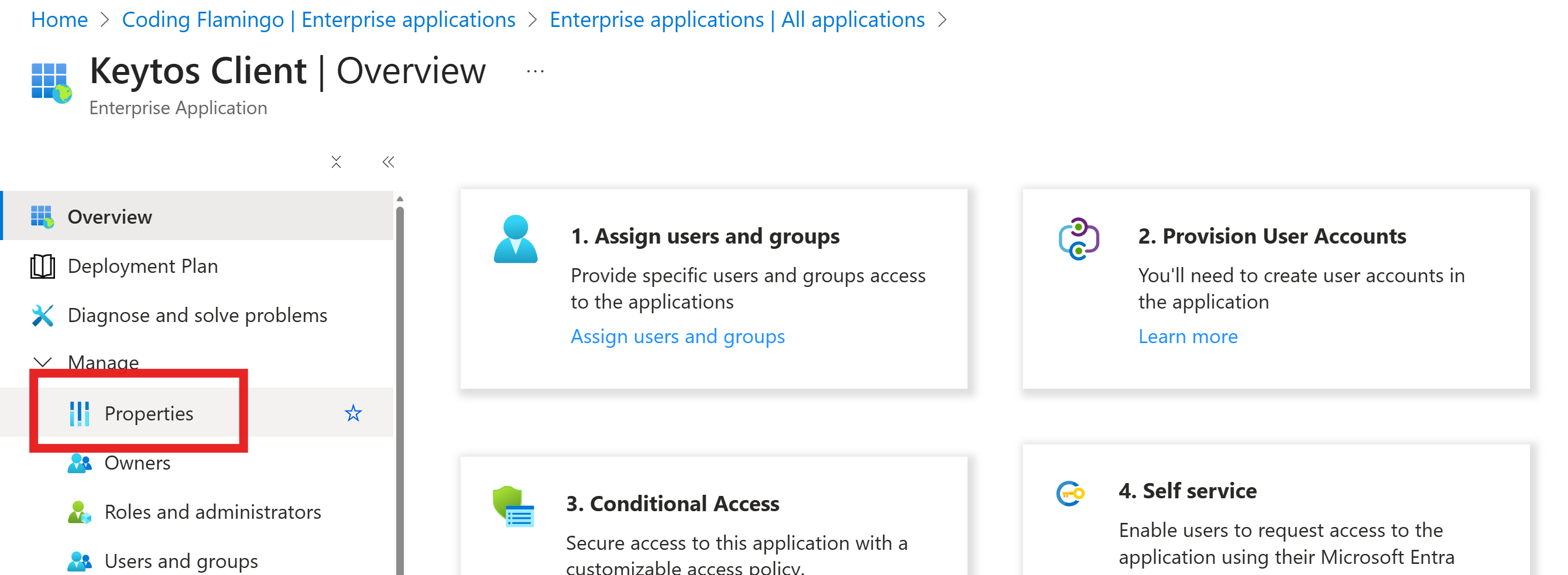
Navigate to the Properties section.
-
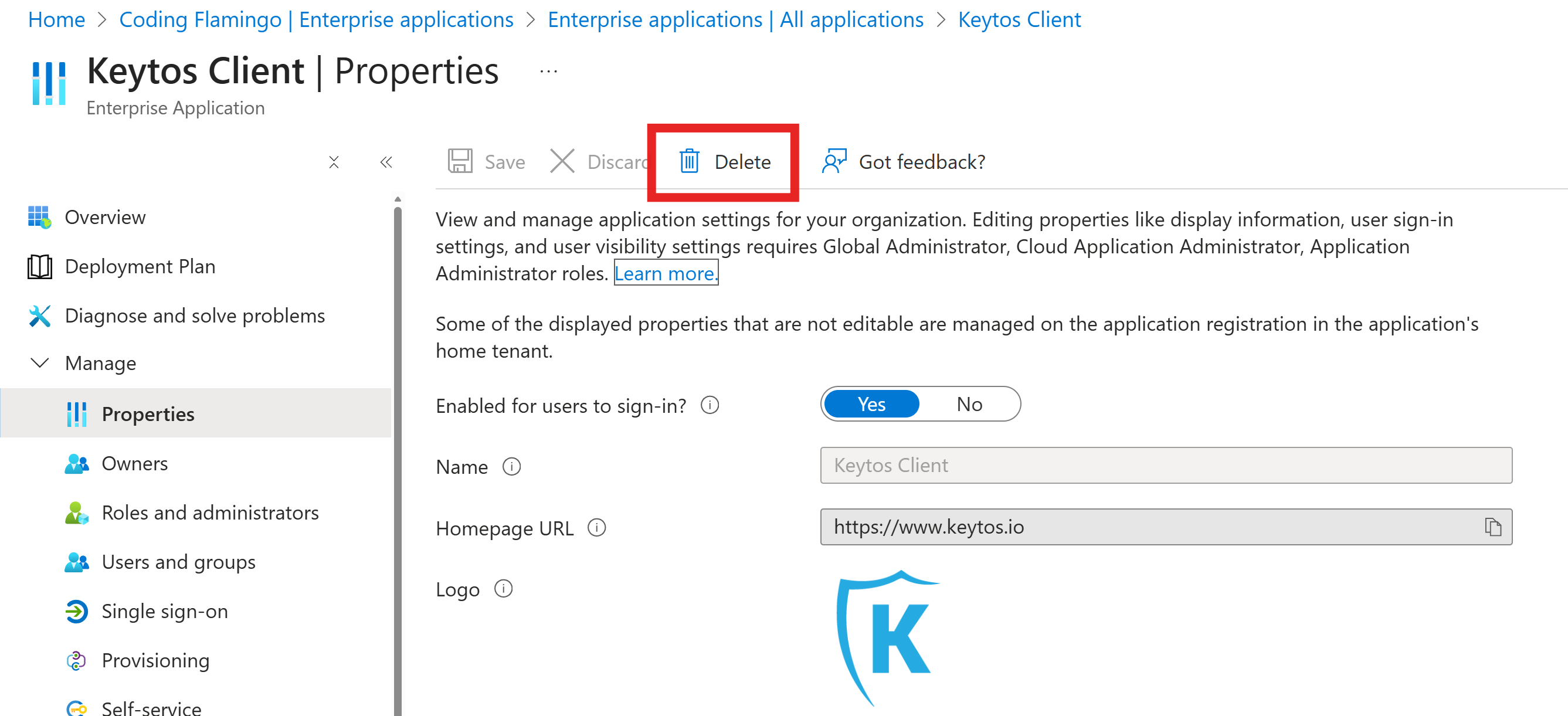
Click on the Delete button at the top of the page to unregister the application.
-
Repeat the previous steps for the Keytos application (and Keytos Intune App if you are using EZCA for Intune).