

















How-To: Register the EZRADIUS App in Your Azure Tenant
How Does EZRADIUS Cloud RADIUS Authenticate Users?
EZRADIUS Cloud RADIUS uses native Entra ID authentication to provide secure access to your RADIUS service. That means you can sign-in with your existing Entra ID account without any sync services, account mapping, or other complexities. The first time you use EZRADIUS, you will need to register (or consent) the Keytos and EZRADIUS Entra ID applications in your tenant. This is a one-time process that only needs to be done once per tenant.

How to Register the EZRADIUS Entra ID Application for EZRADIUS - Step-by-Step Guide
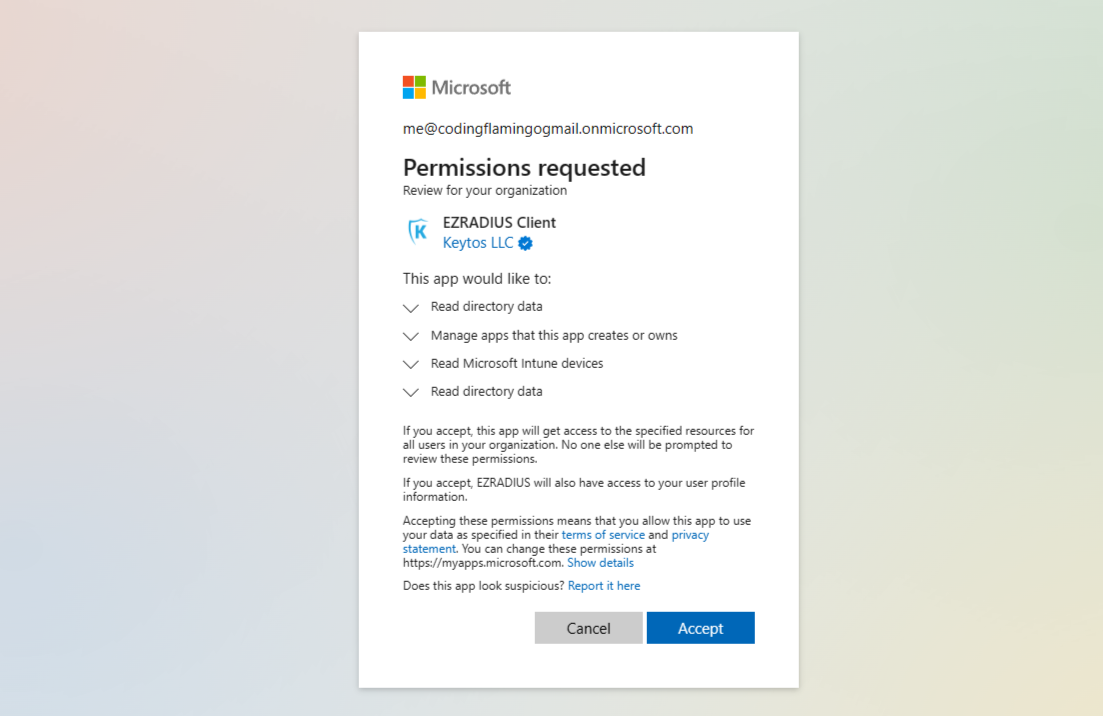
Using your Global Administrator account, visit the following consent URL to consent the EZRADIUS Entra ID applications in your tenant. You will be prompted to consent the EZRADIUS Client application.
Single Click
The easiest way to register the applications is to click the button below while logged in with your Global Administrator account:
Register EZRADIUS Applications
Manual URL
Alternately, you can copy & paste the following URL into your browser:
https://login.microsoftonline.com/common/oauth2/authorize?client_id=d212033b-7fb6-43ee-ac3a-2dcd606a5797&prompt=admin_consent&response_type=code&redirect_uri=https%3A%2F%2Fportal.ezradius.io%2FWelcome
Single Click
The easiest way to register the applications is to click the button below while logged in with your Global Administrator account in your GCC High tenant:
Register EZRADIUS Applications
Manual URL
Alternately, you can copy & paste the following URL into your browser:
https://login.microsoftonline.us/common/oauth2/authorize?client_id=a288acbf-718f-4c4d-ae28-60728df9ca54&prompt=admin_consent&response_type=code&redirect_uri=https%3A%2F%2Fportal.ezca.us%2FWelcome
You will see a consent screen similar to the one below. Click Accept to register the applications in your tenant.
Next Steps After Registering the EZRADIUS Entra ID Applications
Once you have registered the EZRADIUS applications, you are ready to select an EZRADIUS Subscription which will handle billing, access control, and central configuration of your cloud RADIUS service.
Select an EZRADIUS Subscription PlanAdditional Information on the EZRADIUS Entra ID Applications
If you would like to learn more about the Keytos and EZRADIUS applications and the permissions they require, please read the sections below.
How Do I Verify that the Applications are Registered?
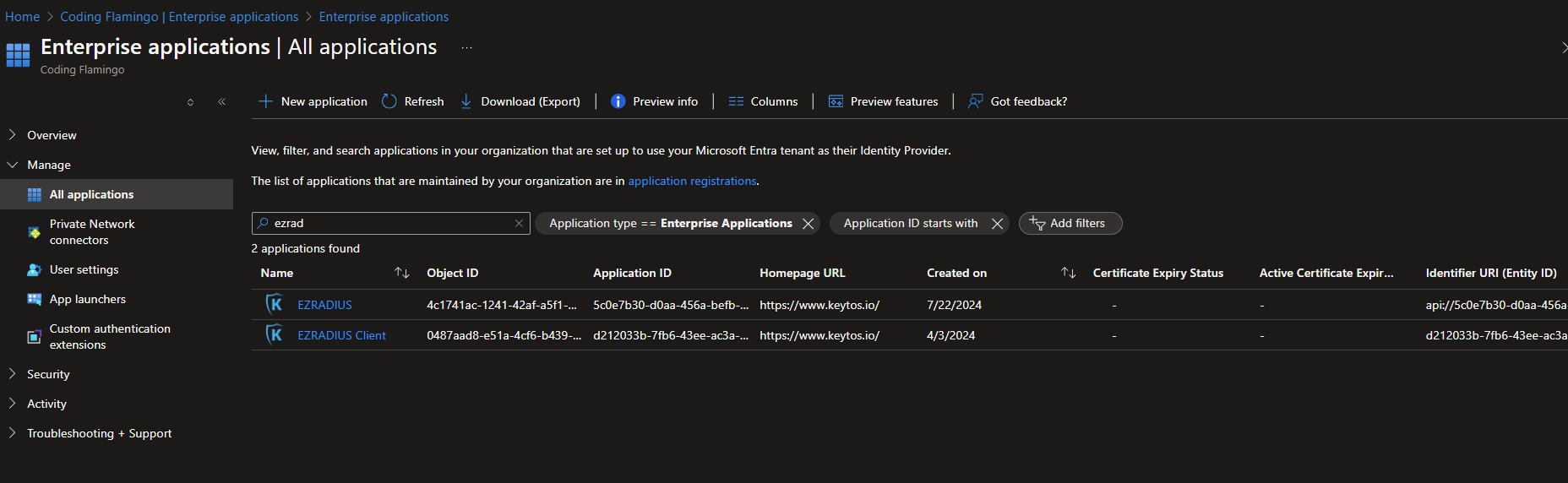
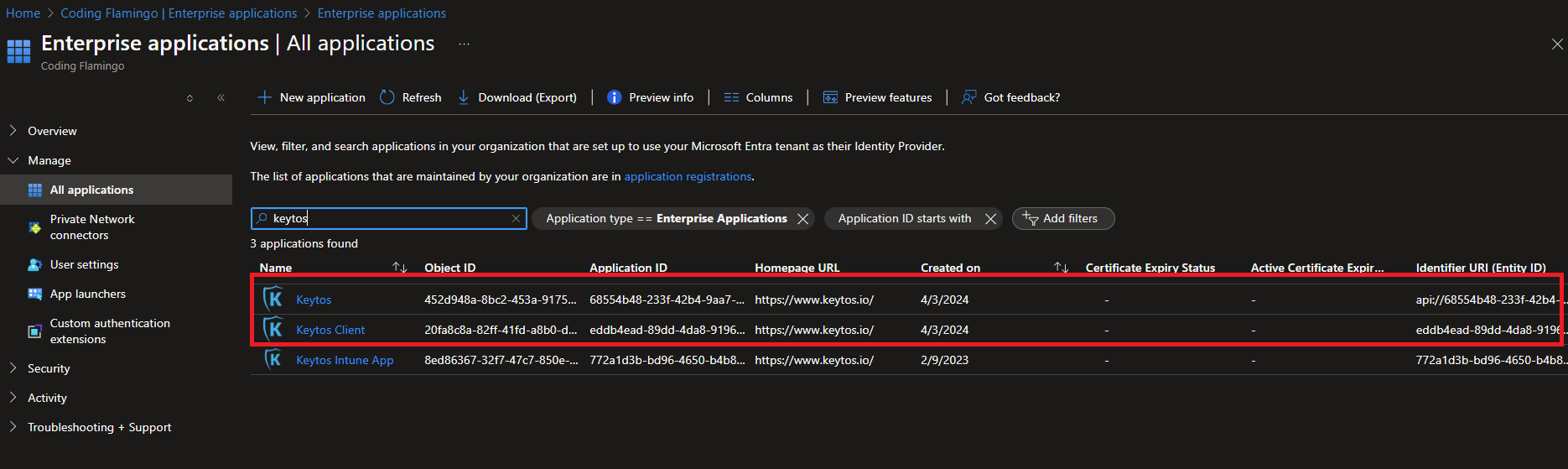
If you are having issues with EZRADIUS and it says that your application is not registered, you can validate that the 4 applications are registered in your tenant by going to the Azure Portal -> Entra ID -> Enterprise Applications and search for EZRADIUS and you should see the following 2 applications:
and then search for Keytos and you should see the following 2 applications:
What Permissions Am I Granting the Keytos Applications?
When you register the Keytos application in your tenant you are granting it the following permissions:
Permissions Granted to the Keytos Application
The Keytos application (Application ID 68554b48-233f-42b4-9aa7-2eadca4d7727) is the back-end application that runs the EZCA services. It requires the following permissions:
| Description | Name | Type | Why is this needed? |
|---|---|---|---|
| Sign in and read user profile | Directory.Read.All |
Application | This permission allows EZCA to read information about your organization’s directory, such as users and groups. This is used to check group permissions for users when providing access to your domains and certificates. |
Permissions Granted to the EZRADIUS Client Application
The EZRADIUS Client application (Application ID d212033b-7fb6-43ee-ac3a-2dcd606a5797) is the front-end application that runs in your browser when you access the EZRADIUS Portal. It requires the following permissions:
| Description | Name | Type | Why is this needed? |
|---|---|---|---|
| Read directory data | Directory.Read.All |
Delegated | This permission allows EZRADIUS to read information about your organization’s directory, such as users and groups, which is necessary for signing you in and managing access to your RADIUS infrastructure. |
EZRADIUS Client also has the API.Access permission on the EZRADIUS and Keytos applications to allow it to call the back-end APIs using delegated permissions.
Permissions Granted to the EZRADIUS Application
The EZRADIUS application (Application ID 5c0e7b30-d0aa-456a-befb-df8c75e8467b) is the back-end application that runs the EZRADIUS services. It requires the following permissions:
| Description | Name | Type | Why is this needed? |
|---|---|---|---|
| Read directory data | Directory.Read.All |
Application | This permission allows EZRADIUS to read information about your organization’s directory, such as users and groups. This is used to check group permissions for users when providing access to your RADIUS infrastructure. |
| Manage apps that this app creates or owns | Application.ReadWrite.OwnedBy |
Application | Allows EZRADIUS to rotate secrets for the EZRADIUS Entra application. Does not give access to any other applications in your tenant. |
| Read Microsoft Intune devices | DeviceManagementManagedDevices.Read.All |
Application | Allows EZRADIUS to read device information from Intune when checking device compliance or other device-based policies. |
Registering the EZRADIUS Application if You are Using Your Account in Multiple Tenants
In the case that you are using your account in multiple tenants and Azure is not selecting the correct tenant to register the application under you can use the following link (where $yourorganization$ is the name of your organization) to register the application in the correct tenant:
- Keytos:
https://login.microsoftonline.com/$yourorganization$.onmicrosoft.com/oauth2/v2.0/authorize?client_id=eddb4ead-89dd-4da8-9196-09c7ea82d724&response_type=code&redirect_uri=https%3A%2F%2Fportal.ezca.io%2FWelcome&scope=openid - EZRADIUS:
https://login.microsoftonline.com/$yourorganization$.onmicrosoft.com/oauth2/v2.0/authorize?client_id=d212033b-7fb6-43ee-ac3a-2dcd606a5797&response_type=code&redirect_uri=https%3A%2F%2Fportal.ezradius.io%2FWelcome&scope=openid
How Do I Unregister the Applications?
If you need to unregister the Keytos or EZRADIUS applications from your tenant, you can do so by following these steps:
-
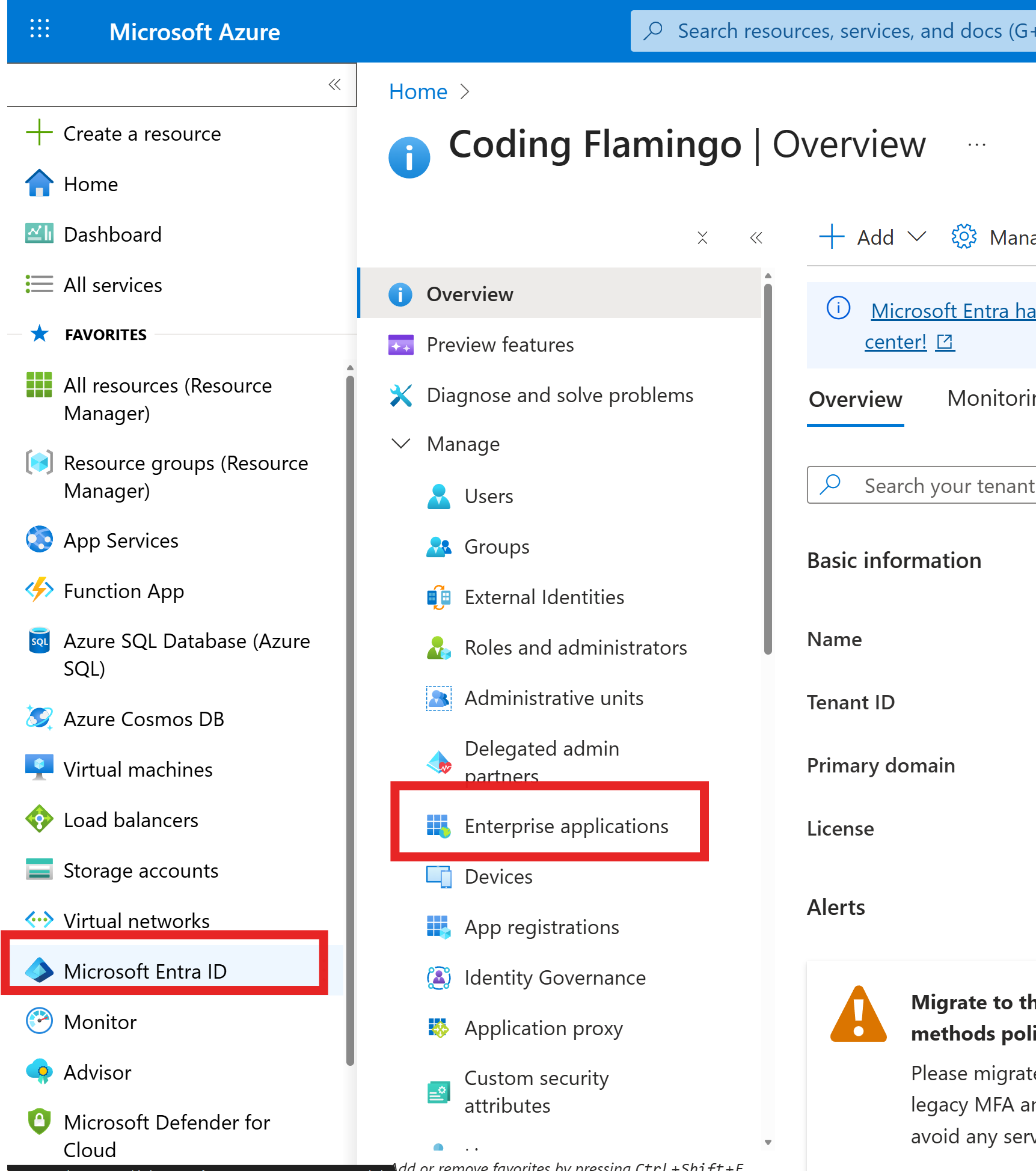
Navigate to the Azure Portal and sign in with your Global Administrator account.
-
Go to Entra ID -> Enterprise Applications.
-
Search for and select the
Keytos Clientapplication.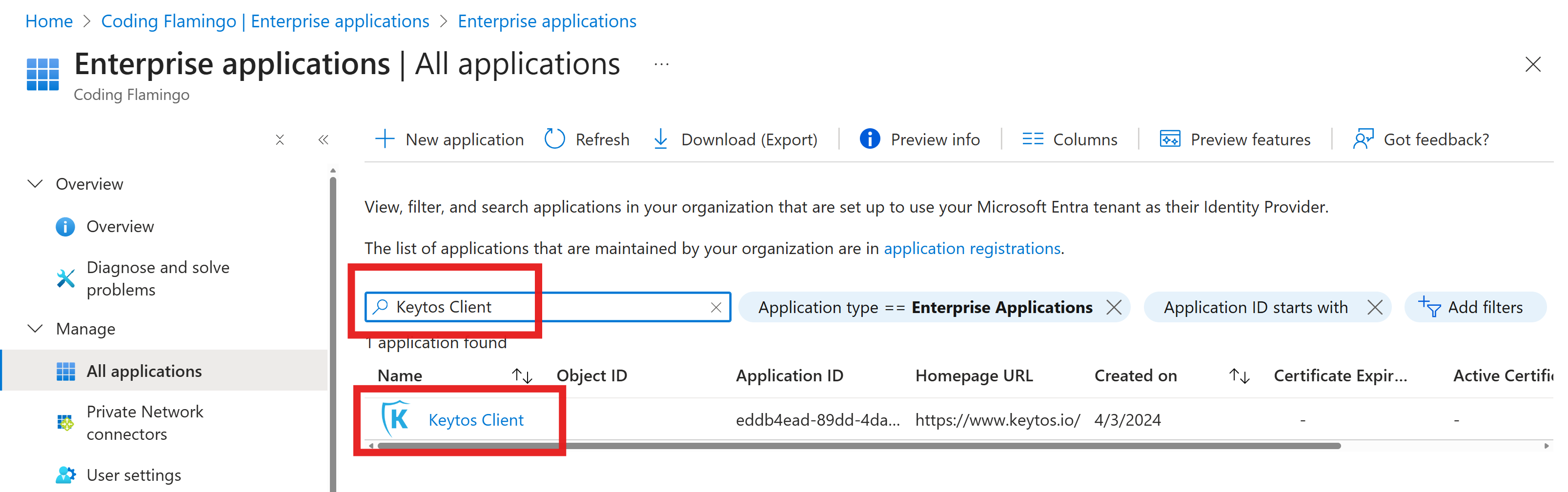
-
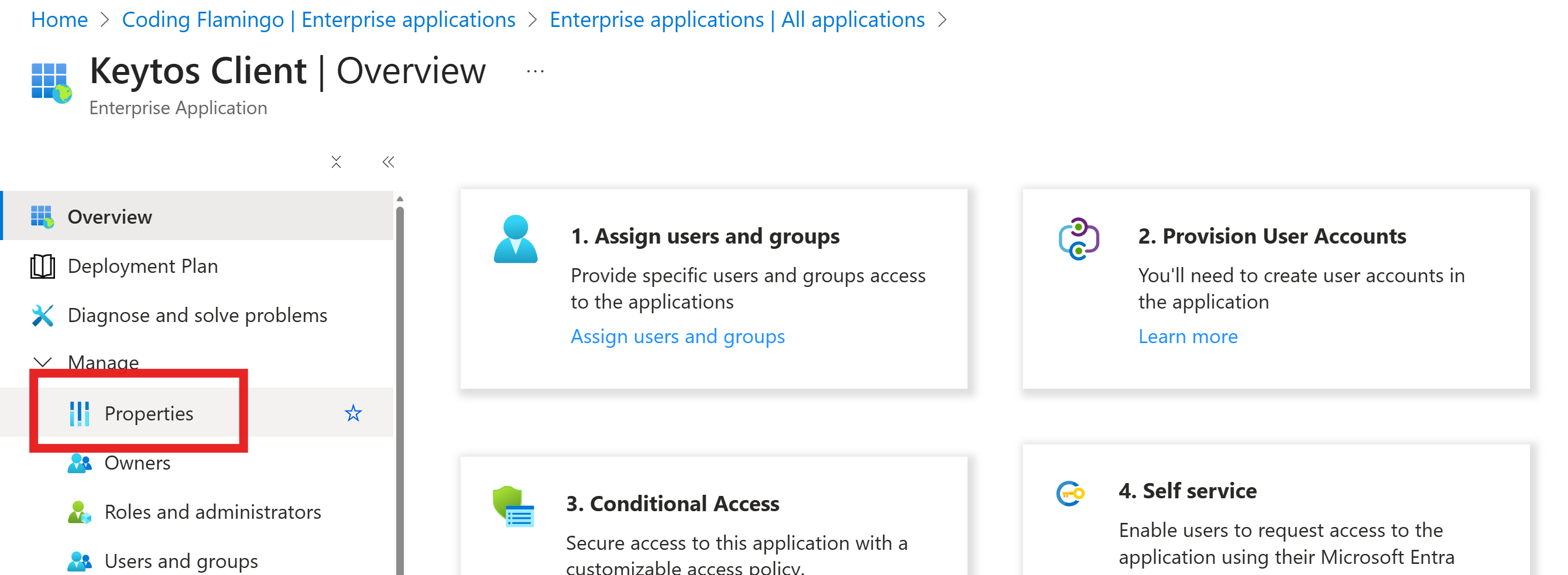
Navigate to the Properties section.
-
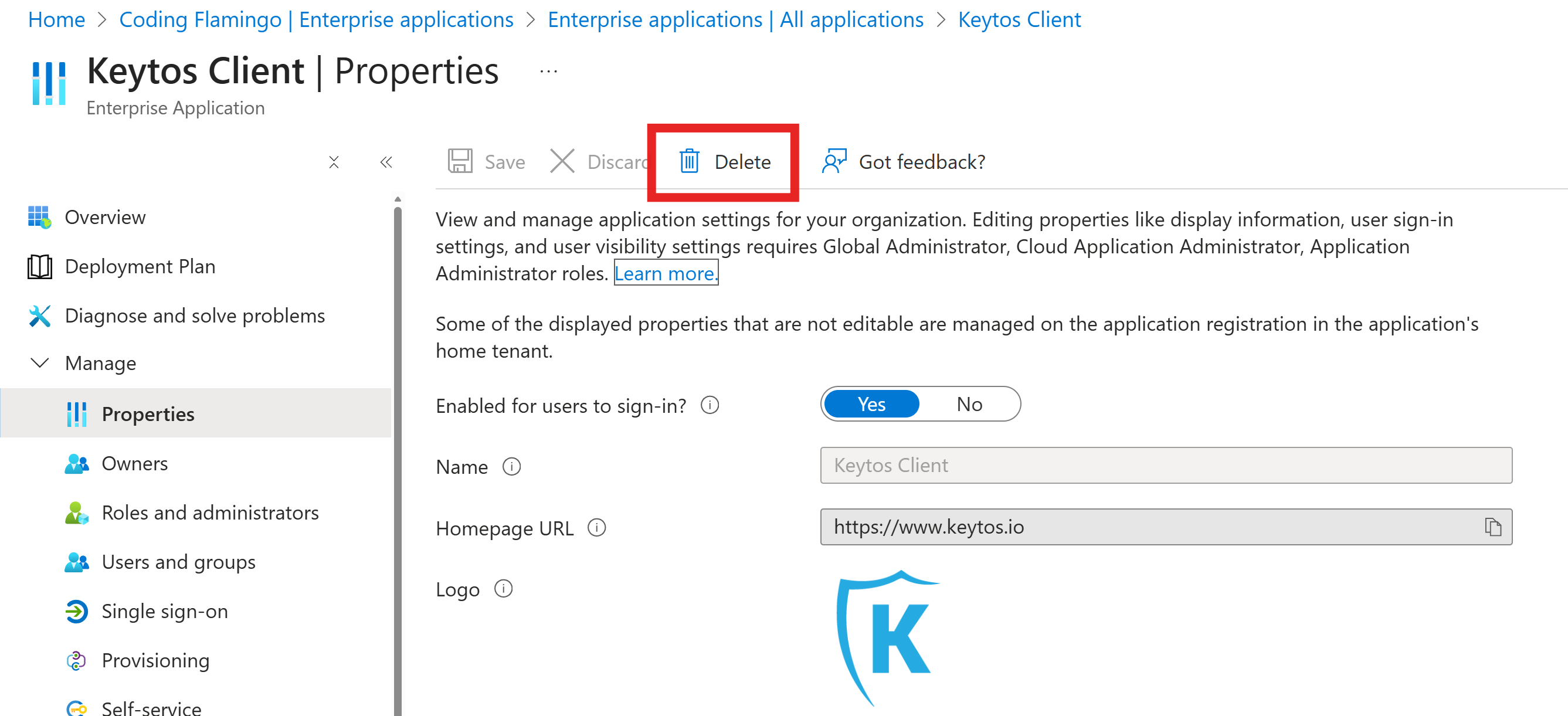
Click on the Delete button at the top of the page to unregister the application.
-
Repeat the previous steps for the Keytos, EZRADIUS Client, and EZRADIUS applications.