How-To: Export your EZCMS Logs to Splunk
Prerequisites
How to Export your Passwordless Onboarding Audit Logs to Splunk
How To Enable Log Export in EZCMS Portal
-
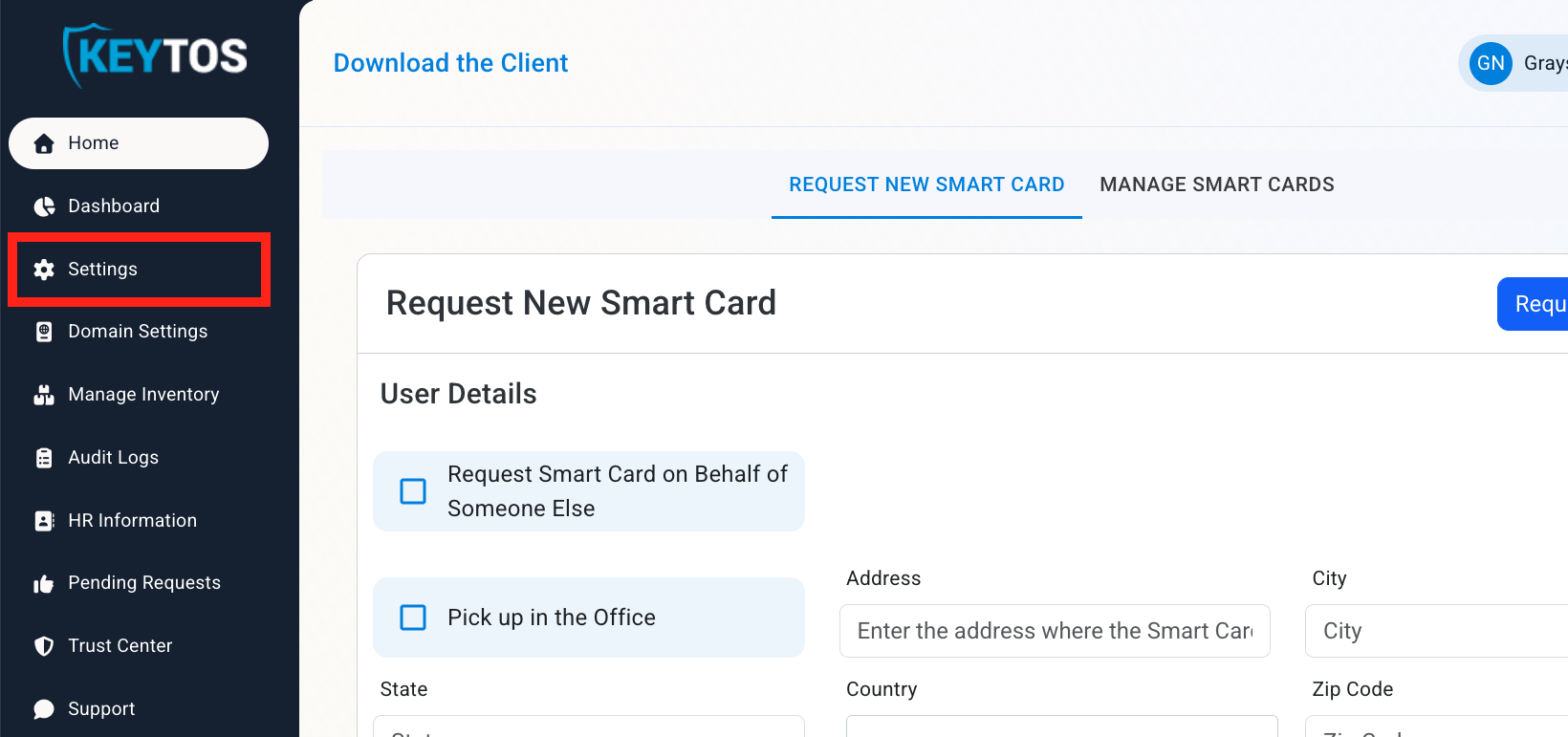
Go to your EZCMS portal.
-
Click on Settings.
-
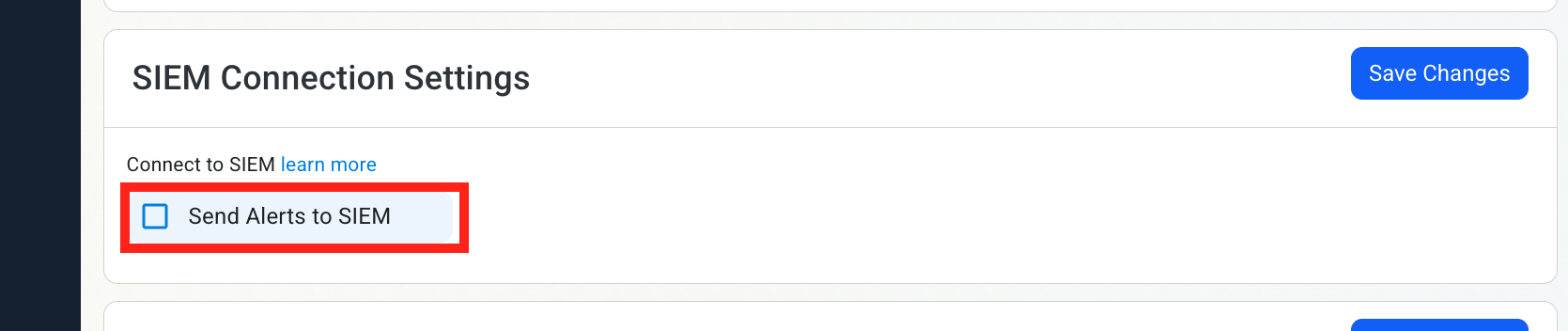
Scroll down to SIEM Connection Settings and enable the Send Alerts to SIEM option.
How to Configure the Splunk Exporter
-
In another tab, go to your Splunk instance.
-
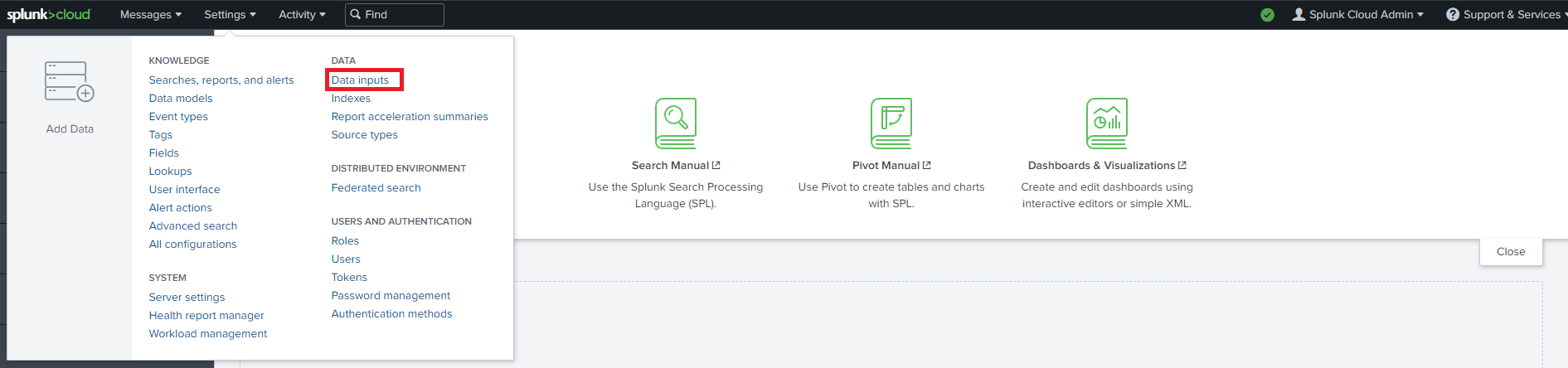
Go to Data inputs by clicking on the Settings menu.
-
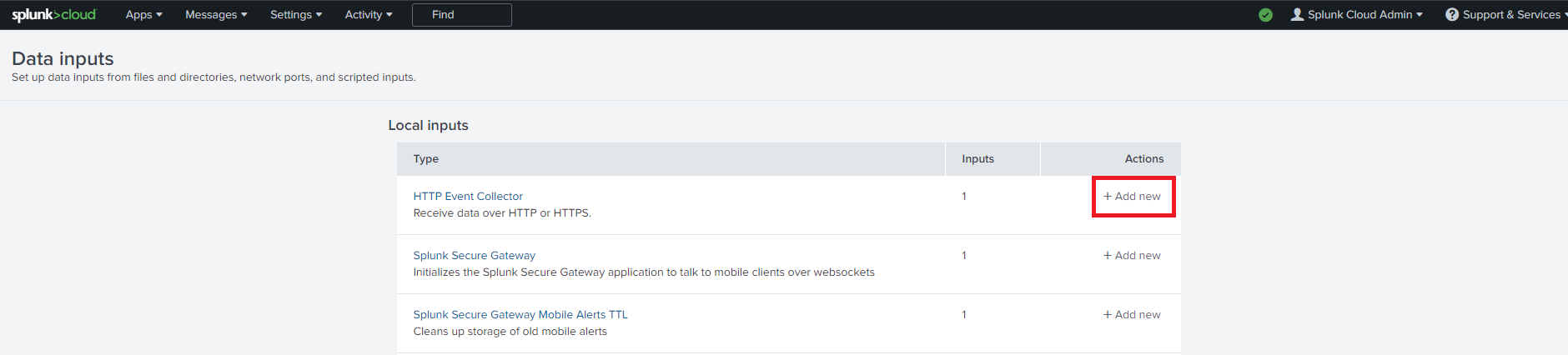
Add a new Http Event Collector.
-
Enter “Keytos” as the Name click next.
-
Leave input settings with the default values and click Next.
-
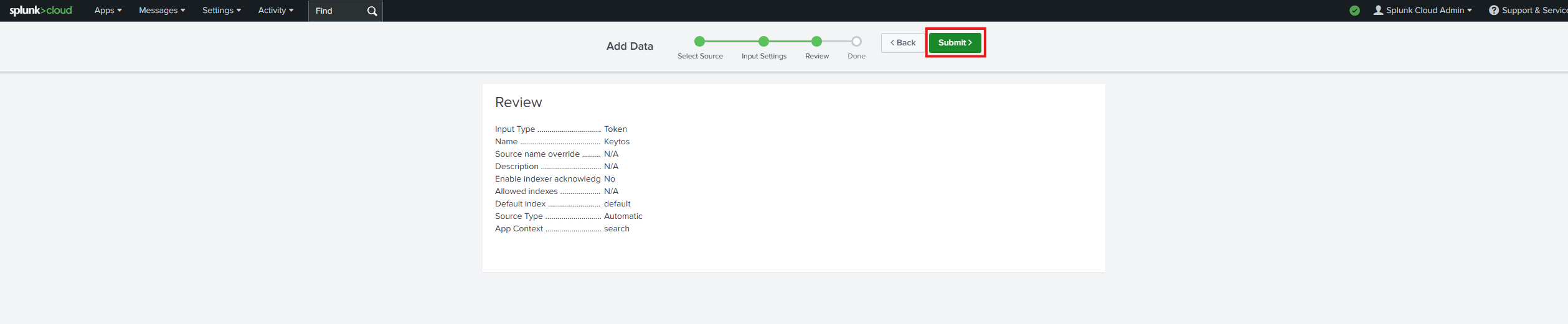
Click Submit.
-
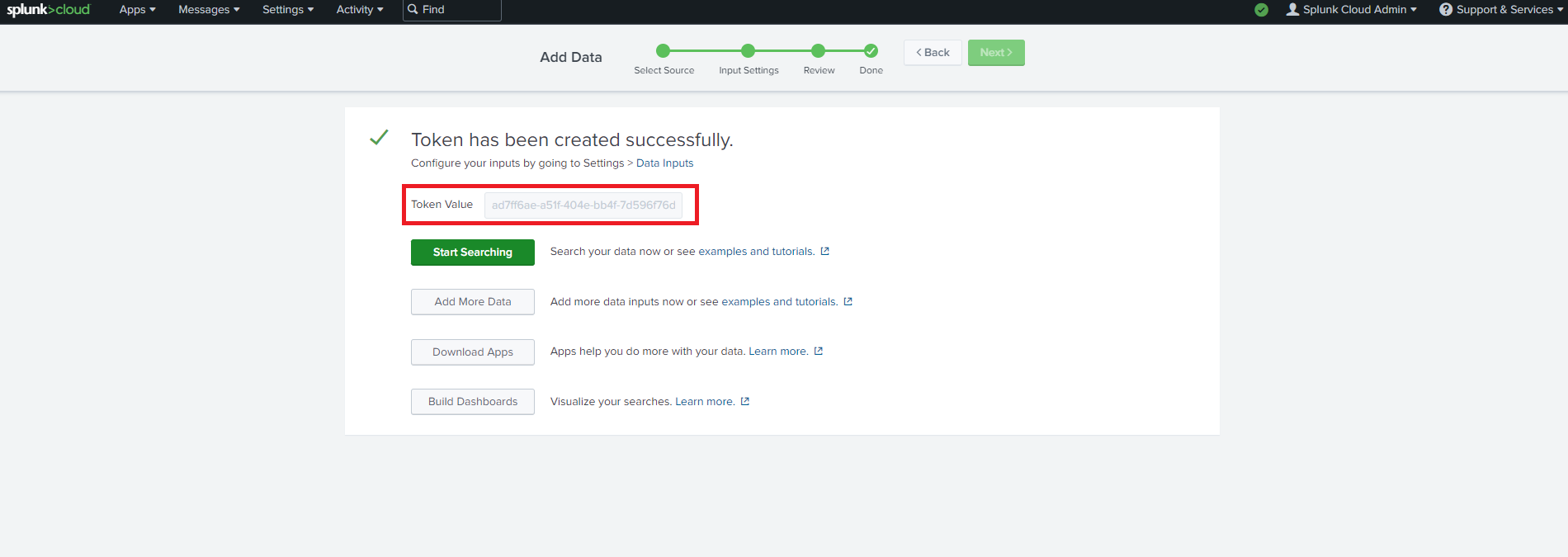
Copy the Splunk token we just created.
How to Configure the Splunk SIEM in EZCMS Portal
-
Navigate back to the EZCMS Portal.
-
Select Splunk as the SIEM Provider.

-
Paste the URL instance and the token from the Splunk portal into EZCMS.
-
Click the Test Connection"** button, this will create a test log in your SIEM to make sure EZCMS can write to the SIEM.

-
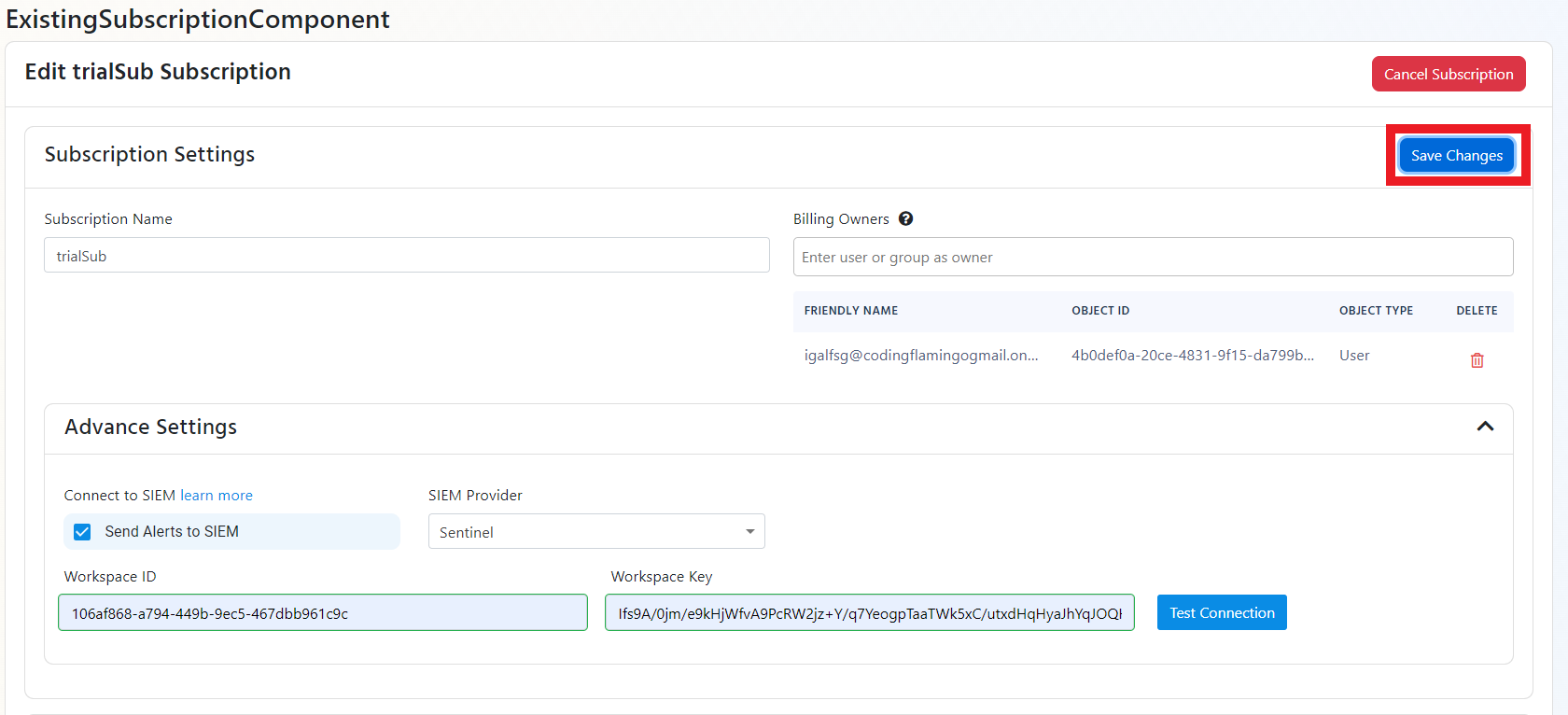
If the connection test is successful, click Save changes
-
EZCMS will now send your audit logs to your SIEM. If an error occurs it will email your subscription administrators.