How to Sign Into Windows Using Your Passwordless Security Key
Why Use a Passwordless Security Key for Windows Sign-In?
Using a passwordless security key, such as a FIDO2 key or a Smart Card, to sign into Windows devices offers enhanced security and convenience. These keys provide strong authentication methods that are resistant to phishing attacks and other common threats associated with traditional passwords. By leveraging hardware-based authentication, users can enjoy a seamless sign-in experience while maintaining high security standards.
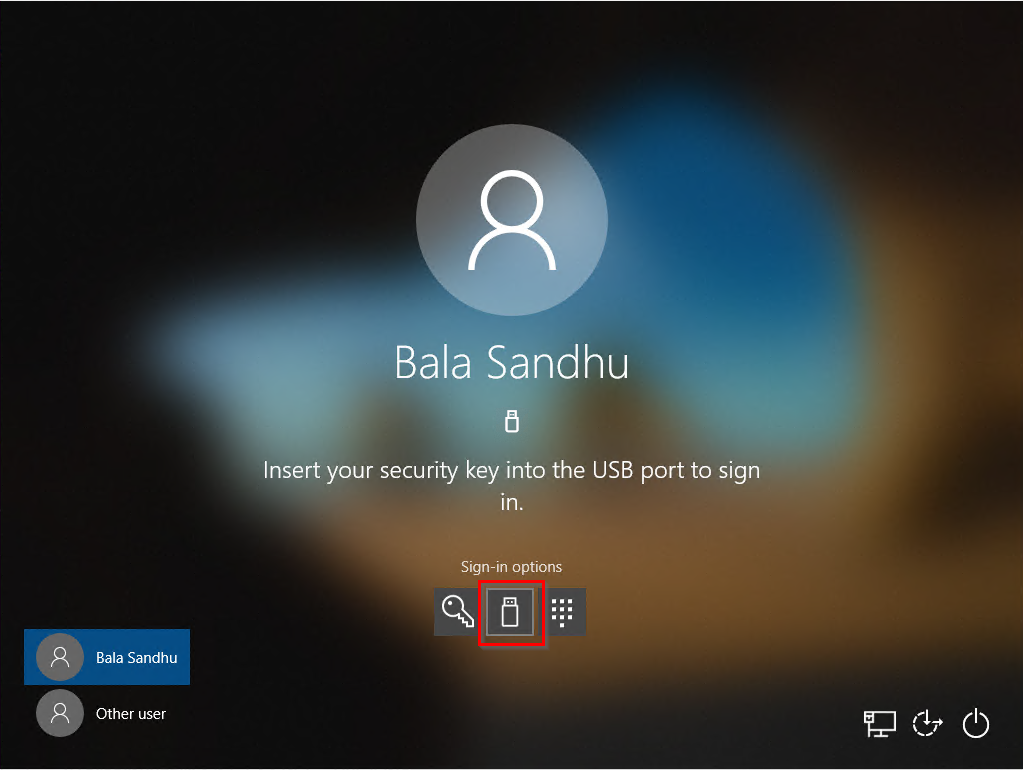
Why Can’t I Sign In With My FIDO2 Security Key to Windows Out of the Box?
By default, Windows devices aren’t usually configured to accept passwordless security keys for sign-in. To enable this functionality, certain settings need to be adjusted in the Windows operating system and potentially in your organization’s identity management system (like Entra ID). This ensures that the device recognizes and trusts the security key as a valid authentication method.
Follow the steps below to set up your Windows device for passwordless security key sign-in.
Windows Home edition does not support passwordless security key sign-in. You will need to upgrade to Windows Pro, Enterprise, or Education editions to use this feature.
How to Set Up FIDO2 Security Key Sign-In on Windows
Check out this Microsoft guide for additional information on setting up FIDO2 security key sign-in on Windows.
How to Enable Security Key Sign-In for New Devices in Microsoft Intune
The following steps will enable security key sign-in for newly enrolled Windows devices in Microsoft Intune:
- Sign in to the Microsoft Intune admin center.
- Browse to Devices > Enroll Devices > Windows enrollment > Windows Hello for Business.
- Set Use security keys for sign-in to Enabled.
- Upon registration, new Windows devices will be configured to allow FIDO2 security key sign-in.
Note that this is independent from Windows Hello for Business, which is configured separately.
How to Enable Security Key Sign-In for Existing Devices in Microsoft Intune
If you have existing Windows devices that are already enrolled in Intune, you will need to create a custom configuration profile to enable security key sign-in:
- Sign in to the Microsoft Intune admin center.
- Browse to Devices > Configuration profiles > Create profile.
- Configure the profile with the following settings:
- Platform: Windows 10 and later
- Profile type: Templates > Custom
- Name: Security Keys for Windows Sign-In
- Description: Enable FIDO2 Security Keys to be used for Windows Sign-In
- Select Next > Add and in Add Row enter the following Custom OMA-URI settings:
- Name: Turn on FIDO2 Security Key Sign-In
- Description: Enables FIDO2 Security Key Sign-In on Windows devices
- OMA-URI: ./Device/Vendor/MSFT/PassportForWork/SecurityKey/UseSecurityKeyForSignin
- Data type: Integer
- Value: 1
- Assign your specific users and groups to the profile and create the profile.
- Upon their next sync, the existing devices will be configured to allow FIDO2 security key sign-in.
How to Enable Security Key Sign-In via Group Policy
For Microsoft Entra hybrid joined devices, organizations can configure the following Group Policy setting to enable FIDO security key sign-in.
- Navigate to Computer Configuration > Administrative Templates > System > Logon > Turn on security key sign-in
- Set this policy to Enabled allows users to sign in with security keys. When this policy is set to Disabled or Not Configured it stops users from signing in with security keys.