How-To: Issue SCEP Certificates in Jamf Pro
How To Configure Jamf Pro SCEP Certificate Authority - Video Guide
The following video will guide you through all the steps from start to finish to create a SCEP profile in Jamf Pro using your EZCA SCEP CA.
How to Configure Jamf Pro SCEP Certificate Authority - Step by Step Guide
The following steps will walk you through the process of configuring Jamf Pro to issue SCEP certificates using your EZCA SCEP CA.
Prerequisites for Issuing SCEP Certificates in Jamf Pro
Before you can begin issuing SCEP certificates to your Apple devices using Jamf Pro, you will need to have the following prerequisites in place:
- You have registered the Keytos applications in your Entra ID tenant
- You have created a SCEP CA in EZCA
How to Create a New Configuration Profile in Jamf Pro
A Configuration Profile in Jamf Pro is a collection of settings that can be applied to devices. To issue SCEP certificates to your Apple devices, you can follow these steps to create a new Configuration Profile in Jamf Pro:
-
Log in to your Jamf Pro instance as an administrator.
-
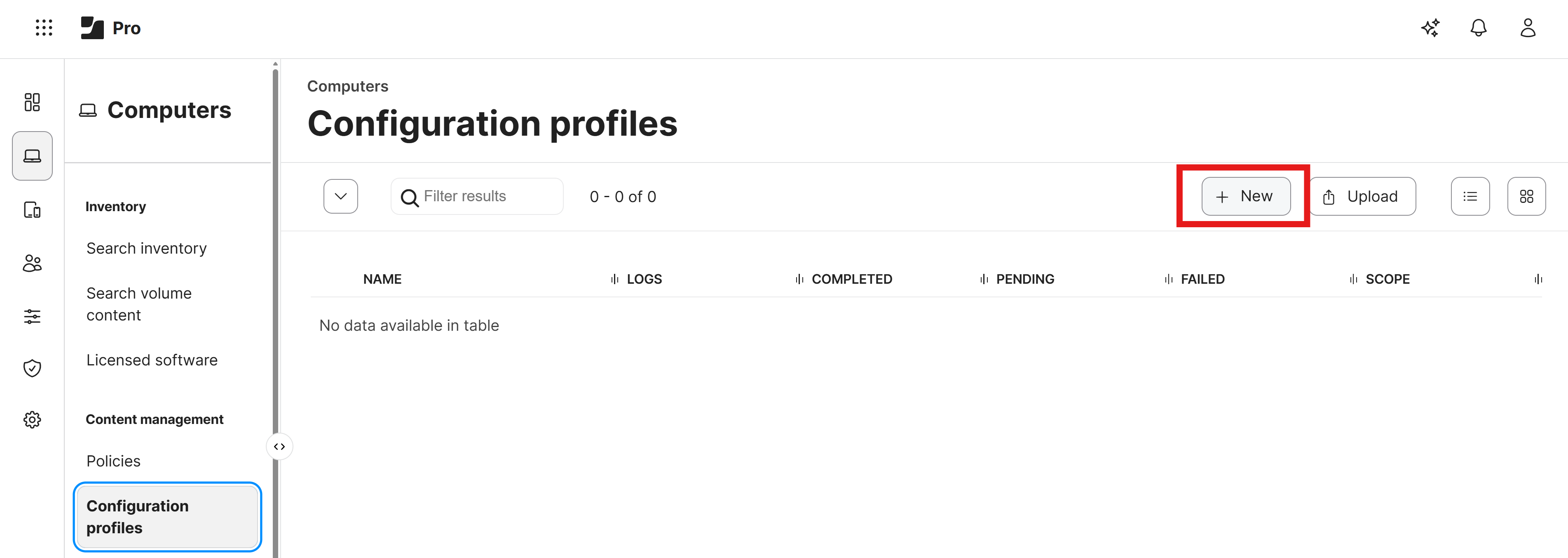
Click on the Computer Icon in the top menu and select Configuration Profiles from the dropdown menu.

-
Click on the + New button to create a new Configuration Profile.
-
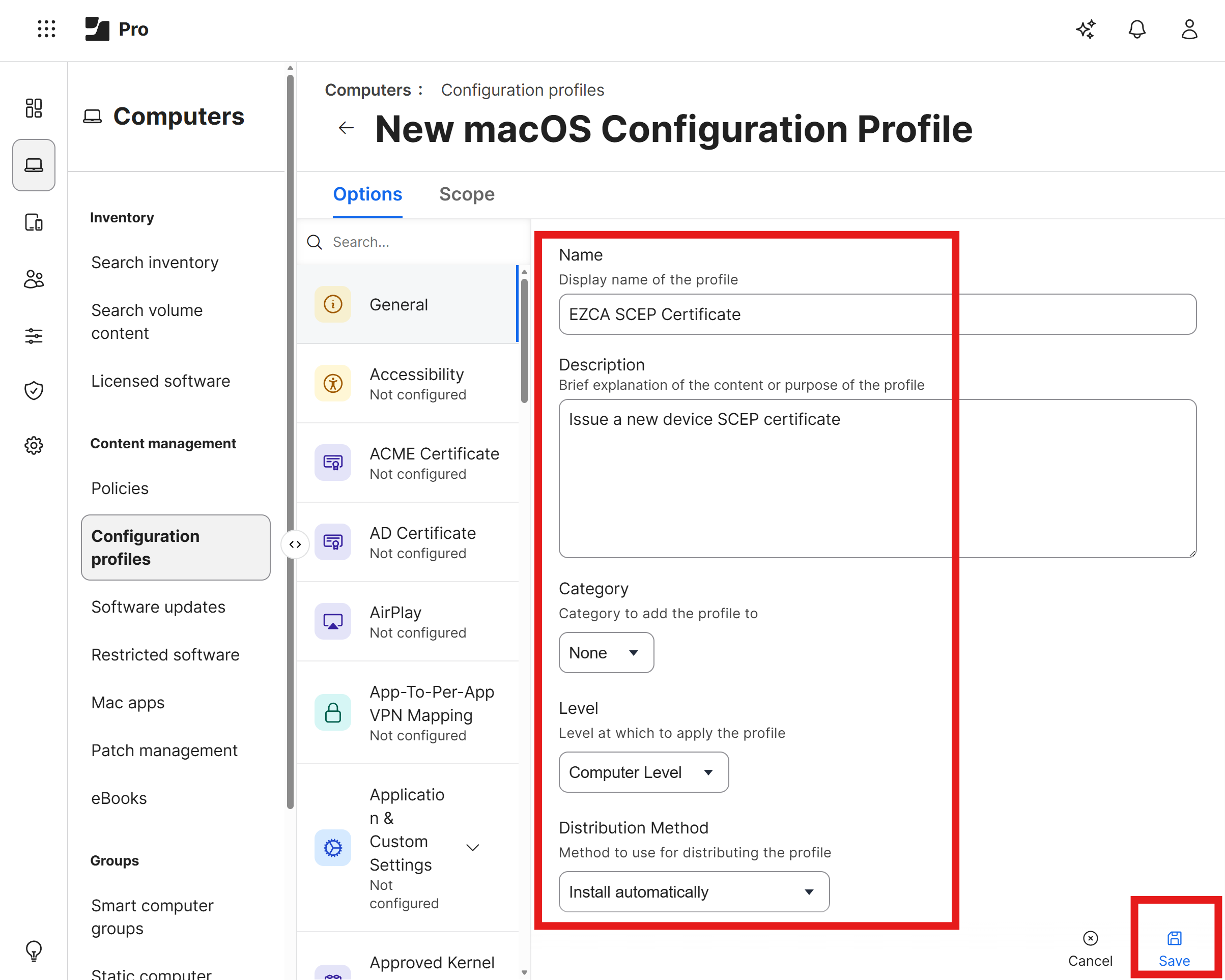
Under the General tab, enter the following information:
- Name: A name for the profile (e.g., “SCEP Certificate Profile”).
- Description: A description for the profile (e.g., “Profile to issue SCEP certificates to Apple devices”).
- Level: Ensure that Computer Level is selected.
- Distribution Method: Select Install Automatically.
How to Download Your CA Certificate from EZCA
You will need your SCEP CA’s certificate from EZCA which you will add to your Jamf Pro configuration profile as a trusted certificate. To download your CA certificate from EZCA, follow these steps:
-
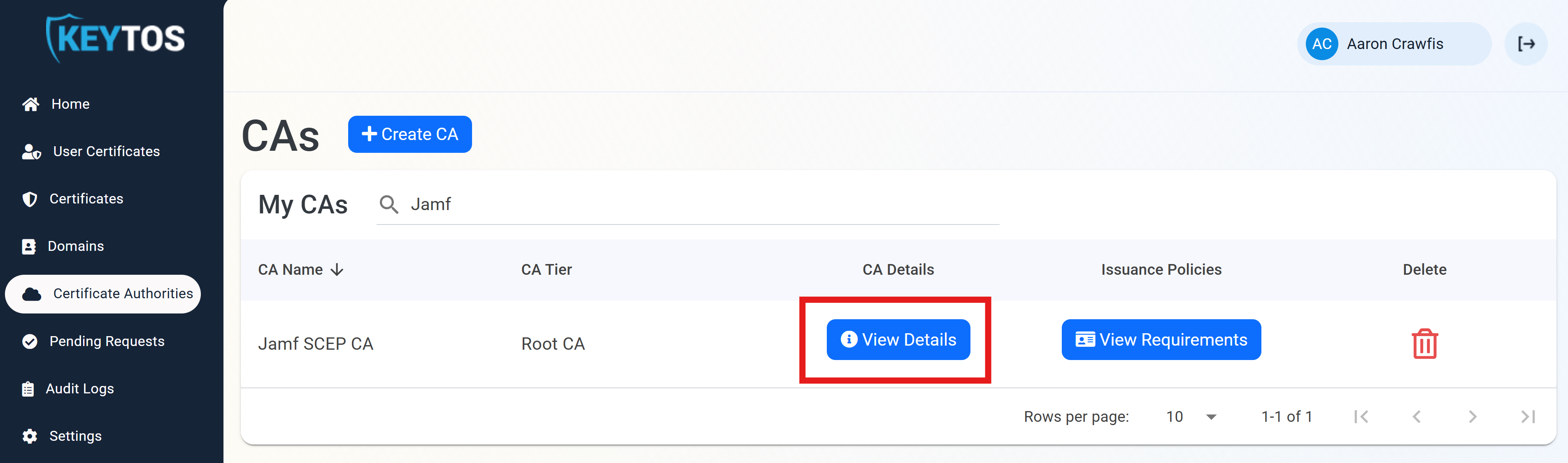
In a separate tab, navigate to your EZCA portal and click on Certificate Authorities.
-
Click on View Details for your SCEP CA.
-
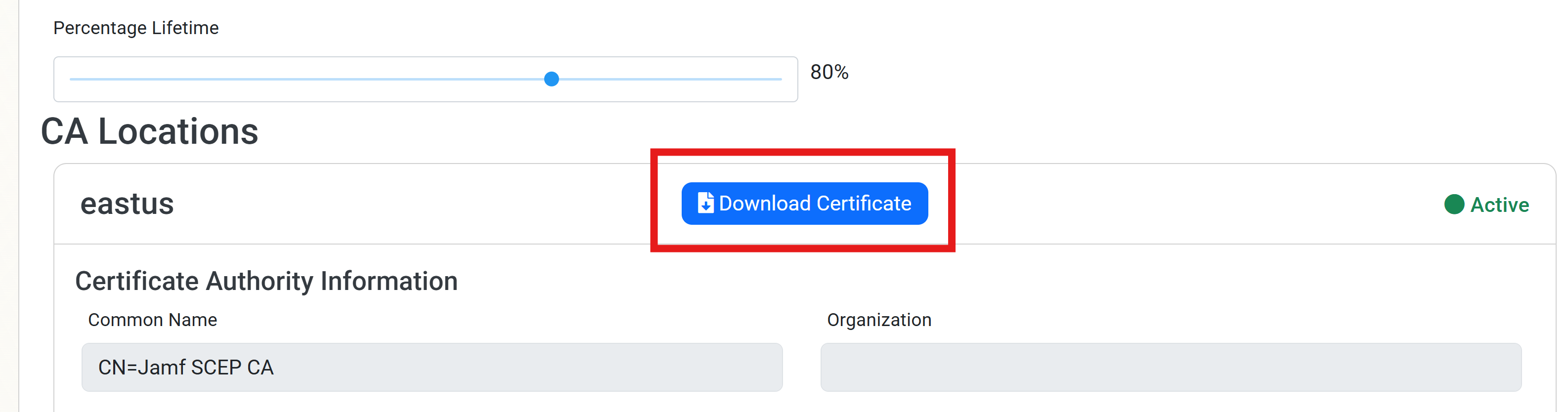
For your CA Location(s), click on the Download Certificate button to download the CA certificate to your computer.
How to Add Your CA Certificate to Your Jamf Pro Configuration Profile
-
Navigate back to your Jamf Pro tab.
-
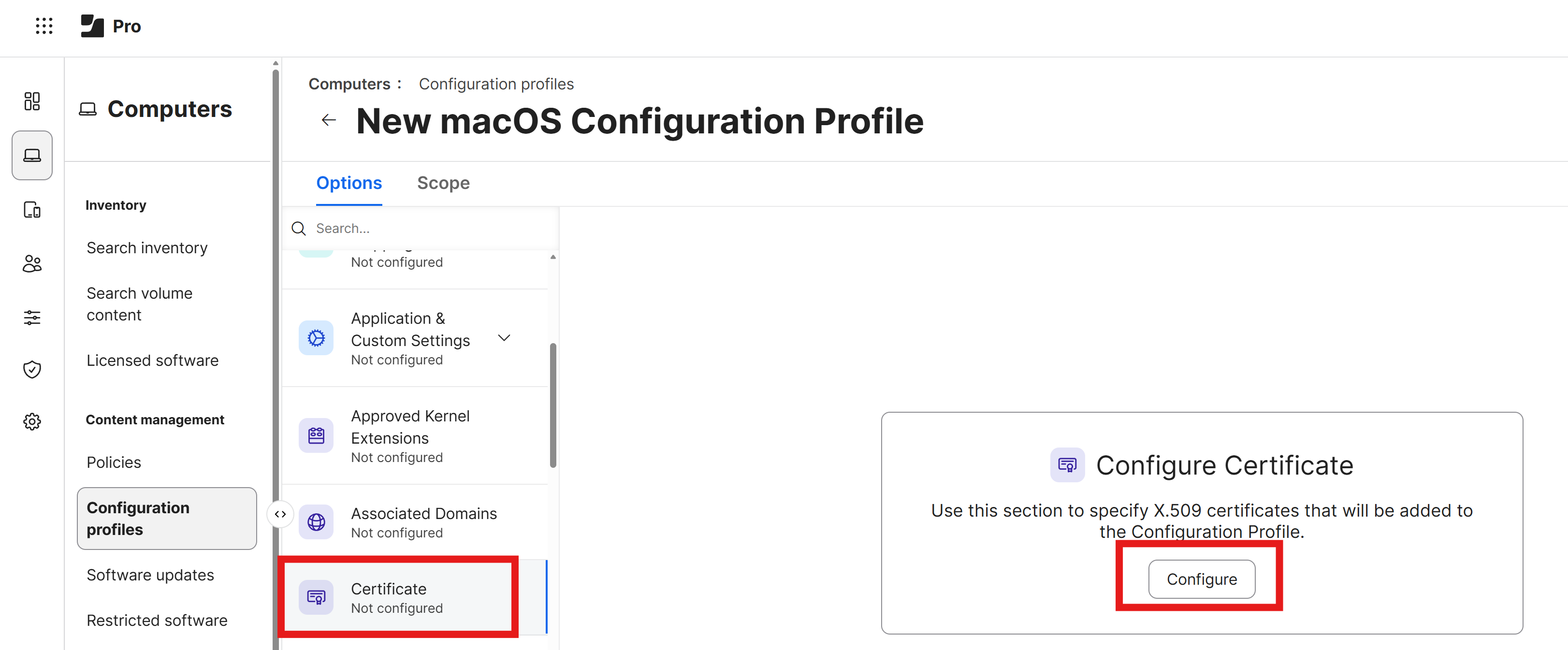
Scroll down to the Certificate section and click on the Configure button to add a new certificate.
-
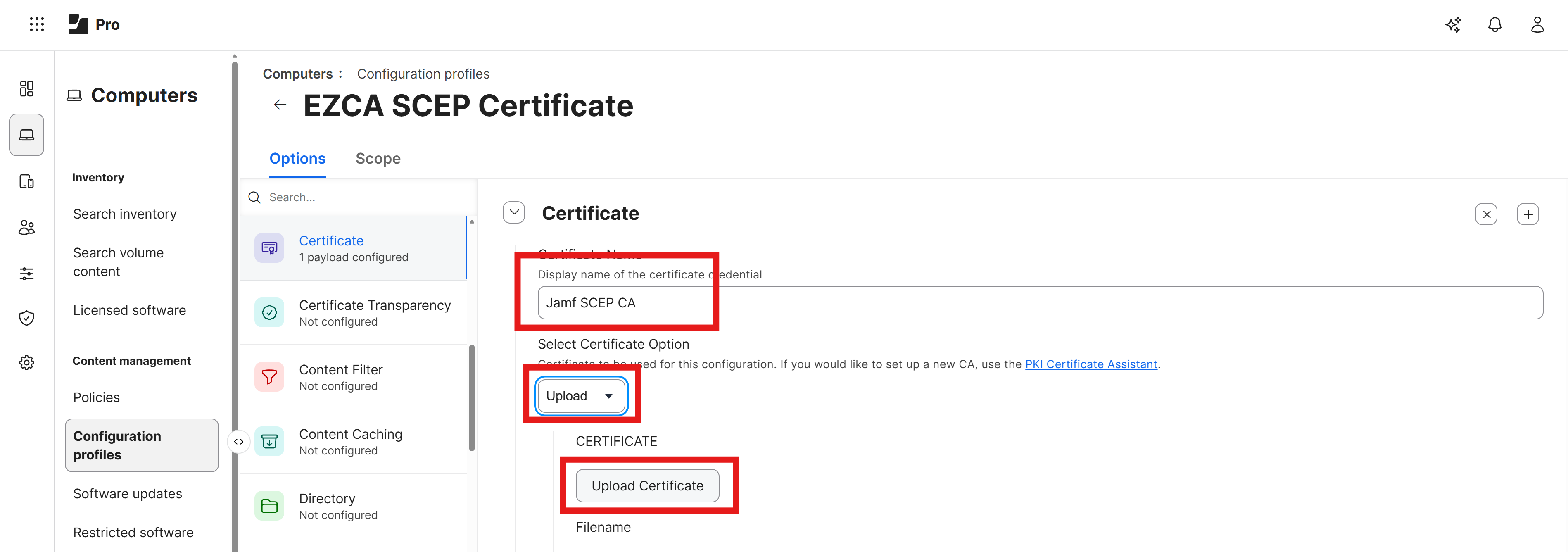
Enter your CA certificate information:
- Name: A name for the certificate (e.g., “EZCA SCEP CA Certificate”).
- Upload: Click on the Upload button and select the CA certificate you downloaded from EZCA.
- Password: Leave this field blank.
- Allow all apps access: Leave this unchecked.
- Make the certificate exportable: Since this is a CA certificate without a private key, this option is not applicable, so you can leave it checked.
How to Enable Static Challenge in Your EZCA SCEP CA
To issue certificates to your Apple devices using Jamf Pro, you will need to ensure that your SCEP CA is configured to use a static challenge. By default, EZCA SCEP CAs have static challenge disabled, so you will need to enable it before you can use the SCEP CA with Jamf Pro.
-
Navigate to your EZCA portal and click on Certificate Authorities.
-
Click on View Requirements for your SCEP CA.

-
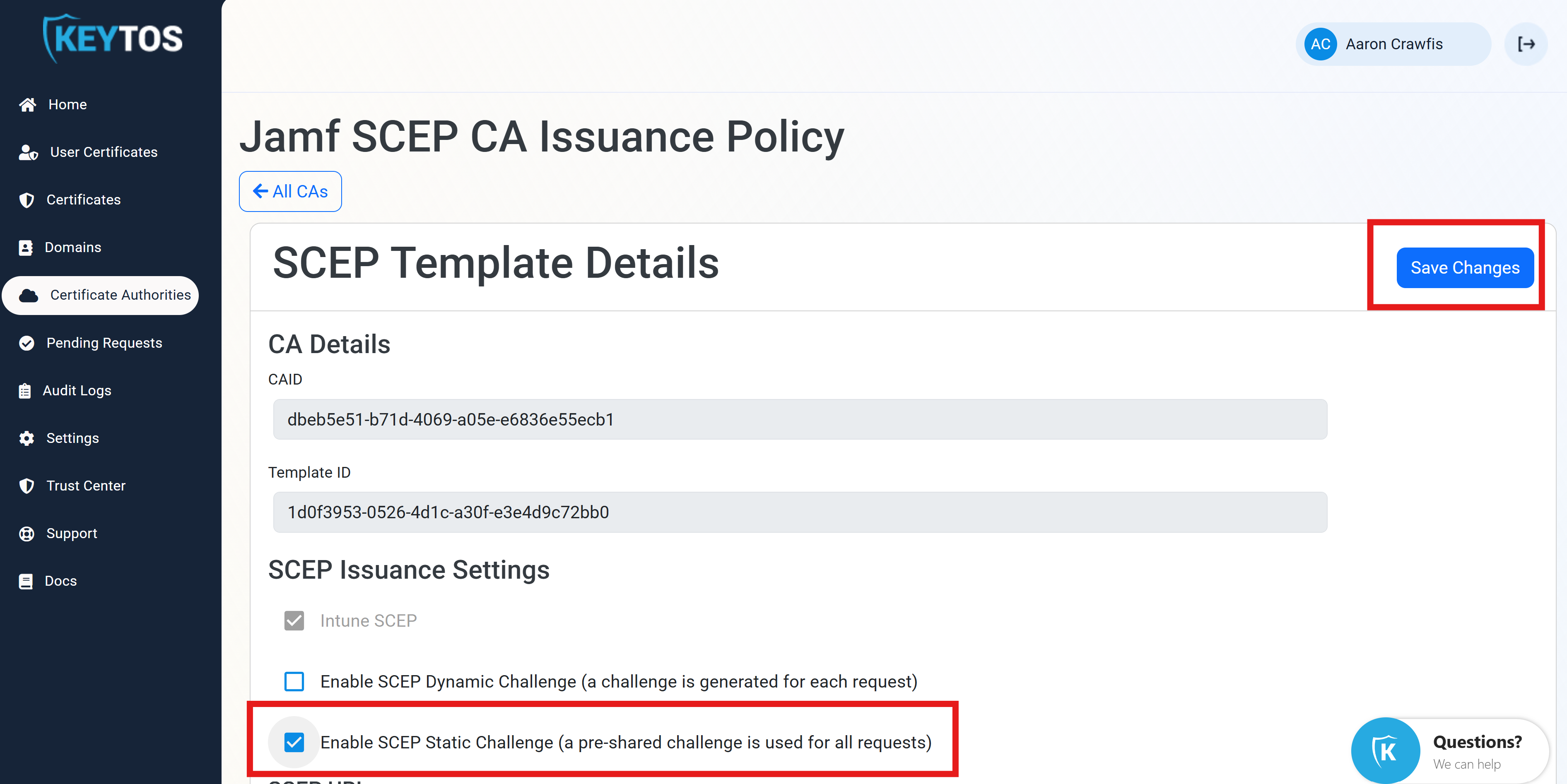
Check the box for Enable SCEP Static Challenge and click Save Changes.
-
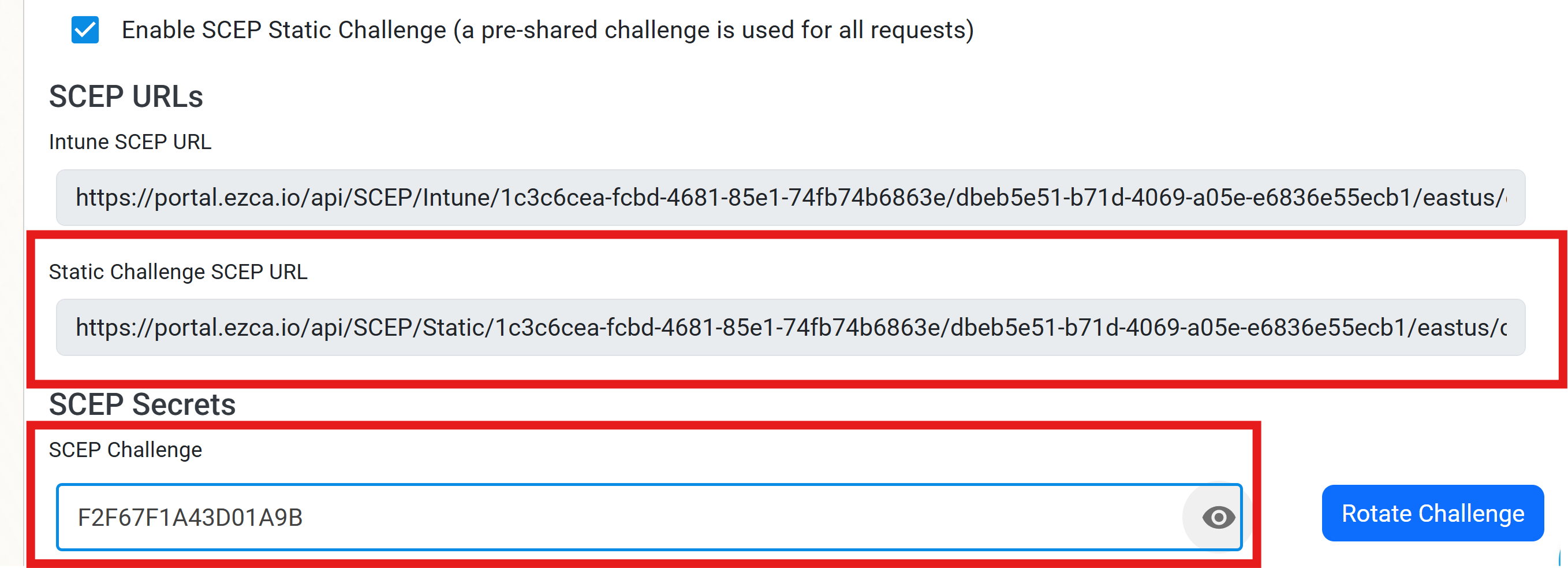
When the page refreshed, you will now see your Static Challenge SCEP URL and your SCEP Challenge. You will need both of these values to configure Jamf Pro.
How to Issue SCEP Certificates to Apple Devices in Jamf Pro
Now that you have enabled static SCEP, you can now configure Jamf Pro to issue SCEP certificates to your Apple devices using your EZCA SCEP CA. Follow these steps to configure Jamf Pro to issue SCEP certificates:
-
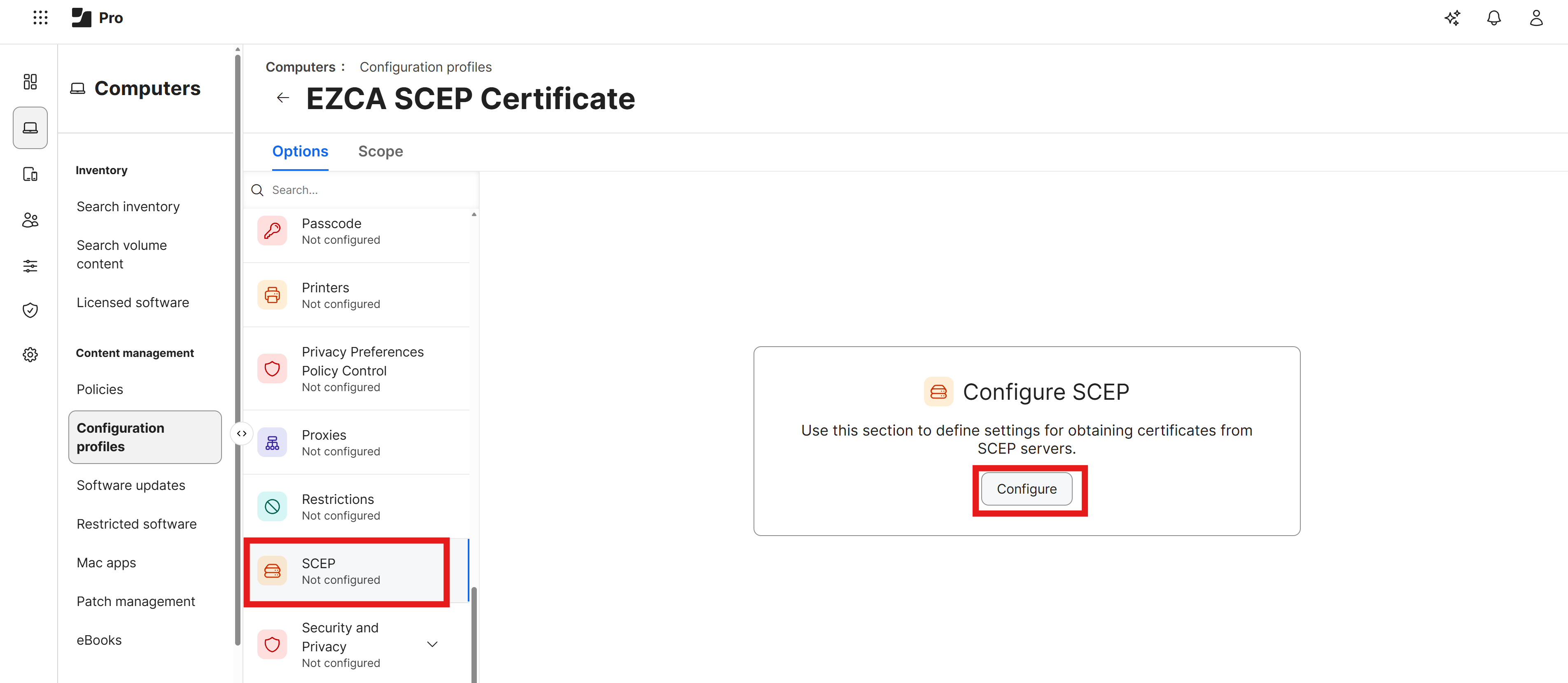
Navigate back to your Jamf Pro tab and scroll down to the SCEP section.
-
Click on the Configure button to add a new SCEP profile.
-
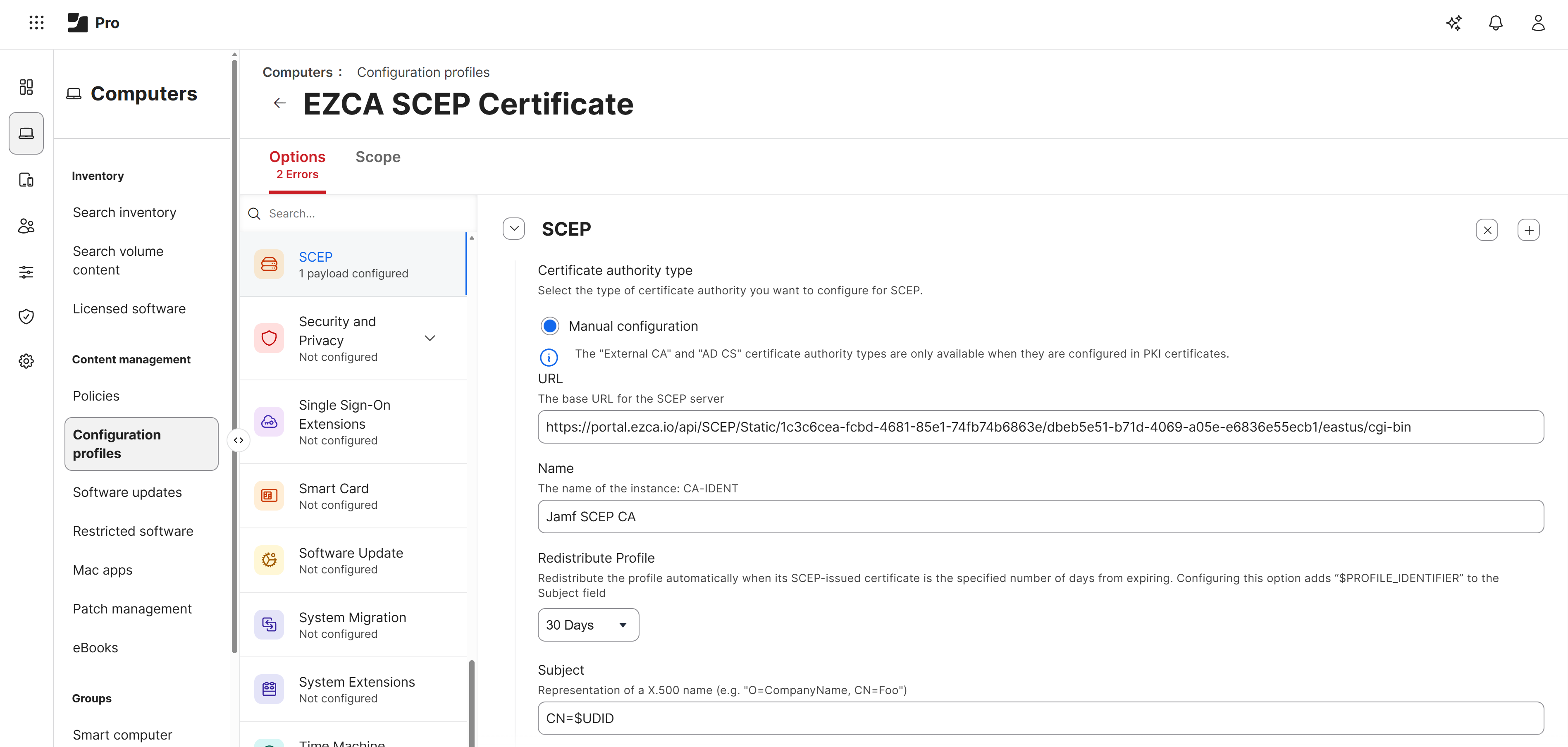
Enter the following information for your SCEP profile:
- URL: Paste the Static Challenge SCEP URL from your EZCA portal.
- Name: A name for the CA (e.g., “EZCA SCEP CA”).
- Redistribute Profile: Specify how often Jamf Pro should redistribute the profile to devices. We’ll set this to 30 days.
- Subject Name: Use the available variables and any static values you want to build the subject name for the certificate. You can see the full list of Jamf supported dynamic values here. For example, you could use
CN=$UDIDto set the Common Name of the certificate to the device’s unique device identifier. - Subject Alternative Name: Optionally use the available variables and any static values you want to build the subject alternative name for the certificate. We’ll leave this blank in our example.
- Challenge Type: Ensure that this is set to Static.
- Challenge: Paste the SCEP Challenge from your EZCA portal.
- Verify Challenge: Paste the SCEP Challenge again to verify.
- Retries: Set this to 2 to have Jamf Pro attempt to retry 2 times if the SCEP server is unavailable.
- Retry Delay: Set this to 30 to have Jamf Pro wait 30 seconds between retries.
- Certificate Expiration Notification Threshold: Set this to 14 to have Jamf Pro notify users 14 days before their certificate expires (if automatic renewal fails).
- Key Size: Set this to 4096 for a stronger key.
- Key Usage: Select Digital Signature and Key Encipherment.
- Allow export from keychain: Uncheck this option to prevent the private key from being exportable from the device’s keychain.
- Allow all apps access: Only check this box if you have a 3rd party VPN or Wi-Fi solution that requires access to the certificate. If you are using the certificate for Jamf Pro and Apple’s built-in Wi-Fi or VPN, you do not need to check this box.
- Upload Certificate: Click on the Upload Certificate button and select the same CA certificate you downloaded earlier.
How to Scope Your SCEP Profile to Devices in Jamf Pro
Now that you have created your SCEP profile in Jamf Pro, you will need to scope the profile to the devices you want to receive the SCEP certificate. To scope your SCEP profile to devices in Jamf Pro, follow these steps:
-
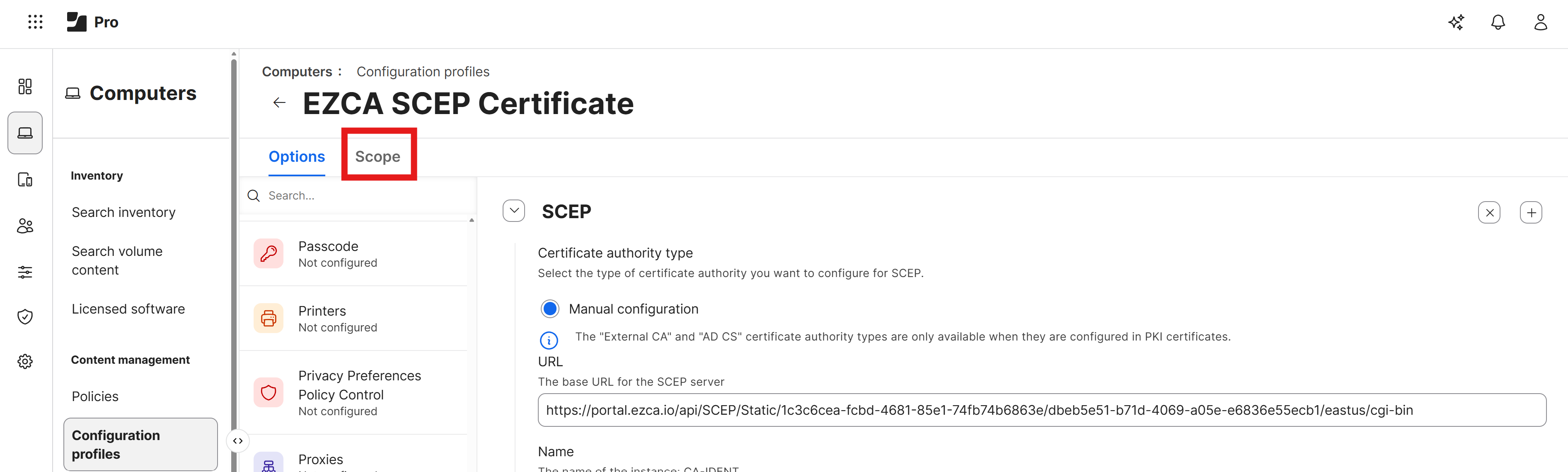
While still in your SCEP profile, click on the Scope tab.
-
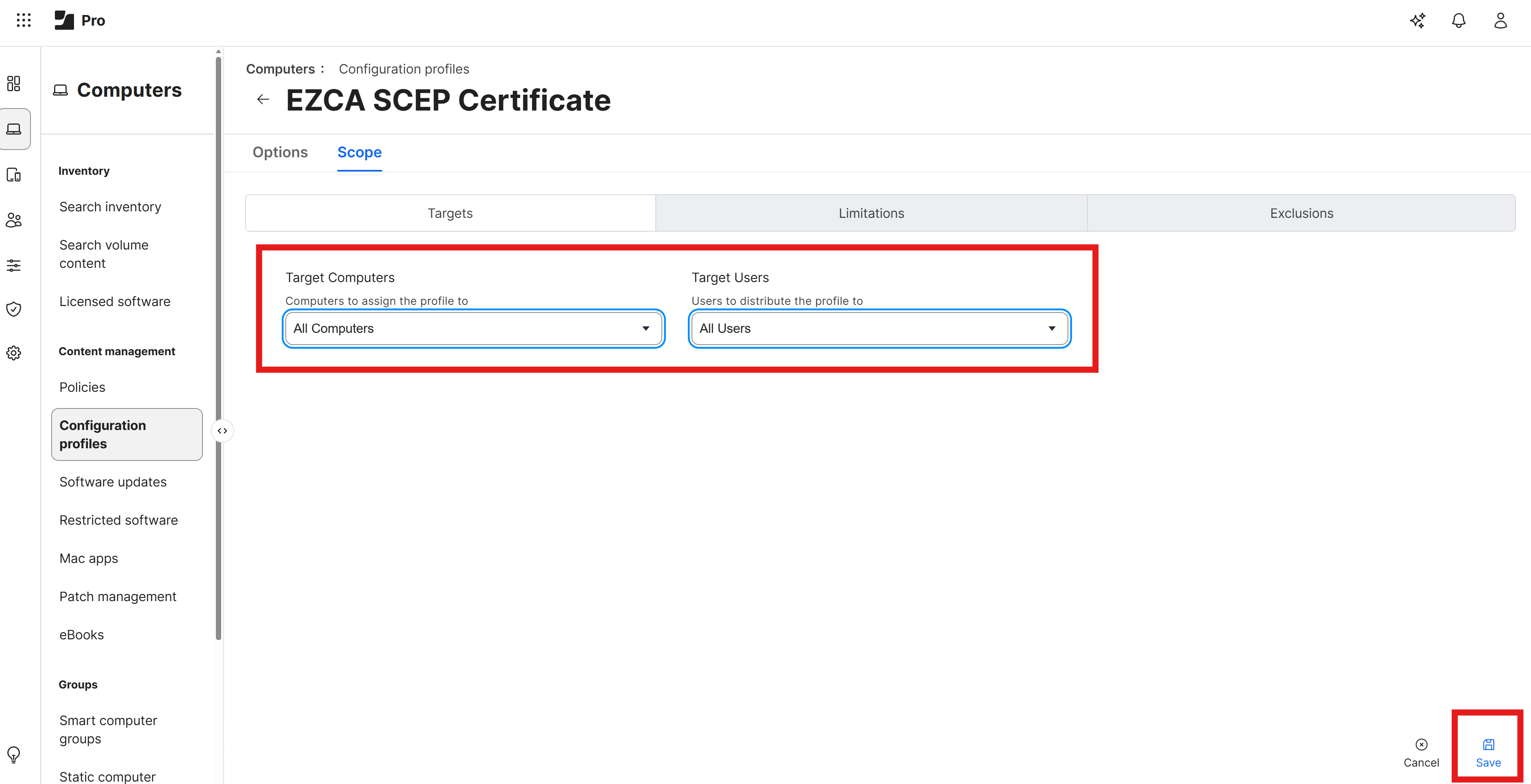
Select the Target Computers and/or Target Users you want to receive the SCEP certificate. For this example we will scope it to All Computers and All Users.
-
Click Save to save the SCEP profile. You should now see a completed profile with General, Certificate, and SCEP sections completed.
How to View Issued SCEP Certificates in macOS Keychain
To view the issued SCEP certificates on a macOS device, you can use the Keychain Access application. Follow these steps to view the issued SCEP certificates:
-
On the macOS device that is enrolled in Jamf Pro and scoped to receive the SCEP profile, open the Keychain Access application. You can find this application in the Utilities folder within the Applications folder, or you can search for it using Spotlight.
-
In Keychain Access, select the System keychain from the left sidebar.
-
You should see the issued SCEP certificate in the list of certificates. The certificate will have the name you specified in the SCEP profile (e.g., “JAMF SCEP CA”) and will indicate that it is issued by your EZCA SCEP CA.
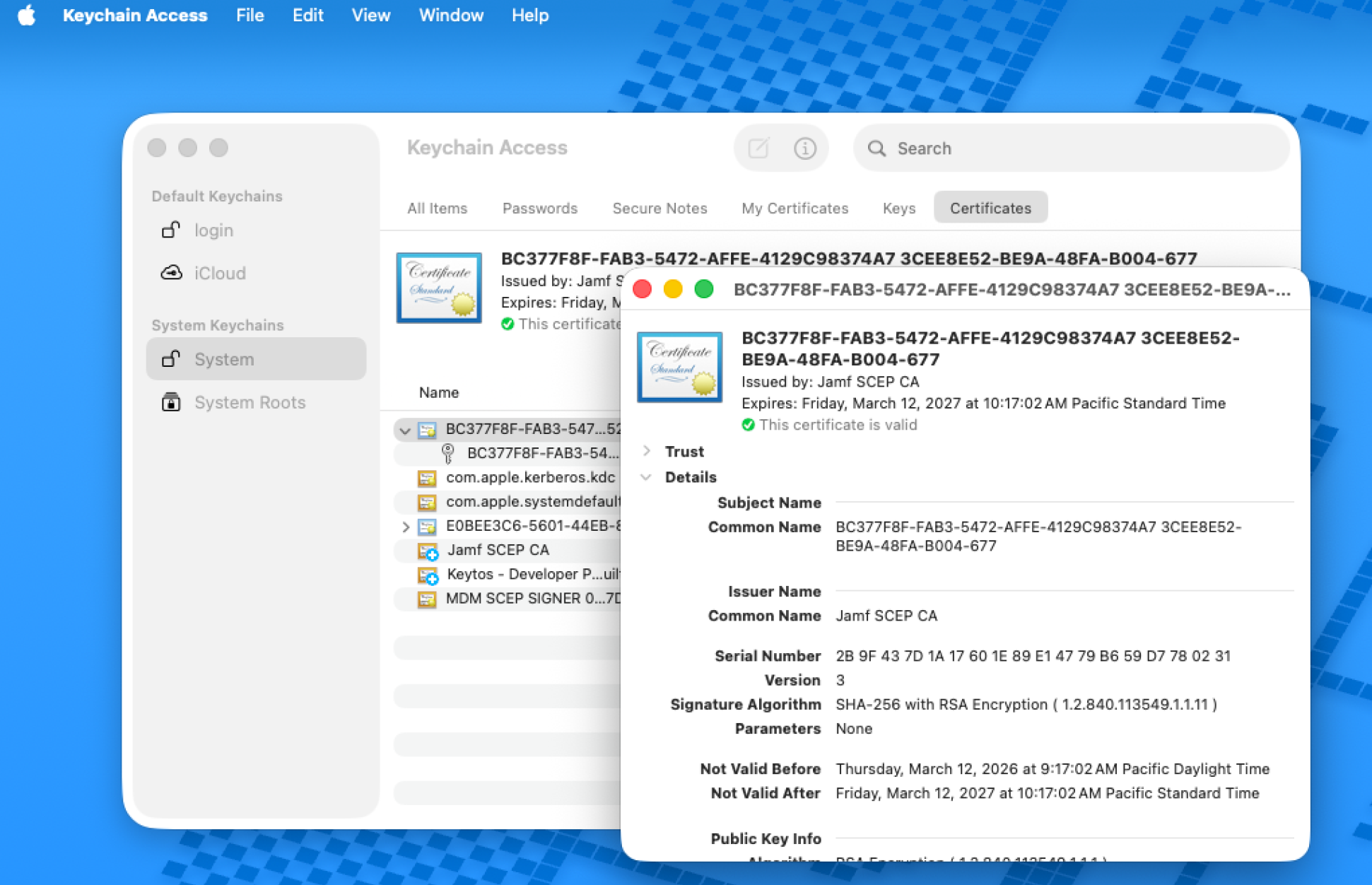
Congratulations! You have successfully configured Jamf Pro to issue SCEP certificates to your Apple devices using your EZCA SCEP CA. You can now use these certificates for various purposes such as Wi-Fi authentication, VPN authentication, or email signing and encryption.
How to Use a SCEP Certificate for Wi-Fi Authentication in Jamf Pro
Now that you have issued SCEP certificates to your Apple devices using Jamf Pro, you can use these certificates for Wi-Fi authentication. To configure a Wi-Fi profile in Jamf Pro that uses the SCEP certificate for authentication, follow the steps outlined in this guide.
Set Up WPA Enterprise Wi-Fi with SCEP Certificates