How-To: Request EZCA Certificates with win-acme
What is win-acme and What Does it Do?
win-acme is a great tool for automatically managing SSL Certificates for Windows IIS. It is a simple ACME client that can be configured to work with the EZCA ACME Agent, allowing you to automate the issuance and renewal of SSL certificates for your internal applications hosted on IIS.
The primary developer for win-acme has shifted their focus to the new simple-acme project, which is a fork of win-acme. While win-acme is still functional and has been picked up by ZeroSSL for ongoing maintenance, new features and improvements are now being added to simple-acme.
This guide will walk you through the process of setting up win-acme to request certificates from your EZCA ACME Agent, ensuring that your IIS-hosted applications always have valid SSL certificates without manual intervention.
Prerequisites for Using win-acme with EZCA
Before you can use win-acme to request certificates from your EZCA ACME Agent, make sure you have the following prerequisites in place:
- You have an active EZCA subscription
- You have created an SSL Template Certificate Authority in EZCA (either root or subordinate)
- You have successfully deployed an ACME agent in EZCA.
- You have a Windows Server with IIS hosting your internal application that you want to secure with an SSL certificate from EZCA. (This can be a VM in Azure or on-premises)
How to Automate SSL Certificate Issuance with win-acme - Video Walkthrough
Follow along with this video walkthrough to configure win-acme and request certificates from your EZCA ACME Agent:
How to Automate SSL Certificate Issuance with win-acme - Step by Step Guide
The following steps will guide you through the process of configuring win-acme to request SSL certificates from your EZCA ACME Agent for your IIS-hosted applications:
How to Configure win-acme to Point to Your EZCA ACME Agent
-
Download the latest version of win-acme from the win-acme website.
-
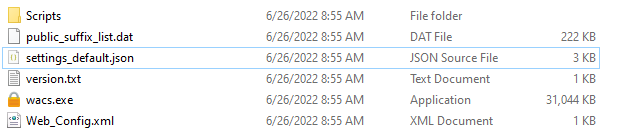
Extract the files to your desired installation folder.
-
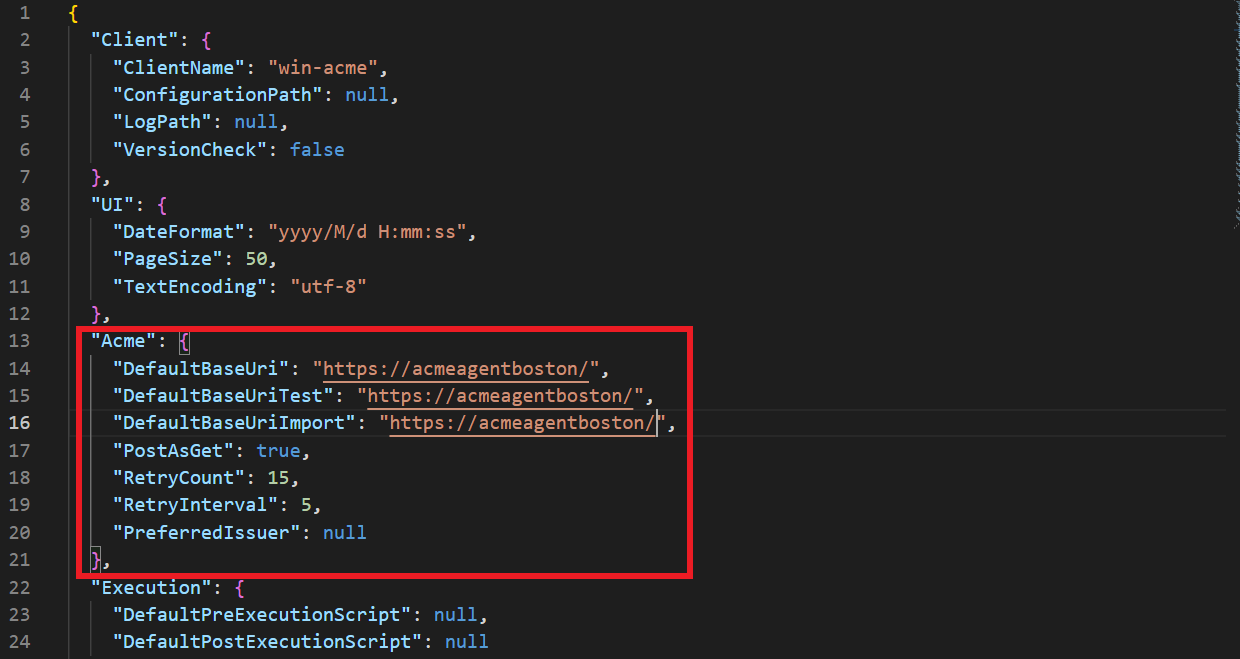
Open settings_default.json to update the endpoint configuration to point to your EZCA ACME Agent.
-
In the
Acmesection, change the following fields to your EZCA ACME Agent information:DefaultBaseUri: Set this to the URL of your EZCA ACME Agent (e.g.,https://acmeagentboston).DefaultBaseUriTest: Set this to the same URL as DefaultBaseUri (e.g.,https://acmeagentboston).DefaultBaseUriImport: Set this to the same URL as DefaultBaseUri (e.g.,https://acmeagentboston).
-
Save your changes to settings_default.json.
-
We are now ready to use win-acme to request certificates from your EZCA ACME Agent!
How to Request Certificates with win-acme
-
Navigate to the folder where win-acme was installed.
-
Open the
wacs.exeprogram.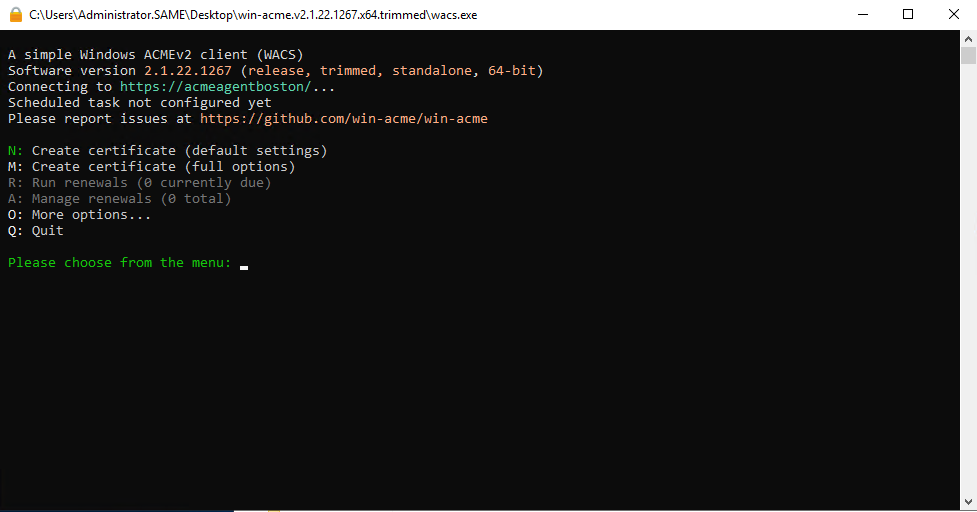
-
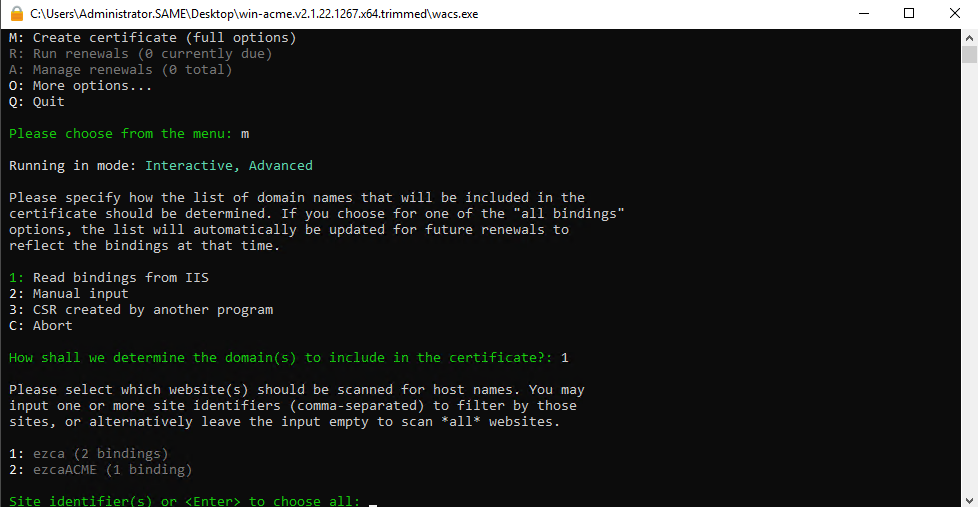
Enter M for manual issuance with full options.
-
Select 1 to read the binding from IIS. This will look at your IIS site bindings and will request a certificate containing the domains in your binding.
-
Select the website you want to create the certificate for.
-
Select which bindings you want to issue the certificate for.
-
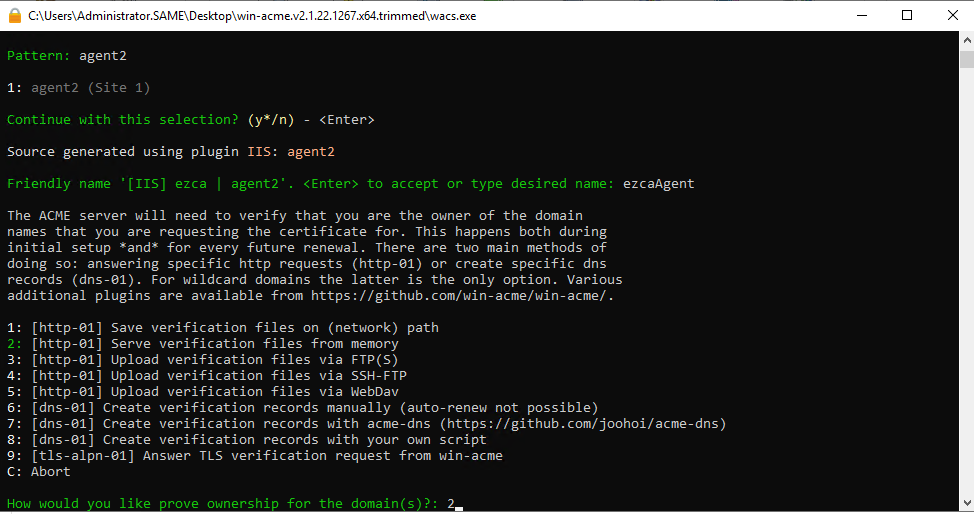
Enter a Friendly name for the certificate.
-
Enter 2 for win-acme to serve the correct challenge on the site.
-
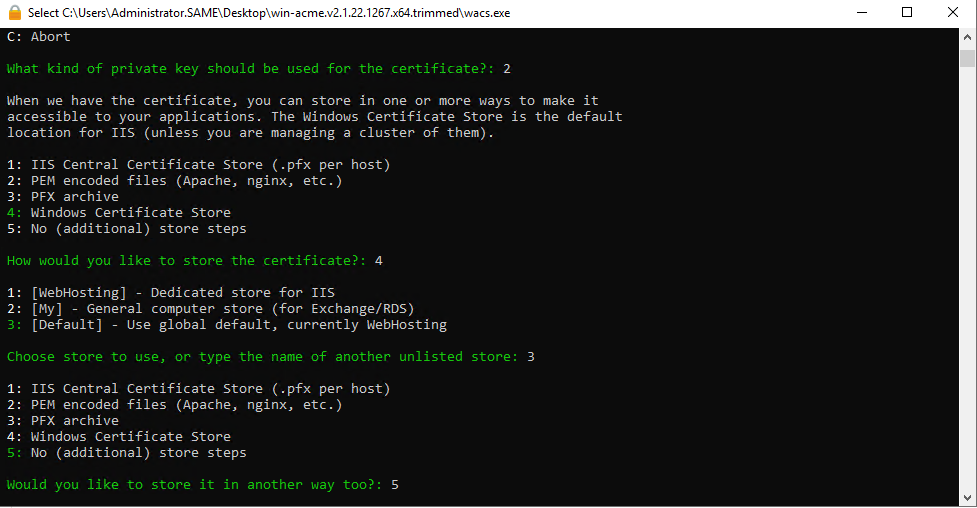
Select the Key type you would like to use.
-
Select where to store the certificate. (We recommend the Windows Certificate Store)
-
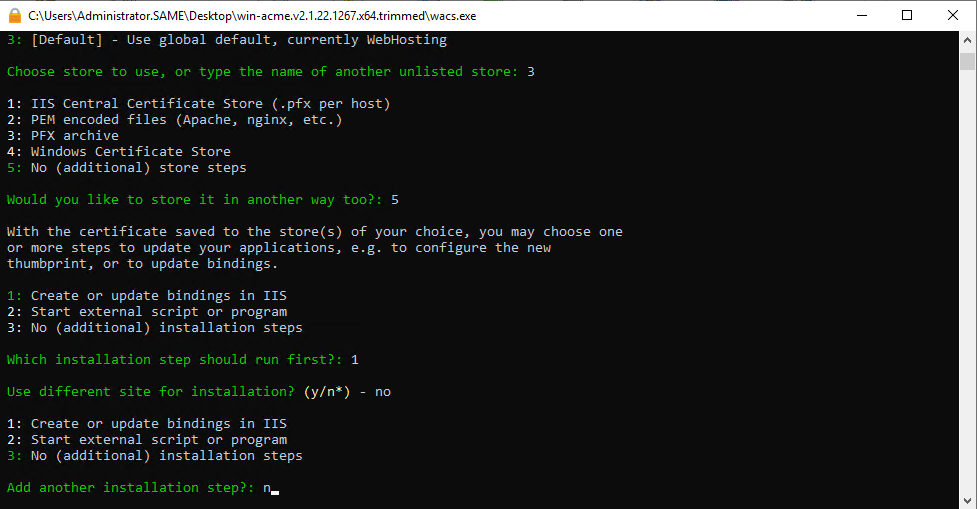
Select Update bindings to automatically change your binding to use the new certificate when the certificate is renewed.
-
Select the same site for installation.
-
Enter n for Add another installation step.
-
Read the terms and conditions and accept them to continue with the certificate request.
-
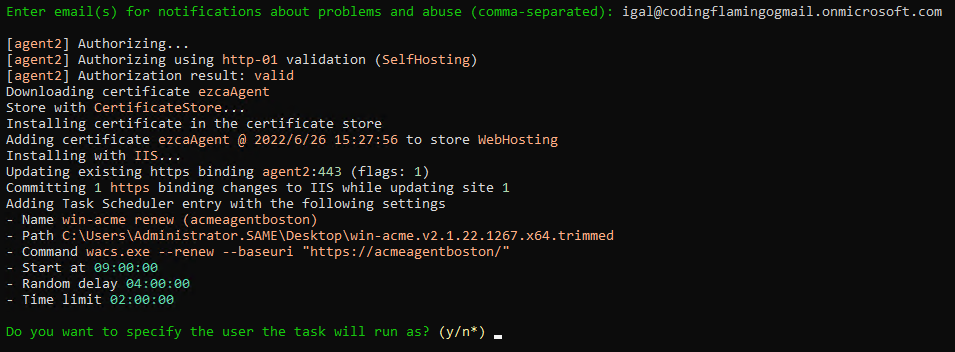
Enter the email(s) of the owners of this certificate/website.
Emails Must Exist in Entra IDThe provided emails must be part of your Entra ID tenant. If they cannot be verified with Entra ID, the request will fail.
-
Your certificate will now be issued, and a task to automatically update your certificate will be added to Task Scheduler.
-
Done! Your certificate will now be automatically renewed by win-acme before it expires, ensuring your IIS site always has a valid SSL certificate from your EZCA ACME Agent. You can manage your scheduled tasks in Task Scheduler under the win-acme folder to see when your certificates will be renewed.