How-To: Install SCEP Certificate in Linux
Introduction - How to Install SCEP Certificates in Linux
In this page we will guide you on how to install a X509 certificate with EZCA SCEP in Linux with our script with a password-protected private key.
Prerequisites for Installing SCEP Certificates in Linux
Before you begin, make sure you have the following prerequisites in place:
- You have created an Intune SCEP CA.
- You have registered the Keytos Intune application in your Entra ID tenant.
- You are an Intune administrator with permissions to create configuration profiles in Intune.
- Make sure you have installed
coreutils,curl,head, andopensslon your device.
How To Manually Issue SCEP Certificates to Linux Devices - Step By Step Guide
In this section, you will first enable static SCEP challenge in your EZCA portal, then use a script to request and install SCEP certificates for Linux devices.
How to Enable Static SCEP Challenge in EZCA
The SCEP script requires a static SCEP challenge, which you can enable in your EZCA portal. Follow the steps below to enable the static SCEP challenge:
-
Navigate to your EZCA portal instance, such as portal.ezca.io.
-
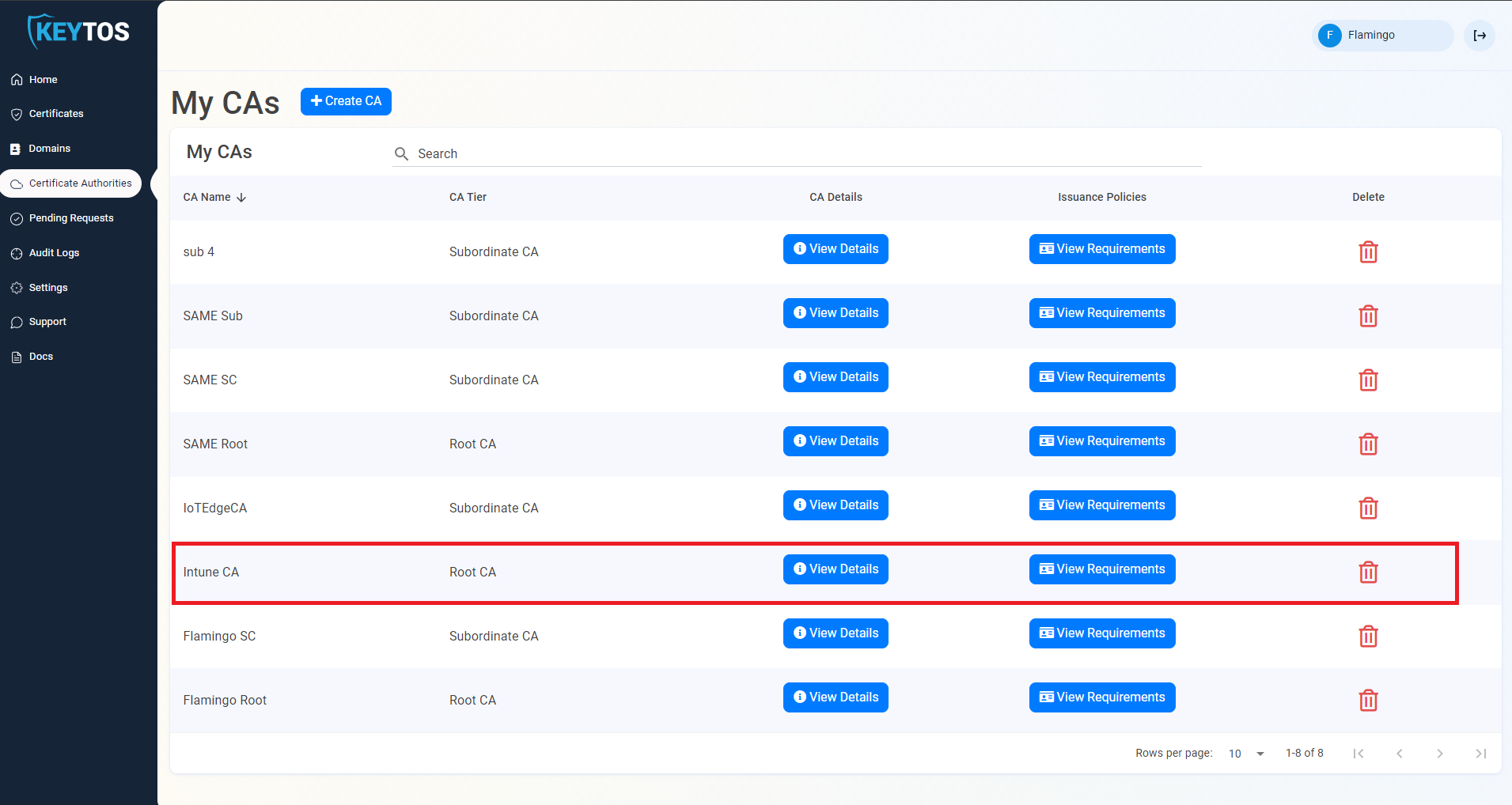
From the left-hand menu, select Certificate Authorities.
-
Find your SCEP CA in the list and click on the View Requirements button.
-
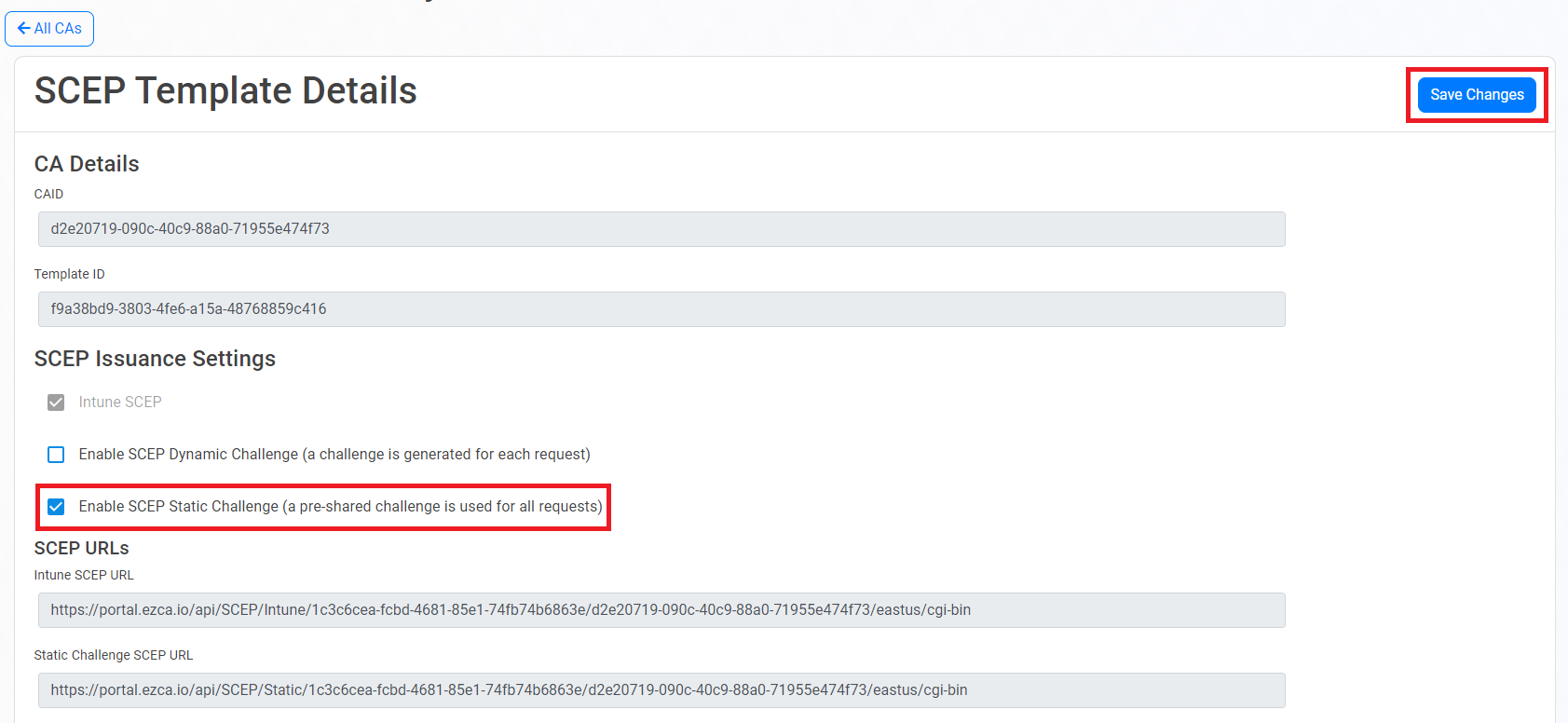
Scroll down to the Static SCEP Challenge section and click on the Enable SCEP Static Challenge button.
-
Click on the Save Changes button at the top right to save your changes.
-
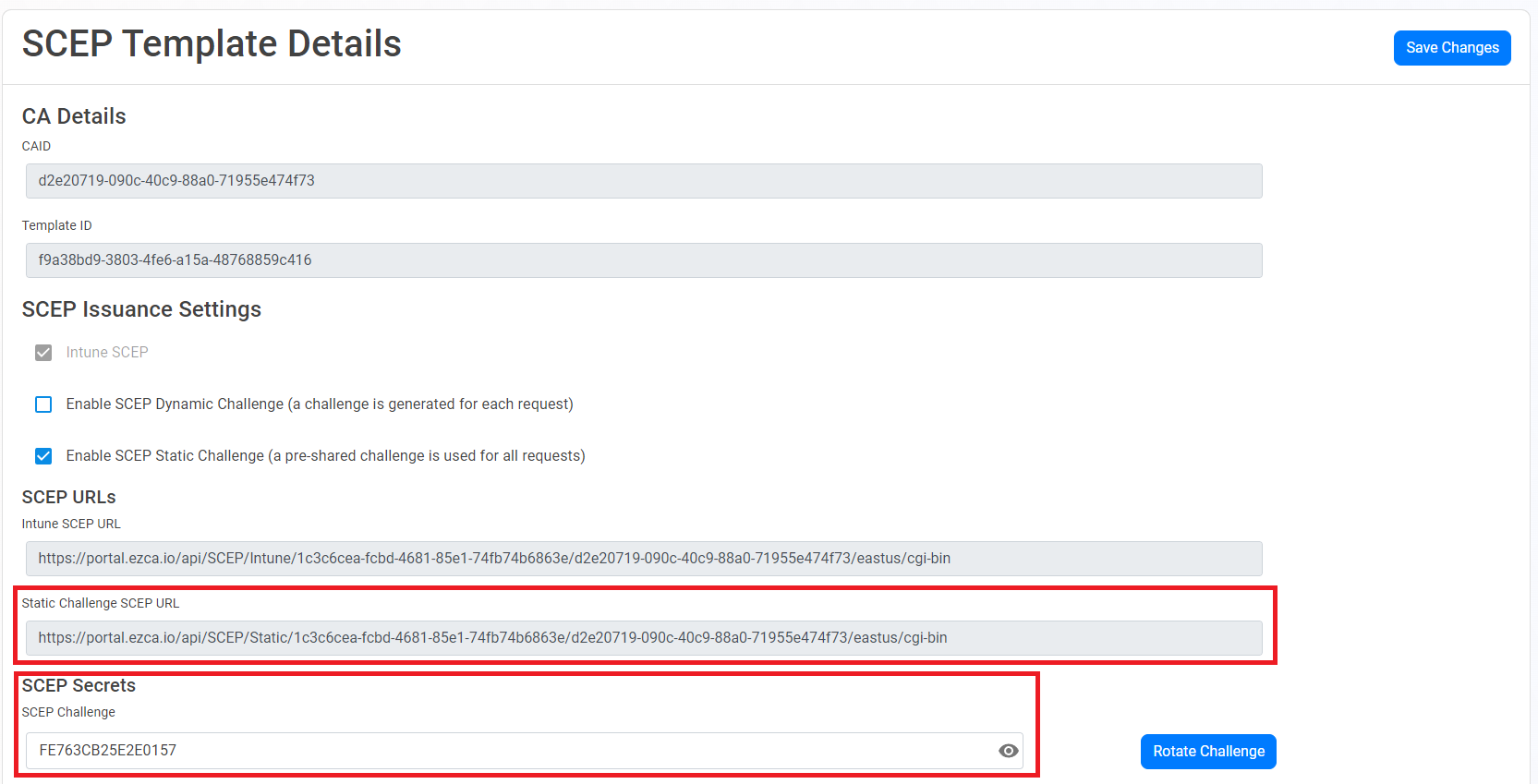
After enabling the static SCEP challenge, make sure to copy the Static URL and Static Challenge SCEP URL values, as you will need them later.
How to Install SCEP Certificates in Linux with the EZCA Certificate Manager Tool
-
Open your terminal.
-
Install the
EZCACertManagertool from https://github.com/markeytos/Certificate-Renewal-Client. You can install the tool with the following commands:# change 24.04 to 22.04 if you are on Ubuntu 22.04 curl -L "https://github.com/markeytos/Certificate-Renewal-Client/releases/latest/download/EZCACertManager-ubuntu-24.04.deb" -o EZCACertManager.deb sudo apt install ./EZCACertManager.deb -
Use the
EZCACertManagertool to install the SCEP certificate, filling in the corresponding values for the SCEP URL, SCEP Challenge, and certificate subject. The certificate will be installed at the path specified byPFX_PATHwith the password specified inPASSWORD_PATH.EZCACertManager SCEPCertificate \ -u "$EZCA_SCEP_STATIC_URL" \ -p "$SCEP_CHALLENGE" \ -s "$SUBJECT" \ --Path "$PFX_PATH" \ --Password "$(cat $PASSWORD_PATH)" -
Separate the encrypted private key and the public X.509 certificate. These commands will output a certificate in PEM format at the path specified by
PEM_PATHand an encrypted private key at the path specified byKEY_PATHwith the password specified inPASSWORD_PATH.# Extract certificate openssl pkcs12 -in "$PFX_PATH" -clcerts -nokeys -out "$PEM_PATH" -passin file:"$PASSWORD_PATH" # Extract encrypted private key openssl pkcs12 \ -in "$PFX_PATH" \ -nocerts \ -out "$KEY_PATH" \ -passin file:"$PASSWORD_PATH" \ -passout pass:"$(cat "$PASSWORD_PATH")"
How to Install SCEP Certificates in Linux with Custom Scripts
Copy the script below to a file and fill out your values in the variables by uncommenting each line (removing the #) and entering the corresponding values. The certificate and encrypted private key (along with its password) will be installed to $HOME/.local/share/keytos/scep_certs.
#!/bin/bash
# User-set values
EZCA_SCEP_STATIC_URL="" # Fill in (SCEP Static URL)
SCEP_CHALLENGE="" # Fill in (SCEP Static Challenge)
CERT_CN="scep-certificate" # Fill in (certificate common name)
SUBJECT_ALT_NAMES="" # Comma-separated list of Subject Alternative Names, e.g. "example1.com,example2.com"
# CERT_O= # Cert organization
# CERT_OU= # Cert organization unit
# CERT_COUNTRY= # Cert country
req_execs=("cat" "chmod" "curl" "head" "mkdir" "mv" "openssl" "rm" "tr")
for exe in "${req_execs[@]}"; do
if [ ! $(command -v "$exe") ]; then
echo "Required executable $exe not found"
exit 1
fi
done
if [ -z "$EZCA_SCEP_STATIC_URL" ]; then
echo "EZCA_SCEP_STATIC_URL not set"
exit 1
fi
if [ -z "$SCEP_CHALLENGE" ]; then
echo "SCEP_CHALLENGE not set"
exit 1
fi
SCEP_CHALLENGE=${SCEP_CHALLENGE:-'DEFAULT_SCEP_CHALLENGE'}
CERT_O=${CERT_O:-'DEFAULT_CERT_O'}
CERT_OU=${CERT_OU:-'DEFAULT_CERT_OU'}
CERT_COUNTRY=${CERT_COUNTRY:-'US'}
INSTALL_DIR=${INSTALL_DIR:-"$HOME/.local/share/keytos/scep_certs"}
PFX_PATH=${PFX_PATH:-"$INSTALL_DIR/scep-client-cert.pfx"}
PASSWORD_PATH=${PASSWORD_PATH:-"$INSTALL_DIR/scep-client-cert_password.txt"}
KEY_PATH=${KEY_PATH:-"$INSTALL_DIR/scep-client-cert-key.pem"}
PEM_PATH=${PEM_PATH:-"$INSTALL_DIR/scep-client-cert.pem"}
# Change to 22.04 if you are on Ubuntu 22.04
CERT_MANAGER_URL="https://github.com/markeytos/Certificate-Renewal-Client/releases/latest/download/EZCACertManager-ubuntu-24.04.deb"
mkdir -p "$INSTALL_DIR"
if [ ! -f "$PASSWORD_PATH" ]; then
echo "Creating password"
tr -dc 'A-Za-z0-9' </dev/urandom | head -c 32 | tr -d '\n' | {
cat
echo
} >$PASSWORD_PATH
fi
if [ -f "$PFX_PATH" ]; then
TWO_WEEKS_IN_SECONDS=1209600
if openssl pkcs12 -in "$PFX_PATH" -passin file:$PASSWORD_PATH -nokeys 2>/dev/null | openssl x509 -checkend $TWO_WEEKS_IN_SECONDS -noout; then
exit 0
fi
fi
if ! command -v EZCACertManager &>/dev/null; then
curl -L "$CERT_MANAGER_URL" -o EZCACertManager.deb
sudo apt install ./EZCACertManager.deb
fi
if [ -n "$CERT_CN" ]; then
SUBJECT="CN=${CERT_CN}"
[ -n "$CERT_OU" ] && [ "$CERT_OU" != "DEFAULT_CERT_OU" ] && SUBJECT="$SUBJECT, OU=${CERT_OU}"
[ -n "$CERT_O" ] && [ "$CERT_O" != "DEFAULT_CERT_O" ] && SUBJECT="$SUBJECT, O=${CERT_O}"
[ -n "$CERT_COUNTRY" ] && [ "$CERT_COUNTRY" != "US" ] && SUBJECT="$SUBJECT, C=${CERT_COUNTRY}"
SUBJECT_ARG=(-s "$SUBJECT")
else
SUBJECT_ARG=()
fi
if [ -n "$SUBJECT_ALT_NAMES" ]; then
SAN_ARG=(--SubjectAltNames "$SUBJECT_ALT_NAMES")
else
SAN_ARG=()
fi
if [ -f "$PFX_PATH" ]; then
EZCACertManager renew \
"${SUBJECT_ARG[@]}" \
--Path "$PFX_PATH" \
--Password "$(cat $PASSWORD_PATH)"
else
EZCACertManager SCEPCertificate \
-u "$EZCA_SCEP_STATIC_URL" \
-p "$SCEP_CHALLENGE" \
"${SUBJECT_ARG[@]}" \
"${SAN_ARG[@]}" \
--Path "$PFX_PATH" \
--Password "$(cat $PASSWORD_PATH)"
fi
# Extract certificate
openssl pkcs12 -in "$PFX_PATH" -clcerts -nokeys -out "$PEM_PATH" -passin file:"$PASSWORD_PATH"

# Extract encrypted private key
openssl pkcs12 \
  -in "$PFX_PATH" \
  -nocerts \
  -out "$KEY_PATH" \
  -passin file:"$PASSWORD_PATH" \
  -passout pass:"$(cat "$PASSWORD_PATH")"
echo "Saved PEM file to $PEM_PATH"
echo "Saved encrypted key file to $KEY_PATH"