How-To: Issue SCEP Certificates to Linux Devices with Intune
Introduction - How to Issue SCEP Certificates to Linux Devices with Intune
This guide shows how to issue X509 certificates to Linux devices with Microsoft Intune and SCEP. You will create:
- A Trusted Certificate profile to establish trust with your CA chain.
- A SCEP Certificate profile to request and install certificates for users or devices.
While Intune has SCEP profiles for Mac and iOS devices, Windows, and Android, it does not have a specific profile for Linux devices. However, we have created some custom profiles that will allow you to issue certificates to Linux devices.
Prerequisites for Issuing SCEP Certificates to Linux Devices
- You have created an Intune SCEP CA.
- You have registered the Keytos Intune application in your Entra ID tenant.
- You are an Intune administrator with permissions to create configuration profiles in Intune.
How To Issue SCEP Certificates to Linux Devices with Intune - Video Guide
Prefer a walkthrough? Watch the video below:
How To Issue SCEP Certificates to Linux Devices with Intune - Step By Step Guide
In this section, you will first enable static SCEP challenge in your EZCA portal, then create a custom script profile in Intune to request certificates for Linux devices.
How to Enable Static SCEP Challenge in EZCA
Since Intune does not have a built-in SCEP profile for Linux devices, we will use a custom script to request certificates. This script requires a static SCEP challenge, which you can enable in your EZCA portal. Follow the steps below to enable the static SCEP challenge:
-
Navigate to your EZCA portal instance, such as portal.ezca.io.
-
From the left-hand menu, select Certificate Authorities.
-
Find your Intune SCEP CA in the list and click on the View Requirements button.
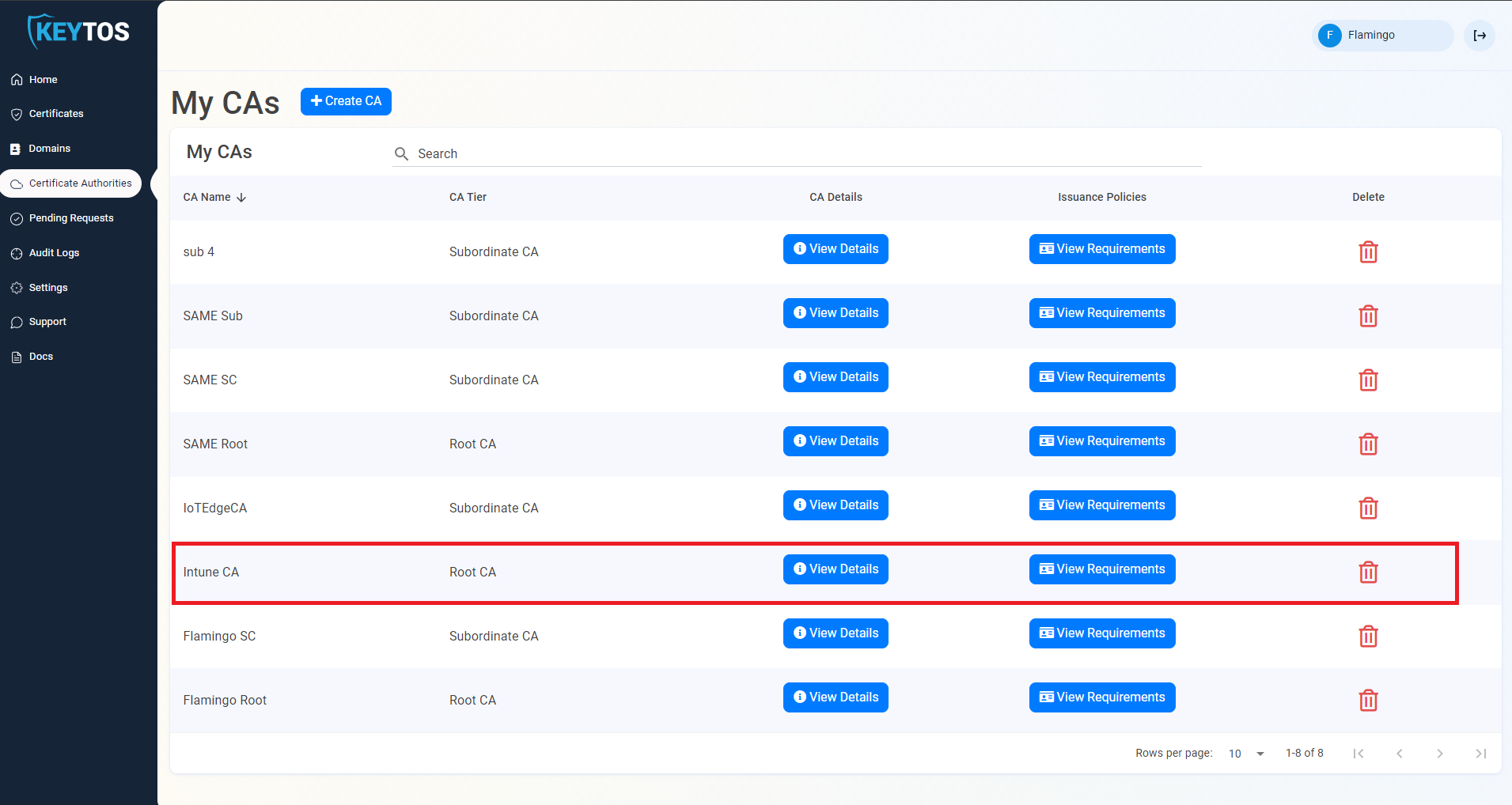
-
Scroll down to the Static SCEP Challenge section and click on the Enable SCEP Static Challenge button.
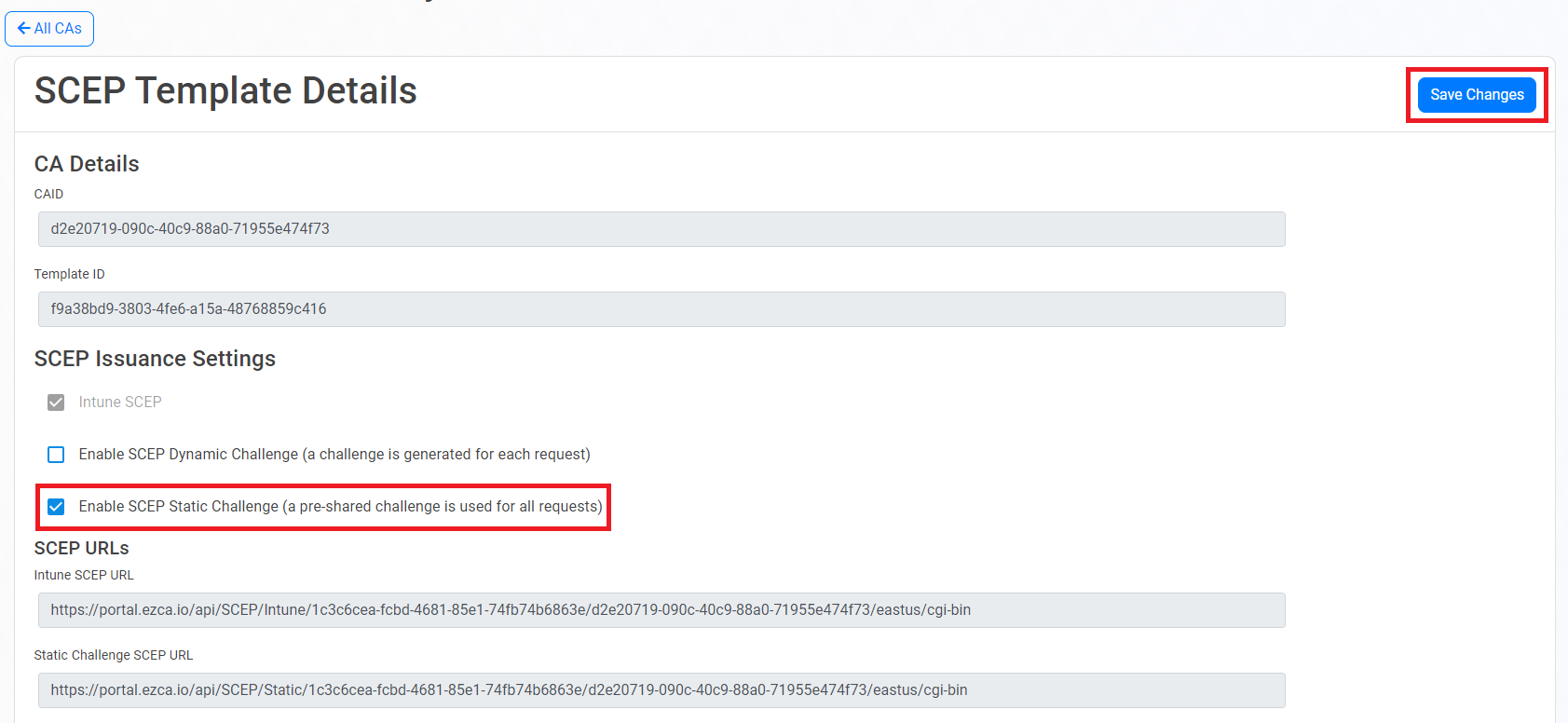
-
Click on the Save Changes button at the top right to save your changes.
-
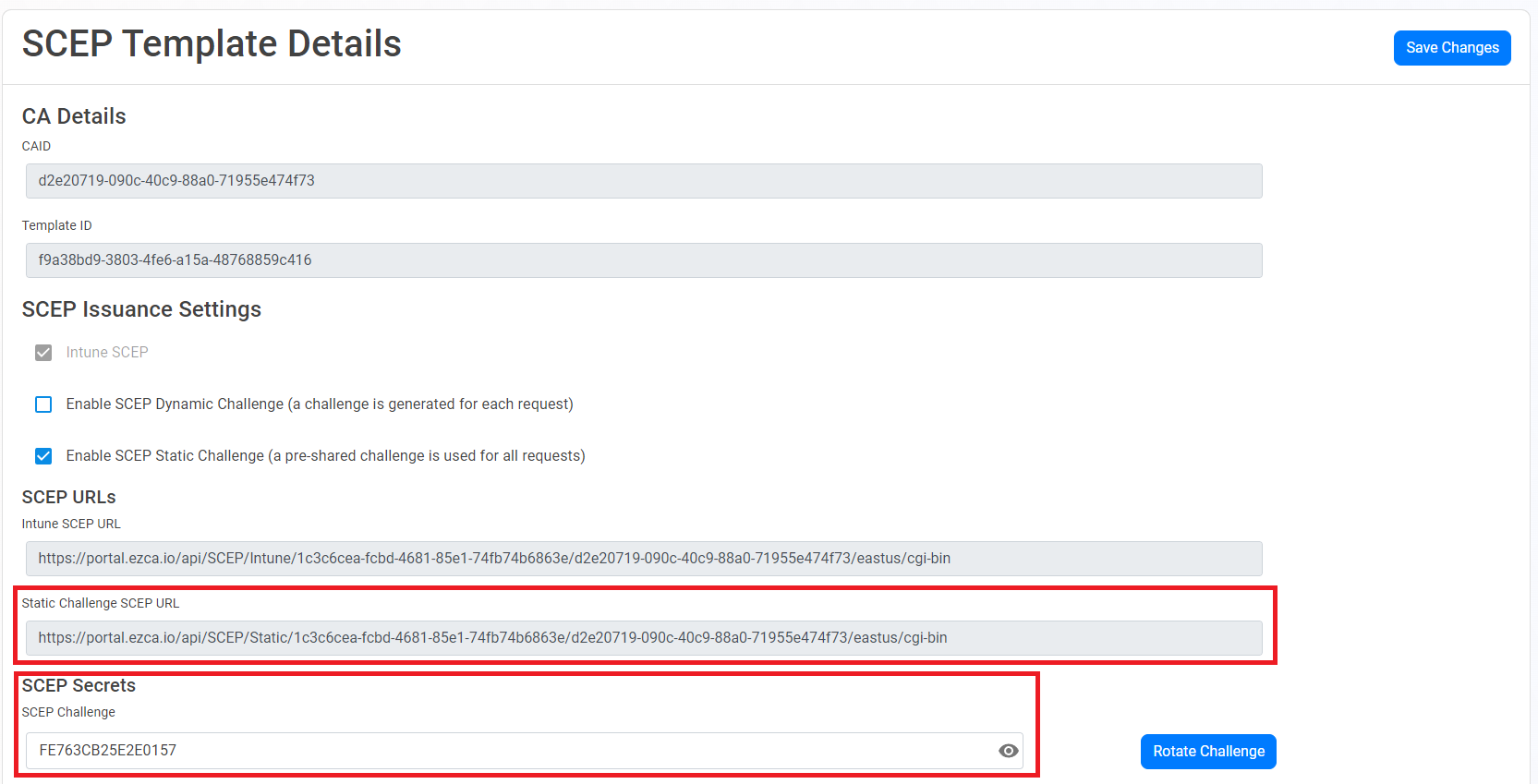
After enabling the static SCEP challenge, make sure to copy the Static URL and Static Challenge SCEP URL values, as you will need them later.
How To Issue SCEP Certificates to Linux Devices with an Intune Script Profile
-
Navigate to the Intune Portal: https://aka.ms/intuneportal
-
Select: Devices > Linux > Scripts.
-
Click the + Add button.
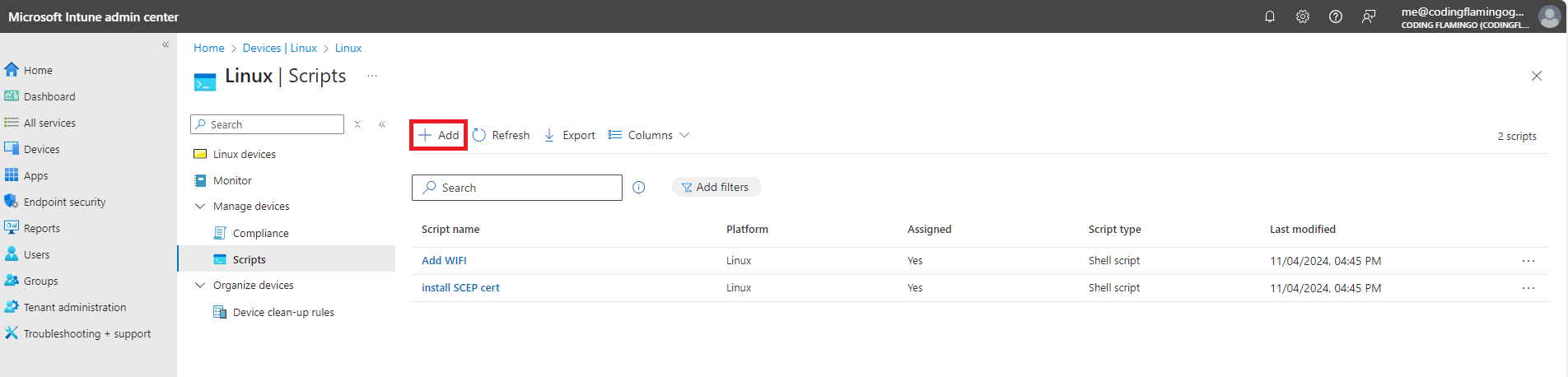
-
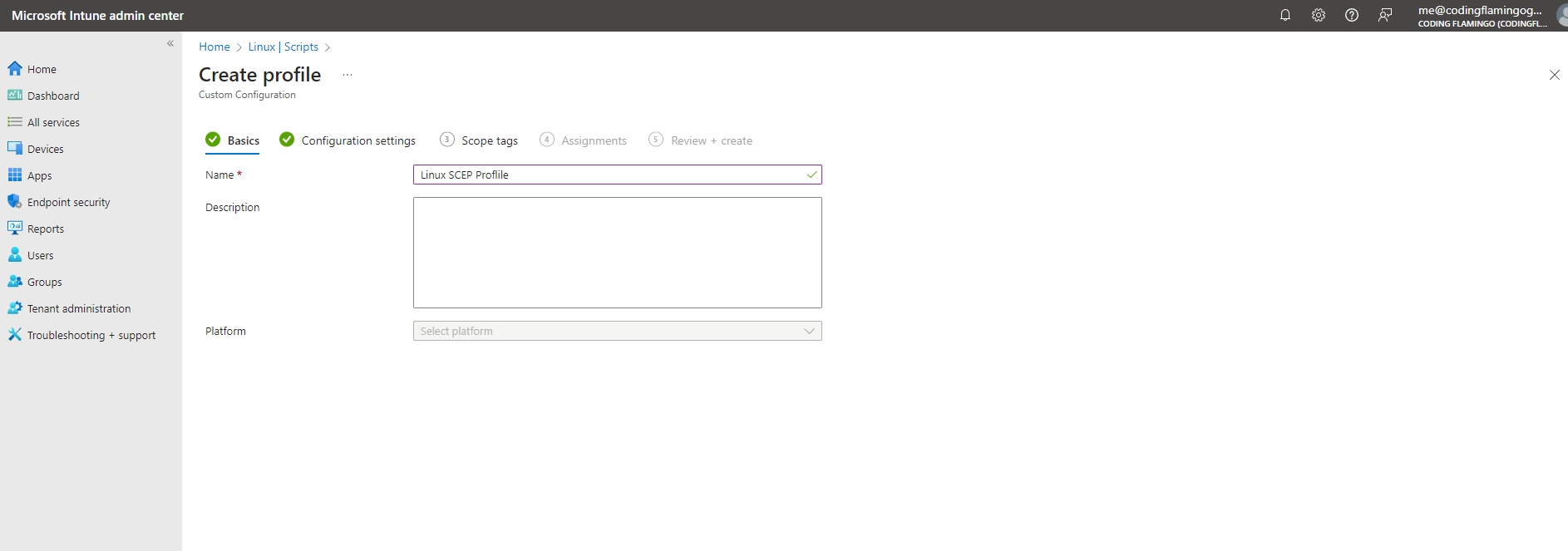
Enter a Name and Description for the profile and click Next.
-
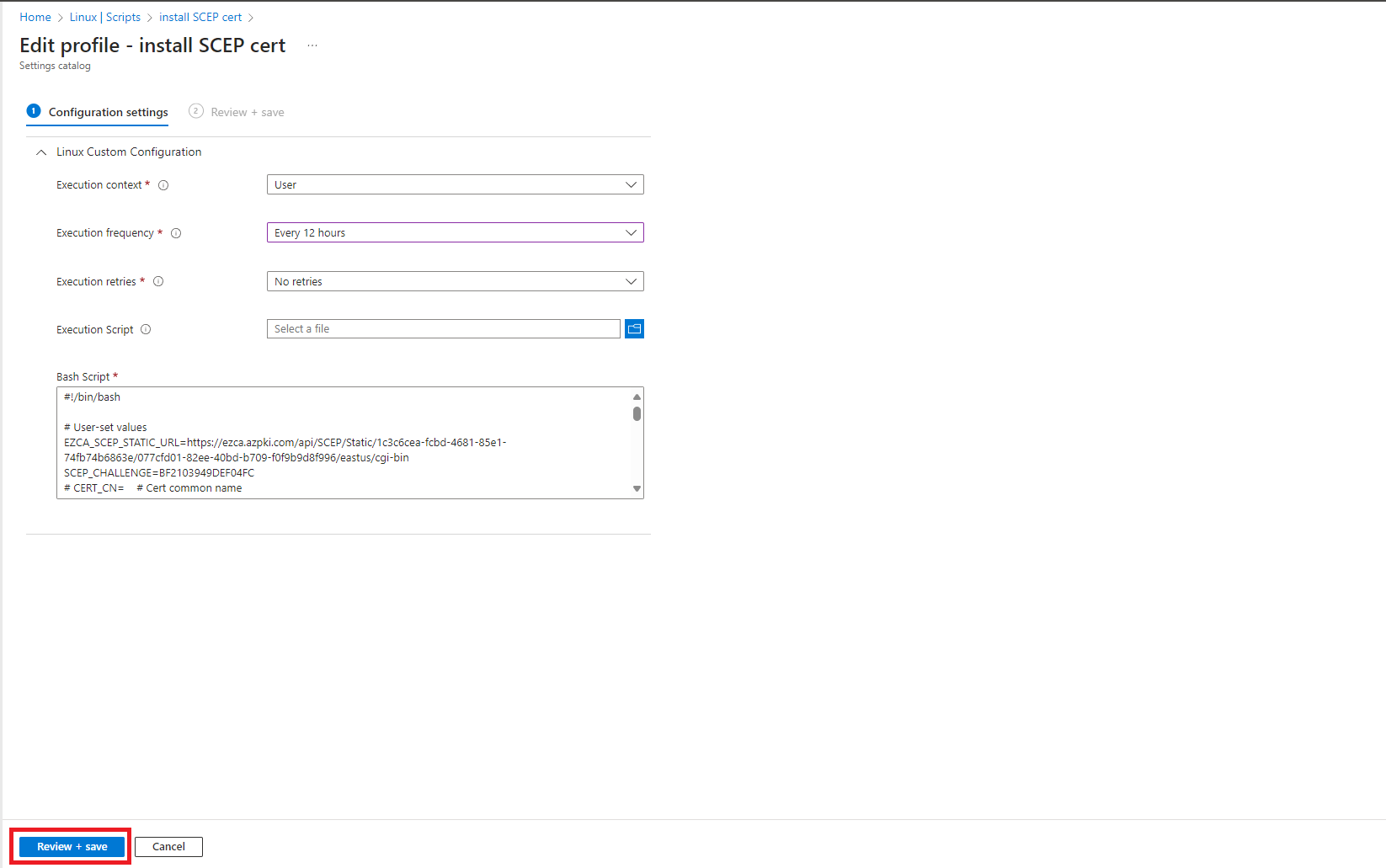
For Execution context, select User.
-
For Execution frequency, select how often you want the script to run. This will determine how often the device checks for certificate renewal. We recommend setting this to at least once a day.
-
For Execution retries, select the number of times you want Intune to retry the script if it fails. We recommend setting this to at least 1 retry.
-
For Bash Script, copy the following script, modifying the values for your CA. This script will create a certificate with the values provided and will store the certificate in the user’s home directory under the folder
~/.local/share/keytos/scep_certs. It will also automatically renew the certificate if it is about to expire.#!/bin/bash # User-set values EZCA_SCEP_STATIC_URL="" # Fill in (SCEP Static URL) SCEP_CHALLENGE="" # Fill in (SCEP Static Challenge) CERT_CN="scep-certificate" # Fill in (certificate common name) SUBJECT_ALT_NAMES="" # Comma-separated list of Subject Alternative Names, e.g. "example1.com,example2.com" # CERT_O= # Cert organization # CERT_OU= # Cert organization unit # CERT_COUNTRY= # Cert country req_execs=("cat" "chmod" "curl" "head" "mkdir" "mv" "openssl" "rm" "tr") for exe in "${req_execs[@]}"; do if [ ! $(command -v "$exe") ]; then echo "Required executable $exe not found" exit 1 fi done if [ -z "$EZCA_SCEP_STATIC_URL" ]; then echo "EZCA_SCEP_STATIC_URL not set" exit 1 fi if [ -z "$SCEP_CHALLENGE" ]; then echo "SCEP_CHALLENGE not set" exit 1 fi SCEP_CHALLENGE=${SCEP_CHALLENGE:-'DEFAULT_SCEP_CHALLENGE'} CERT_O=${CERT_O:-'DEFAULT_CERT_O'} CERT_OU=${CERT_OU:-'DEFAULT_CERT_OU'} CERT_COUNTRY=${CERT_COUNTRY:-'US'} INSTALL_DIR=${INSTALL_DIR:-"$HOME/.local/share/keytos/scep_certs"} PFX_PATH=${PFX_PATH:-"$INSTALL_DIR/scep-client-cert.pfx"} PASSWORD_PATH=${PASSWORD_PATH:-"$INSTALL_DIR/scep-client-cert_password.txt"} KEY_PATH=${KEY_PATH:-"$INSTALL_DIR/scep-client-cert-key.pem"} PEM_PATH=${PEM_PATH:-"$INSTALL_DIR/scep-client-cert.pem"} # Change to 22.04 if you are on Ubuntu 22.04 CERT_MANAGER_URL="https://github.com/markeytos/Certificate-Renewal-Client/releases/latest/download/EZCACertManager-ubuntu-24.04.deb" mkdir -p "$INSTALL_DIR" if [ ! -f "$PASSWORD_PATH" ]; then echo "Creating password" tr -dc 'A-Za-z0-9' </dev/urandom | head -c 32 | tr -d '\n' | { cat echo } >$PASSWORD_PATH fi if [ -f "$PFX_PATH" ]; then TWO_WEEKS_IN_SECONDS=1209600 if openssl pkcs12 -in "$PFX_PATH" -passin file:$PASSWORD_PATH -nokeys 2>/dev/null | openssl x509 -checkend $TWO_WEEKS_IN_SECONDS -noout; then exit 0 fi fi if ! command -v EZCACertManager &>/dev/null; then curl -L "$CERT_MANAGER_URL" -o EZCACertManager.deb sudo apt install ./EZCACertManager.deb fi if [ -n "$CERT_CN" ]; then SUBJECT="CN=${CERT_CN}" [ -n "$CERT_OU" ] && [ "$CERT_OU" != "DEFAULT_CERT_OU" ] && SUBJECT="$SUBJECT, OU=${CERT_OU}" [ -n "$CERT_O" ] && [ "$CERT_O" != "DEFAULT_CERT_O" ] && SUBJECT="$SUBJECT, O=${CERT_O}" [ -n "$CERT_COUNTRY" ] && [ "$CERT_COUNTRY" != "US" ] && SUBJECT="$SUBJECT, C=${CERT_COUNTRY}" SUBJECT_ARG=(-s "$SUBJECT") else SUBJECT_ARG=() fi if [ -n "$SUBJECT_ALT_NAMES" ]; then SAN_ARG=(--SubjectAltNames "$SUBJECT_ALT_NAMES") else SAN_ARG=() fi if [ -f "$PFX_PATH" ]; then EZCACertManager renew \ "${SUBJECT_ARG[@]}" \ --Path "$PFX_PATH" \ --Password "$(cat $PASSWORD_PATH)" else EZCACertManager SCEPCertificate \ -u "$EZCA_SCEP_STATIC_URL" \ -p "$SCEP_CHALLENGE" \ "${SUBJECT_ARG[@]}" \ "${SAN_ARG[@]}" \ --Path "$PFX_PATH" \ --Password "$(cat $PASSWORD_PATH)" fi # Extract certificate openssl pkcs12 -in "$PFX_PATH" -clcerts -nokeys -out "$PEM_PATH" -passin file:"$PASSWORD_PATH" # Extract encrypted private key openssl pkcs12 \ -in "$PFX_PATH" \ -nocerts \ -out "$KEY_PATH" \ -passin file:"$PASSWORD_PATH" \ -passout pass:"$(cat "$PASSWORD_PATH")" echo "Saved PEM file to $PEM_PATH" echo "Saved encrypted key file to $KEY_PATH" -
Review your Configuration settings and click Review + Save.
-
Select your Scope tags and click Next.
-
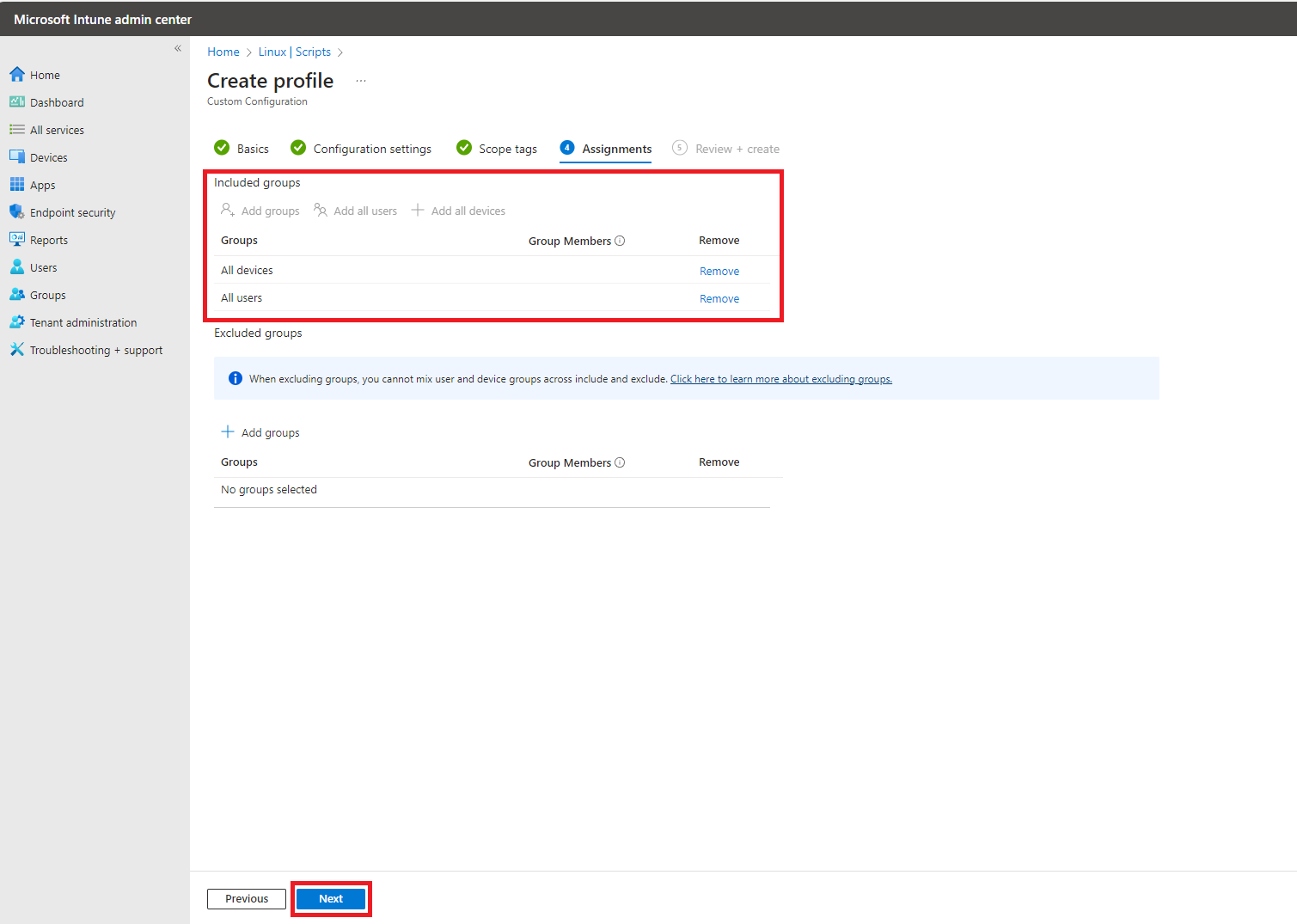
Select your Assignments, and click Next.
-
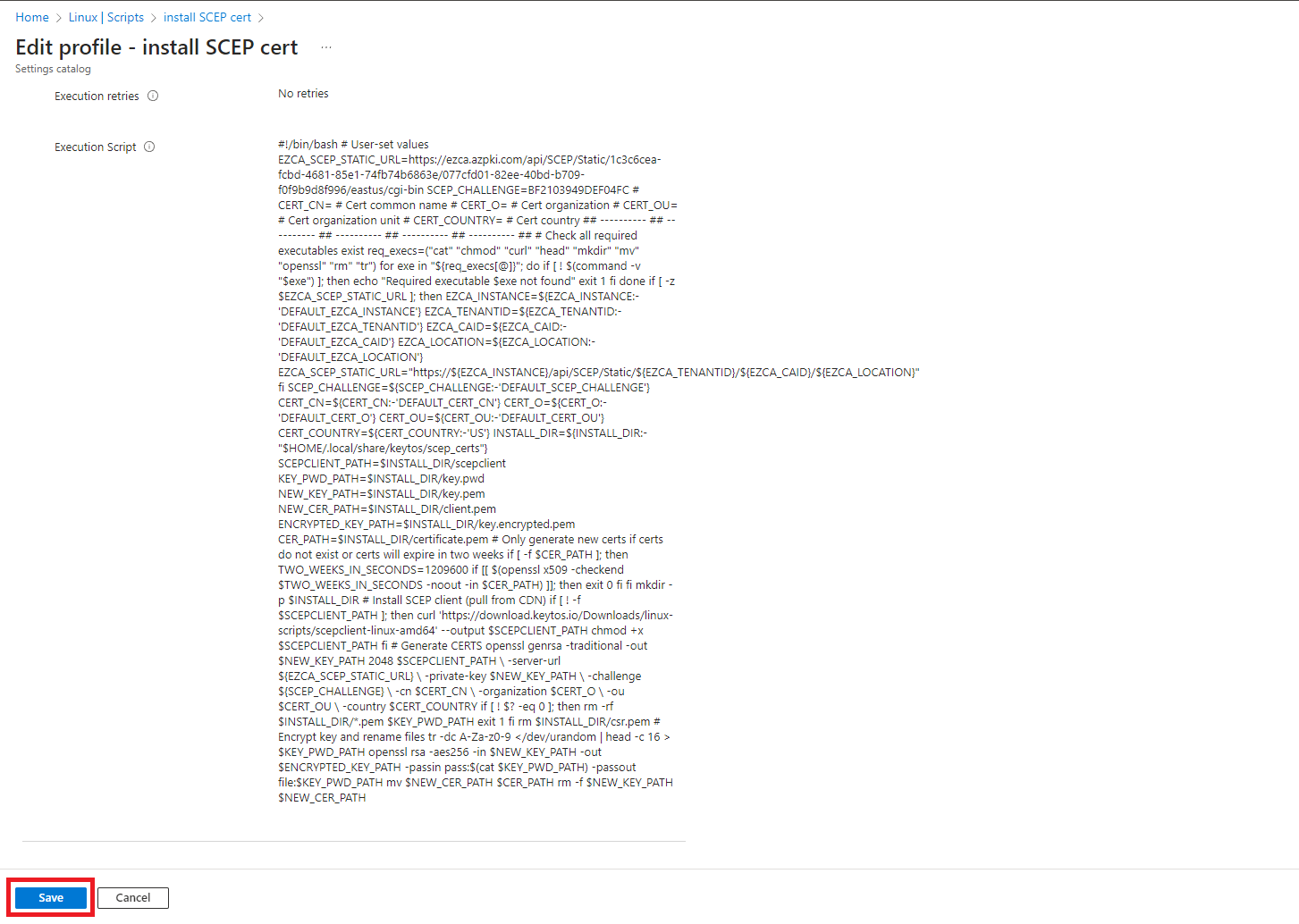
Click Save to create the profile.
-
This will now create a profile that will issue certificates to Linux devices.