How-To: Transfer Your EZRADIUS Cloud RADIUS Policies to a New Subscription
Overview
This guide provides step-by-step instructions on how to transfer your EZRADIUS Cloud RADIUS policies to a new subscription. This is required if you have a trial subscription which has expired or if your old subscription was deleted or otherwise expired.
If your old subscription was deleted or expired, it cannot be re-enabled. You will need to create a new subscription and transfer your policies to it.
How to Create a New EZRADIUS Cloud RADIUS Subscription
The first step in transferring your policies is to create a new EZRADIUS Cloud RADIUS subscription. You can follow the steps in Creating The New Subscription to create a new subscription.
- You can choose either an Azure Marketplace Subscription or a Direct EZRADIUS Subscription. Both options will work for transferring your policies.
- Make sure you create your subscription in the same geography (USA, Europe, Australia, etc.) as your previous subscription. We do not support cross-geography transfers due to data residency requirements.
How To Transfer Your EZRADIUS Cloud RADIUS Policies to a New Subscription
-
Navigate to your EZRADIUS Cloud RADIUS portal (https://usa.ezradius.io for USA, https://eu.ezradius.io for Europe, etc.) and log in with your RADIUS administrator account.
- If you are unsure of your portal URL, you can find it at https://portal.ezradius.io
-
Go to the Settings page. You should see your two subscriptions listed.
-
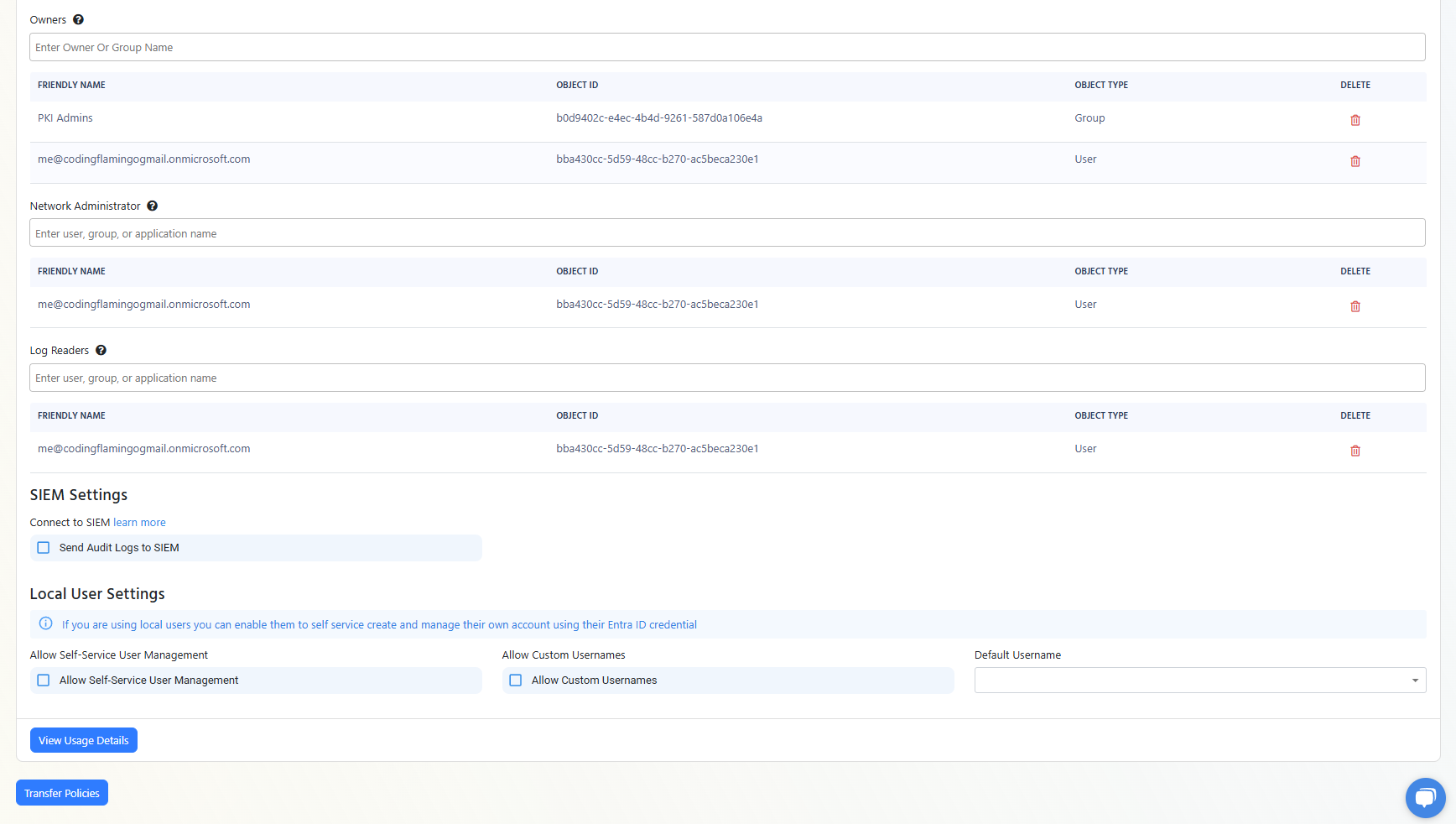
Ensure that the new subscription is configured with the correct Notifications Email, Owners & RBAC, and SIEM Settings.
-
Click Save Changes to save the changes to your new subscription.
-
Scroll down to the very bottom of the page and click Transfer Policies.
-
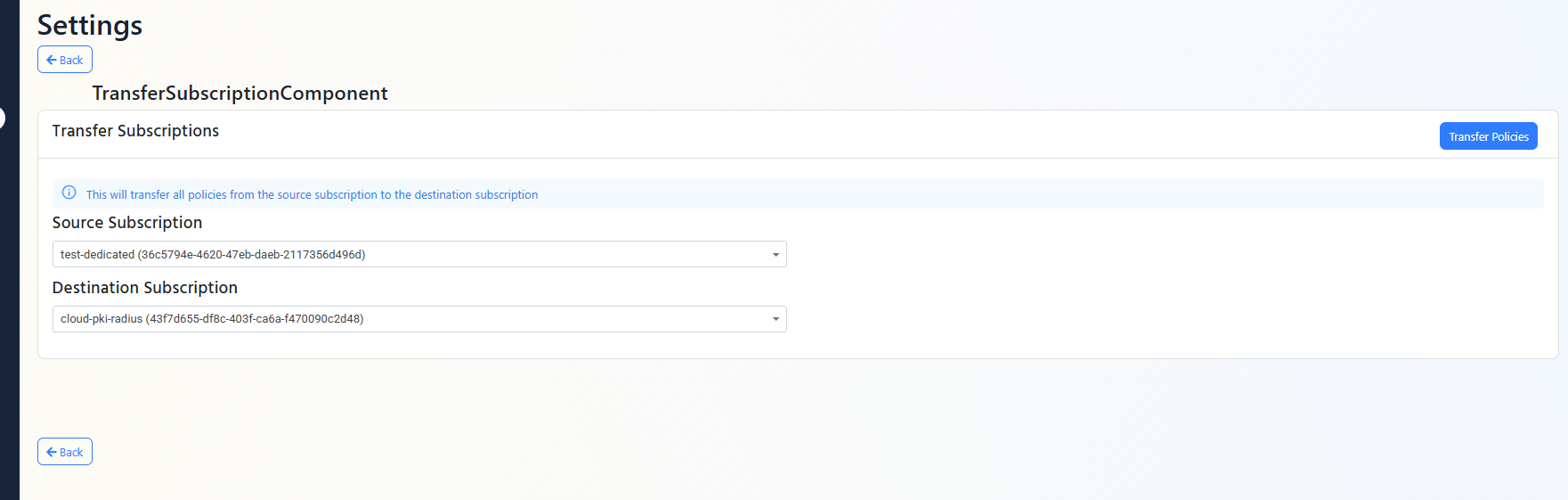
Select your Source Subscription (the old subscription) and your Destination Subscription (the new subscription).
-
Click Transfer Policies to transfer the policies to the new subscription.
-
Done! Your policies will now be associated with your new subscription.
Subscription Transfer Frequently Asked Questions
Do I Need to Reconfigure My Network Devices After the Transfer?
No, you do not need to change any settings on your network devices. Your policies will continue to use the same IP addresses, shared secrets, server certificates, RadSec settings, and other configurations as before.
How Long Does the Transfer Process Take?
The transfer process is instant. Once you click the Transfer Policies button, your policies will be immediately associated with your new subscription.
Can I Undo the Transfer?
Yes, if you need to revert the transfer, you can repeat the transfer process and select your old subscription as the destination. However, ensure that your old subscription is still active and has not been deleted.
Can I Transfer Policies Between Azure Marketplace Subscription and Direct EZRADIUS Subscription?
Yes, you can transfer policies between an Azure Marketplace Subscription and a Direct EZRADIUS Subscription without any issues.
Can I Transfer Policies Across Different Geographies?
No, transfers must occur within the same geography due to data residency requirements. Ensure that both your old and new subscriptions are in the same region (e.g., USA, Europe, Australia, etc.).