How To Set Up 802.1X Network Authentication on macOS
Note: While you can manually configure your macOS device to connect to an enterprise 802.1X network, we highly recommend using a Mobile Device Management (MDM) solution like Microsoft Intune to push the necessary network profiles and certificates to your devices. This ensures that all devices are consistently configured and reduces the risk of misconfiguration.
What is 802.1X Network Authentication?
At home, you probably just plug your computer into an ethernet cable or connect to a Wi-Fi network using a single password. It’s easy and convenient because at home you (usually) trust everyone who can connect to your network. However, in an enterprise environment, you want to make sure that only authorized users and devices can connect to your network. This is where 802.1X network authentication comes in. 802.1X is a network protocol that provides an authentication mechanism to devices wishing to attach to a LAN or WLAN. It is commonly used in enterprise networks to provide secure access to network resources.
Enterprise networks require a higher level of security and configuration than home networks. Instead of a single password, enterprise networks use RADIUS (Remote Authentication Dial-In User Service) servers to authenticate users and devices. To establish a secure connection, devices need to have the correct network profiles and certificates installed. These tell the device what security protocols to use (EAP-TLS, EAP-TTLS, etc.) and which RADIUS servers to trust. Without these profiles and certificates, your device won’t know how to connect securely to the network. That’s why devices will fail to connect to enterprise networks if they are not properly configured.
How to Trust Your RADIUS Server CA Certificate on macOS
For your macOS device to trust the RADIUS server during the authentication process, you need to install the RADIUS server CA certificate on your device. This tells your macOS device to trust all RADIUS servers that present a certificate signed by this CA during the authentication process.
How to Download Your Radius Server CA Certificate
If you used the EZRADIUS auto-generated certificate for your RADIUS server, you’ll just have a single CA certificate to download. Follow these steps:
-
Log in to your EZRADIUS portal.
-
Navigate to Policies.
-
Select the policy you are using for Entra ID Password Authentication.
-
Scroll down to the Server Certificate section.
-
Click on the Download CA Certificate button to download the certificate to your local machine. It will have a filename similar to
RootCA.cer.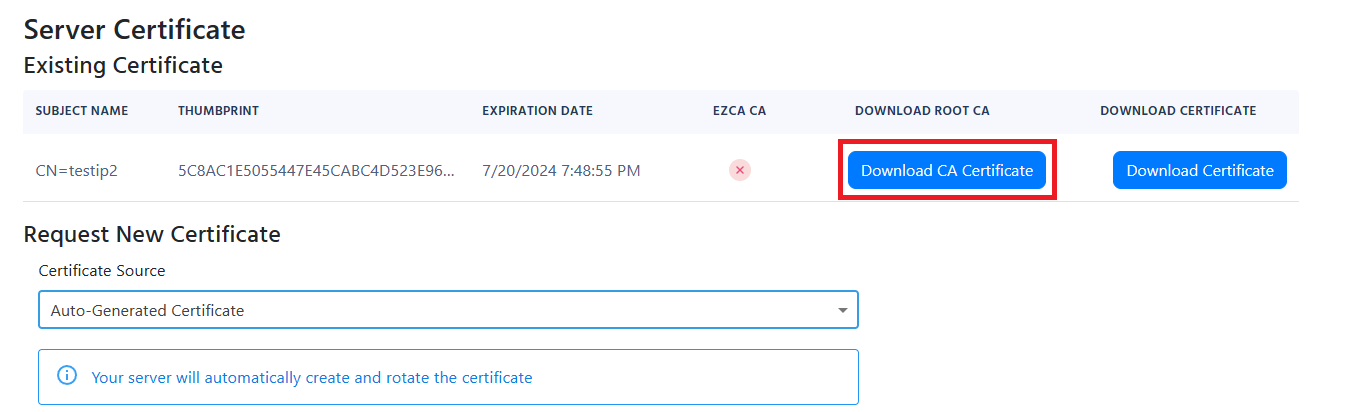
If you used the EZRADIUS EZCA to issue your RADIUS server certificate, you’ll need to download the the CA certificate for your EZCA CA, plus the Root CA certificate, if applicable. Follow these steps:
-
Log in to your EZCA portal.
-
Navigate to Certificate Authorities.
-
Select the CA that issued your RADIUS server certificate.
-
Click on the View Details button.
-
Click on the Download Certificate button to download the CA certificate to your local machine. It will have a filename similar to
<CA-NAME>.cer. -
If your EZCA CA is an intermediate CA, make sure to also download the Root CA certificate by repeating the above steps for the Root CA.
Refer to your PKI documentation to download the CA certificate(s) that issued your RADIUS server certificate. Ensure you have the root CA and any intermediate CA certificates if applicable.
How to Install the RADIUS Server CA Certificate on macOS
To install the RADIUS server CA certificate on your macOS device, follow these steps:
- Open the Keychain Access application. You can find it in Applications > Utilities > Keychain Access or by searching for it using Spotlight.
- In the left sidebar, select System under the Keychains section.
- From the menu bar, click on File > Import Items….
- Navigate to the location where you downloaded the RADIUS server CA certificate (e.g.,
RootCA.cer), select the file, and click Open. - In the dialog that appears, ensure that System is selected as the destination keychain, then click Add.
- You may be prompted to enter your macOS administrator password to authorize the addition of the certificate. Enter your password and click Modify Keychain.
- After the certificate is added, locate it in the System keychain. It may appear under the name of the CA or as “RootCA”.
- Double-click on the certificate to open its details.
- Expand the Trust section by clicking on the triangle next to it.
- Set When using this certificate to Always Trust.
- Close the certificate details window. You may be prompted to enter your administrator password again to save the changes. Enter your password and click Update Settings.
How to Set Up Your Network for RADIUS Authentication on macOS
When connecting your macOS device to an enterprise network using RADIUS authentication, you need to ensure that the correct EAP (Extensible Authentication Protocol) method is configured based on your authentication setup.
How to Configure EAP-TTLS/PAP on macOS for WiFi RADIUS Authentication
If you are using Entra ID passwords you will need to configure the device to use EAP-TTLS/PAP due to Entra ID not supporting MS-CHAPv2 Identity delegation. To configure EAP-TTLS/PAP on macOS, follow these steps:
-
Download Apple Configurator from the App Store.
-
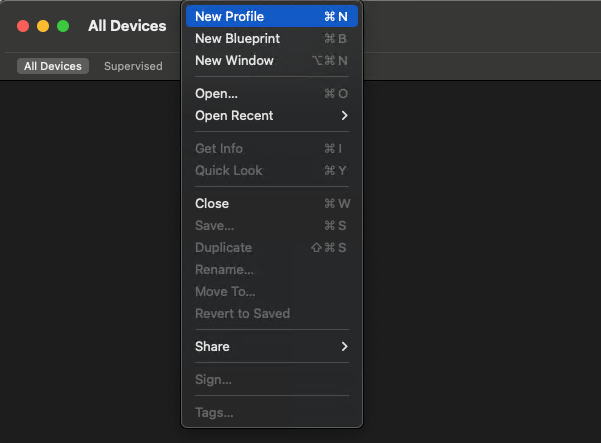
In Apple Configurator, click on File –> New Profile.
-
In the General settings, enter the name of the profile.
-
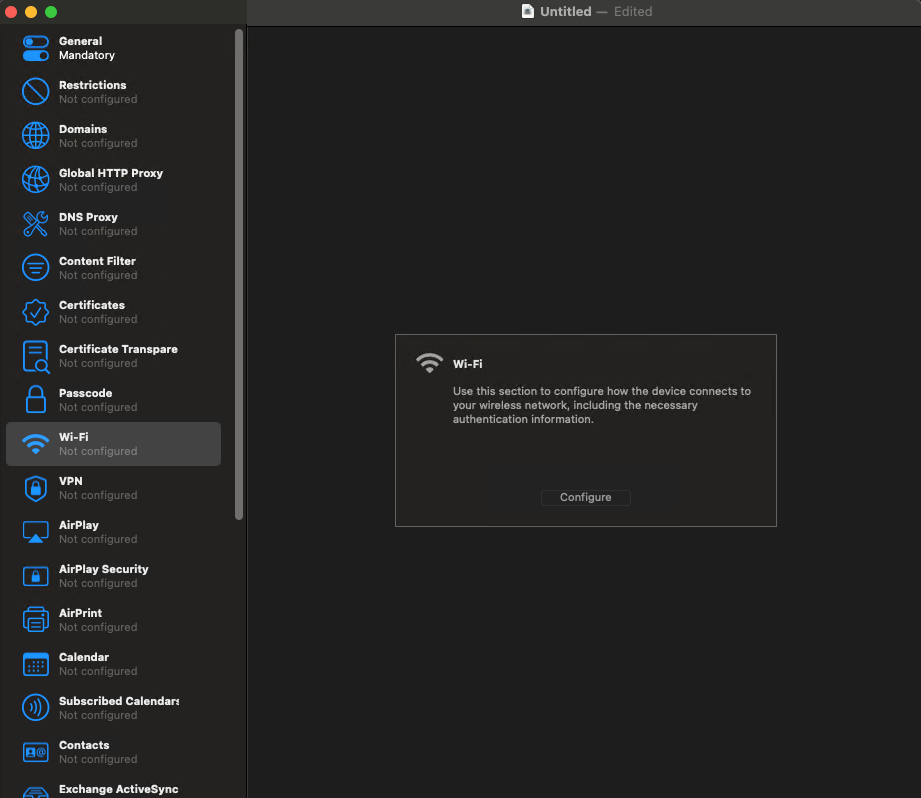
Click on Wi-Fi on the left.
-
Click on Configure.
-
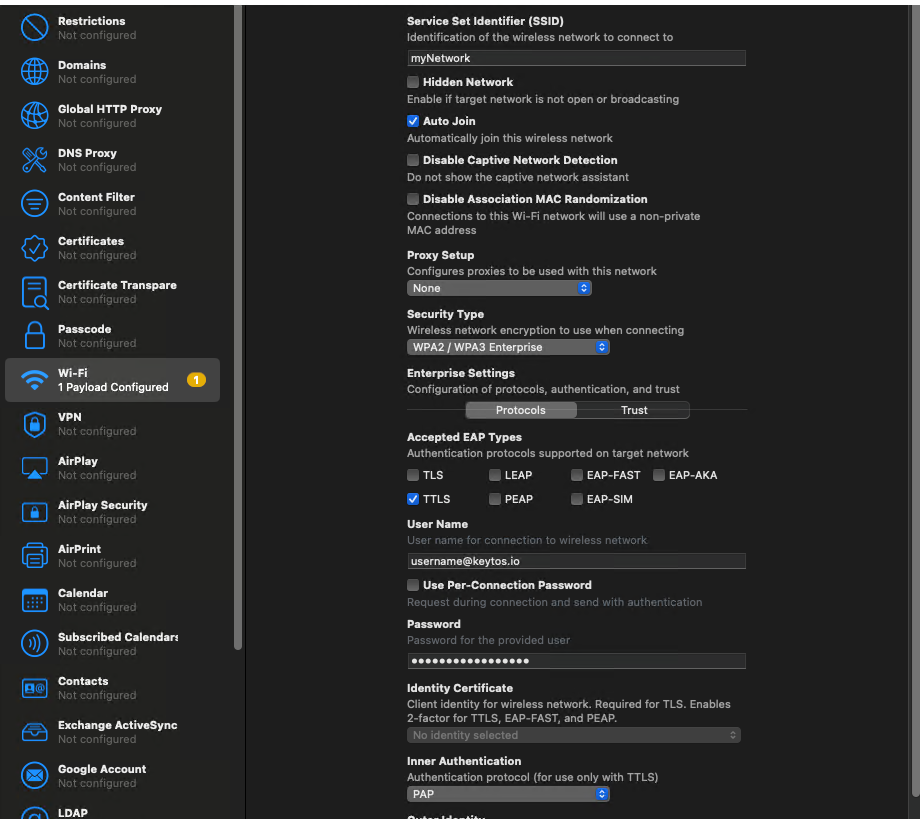
Enter the SSID of your network (Case Sensitive).
-
Select the Security type as either WPA2-Enterprise/WPA3-Enterprise.
-
Select the EAP Method as TTLS.
-
Enter your Entra ID username in the Identity field.
-
Enter your Entra ID password in the Password field.
-
Select PAP as the Inner Authentication.
-
Click Save.