How-To: Enable Cloud RADIUS with Entra ID Authentication in Cisco Meraki
Introduction - How to Protect Your Cisco Meraki Network with Cloud RADIUS
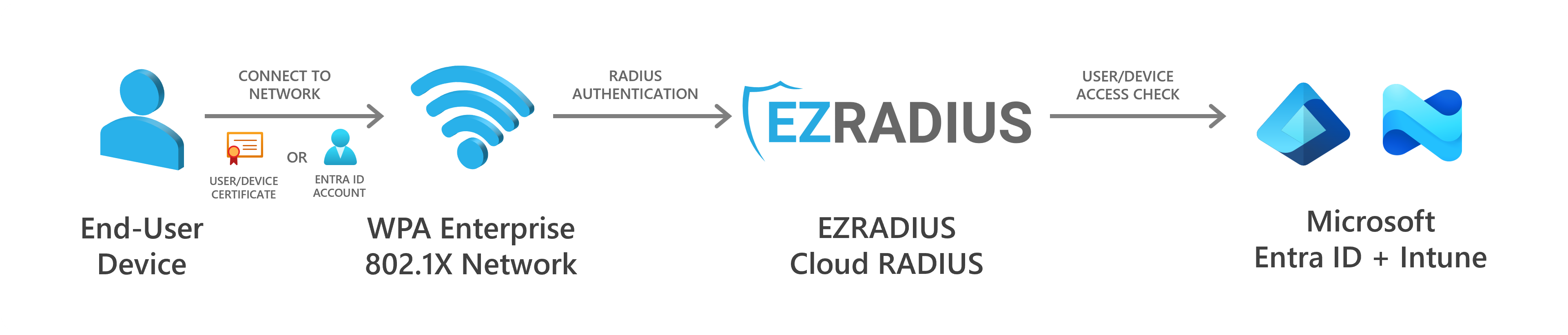
Having a single Wi-Fi password for your network is a security nightmare. It’s impossible to know who has access to your network, and it’s nearly impossible to change the password regularly without causing major outages. The best way to secure your Cisco Meraki network is to use WPA-Enterprise with either certificates or individual user accounts for authentication.
To protect your Cisco Meraki network using certificates or Entra ID accounts, you will need a RADIUS server to handle authentication requests. EZRADIUS is a cloud-based RADIUS as a Service that integrates directly with Entra ID to provide secure authentication for your Cisco Meraki network without needing to manage any RADIUS servers or infrastructure. Simply add EZRADIUS as a RADIUS server in your Cisco Meraki Controller, and your users can log in using either passwordless certificates or their Entra ID username and password.
Video Guides - How to Set Up Cloud RADIUS in Your Cisco Meraki Network
Want to follow along with step-by-step instructions? Check out our end-to-end YouTube video guides to follow along with setting up Cloud RADIUS in your Cisco Meraki Network.
Prerequisites for Setting Up Cloud RADIUS for Cisco Meraki
How to Prepare for Setting Up Cloud RADIUS in Cisco Meraki
Make sure you are on Meraki Firmware 31.1.1 or higher.
How to Create an EZRADIUS Subscription
An EZRADIUS billing subscription is required to create your cloud-based RADIUS server for your Cisco Meraki network. If you do not already have an EZRADIUS subscription, follow this guide to create one.
Create an EZRADIUS Subscription
How to Set Up User Credentials for Cloud RADIUS
If you haven’t configured your authentication method yet, make sure to set that up before proceeding. This ensures that your users can authenticate properly when they connect to your Cisco Meraki network.
How to Set Up Passwordless Certificate Authentication with RADIUS
Certificates are the best way to authenticate users or devices without the need for any passwords. Simply connect to the network and the certificate will handle the authentication for you. This is the most secure and user-friendly way to authenticate users in your Cisco Meraki network.
While EZRADIUS supports any X.509 certificate such as ADCS and Microsoft Cloud PKI, the easiest way to create and manage certificates for your users is to use Keytos EZCA, a cloud-based PKI service that integrates directly with EZRADIUS. It only takes a few minutes to get started with EZCA and begin issuing certificates for passwordless Wi-Fi access in your Cisco Meraki network.
How to Set Up Entra ID Users to Authenticate with RADIUS
Don’t want to manage certificates? No problem! You can authenticate your existing Entra ID users using their username and password without needing to manage any PKI infrastructure.
Note that if you have conditional access policies set up in Entra ID (such as MFA), you will need to add an exception for EZRADIUS in order for username/password authentication to work. View this page for more details on adding this exception.
How to Set Up Local Users to Authenticate with RADIUS
Have legacy devices or non-Entra ID users? You can also create local users directly in EZRADIUS and authenticate them using their username and password. Check out this page for more information on creating local users in EZRADIUS or letting your Entra ID users self-register local RADIUS accounts if needed.
How to Set Up MAC Address Bypass for Non-Authenticating Devices
Some devices do not support secure authentication methods like EAP-TLS or EAP-TTLS. In these cases, you can use MAC Address Bypass (MAB) to allow these devices to connect to your Cisco Meraki network without needing to authenticate. Note that MAC Address Bypass is not secure and should only be used for devices that do not support other authentication methods, and you should always be aware of the security risks involved. View this guide for more information on setting up MAC Address Bypass in EZRADIUS.
How to Set Up Your Cloud RADIUS Access Policies for Entra ID Authentication
An EZRADIUS Access Policy defines how EZRADIUS will authenticate users when they connect to your Cisco Meraki network. You will need to create at least one access policy in EZRADIUS before you can connect your Cisco Meraki network to EZRADIUS.
How to Create a Passwordless Certificate Access Policy
A certificate access policy allows you to accept X.509 certificates for authentication and determine which users or devices are allowed to connect to your Cisco Meraki network. View this guide to learn how to create a certificate access policy in EZRADIUS if you have not already done so.
How to Create an Entra ID Username and Password Access Policy
An Entra ID username and password access policy allows you to authenticate your Entra ID users using their existing credentials. View this guide to learn how to create an Entra ID username and password access policy in EZRADIUS if you have not already done so.
How to Create a Local Username and Password Access Policy
A local username and password access policy allows you to authenticate users that you have created directly in EZRADIUS. View this guide to learn how to create a local username and password access policy in EZRADIUS if you have not already done so.
Step-by-Step Guide to Setting Up Cloud RADIUS for Cisco Meraki
The following steps will guide you through the process of setting up Cloud RADIUS for your Cisco Meraki network using EZRADIUS.
How to Add EZRADIUS as a RADIUS Server in Cisco Meraki
Now that you have your EZRADIUS subscription and access policy set up, you can add EZRADIUS as a RADIUS server in your Cisco Meraki Controller.
How to Add a Cloud RADIUS Server to a Cisco Meraki Wi-Fi Network
-
Go to your Meraki Network Controller.
-
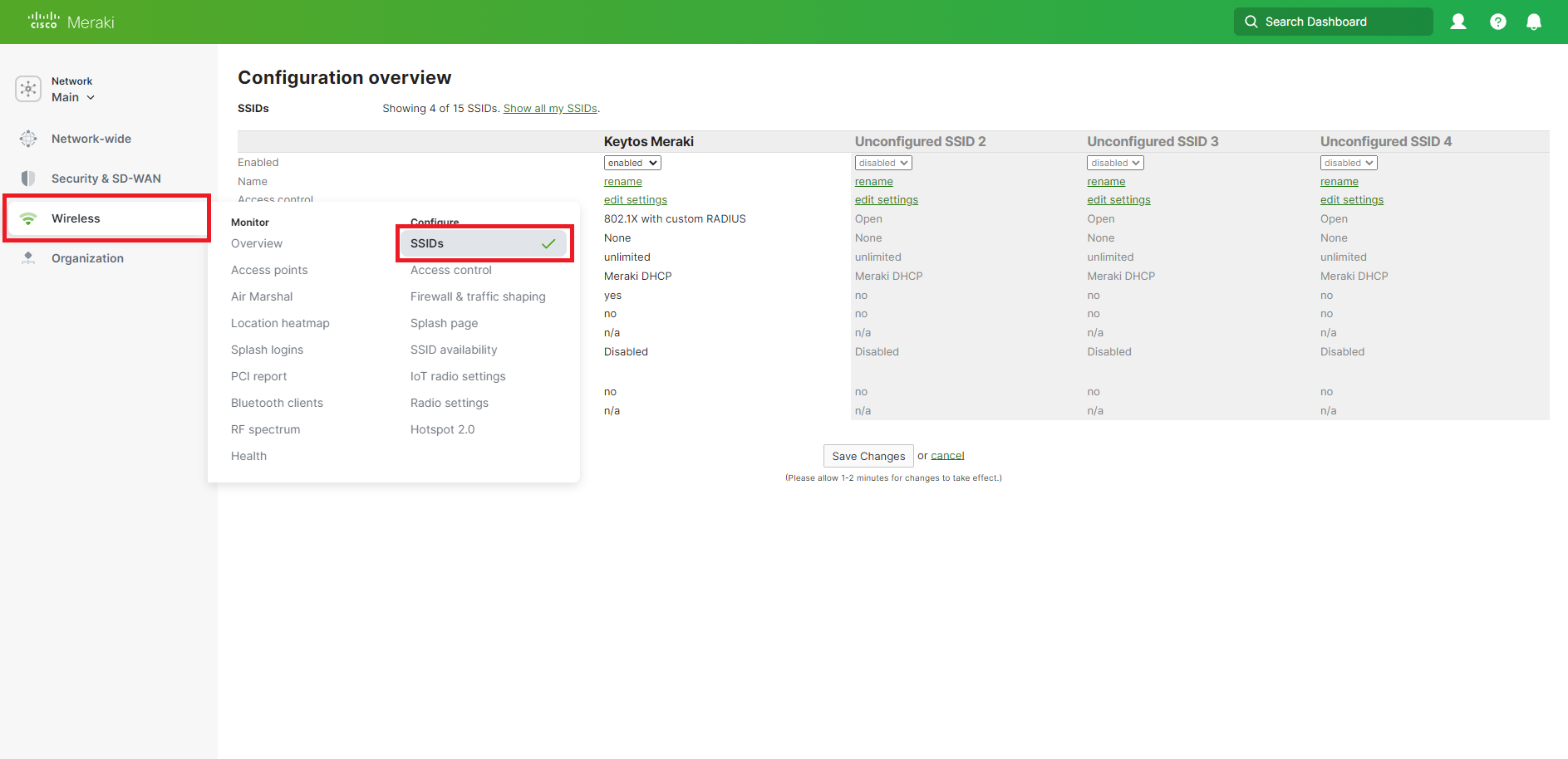
Click on Wireless on the left menu and Select SSIDs.
-
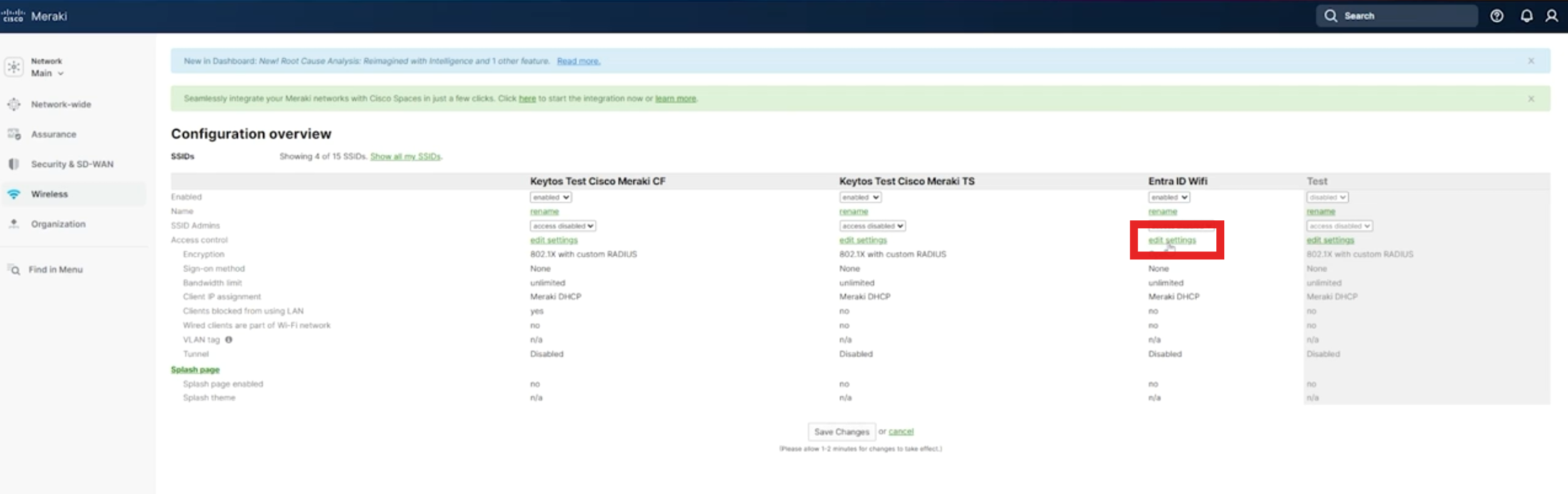
If you already have an existing network, click on edit settings on the network you want to add RADIUS authentication to. (If you don’t have a network yet, drop down the “disabled” field next to the Unconfigured SSID and select enabled, and then edit its settings.)
-
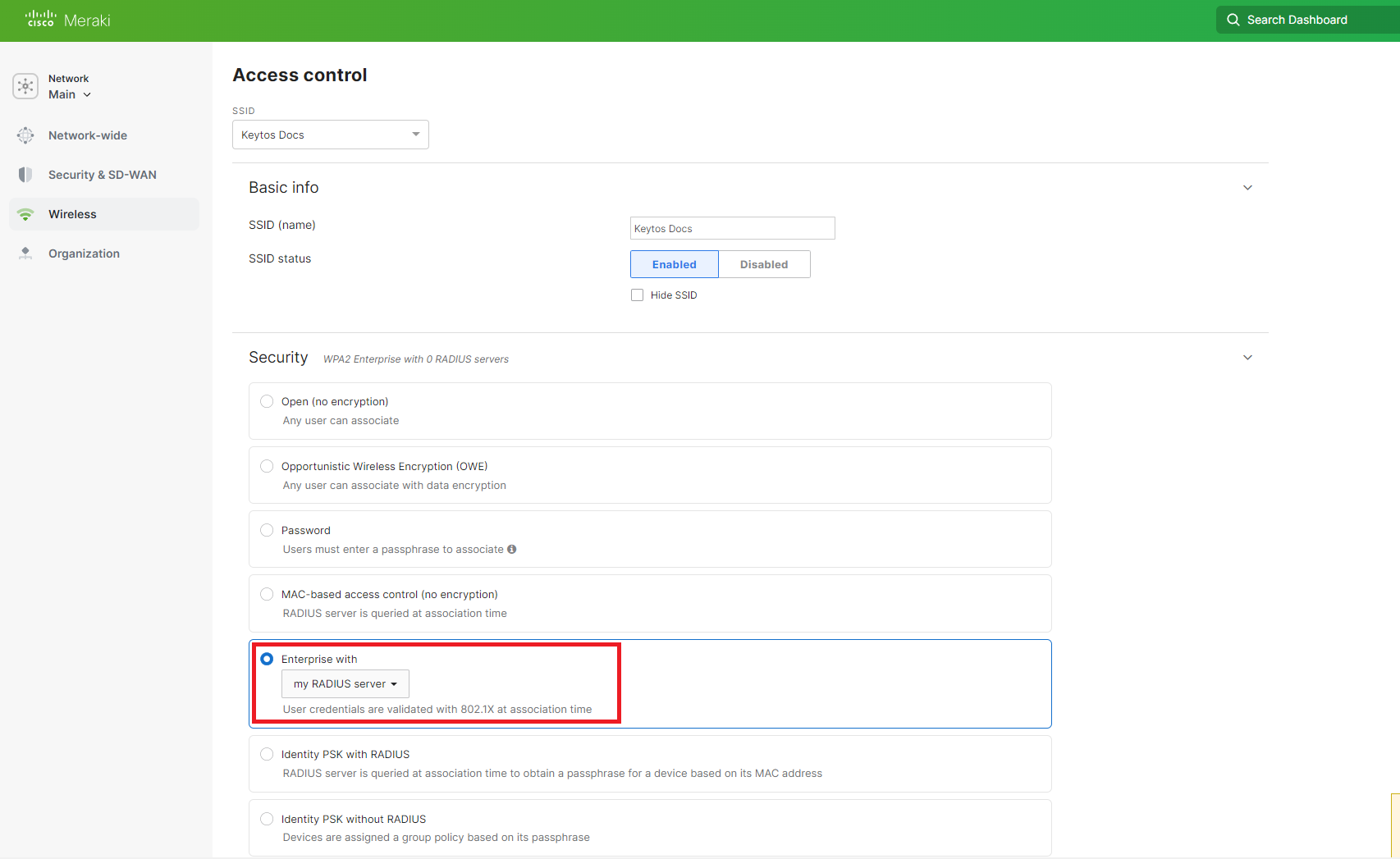
Select Enterprise with"** in the Security menu and select my RADIUS server in the dropdown.
-
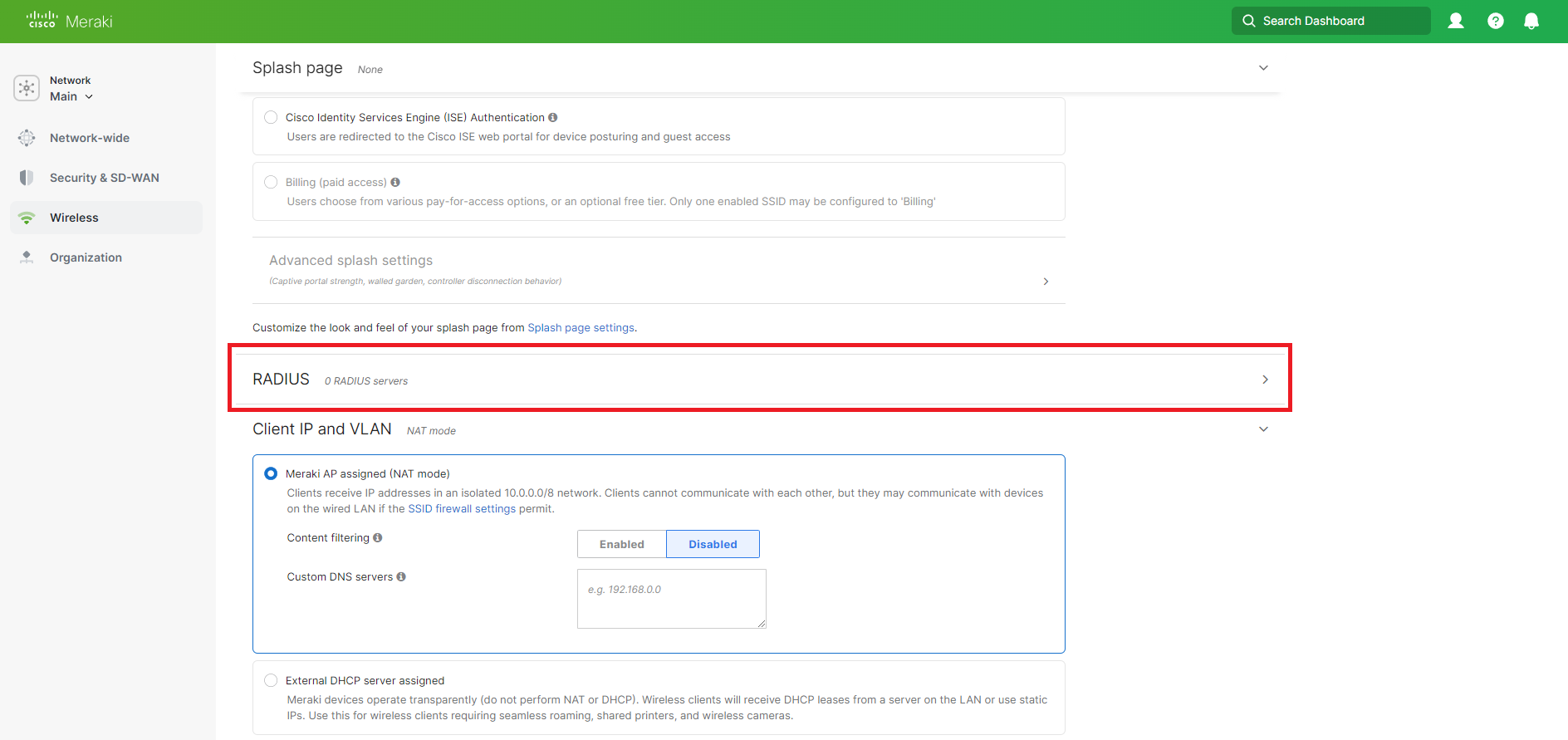
Scroll down to the RADIUS section. You can keep the default settings for all the other sections or change them to your liking.
-
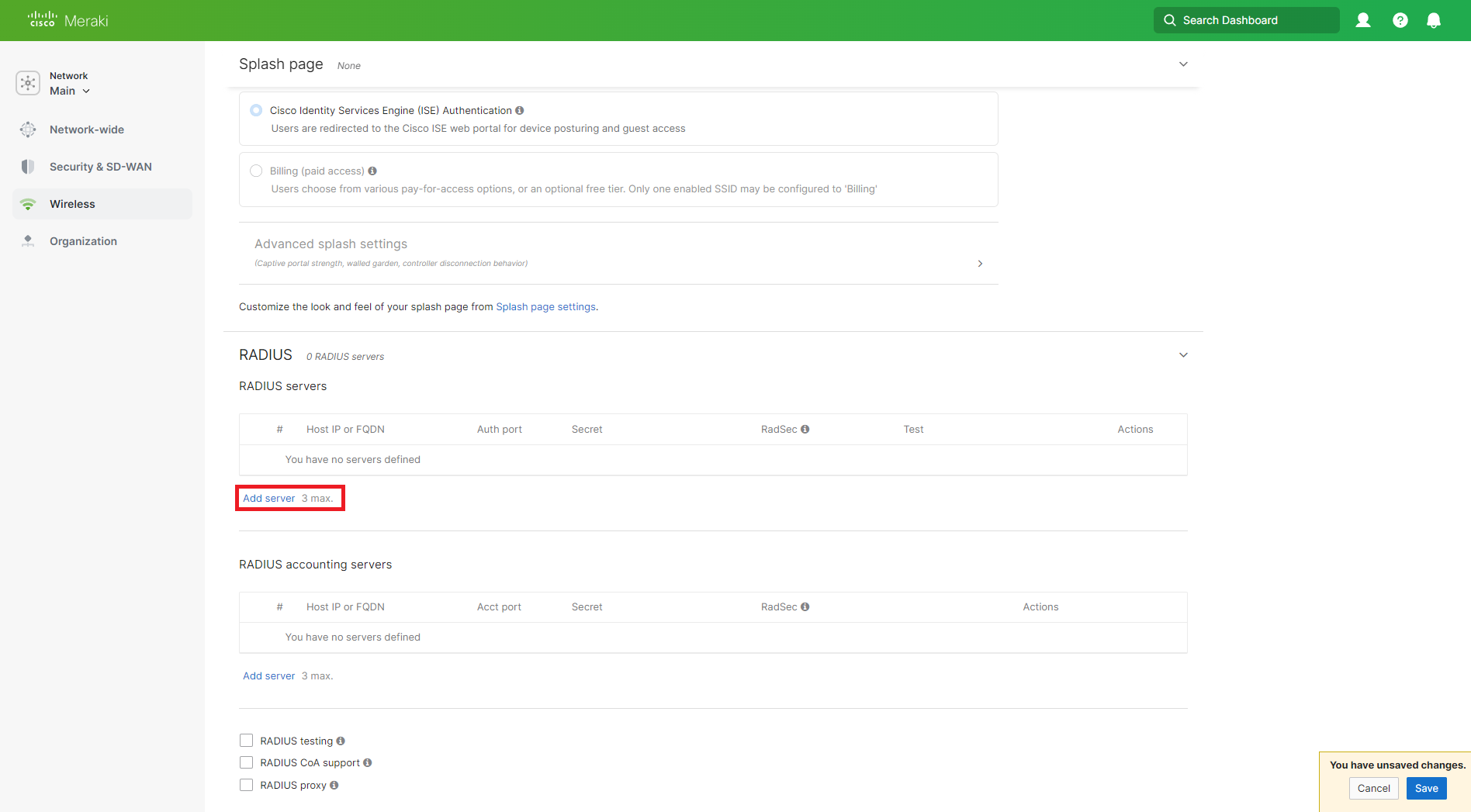
Now click on the Add Server link.
How to Get Your EZRADIUS Server IP Addresses for Cisco Meraki RADIUS
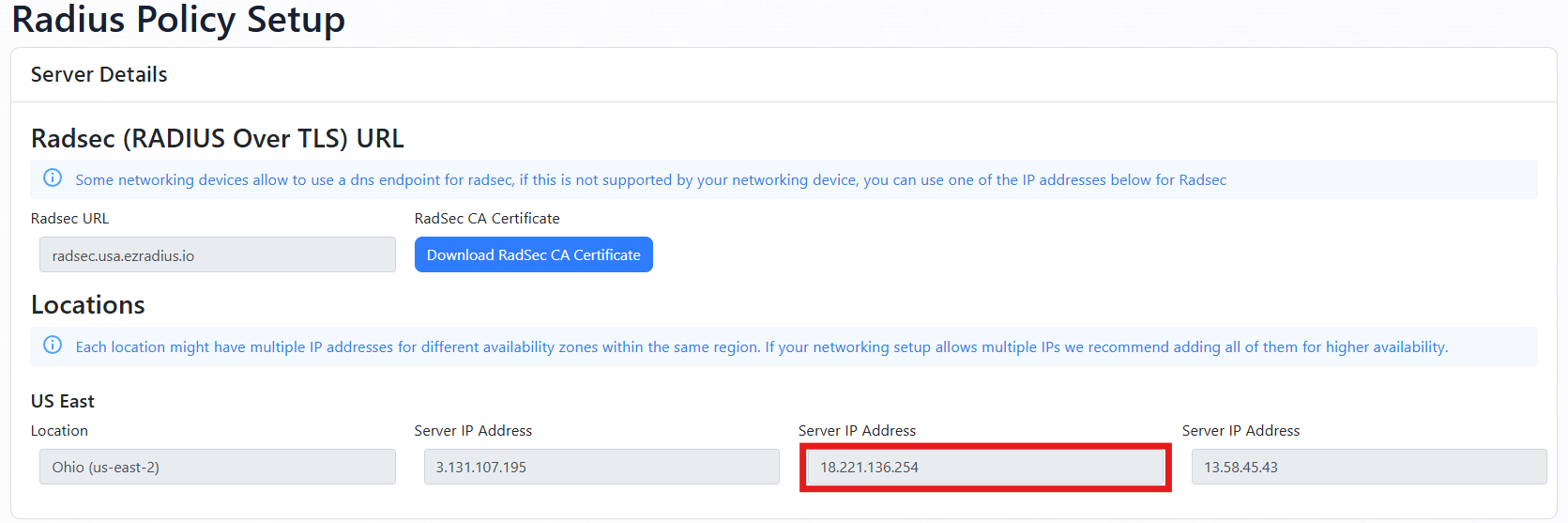
You can get your EZRADIUS Server IP addresses from the EZRADIUS dashboard. These IP addresses are needed to configure your network controller to communicate with the EZRADIUS service.
-
Navigate to the EZRADIUS Policies page from the left-hand menu.
-
At the top of the Policies page, you will find the EZRADIUS Server IP addresses. Copy one of the IP addresses from the region closest to your network controller (you’ll add the others later).
How to Add EZRADIUS Server IP Addresses to Cisco Meraki
- Back in the Meraki Network Network Controller paste the IP address in the Host IP or FQDN field.
- In the Port field, enter 1812.
How to Get Your EZRADIUS Shared Secret for Cisco Meraki RADIUS
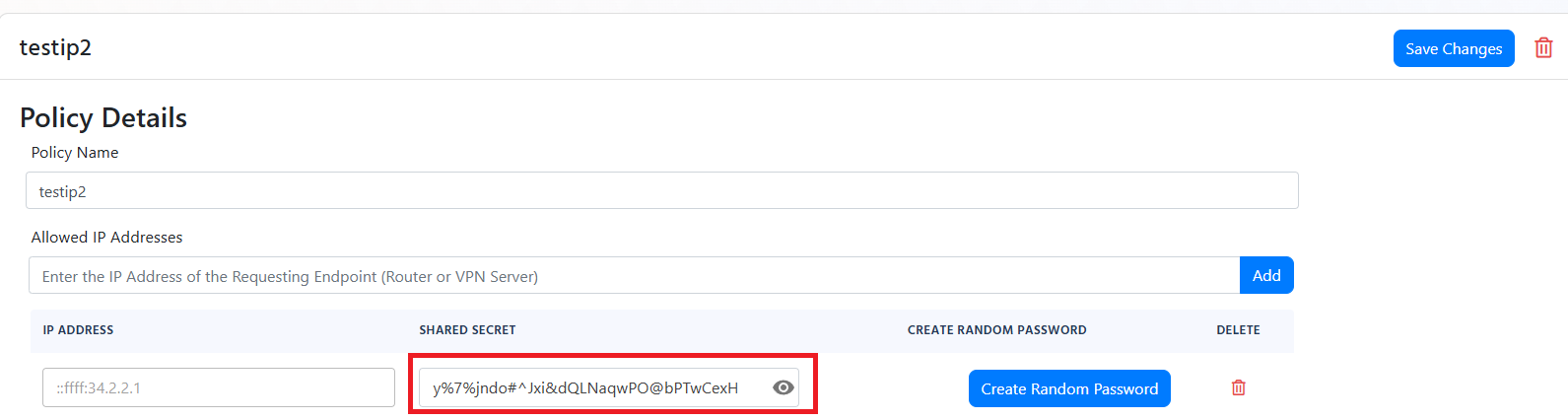
When you added your public IP address to your EZRADIUS policy, a shared secret was automatically generated for you. This shared secret is used to authenticate your network controller (RADIUS client) to the EZRADIUS server.
-
In the EZRADIUS portal, navigate to the EZRADIUS Policies page from the left-hand menu.
-
Scroll down to your RADIUS policy and find the Classic RADIUS Allowed IP Addresses section.
-
For your public IP address, click on the eye icon to reveal the shared secret.
How to Add the EZRADIUS Shared Secret to Cisco Meraki
-
Back in the Meraki Network Network Controller paste the Shared Secret in the Secret field.
-
Click on Done.
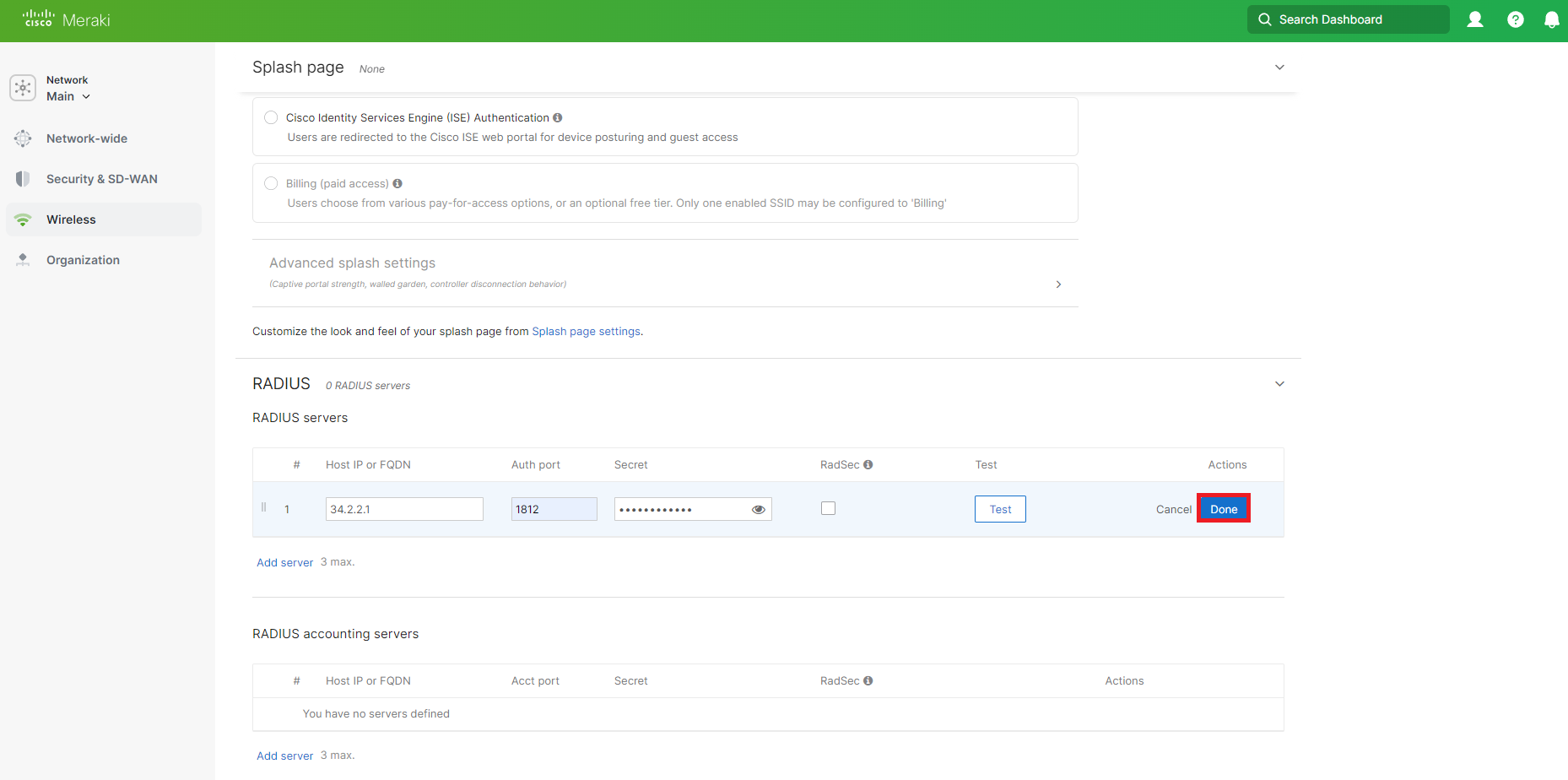
-
Repeat the above steps for one IP address from each region in your EZRADIUS instance for higher availability.
How to Enable RADIUS Testing in Cisco Meraki
Make sure you enable Radius Testing in your Meraki Network Controller. This will ensure Meraki continuously tests the connection to the RADIUS servers and selects the best one available.
- Enable Radius testing. This will ensure Meraki tests the connection to the RADIUS servers and selects the best one available.
How to Enable RADIUS Accounting in Cisco Meraki
RADIUS Accounting gives you detailed information about each session such as data used, connection time, etc. You can enable RADIUS Accounting in your Meraki Network Controller to send accounting logs to EZRADIUS. From there EZRADIUS can forward the logs to your SIEM and make them available in Audit Logs.
- Within the RADIUS Accounting section, add the same EZRADIUS server IP addresses and Shared Secret as you did for the RADIUS Authentication section.
- Make sure to use port 1813 for RADIUS Accounting instead of 1812.
How to Configure RADIUS Timeout and Retries in Cisco Meraki
A cloud-based RADIUS server introduces some additional latency compared to an on-premises RADIUS server. To ensure a stable connection with EZRADIUS, we recommend adjusting the advanced RADIUS settings in your Meraki Network Controller as follows:
-
Scroll down to the Advanced RADIUS section.
-
If you have setup your EZRADIUS with Filter-ID or VLANs, you can setup the filter ID or VLAN in their respective fields.
-
Enter the following settings (these settings are recommended to ensure a stable connection with EZRADIUS):
- Server timeout to 10 seconds.
- Retry count to 3 times.
- RADIUS fallback to Active.
- EAP Timeout to 30 seconds.
- EAP max retries to 5 times.
- EAP identity timeout to 30 seconds.
- EAP identity retries to 5 times.
- EAPOL key timeout to 2000 milliseconds.
- EAPOL key retries to 4 times.
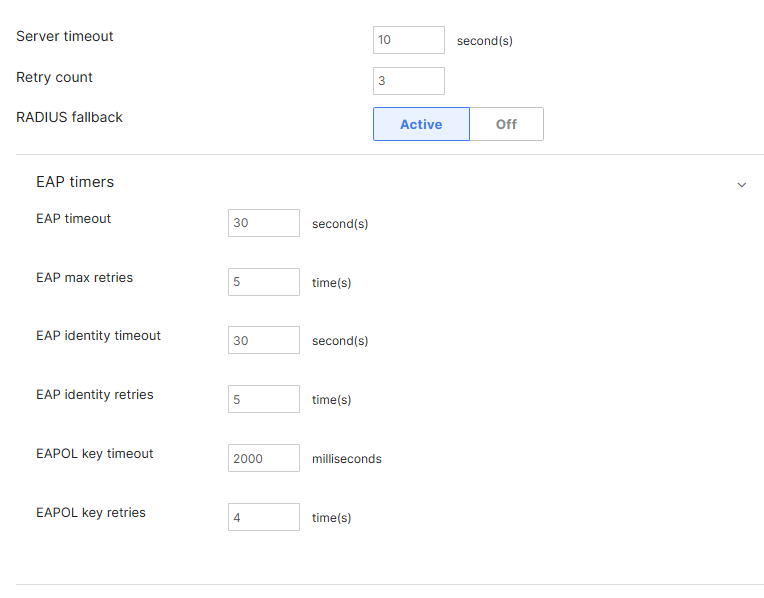
-
Scroll to the bottom and click on Save.

-
Done!
How to Add a Cloud RadSec Server to a Cisco Meraki Wi-Fi Network
-
Go to your Meraki Network Controller.
-
Click on Wireless on the left menu and Select SSIDs.
-
If you already have an existing network, click on edit settings on the network you want to add RADIUS authentication to. If you don’t have a network, select enabled on the network you want to add RADIUS authentication to.
-
Next we are going to select Enterprise with in the Security menu and select my RADIUS server in the dropdown.
-
Scroll down to the RADIUS section. You can keep the default settings for all the other sections or change them to your liking.
-
Now click on the Add server link.
How to Get Your EZRADIUS Server IP Addresses for Cisco Meraki RadSec
You can get your EZRADIUS Server IP addresses from the EZRADIUS dashboard. These IP addresses are needed to configure your network controller to communicate with the EZRADIUS service.
-
Navigate to the EZRADIUS Policies page from the left-hand menu.
-
At the top of the Policies page, you will find the EZRADIUS Server IP addresses. Copy one of the IP addresses from the region closest to your network controller (you’ll add the others later).
How to Add EZRADIUS Server IP Addresses to Cisco Meraki for RadSec
-
Now we will go back to the Meraki Network Network Controller and paste:
- In the Host IP or FQDN field, enter the copied Server IP address from EZRADIUS.
- In the Port field, enter 2083.
- In the Secret field, enter “radsec”.
-
Click on Done.

-
Repeat the above steps for one IP address from each region in your EZRADIUS instance for higher availability.
How to Enable RADIUS Accounting in Cisco Meraki for RadSec
RADIUS Accounting gives you detailed information about each session such as data used, connection time, etc. You can enable RADIUS Accounting in your Meraki Network Controller to send accounting logs to EZRADIUS. From there EZRADIUS can forward the logs to your SIEM and make them available in Audit Logs.
-
Fill out the RADIUS accounting servers section with:
- In the Host IP or FQDN field, enter the copied Server IP address from EZRADIUS.
- In the Port field, enter 2083.
- In the Secret field, enter radsec.
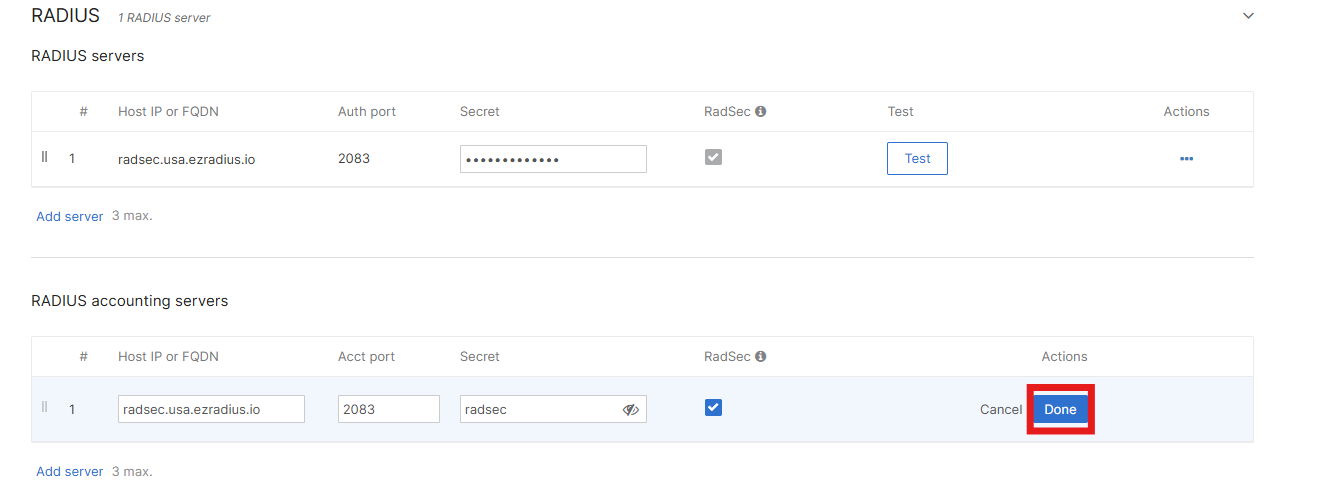
How to Enable RADIUS Testing in Cisco Meraki for RadSec
Make sure you enable Radius Testing in your Meraki Network Controller. This will ensure Meraki continuously tests the connection to the RADIUS servers and selects the best one available.
- Enable Radius testing. This will ensure Meraki tests the connection to the RADIUS servers and selects the best one available.
How to Configure RADIUS Timeout and Retries in Cisco Meraki for RadSec
-
Scroll down to the Advanced RADIUS section and fill out the following fields (these settings are recommended to ensure a stable connection with EZRADIUS):
- Server timeout of 10 seconds.
- Retry count of at least 3 times.
- RADIUS fallback set to Active.
- EAP Timeout of 30 seconds.
- EAP max retries of 5 times.
- EAP identity timeout of 30 seconds.
- EAP identity retries of 5 times.
- EAPOL key timeout of 2000 milliseconds.
- EAPOL key retries of 4 times.
-
If you have setup your EZRADIUS with Filter-ID or VLANs, you can setup the filter ID or VLAN in their respective fields.
-
Scroll to the bottom and click on Save.
How to Create the RadSec Trust in Meraki
Now that we have configured the RADIUS server, the next step is to get the certificate from Meraki for our cloud RADIUS to trust your device and add the server certificate so Meraki trusts the cloud RADIUS.
-
Navigate to the Organization menu and click on Certificates.
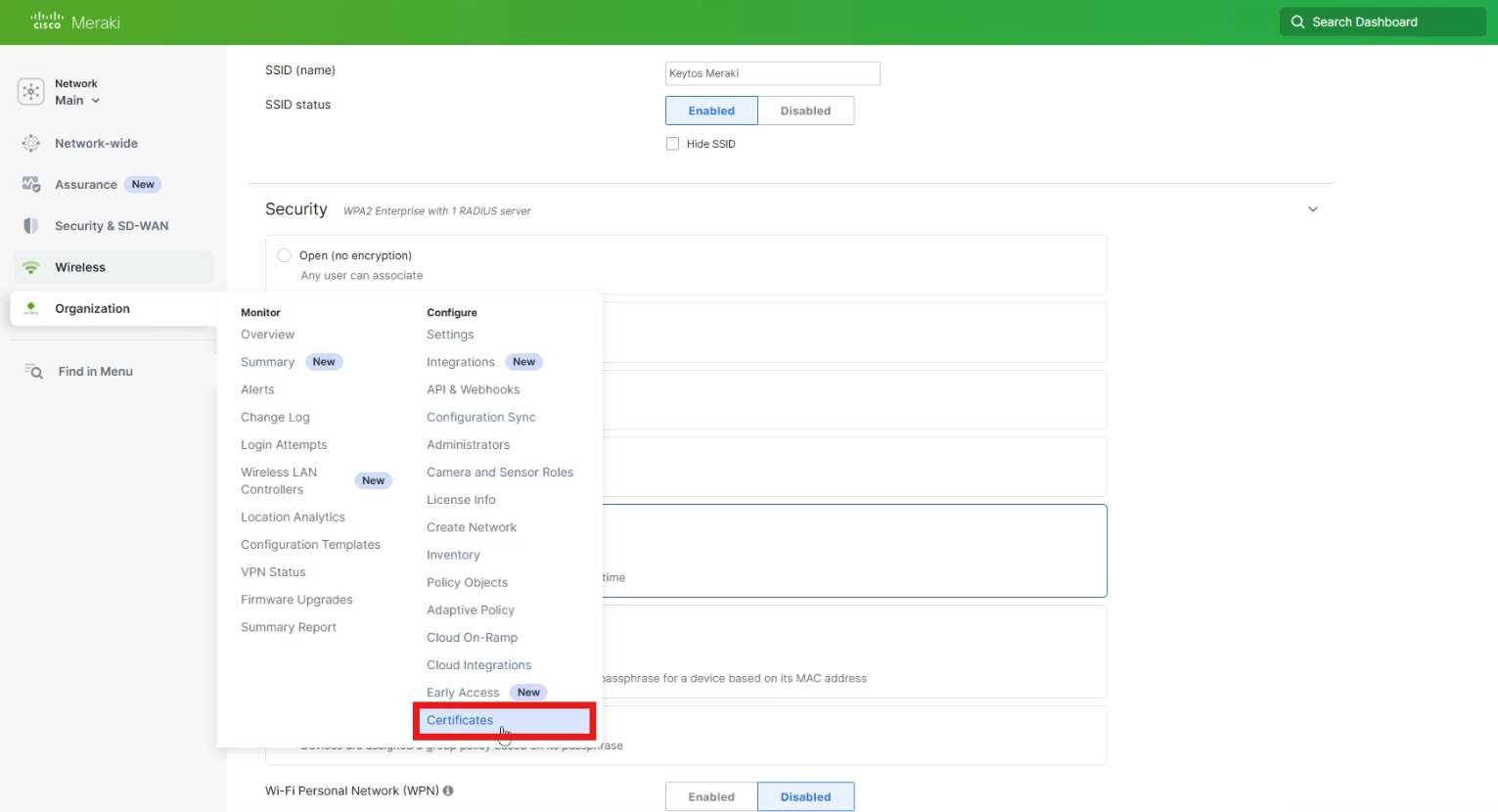
How to Get the RadSec CA Certificate from EZRADIUS
The RadSec CA Certificate is used by your network controller to verify the identity of the EZRADIUS server when establishing a secure TLS connection. You can download the RadSec CA Certificate directly from the EZRADIUS dashboard.
-
Navigate to the EZRADIUS Policies page from the left-hand menu.
-
Click Download RadSec CA Certificate and save it to your local machine. It should be named
radsec_ca.cer, or similar.
How to Upload the RadSec CA Certificate to Meraki
-
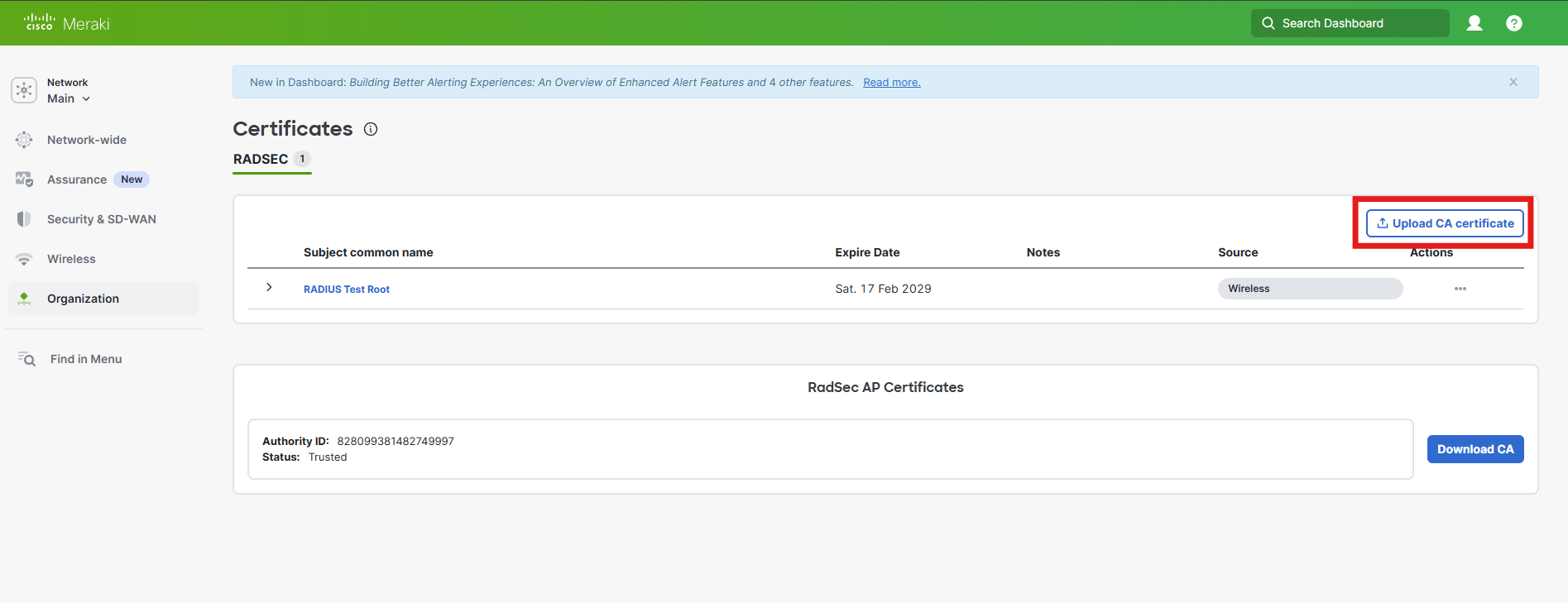
Go back to the Meraki tab and click on Upload CA Certificate.
How to Download the Meraki RadSec CA Certificate
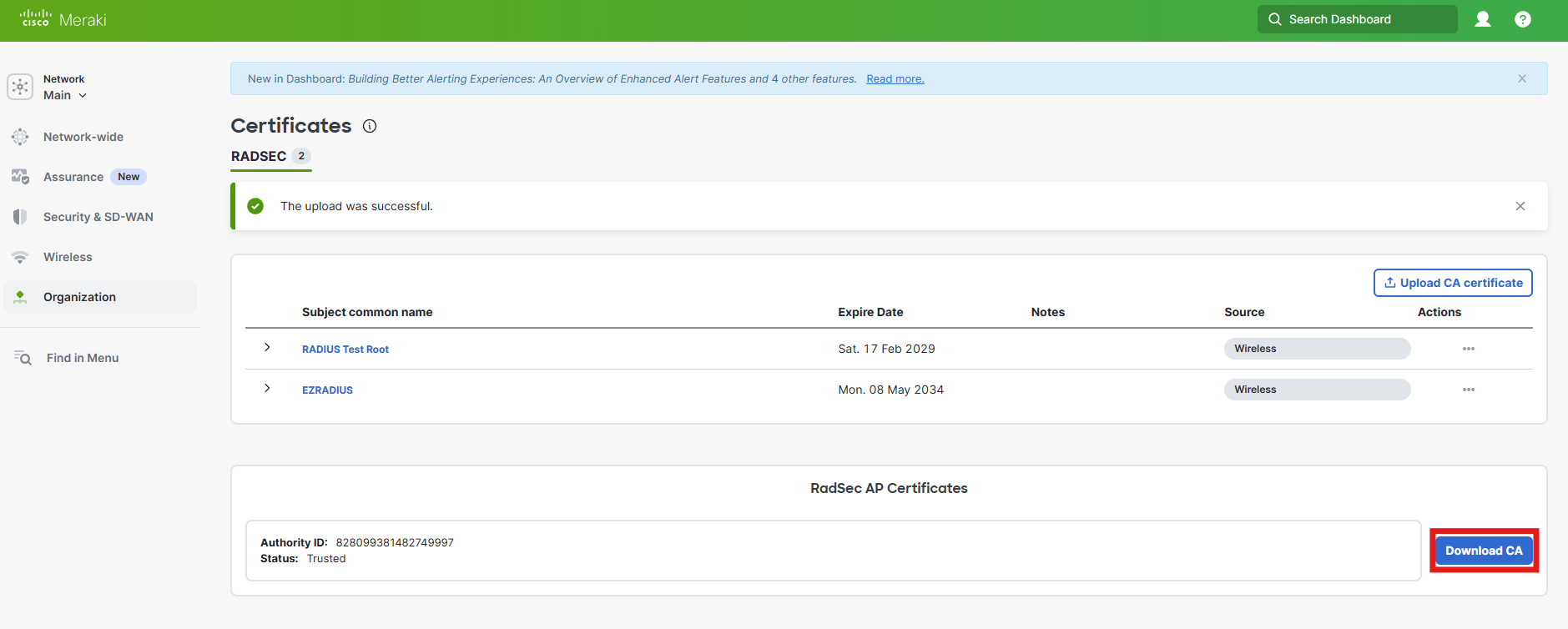
Now that we have uploaded the CA Certificate, we need to download the CA Certificate from Meraki. This is automatically created and lasts 70 years. Don’t worry they are expecting we die before we have to renew it.
-
Click on Download CA and save the certificate to your computer.
How to Upload the Meraki RadSec CA Certificate to EZRADIUS
-
Go back to the EZRADIUS tab and scroll down to your policy with RadSec enable.
-
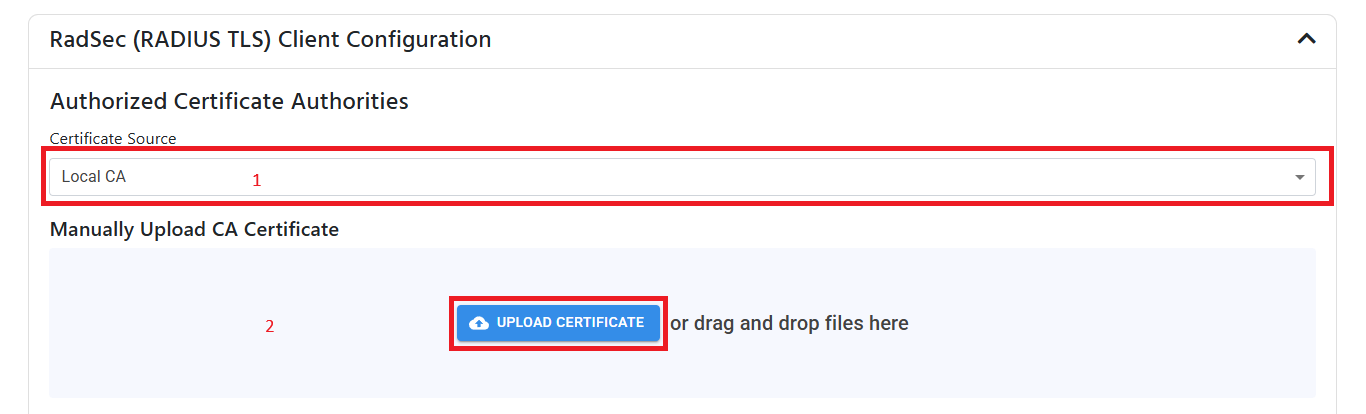
Under RadSec (RADIUS TLS) Client Configuration click on Upload Certificate and select the CA Certificate you downloaded from Meraki.
-
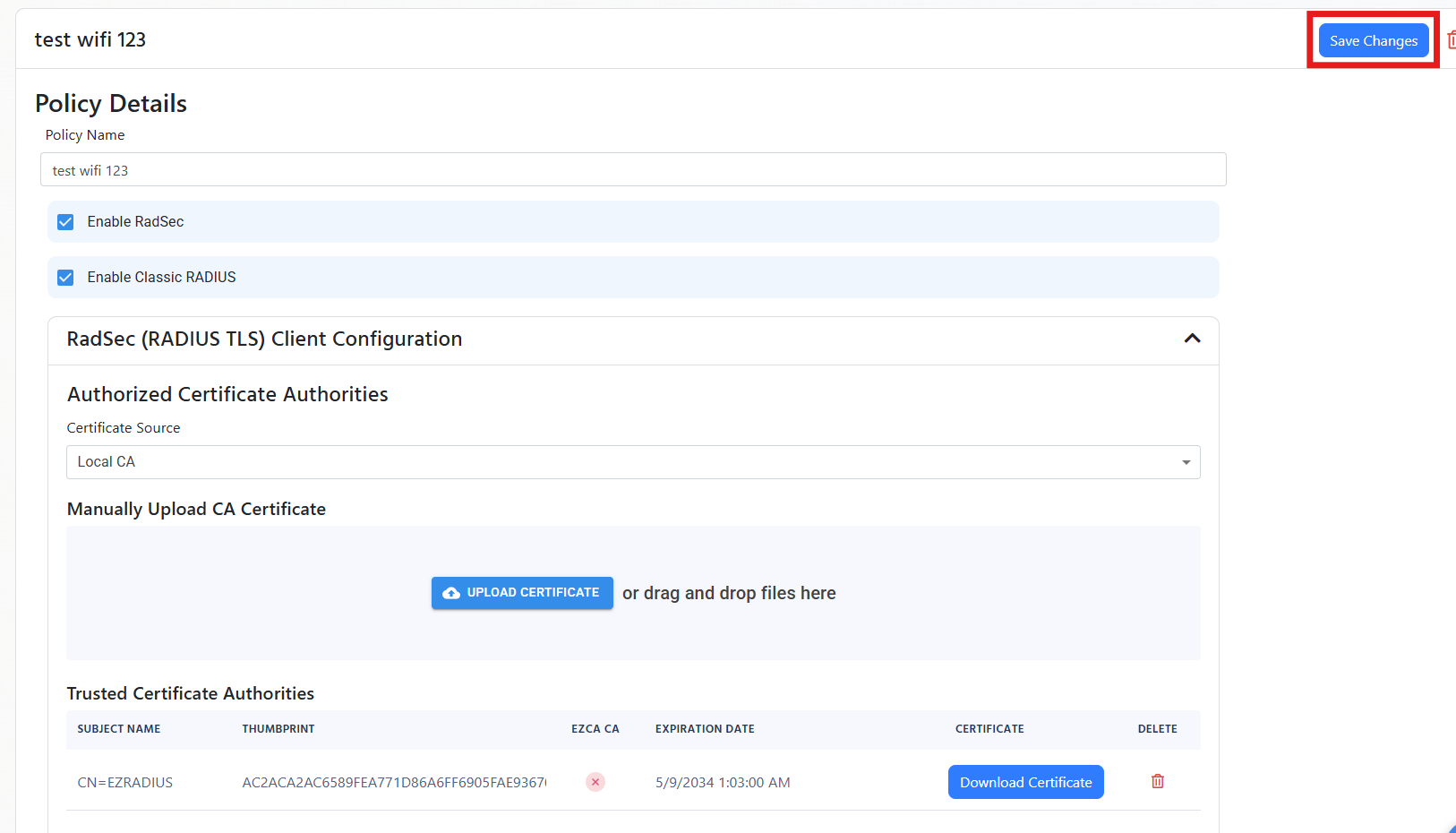
Scroll to the top of the policy and click on Save Changes.
-
Done! Now we have setup the RadSec trust between Meraki and EZRADIUS, you can now connect your devices to the network using certificate authentication.
How to Add a RADIUS Server to a Cisco Meraki Wired Network
-
Go to your Meraki Network Controller
-
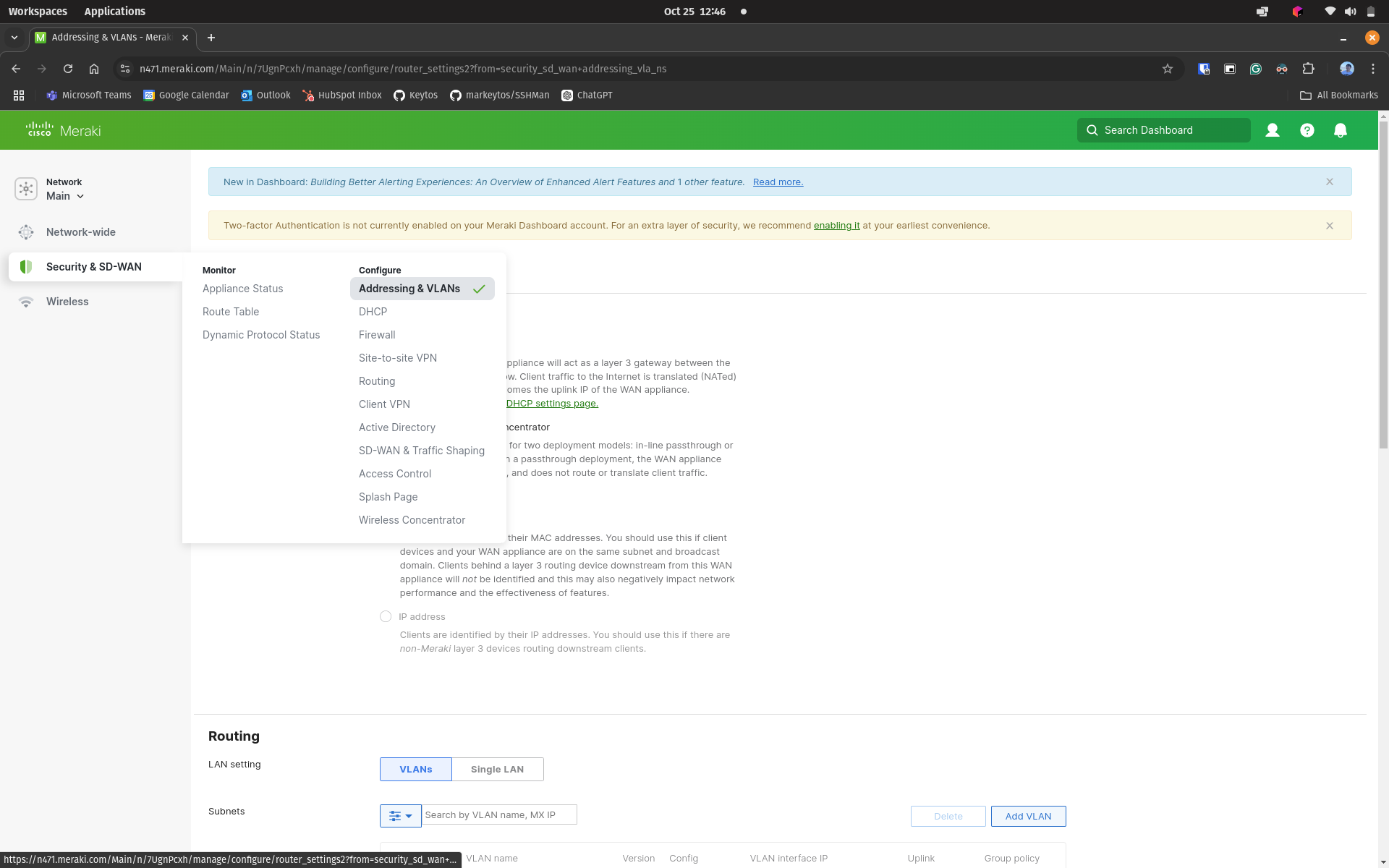
Click on Security & SD-WAN on the menu and the select Addressing & VLANs
-
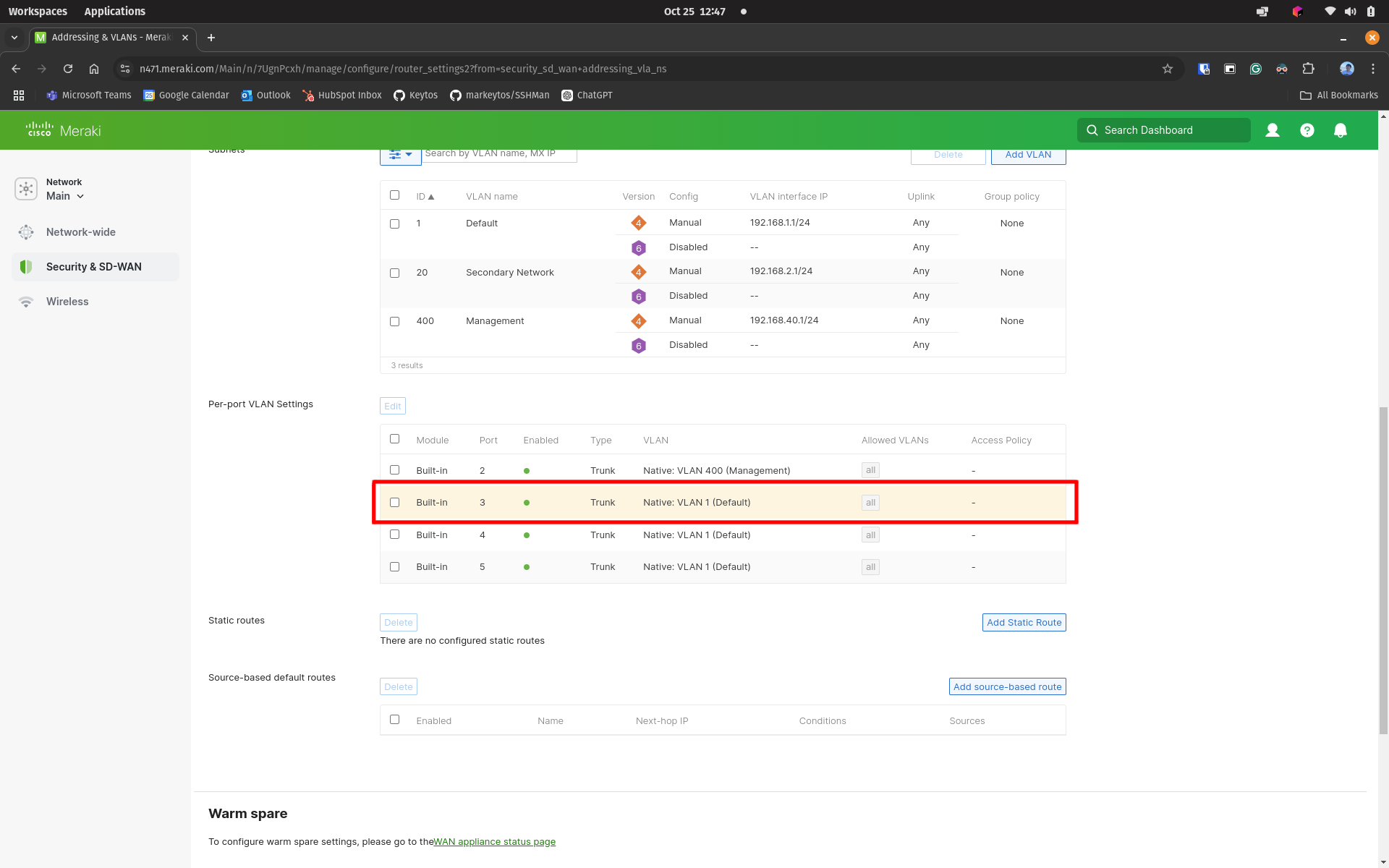
Scroll down to the Per-port VLAN Settings and select the port for which you want to enable authentication
-
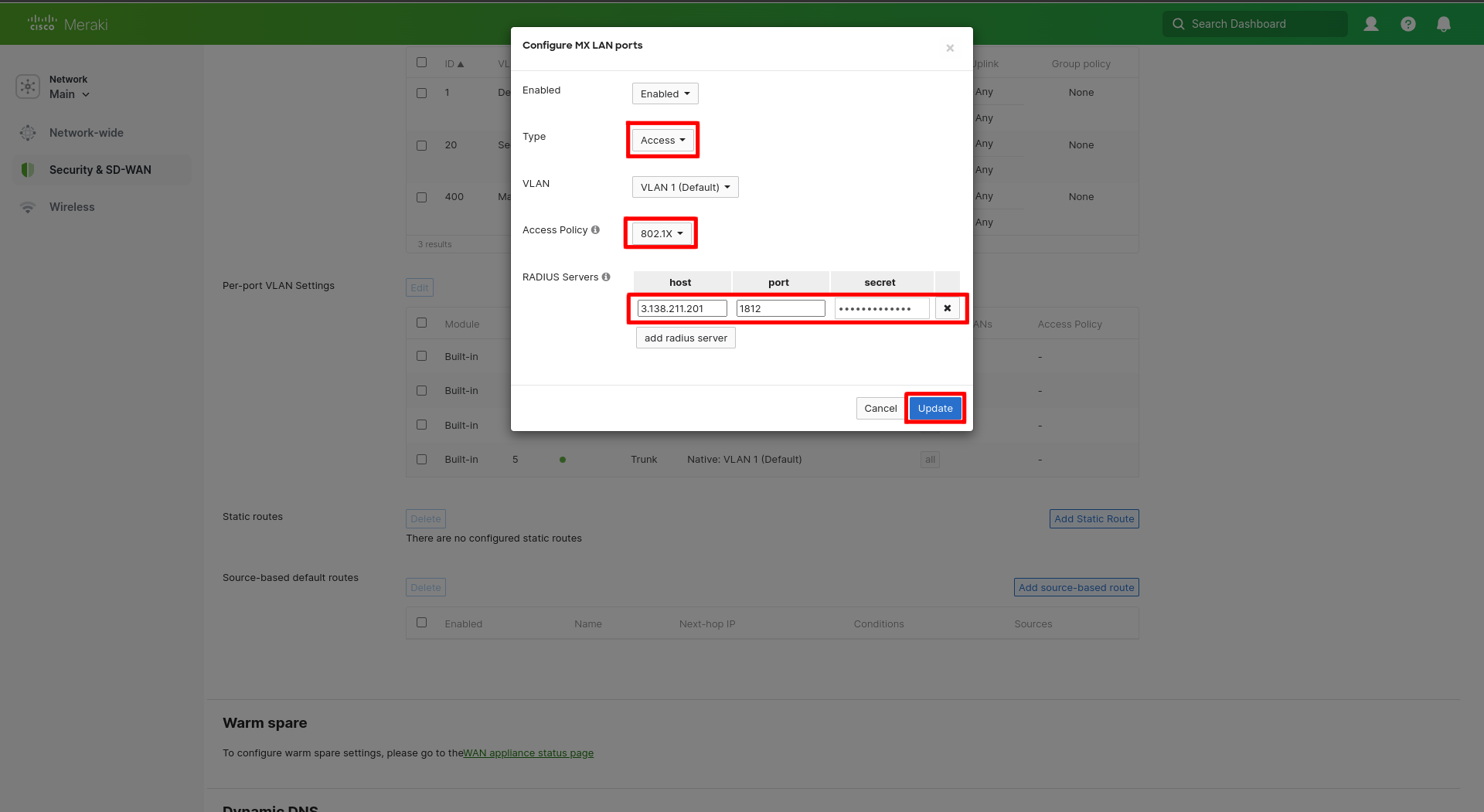
In the Configure MX LAN ports change the type to Access and set the Access Policy to 802.1x.
How to Get Your EZRADIUS Server IP Addresses for Cisco Meraki RADIUS
You can get your EZRADIUS Server IP addresses from the EZRADIUS dashboard. These IP addresses are needed to configure your network controller to communicate with the EZRADIUS service.
-
Navigate to the EZRADIUS Policies page from the left-hand menu.
-
At the top of the Policies page, you will find the EZRADIUS Server IP addresses. Copy one of the IP addresses from the region closest to your network controller (you’ll add the others later).
How to Get Your EZRADIUS Shared Secret for Cisco Meraki RADIUS
When you added your public IP address to your EZRADIUS policy, a shared secret was automatically generated for you. This shared secret is used to authenticate your network controller (RADIUS client) to the EZRADIUS server.
-
In the EZRADIUS portal, navigate to the EZRADIUS Policies page from the left-hand menu.
-
Scroll down to your RADIUS policy and find the Classic RADIUS Allowed IP Addresses section.
-
For your public IP address, click on the eye icon to reveal the shared secret.
How to Configure a RADIUS Server in a Cisco Meraki Wired Network
-
Back in the Meraki Network Controller, enter the RADIUS Server IP in the host field.
-
In the port field, enter 1812.
-
In the secret field, enter the Shared Secret you got from EZRADIUS.
-
Repeat the above steps for one IP address from each region in your EZRADIUS instance for higher availability.
-
Click Update to save the RADIUS server settings.
-
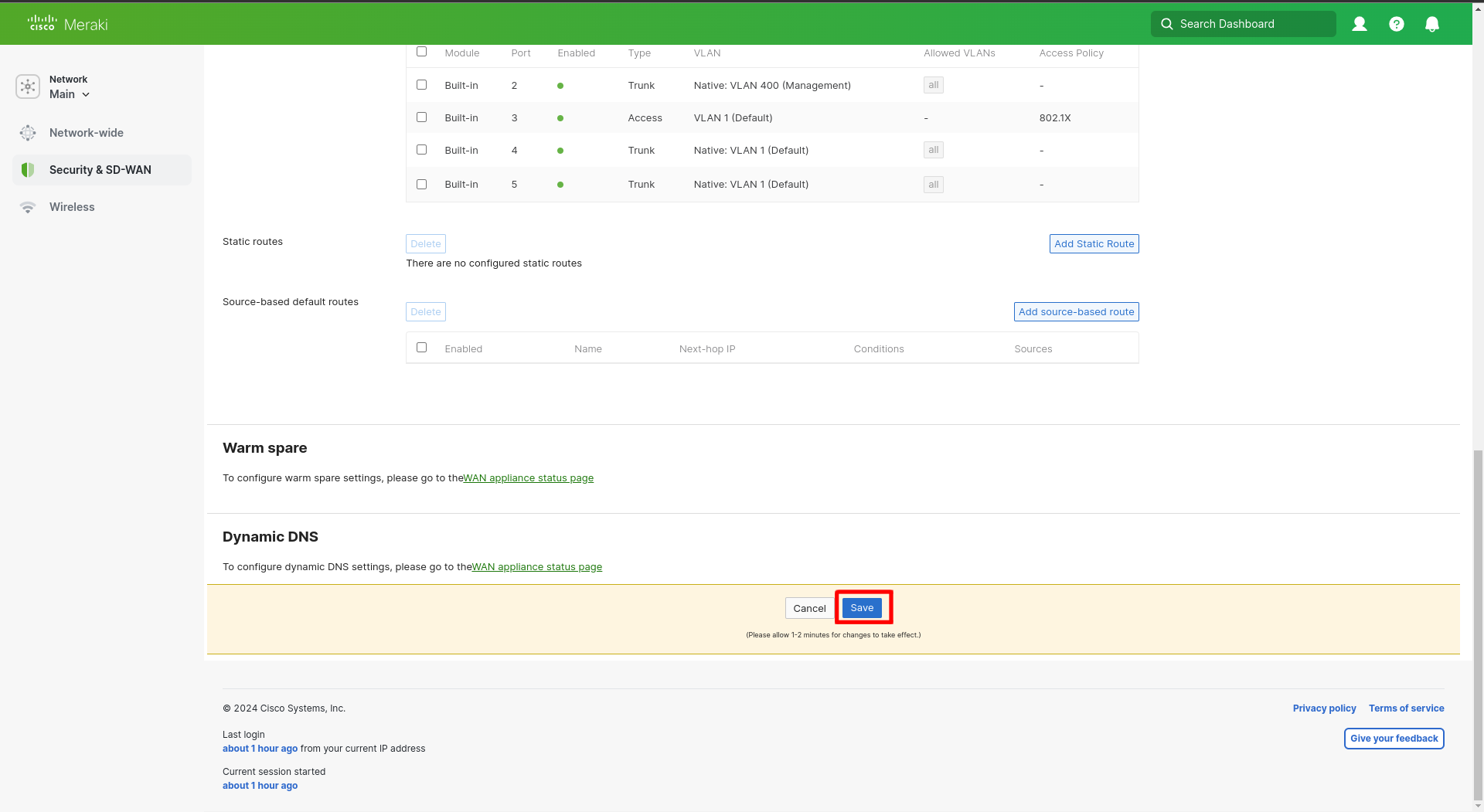
Click on Save at the bottom of the page to apply the changes.
-
Done!
At the time of writing of this documentation, Meraki does not support RadSec for wired ethernet authentication. Please use the standard RADIUS protocol for wired ethernet authentication.
How to Configure Cloud RADIUS for Cisco Meraki VPN
Meraki VPN utilizes PAP authentication which is not compatible with Entra ID username/password authentication or multi-factor auth. The closest you can do to have users authenticate with Entra ID is to Enable self service network account creation for users. This allows your users to create their own network credentials and reset them using their Entra ID credentials. This also ties the account lifecycle to Entra ID, meaning that if you delete a user in Entra ID it will also be deleted from your network authentication. At this time Entra ID users cannot use their Entra ID password or use MFA to authenticate to Meraki VPN due to the limitations of the PAP protocol.
-
Go to your Meraki VPN Controller.
-
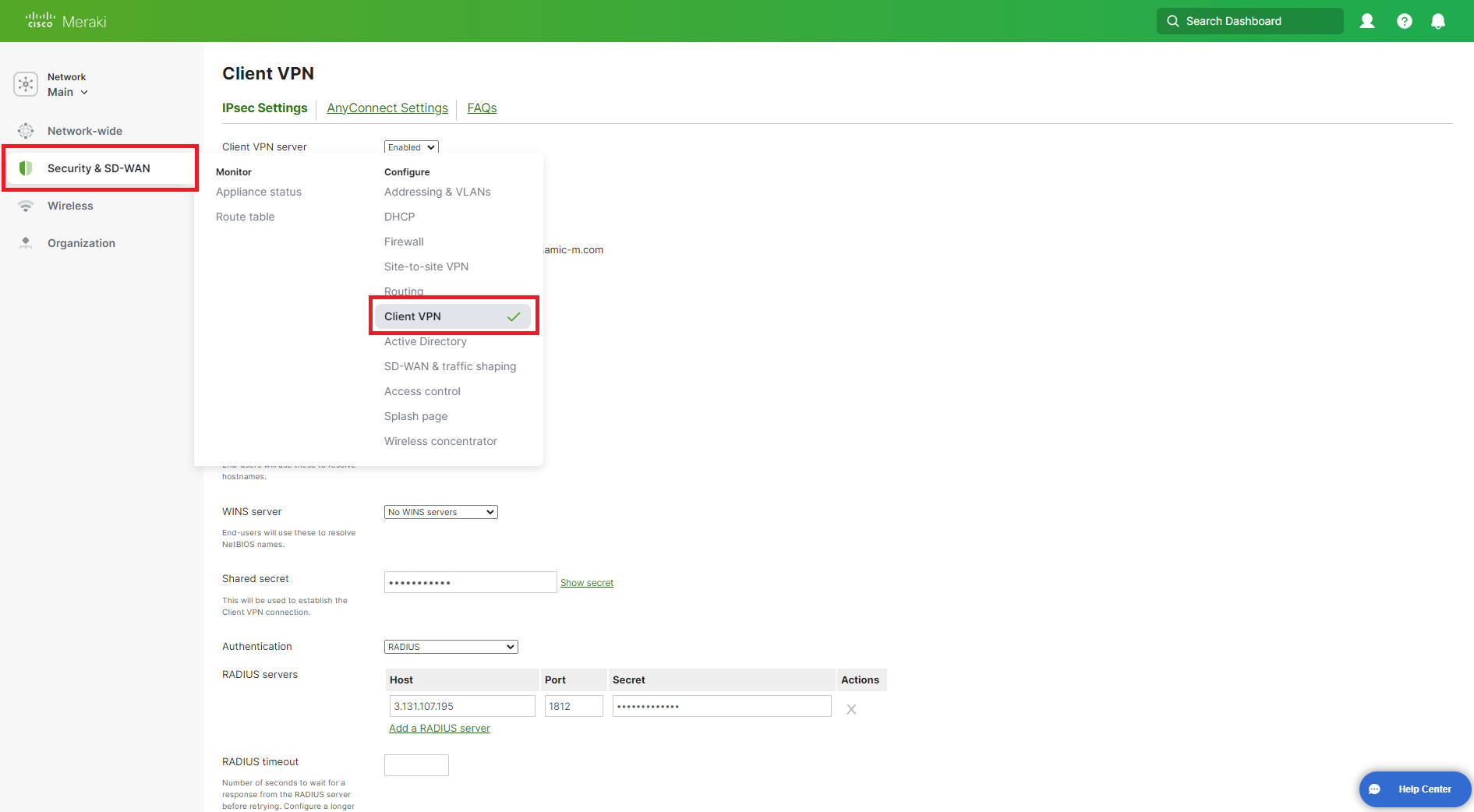
Click on Security & SD-Wan on the left menu and Select Client VPN.
-
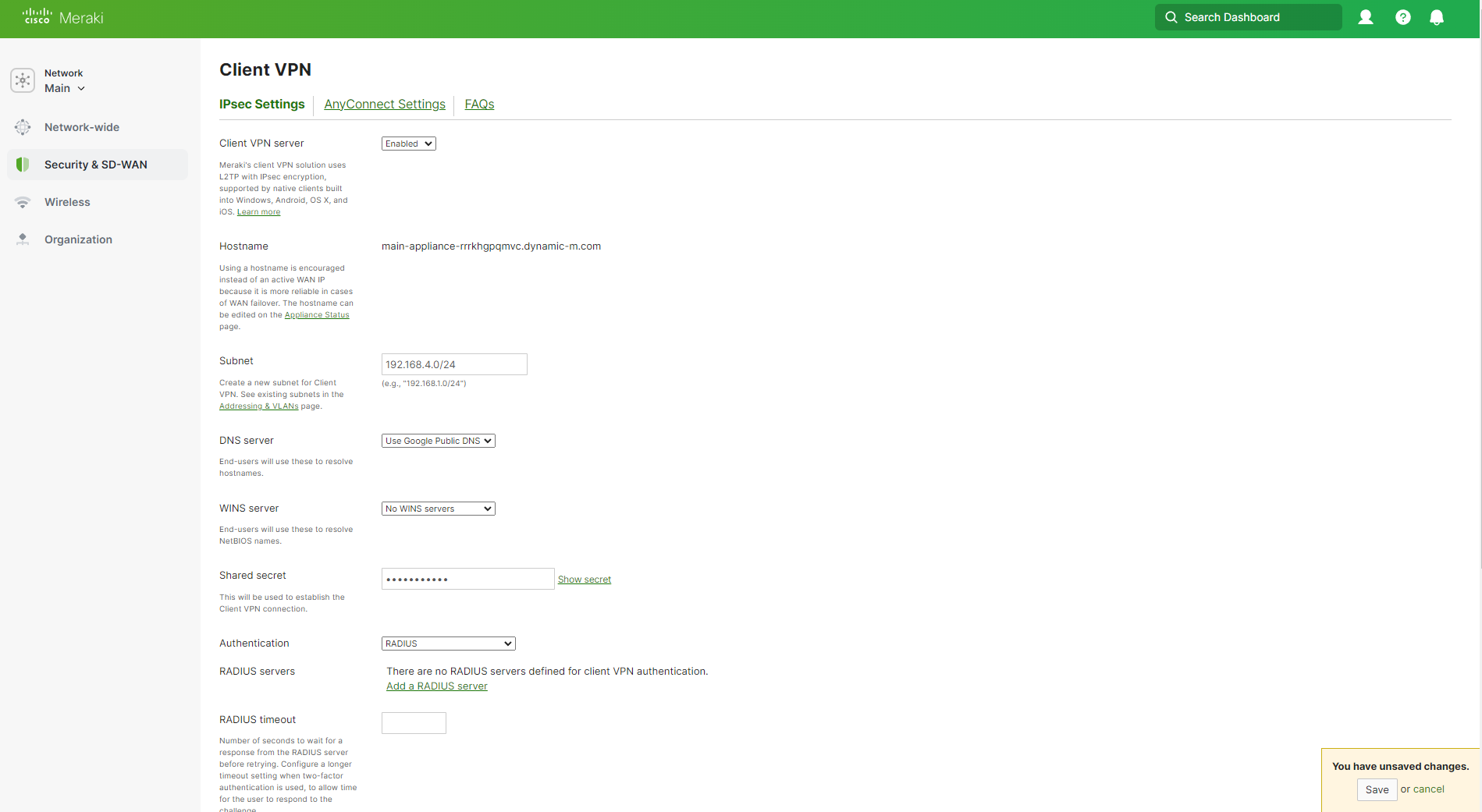
Make sure that the Client VPN Server is enabled.
-
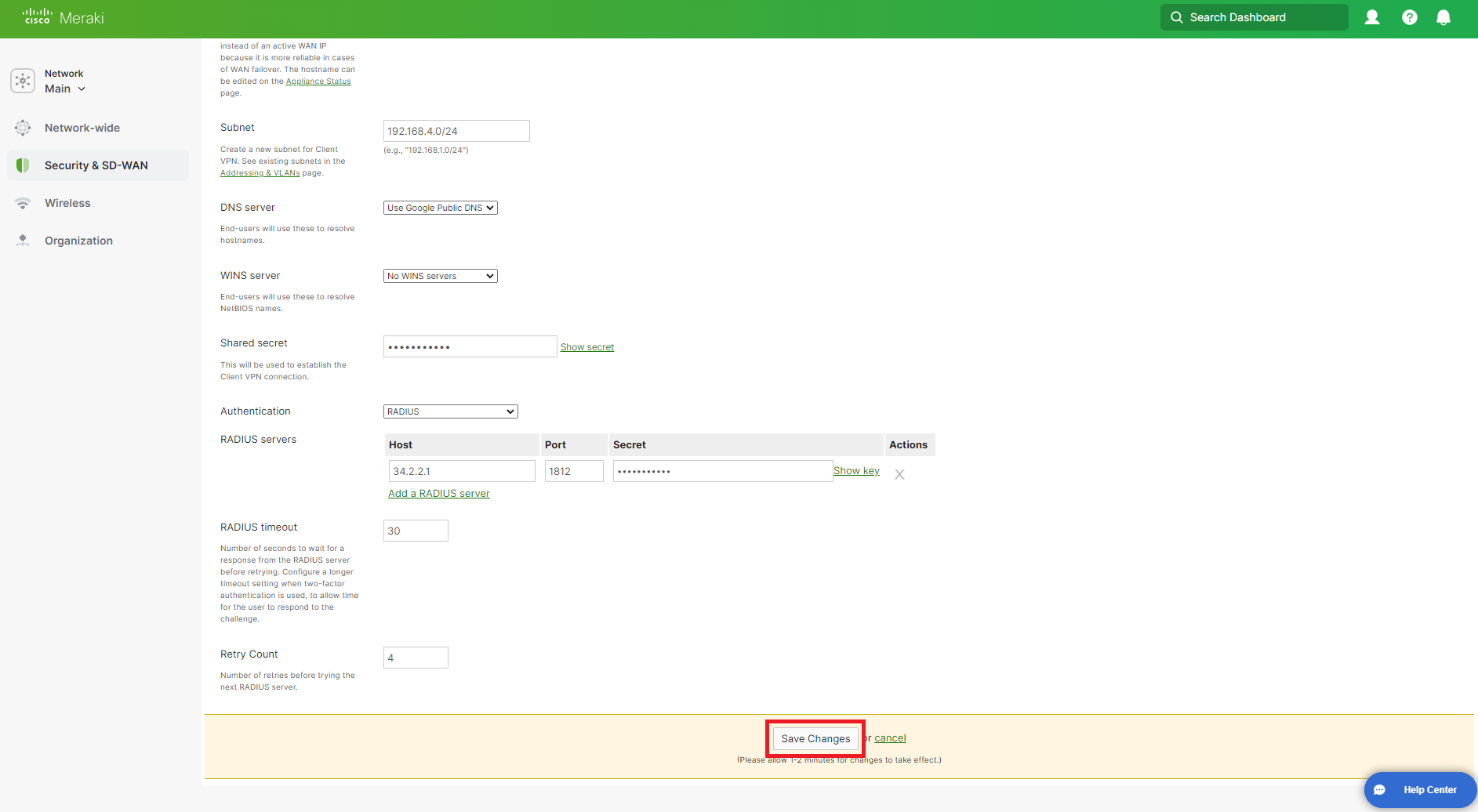
Enter the Subnet you want to use for your VPN clients.
-
In the DNS nameservers field, enter the DNS servers you want to use for your VPN clients.
-
In the shared secret field, enter a shared secret that you will use for your VPN clients.
-
In the Authentication dropdown, select RADIUS.
-
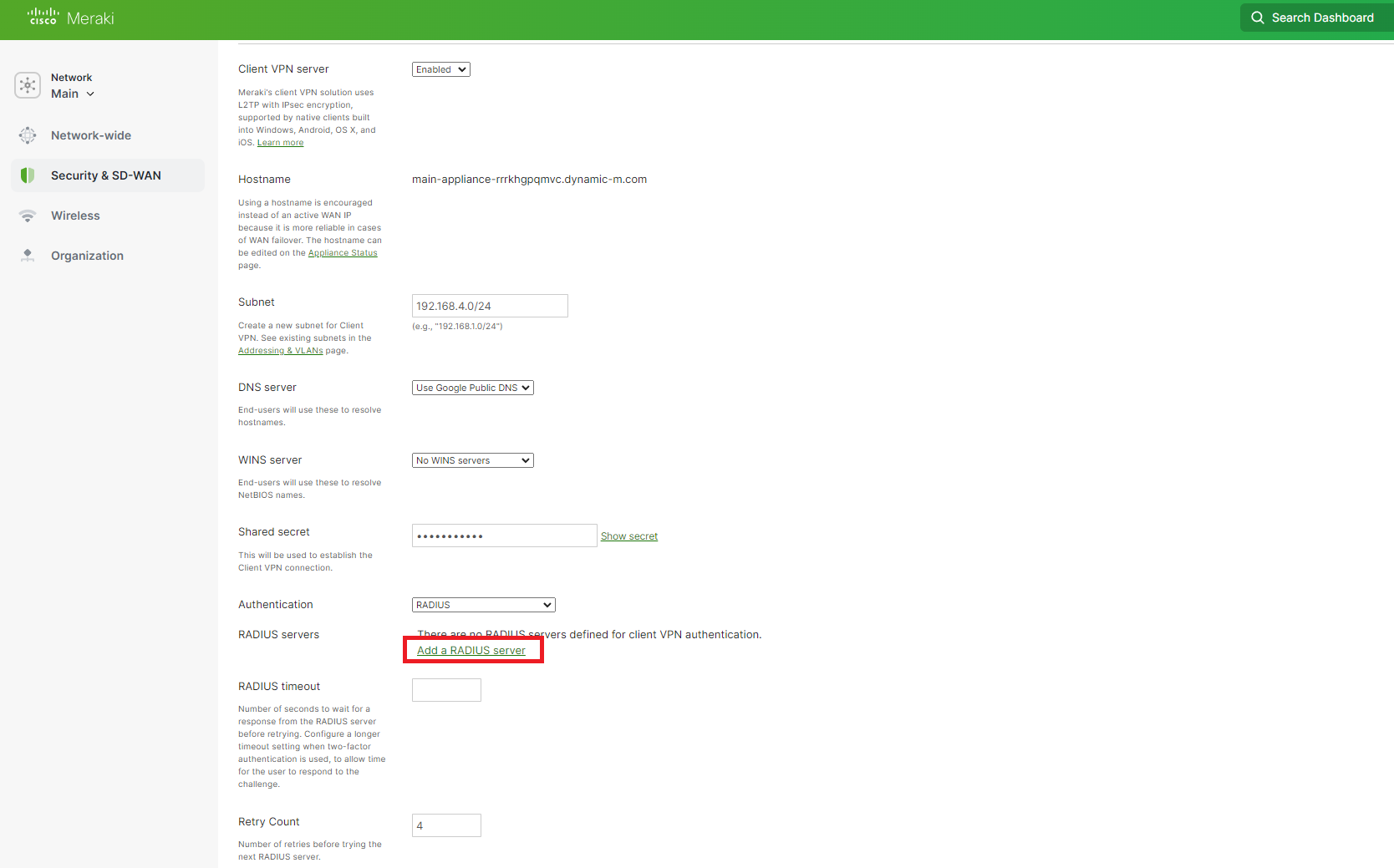
Click on Add a RADIUS server.
How to Get Your EZRADIUS Server IP Addresses for Cisco Meraki VPN RADIUS
You can get your EZRADIUS Server IP addresses from the EZRADIUS dashboard. These IP addresses are needed to configure your network controller to communicate with the EZRADIUS service.
-
Navigate to the EZRADIUS Policies page from the left-hand menu.
-
At the top of the Policies page, you will find the EZRADIUS Server IP addresses. Copy one of the IP addresses from the region closest to your network controller (you’ll add the others later).
How to Add EZRADIUS Server IP Addresses to Cisco Meraki VPN
- Navigate back to the Meraki VPN Network Controller
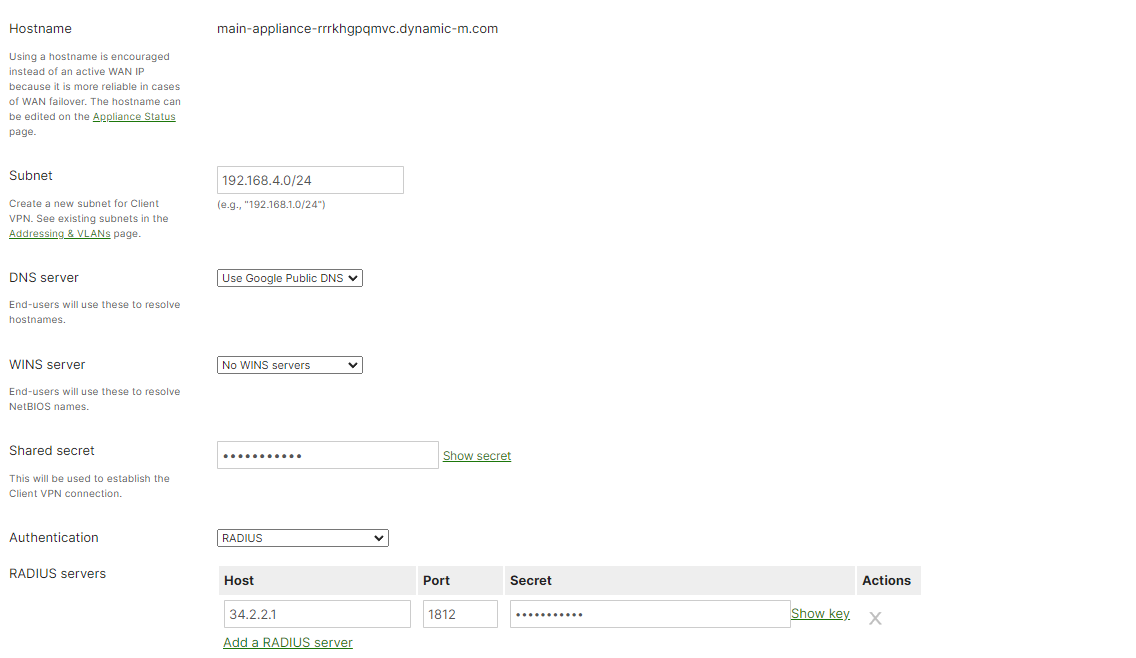
- Paste the RADIUS Server IP" in the Host field.
- In the Port field, enter 1812.
How to Get Your EZRADIUS Shared Secret for Cisco Meraki VPN RADIUS
When you added your public IP address to your EZRADIUS policy, a shared secret was automatically generated for you. This shared secret is used to authenticate your network controller (RADIUS client) to the EZRADIUS server.
-
In the EZRADIUS portal, navigate to the EZRADIUS Policies page from the left-hand menu.
-
Scroll down to your RADIUS policy and find the Classic RADIUS Allowed IP Addresses section.
-
For your public IP address, click on the eye icon to reveal the shared secret.
How to Add the EZRADIUS Shared Secret to Cisco Meraki VPN
-
Navigate back to the Meraki VPN Network Controller
-
In the Authentication field, paste the Shared Secret you copied from EZRADIUS.
-
Repeat the above steps for one IP address from each region in your EZRADIUS instance for higher availability.
How to Configure RADIUS Timeout in Cisco Meraki VPN
-
Set the RADIUS timeout to 30 seconds.
-
Set the Retry Count to 4 times.
-
Click on Save Changes at the bottom of the page.
-
Done!
How to Connect Devices to Meraki VPN with Entra ID Authentication
Now that we have setup your Meraki VPN with RADIUS authentication, now your users can follow this guide to create their network password and then use their username and created password to authenticate to the VPN.
Note: These steps show how to configure a VPN manually in Windows but we recommend using an MDM to distribute the VPN settings and make it easier for your users.
-
Go to your Windows device.
-
Click on the network icon on the bottom right.
-
Click on VPN.
-
Click on More VPN Settings on the bottom left.
-
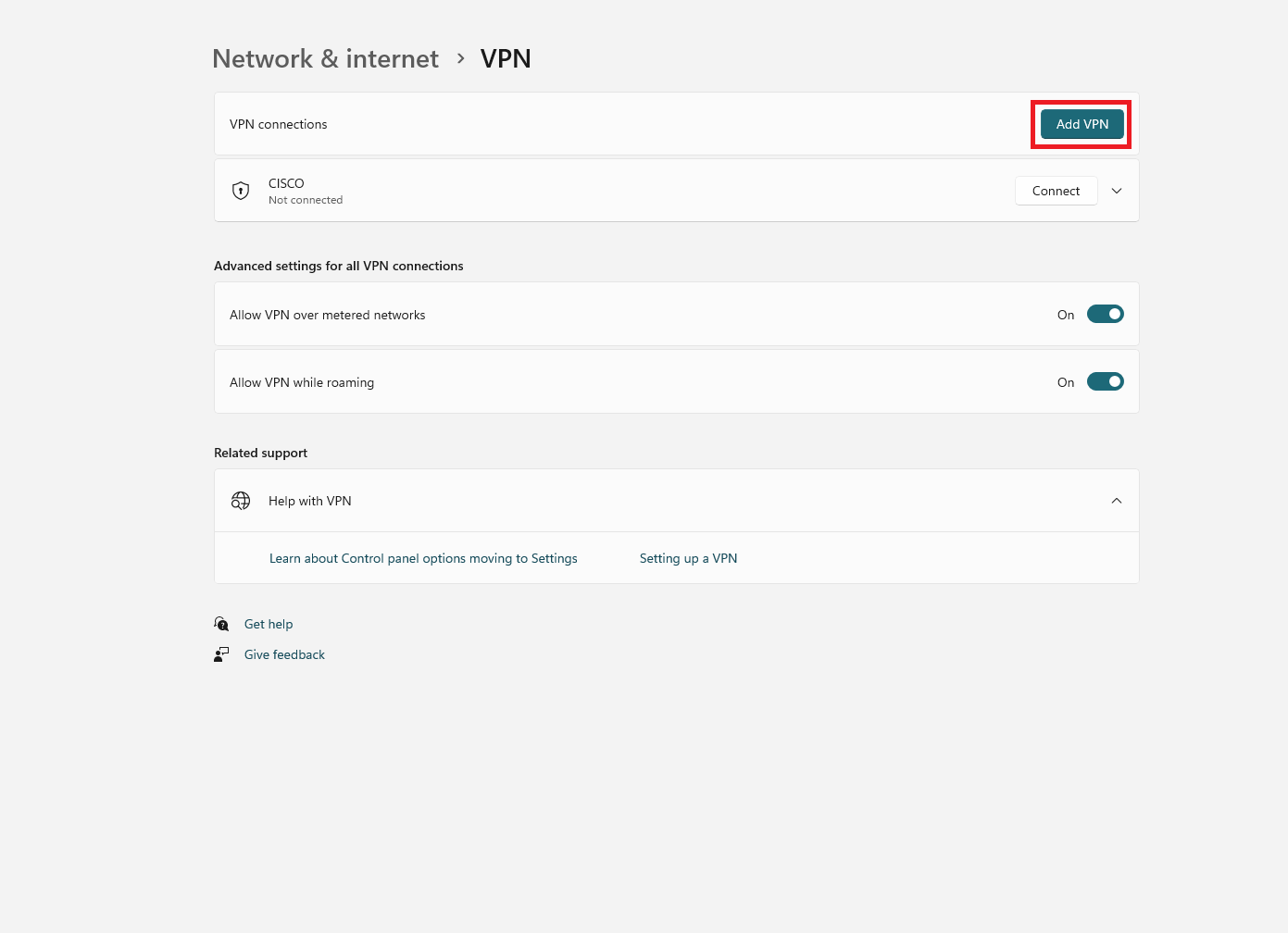
Click on Add a VPN.
-
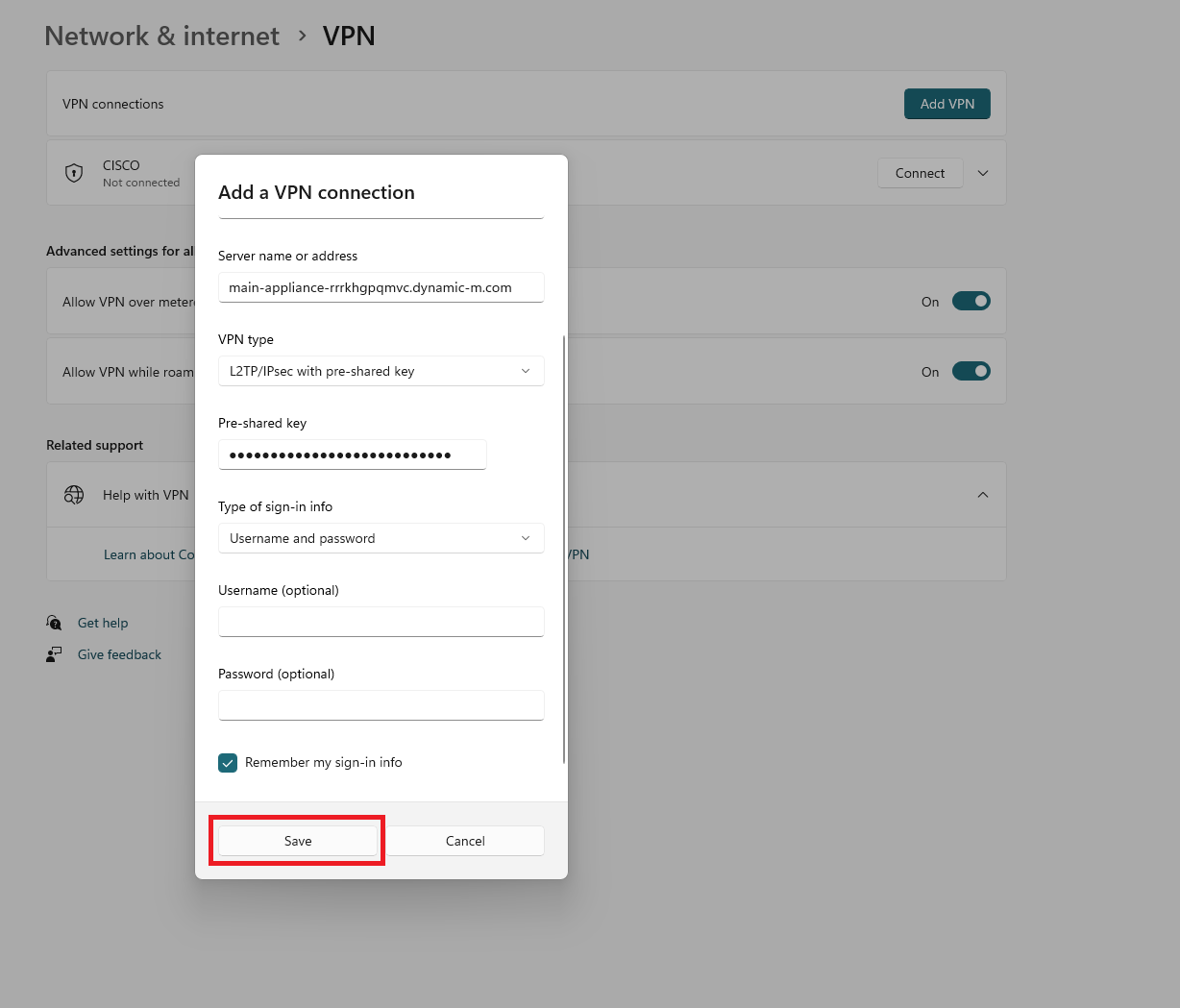
In the VPN Provider dropdown, select Windows (built-in).
-
In the Connection Name field, enter a name for your VPN connection.
-
In the Server Name or Address field, enter the hostname from your Meraki Dashboard or the public IP address of your Meraki VPN.
-
In the VPN Type dropdown, select L2TP/IPsec with pre-shared key.
-
In the Pre-shared key field, enter the shared secret you setup in your Meraki VPN.
-
In the Type of sign-in info dropdown, select Username and password.
-
Click on Save.
-
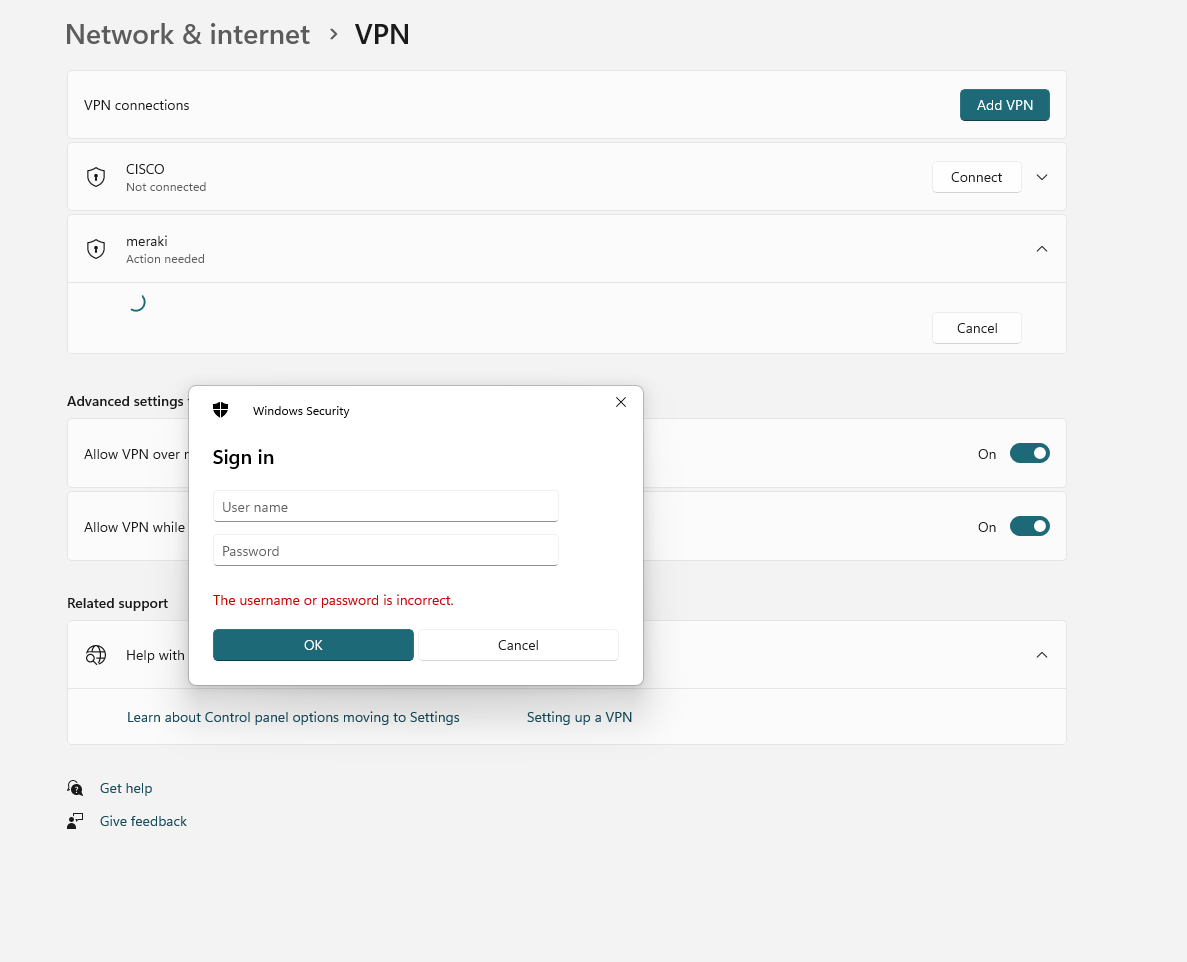
When you click on Connect, you will be prompted to enter your username and password. Make sure to use a local user account created using the self-service portal as explained above.
-
Click on Connect and you will be connected to your Meraki VPN.
How to Configure Your Devices to Use Cloud RADIUS with Cisco Meraki
Now that you have set up Cloud RADIUS for your Cisco Meraki network, there are a few more steps to ensure your users’ devices can connect seamlessly. By default, devices won’t be able to connect using Cloud RADIUS until you configure the appropriate network profile and RADIUS CA certificate. Make sure to follow the instructions below to push the necessary configurations to your users’ devices.
How to Push the RADIUS CA Certificate and Wi-Fi Profile Using Microsoft Intune
Follow these Intune step-by-step guides to push the required CA certificate and Wi-Fi profile to your users’ devices so they can seamlessly connect to your Cisco Meraki network using Cloud RADIUS.
How to Push the RADIUS CA Certificate and Wi-Fi Profile Using Jamf Pro
Follow these Jamf Pro step-by-step guides to push the required CA certificate and Wi-Fi profile to your users’ devices so they can seamlessly connect to your Cisco Meraki network using Cloud RADIUS.
How to Manually Configure the RADIUS CA Certificate and Wi-Fi Profile on Your Devices
Follow these manual configuration step-by-step guides to manually configure the required CA certificate and Wi-Fi profile on your users’ devices so they can connect to your Cisco Meraki network using Cloud RADIUS.
How to Troubleshoot Cloud RADIUS Issues in Cisco Meraki
Not able to connect to your Cisco Meraki network after setting up EZRADIUS? Refer to this troubleshooting guide to help diagnose and resolve common issues when using Cloud RADIUS with Cisco Meraki.
Troubleshooting GuideWe also have a detailed video guide to help you troubleshoot common Cloud RADIUS issues with Cisco Meraki below:
Cisco Meraki RADIUS FAQs
Below are some common questions and tips for setting up RADIUS authentication in Cisco Meraki networks.
When setting up RADIUS in Meraki and testing the connection to the RADIUS server, what credentials should I use?
The credentials you use doesn’t really matter, as the authentication will fail anyway since Meraki uses legacy authentication (PEAP-MSCHAPV2) to do the test.
However, running the test will tell you whether your Meraki network can connect to EZRADIUS and if EZRADIUS responds. If EZRADIUS does not respond it is usually caused by two different reasons:
- You have a firewall rule blocking access to ports 1812 and 1813.
- The wrong public IP address is added to EZRADIUS. Check if the public IP address of your Meraki network is correctly added to the EZRADIUS allowed IP addresses list, and validate you aren’t running a VPN or other advanced network configuration that might change the public IP address.