

















How-To: Enable Cloud RADIUS with Entra ID Authentication in TP-Link Omada
Introduction - How to Protect Your TP-Link Omada Network with Cloud RADIUS
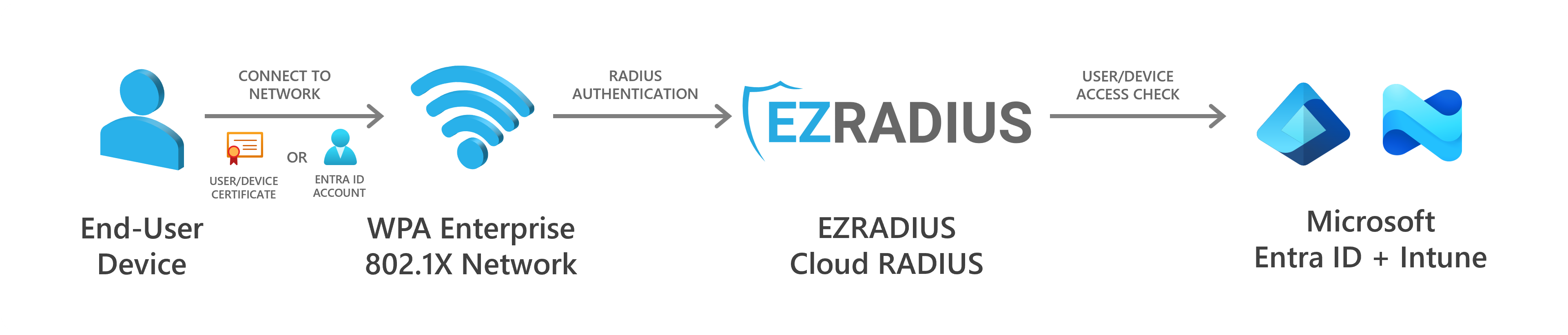
Having a single Wi-Fi password for your network is a security nightmare. It’s impossible to know who has access to your network, and it’s nearly impossible to change the password regularly without causing major outages. The best way to secure your TP-Link Omada network is to use WPA-Enterprise with either certificates or individual user accounts for authentication.
To protect your TP-Link Omada network using certificates or Entra ID accounts, you will need a RADIUS server to handle authentication requests. EZRADIUS is a cloud-based RADIUS as a Service that integrates directly with Entra ID to provide secure authentication for your TP-Link Omada network without needing to manage any RADIUS servers or infrastructure. Simply add EZRADIUS as a RADIUS server in your TP-Link Omada Controller, and your users can log in using either passwordless certificates or their Entra ID username and password.
Video Guides - How to Set Up Cloud RADIUS in Your TP-Link Omada Network
Want to follow along with step-by-step instructions? Check out our end-to-end YouTube video guides to follow along with setting up Cloud RADIUS in your TP-Link Omada Network.
Prerequisites for Setting Up Cloud RADIUS for TP-Link Omada
How to Create an EZRADIUS Subscription
An EZRADIUS billing subscription is required to create your cloud-based RADIUS server for your TP-Link Omada network. If you do not already have an EZRADIUS subscription, follow this guide to create one.
Create an EZRADIUS Subscription
How to Set Up User Credentials for Cloud RADIUS
If you haven’t configured your authentication method yet, make sure to set that up before proceeding. This ensures that your users can authenticate properly when they connect to your TP-Link Omada network.
How to Set Up Passwordless Certificate Authentication with RADIUS
Certificates are the best way to authenticate users or devices without the need for any passwords. Simply connect to the network and the certificate will handle the authentication for you. This is the most secure and user-friendly way to authenticate users in your TP-Link Omada network.
While EZRADIUS supports any X.509 certificate such as ADCS and Microsoft Cloud PKI, the easiest way to create and manage certificates for your users is to use Keytos EZCA, a cloud-based PKI service that integrates directly with EZRADIUS. It only takes a few minutes to get started with EZCA and begin issuing certificates for passwordless Wi-Fi access in your TP-Link Omada network.
How to Set Up Entra ID Users to Authenticate with RADIUS
Don’t want to manage certificates? No problem! You can authenticate your existing Entra ID users using their username and password without needing to manage any PKI infrastructure.
Note that if you have conditional access policies set up in Entra ID (such as MFA), you will need to add an exception for EZRADIUS in order for username/password authentication to work. View this page for more details on adding this exception.
How to Set Up Local Users to Authenticate with RADIUS
Have legacy devices or non-Entra ID users? You can also create local users directly in EZRADIUS and authenticate them using their username and password. Check out this page for more information on creating local users in EZRADIUS or letting your Entra ID users self-register local RADIUS accounts if needed.
How to Set Up MAC Address Bypass for Non-Authenticating Devices
Some devices do not support secure authentication methods like EAP-TLS or EAP-TTLS. In these cases, you can use MAC Address Bypass (MAB) to allow these devices to connect to your TP-Link Omada network without needing to authenticate. Note that MAC Address Bypass is not secure and should only be used for devices that do not support other authentication methods, and you should always be aware of the security risks involved. View this guide for more information on setting up MAC Address Bypass in EZRADIUS.
How to Set Up Your Cloud RADIUS Access Policies for Entra ID Authentication
An EZRADIUS Access Policy defines how EZRADIUS will authenticate users when they connect to your TP-Link Omada network. You will need to create at least one access policy in EZRADIUS before you can connect your TP-Link Omada network to EZRADIUS.
How to Create a Passwordless Certificate Access Policy
A certificate access policy allows you to accept X.509 certificates for authentication and determine which users or devices are allowed to connect to your TP-Link Omada network. View this guide to learn how to create a certificate access policy in EZRADIUS if you have not already done so.
How to Create an Entra ID Username and Password Access Policy
An Entra ID username and password access policy allows you to authenticate your Entra ID users using their existing credentials. View this guide to learn how to create an Entra ID username and password access policy in EZRADIUS if you have not already done so.
How to Create a Local Username and Password Access Policy
A local username and password access policy allows you to authenticate users that you have created directly in EZRADIUS. View this guide to learn how to create a local username and password access policy in EZRADIUS if you have not already done so.
Step-by-Step Guide to Setting Up Cloud RADIUS for TP-Link Omada
The following steps will guide you through the process of setting up Cloud RADIUS for your TP-Link Omada network using EZRADIUS.
How to Add EZRADIUS as a RADIUS Server in TP-Link Omada
Now that you have your EZRADIUS subscription and access policy set up, you can add EZRADIUS as a RADIUS server in your TP-Link Omada Controller.
How to Add a Cloud RADIUS Server to TP-Link Omada
-
Go to your TP-Link OmadaController.
-
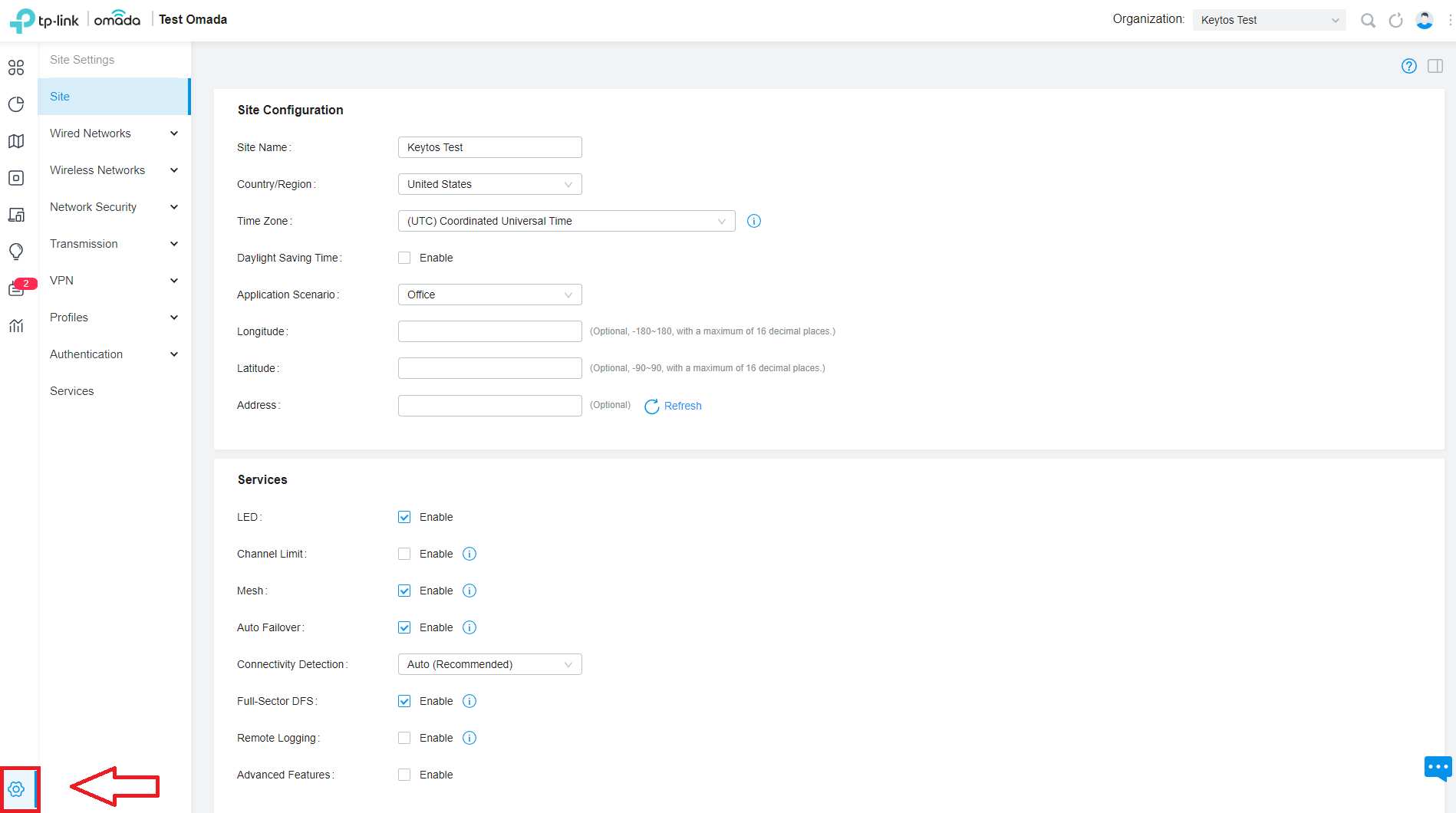
Click on Settings on the bottom of the left menu.
-
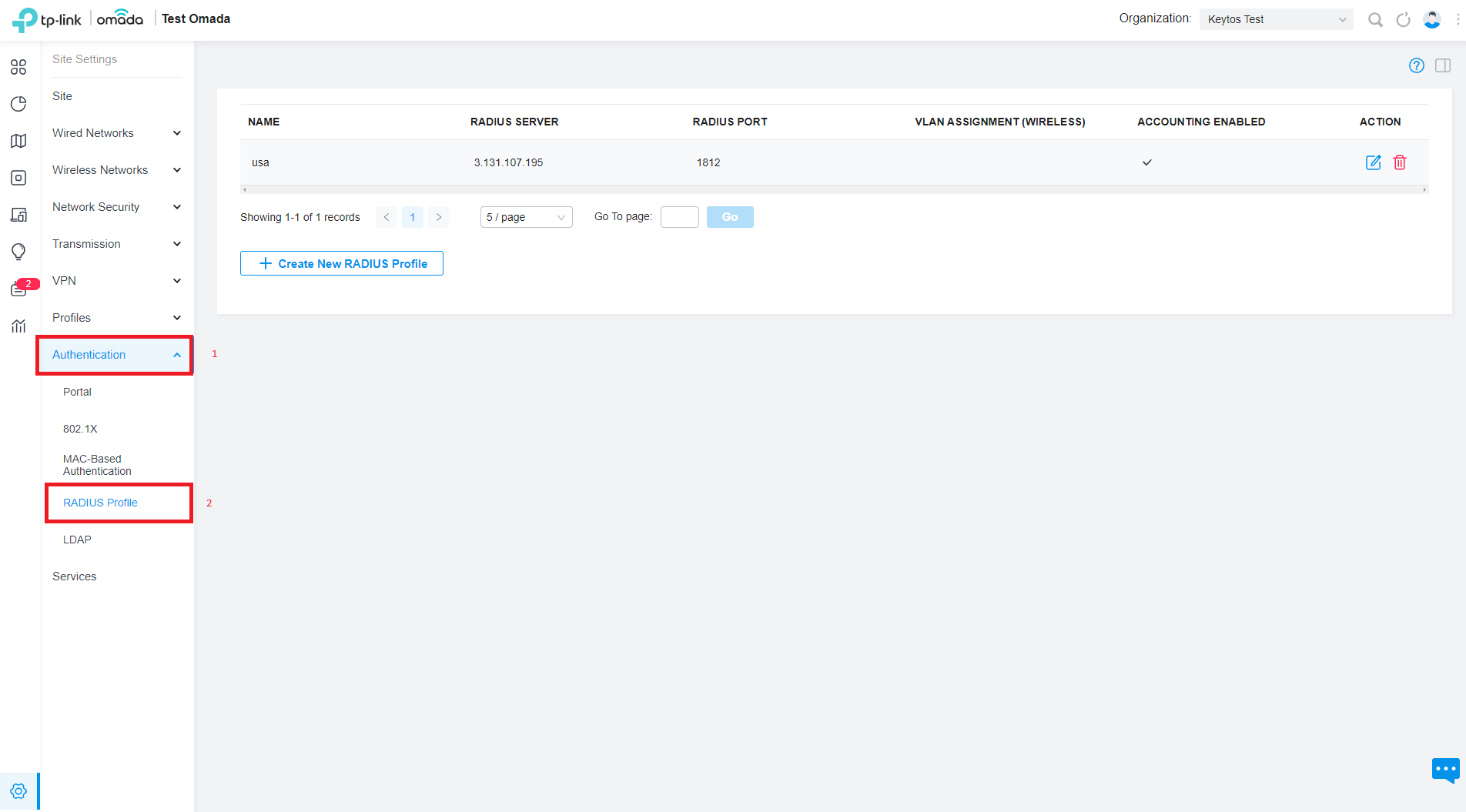
Click on Authentication and then RADIUS on the secondary menu on the left.
-
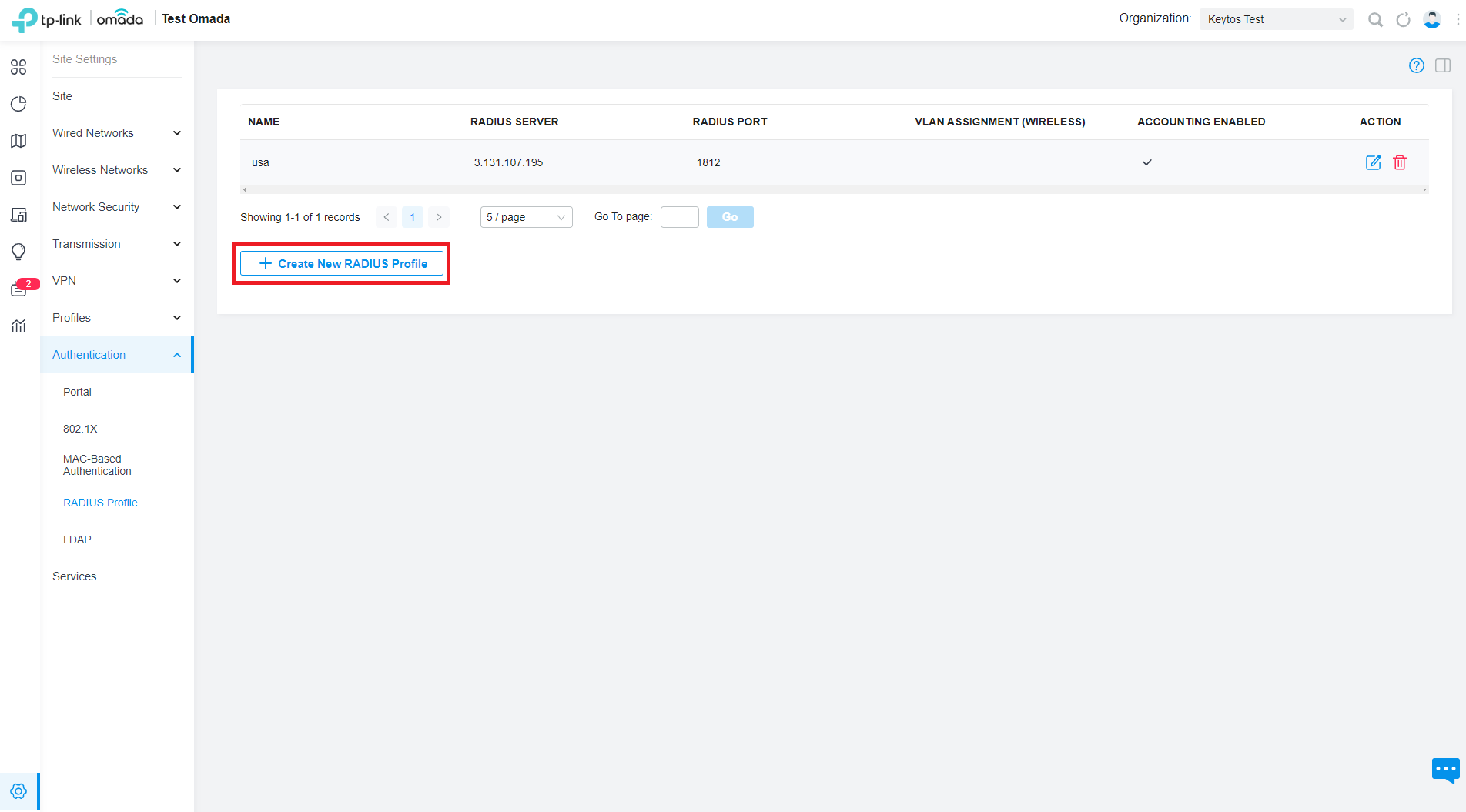
Click on Create New RADIUS Profile.
-
In the Name field, enter a name for your RADIUS profile (e.g., “EZRADIUS”).
-
If you are assigning the VLAN with your RADIUS authentication, check the VLAN Assignment box.

How to Get Your EZRADIUS Server IP Addresses for TP-Link Omada RADIUS
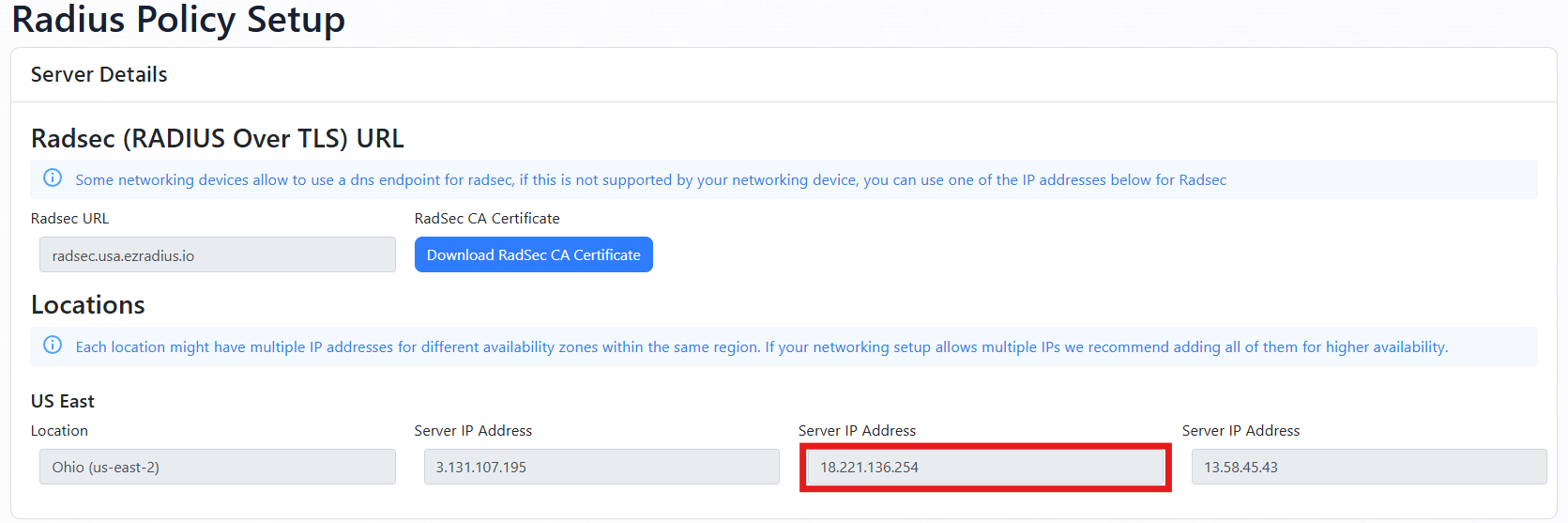
You can get your EZRADIUS Server IP addresses from the EZRADIUS dashboard. These IP addresses are needed to configure your network controller to communicate with the EZRADIUS service.
-
Navigate to the EZRADIUS Policies page from the left-hand menu.
-
At the top of the Policies page, you will find the EZRADIUS Server IP addresses. Copy one of the IP addresses from the region closest to your network controller (you’ll add the others later).
How to Add EZRADIUS RADIUS Servers in TP-Link Omada
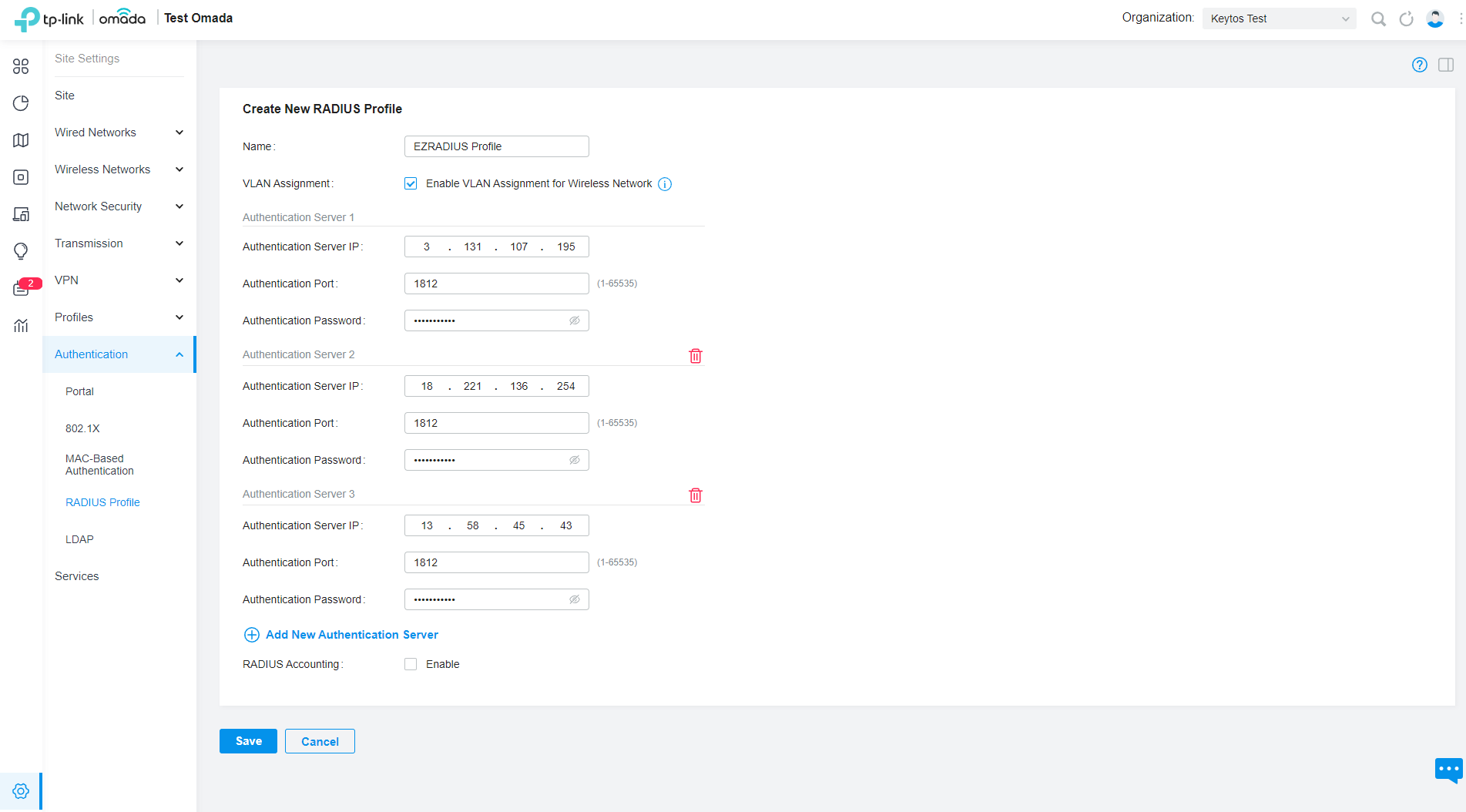
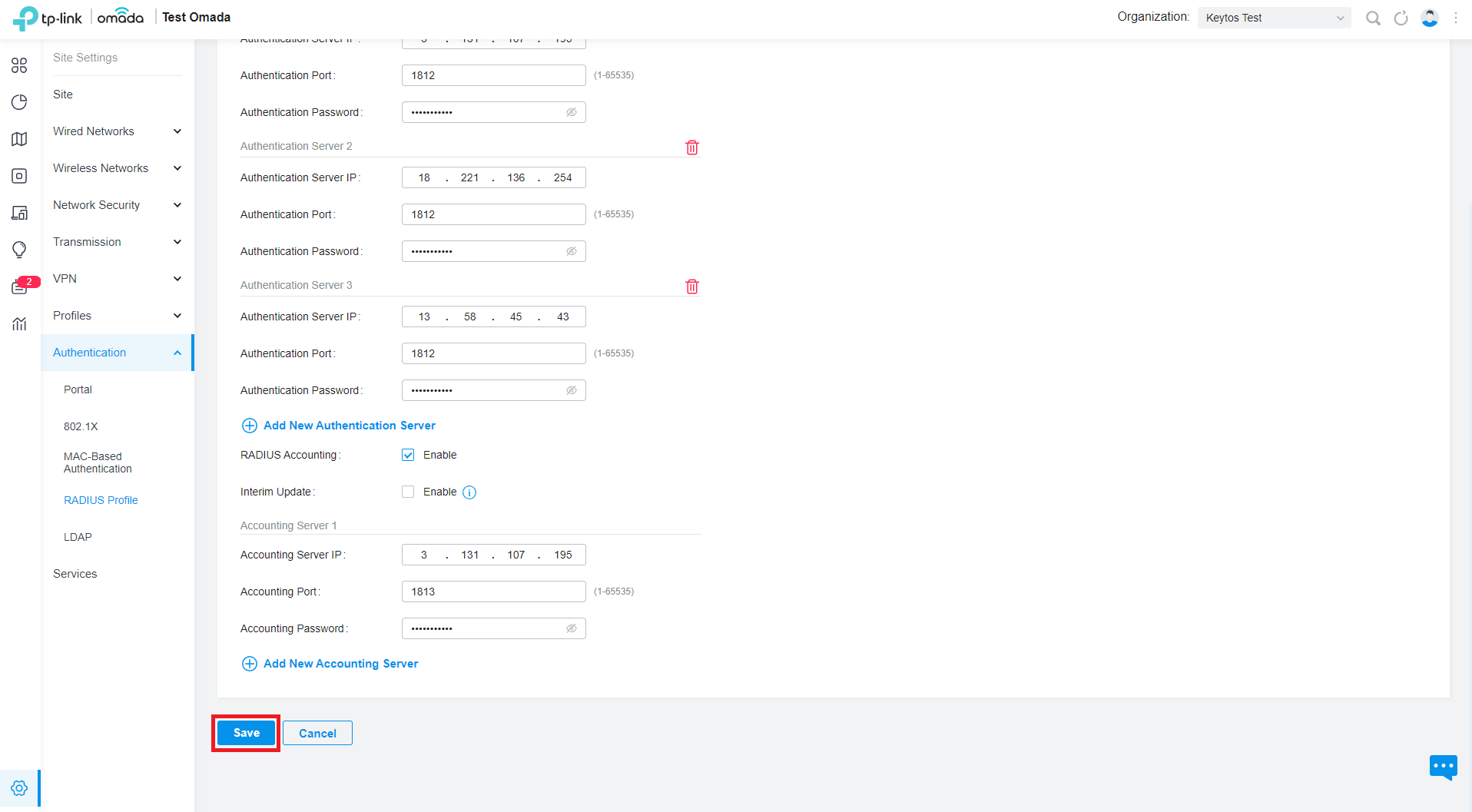
- Go back to the TP-Link Omada Network Controller and paste the RADIUS Server IP in the RADIUS Server field.
- In the Port field, enter 1812.
How to Get Your EZRADIUS Shared Secret for TP-Link Omada RADIUS
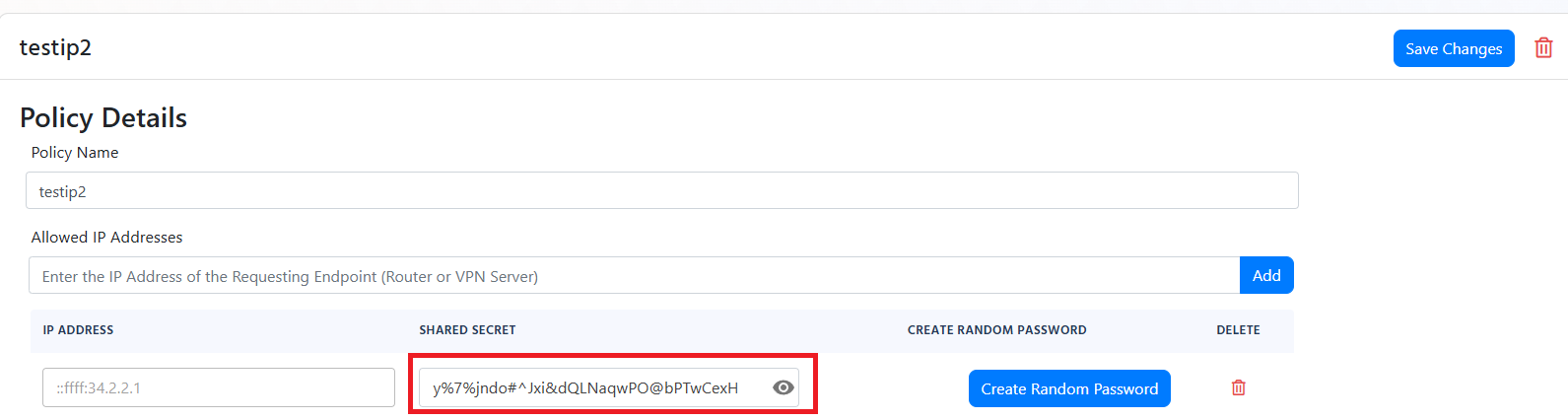
When you added your public IP address to your EZRADIUS policy, a shared secret was automatically generated for you. This shared secret is used to authenticate your network controller (RADIUS client) to the EZRADIUS server.
-
In the EZRADIUS portal, navigate to the EZRADIUS Policies page from the left-hand menu.
-
Scroll down to your RADIUS policy and find the Classic RADIUS Allowed IP Addresses section.
-
For your public IP address, click on the eye icon to reveal the shared secret.
How to Add the EZRADIUS Shared Secret to TP-Link Omada
-
Go back to the TP-Link Omada Network Controller.
-
In the Authentication field, paste the Shared Secret you copied from EZRADIUS.
-
Click on Add New Authentication Server and repeat the above steps for each EZRADIUS region.
How to Enable RADIUS Accounting in TP-Link Omada
RADIUS Accounting provides additional information about each session, such as data usage and connection time. You can optionally enable RADIUS Accounting in your TP-Link Omada network.
-
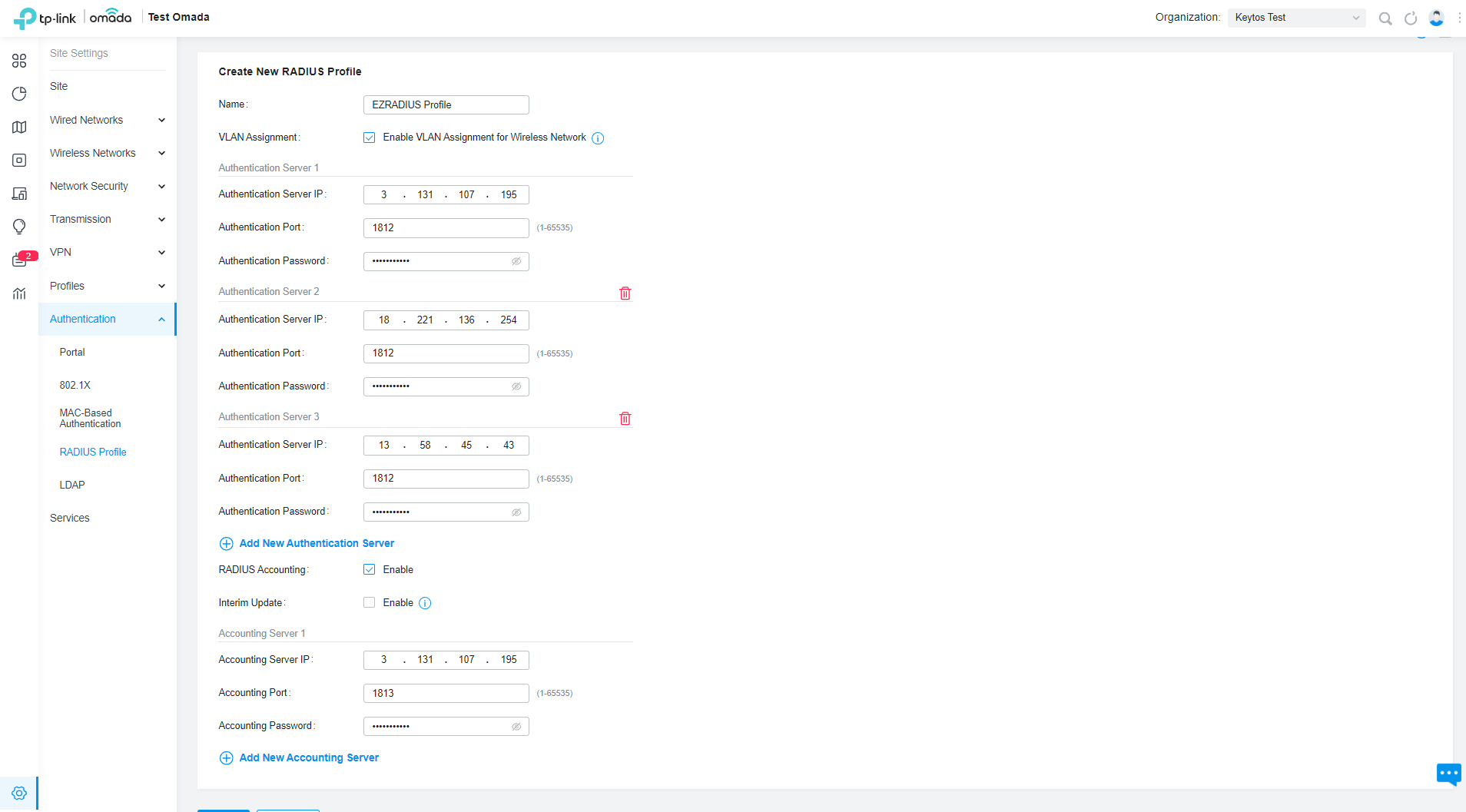
Click on the RADIUS Accounting checkbox and enable it.
-
Add the same set of RADIUS servers as above.
-
The IP Addresses and Shared Secret stays the same.
-
The Port is 1813 instead of 1812.
-
-
Click on Save In the bottom left.
How to Add a RADIUS Server to a TP-Link Omada Network
Now that you have added EZRADIUS as a RADIUS server within TP-Link Omada, you can add it to your network so that when users connect to that network, they will be authenticated via EZRADIUS.
How to Add RADIUS to a TP-Link Omada Wi-Fi Network
-
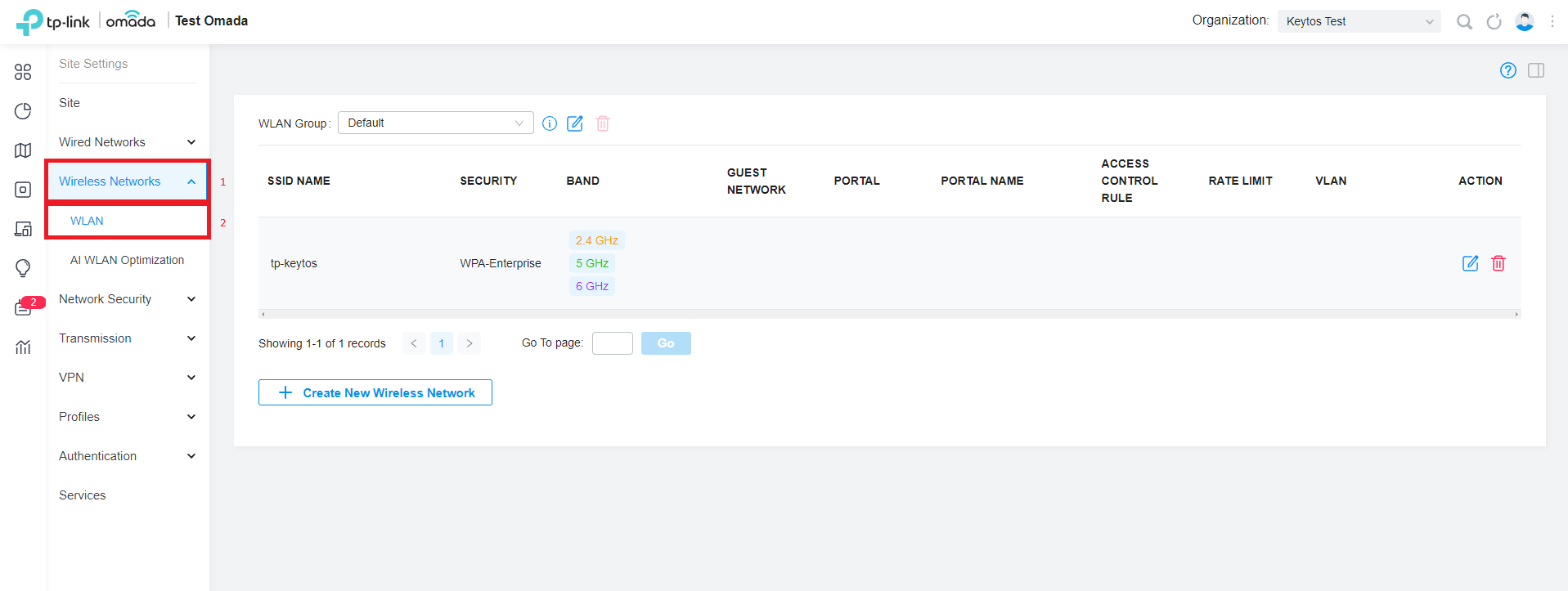
Now that we have added the RADIUS profile, we need to go to Wireless Networks and the WLAN tab on the left.
-
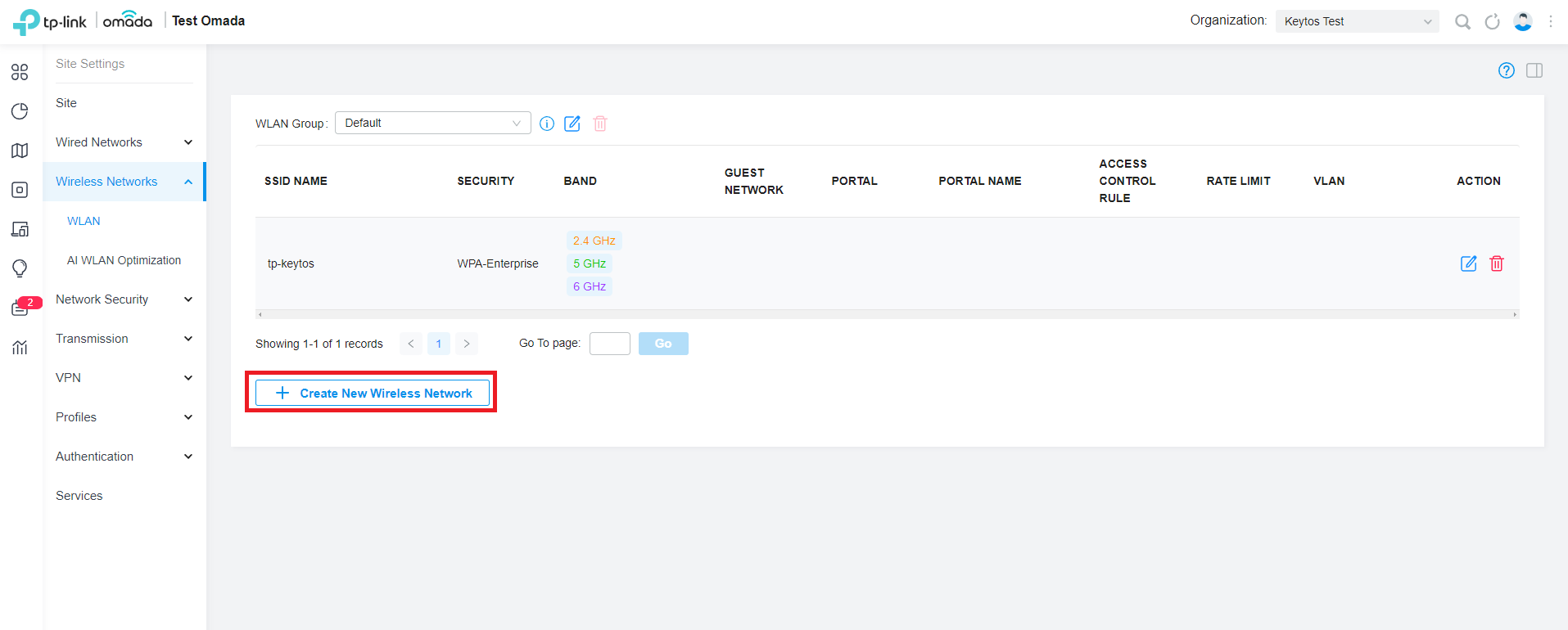
In this tutorial we are going to assume that you have not created your network, but you can go in and modify an existing. But in this case we will click Create New Wireless Network.
-
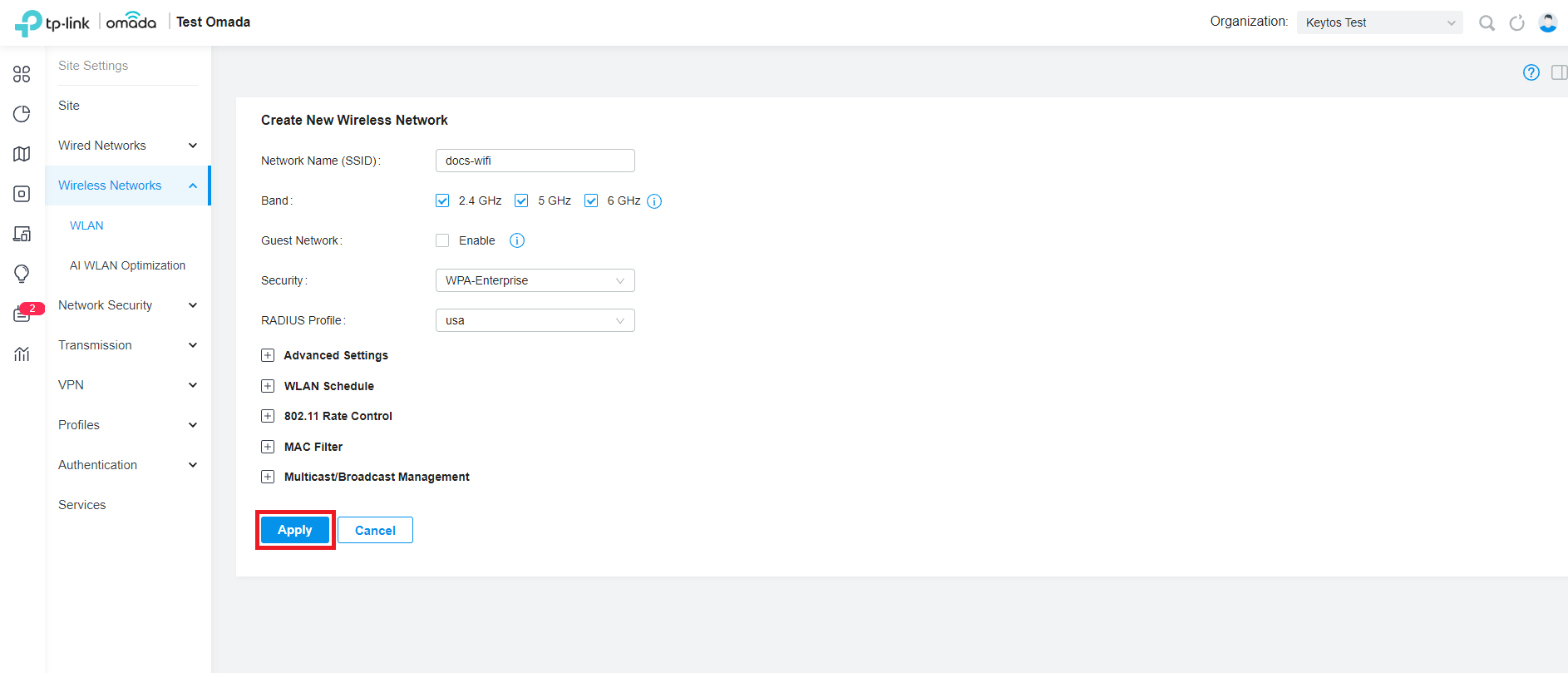
Enter the SSID for your network.
-
Select the bands you want to use for this network.
-
Select WPA Enterprise for the Security.
-
Select the RADIUS profile you created in the RADIUS Profile dropdown.
-
Click on Apply In the bottom left.
-
Now that you have added the RADIUS profile to your network, you can connect your devices to your network using Entra ID authentication or local RADIUS accounts.
How to Configure Your Devices to Use Cloud RADIUS with TP-Link Omada
Now that you have set up Cloud RADIUS for your TP-Link Omada network, there are a few more steps to ensure your users’ devices can connect seamlessly. By default, devices won’t be able to connect using Cloud RADIUS until you configure the appropriate network profile and RADIUS CA certificate. Make sure to follow the instructions below to push the necessary configurations to your users’ devices.
How to Push the RADIUS CA Certificate and Wi-Fi Profile Using Microsoft Intune
Follow these Intune step-by-step guides to push the required CA certificate and Wi-Fi profile to your users’ devices so they can seamlessly connect to your TP-Link Omada network using Cloud RADIUS.
How to Push the RADIUS CA Certificate and Wi-Fi Profile Using Jamf Pro
Follow these Jamf Pro step-by-step guides to push the required CA certificate and Wi-Fi profile to your users’ devices so they can seamlessly connect to your TP-Link Omada network using Cloud RADIUS.
How to Manually Configure the RADIUS CA Certificate and Wi-Fi Profile on Your Devices
Follow these manual configuration step-by-step guides to manually configure the required CA certificate and Wi-Fi profile on your users’ devices so they can connect to your TP-Link Omada network using Cloud RADIUS.
How to Troubleshoot Cloud RADIUS Issues in TP-Link Omada
Not able to connect to your TP-Link Omada network after setting up EZRADIUS? Refer to this troubleshooting guide to help diagnose and resolve common issues when using Cloud RADIUS with TP-Link Omada.
Troubleshooting GuideWe also have a detailed video guide to help you troubleshoot common Cloud RADIUS issues with TP-Link Omada below: