How-To: Export your EZCMS Logs to CrowdStrike Falcon
Learn how to export your EZCMS Audit Logs to CrowdStrike Falcon for advanced analysis and monitoring.
Prerequisites
How to Export your Passwordless Onboarding Audit Logs to CrowdStrike Falcon
How To Enable Log Export in EZCMS Portal
-
Go to your EZCMS portal.
-
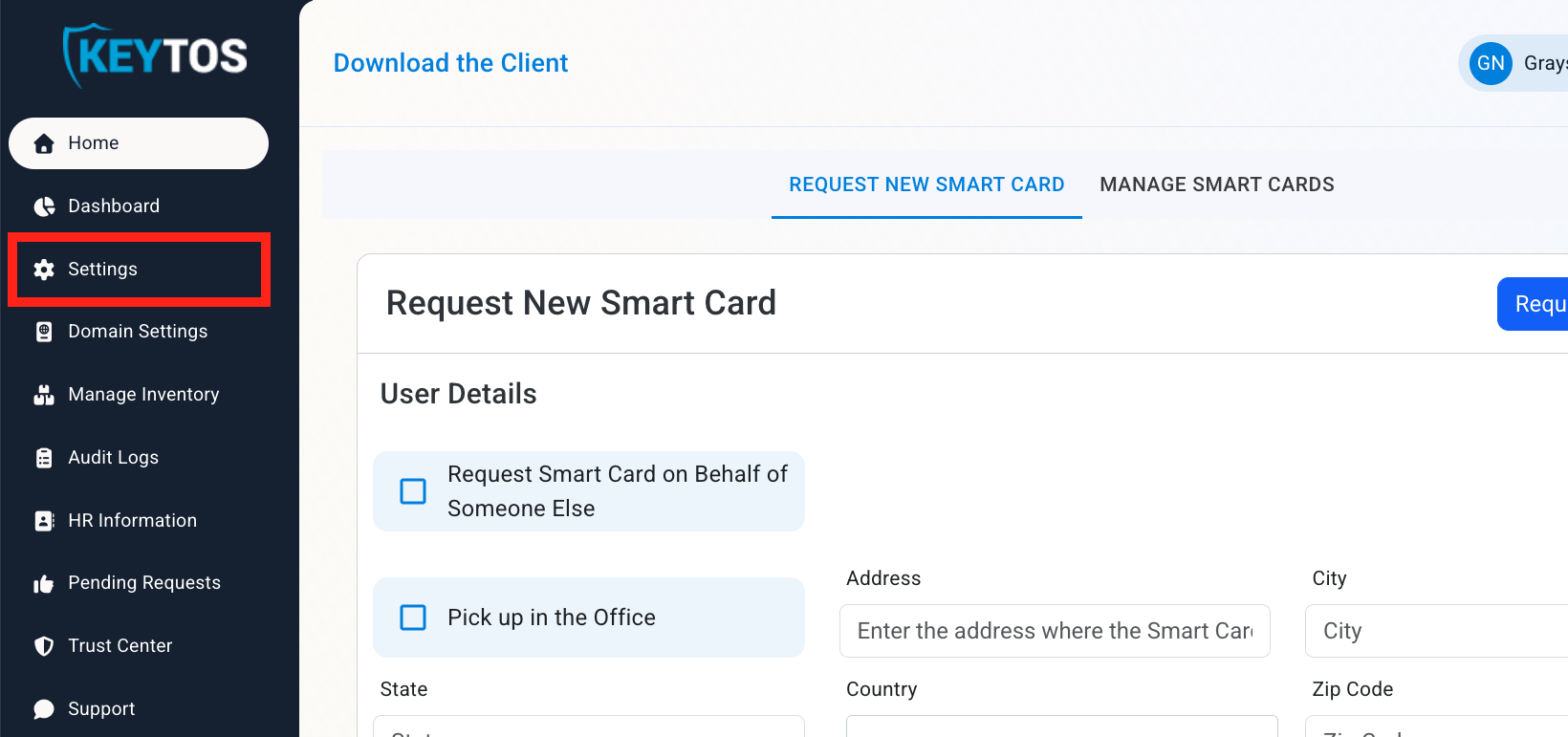
Click on Settings.
-
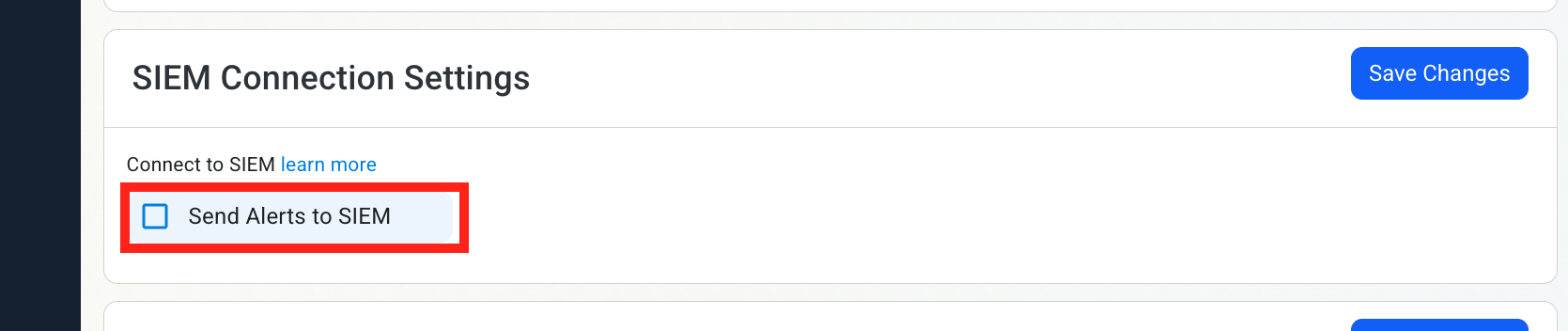
Scroll down to SIEM Connection Settings and enable the Send Alerts to SIEM option.
How to Configure the CrowdStrike Falcon LogScale Exporter
-
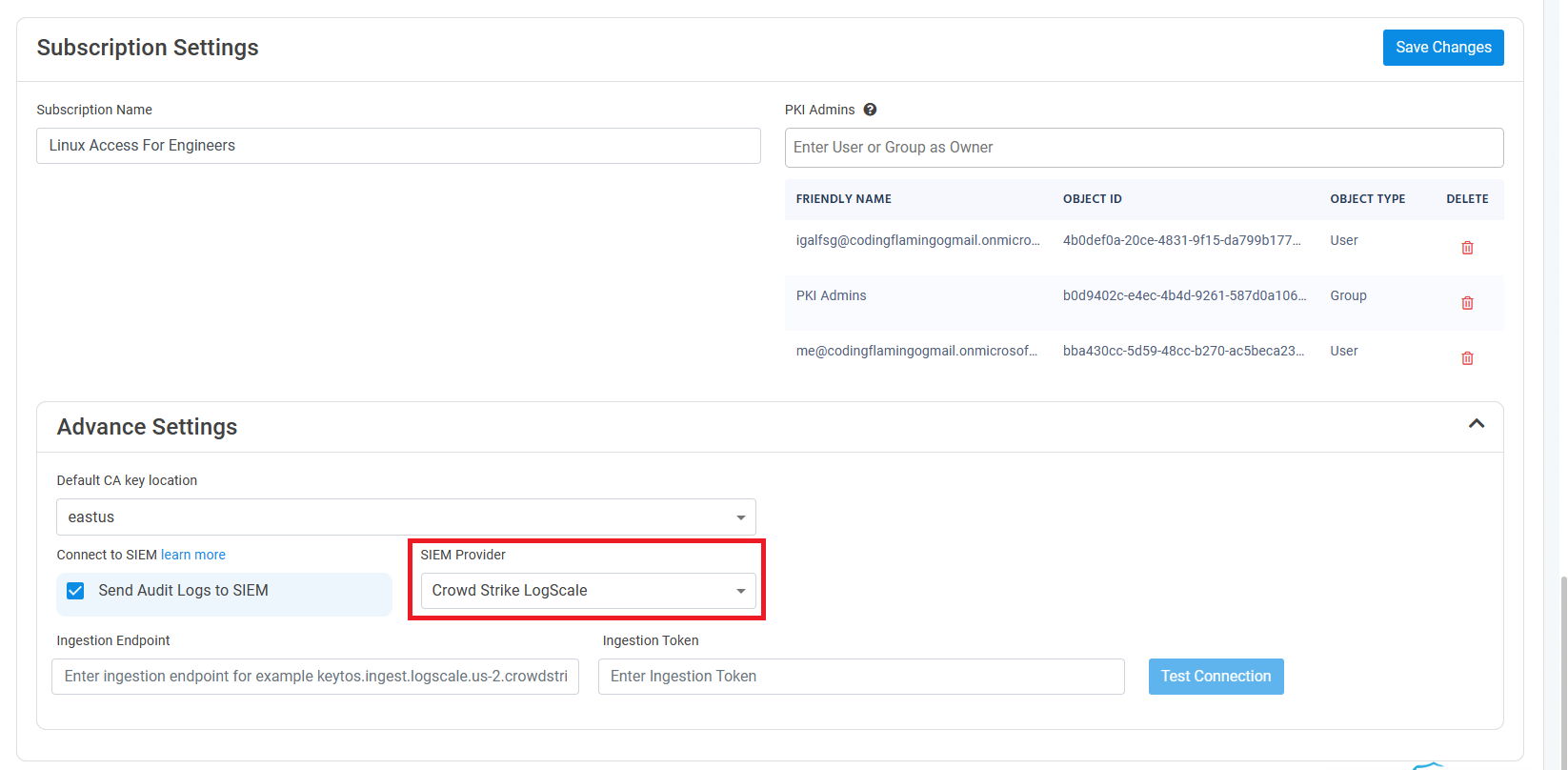
Select CrowdStrike Falcon LogScale as the SIEM Provider.
-
In another tab, go to your CrowdStrike Falcon LogScale instance.
-
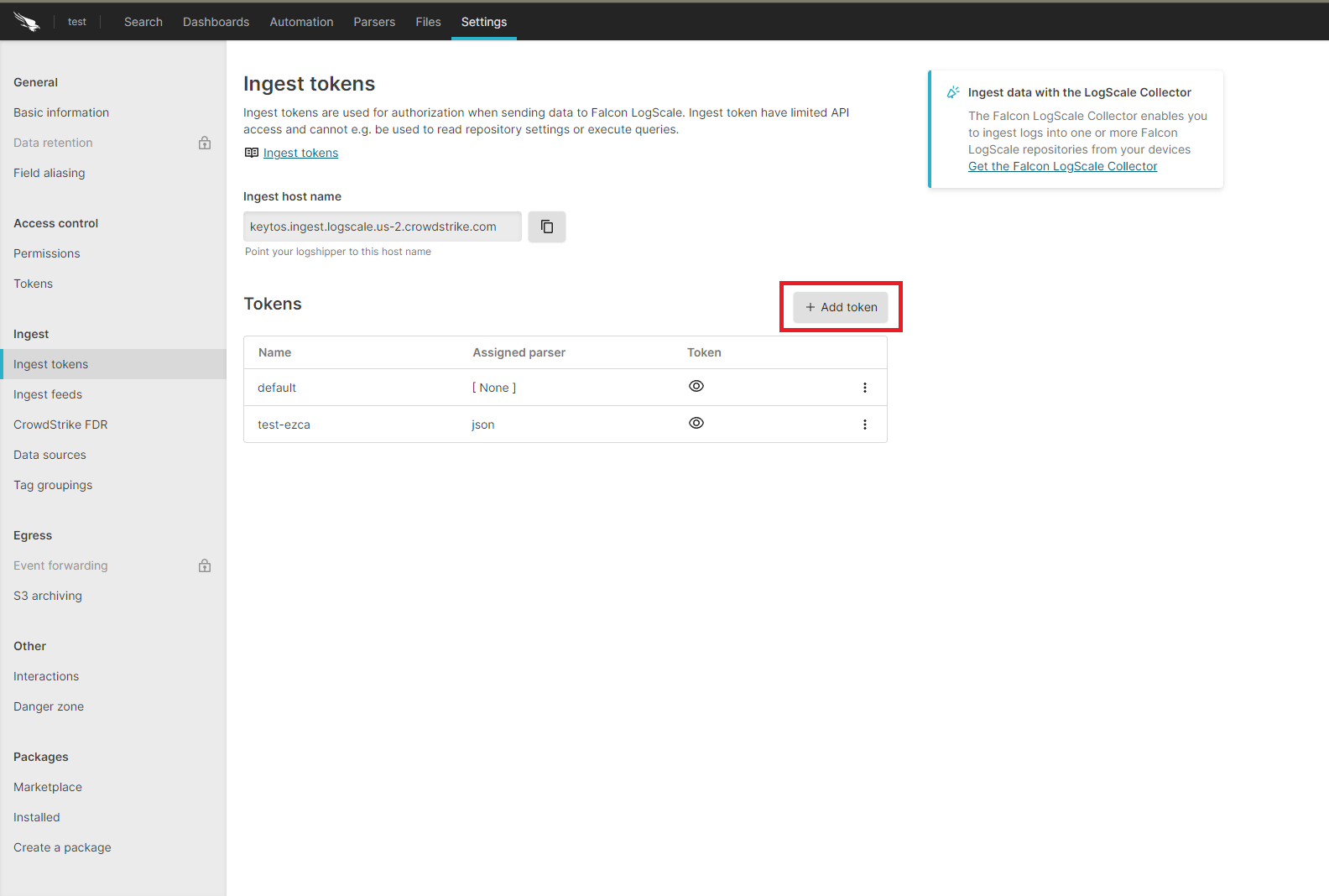
Click on the Settings tab.
-
Select the Ingest Tokens menu.
-
Click on the Add Token button.
-
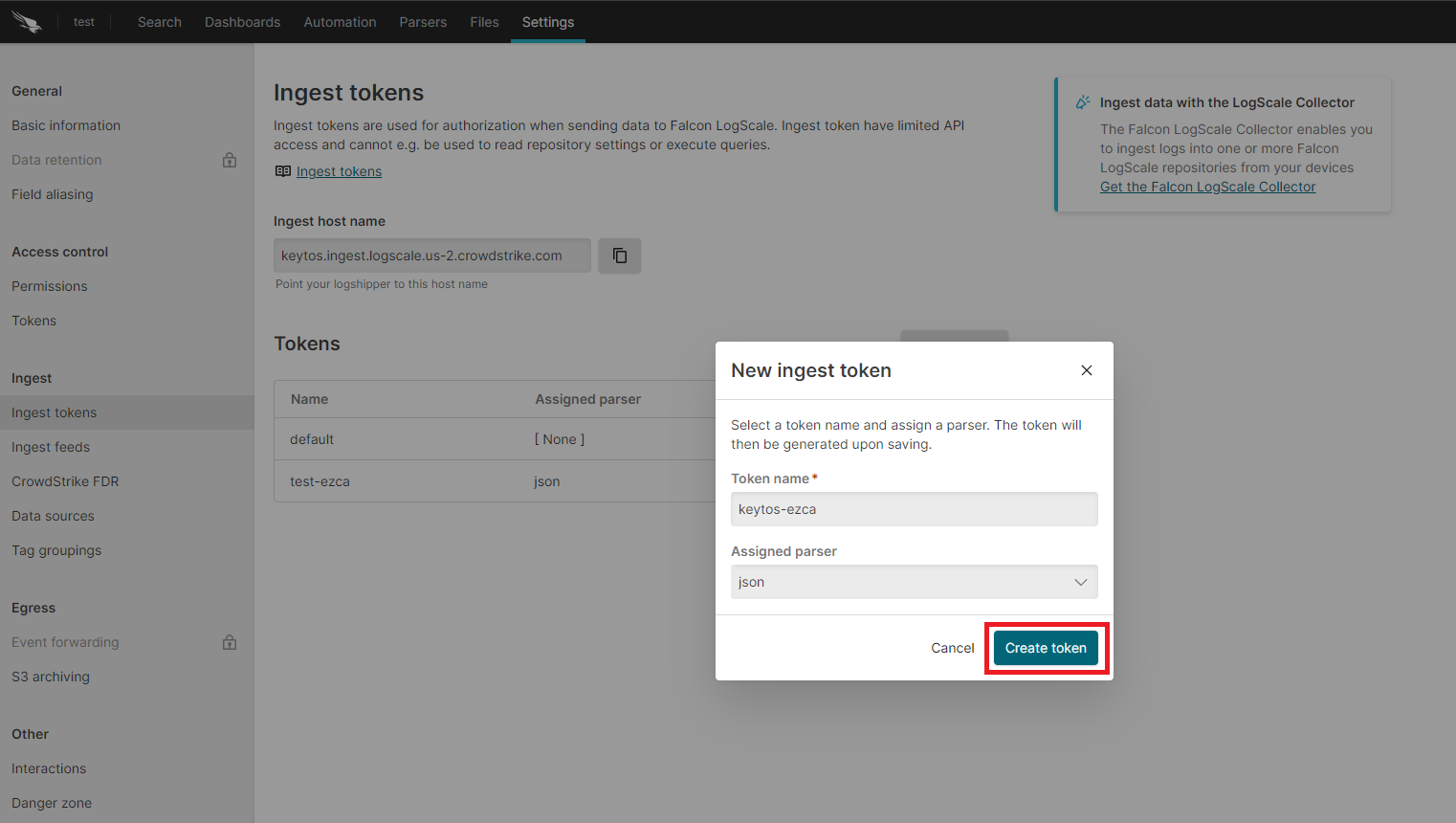
Enter the token name
-
Assign the json parser and click Create
-
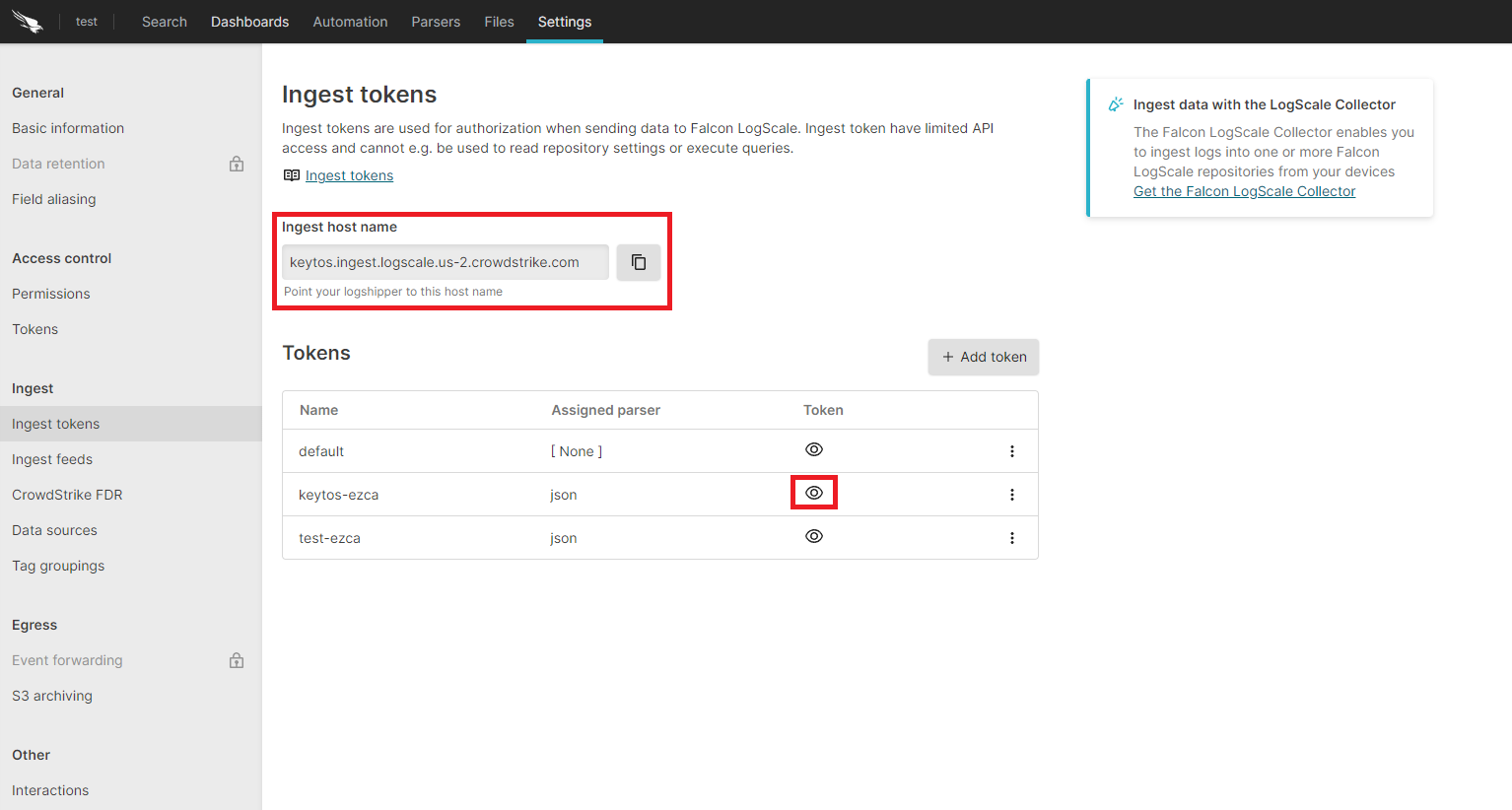
Copy the token and the ingest host name.
How to Configure the CrowdStrike Falcon LogScale SIEM in EZCMS Portal
-
Go back to the EZCMS tab.
-
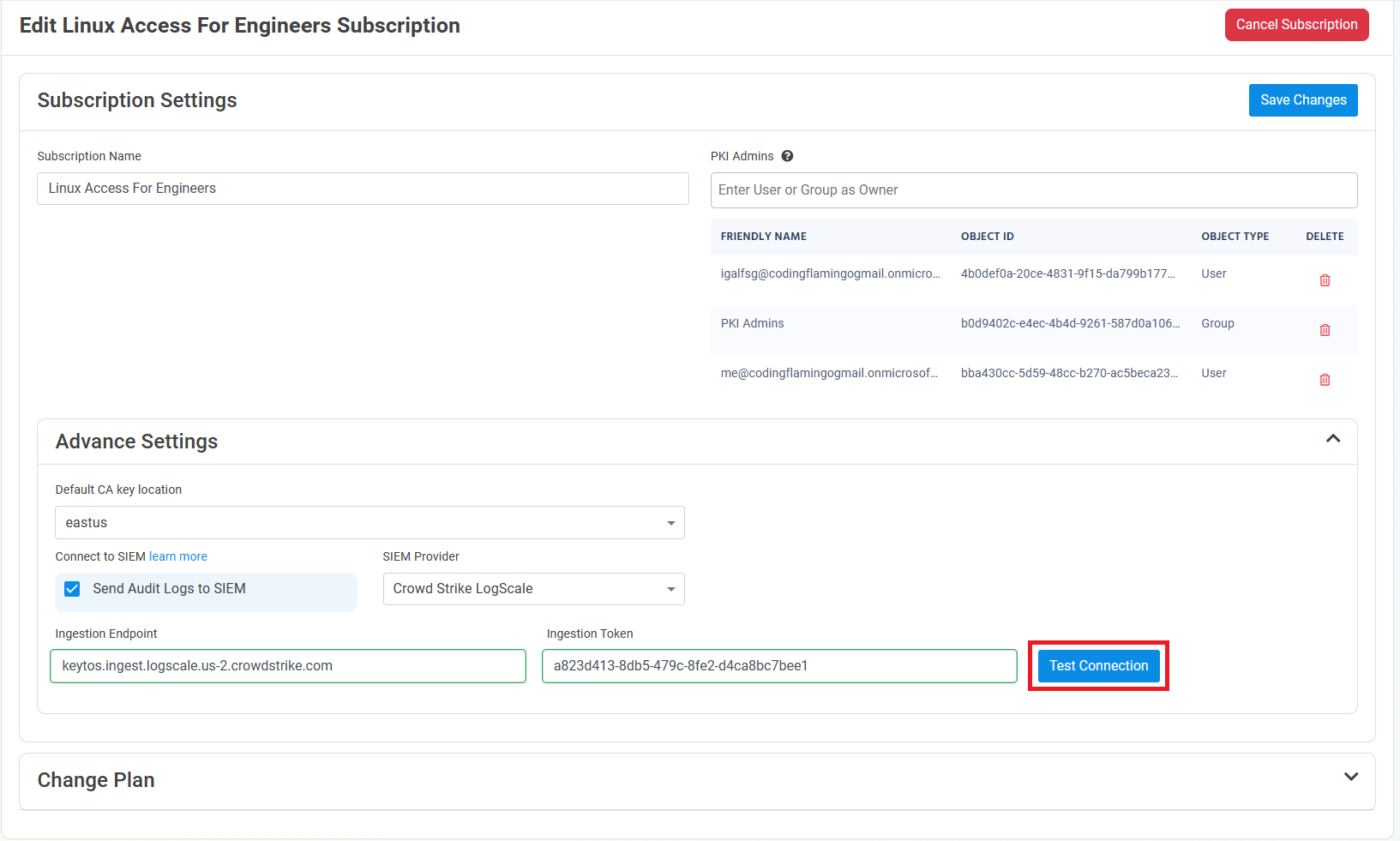
Paste the ingest host name in the Ingestion Endpoint field.
-
Paste the token in the Ingestion Token field.
-
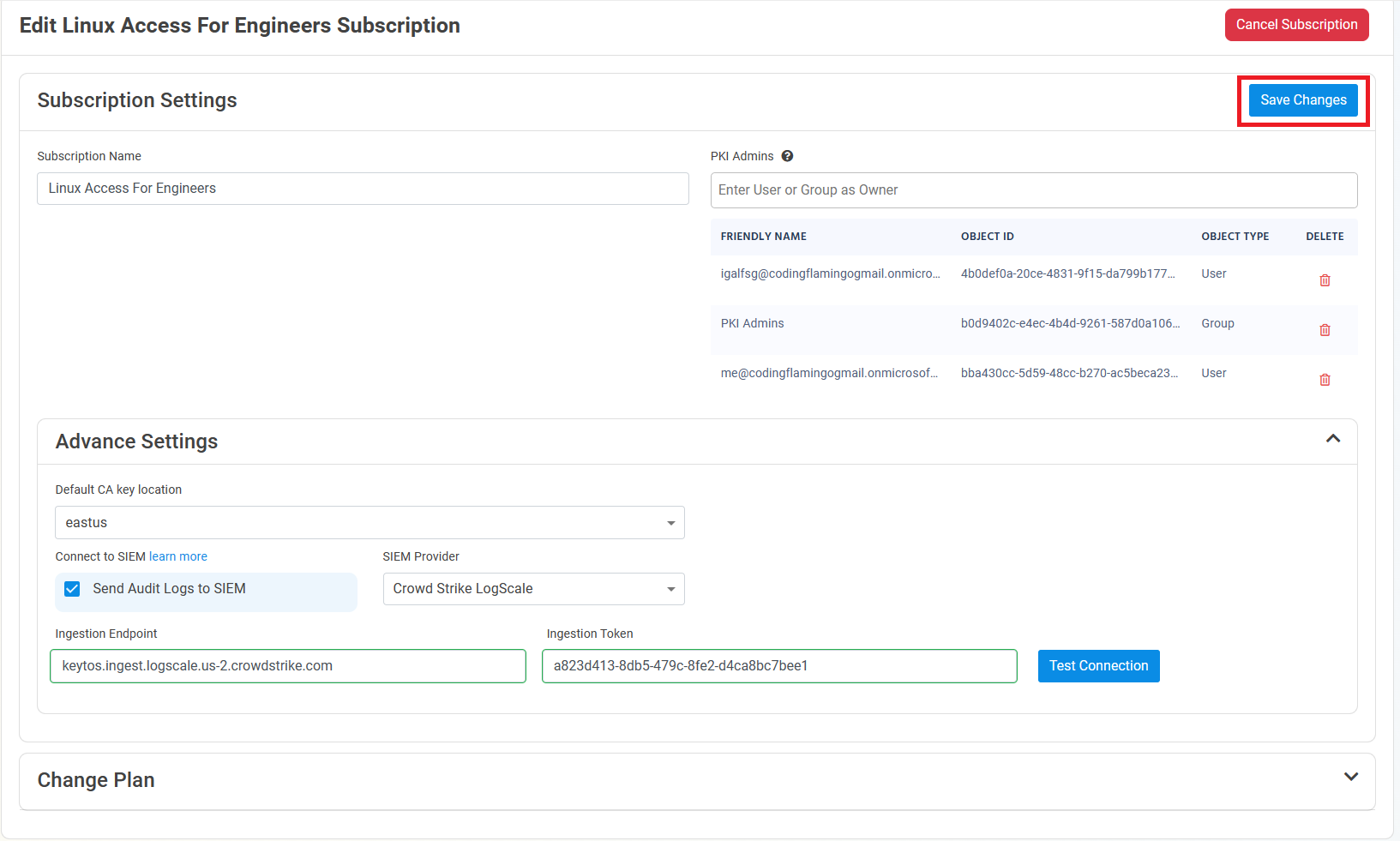
Click the Test Connection button, this will create a test log in your SIEM to make sure EZCMS can write to the SIEM.
-
If the connection test is successful, click Save changes