How-To: Troubleshoot EZCMS Administration Issues
During deployment of EZCMS there might be some some issues that you might encounter. In this page we will show you how to troubleshoot some of the most common issues.
The following are some common issues that users may encounter when using smart cards for passwordless authentication in Windows, along with troubleshooting steps to resolve them.
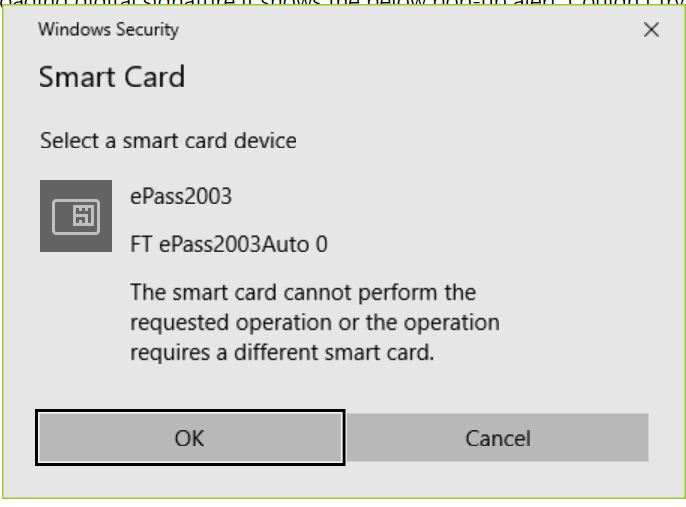
If Windows shows an alert saying The smart card cannot perform the requested operation, this indicates that the drivers needed for Windows to interact with this hardware token are missing or not properly installed. If you are using a YubiKey, go to Yubico’s site and download the minidriver for your operating system.
If you are getting an error that says No valid certificates were found on this smart card, it means that the certificate on your hardware token is not valid for authentication. This can be caused by a few different issues:
If you are using ECC keys on Windows, the Windows Smart Card Credential Provider does not enumerate ECC-based certificates by default. You will need to configure Windows to enumerate it either by manually creating the required Registry entries or making the changes via Group Policy Object (GPO). More info here.
HKLM\SOFTWARE\Policies\Microsoft\Windows\SmartCardCredentialProviderSmart Card authentication for Entra ID, also known as Entra CBA, can be used with EZCMS to allow users to authenticate to Entra ID using their smart card credentials. However, there are some common issues that users may encounter when using Entra CBA, and the following troubleshooting steps can help resolve them.\
If you are trying to authenticate to Entra ID using certificate based authentication (Entra CBA) and you are getting This site can’t be reached, this is usually caused when the certificate authentication did not complete due to not touching the hardware key after entering your PIN.
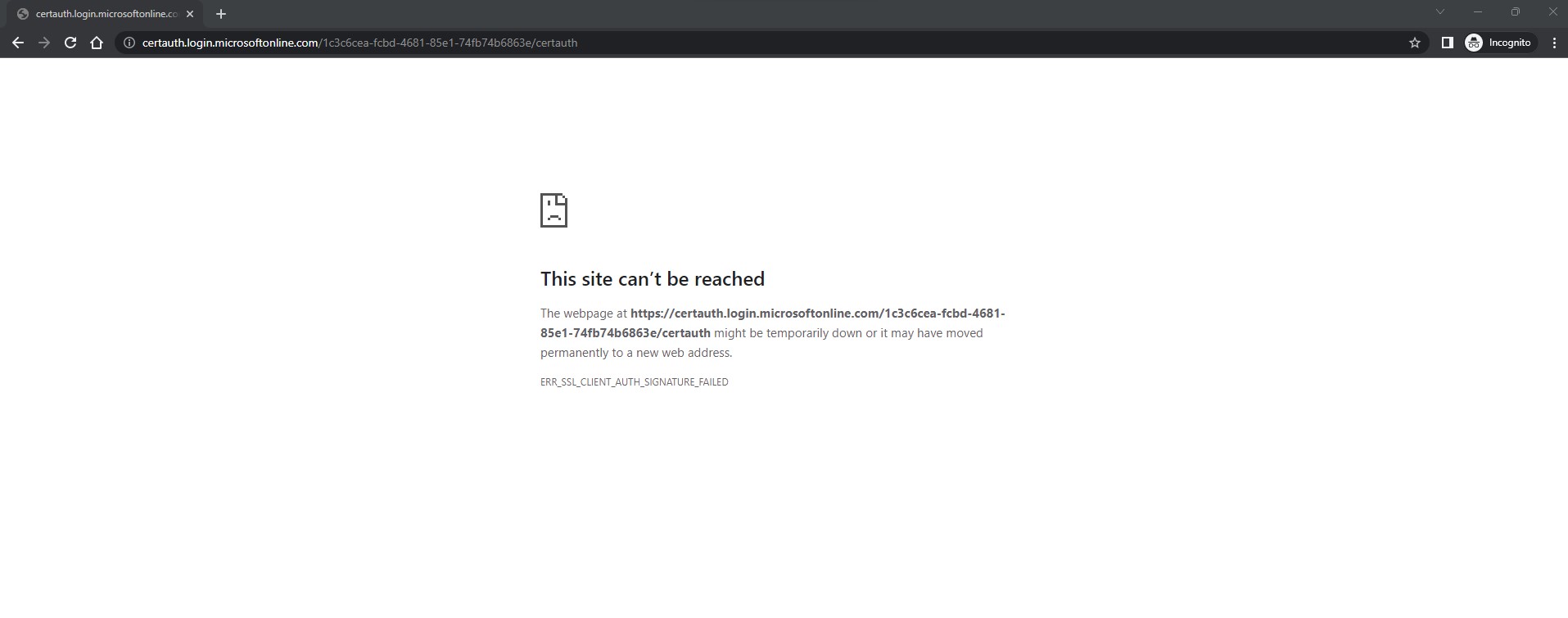
Unlike FIDO2 passkey authentication, when using Smart Cards for Entra CBA you may not see a prompt to touch your hardware key, but you will need to touch it after entering your PIN for the authentication to complete successfully. You may see it flashing slowly after entering the PIN, this is the time to touch it. If you are not touching the hardware key when it is trying to authenticate, after a few seconds it will stop trying and show the “This site can’t be reached” error.
To try logging in again, we recommend closing all browser windows, reopening them, and trying to authenticate again, this time making sure to touch the hardware key after entering your PIN.
Looking to troubleshoot configuration, administration, or other issues? Check out our other troubleshooting guides here:
During deployment of EZCMS there might be some some issues that you might encounter. In this page we will show you how to troubleshoot some of the most common issues.