How-To: Issue SCEP Certificates to macOS Devices with Intune
Introduction - How to Issue SCEP Certificates to macOS Devices with Intune
This guide shows how to issue X509 certificates to macOS devices with Microsoft Intune and SCEP. You will create:
- A Trusted Certificate profile to establish trust with your CA chain.
- A SCEP Certificate profile to request and install certificates for users or devices.
By the end, your macOS devices will be able to enroll and receive certificates from your EZCA SCEP CA.
Prerequisites for Issuing SCEP Certificates to macOS Devices with Intune
Before you begin, confirm the following prerequisites:
- You have created an Intune SCEP CA.
- You have registered the Keytos Intune application in your Entra ID tenant.
- You are an Intune administrator with permissions to create configuration profiles in Intune.
How to Issue SCEP Certificates to macOS Devices with Intune - Step by Step Guide
In this section, you will first create a Trusted Certificate profile to deploy CA certificates, then create a SCEP Certificate profile for certificate enrollment.
How to Download Your CA Certificates from EZCA
To issue certificates to your macOS devices using Intune, you first need to download the CA certificate from your EZCA portal and upload it to Intune as a trusted certificate. Follow these steps to download your CA certificate from EZCA:
- Navigate to your EZCA portal instance, such as portal.ezca.io.
- From the left-hand menu, select Certificate Authorities.
- Find the CA you created for Intune and click on the View Details button.
- For your CA’s region(s), click on the Download Certificate button to download the CA certificate.
- Repeat the previous step for each CA in your PKI chain. If you have a Root CA and an Intermediate CA, make sure to download both certificates.
How to Create an Intune Trusted Certificate Profile for macOS Devices
Before issuing certificates, devices must trust your issuing chain.
Follow these steps for macOS devices:
-
Select: Devices > macOS > Configuration profiles.
-
Click Create profile.
-
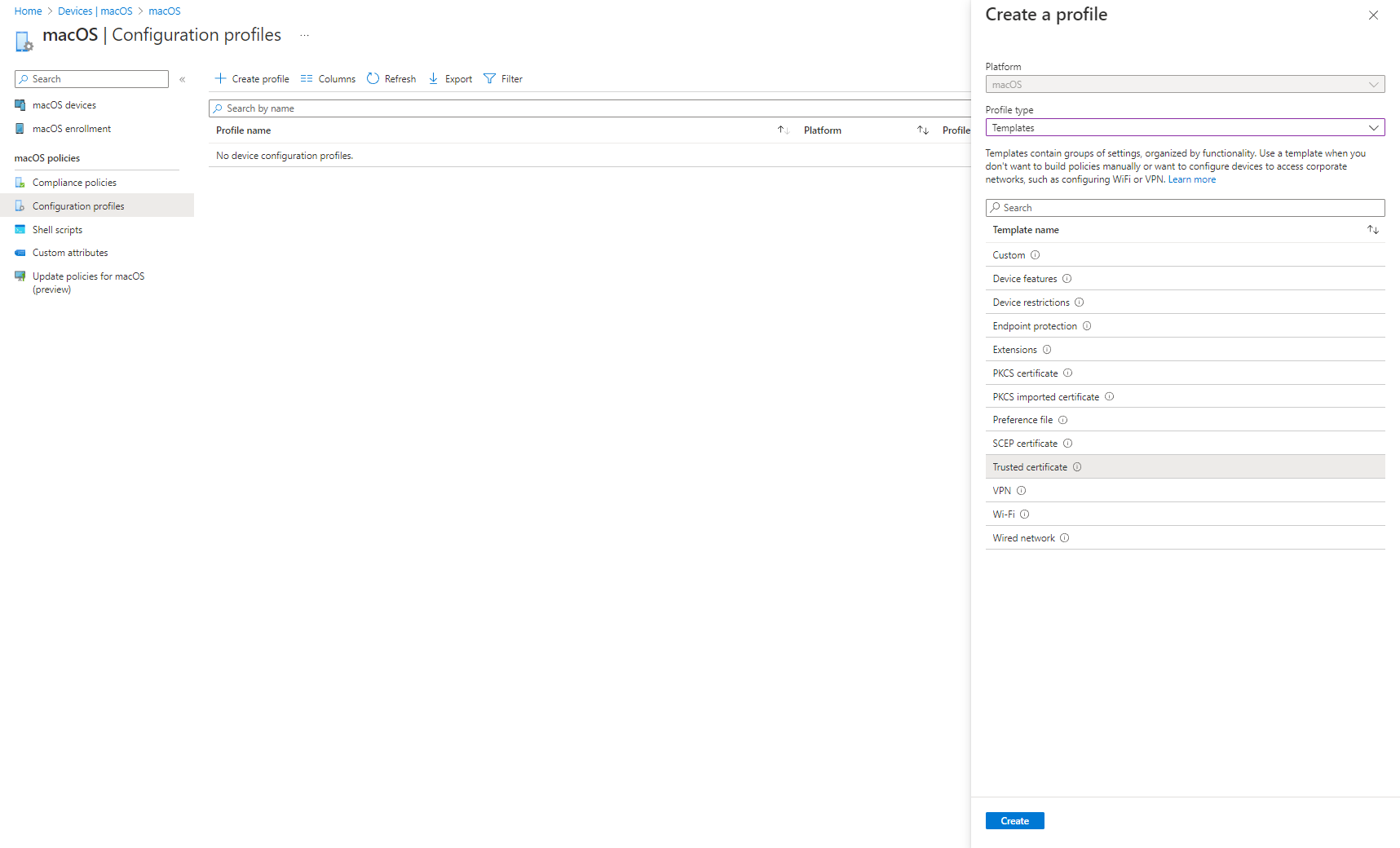
Select Templates as the profile type.
-
Select the Trusted Certificate template.
-
Click Create.
-
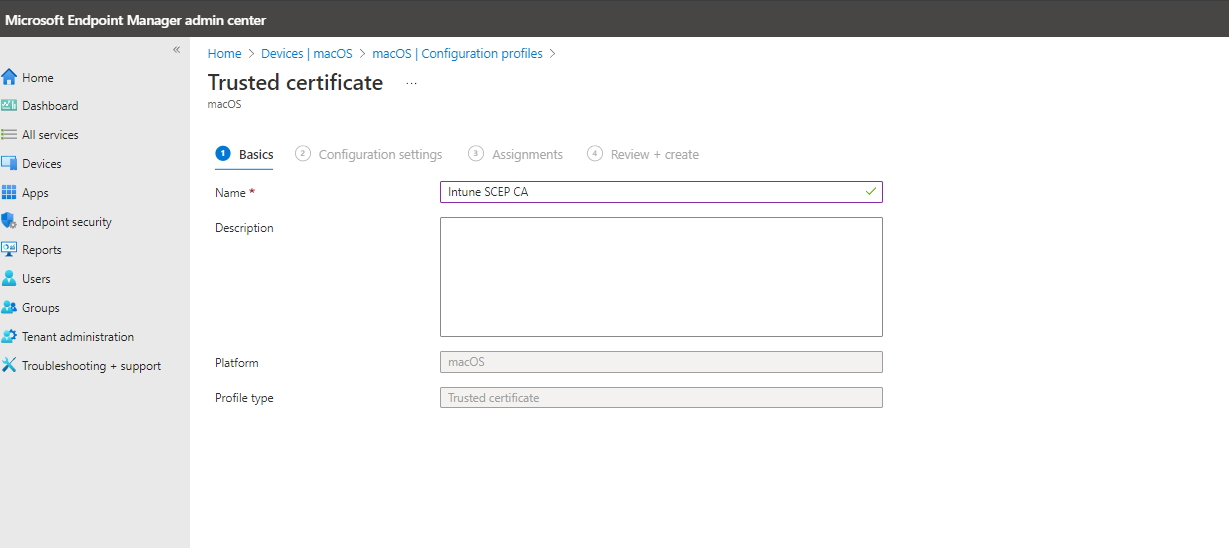
Enter the Name and Description for this Intune certificate profile.
-
Upload the CA certificate you downloaded from EZCA.
-
Select your Assignments and complete the profile creation.
-
Repeat these steps for each CA certificate in your chain (Root CA and Issuing CA as applicable).
-
Done! Your managed macOS devices will now trust certificates issued by your EZCA CA chain.
How to Create an Intune SCEP Profile for macOS Certificates
You can issue either device certificates or user certificates, depending on your scenario:
- Use device certificates for machine identity and device-based authentication.
- Use user certificates for user identity use cases.
- If needed, deploy both profile types.
Use the tabs below for the profile type you want to configure.
How to Create an Intune SCEP Profile for Device Certificates
The following steps will guide you on how to create an Intune SCEP profile to issue device certificates to your macOS devices.
-
Go back to the macOS configuration profiles page and click Create profile.
-
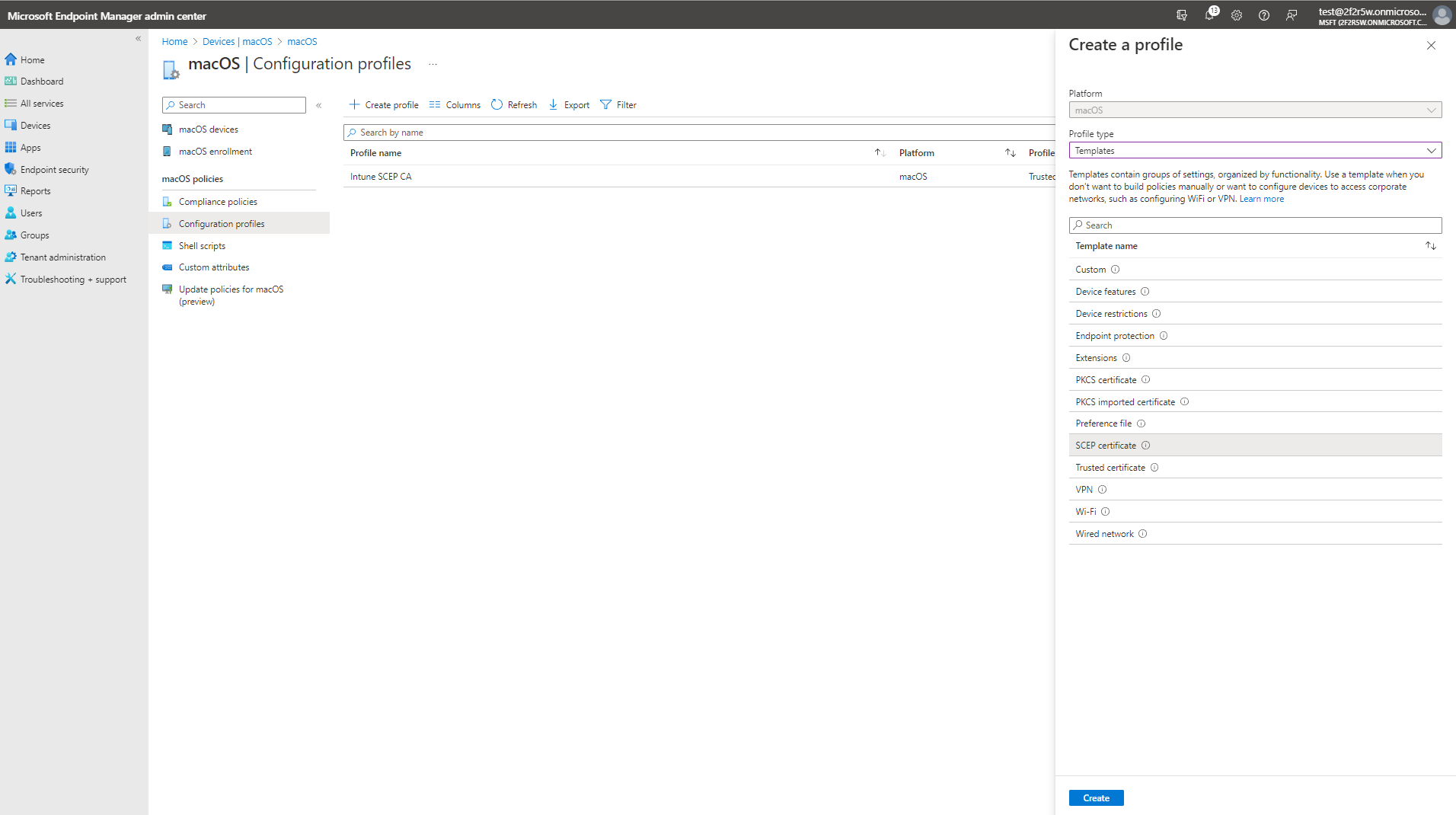
Select Templates as the profile type.
-
Select the SCEP Certificate template.
-
Click Create.
-
Enter the Name for this Intune SCEP profile.
-
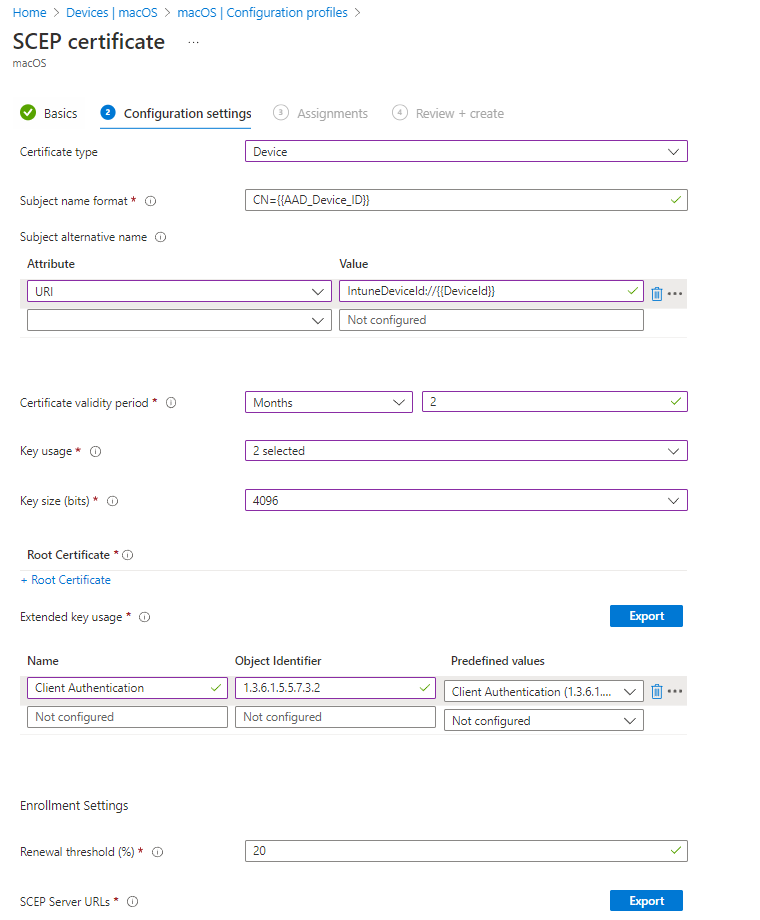
For Certificate type, select Device.
-
For Subject name format, enter
CN={{AAD_Device_ID}}orCN={{DeviceId}}depending on your preference. Intune replaces these variables with the actual device ID at enrollment time.{{AAD_Device_ID}}uses the Azure AD device ID (recommended in most cases).{{DeviceId}}uses the Intune device ID.
-
In Subject Alternate Name, select URI attribute and enter
IntuneDeviceId://{{DeviceId}}. -
For Certificate Validity Period, enter the same period you entered in EZCA.
Custom Validity PeriodsEZCA always uses the certificate validity period configured in the CA. If you set a different value in Intune, it will be ignored because this value is not supported in Apple devices.
As a workaround, you can add a DNS SubjectAltName value like
keytosEZCAValidity=365where the number is the number of days for that specific certificate. This number must be lower than the validity period configured in EZCA.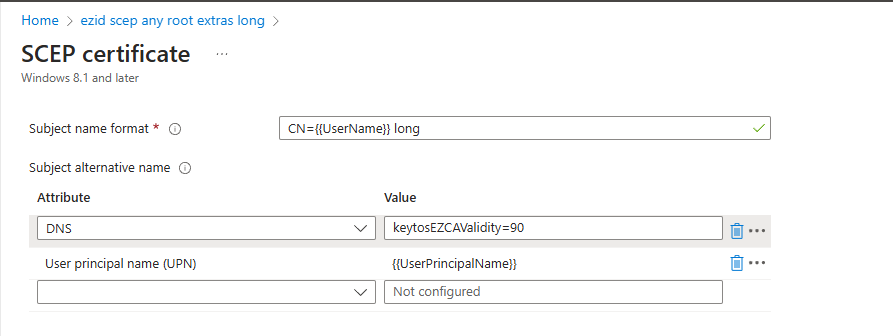
-
For Key Usage, select both Digital Signature and Key Encipherment.
-
For Key Size, select 4096.
-
For Hash Algorithm, select SHA-2.
-
In the Root Certificate field, click + Root Certificate and select the CA profile created in the Create Trusted Certificate Profile section.
Make sure to select your Issuing CAWhile Intune shows a Root Certificate selector, if you created a Subordinate/Issuing CA you must select the Issuing CA profile, not the Root CA profile.
-
For Extended Key Usage, select Client Authentication (1.3.6.1.5.5.7.3.2).
-
Feel free to leave the Renewal Percentage at 20% or increase it to a value you feel comfortable with. This is the lifetime remaining before Intune attempts to renew the certificate. For example, if you set it to 20% and your certificate validity period is 1 year, Intune will attempt to renew the certificate when it has 2.4 months remaining before expiration.
-
Review your settings. Your setup should look similar to this:
-
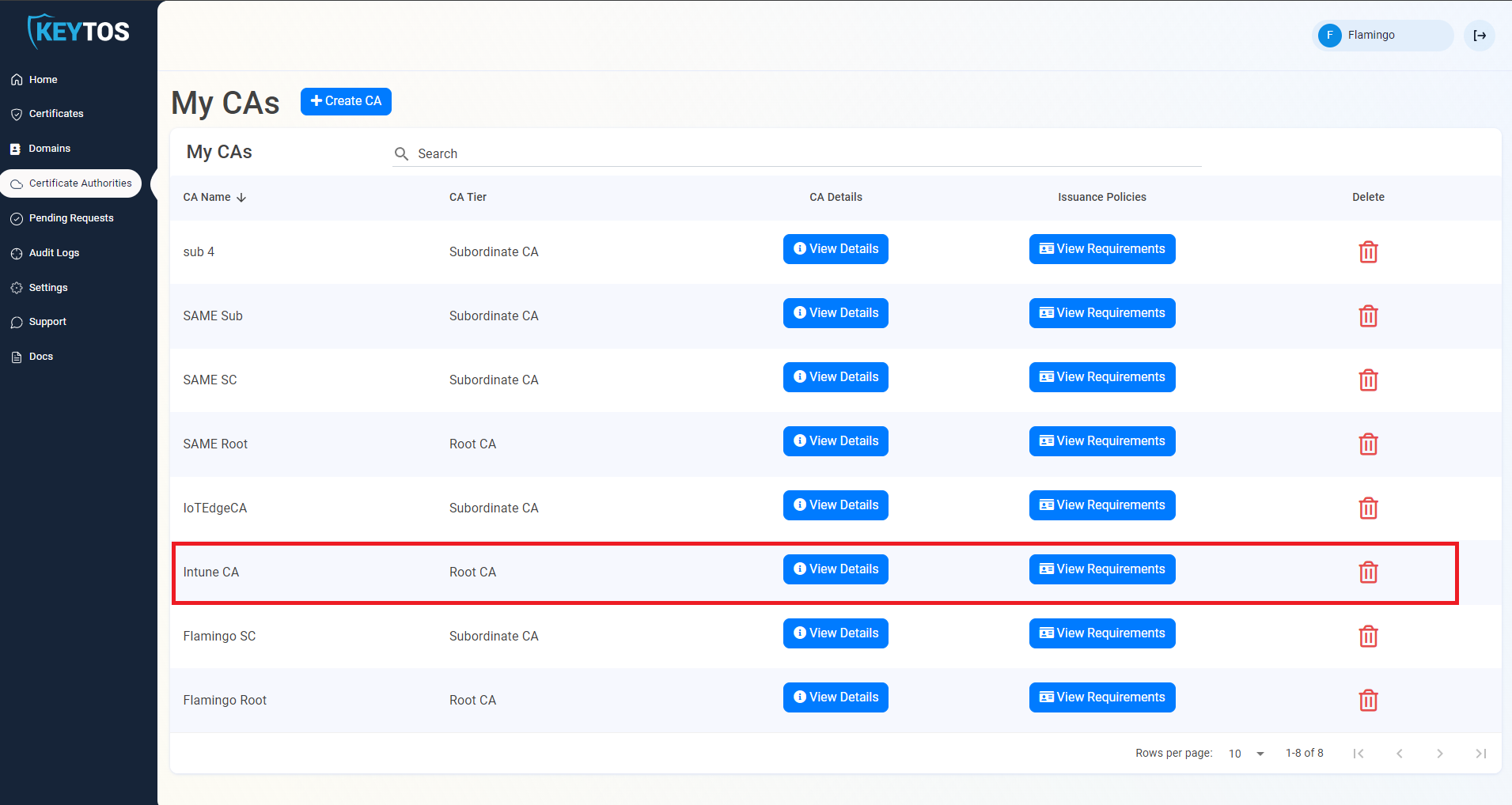
In the EZCA portal, go to Certificate Authorities and click View Requirements for your Intune CA.
-
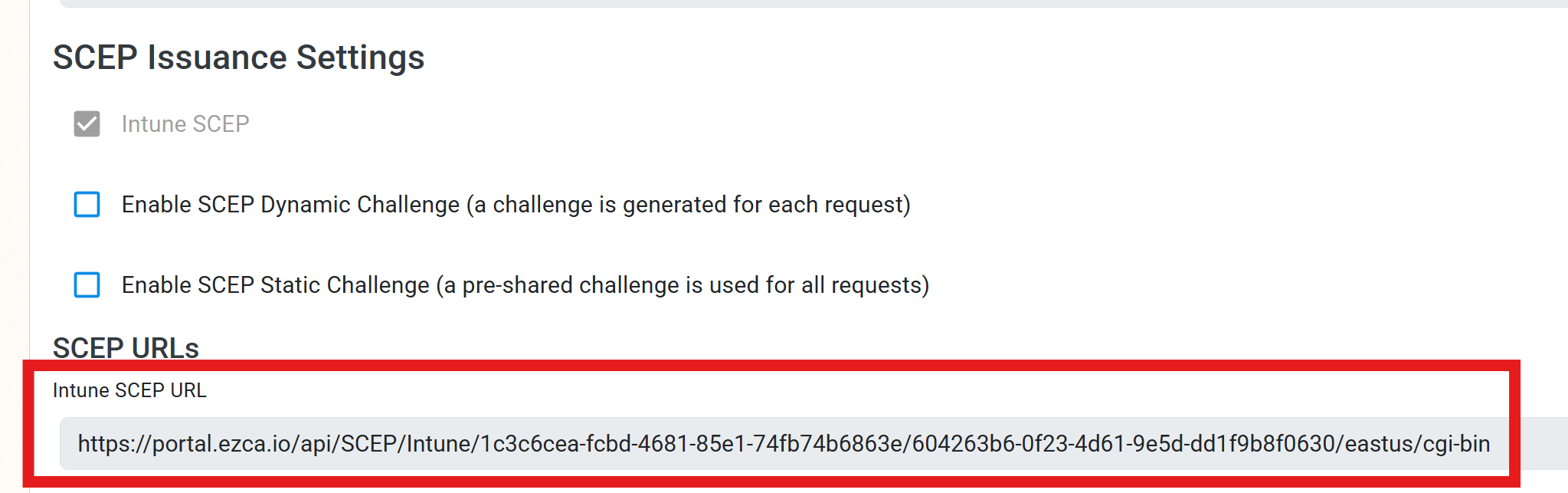
Copy the Intune SCEP URL.
-
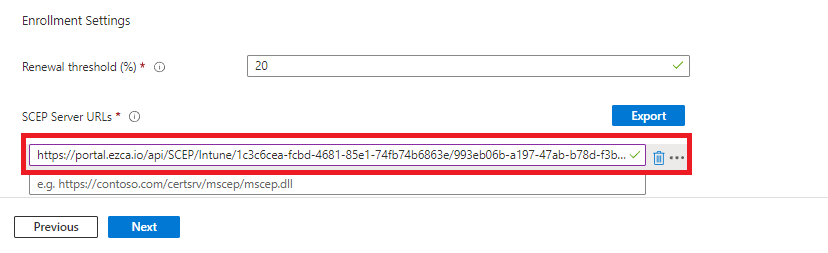
Return to Intune and paste the URL in SCEP Server URLs.
-
Click Next.
-
Select your Assignments, review, and click Create.
-
Done! Your managed macOS devices will now begin receiving device certificates from your EZCA SCEP CA.
How to Create an Intune SCEP Profile for User Certificates
The following steps will guide you on how to create an Intune SCEP profile to issue user certificates to your macOS devices.
-
Go back to the macOS configuration profiles page and click Create profile.
-
Select Templates as the profile type.
-
Select the SCEP Certificate template.
-
Click Create.
-
Enter the Name for this Intune SCEP profile.
-
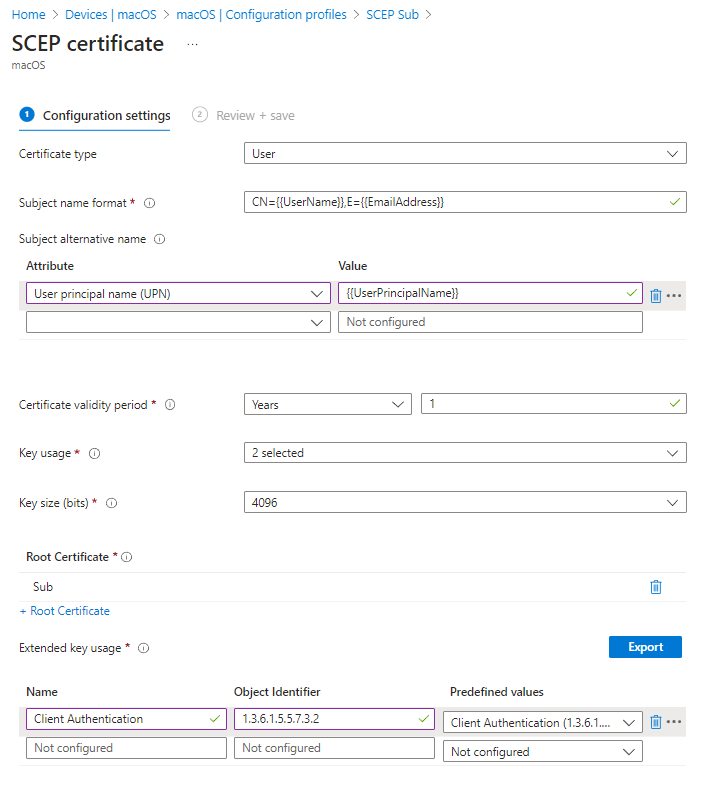
For Certificate type, select User.
-
For Subject name format, use
CN={{UserName}},E={{EmailAddress}}. -
In Subject Alternate Name, select User Principal Name (UPN) and enter
{{UserPrincipalName}}. -
For Certificate Validity Period, enter the same period you entered in EZCA.
Custom Validity PeriodsEZCA always uses the certificate validity period configured in the CA. If you set a different value in Intune, it will be ignored because this value is not supported in Apple devices.
As a workaround, you can add a DNS SubjectAltName value like
keytosEZCAValidity=365where the number is the number of days for that specific certificate. This number must be lower than the validity period configured in EZCA.
-
For Key Usage, select both Digital Signature and Key Encipherment.
-
For Key Size, select 4096.
-
For Hash Algorithm, select SHA-2.
-
In the Root Certificate field, click + Root Certificate and select the CA profile created in the Create Trusted Certificate Profile section.
Make sure to select your Issuing CAWhile Intune shows a Root Certificate selector, if you created a Subordinate/Issuing CA you must select the Issuing CA profile, not the Root CA profile.
-
For Extended Key Usage, select Client Authentication (1.3.6.1.5.5.7.3.2).
-
Feel free to leave the Renewal Percentage at 20% or increase it to a value you feel comfortable with. This is the lifetime remaining before Intune attempts to renew the certificate. For example, if you set it to 20% and your certificate validity period is 1 year, Intune will attempt to renew the certificate when it has 2.4 months remaining before expiration.
-
Review your settings. Your setup should look similar to this:
-
In the EZCA portal, go to Certificate Authorities and click View Requirements for your Intune CA.
-
Copy the Intune SCEP URL.
-
Return to Intune and paste the URL in SCEP Server URLs.
-
Click Next.
-
Select your Assignments, review, and click Create.
-
Done! Your managed macOS devices will now begin receiving user certificates from your EZCA SCEP CA.