

















How-To: Export your EZMonitor SSL Monitoring Logs to Kafka
Prerequisites
How To Export Your EZMonitor SSL Monitoring Logs To Kafka
How To Enable Log Export in EZMonitor Portal
-
Navigate to the EZMonitor Portal.
-
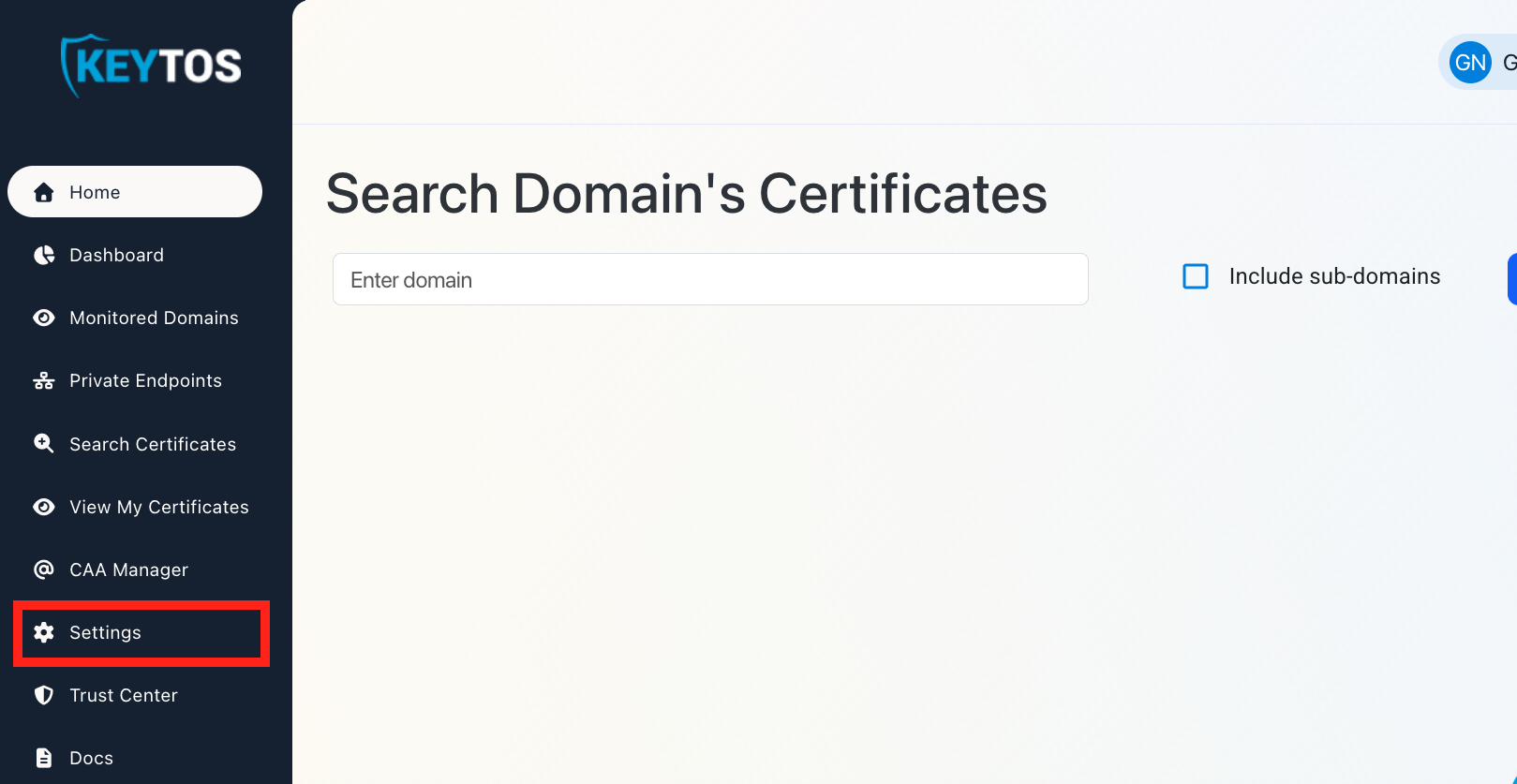
Click on Settings.
-
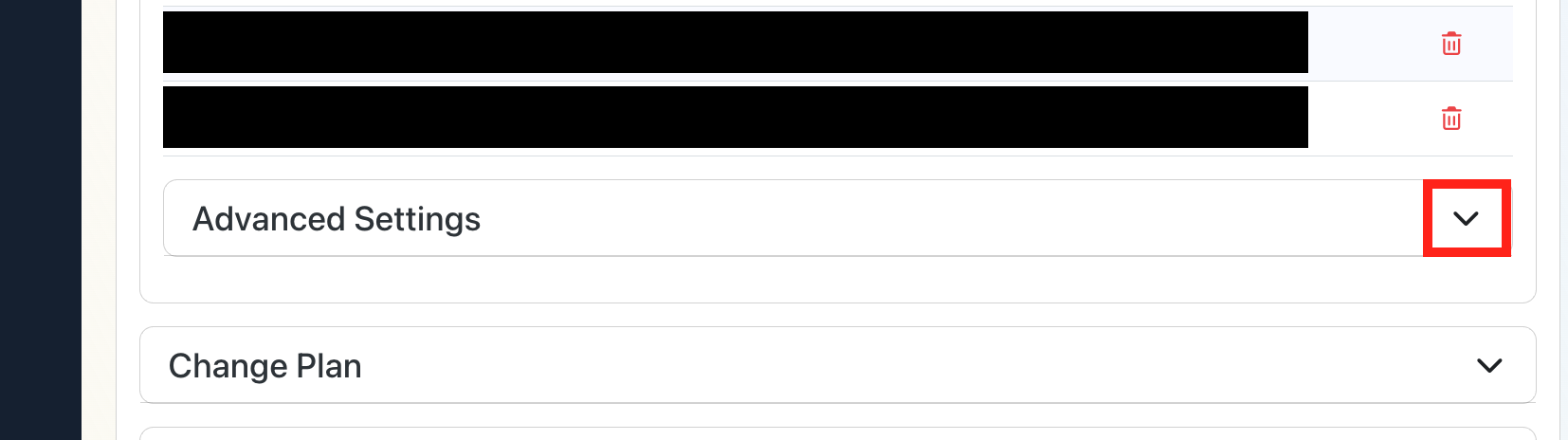
Expand your subscription’s Advanced Settings.
-
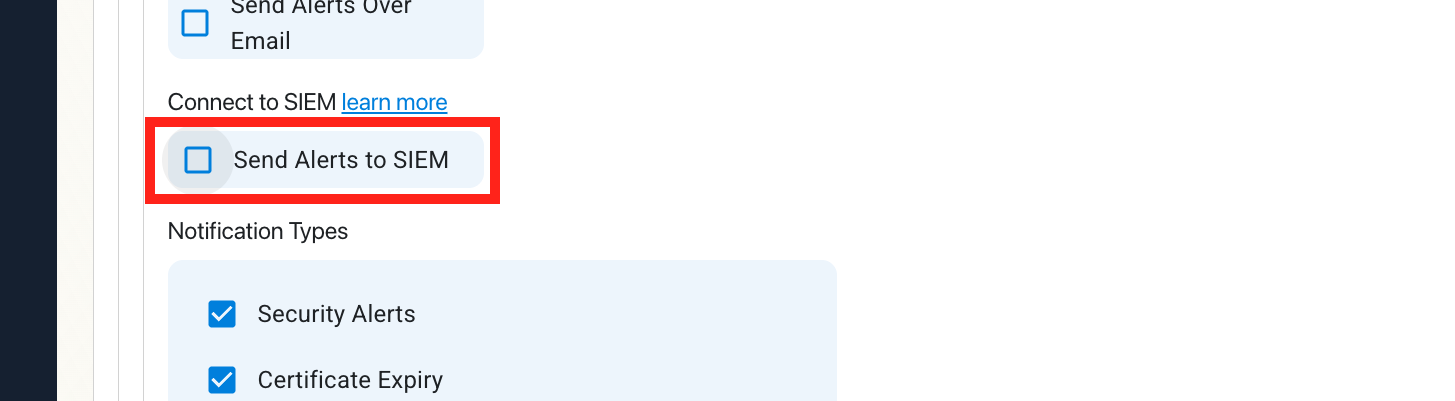
Enable the Send Alerts to SIEM option.
How To Configure Kafka Logs in the Kafka Portal
-
Open your Kafka instance in another window.
-
Identify your Kafka topic name and note it down.
-
Verify authentication support:
Ensure your Kafka server supports Plaintext SASL Authentication. -
Gather credentials:
Note the SASL username and password required for authentication.
How To Configure the Kafka SIEM in EZMonitor
-
Now go back to the EZMonitor Portal.
-
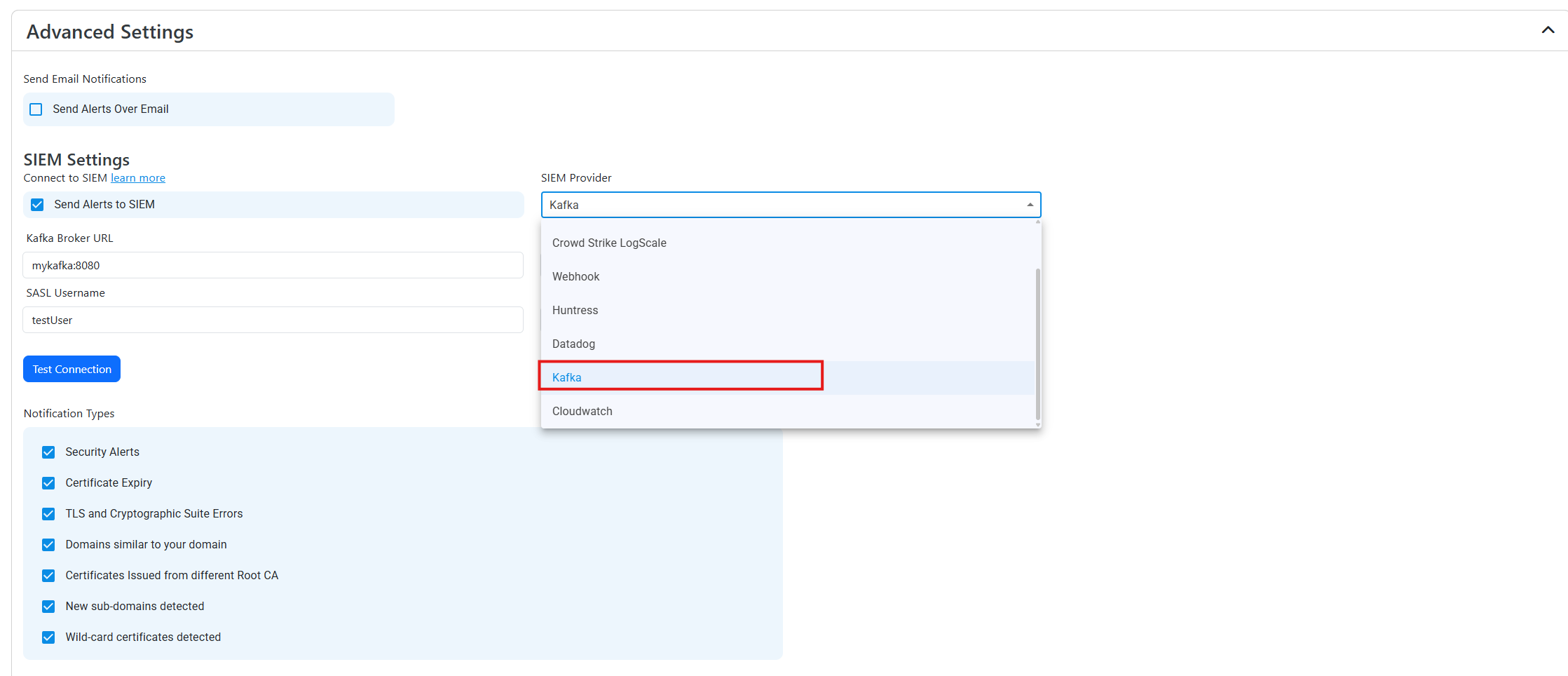
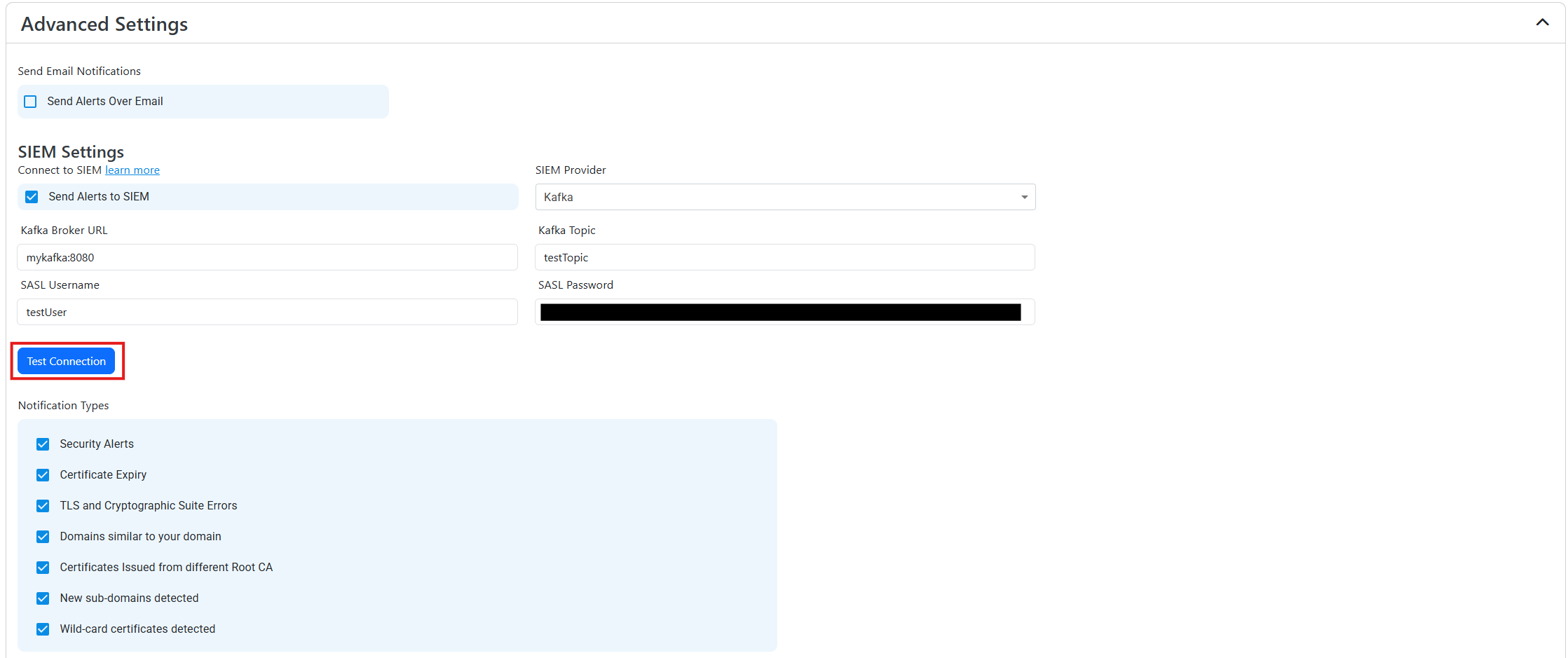
Select Kafka as the SIEM Provider.
-
Input the values that you copied from the Kafka portal. Then, click Test Connection. This will create a test log in your Kafka SIEM (please allow a few minutes for the log to show up in the Kafka portal).
-
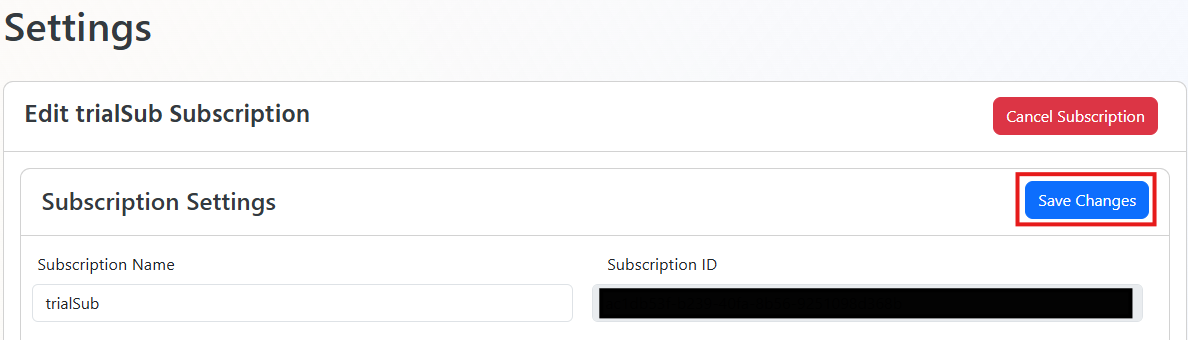
If the connection test is successful, click Save changes.
-
Done! EZMonitor will now send your security alerts to your SIEM. If an error occurs it will email your subscription administrators.