

















How-To: Export your EZMonitor SSL Monitoring Logs to CloudWatch
Prerequisites
How To Export Your EZMonitor SSL Monitoring Logs To CloudWatch
How To Enable Log Export in EZMonitor Portal
-
Navigate to the EZMonitor Portal.
-
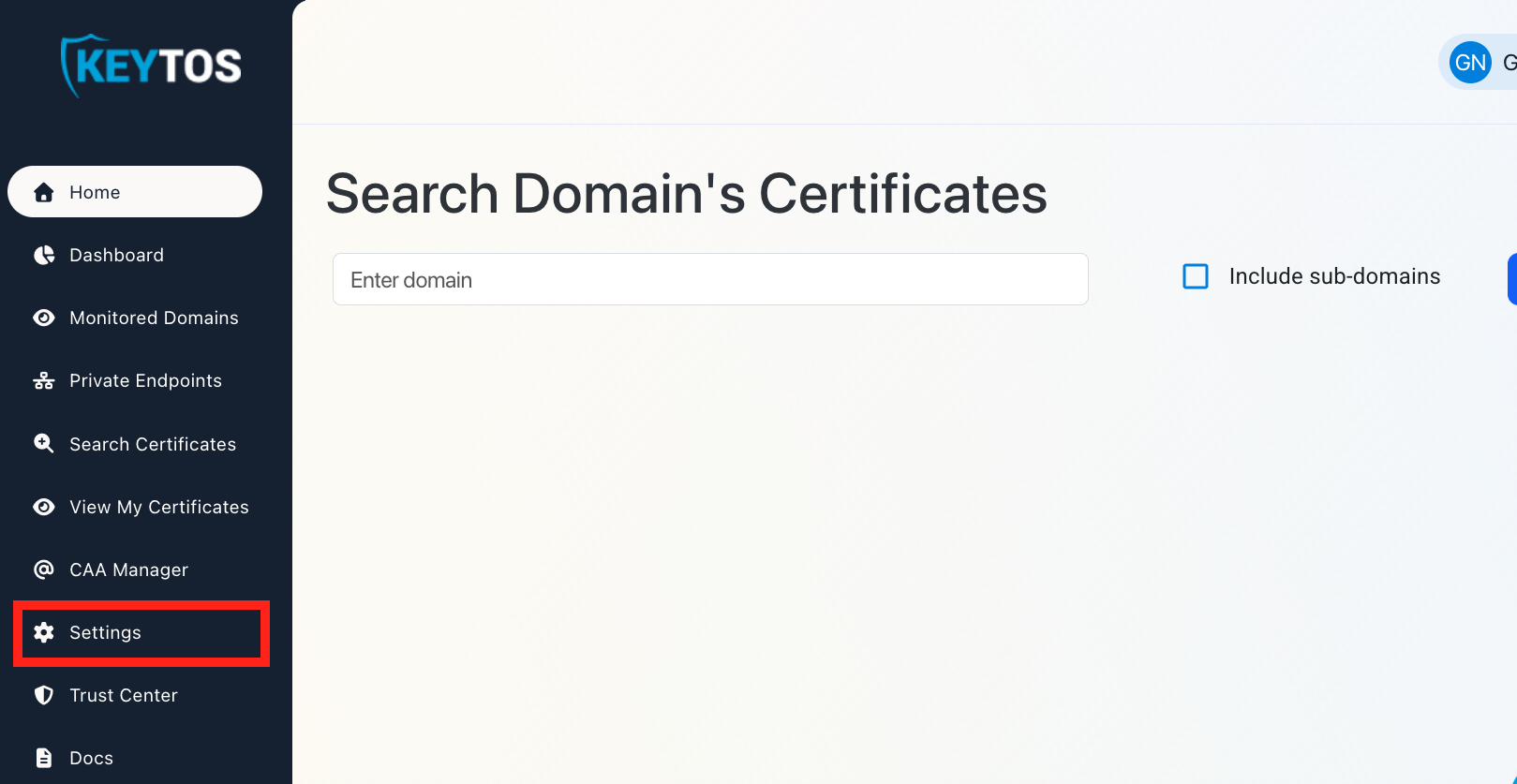
Click on Settings.
-
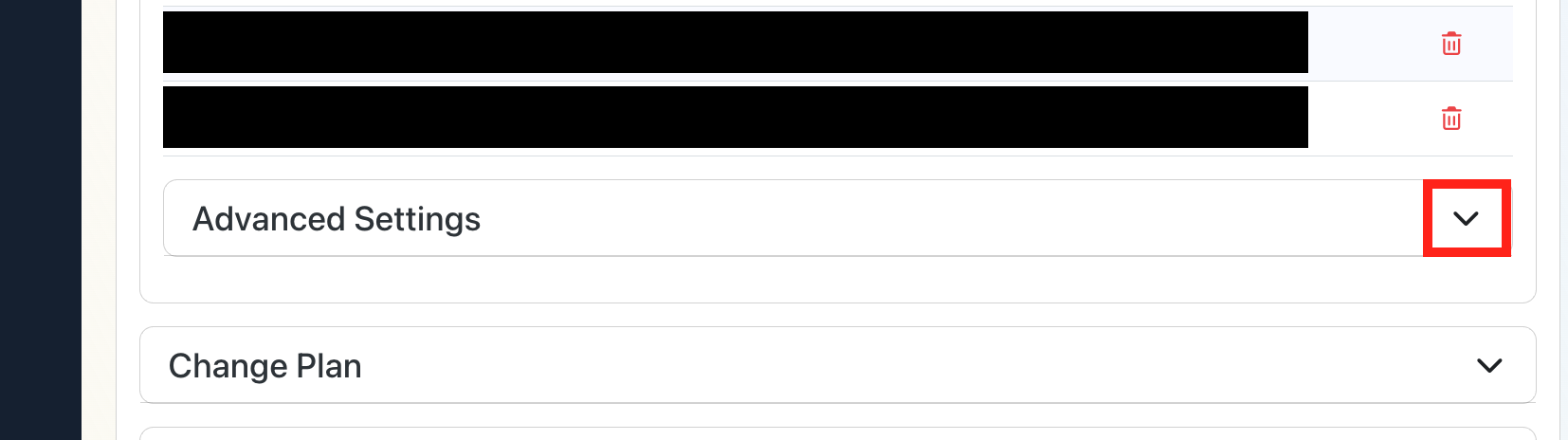
Expand your subscription’s Advanced Settings.
-
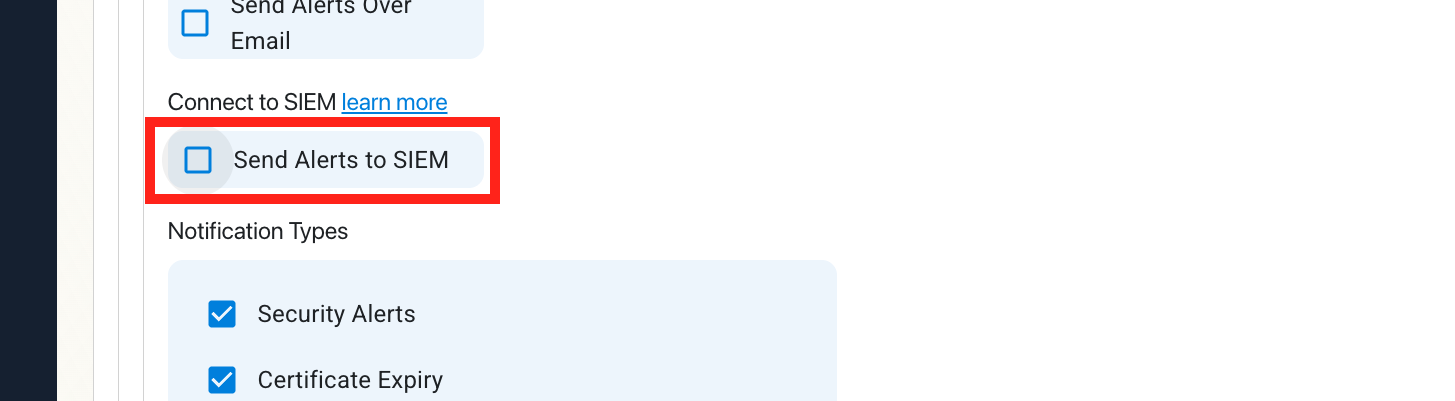
Enable the Send Alerts to SIEM option.
How To Configure CloudWatch Logs in the CloudWatch Portal
-
Open your CloudWatch Portal in a new browser tab.
-
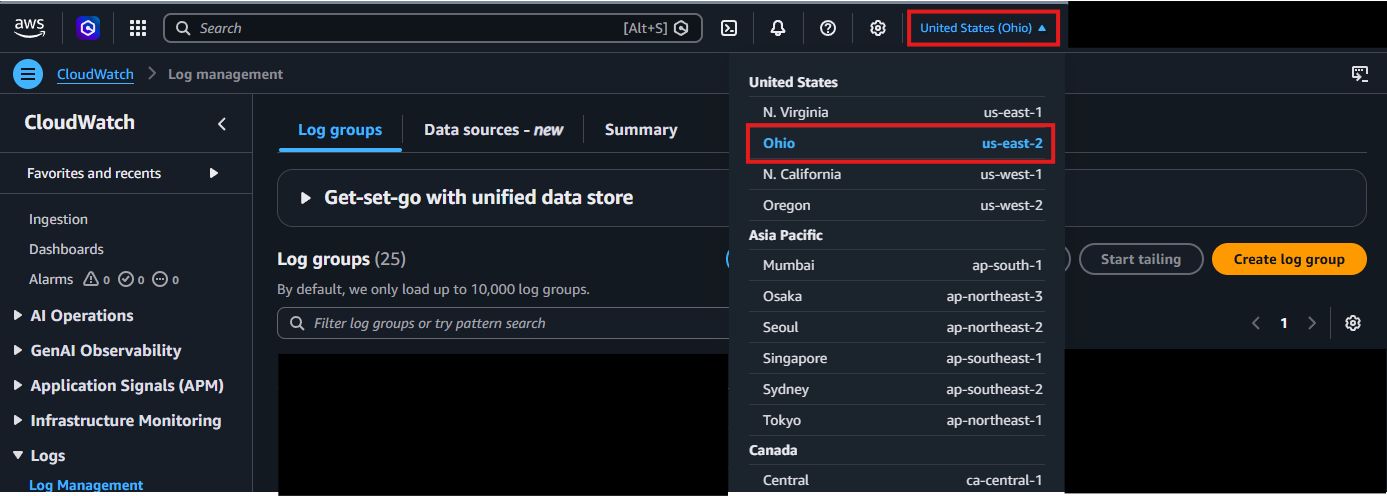
In the top right corner, locate your AWS Region and make a note of it.
-
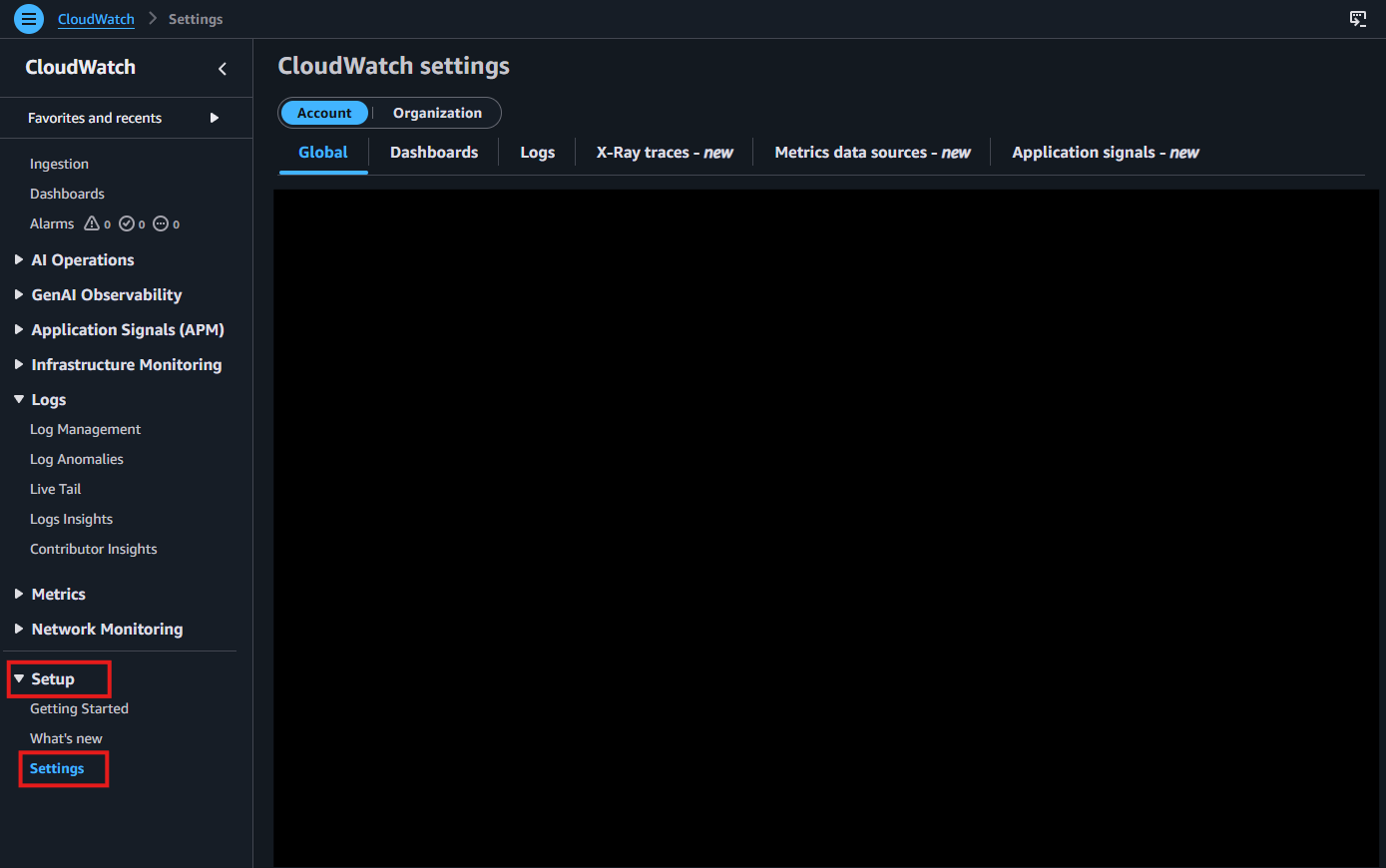
From the left-hand menu, under Setup, click on Settings.
-
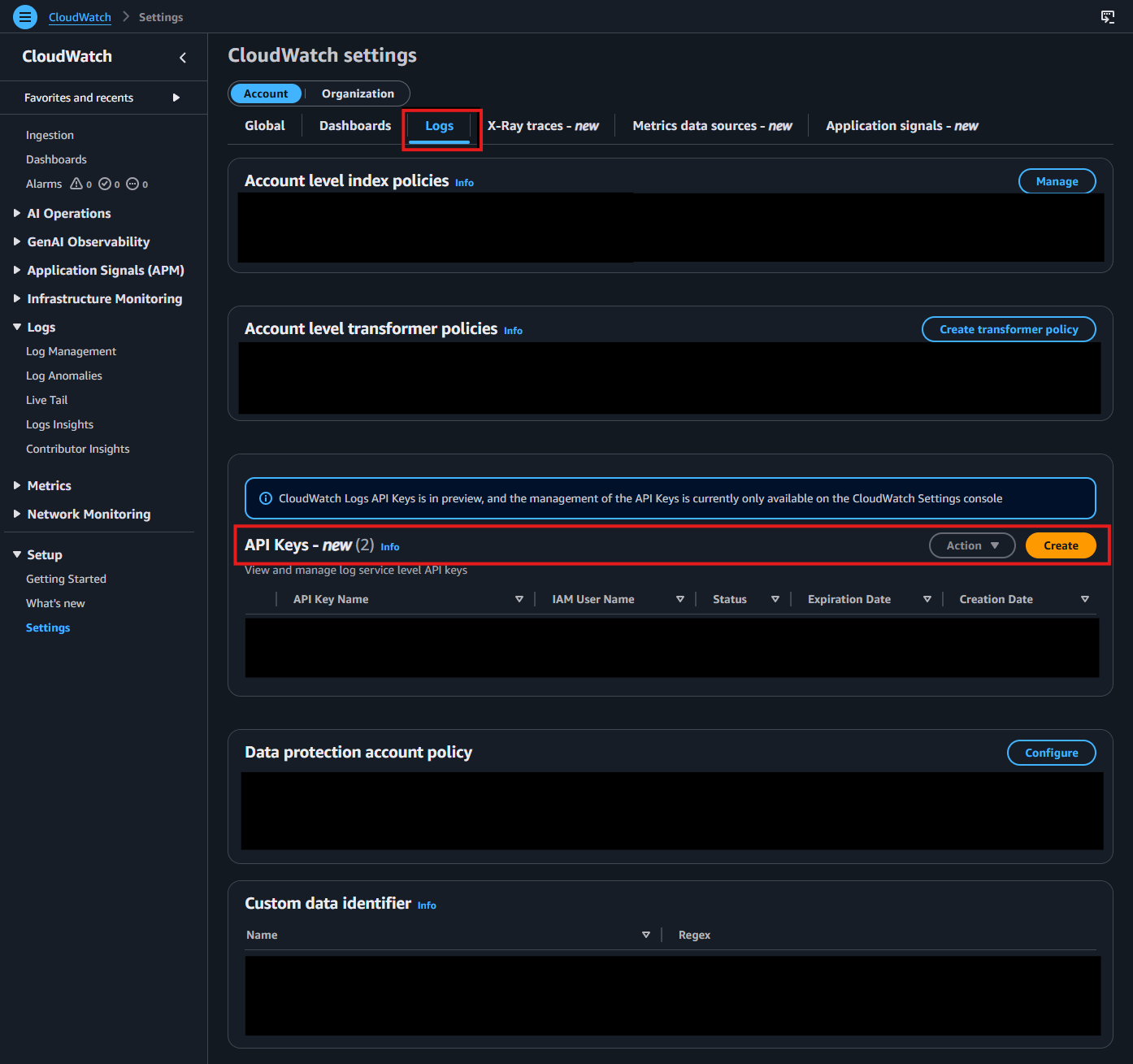
Go to the Logs tab. In the API Keys section, click Create.
-
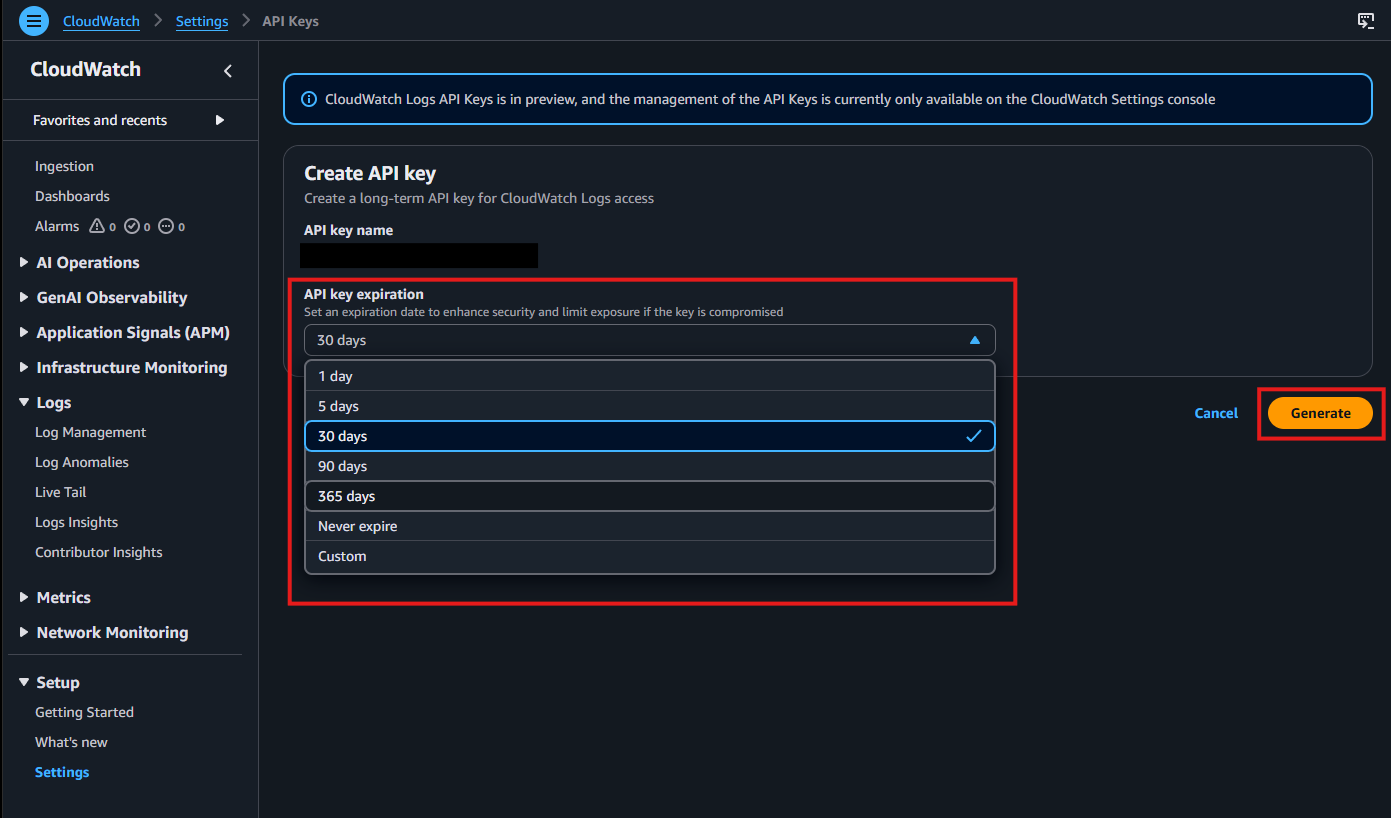
Choose your preferred API key expiration, then click Generate.
-
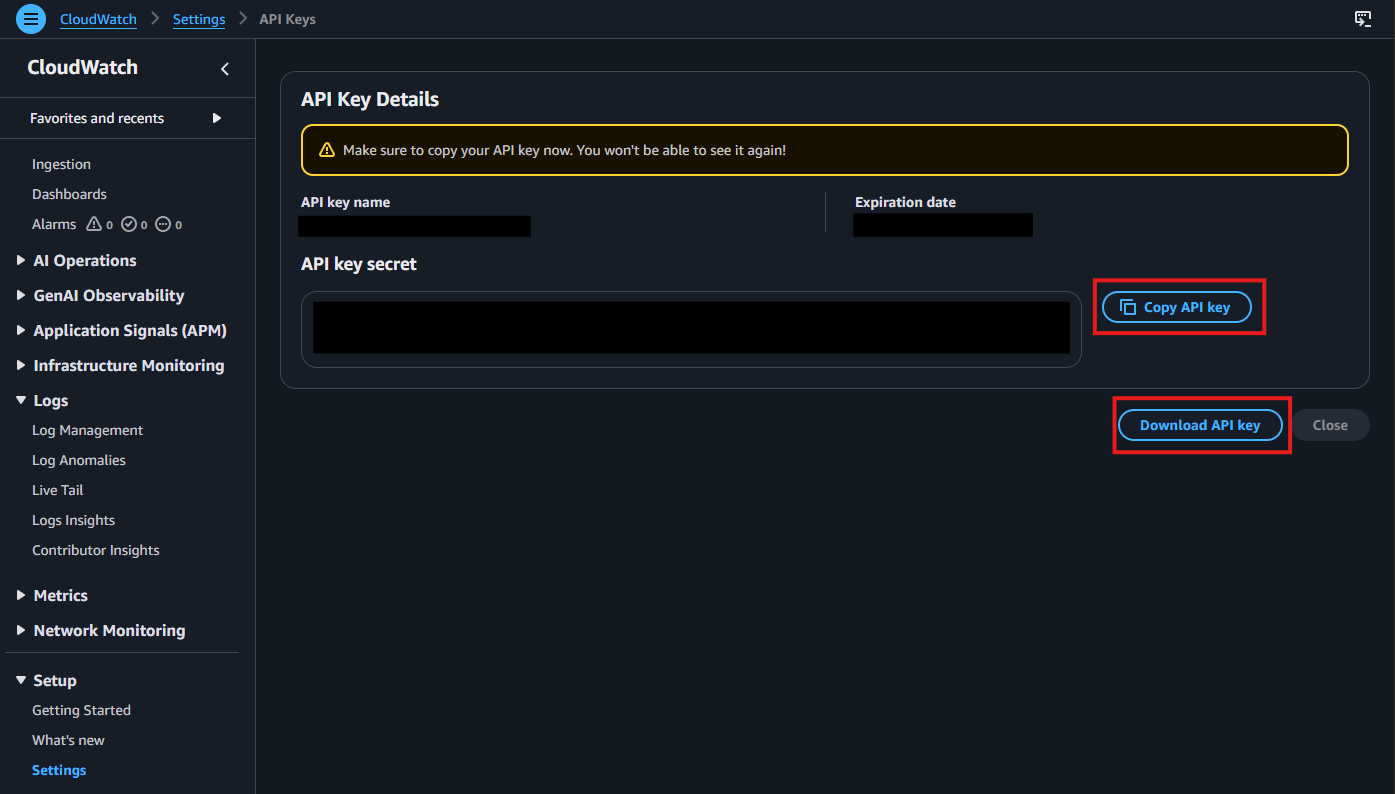
After the key is generated, copy and save it immediately. You will not be able to view it again after leaving this page.
-
Navigate to Log Management under Logs in the left-hand menu. Select the Log Group where you want to deliver your logs.
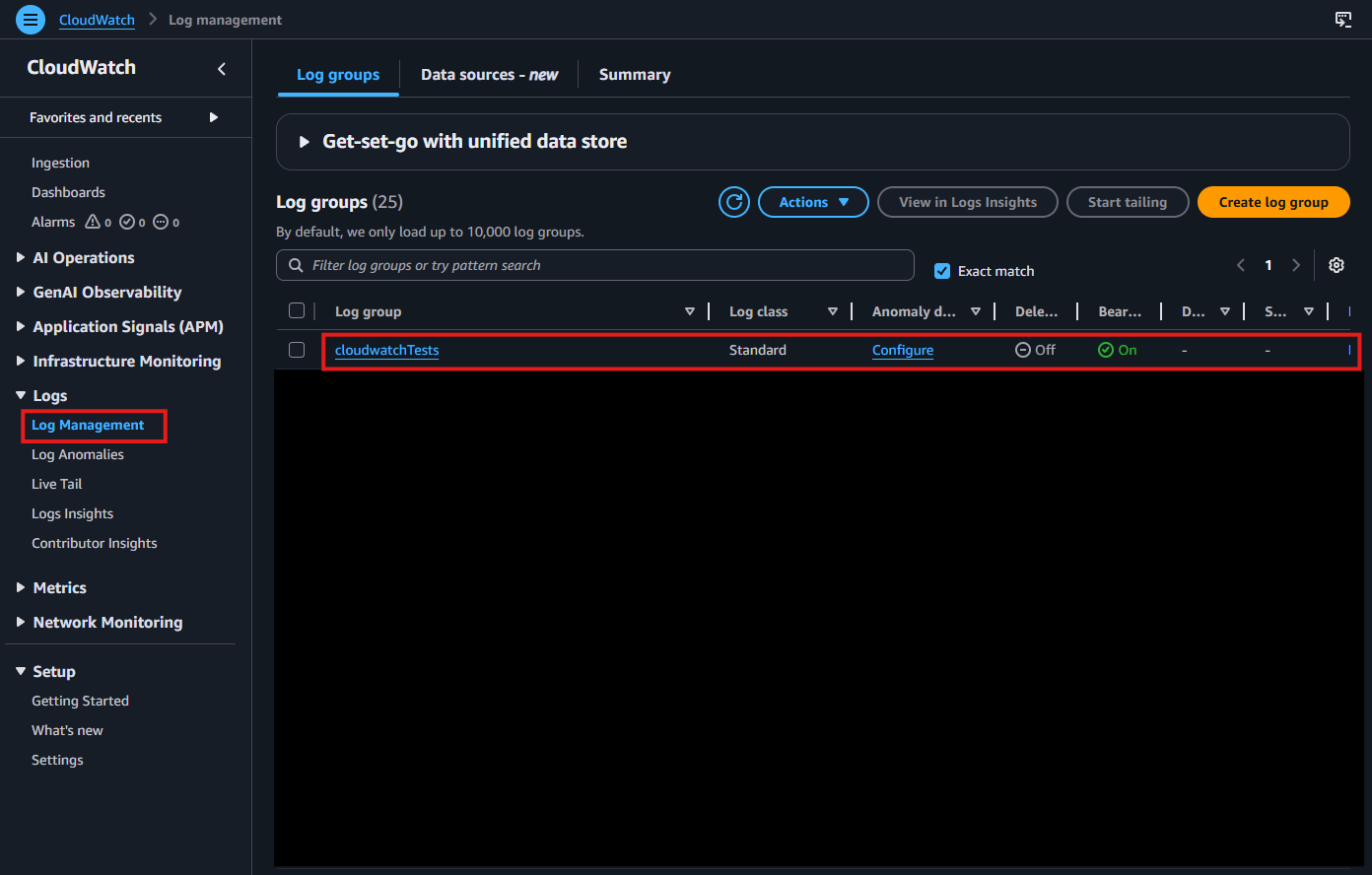
-
Click the Actions dropdown, then select Edit bearer token authentication.
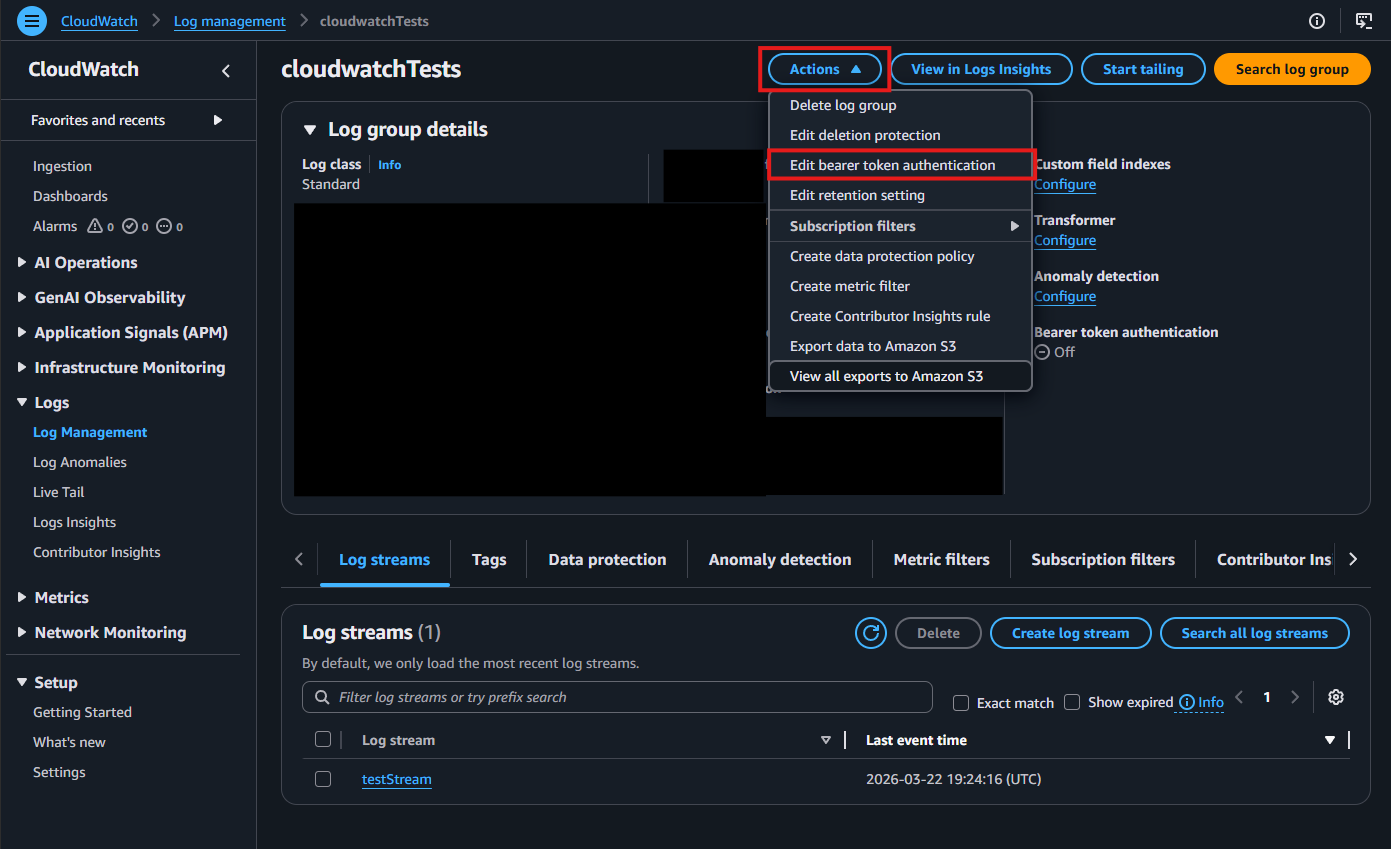
-
When prompted, enable bearer token authentication by selecting Yes.
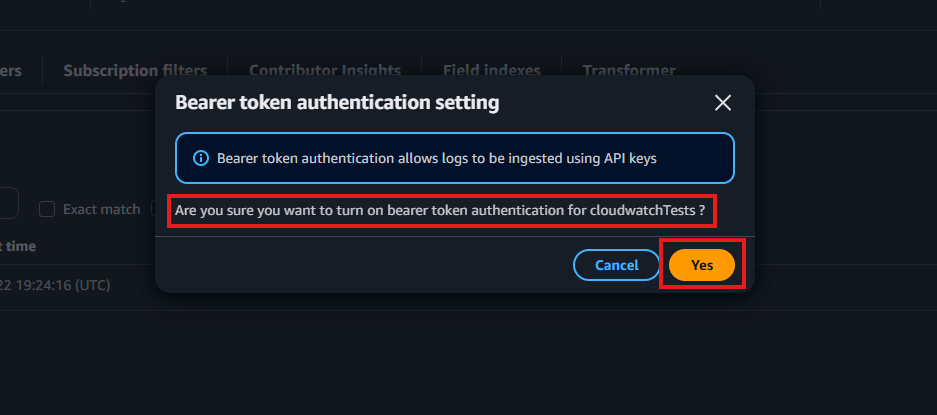
-
Confirm that bearer token authentication is enabled.
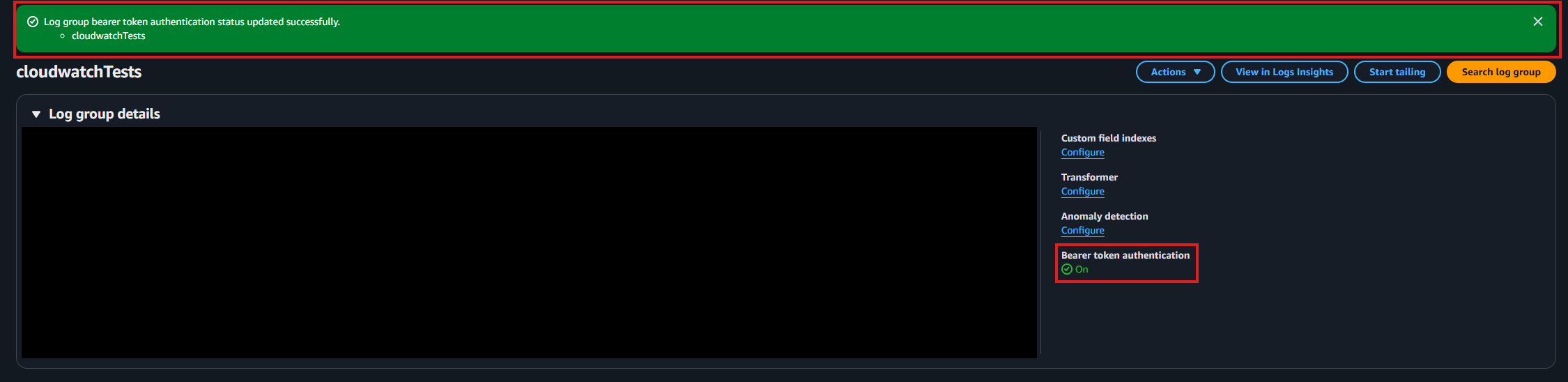
-
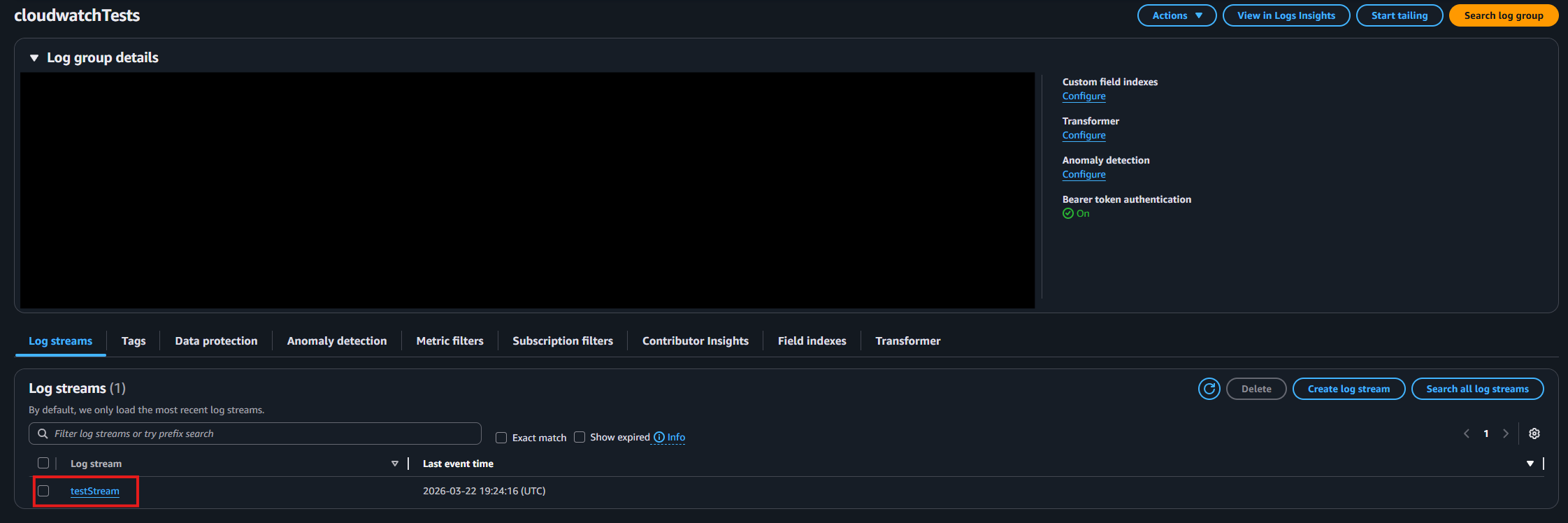
Identify and note the log stream where you want your logs delivered.
How To Configure the CloudWatch SIEM in EZMonitor
-
Now go back to the EZMonitor Portal.
-
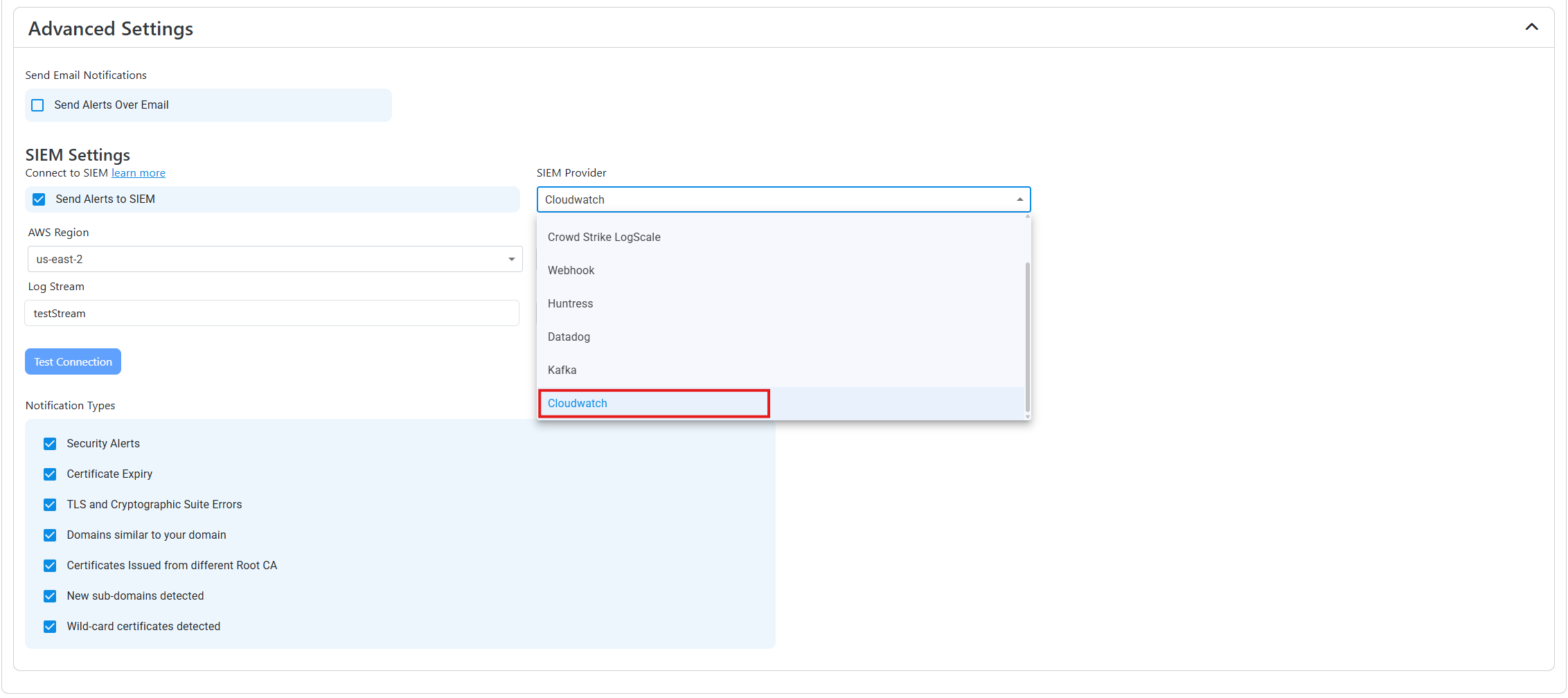
Select CloudWatch as the SIEM Provider.
-
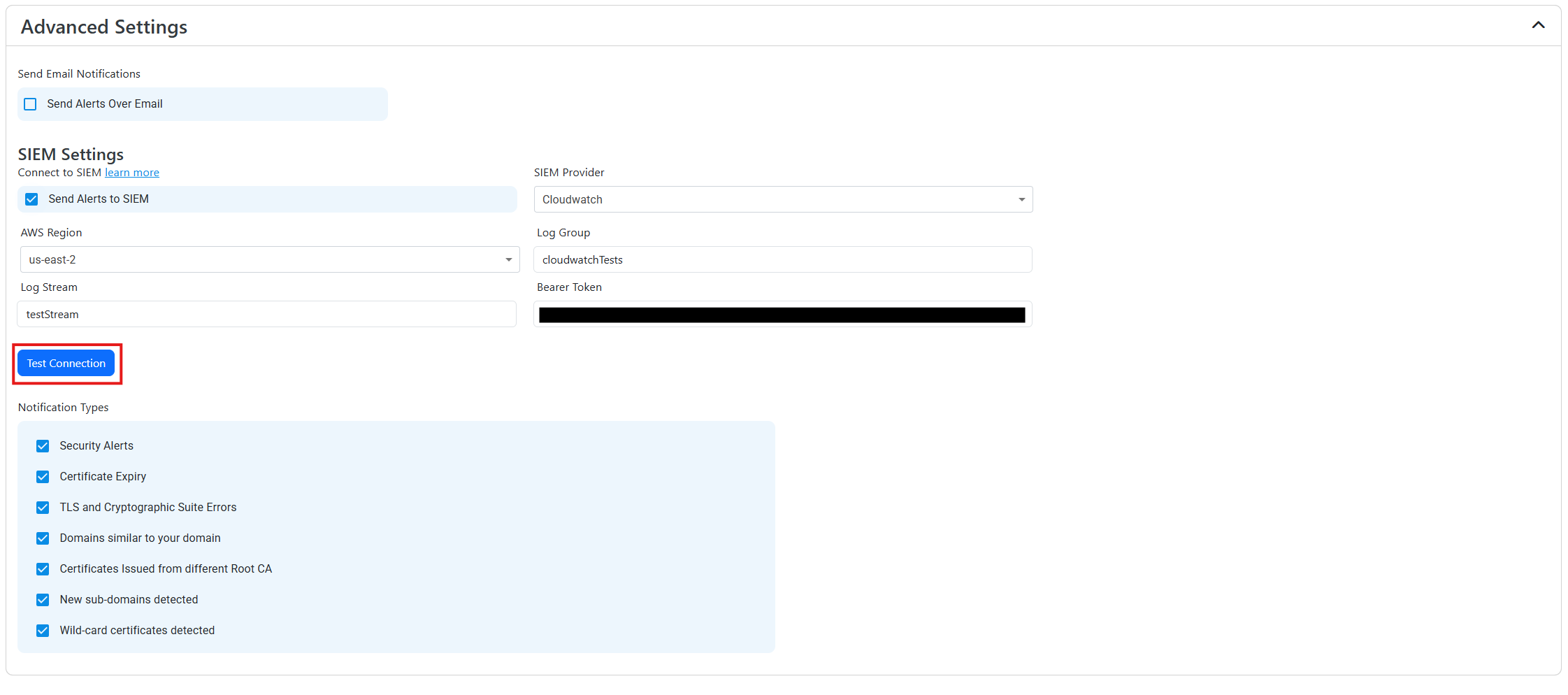
Input the values that you copied from the CloudWatch portal. Then, click Test Connection. This will create a test log in your CloudWatch SIEM (please allow a few minutes for the log to show up in the CloudWatch portal).
-
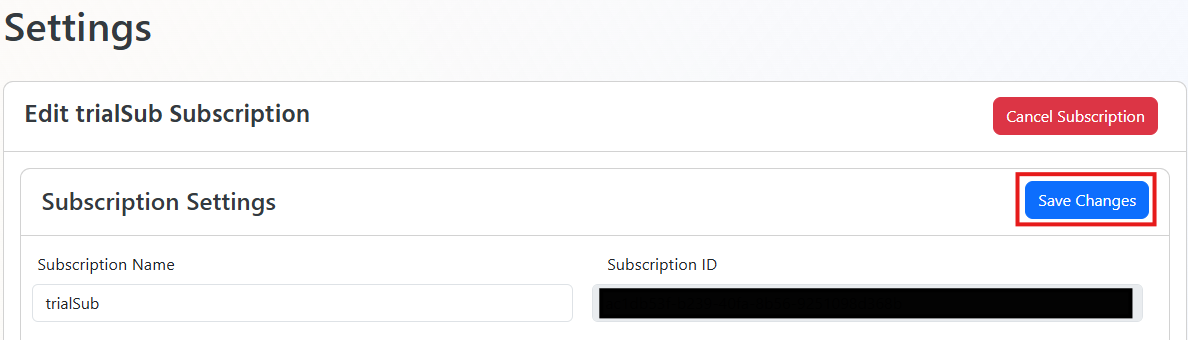
If the connection test is successful, click Save changes.
-
Done! EZMonitor will now send your security alerts to your SIEM. If an error occurs it will email your subscription administrators.
How To Create Alerts in EZMonitor to Monitor Your SSL Activity
We recommend setting up alerts for any high criticality event, and closely monitor medium and low events. To setup alerts in CloudWatch go to Actions -> Create metric filter within your log group. Here are some example filters to get you started. The best way to separate each alert is by their Vulnerability ID, below is a filter that will return all the dangling DNS entries that are vulnerable to domain takeover.
{ $.source = "EZMonitor" && $.sourcetype = "EZMonitor_Alerts" && $.event.VulnerabilityID = 18 }
What SSL Activity Logs are Sent to CloudWatch from EZMonitor?
EZMonitor has two types of alerts. The first type are alerts generated by scanning Certificate Transparency logs, and the second are alerts generated by scanning the SSL health of your servers.
Certificate Transparency Logs Based Alerts
| Event ID | Event Summary | Description |
|---|---|---|
| 12 | A similar domain has been found. | A domain that might be impersonating your domain was found please verify this domain is not being used to impersonate your organization. |
| 13 | A similar domain with different Top Level Domain was found. | A domain that might be impersonating your organization by using a different top domain (for example yourcompany.co instead of yourcompany.com) please verify this domain is not being used to impersonate your organization. |
| 18 | Your domain is vulnerable to domain takeover. | Your DNS record is pointing to an Azure resource that is no longer being used. please remove the CNAME record pointing to this resource to avoid a bad actor taking over your sub domain. |
| 20 | The certificate was issued from a different Root CA. | A certificate was issued from a different Root CA, verify with your team to make sure this certificate was issued by someone in your organization. |
| 25 | A new sub domain was registered. | A new sub domain found, please verify with that this action was done by someone in your organization. |
| 29 | Certificate does not meet CAA policy. | A certificate was issued by a CA not allowed by your CAA policy. |
Network Scan Based Alerts
| Event ID | Event Summary | Description |
|---|---|---|
| 19 | The newest certificate is not installed in your server. | A certificate that is expiring soon has been renewed, but our systems detect that it has not been installed in all your web servers. |
| 26 | No subject alternative name matches the domain. | The certificate returned by the server does not have any subject names matching the domain, this can cause an error when the user is accessing the site. |
| 27 | The server did not serve a certificate when an HTTP request was sent | The server did not return a certificate. Please make sure HTTPS is enabled and the server has a valid certificate and the certificate is binded to this domain. |
| 28 | Certificate contains wild-card Subject Alternate Name | This Certificate contains a wild card subject alternate name. This type of subject alternate name can cause an outage since there is not record of where this certificate is being used. Please change this certificate to one containing the specific domains. |
| 40 | Error validating installed certificate. | The certificate served by the server was not valid. Please check the alert details on the steps needed to solve this issue. |
| 41 | Error validating installed certificate chain. | There was a problem validating the certificate chain of the certificate served by the server. Please follow the steps on the alert to remediate this issue. |
| 42 | HTTPS Is Not Enforced | Strict-Transport-Security header was not found. Please add this header to enforce HTTPS and prevent man in the middle attacks. |
| 68 | The certificate installed in the web server is expiring soon. | The certificate installed in the web server is expiring soon. Please install the latest certificate to avoid an outage |
| 99 | Certificate is expiring soon. | Your domain’s certificate is expiring soon, and it has not been renewed. Renew your certificate and replace the expiring certificate to avoid an outage |
Internal Network Scan Based Alerts (Includes all Network Scan Alerts)
| Event ID | Event Summary | Description |
|---|---|---|
| 30 | This Certificate Has Been Revoked | This Certificate has been revoked and will rejected by clients. Please create a new certificate and install it in this endpoint. |
| 31 | Self Signed Certificate | This Certificate is self signed, please issue a certificate from a trusted authority. |
| 32 | The CRL was not accessible when EZMonitor tried downloading it | EZMonitor was not able to download the CRL, make sure your CRL is available in your network |
| 33 | SHA1 Certificate | This certificate uses SHA1 hashing algorithm. This algorithm is no longer secure, please replace this certificate with a certificate using a stronger hashing algorithm. |
| 34 | Weak Cryptographic Key | This certificate uses a weak cryptographic algorithm. Please replace this certificate with a certificate using a stronger cryptographic key. |
| 35 | Current CRL is expired | EZMonitor downloaded an expired CRL, make sure your CRL is updated in all your CRL endpoints. |
| 36 | Certificate is Missing SID Extension | This certificate is missing the SID mapping and will not be accepted in Active Directory in future releases. learn more https://support.microsoft.com/en-us/topic/kb5014754-certificate-based-authentication-changes-on-windows-domain-controllers-ad2c23b0-15d8-4340-a468-4d4f3b188f16 |
| 37 | The certificate was not found in any of your servers | The certificate was found while scanning your PKI database, but it was not found in any of your web servers. Please make sure this certificate is not being used by any of your services. |