

















How-To: Export your Cloud PKI Logs to Kafka
Prerequisites
How To Export Your Cloud PKI Audit Logs To Kafka
How To Enable Log Export in EZCA Portal
-
Go to the EZCA Portal.
-
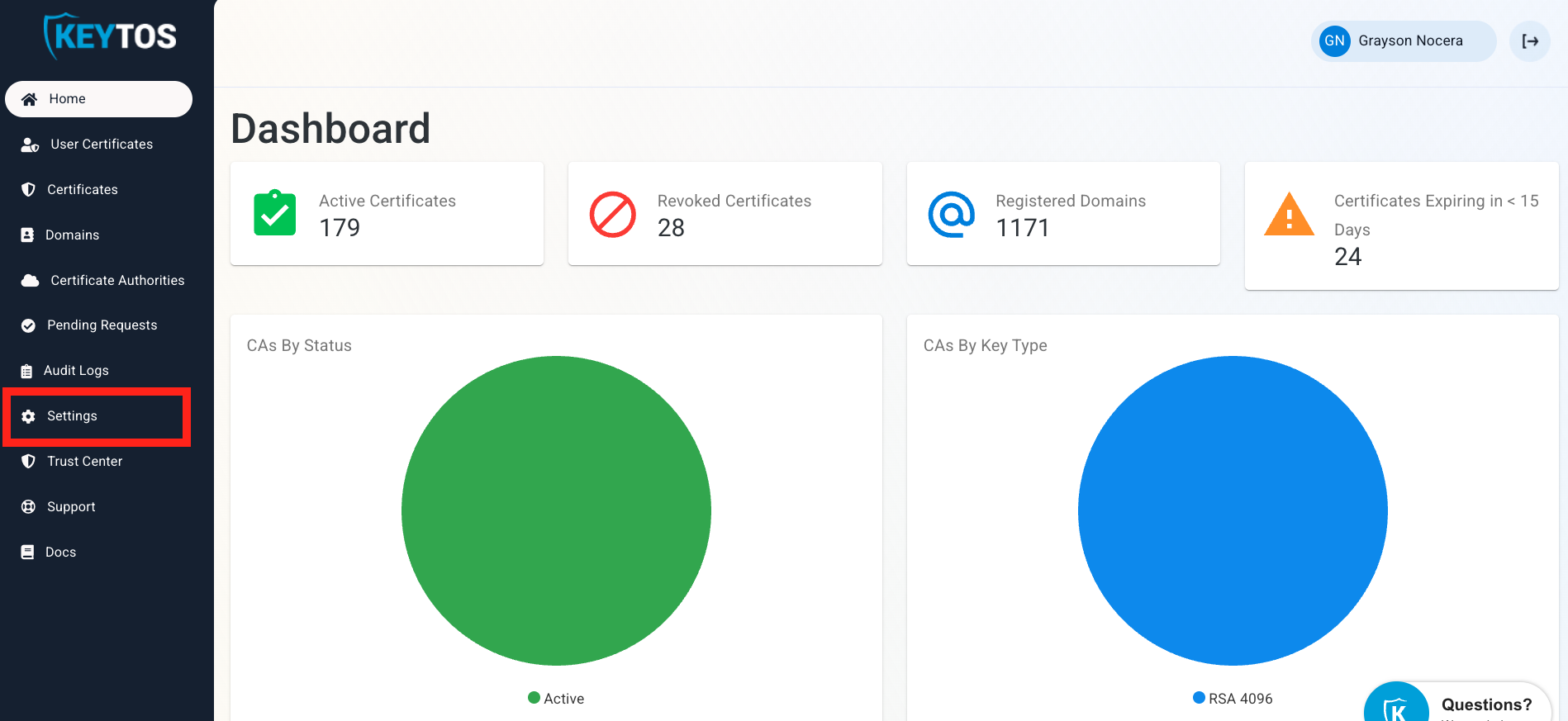
Click on Settings.
-
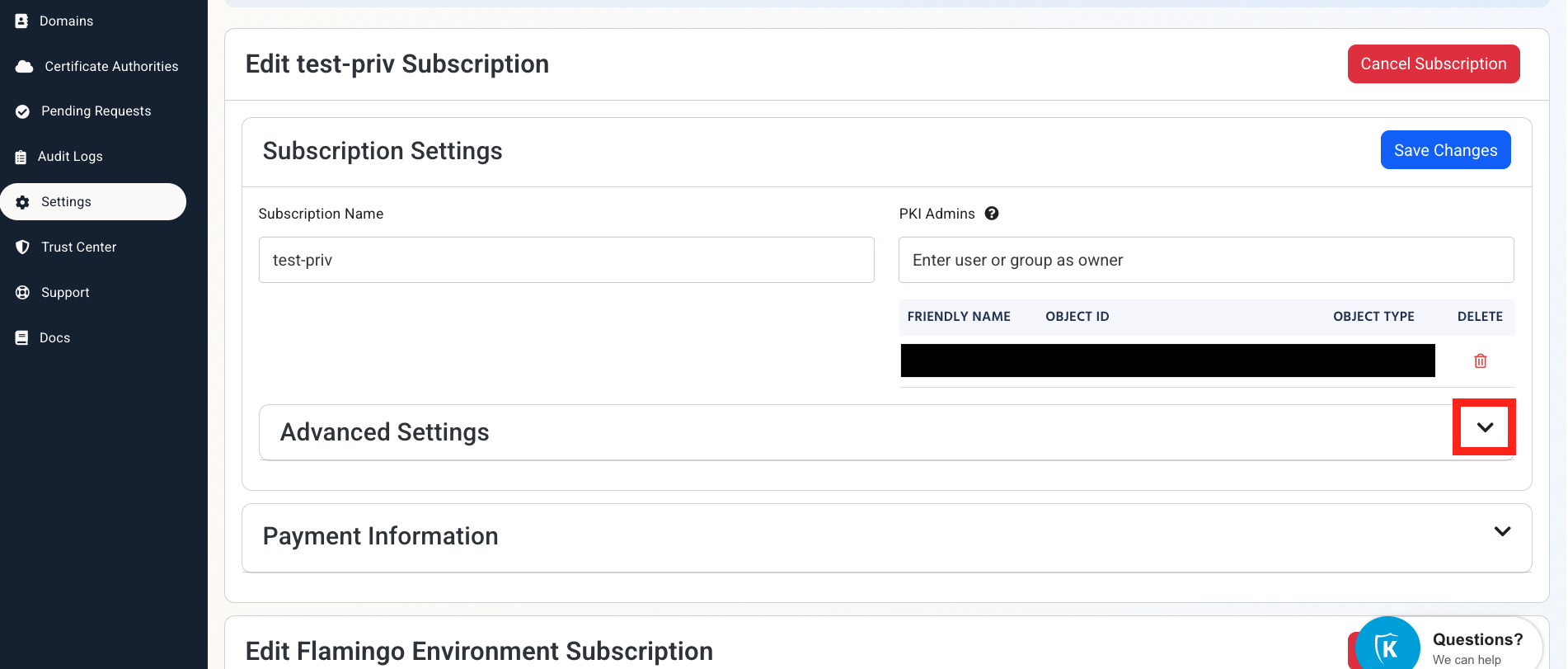
Expand your subscription’s Advanced Settings.
-
Enable the Send Audit Logs to SIEM option.

How To Configure Kafka Logs in the Kafka Portal
-
Open your Kafka instance in another window.
-
Identify your Kafka topic name and note it down.
-
Verify authentication support:
Ensure your Kafka server supports Plaintext SASL Authentication. -
Gather credentials:
Note the SASL username and password required for authentication.
How To Configure the Kafka SIEM in EZCA Portal
-
Now go back to the EZCA Portal.
-
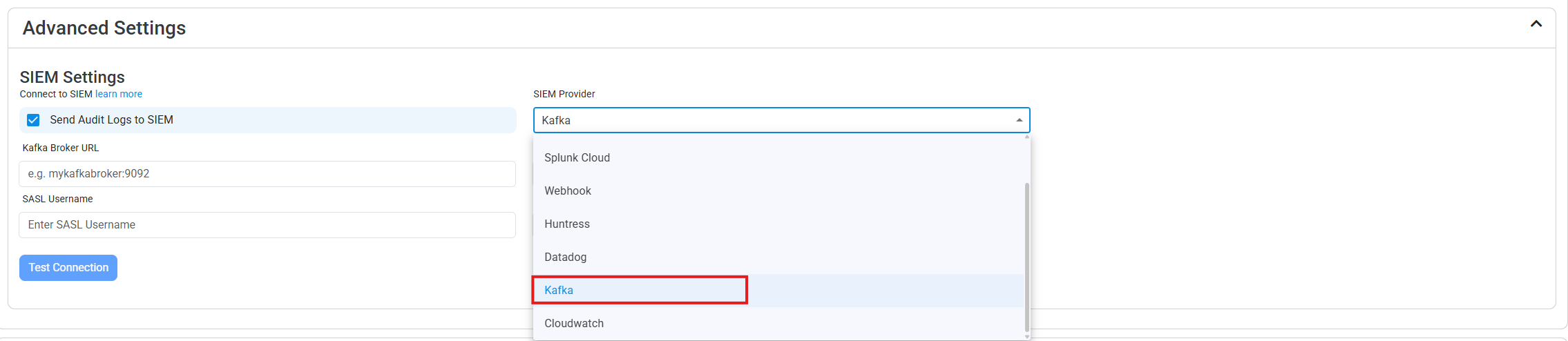
Select Kafka as the SIEM Provider.
-
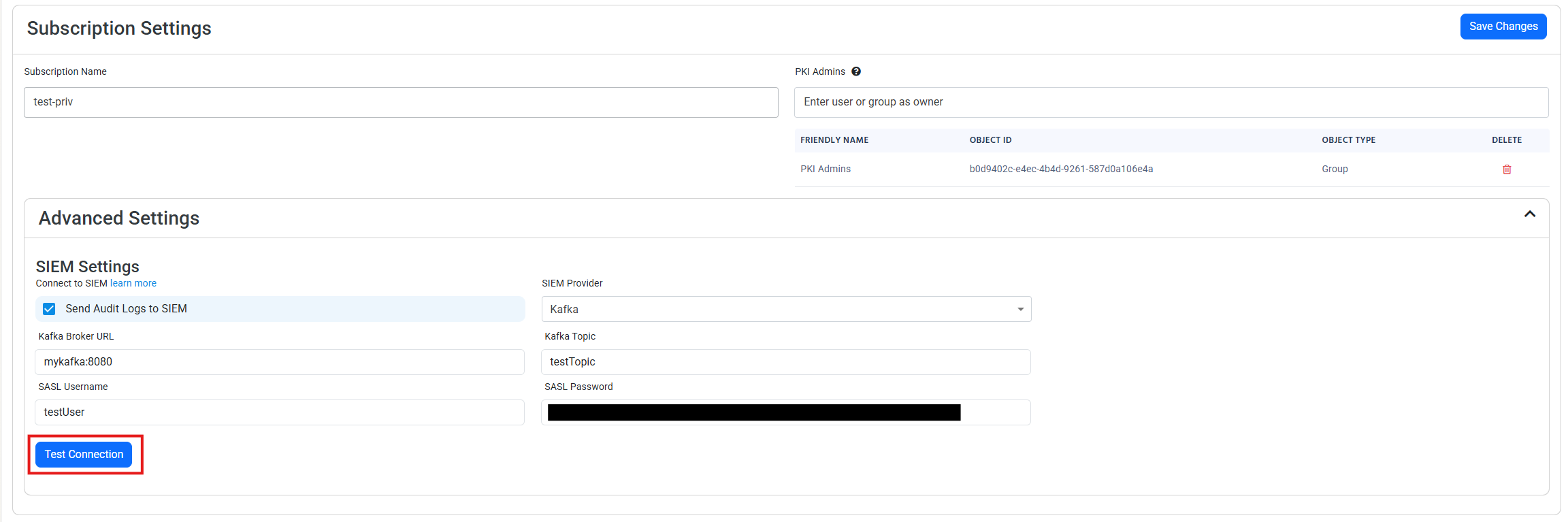
Input the values that you copied from the Kafka portals. Then, click Test Connection. This will create a test log in your Kafka SIEM (please allow a few minutes for the log to show up in the Kafka portal).
-
If the connection test is successful, click Save changes
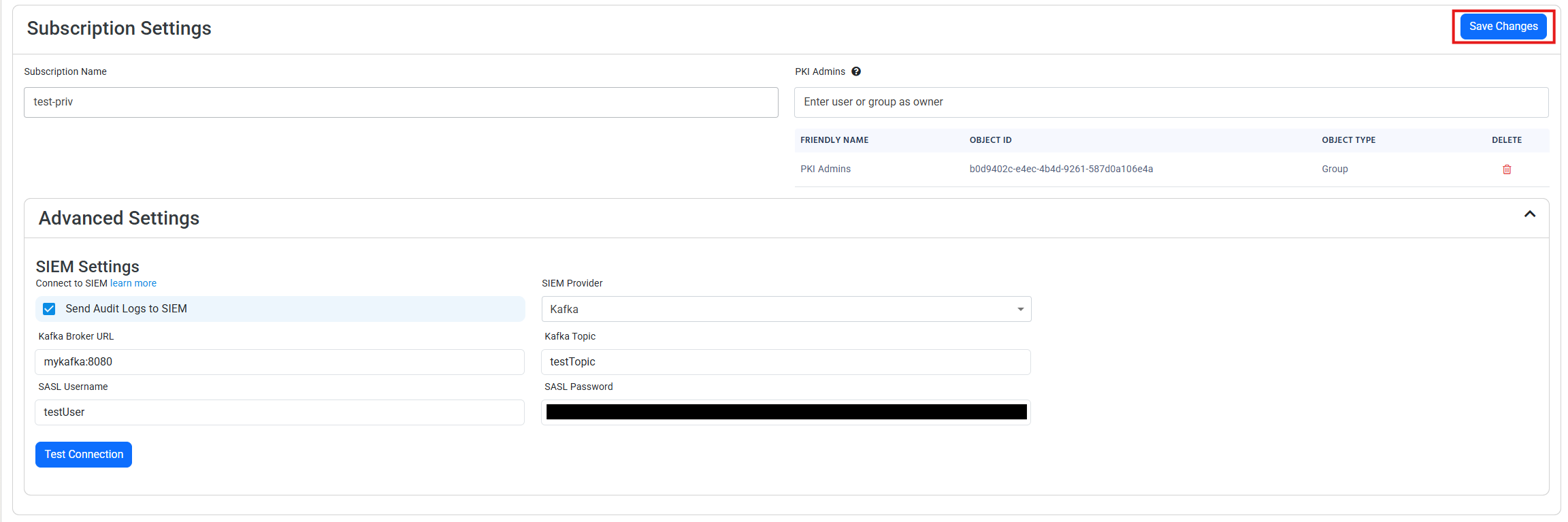
-
EZCA will now send your security alerts to your SIEM. If an error occurs it will email your subscription administrators. See below to see the different events EZCA will send.
What Logs are Sent to Kafka?
EZCA sends the following log types to your SIEM:
CA Operation Events
| Event ID | Event Summary | Description | Potential Criticality |
|---|---|---|---|
| 4882 | The security permissions for Certificate Services changed | A change in CA settings that might give or remove critical permissions | High |
| 92 | CA change denied due to insufficient permissions | A user attempted to change CA settings without the proper permissions | High |
| 23 | Intermediate CA request rejected | A new Intermediate CA request has been rejected | High |
| 19 | CA deleted | This indicates that a CA was deleted | High |
| 28 | Intermediate CA was imported | A new Intermediate CA has been created chaining to an external CA | Medium |
| 22 | Intermediate CA created with EZCA Root | A new Intermediate CA has been created chaining to an EZCA CA | Medium |
| 12 | CA was renewed | A CA has been renewed | Low |
Certificate Operation Events
| Event ID | Event Summary | Description | Potential Criticality |
|---|---|---|---|
| 4888 | Certificate request denied due to insufficient permissions | A user attempted to request a certificate without the proper permissions | High |
| 4870 | A certificate has been revoked | This can cause an outage if was done by mistake or the new certificate is not added to all the endpoints that use the certificate | Medium |
| 4872 | Publish CRL | This is an even that the CRL has been published, this does not have to be tracked as we take care of it for you. | Low |
| 4887 | Certificate was created | This event indicates a certificate was created successfully | Low |