How-To: Issue SCEP Certificates to Windows Devices with Intune
Introduction - How to Issue SCEP Certificates to Windows Devices with Intune
This guide shows how to issue X509 certificates to Windows devices with Microsoft Intune and SCEP. You will create:
- A Trusted Certificate profile to establish trust with your CA chain.
- A SCEP Certificate profile to request and install certificates for users or devices.
By the end, your Windows devices will be able to enroll and receive certificates from your EZCA SCEP CA.
Prerequisites for Issuing SCEP Certificates to Windows Devices
Before you begin, confirm the following prerequisites:
- You have created an Intune SCEP CA
- You have registered the Keytos Intune application in your Entra ID Tenant.
- You are an Intune administrator with permissions to create configuration profiles in Intune.
How to Issue SCEP Certificates to Windows Devices with Intune - Video Tutorial
Prefer a walkthrough? Watch the video below:
How to Issue SCEP Certificates to Windows Devices with Intune - Step by Step Guide
In this section, you will first create a Trusted Certificate profile to deploy CA certificates, then create a SCEP Certificate profile for certificate enrollment.
How to Download Your CA Certificates from EZCA
To issue certificates to your Windows devices using Intune, you first need to download the CA certificate from your EZCA portal and upload it to Intune as a trusted certificate. Follow these steps to download your CA certificate from EZCA:
- Navigate to your EZCA portal instance, such as portal.ezca.io.
- From the left-hand menu, select Certificate Authorities.
- Find the CA you created for Intune and click on the View Details button.
- For your CA’s region(s), click on the Download Certificate button to download the CA certificate.
- Repeat the previous step for each CA in your PKI chain. If you have a Root CA and an Intermediate CA, make sure to download both certificates.
How to Create an Intune Trusted Certificate Profile for Windows Devices
Before issuing certificates, devices must trust your issuing chain.
Follow these steps for Windows devices:
-
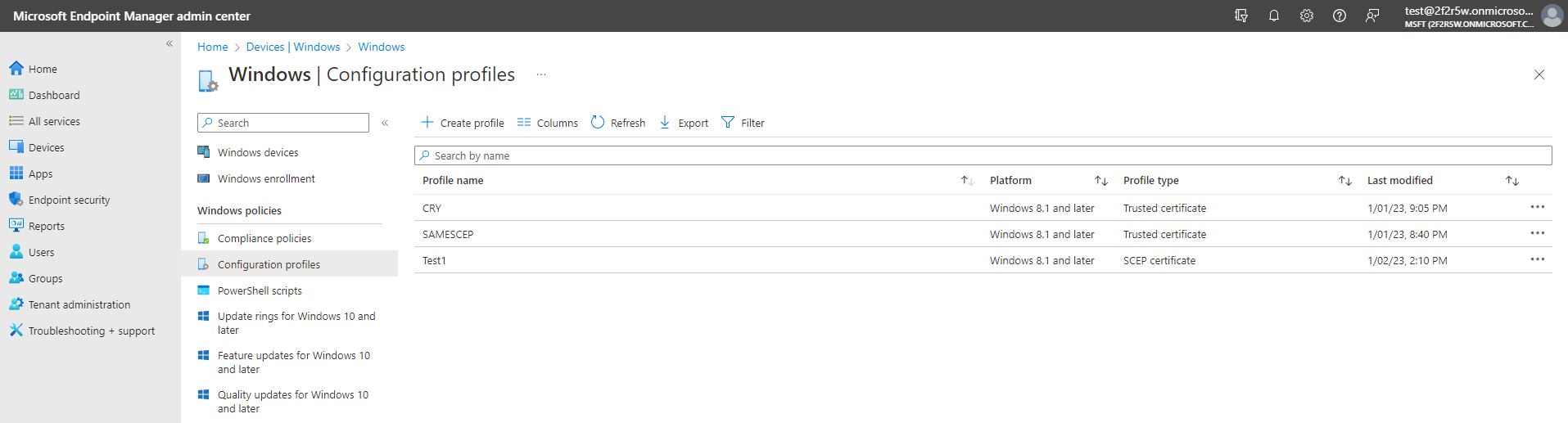
Select: Devices > Windows > Configuration profiles.
-
Click the + Create profile button.
-
Select your desired Windows Platform.
-
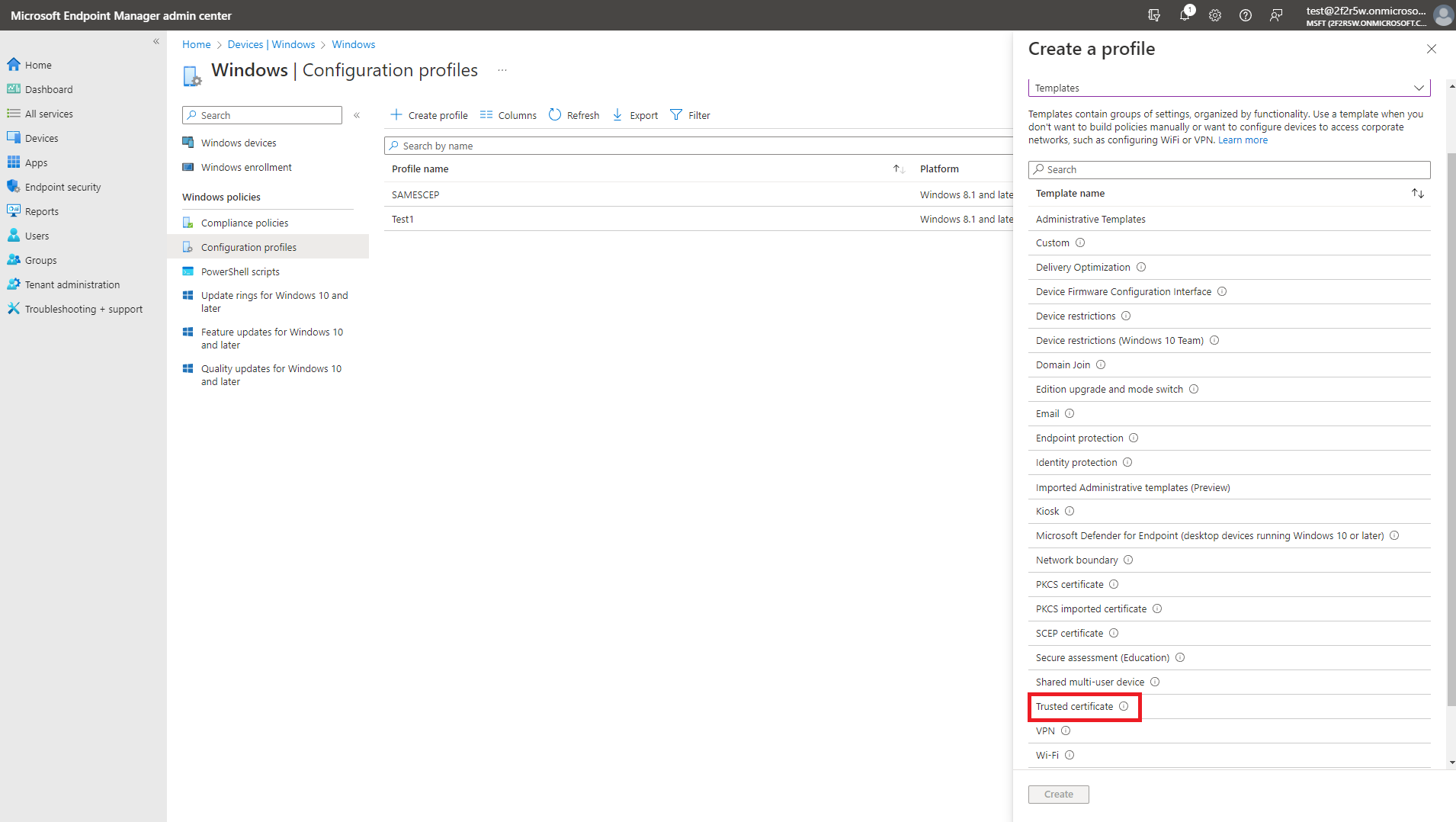
Select Templates as the profile type.
-
Select the Trusted Certificate template.
-
Click Create.
-
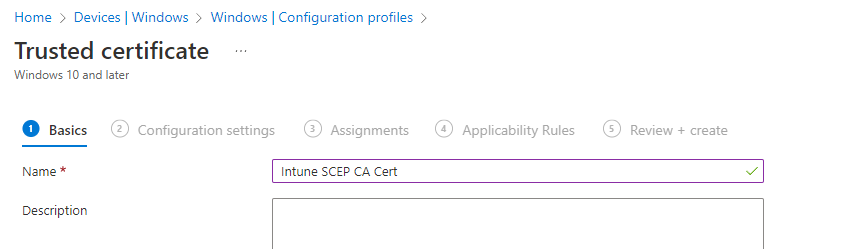
Enter the Name and Description for this Intune certificate profile and click Next.
-
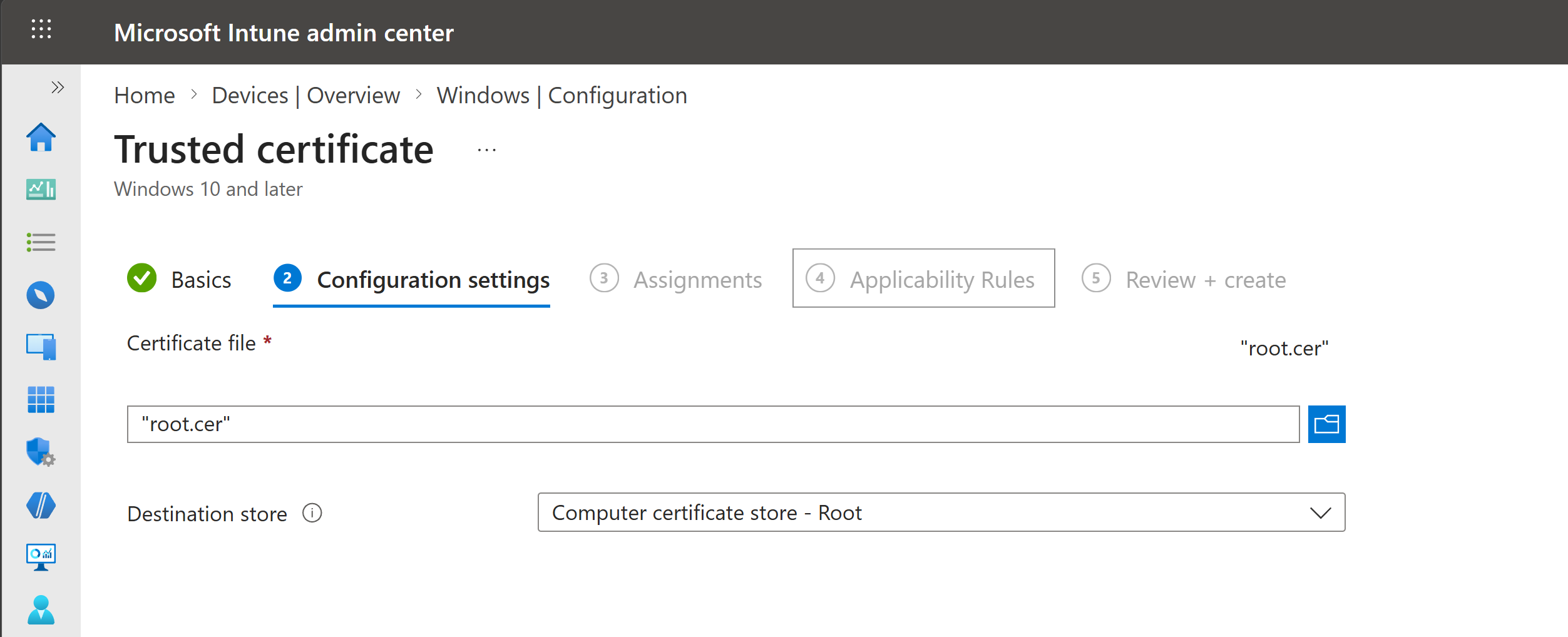
Upload the CA Certificate you downloaded from EZCA.
-
For the certificate store, select Computer certificate store - Root if this is a Root CA or Computer certificate store - Intermediate if this is a Subordinate/Issuing CA.
-
Set your desired Assignments and Applicability Rules for this profile and click Next.
-
Review your profile settings and click Create.
-
Repeat these steps for each CA certificate in your chain (Root CA, Intermediate CA(s), and Issuing CA as applicable, with the correct certificate store for each one).
-
Done! Your managed Windows devices will now trust the CA you created in EZCA and any certificates issued from it.
How to Create an Intune SCEP Profile for Windows Device Certificates
You can issue either device certificates or user certificates, depending on your scenario:
- Use device certificates for machine identity and pre-logon authentication (for example, wired/wireless access before user sign-in).
- Use user certificates for user identity use cases (for example, email signing or VPN that prompts after sign-in).
- If needed, deploy both profile types.
Use the tabs below for the profile type you want to configure.
How to Create an Intune SCEP Profile For Device Certificates
The following steps will guide you on how to create an Intune SCEP profile to issue device certificates to your Windows devices.
-
Go back to the Windows configuration profiles page and click the Create profile button.
-
Select your Windows Platform.
-
Select Templates as the profile type.
-
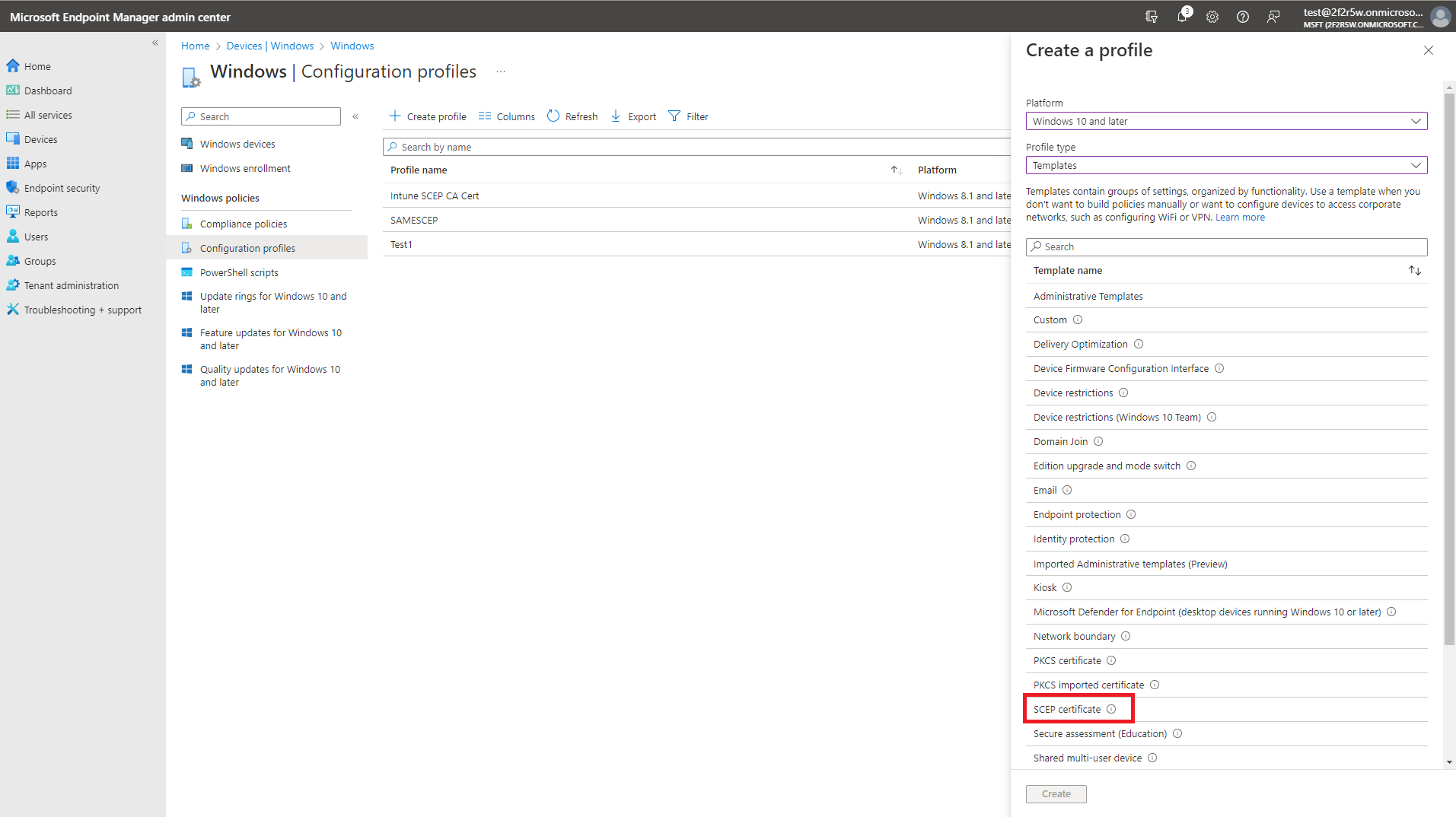
Select the SCEP Certificate template.
-
Click Create.
-
Enter the Name for this Intune SCEP profile.
-
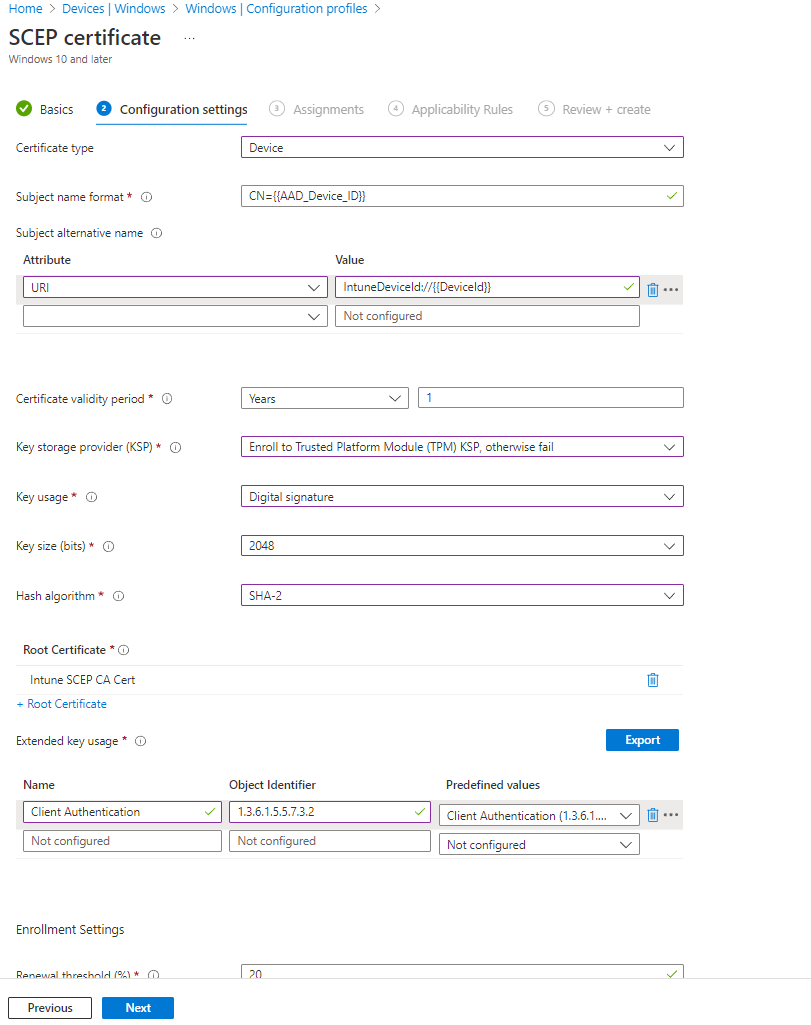
For Certificate type, select Device.
-
For Subject name format, enter
CN={{AAD_Device_ID}}orCN={{DeviceId}}depending on your preference. Intune replaces these variables with the actual device ID at enrollment time.{{AAD_Device_ID}}uses the Azure AD device ID (recommended in most cases).{{DeviceId}}uses the Intune device ID.
-
For Subject Alternate Name, select URI attribute and enter
IntuneDeviceId://{{DeviceId}}as the value. -
If the Subject name format is not
CN={{AAD_Device_ID}}, we recommend adding a second Subject Alternative Name with URI set toAzureDeviceId://{{AAD_Device_ID}}. This helps hybrid-joined devices include the required extension for KB5014754. -
For Certificate Validity Period, enter the same period you used for your EZCA SCEP CA certificate validity period.
Custom Validity PeriodsEZCA will always use the certificate validity period you set in the CA. If you set a different value in Intune it will be ignored due to this value not being supported in Apple devices.
As a workaround, if you want to change the validity period for a specific Intune profile, you can add a DNS SubjAltName with the value
keytosEZCAValidity=365where the number is the number of days for that specific certificate. Note that this number has to be lower than the number set in EZCA. If it is larger it will be ignored and the certificate will get the validity period set in EZCA.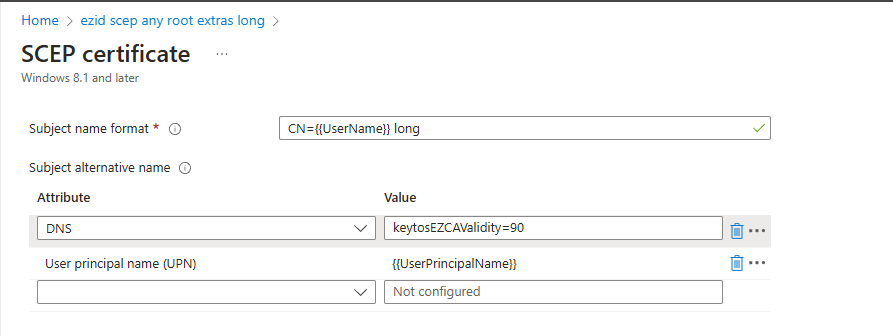
-
For Key Storage Provider (KSP), we recommend Enroll to Trusted Platform Module (TPM) KSP, otherwise fail. However, if you want to support PCs without a TPM and are ok with the risk of software based keys, feel free to use one of the other options.
Note on TPM-backed certificates with legacy applicationsSome customers have reported issues with the TPM stored certificates not being accessible by some applications such as VPN clients (including Azure VPN). If you are experiencing this issue, you can use the Enroll to Software KSP option.
-
For Key Usage, select both Digital Signature and Key Encipherment.
-
For Key Size, select 2048.
-
For Hash Algorithm, select SHA-2.
-
In the Root Certificate field, click + Root Certificate and select the issuing CA you created in the Create Trusted Certificate Profile section.
Make sure to select your Issuing CAWhile it says Root Certificate, if you created a Subordinate/Issuing CA as part of a multi-tier CA hierarchy, you must select the Issuing CA profile not the Root CA.
-
For Extended Key Usage select Client Authentication (1.3.6.1.5.5.7.3.2).
-
Feel free to leave the Renewal Percentage at 20% or increase it to a value you feel comfortable with. This is the lifetime remaining before Intune attempts to renew the certificate. For example, if you set it to 20% and your certificate validity period is 1 year, Intune will attempt to renew the certificate when it has 2.4 months remaining before expiration.
-
Review your settings, it should look something like this:
-
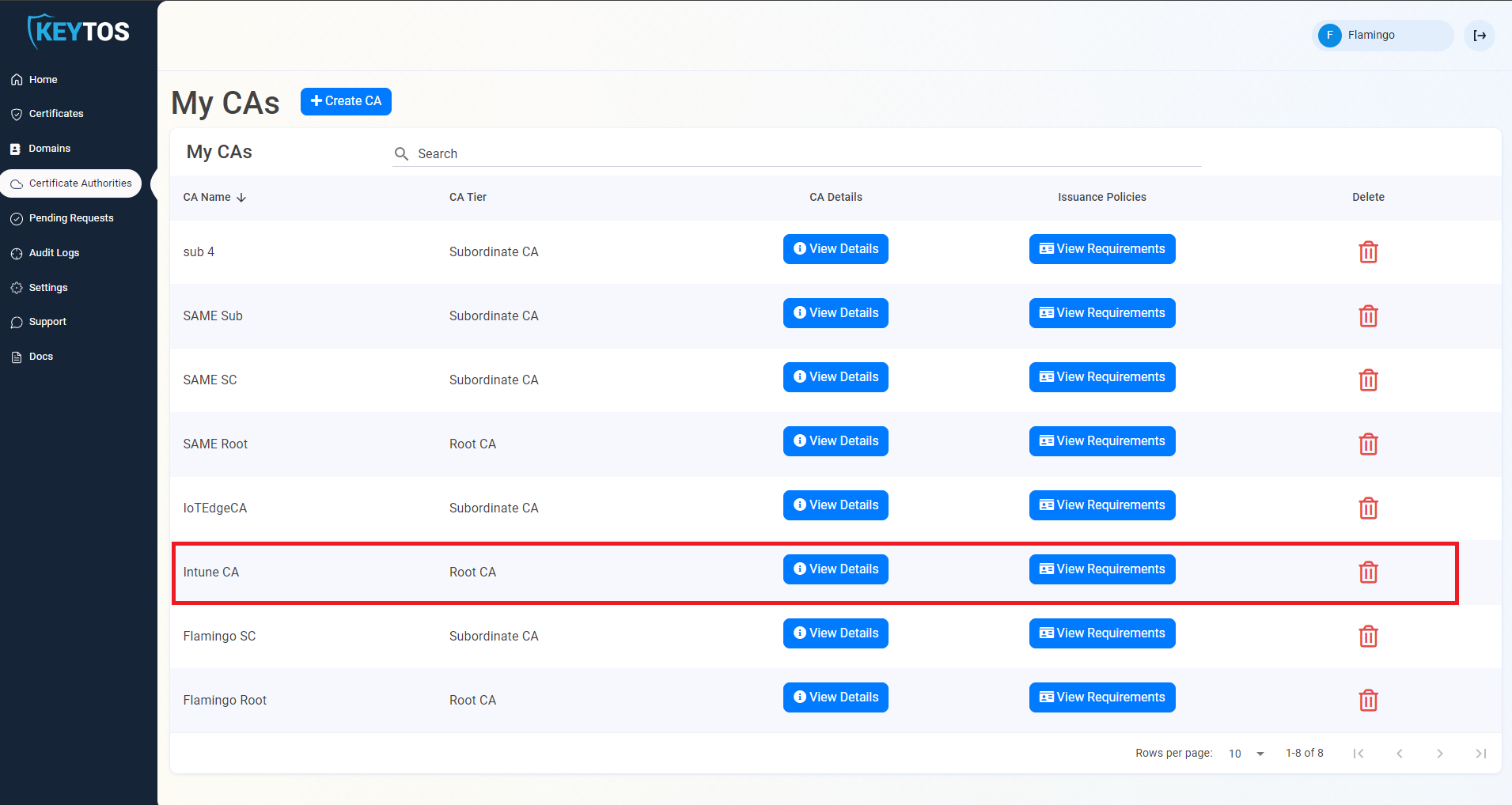
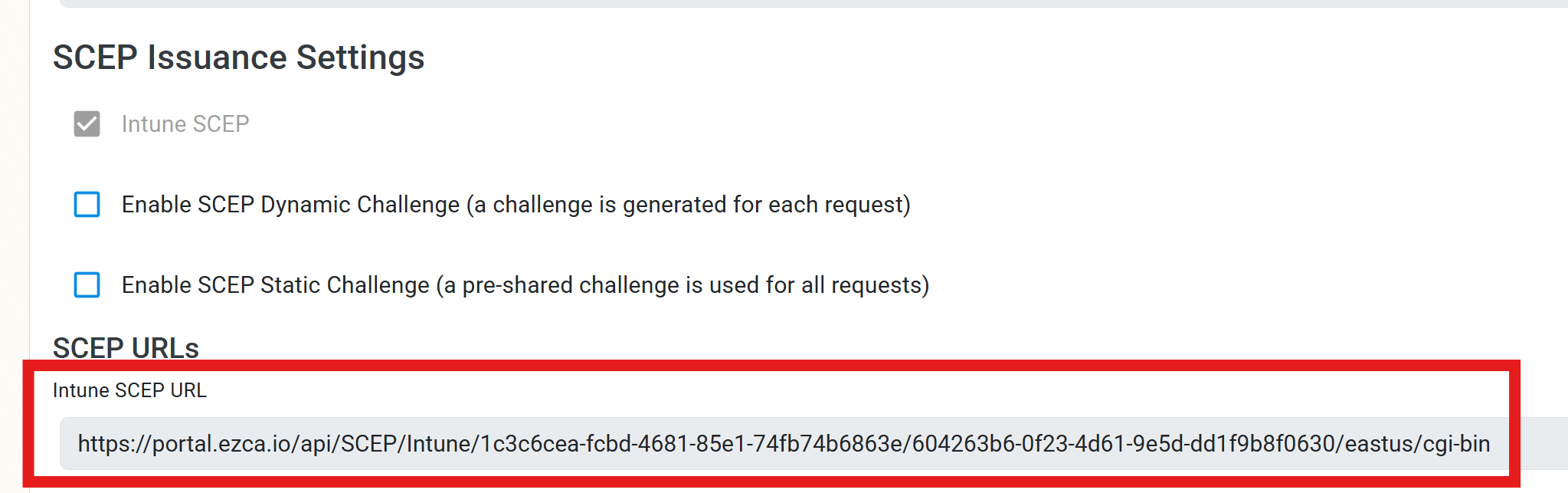
The last step is to get the SCEP Server URLs from EZCA. For this we will go back to your EZCA Portal, click on Certificate Authorities and select the View Requirements button for your Intune CA.
-
Copy the Intune SCEP URL for your CA.
-
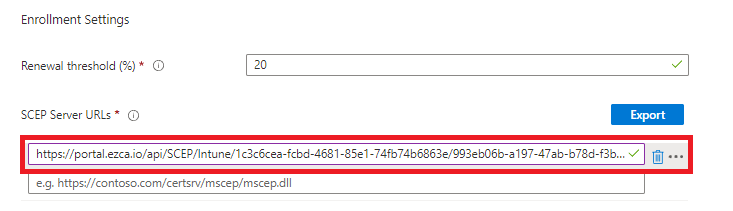
Go back to your Intune Portal tab, and paste the URL in the SCEP Server URLs section.
-
Click Next.
-
Select your Assignments and Applicability Rules for this profile and click Next.
-
Review your profile settings and click Create.
-
Done! Your managed Windows devices will now start receiving device certificates issued from your EZCA SCEP CA based on the assignment and applicability rules you set.
How to Create an Intune SCEP Profile For User Certificates
The following steps will guide you on how to create an Intune SCEP profile to issue user certificates to your Windows devices.
-
Go back to the Windows configuration profiles page and click the Create profile button.
-
Select your Windows Platform.
-
Select Templates as the profile type.
-
Select the SCEP Certificate template.
-
Click Create.
-
Enter the Name for this Intune SCEP profile.
-
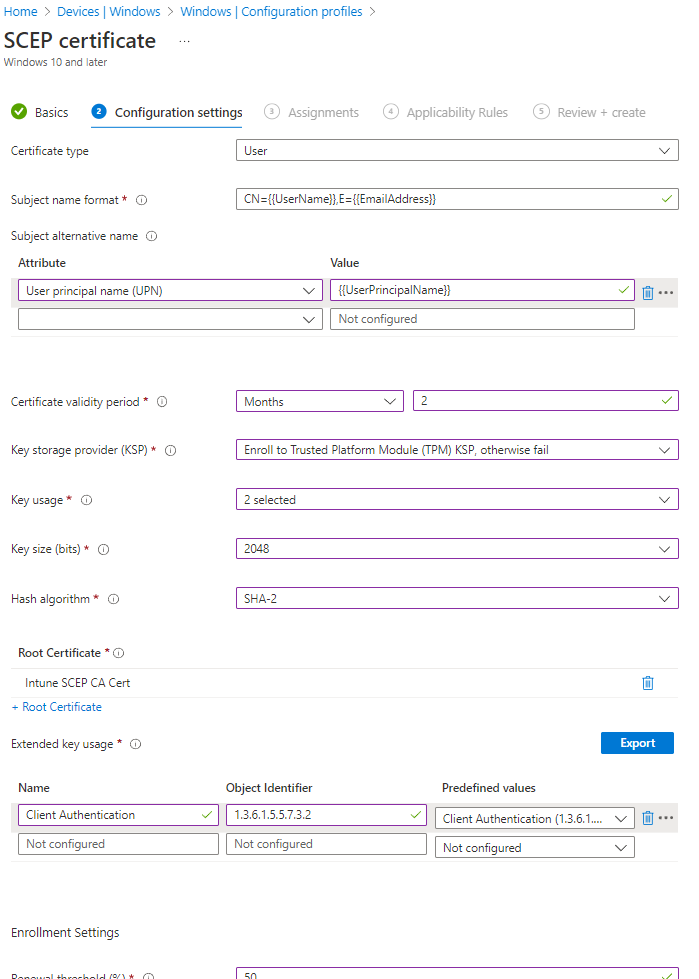
For Certificate type, select User.
-
For Subject name format we will leave
CN={{UserName}},E={{EmailAddress}}as the default value. This will use the user’s UPN as the CN and their email address as the E in the subject. You can customize this if you want to use a different format or include other attributes, but this is a common format for user certificates. -
In the Subject Alternate Name we will select the User Principal Name (UPN) attribute and enter
{{UserPrincipalName}}as the value. This will add the user’s UPN as a SAN in the certificate which is required for some use cases such as email signing. -
For Certificate Validity Period, enter the same validity period you entered in EZCA.
Custom Validity PeriodsEZCA will always use the certificate validity period you set in the CA. If you set a different value in Intune it will be ignored due to this value not being supported in Apple devices.
As a workaround, if you want to change the validity period for a specific Intune profile you can add a DNS SubjAltName with the value
keytosEZCAValidity=365where the number is the number of days for that specific certificate. This number has to be lower than the number set in EZCA. If it is larger it will be ignored.
-
For Key Storage Provider (KSP), we recommend either Enroll to Trusted Platform Module (TPM) KSP, otherwise fail or Enroll to Software based KSP depending on your use case. If you need to support PCs without TPM and accept software-based keys, choose another option.
Note on TPM-backed certificates with legacy applicationsSome customers have reported issues with TPM-stored certificates not being accessible by some applications such as VPN clients (including Azure VPN). If you experience this issue, use Enroll to Software KSP.
-
For Key Usage, select both Digital Signature and Key Encipherment.
-
For Key Size, select 2048.
-
For Hash Algorithm, select SHA-2.
-
In the Root Certificate field, click + Root Certificate and select the CA you created in the Create Trusted Certificate Profile section.
Make sure to select your Issuing CAWhile it says Root Certificate, if you created a Subordinate/Issuing CA as part of a multi-tier CA hierarchy, you must select the Issuing CA profile not the Root CA.
-
For Extended Key Usage, select Client Authentication (1.3.6.1.5.5.7.3.2).
-
Feel free to leave the Renewal Percentage at 20% or increase it to a value you feel comfortable with. This is the lifetime remaining before Intune attempts to renew the certificate. For example, if you set it to 20% and your certificate validity period is 1 year, Intune will attempt to renew the certificate when it has 2.4 months remaining before expiration.
-
Review your settings, it should look something like this:
-
The last step is to get the SCEP Server URL from EZCA. For this we will go back to your EZCA Portal, click on Certificate Authorities and select View Requirements for your Intune CA.
-
Copy the Intune SCEP URL.
-
Go back to your Intune Portal tab, and paste the URL in the SCEP Server URLs section.
-
Click Next.
-
Set your desired Assignments and Applicability Rules for this profile and click Next.
-
Review your profile settings and click Create.
-
Done! Your managed Windows devices will now start receiving device certificates issued from your EZCA SCEP CA based on the assignment and applicability rules you set.