How-To: Add a Default/Fallback RADIUS Policy That Matches When No Other Policies Match
Overview - How to Add a Default/Fallback RADIUS Policy
When designing your RADIUS architecture in EZRADIUS, it’s important to consider what happens when a user’s authentication request does not match any of your defined access policies. By default, if no access policies match an authentication request, the request will be rejected and the user will not be authenticated to the network. However, you may want to have a default or fallback access policy that matches any incoming authentication request with a valid certificate or valid Entra ID credentials, even if the request does not meet the specific conditions of your other access policies. This default/fallback policy can be used to ensure that users are still able to authenticate to the network and get some level of access, even if their device or user attributes do not match any of your more specific access policies.
When Should I Use a Default/Fallback RADIUS Policy?
Let’s explore a few examples of when this is useful:
- Non-Compliant Devices: If you have access policies that place compliant devices in a secure VLAN and restrict non-compliant devices, you may want a default/fallback policy that allows non-compliant devices to authenticate and places them in a separate VLAN with restricted access, rather than rejecting their authentication requests entirely. This way the device can still connect to the internet to download updates and become compliant, rather than being completely blocked from the network.
- New Groups or Attributes: If you are using access policies that match on specific user groups or device attributes, you may want a default/fallback policy to catch any authentication requests from users or devices that do not yet have the necessary group memberships or attributes to match your other policies. This can be especially useful for architectures that rely heavily on Entra ID group membership for access policies, as new users or devices may not be added to the correct groups right away. The default/fallback policy can allow these users or devices to authenticate and get access while you troubleshoot and resolve any issues with group memberships or attributes.
What Should I Be Careful of When Using a Default/Fallback RADIUS Policy?
While a default/fallback RADIUS policy can be useful for ensuring that users are still able to authenticate to the network even when their requests do not match any of your specific access policies, it’s important to be careful when configuring this type of policy. Since a default/fallback policy will match any authentication request with valid credentials, it can potentially allow access to users or devices that you may want to restrict. Therefore, it’s important to carefully consider the conditions and permissions you set in your default/fallback policy to ensure that it provides a reasonable level of access while still maintaining the security of your network. For example, you may want to restrict the VLAN assignment or access permissions for the default/fallback policy to limit the potential impact of allowing access for unmatched authentication requests.
Can I Allow Unauthenticated Guests On My Network with a Default/Fallback RADIUS Policy?
Not currently. All access policies in EZRADIUS require either a valid certificate or valid Entra ID credentials to match and allow authentication. Therefore, you cannot create an access policy that allows unauthenticated guests to access your network without any credentials.
Prerequisites for Implementing a Default/Fallback RADIUS Policy
To implement a default/fallback RADIUS policy in your EZRADIUS architecture, ensure you have the following prerequisites in place:
- You have an active EZRADIUS subscription.
- You have defined your other access policies in EZRADIUS that you want the default/fallback policy to catch authentication requests that do not match those policies.
How to Implement a Default/Fallback RADIUS Policy
To implement a default/fallback RADIUS policy in EZRADIUS, follow these steps:
- Navigate to your EZRADIUS portal
- From the left-hand menu, select Policies
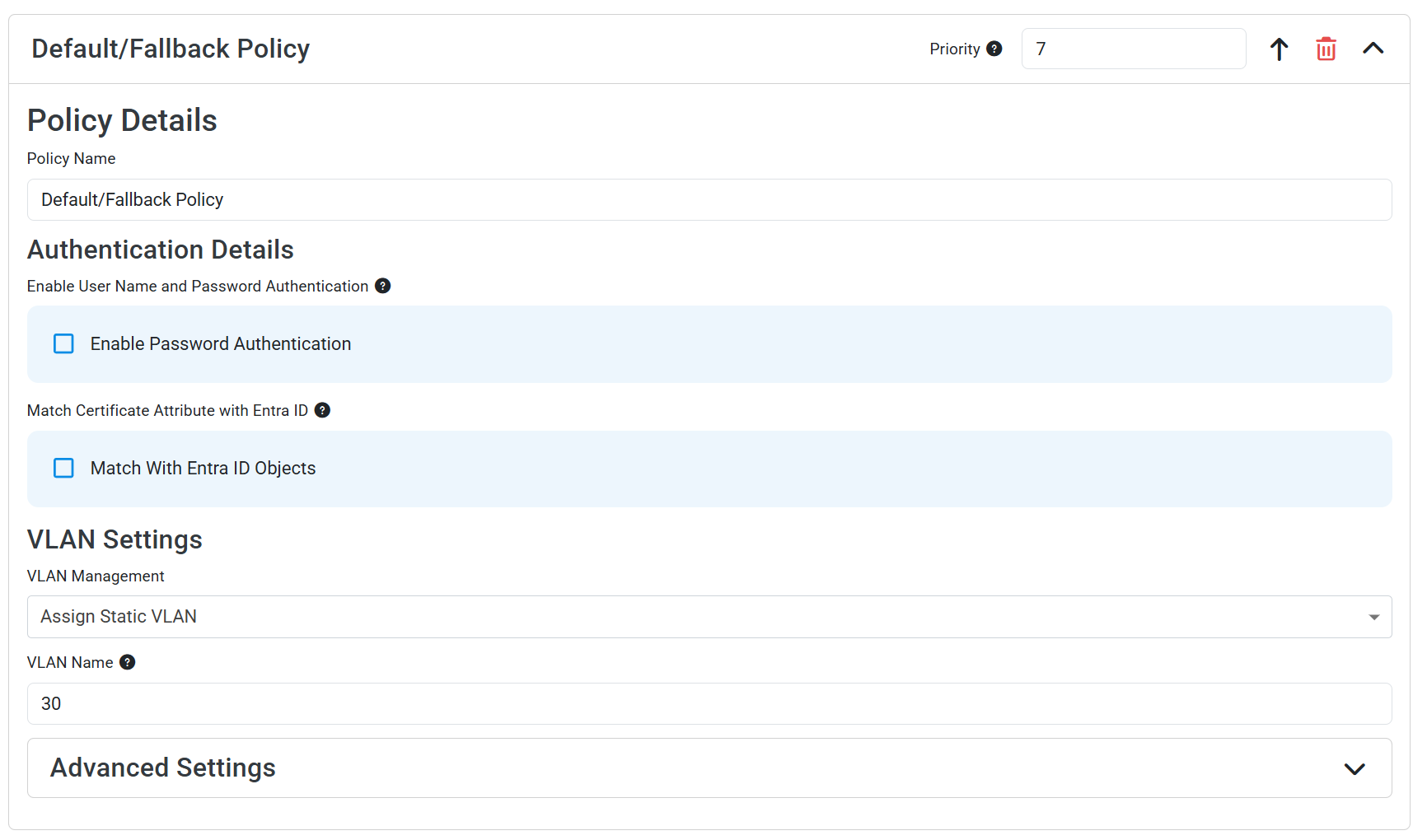
- In either a new or existing policy, add a new Access Policy with the following settings:
- Policy Name: Enter a name that indicates this is your default or fallback policy (e.g., “Default Fallback Policy”)
- Enable Password Authentication: Set to your desired authentication method. When unchecked, the policy will only match authentication requests with any valid certificates. When checked, the policy will match authentication requests with valid Entra ID credentials
- Enable Identity Provider (IDP) Delegation: Check this box to allow users to authenticate with Entra ID credentials
- Optionally set a VLAN assignment or leave blank if your network assigns a default VLAN with limited access
- Click Add Policy to add your access policy
- Make sure this default/fallback policy is the last policy in your list of access policies, so that it only matches authentication requests that do not match any of your other policies.
You should now have an access policy that looks like this. This policy will match any authentication request that has valid credentials but does not match any of your other access policies, and it will allow those users to authenticate to the network with the permissions you have set in this default/fallback policy.