How-To: Control RADIUS Policies and Behavior Based on SSID Name
Overview - How to Control Authentication and Access Policies Based on SSID Name
In this pattern, you can use EZRADIUS to control RADIUS policies and behavior based on the SSID name that a device is connecting to. This approach allows you to create different access policies for different SSIDs, enabling you to segment your network and apply specific authentication and authorization rules based on the network a device is connecting to. For example, you could have one SSID for corporate-owned devices that requires certificate-based authentication and places devices in a secure VLAN, and another SSID for BYOD devices that uses Entra ID authentication and places devices in a separate VLAN with more restricted access.
How Does EZRADIUS Identify the SSID a Device is Connecting To?
While it depends on your specific network vendor and setup, the SSID of a network is usually included in the RADIUS request as an attribute, such as the Called-Station-ID or another vendor-specific attribute. In EZRADIUS, you can use Matching Attributes in your access policies to check for the presence of the SSID name in the appropriate RADIUS attribute. By configuring your access policies to match on the SSID name, you can apply different authentication and authorization rules based on which SSID a device is connecting to.
Note that every network vendor and setup might be different, so you should check with your network vendor to understand how the SSID name is included in RADIUS requests in your specific environment and how to control that if needed.
Prerequisites for Implementing SSID-Based RADIUS Policies
To implement this architecture, ensure you have the following prerequisites in place:
- Your network infrastructure must include RADIUS attributes that indicate the SSID name for incoming authentication requests. This may require configuration on your wireless access points. Refer to your network vendor’s documentation for details on how to include the SSID name in RADIUS requests.
- You have an active EZRADIUS subscription.
How to Implement SSID-Based RADIUS Policies
To match on SSID name in your EZRADIUS access policies, follow these steps:
- Navigate to your EZRADIUS portal
- From the left-hand menu, select Policies
- In either a new or existing policy, add a new Access Policy with the following settings:
- Policy Name: Enter a name that indicates which SSID this policy is for (e.g., “Corporate SSID Policy”)
- Enable Password Authentication: Set to your desired authentication method.
- Match With Entra ID Objects: Check this box if you want to match with Entra ID objects. (in addition to matching on SSID name)
- Advanced Settings: Expand this section
- Under Matching Attributes in Request, set:
- Attribute Type: Select the RADIUS attribute that contains the SSID name (e.g., Called-Station-ID or a vendor-specific attribute)
- Value: Enter the SSID name that you want this policy to match on (e.g., “Contoso-Corp”)
- Matching Scheme: Set to “Contains”, as Called-Station-ID typically contains the SSID name along with other information (e.g., MAC address). You want to check if the SSID name is present anywhere in the attribute value.
- Matching Group: Leave as the default value
- Click Add Attribute to add the matching attribute to your policy
- Click Add Policy to add your access policy
- Make sure to save your RADIUS policy to apply the changes
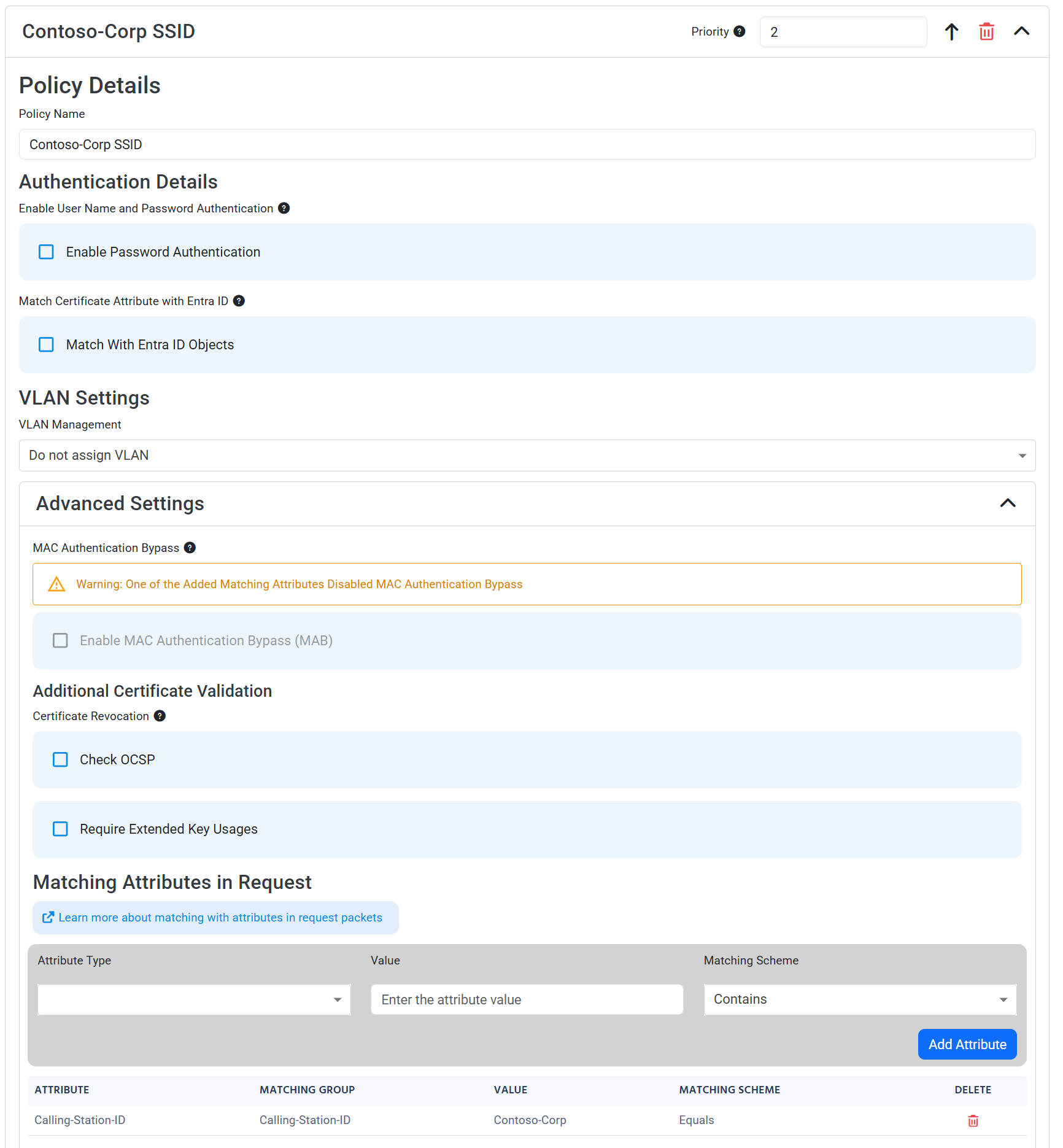
You should now have an access policy that looks like this. Note that in this example the access policy matches on both a valid certificate issued by a trusted CA and the presence of the “Contoso-Corp” SSID name in the Called-Station-ID attribute of the RADIUS request. Your access policy might use Entra ID authentication instead of certificate-based authentication, and it might match on a different RADIUS attribute that contains the SSID name, but the key part is that you have an attribute match that checks for the SSID name in the RADIUS request. You can create multiple access policies that each match on different SSID names to apply different authentication and authorization rules based on which SSID a device is connecting to.